






ZealSchedule
Embed ZealSchedule in Webflow to let visitors book and pay for appointments without leaving your site.
Webflow forms collect names, emails and messages, but they don't show open time slots or book appointments. A visitor who wants a Tuesday consultation submits a form and waits for a reply. Confirmation and reminder emails each need a separate system, as does payment at booking. ZealSchedule covers that scheduling layer.
Booking and payment run inside your Webflow page through a Code Embed element, while ZealSchedule sends confirmations and reminders afterward. ZealSchedule handles availability and staff routing. Visitors pick a slot, enter their details, and pay on the same page. ZealSchedule then sends the confirmation and reminder messages; email and SMS notification templates start on the Cupcake plan. A backend built on the Webflow Data API pushes form submissions into ZealSchedule and writes bookings into the Webflow CMS.
ZealSchedule serves solo providers and teams at agencies or recruiting organizations. Agencies building sites for salons, clinics, or fitness businesses get client booking with staff routing and no custom backend. Recruiting and operations teams link candidates to a hosted booking page from a careers site. The pairing suits clinics and gyms that want a slot picker where the contact form used to sit.
How to integrate ZealSchedule with Webflow
What is ZealSchedule? ZealSchedule is online appointment scheduling software for businesses and professionals. Clients choose an available slot, and the system sends confirmation emails and reminder notifications. Payments run through Stripe, Square, or Razorpay, and it connects to HubSpot CRM.
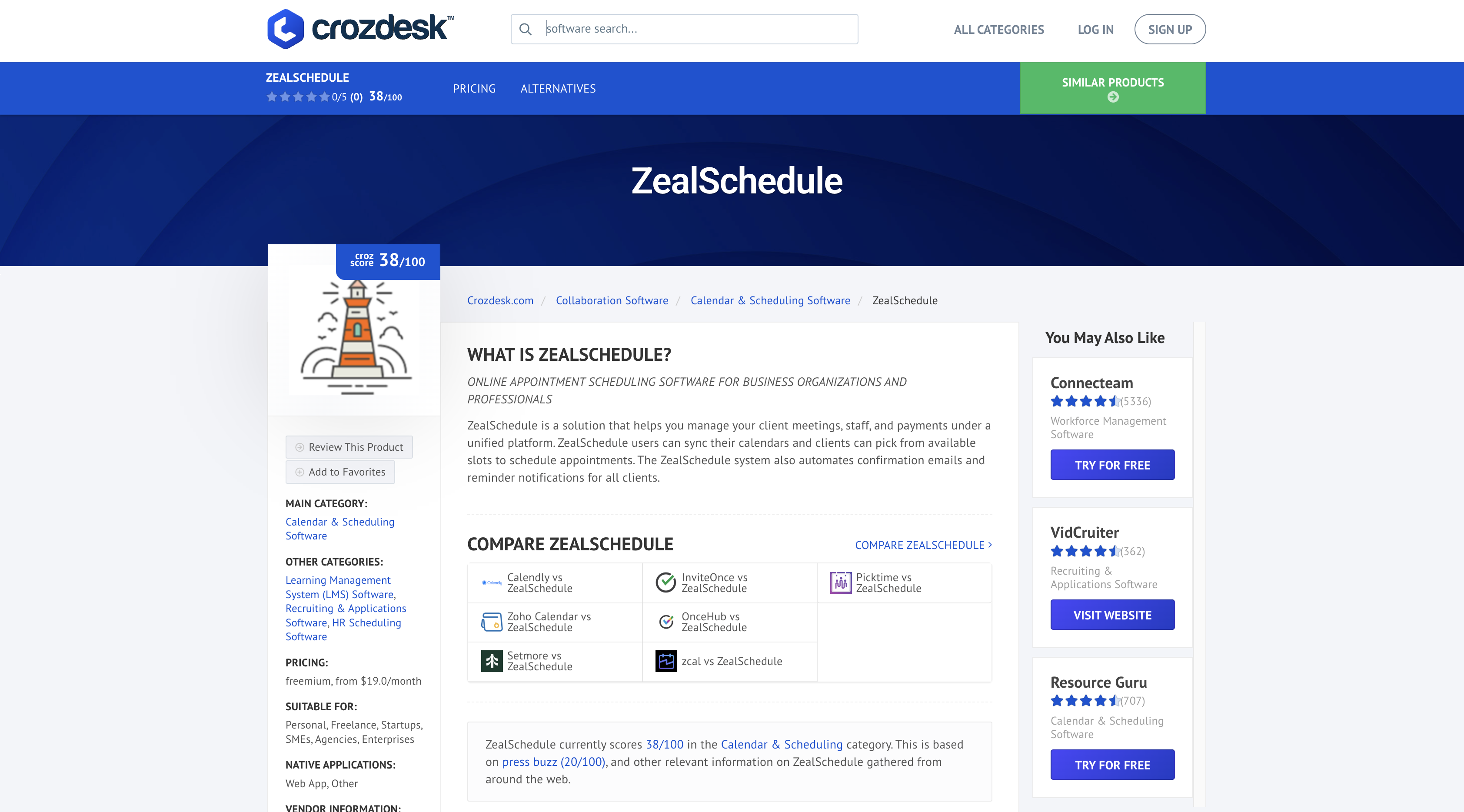
Teams pair the two when a Webflow site is the marketing front end, and ZealSchedule holds the calendar. A salon site built in Webflow needs a widget where clients pick a stylist and a time. A B2B landing page needs a demo slot picker where the contact form used to sit. In both cases, the page stays in Webflow, and the scheduling rules stay in ZealSchedule.
The ZealSchedule-Webflow integration supports three approaches:
- The ZealSchedule booking link sends visitors to a hosted booking page from any Webflow button, with no custom code.
- Code Embed elements place the ZealSchedule booking widget inline on a Webflow page.
- The Webflow and ZealSchedule APIs support custom form routing and CMS sync but require server-side development.
Most implementations combine two or more of these methods depending on the complexity of the setup.
Add ZealSchedule booking with links and Code Embed elements
The hosted link and the embed widget are the no-code paths because ZealSchedule has no app in the Webflow Marketplace. Copy the generated HTML from the ZealSchedule dashboard and paste it into a Code Embed element. The widget lets clients select appointments and enter their information, then processes payment. Solo providers and marketing teams at agencies without developer time should start here.
Link to a hosted ZealSchedule booking page
ZealSchedule lets you share a personalized booking link or booking page. A standard button on your Webflow site opens it. This path needs no custom code, so it works on the free Starter Site plan publishing to a .webflow.io subdomain. It also works on ZealSchedule's free Muffin tier. Careers pages that let candidates self-schedule interviews are a typical fit.
To link a booking page:
- Copy your booking page link from your ZealSchedule account.
- In Webflow, add a Button or Link Block element to the page.
- In the element settings, set the link type to URL and paste the booking link.
- Publish the site.
Visitors complete the booking on ZealSchedule's hosted page, so they leave your domain until they finish.
Embed the booking widget with a Code Embed element
The inline widget keeps the whole booking flow on your page. You need a Core, Growth, Agency, or Freelancer Workspace to use the Code Embed element. An active paid Site plan works too. ZealSchedule's free Muffin tier includes embed widget support. Customize the widget's appearance under Settings > Widgets > Appearance before you generate the code.
To embed the widget:
- In ZealSchedule, open Settings > Widgets > Appearance and style the widget.
- Go to Settings > Widgets > Embed and select the service you want to offer.
- Copy the generated HTML code.
- In Webflow, open the Add panel and drag a Code Embed element onto the page.
- Paste the code, then save and close the modal.
- Publish the site.
The Code Embed element accepts:
- HTML, CSS inside
<style>tags, and JavaScript inside<script>tags - Up to 50,000 characters per element
- Client-side code only; server-side languages do not run
When the snippet contains a <script> tag, the canvas shows a placeholder until you publish. Add height="100%" width="100%" to the embed code to size it from the Style panel. That only works when the parent element has a defined size. Bookings placed in the widget stay in ZealSchedule and never reach Webflow form submissions. If ZealSchedule gives you a popup script instead of an inline snippet, follow Custom code in head and body tags and paste it in Page settings > Before </body> tag.
Build with the Webflow and ZealSchedule APIs
CMS sync and form routing need a server you control. Webflow API v1 has been deprecated since March 31, 2025, so use Data API v2 paths only. ZealSchedule offers API access on its Pastry plan but publishes no endpoint reference or authentication scheme. Request those details from support@zealoffice.com before you scope the build.
Available APIs:
- ZealSchedule API access handles appointments and availability on the Pastry plan; request endpoint documentation from ZealSchedule support
- Webflow's Data API handles CMS collections and form submissions
- Webflow webhooks send real-time site events to your backend
Don't put secret credentials in a Code Embed element. Run API calls from a serverless function such as Vercel Functions. A Webflow Cloud app works too, within its documented limits.
Authenticate against https://api.webflow.com with a bearer token in the Authorization header. A Site Token requires the site admin role. Use OAuth instead when one integration serves many sites.
Route Webflow form submissions to ZealSchedule
A Webflow form can collect additional intake data alongside the booking. A clinic site takes patient history in a form, then your backend creates the appointment in ZealSchedule. A demo landing page does the same for sales leads. The form_submission webhook fires on every submission and is the only trigger type that supports a filter, by form name. Creating the webhook requires the sites:write scope, while access to the form_submission event requires the forms:read scope.
To route submissions:
- Create a Site Token, or authorize an OAuth app with the
sites:writeandforms:readscopes. - Register the webhook with
POST https://api.webflow.com/v2/sites/{site_id}/webhooksand this body:CODEBLOCK_0 - In your endpoint, verify the
x-webflow-signatureheader, an SHA-256 HMAC, and checkx-webflow-timestamp. - Read the fields in
payload.data, such asFirst Name,Last Name, andemail, and call the ZealSchedule API to create the appointment or contact. - Write the ZealSchedule booking ID back to the submission with
PATCH /v2/sites/{site_id}/form_submissions/{form_submission_id}(scopeforms:write).
If your backend cannot accept inbound requests, poll GET /v2/sites/{site_id}/forms/{form_id}/submissions instead. Use limit (max 100) and offset for pagination.
Sync booking records into Webflow CMS collections
A schedule page that lists this week's classes or open consultation slots needs ZealSchedule data inside the CMS. ZealSchedule does not document outbound webhooks, so poll its API for new and updated bookings. Your backend writes each result into a Bookings collection with the cms:write scope. Bind a Collection List on the schedule page to that collection.
To sync bookings:
- List collections with
GET /v2/sites/{site_id}/collections, or create one withPOST /v2/sites/{site_id}/collections. - Add fields for service, staff member, start time, and status with
POST /v2/collections/{collection_id}/fields. - Poll ZealSchedule's API on a fixed interval and map each booking to those fields.
- Create a live item with
POST /v2/collections/{collection_id}/items/live. SendfieldDataat the top level.nameandslugare required:CODEBLOCK_1 - Update a rescheduled booking with
PATCH /v2/collections/{collection_id}/items/{item_id}/live. - Unpublish a cancelled booking with
DELETE /v2/collections/{collection_id}/items/{item_id}/live.
The staged path works too. Send POST /v2/collections/{collection_id}/items, then POST /v2/collections/{collection_id}/items/publish with itemIds, then POST /v2/sites/{site_id}/publish (scope sites:write). A create request that carries both fieldData and an items array returns 400, so pick one shape per call.
What can you build with the ZealSchedule Webflow integration?
Integrating ZealSchedule with Webflow lets you take appointments and payments on your own pages without building a booking backend or sending visitors to a separate scheduling site.
- Salon or clinic booking page with staff routing: Embed a service-specific widget on each treatment page of a spa site. ZealSchedule's Assignor feature routes each appointment to the relevant team or staff member automatically.
- Paid coaching sessions on a course site: An online educator embeds the widget on a Webflow lesson page with Stripe, Square, or Razorpay connected in ZealSchedule. Students book and pay in the same step, and ZealSchedule handles the reminders from the Cupcake plan up.
- Careers page with self-scheduled interviews: A Webflow careers site links each open role to a hosted ZealSchedule booking page. Candidates choose an interview slot and receive automated confirmations, with no scheduling email thread.
- Fitness studio schedule synced to the CMS: A backend polls ZealSchedule's API and writes classes into a Bookings collection. A Collection List on the schedule page shows the week's sessions, filtered by status, and cancelled classes can be unpublished so they drop off the list.
Use the API integration path to control availability display and intake routing.
Frequently asked questions
Use a hosted booking link, a Code Embed widget, or custom API work because ZealSchedule has no app in the Marketplace scheduling category. Start with the Code Embed method above.
You need a paid Workspace on the Core, Growth, Agency, or Freelancer tier to use the Code Embed element. An active paid Site plan works too. The free Starter Site plan publishes only to a
.webflow.iosubdomain. Custom code needs an eligible paid Workspace or paid Site plan, per the Site plan guide. If you later downgrade to free, the code stays on the site. You cannot view or edit it until you return to a paid plan. The hosted booking link method has no plan requirement.The snippet contains a
<script>tag. Code wrapped in<iframe>or<style>tags previews on the canvas. A<script>tag renders only a placeholder until you publish, as the Code Embed documentation explains. Publish the site and open the live URL to check the widget. Support does not troubleshoot custom code, so test the snippet on a staging page first.No. Widget bookings stay inside ZealSchedule, and an embedded widget cannot write to the CMS without a backend. Only native form elements store submissions, send notification emails, or route data through connected apps, per the Forms overview. To capture intake data alongside a booking, add a Webflow form. Register a
form_submissionwebhook with the Create Webhook endpoint.Zapier, Make, n8n, IFTTT, and viaSocket can connect the services through generic HTTP or webhook steps. Each lists a Webflow connector but does not list ZealSchedule. Native ZealSchedule connectors are unavailable, so use these generic HTTP/webhook workarounds:
- Trigger: New Webflow Form Submission → Action: Send an HTTP request to ZealSchedule.
- Trigger: Poll ZealSchedule for a new booking → Action: Create a Webflow CMS item.
ZealSchedule publishes no outbound webhook contract, so poll its API for new bookings. API-based bridges need ZealSchedule's Pastry plan. Zapier connections are listed from the free Muffin tier. Request the API documentation from support@zealoffice.com, then follow the form-routing steps above with the Create Webhook endpoint.
Description
Embed the ZealSchedule booking widget with a [Code Embed](https://help.webflow.com/hc/en-us/articles/33961332238611-Custom-code-embed) element so visitors can book and pay on your Webflow page, or link to a ZealSchedule-hosted booking page.
This integration page is provided for informational and convenience purposes only.

Bookla
Connect Bookla with Webflow to take appointment, class, and ticket bookings directly on your site.

Flowstar Open Hours Widget
Connect the Flowstar Open Hours Widget with Webflow to show accurate, timezone-aware business hours on any page without code.

SimplyBook
Connect SimplyBook widgets directly into Webflow pages using custom code embed elements for immediate booking functionality.

Microsoft Outlook
Send Webflow form submissions and orders to Outlook mail, contacts, and calendars with Zapier, Make, or Microsoft Graph, and embed Microsoft Bookings pages.

Hostaway
Connect Hostaway with Webflow to add live rental search, availability calendars, and reservation data to a Webflow site.

Cal.com
Connect Cal.com with Webflow to let visitors book meetings from live availability on any page.

Google Meet
Connect Google Meet, Google's video conferencing platform, with Webflow to embed scheduling widgets, generate Meet links from form submissions, and store meeting data in CMS collections.
Acuity Scheduling
Connect Acuity Scheduling with Webflow to add client booking, scheduling, and appointment management to your site.

FlowBookings
Connect FlowBookings, a booking management platform built for Webflow, to accept appointments and reservations using native Webflow form elements with Stripe payments and no iframes.
Related integrations
Get started for free
Try Webflow for as long as you like with our free Starter plan. Purchase a paid Site plan to publish, host, and unlock additional features.
