






WooCommerce
Connect WooCommerce, an open-source e-commerce plugin for WordPress, with Webflow to run a headless storefront with full commerce infrastructure including 140+ payment gateways, subscriptions, and inventory management.

Webflow handles design beautifully but doesn't run server-side commerce—so features like tiered pricing, 140+ payment gateways, and subscription billing need a bridge to WooCommerce.
In a headless setup, Webflow handles the frontend while WooCommerce manages payments, taxes, inventory, and fulfillment. Product data syncs into Webflow CMS collections, with checkout running on WooCommerce or embedded pages. It's ideal for designers, agencies, DTC brands, and B2B or multi-region sellers needing more than Stripe and PayPal.
How to integrate WooCommerce with Webflow
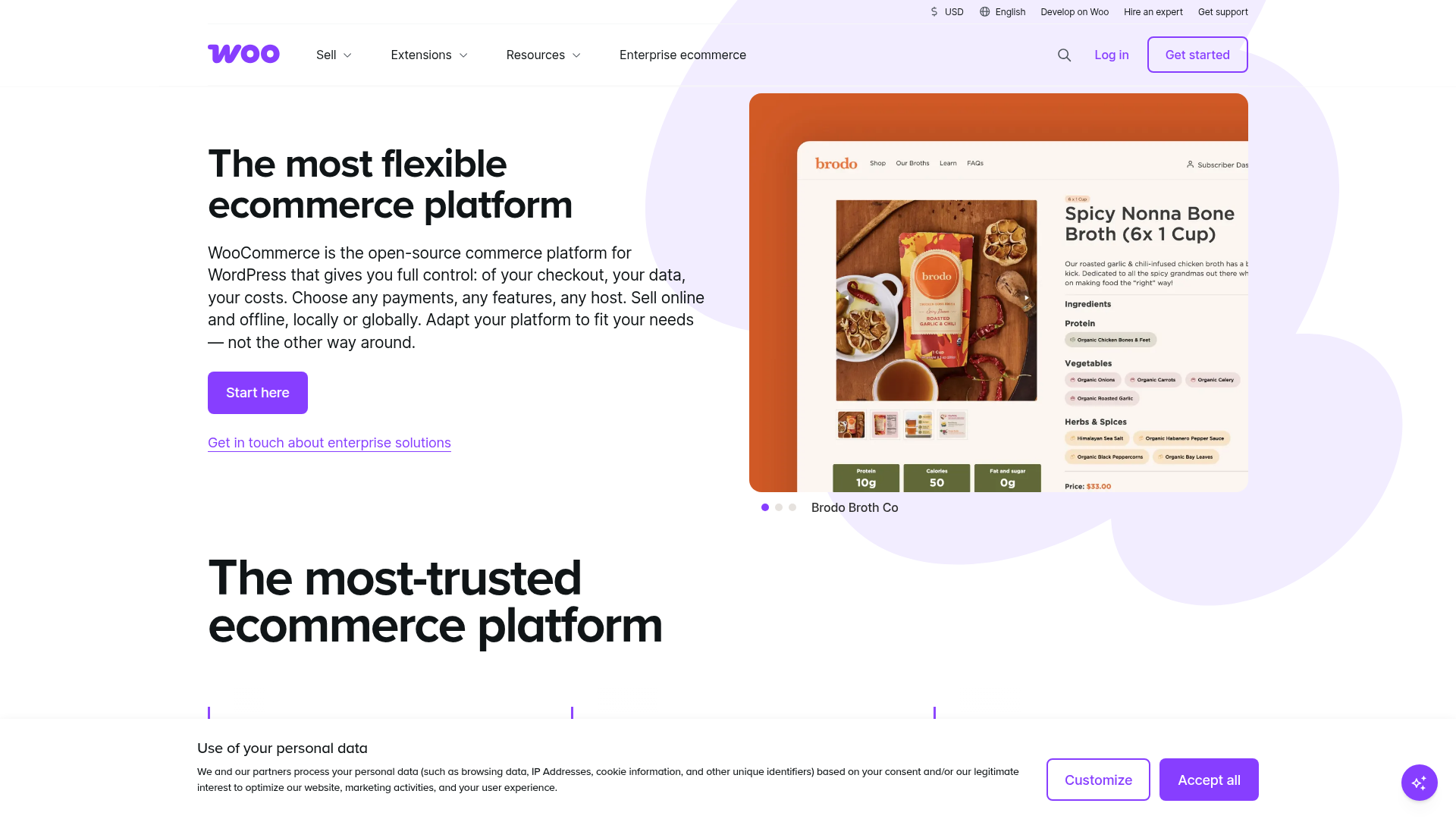
What is WooCommerce? WooCommerce is an open-source e-commerce plugin for WordPress that gives merchants full control over checkout, data, and costs. It supports physical, digital, and variable products with unlimited SKUs, and its extension marketplace covers B2B pricing, subscriptions, bookings, and 140+ payment gateways. WooCommerce requires an active WordPress installation to function and has no native Webflow connector.
Teams combine these platforms when a Webflow-designed frontend needs commerce infrastructure that WooCommerce already provides. A fashion brand might keep its 800-product catalog and order history in WooCommerce while rebuilding its marketing site in Webflow. A B2B manufacturer might need WooCommerce's tiered pricing plugins alongside Webflow's design capabilities for its public catalog.
The WooCommerce-Webflow integration supports 4 approaches:
- Direct checkout links let you send visitors from Webflow buttons to WooCommerce product pages or checkout without any code.
- iframe embeds via Code Embed elements display WooCommerce product pages, carts, or checkout forms inside Webflow pages.
- Automation workflows in Zapier, n8n, and viaSocket support explicit Webflow↔WooCommerce actions such as creating live Webflow CMS items from new WooCommerce products or creating WooCommerce customers from Webflow form submissions.
- The WooCommerce REST API and Webflow Data API give you full control over data sync, webhook-driven updates, and custom headless commerce builds, but require server-side development.
Most implementations combine two or more of these methods depending on the complexity of the setup.
Link to WooCommerce checkout URLs
This is the simplest way to connect a Webflow site to a WooCommerce store. You paste WooCommerce product or checkout URLs into Webflow link and button elements. Clicking the button sends the visitor to your WooCommerce domain, where the full checkout experience runs on WordPress. No paid Webflow plan is required, and no custom code is involved.
WooCommerce generates several URL types you can use:
- Product page:
https://yourstore.com/product/blue-shirt/ - Add to cart:
https://yourstore.com/?add-to-cart=PRODUCT_ID - Direct to checkout with quantity:
https://yourstore.com/checkout/?add-to-cart=PRODUCT_ID&quantity=2
To set up checkout links:
- Find the product ID in your WooCommerce admin under Products and note the ID number.
- Construct the URL using one of the patterns above, replacing
PRODUCT_IDwith your actual product ID. - In Webflow, select a Link or Button element, open the Settings panel, and paste the URL.
- Publish your Webflow site and test the link on the live page.
The WooCommerce add-to-cart URL guide covers additional URL parameters for variable products and quantity overrides. This method works on every Webflow plan including the free Starter plan, but visitors leave your Webflow site when they click through.
Embed WooCommerce pages with Code Embed elements
When you want WooCommerce content to appear inside a Webflow page rather than redirecting visitors, you can embed WooCommerce pages using iframes. This approach loads a WooCommerce product page, cart, or checkout form within a Code Embed element on your Webflow site. It requires a paid Webflow plan since the Code Embed element is disabled on the free Starter plan.
Embed a WooCommerce product page
Create a dedicated page on your WordPress site that displays the product you want to embed. WooCommerce shortcodes like [product_page id="123"] generate the product layout on the WordPress side. You then reference that WordPress page URL inside an iframe on Webflow.
To embed a WooCommerce page:
- In WordPress, create or identify a page using WooCommerce shortcodes (for example,
[product_page id="123"]or[woocommerce_checkout]). - Note that page's published URL.
- In Webflow, add a Code Embed element where you want the product to appear.
- Paste the following code, replacing the
srcvalue with your WordPress page URL:```html
5. Save, close the modal, publish your Webflow site, and test on the live page. Code Embed content does not render in the Webflow canvas.

WooCommerce versions 8.3 and later default to Cart and Checkout Blocks, which may not work inside iframes. To use the shortcode-based pages, [revert to classic shortcodes](https://woocommerce.com/document/woocommerce-store-editing/customizing-cart-and-checkout/) by going to **Appearance → Editor → Pages**, selecting Cart or Checkout, and clicking **Edit**. Then open **List View**, select the Cart or Checkout block, click **Transform**, and choose **Classic Shortcode**.

#### **Limitations of iframe embeds**

Several constraints affect this approach. Many WordPress hosts set `X-Frame-Options: SAMEORIGIN` by default, which blocks the iframe from loading on a different domain. Test with your specific hosting provider before committing to this method. Additional limitations documented by Webflow include: iframe content is generally not indexed by search engines, Webflow Interactions cannot target iframe content, Webflow stylesheets do not apply inside iframes, and embedded WooCommerce carts create separate user sessions that do not share data with Webflow's session context.

#### **Add custom scripts via site settings**

For more control over how WooCommerce content loads on your Webflow pages, you can inject JavaScript in the [custom code head and body sections](https://help.webflow.com/hc/en-us/articles/33961357265299-Custom-code-in-head-and-body-tags). Webflow provides five code injection points: site-wide head code, site-wide footer code, page-specific head code, page-specific body code, and individual Code Embed elements. Each location accepts up to 50,000 characters and supports HTML, CSS, and JavaScript only.

WooCommerce core does not produce a standalone JavaScript cart widget for external sites. Using custom scripts requires a third-party plugin or headless cart service that exposes WooCommerce data via JavaScript. WooCommerce shortcodes are PHP-rendered and produce no output when placed directly in Webflow embeds.

### **Connect with Zapier, n8n, or viaSocket**

Automation platforms provide a no-code path for syncing data between WooCommerce and Webflow CMS. These tools handle backend data movement, not frontend display. They can sync products to CMS collections, create WooCommerce customers from Webflow form submissions, and update CMS items when orders change. They do not embed a shopping cart or checkout on Webflow pages.

Supported Webflow↔WooCommerce automations include:

- New WooCommerce product created → Create live Webflow CMS item
- New WooCommerce order → Create Webflow CMS item in an Orders collection
- New WooCommerce customer → Create Webflow CMS item in a Members collection
- Webflow form submission → Create WooCommerce customer
- New Webflow order → Update WooCommerce customer record
- Webflow Collection Item Created → Create WooCommerce product

Keep in mind that Webflow CMS item limits apply: 2,000 items on the CMS plan and 10,000 on Business. If your WooCommerce catalog exceeds these numbers, a complete product sync is not possible without upgrading.

### **Build with the Webflow and WooCommerce APIs**

API integration gives you full control over data flow between both platforms. This approach requires server-side development and an intermediary server or serverless function for authenticated requests. The authenticated Webflow API and WooCommerce REST API should route through middleware. For customer-facing storefront scenarios, [WooCommerce Store API](https://developer.woocommerce.com/docs/apis/store-api/) provides unauthenticated endpoints for products, cart, and checkout.

The relevant APIs for this integration:

- [WooCommerce REST API v3](https://woocommerce.github.io/woocommerce-rest-api-docs/) handles products, orders, customers, coupons, and webhooks with authenticated access
- [WooCommerce Store API](https://developer.woocommerce.com/docs/apis/store-api/) provides unauthenticated, customer-facing endpoints for products, cart, and checkout
- [Webflow Data API v2](https://developers.webflow.com/data/reference/rest-introduction) handles CMS collections, items, site publishing, and webhook registration
- [Webflow webhooks](https://developers.webflow.com/data/docs/working-with-webhooks) trigger real-time events like `item.create`, `item.update`, and `item.delete`
- [WooCommerce webhooks](https://woocommerce.com/document/webhooks/) fire on product, order, customer, and coupon events

Every authenticated interaction between these platforms requires middleware because Webflow hosting does not support server-side code, and WooCommerce API credentials must never be exposed in browser context.

#### **Sync product catalogs from WooCommerce to Webflow CMS**

The most common API use case is pulling WooCommerce product data into Webflow CMS collections. Your middleware fetches products from WooCommerce, transforms the data to match your Webflow collection schema, and creates or updates CMS items through the Webflow API.

To implement product catalog sync:

1. Generate WooCommerce API keys at **WooCommerce** > **Settings** > **Advanced** > **REST API**. Click **Add Key**, set permissions to Read, and click **Generate API Key**. Copy the Consumer Key and Consumer Secret immediately.
2. Get your Webflow site and collection IDs by calling `GET /v2/sites` and `GET /v2/sites/:site_id/collections` with a Bearer token from **Site settings** > **Apps & Integrations** > **API Access**.
3. Fetch products from WooCommerce:```
GET https://yourstore.com/wp-json/wc/v3/products?per_page=100&page=1&status=publish
- Map WooCommerce fields to your Webflow collection schema. Key fields include
name,slug,price,description,images[0].src,stock_status, andcategories. - Create CMS items in Webflow using the live items endpoint for immediate publishing:
POST https://api.webflow.com/v2/collections/:collection_id/items/liveWith a request body containing your mappedfieldData. - For updates, use the item-specific live update route for the existing Webflow item:
PATCH https://api.webflow.com/v2/collections/:collection_id/items/:item_id/liveMaintain a mapping between WooCommerceproduct_idand Webflowitem_idin your middleware.
Store a WooCommerce product ID or SKU as a custom field in your Webflow collection to prevent duplicates and enable reliable update matching.
Set up webhook-driven inventory sync
Rather than polling for changes, you can configure WooCommerce to push updates to your middleware whenever product data changes. WooCommerce supports webhook topics including product.created, product.updated, product.deleted, order.created, order.updated, and customer.created.
To configure webhook-driven sync:
- In WooCommerce, go to WooCommerce > Settings > Advanced > Webhooks and click Add Webhook.
- Set the topic to Product Updated, the status to Active, and the delivery URL to your publicly accessible middleware endpoint.
- In your middleware, parse the incoming payload to extract fields like
stock_quantityandstock_status. - Call the Webflow API to update the corresponding CMS item using its item ID:
PATCH https://api.webflow.com/v2/collections/:collection_id/items/:item_id/liveWith the updatedfieldDatavalues. - Verify webhook signatures using the HMAC-SHA256 signature in the
X-WC-Webhook-Signatureheader.
WooCommerce automatically disables webhooks after 5 consecutive delivery failures. Monitor your webhook logs at WooCommerce > Status > Logs and filter by webhooks-delivery. Note that order.completed does not exist as a dedicated webhook topic. To detect completed orders, check for status === "completed" in order.updated payloads.
What can you build with the WooCommerce Webflow integration?
Integrating WooCommerce with Webflow lets you run a full commerce operation with a visually controlled frontend without migrating away from either platform.
- Brand-forward product catalogs: Sync WooCommerce product data into Webflow CMS collections and display it using Collection Lists with custom layouts, animations, and filtering. A fashion brand can show editorial lookbooks and interactive product detail pages in Webflow while WooCommerce manages hundreds of size and color variants.
- Headless checkout with a Webflow storefront: Build your entire marketing and product browsing experience in Webflow, then route purchase actions to WooCommerce for payment processing. WooCommerce handles 140+ payment gateways including regional options for markets where Stripe and PayPal are insufficient.
- Automated inventory and order dashboards: Use Zapier or webhook-driven middleware to push WooCommerce order data into a Webflow CMS collection. An operations team can display real-time order status, stock levels, or fulfillment metrics on internal Webflow pages without accessing the WordPress admin.
- Subscription and membership landing pages: Design conversion-focused landing pages in Webflow for subscription products managed by WooCommerce Subscriptions. Webflow handles the marketing experience while WooCommerce manages recurring billing, dunning, and subscription lifecycle on the backend.
If you need more control over custom checkout flows or bidirectional data sync, the API integration path covers those cases with full flexibility.
Frequently asked questions
No. WooCommerce is a WordPress plugin that requires an active WordPress installation. It cannot be installed on or hosted within Webflow. To use WooCommerce with Webflow, you need a separate WordPress server running WooCommerce, connected to your Webflow site through one of the integration methods described above. The WooCommerce REST API documentation covers the setup requirements for enabling API access on your WordPress instance.
Yes. Webflow CMS enforces hard item limits per plan: 2,000 items on the CMS plan and 10,000 items on the Business plan. If your WooCommerce catalog exceeds these limits, a complete sync into Webflow CMS is not possible without upgrading. Plan your collection architecture accordingly, and consider syncing only published or featured products if your catalog is large. Review the Webflow CMS documentation for details on collection structure and item management.
The authenticated Webflow API does not permit browser-based requests, and the authenticated WooCommerce REST API should not be called from the browser. All authenticated API calls should route through a server-side proxy, serverless function, or automation platform. For customer-facing storefront use cases, WooCommerce's Store API provides unauthenticated endpoints for products, cart, and checkout.
No. There is currently no WooCommerce app in the Webflow Apps Marketplace.
Checkout and payment processing happen on the WooCommerce/WordPress domain. You can link Webflow buttons directly to WooCommerce checkout URLs, or embed WooCommerce checkout pages via iframes. In both cases, WooCommerce handles the payment flow using its configured gateways. Building a fully custom checkout UI in Webflow that submits to WooCommerce's Orders API is possible but requires server-side middleware and careful attention to PCI DSS compliance. The WooCommerce PCI compliance documentation outlines the scope requirements for different integration architectures.
Description
Sync WooCommerce product, order, and customer data with Webflow using direct checkout links, iframe embeds, automation platforms, or the WooCommerce REST API and Webflow Data API.
This integration page is provided for informational and convenience purposes only.

Monto Simple Subscriptions
A Webflow Ecommerce checkout charges a customer once, so recurring billing needs a separate layer that still sells through the native cart.

Teachable
Connect Teachable, an online course platform, with Webflow to sell courses from a custom-designed marketing site and automate student enrollment.

BigCommerce
Connect BigCommerce, an Open SaaS e-commerce platform for B2B and B2C brands, with Webflow to display live products and route orders using Buy Buttons or the API.

Udesly bigcommerce to webflow-e-commerce
Webflow's integrations directory lists Udesly's BigCommerce to Webflow adapter for migrating your BigCommerce catalog into the Webflow CMS and running your storefront on Webflow-designed pages.

Shopify
Pair Webflow's custom site design with Shopify's commerce backend so you can sell products without rebuilding inventory, checkout, and order management from scratch.

SimpleFunnel
Collect one time, recurring payments and sell your product, accept payments directly into Stripe.
Simple Subscriptions for Webflow Shops
Connect Simple Subscriptions with Webflow to sell recurring products through your store's native cart and checkout.

Shippo
Connect Webflow with Shippo to streamline carrier rate comparison, shipping label creation, and package tracking for ecommerce orders.

Shoprocket
Connect Shoprocket with Webflow to add embeddable product widgets, a shopping cart, and checkout to any Webflow site without a Webflow Ecommerce plan.
Related integrations
Get started for free
Try Webflow for as long as you like with our free Starter plan. Purchase a paid Site plan to publish, host, and unlock additional features.
