






WhaleSync
Connect WhaleSync with Webflow to sync CMS Collections two ways with Airtable, Notion, Google Sheets, Supabase, or Postgres, with the direction set per field.

The Webflow CMS stores content in Collections. Teams often use Airtable or Notion to draft and manage that content. Others keep it in Google Sheets, or in a product database that already exists. Moving records between those tools and the CMS means manual copy-paste or CSV imports. WhaleSync removes that step.
WhaleSync writes changes in both directions. Update a row in Airtable and the matching CMS item changes moments later, as long as the source app supports webhooks. Edit the CMS item and the change flows back. Where an app has no webhook support, WhaleSync scans it on a schedule you set per connection instead.
This integration fits content teams drafting in Notion and marketers running programmatic SEO from Airtable. It also fits agencies managing client sites and builders using Supabase as a product backend. It suits teams that want external writers and editors working in a spreadsheet-style tool while the site stays current.
How to integrate WhaleSync with Webflow
What is WhaleSync? WhaleSync is a no-code, two-way data sync platform. It keeps records aligned between Airtable, Notion, Google Sheets, Supabase, Postgres, and Webflow. You set sync direction per field, an Operations log records every change, and an Issues page flags errors.
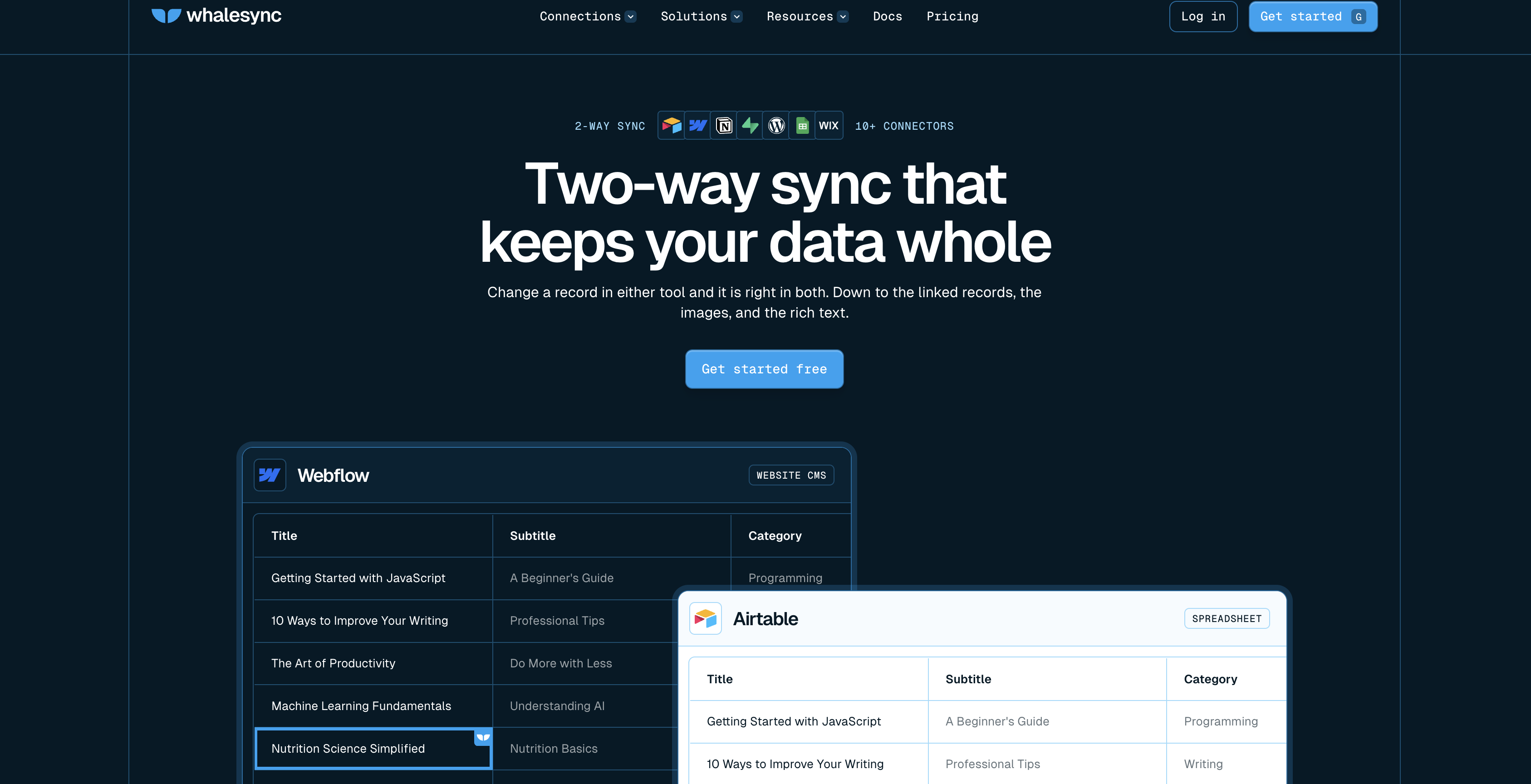
Teams pair WhaleSync with Webflow when the source of truth for content lives outside the CMS. Notion often holds writers' drafts, while operations teams manage structured Airtable data. Product data can stay in Supabase. WhaleSync mirrors that data into CMS Collections so the site reflects the latest records without anyone re-entering them. The Webflow connector guide covers what moves: CMS Collection items and form submissions.
Three routes carry that data between the two systems. The WhaleSync MCP server lets an agent create and monitor a sync from a chat client. The WhaleSync app does the same work through a point-and-click dashboard after you authorize through OAuth. The Webflow Data API covers behavior WhaleSync does not model, and it is the layer the other two sit on. There is no Code Embed or widget path here, so nothing lands in your page markup. Most implementations start with the app and reach for the API as the setup grows.
Build syncs with an agent over MCP
Both sides publish an MCP server, so an agent can create a sync and inspect a Collection with neither dashboard open. This is the shortest route if you already work in Claude, Cursor, VS Code, or another MCP client. WhaleSync documents its remote MCP server at https://api.whalesync.com/mcp, with no key or secret in the config: the first call opens a browser consent page where you sign in and approve the access. The client setup guide lists the config for each client.
What the connection can do depends on the scope you approve:
- Read scope: the agent lists syncs and reads the mappings, the operations log, open issues, and the deletes waiting for review. WhaleSync notes that operations carry the values of synced records, so this is not a metadata-only scope.
- Readwrite scope: everything read covers, plus creating, editing, pausing, activating, and deleting syncs, editing mappings, and retrying failed issues. Every tool name starts with
sync_. - Steps that stay in a browser: connecting an app that authenticates over OAuth, Webflow included, approving a new or edited sync before it first runs, and approving a pending delete. The agent sends you a link for each one.
- Revoking an agent: connections are listed under Settings then MCP in the WhaleSync app, and disconnecting one there cuts its access immediately. Requests are capped at 120 per minute per user.
Because credentials never pass through the agent, and a person still signs off on the first run and on every delete, the guardrails sit where they would if you built the sync by hand.
Webflow's side answers to agents too. The Webflow MCP server exposes CMS tools that create Collections, build fields, and bulk create or update items, which is the same territory WhaleSync covers. One documented difference is worth knowing before you compare them: those tools write items as drafts, and publishing them live is a separate action.
Install the WhaleSync app
The WhaleSync app is listed on the Webflow Marketplace, where it carries the Approved by Webflow label and supports Webflow's enhanced security and management features. It connects as a native Webflow App over OAuth, so no middleware sits between the two systems and you never paste an API key. This path requires no custom code and works for teams managing CMS content outside Webflow. You need a WhaleSync account with the Webflow connector and a Webflow site with CMS Collections. WhaleSync treats Webflow sites as bases and Collections as tables, so an exact-name match between a Collection and a table shows up as a suggestion during setup.
To set up the integration:
- Open the WhaleSync listing in the Webflow Marketplace and add it to your site.
- Select the Workspaces or sites to grant access to, then authorize the app. Authorizing a Workspace covers every site inside it, current and future.
- Follow the prompt back into WhaleSync, or open the WhaleSync dashboard yourself.
- Start a new sync, choose Webflow and your source app, and authorize each one.
- Map tables, then map fields and choose a sync direction for each field.
- Activate the sync. Watch the Operations page for updates and the Issues page for errors.
Once active, the sync supports:
- Per-field direction: Two-way sync is configured field by field, so some fields can stay one-way inside an otherwise bidirectional sync.
- Rich field types: multi-reference, rich text, image, and multi-image fields sync along with the rest of the connector guide's list, covered below.
- Status control from the source app: a writable Webflow Status field sets items to Active, Draft, or Archived from Airtable or Notion.
- Localized Collections: Webflow Localization has been supported since June 25, 2026, with each locale syncing as its own table.
- Structure that follows the source: auto-created tables and fields match the structure of the app you sync with, so you do not add each field by hand.
- A hold on deletions: the delete approval queue parks a delete for human review instead of propagating it, which is the difference between an API hiccup and lost records.
Those settings are where most of the setup decisions live, and the three sections below cover the parts teams get wrong most often.
Field types and sync direction
WhaleSync's Webflow connector guide lists 18 CMS field types it can sync: color, date and time, email, file, image, multi-image, link, multi-reference, number, option, phone, single-line and multi-line plain text, reference, rich text, switch, and video link. Item ID is the exception, supported one way only, read out of Webflow. Direction is set per field rather than per sync, and WhaleSync's two-way sync documentation is explicit that read-only field types on the other side, such as formula, lookup, count, created time, last modified time, and autonumber fields, quietly fall back to one way while the rest of the mapping stays two way.
Synthetic fields WhaleSync adds
WhaleSync adds four fields to a mapped Webflow table that do not exist in your Collection. Webflow Status is writable and sets an item to Active, Draft, or Archived from the source app. Webflow Record ID, Created On, and Updated On are read-only. The connector guide also lists Webflow Memberships users as syncable data, but Webflow retired that feature: the User Accounts sunset notice sets January 29, 2026 as the date the functionality and its APIs went away. CMS items and form submissions are the paths with a live Webflow feature behind them.
Publishing rules that catch people out
A live sync puts nothing on your public site by itself, and four rules from WhaleSync's own connector guide catch people out:
- Nothing is live until you publish: setting an item to Published through the Webflow Status field changes its CMS state, and you still have to publish the site in Webflow before visitors see it.
- Structure changes need a republish: add a field to a Collection and syncing stops working until you republish the site.
- Publish to all domains: a site that is not published to every attached domain has its API calls rejected by Webflow, which surfaces as failed sync updates rather than as an obvious error.
- Scheduled publishing is cleared: when WhaleSync creates or updates an item, any publishing schedule on that item is discarded, because a Webflow schedule belongs to one version of the content.
The practical version: treat publishing as a step you own, and check the Issues page before assuming a sync is healthy.
Build with the Webflow and WhaleSync APIs
The Webflow Data API and the WhaleSync API both support programmatic control, but not every step can be automated. This path requires server-side development and an understanding of both data models. Webflow connects through OAuth only, so a person must finish the authorization in a browser. A new sync must also be started by a person once before API activation works. Approving pending deletes and managing WhaleSync webhooks stay app-only.
Four references carry most of the weight on this path:
- Sync provisioning: the WhaleSync API handles sync creation, schema discovery, field mappings, and monitoring, on the
https://api.whalesync.com/v1/...base URL. - Reading your Collections: the List Collections endpoint returns every Collection on a site, which is what a mapping screen reads before it can offer you tables.
- Writing items in batches: the bulk create endpoint is
POST /v2/collections/{collection_id}/items/bulkand takes up to 100 items per request, withisDraft: falsequeueing each item to publish on the next site publish. - Updating items in batches: the bulk update endpoint is
PATCH /v2/collections/{collection_id}/items, carries the same limit of 100 items, and writes the primary locale unless you pass acmsLocaleId.
Between them, you can manage WhaleSync syncs through its API and use Webflow's Data API to read, write, and react to the CMS items a sync produces.
Manage syncs with the WhaleSync API
The WhaleSync API can create, configure, and monitor syncs programmatically, but it does not remove the human and app-only steps noted above. It suits agencies provisioning many client sites and teams wiring sync health into internal tooling.
Create an API key under Settings > API keys in WhaleSync, where each key's secret is shown once at creation. Authenticate with a header in the form Authorization: Bearer ws_tok_XXXXXXXXXXXXXXXXXXXXXXXX. Keys come in two scopes: readwrite for full access and read for monitoring only, and read exposes the before and after values in the operations log. There is no endpoint that creates a key. The OpenAPI 3.1 spec lives at https://api.whalesync.com/v1/openapi.json.
To provision a Webflow sync programmatically:
- Create the sync with
POST /v1/sync/syncs. Webflow is OAuth-only, so its side comes back unbuilt and the sync carries auser_authorizationpending action with a URL where a person completes the OAuth step. - Discover the schema with
GET /v1/sync/syncs/{sync_id}/sides/{side}/bases, thenGET /v1/sync/syncs/{sync_id}/tables?side=leftandGET /v1/sync/syncs/{sync_id}/tables/{table_id}/fields. - Check mappings with
POST /v1/sync/syncs/{sync_id}/validate, which returnsissues[]carryingseverity,code, andpath. Write them withPUT /v1/sync/syncs/{sync_id}/mappings, which is a full replace. Setdirection: "two_way"for bidirectional sync or"left_to_right"for one-way publishing. - Activate with
POST /v1/sync/syncs/{sync_id}/activate. It returns409while the sync is still a draft that no person has reviewed and started. Monitor throughGET /v1/sync/syncs/{sync_id}/status,/v1/sync/operations, and/v1/sync/issues, and retry failed work withPOST /v1/sync/issues/{id}/retry.
The API reference names two gaps under planned additions. Webhooks are not yet in the WhaleSync API, and approving or ignoring a pending delete is app-only because the decision cannot be reversed.
React to synced changes with Webflow webhooks
CMS changes, including the items WhaleSync writes, can trigger Webflow webhooks that notify your downstream systems in real time. Use these events to detect created or updated items and kick off downstream jobs. Register webhooks with a POST to /v2/sites/{site_id}/webhooks; CMS events require the cms:read OAuth scope. The webhooks guide covers setup, signature validation, and the ceiling of 75 webhooks per trigger type per site.
To wire up event delivery:
- Create a webhook with
POST https://api.webflow.com/v2/sites/{site_id}/webhooksand a body such as{"triggerType": "collection_item_changed", "url": "https://your-endpoint.com"}. - Subscribe to the event types that match your workflow, including
collection_item_created,collection_item_changed,collection_item_deleted,collection_item_published,collection_item_unpublished, andsite_publish. - Validate each request. Concatenate the
x-webflow-timestampvalue with":"and the JSON body. Compute a SHA-256 HMAC with your signing key and compare it tox-webflow-signature. Reject requests older than 5 minutes.
A failed delivery is retried three times at 10 minute intervals, so a receiver that is down for half an hour drops the event for good. Read the 75-webhook ceiling as a real number rather than a theoretical one: agencies registering a handler per client site on one shared trigger type run into it.
Rate and plan limits
Rate limits follow the site plan, and so does whether you have a CMS at all. Webflow's rate limits reference puts content management APIs at 60 requests per minute on Starter and Basic and 120 on higher plans, and caps site publishing at one successful publish per minute on top of that, so a batch of a thousand rows still ends in a single publish you have to wait for. Exceeding the rate limit returns a 429 with a Retry-After header, typically 60 seconds. The Webflow pricing page shows why the plan matters more than the rate for a sync: Starter carries 50 CMS items across 20 Collections, Basic has no CMS at all, and Premium carries 20,000 CMS items across 40 Collections. Any sync worth building lands on Premium or above.
The WhaleSync side prices on records rather than requests. WhaleSync pricing starts at 40 dollars a month for 1,000 records in sync, after a 7 day free trial, and anything past 50,000 records is a conversation with their sales team.
What you can build with the WhaleSync Webflow integration
Integrating WhaleSync with Webflow lets you run your CMS from Airtable, Notion, Google Sheets, or a database without manual exports, CSV uploads, or custom sync code. The pattern that pays off is keeping the editing surface where the editors already are, and letting Webflow be the layer that reads from it.
- Programmatic SEO pages: keep one Airtable row per keyword, city, or integration, and let a single Collection template render each row as a page. Brightline used this pattern for 273 location pages built in one hour, and Ajust runs over 70 business pages the same way.
- Notion-to-Webflow publishing pipelines: draft posts in Notion and run them through an approval pipeline, with the Webflow Status field deciding whether an approved post lands as Draft or Active. Descript publishes 15 to 20 pages a month on a Webflow, Airtable, and Notion setup.
- Database-backed directories and marketplaces: run a member or vendor list in Google Sheets or Supabase and render listings through Collection List elements, checking the dynamic content limits before you scale. Rentlingo runs its apartment listing platform this way, with up to 10,000 record updates a week.
- Multi-source content hubs: combine several Airtable bases into one site. Three internal Webflow products run on this pattern. One generates event landing pages from Airtable. Another merges several Airtable bases into a community hub. A third syncs separate collections to content-specific URL paths.
Each of these works because one side owns the data and the other displays it. To see the shape of that in detail, read how to sync Notion databases into the CMS.
Frequently asked questions
No. The Webflow connector guide states that changes made through WhaleSync are not live until you publish the site in Webflow, and that holds even when an item's status is set to Active. Republish after every CMS structure change, and keep the site published to all attached domains or Webflow rejects the sync's API calls. WhaleSync updates also clear any publishing schedule on the items they touch, so reconfigure those afterward.
Eighteen, per the Webflow connector guide: color, date and time, email, file, image, multi-image, link, multi-reference, number, option, phone, plain text in single-line and multi-line form, reference, rich text, switch, and video link. Item ID syncs one way only, read out of Webflow. WhaleSync also adds a writable Webflow Status field plus read-only Webflow Record ID, Created On, and Updated On fields. Field names need not match between apps, but the types must be compatible: for Airtable, URL maps to Link, linked records to Reference, and currency to Number, while multi-select is not yet supported. Images must stay under 4 MB per WhaleSync's known issues page.
No, and no two-way sync is. WhaleSync's record matching handles the one conflict case it documents: when both apps already hold data at first activation, you match on a unique field and choose which app wins where values differ. That runs during the initial sync only. After that, your control is direction per field, so decide which side owns each field rather than relying on a rule for simultaneous edits. Read-only field types on the other side stay one way whatever you set, and Webflow's Item ID field only ever reads out. WhaleSync connects as a native Webflow App over OAuth, so there is no middleware in between to add a third source of truth.
Map the Webflow Status field. Add a single-select field titled "Webflow Status" to your Airtable or Notion table and give it exactly three options: "Archived", "Draft", and "Active". Map it to WhaleSync's Webflow Status field. "Active" covers both the Published and Staged for Publish states, and WhaleSync accepts "Published" as an input but syncs it back as "Active". One Webflow restriction to plan around: a published item cannot reference a draft item in a reference field, which shows up as an error on the Issues page. WhaleSync's common Webflow errors page covers the rest.
Yes, since June 25, 2026. Each secondary locale appears as its own table with a locale tag in brackets, such as
Blog Posts (FR-FR), and you map it exactly as you map any other table. Creating a record in the primary collection creates it in every locale, and per the connector guide, field edits are never copied between locales. Existing Webflow syncs keep working unchanged; the locale tables simply appear next to them, ready to map in the WhaleSync dashboard whenever you are.
Description
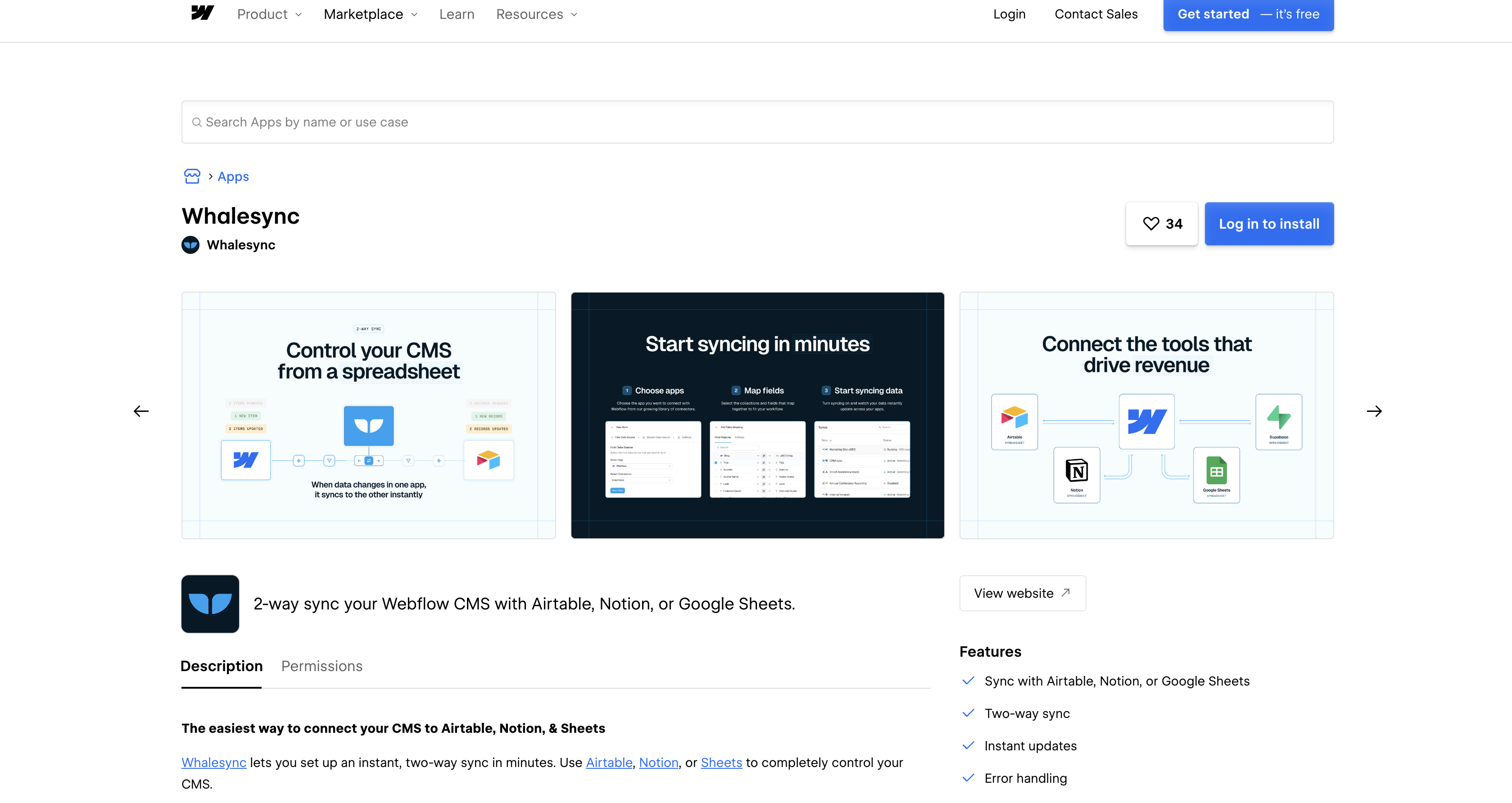
Sync the Webflow CMS two ways with Airtable, Notion, or Google Sheets through the WhaleSync marketplace app, with per-field direction control, an MCP server for agents, and REST APIs for programmatic sync management.
This integration page is provided for informational and convenience purposes only.

OpenAI
Connect OpenAI with Webflow for CMS content generation and automated handling of form submissions and visitor questions from your own site data.

Xero
Send Webflow Ecommerce orders and form submissions to Xero as invoices and quotes with Zapier, Make, or n8n, or build the sync on the Xero and Webflow APIs.

Microsoft SQL Server
Connect Microsoft SQL Server with Webflow to sync database records with CMS content and route form submissions into your database.

WhaleSync
Connect WhaleSync, a data sync platform, with Webflow to sync CMS content bidirectionally with Airtable, Notion, and Google Sheets in real-time.

aws lambda

Firebase Studio
Connect Firebase Studio, Google's AI-assisted full-stack development environment, with Webflow to add authentication, Firestore data, and Cloud Functions to your site.
Freshdesk
Embed Freshdesk's Help Widget directly on your Webflow site to add a floating widget to your pages where visitors can submit tickets, search help articles, and check ticket status.
Google Sheets

Bubble
Connect Bubble with Webflow when your site needs user authentication, database-driven features, and application logic alongside a content-focused frontend.
Related integrations
Get started for free
Try Webflow for as long as you like with our free Starter plan. Purchase a paid Site plan to publish, host, and unlock additional features.
