






Website Toolbox Forum
Connect Website Toolbox Forum, a hosted community discussion platform, with Webflow to embed threaded forums, user management, and moderation tools on any page without backend code.

Website Toolbox Forum drops a fully hosted community into any Webflow page — threaded discussions, moderation, user management, notifications, and white-label branding, all without backend code or servers to manage.
That makes it a fit for course creators adding peer discussion, SaaS teams deflecting support tickets, membership sites offering private forums, and agencies layering community onto client builds.
How to integrate Website Toolbox Forum with Webflow
What is Website Toolbox Forum? Website Toolbox Forum is a hosted forum platform with fully managed community discussion tools. It has unlimited categories, topics, replies, and members across all plans, plus social login, AI-based content moderation, subscription-based monetization, and a REST API. The forum can run as a standalone site on its own domain or embed directly into an existing website via JavaScript.
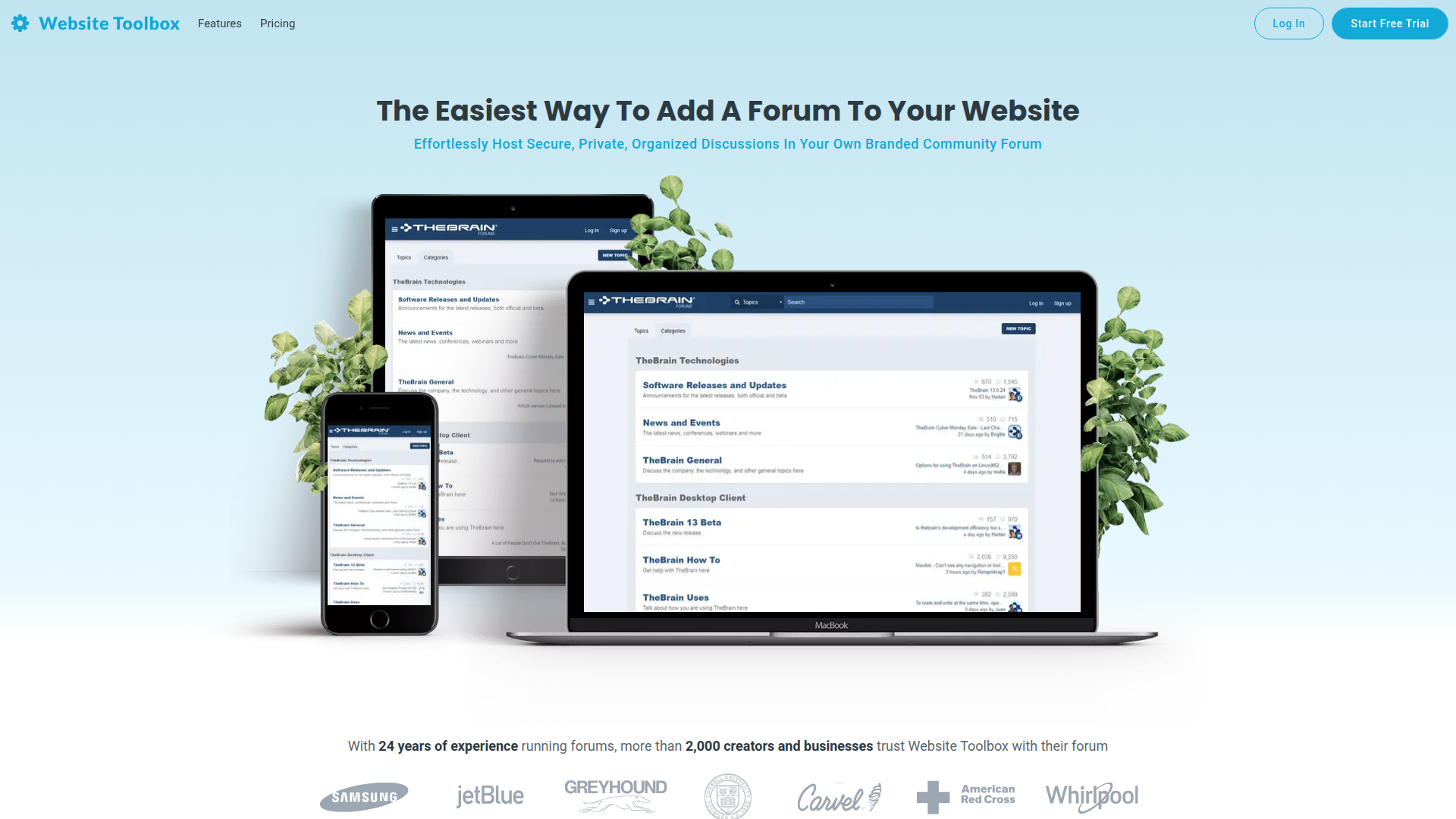
Teams pair Website Toolbox Forum with Webflow when they need structured community discussions inside their existing site design. The embed approach works because Webflow sites don't run server-side code, and Website Toolbox runs the forum logic on its own hosted system. If you want forum content indexed under your Webflow domain, take the API path to pull discussion data into the Webflow CMS as native, crawlable content.
You have 2 approaches for the Website Toolbox Forum-Webflow integration:
- The Code Embed method places the forum directly on any Webflow page without writing backend code.
- The Webflow and Website Toolbox Forum APIs support custom content sync and automation between the forum and the CMS, but require server-side development.
Most implementations start with the embed method and add API connections as the community grows.
Add Website Toolbox Forum with Code Embed elements
To add a Website Toolbox Forum to your Webflow site, copy a JavaScript snippet from your Website Toolbox admin panel and paste it into Webflow using a Code Embed element or custom code in head and body tags. The forum renders as an iframe within your page layout, alongside your existing navigation and footer, while Website Toolbox handles discussion functionality. This approach works on every Website Toolbox plan, including Starter. You need a paid Webflow Site plan because Code Embed elements aren't available on free plans.
You can place the forum in three ways: use a Code Embed element for precise canvas positioning, page-level custom code for a dedicated forum page, or a specific-page embed for a single category or thread. Choose the method that matches how you want the forum to appear in your site structure.
Embed the forum with a Code Embed element
The Webflow integrations directory lists this approach. Website Toolbox's official Webflow guide shows page-level custom code in the body/footer area, while a Code Embed element gives you precise control over where the forum appears on the canvas.
To set up the embed:
- Log in to your Website Toolbox admin and go to Integrate > Embed > Embed your forum.
- If prompted, click Create A Subdomain First (recommended for Safari SSO compatibility), or click Get Embed Code to skip.
- Copy the embed code snippet.
- In Webflow, open the page where the forum should appear (or create a new page named "Forum" or "Community").
- Click the Add Elements (+) icon in the left panel.
- Drag the Embed element (displayed as
</>) onto the canvas. - Double-click the Embed element to open the code editor.
- Paste your Website Toolbox embed code and click Save & Close.
- In the Website Toolbox admin, enter the URL of your Webflow page in the Where is the forum embedded? field and press Enter.
- Click Publish in Webflow.
Custom code only renders on the published site, not in the Designer canvas. You won't see the forum until the page is live. Don't wrap the embed snippet in <html>, <head>, or <body> tags.
Use page-level custom code for a dedicated forum page
For a dedicated forum page, paste the embed code into the page's custom code field. This works well when the embed fills the main content area.
To add the forum via page-level custom code:
- Open the Pages panel and hover over the target page.
- Click the gear icon to open page settings.
- Scroll to the Custom Code section.
- Paste the Website Toolbox embed code into the Footer Code field.
- Click Save, then Publish.
Website Toolbox's Webflow embedding guide uses this specific field. For site-wide placement, paste the code into Site Settings under Custom Code > Footer Code instead. That's a simple option when the forum should load on a dedicated page without canvas placement.
Embed a specific forum page
You can embed a single category, subforum, or thread rather than the full forum. This is useful for placing a product support category on a product page or a FAQ thread on a help page.
To embed a specific forum page:
- In your Website Toolbox admin, go to Integrate > Embed > Specific Page.
- Enter the URL of the forum page you want to embed in the Which page should be embedded? field.
- Click Get Embed Code.
- Copy and paste the resulting code into a Webflow Code Embed element or page-level custom code field using either method above.
Specific-page embeds generate a unique code snippet that differs from the full forum embed. You can use multiple Code Embed elements on different pages, each pointing to a different forum section. See the specific page embed documentation for additional configuration options. It's a practical way to place focused discussions alongside your most useful content.
Style the embedded forum
Your Webflow CSS can't reach inside the iframe boundary. All forum styling must happen within the Website Toolbox admin environment. Go to Help > Forum > Themes & Appearance > Adding your own CSS code to apply custom CSS. You can target elements like .wt-body (whole forum page), .post-body (individual posts), and .btn-primary (buttons). Add custom Google Fonts via the Forum Head Tag HTML Code field.
Website Toolbox also includes premade themes like Modern Elegance, Material, and Minimal that you can apply as a starting point. See the CSS customization guide for a full selector reference. Handle visual customization in Website Toolbox rather than inside the Designer.
Build with the Webflow and Website Toolbox Forum APIs
For more control over content sync, both platforms offer REST APIs that you can connect through server-side middleware. This approach lets you pull forum content into the Webflow CMS as natively indexed pages, sync data between systems, and automate workflows. You'll need a serverless function (Netlify Functions, Vercel, or AWS Lambda) or a dedicated backend, because Webflow sites can't execute server-side code.
The relevant APIs are:
- The Website Toolbox Forum API handles categories, topics, posts, users, user groups, conversations, and messages (Growth plan or above required)
- The Webflow Data API handles CMS collections and items, plus site publishing
- Webflow webhooks trigger real-time events like
form_submission,collection_item_created, andcollection_item_updated - Website Toolbox webhooks send HTTP POST requests to your endpoint when forum events occur, with
user.updatedas a documented example
Together, these endpoints and webhook systems give you the pieces you need for a custom Webflow-forum integration.
All calls to api.websitetoolbox.com require the x-api-key header and must go through your server. Never expose this key in client-side JavaScript.
Sync forum topics to the Webflow CMS
A common API use case is pulling forum discussions into a Webflow CMS collection as native, crawlable content. This addresses the SEO limitation of iframe embeds.
To implement forum-to-CMS sync:
- Create a CMS collection in Webflow (e.g., "Community Discussions") with fields for title, content (rich text), author, category reference, and a forum topic ID (plain text, used as a sync key).
- Set up a Website Toolbox webhook at Integrate > Webhook that points to your serverless function endpoint.
- In your serverless function, parse the incoming webhook payload, map the forum fields to your CMS collection schema, and call
POST /v2/collections/:collection_id/items/liveon the Webflow Data API to create an immediately published CMS item. - For updates, use
PATCH /v2/collections/:collection_id/items/:item_id/live. For deletions, useDELETE /v2/collections/:collection_id/items/:item_id/live.
Before relying on topic- or post-based webhook automation, confirm the specific event names you need in the current Website Toolbox documentation or webhook logs. For active forums, plan your sync strategy carefully — sync only featured or recent discussions rather than the full archive. Website Toolbox's API returns up to 100 items per paginated request, so bulk imports require pagination logic. That helps you keep the sync manageable as discussion volume grows.
Sync user registration between platforms
When someone registers on your Webflow site via a form or a third-party membership tool like Memberstack, you can auto-provision a forum account for them.
To set up user sync:
- Register a Webflow webhook with
triggerType: form_submissionpointing to your middleware endpoint. - When a form submission arrives, extract the user's name and email from the webhook payload.
- Call
POST https://api.websitetoolbox.com/v1/api/userswith the user details to create a forum account. - Optionally call
POST https://api.websitetoolbox.com/v1/api/usergroups/:userGroupId/addto assign the user to a specific forum group based on their membership tier.
In the reverse direction, the Website Toolbox user.updated webhook event sends a User object to your endpoint whenever a forum profile changes. Your middleware can then update the corresponding CMS item via PATCH /v2/collections/:collection_id/items/:item_id/live. This keeps account data in sync across both systems.
If you later update that forum user through the Website Toolbox API, follow the documented Website Toolbox update pattern, which uses POST to the resource-specific endpoint rather than PATCH.
Implement single sign-on
SSO removes the separate login step for forum access. Users authenticated on your Webflow site are automatically logged into the embedded forum. You'll need a third-party authentication layer (Memberstack, Outseta, or a custom OAuth setup) because Webflow doesn't natively provide identity services.
To implement token-based SSO:
- Configure SSO in your Website Toolbox admin at Settings > Single Sign On, selecting Other as the Website Builder.
- When a user authenticates on your Webflow site through your membership tool, have your middleware request a Website Toolbox authentication token.
- Pass the token in the
srcattribute of the forum embed script or as a URL parameter in the forum link. - Set the Login page URL and Logout page URL fields in SSO settings so Website Toolbox can redirect unauthenticated users to your Webflow login page.
Safari blocks third-party cookies set via the IMG tag SSO method. Connect a custom subdomain to your Website Toolbox forum (CNAME record pointing to custom.websitetoolbox.com) to resolve this. See the token-based SSO documentation for the full implementation flow. Once you've configured it, the forum login experience feels more direct for your members.
What can you build with the Website Toolbox Forum Webflow integration?
Integrating Website Toolbox Forum with Webflow lets you add structured community discussion to any site without managing forum software or writing backend code.
- Customer support community: Embed a support forum on your help page where users ask questions and find answers from each other. Organize categories by product, feature, or issue type to reduce the volume of direct support tickets.
- Course discussion board: Place a forum alongside your online course content so students can discuss lessons, share resources, and help each other. Specific category embeds let you put a discussion section on each course module page.
- Paid membership community: Gate forum access behind subscription fees using Website Toolbox's built-in monetization. Combine this with API-based user group sync so members who subscribe through your Webflow site automatically receive the correct forum permissions.
- SEO-driven content hub: Use the API to sync popular forum discussions into a Webflow CMS collection, creating natively indexed pages under your domain. User-generated content from the forum becomes crawlable site content that drives organic search traffic.
If you need more control over user management, content moderation workflows, or membership tier logic, the API integration path covers those cases.
Frequently asked questions
Forum content rendered inside an iframe is not indexed as part of your Webflow domain. To make forum discussions crawlable under your domain, use the Website Toolbox API to pull selected content into a Webflow CMS collection as native items. You can also create direct links from your Webflow pages to important forum sections hosted on the forum's own domain.
Yes. Code Embed elements require a paid site plan or a qualifying workspace (Core, Growth, Agency, or Freelancer). Free plans cannot use Code Embed elements or custom code fields. See the Code Embed documentation for current plan requirements.
Yes, but it requires a third-party authentication layer. Webflow does not natively provide identity services, so you need an external tool like Memberstack or Outseta, or custom middleware using a serverless function. In the Website Toolbox admin, select Other as the Website Builder under Settings > Single Sign On. Token-based SSO is available on all Website Toolbox plans, while OAuth requires the Growth plan or above, and JWT requires the Pro plan or above. The SSO methods index lists all available authentication options by plan.
The Growth plan or above is required. The Starter plan includes forum embedding and token-based SSO but does not include the REST API or webhooks. Check the Website Toolbox pricing page for current feature availability by plan.
Custom code renders only on the published site. The Code Embed element shows a placeholder in the Webflow canvas, and the forum JavaScript loads only after you publish. To verify the embed, publish the page and view it on your live or staging domain. This is standard behavior for all custom code in Webflow, as noted in the Code Embed documentation.
Description
Website Toolbox Forum adds hosted community discussions to Webflow through a JavaScript embed in Code Embed elements or custom code settings. Sync forum content to CMS collections via the Website Toolbox API for SEO-indexable discussion pages.
This integration page is provided for informational and convenience purposes only.

Chat Everywhere
Connect Chat Everywhere with Webflow to add a floating chat button that routes visitors to WhatsApp, Messenger, SMS, and other messaging platforms.

Chat Whisperer - AI Website Bot Maker
Add Chat Whisperer's AI chatbot to Webflow through the Marketplace app or a pasted embed, and see what it trains on, what it loads, and where visitor messages go.

Flowstar Click to Call

Social Intents
Add Social Intents live chat to Webflow with one script, then answer visitors from Slack, Teams, Google Chat, Zoom or Webex. Setup, plan costs and consent.

Interactivity Studio
Connect Interactivity Studio with Webflow to turn static images into clickable, shoppable content with segment-level bubbles and CTA buttons.

Poper
Connect Poper with Webflow to show behavior-triggered popups, forms, and widgets on your site and route captured leads into the Webflow CMS.

ChatSale
Connect ChatSale with Webflow to add its AI sales assistant to your site, on a Pro or Enterprise plan that includes the website widget.

Lucky Wheel
Add a spin-to-win wheel to a Webflow site with the Marketplace app or one snippet. For programmatic setups, use the Data API.

Salespeak
Connect Salespeak, a B2B inbound sales AI platform, with Webflow to add a conversational agent that qualifies buyers and books demos using the app or embeds.
Related integrations
Get started for free
Try Webflow for as long as you like with our free Starter plan. Purchase a paid Site plan to publish, host, and unlock additional features.
