






Chat Whisperer - AI Website Bot Maker
Add Chat Whisperer's AI chatbot to Webflow through the Marketplace app or a pasted embed, and see what it trains on, what it loads, and where visitor messages go.

A published Webflow site can present an answer, but it cannot hold a conversation. Someone reading your pricing page at midnight has a question your FAQ page does not quite cover, and the only route you offer them is a contact form and a wait until morning. Static content cannot ask the follow-up question that would have turned that visit into a booking.
Chat Whisperer closes that gap with a chatbot that trains on your own published pages and uploaded documents, then answers visitors from that content and passes the hard cases to a person. On a Webflow site it arrives either as a Marketplace app or as a snippet you paste yourself, and both routes end at the same widget.
This page is written for the person who has to decide whether that widget belongs on a live site. Agencies adding chat to client builds, small teams answering the same ten questions every week, and anyone who has to clear a privacy review before a third-party script ships will find the tradeoffs here alongside the install steps.
How to integrate Chat Whisperer - AI Website Bot Maker with Webflow
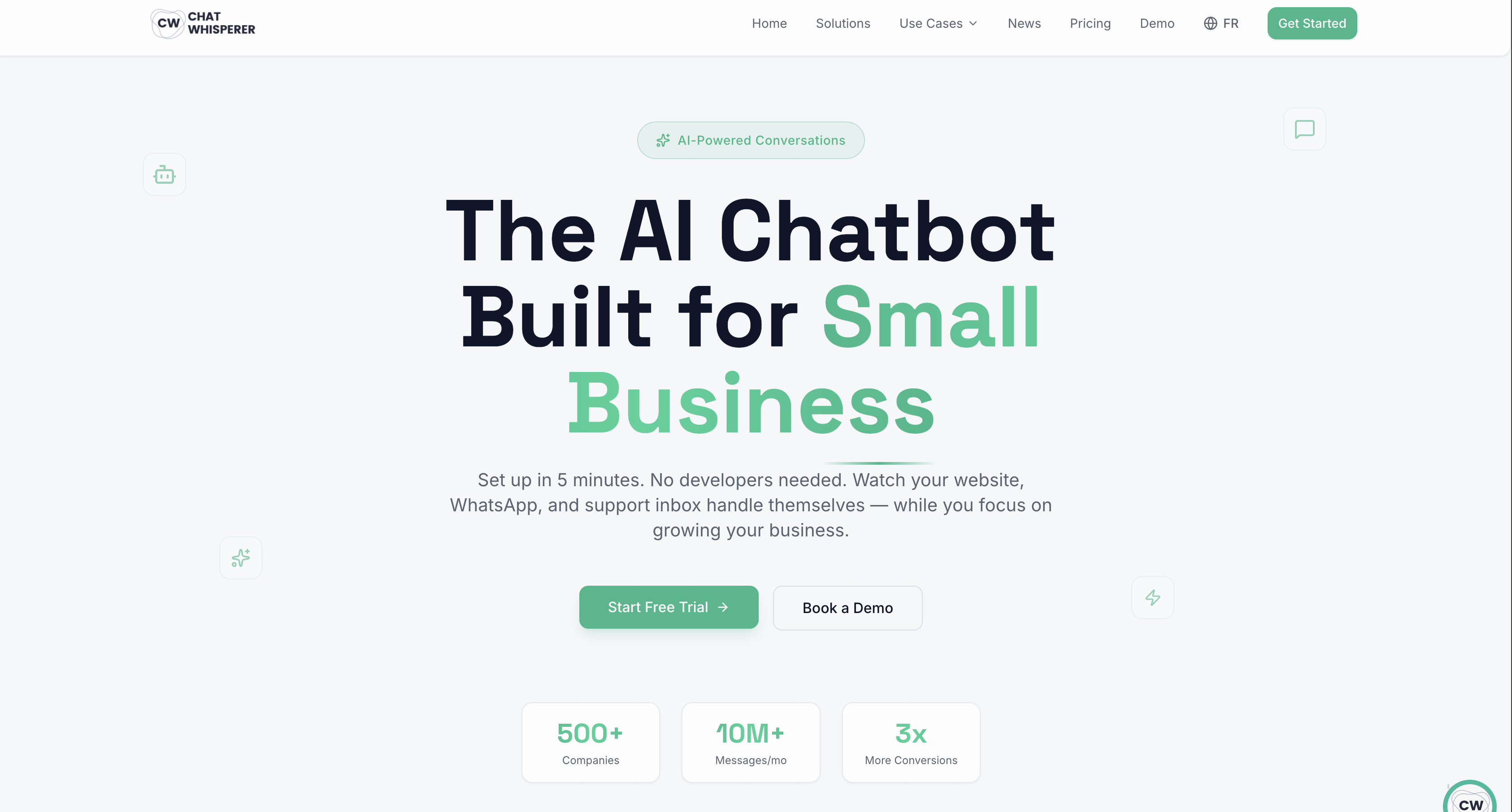
What is Chat Whisperer - AI Website Bot Maker? Chat Whisperer is an AI chatbot platform aimed at small businesses. It crawls a website URL, parses uploaded PDFs and Word documents into a private knowledge base, then answers visitor questions from that material and escalates to a human when it cannot. Its chatbot solution page states support for 50+ languages, live agent handoff, and lead routing into a CRM. The Marketplace listing is published by the workspace named Olivier's Workspace, and the vendor's own site credits Sandbox Digital Mauritius as the developer.
Teams pair the two products when a Webflow site starts producing more questions than a contact form absorbs. Three routes exist, and they differ mainly in who writes the code. The Chat Whisperer app installs from the Webflow Marketplace and registers the widget script for you. Custom code puts the same snippet in your site settings, a single page's settings, or a Code Embed element, which is the route to take when you want the widget on some pages and not others. The Webflow Data API does the same registration programmatically, which only earns its complexity if you are pushing one widget across a portfolio of client sites. Most sites need the first route or the second.
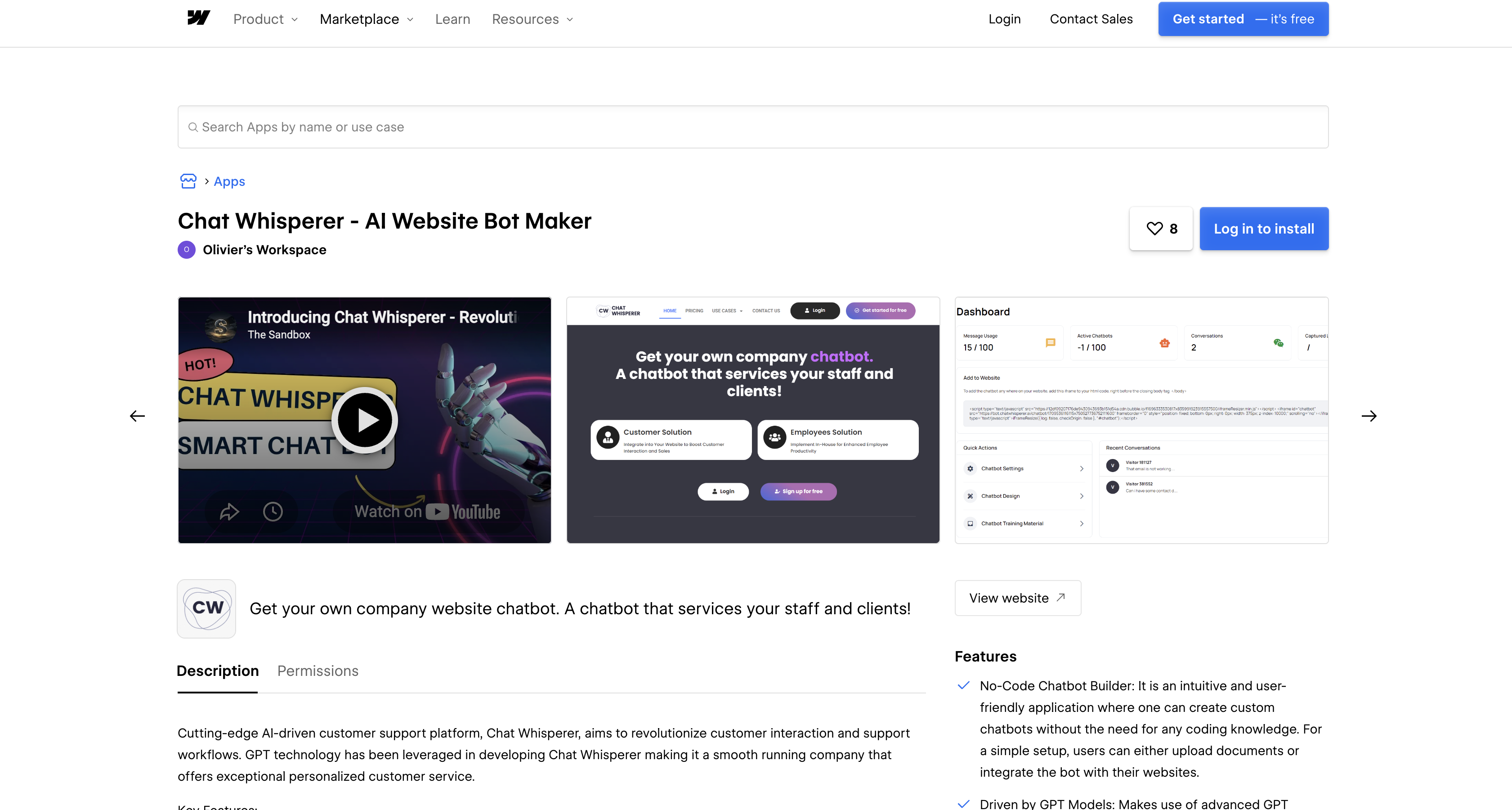
Install the Chat Whisperer app
The Marketplace app is the fastest route and needs no code, but read the permission screen before you click through it. The listing is live, public and approved, and it installs at Workspace level rather than per site, so one authorization reaches every site in that Workspace.
The install link requests ten OAuth scopes, and several of them reach well beyond what a chat widget needs:
- Custom code, read and write: the scopes the app genuinely needs, since installing the widget means registering and applying a script to your site.
- Pages and sites, read and write: broad access to page settings, site settings and publishing, which is more than placing one footer script requires.
- Users, read and write: access to the site users resource, which has no obvious role in serving a chat widget and is a fair question to put to the vendor.
- Site activity and authorized user, read: visibility into your site activity log and the identity of the person who authorized the app.
None of that is unusual for a Marketplace app, and none of it is hidden. It is simply the moment to decide, because Webflow app tokens cannot be re-scoped after they are issued. If you later want the access back, the Marketplace overview documents the path: Workspace settings, then the Integrations tab, then Authorized applications, then Revoke next to the app's name. Revoking there removes the app from every site in the Workspace, and the custom code it added is stripped at your next publish rather than the moment you revoke.
To install it:
- Open the Chat Whisperer listing in the Webflow Marketplace and choose the Workspace and site you want it on.
- Review the ten scopes on the authorization screen, then authorize.
- Connect your Chat Whisperer account, train the bot on your site URL, set the brand colors and welcome message, then publish your Webflow site so the registered script goes live.
If you would rather control where the widget appears yourself, skip the app and paste the embed.
Add the embed code with Webflow custom code
Chat Whisperer describes its embed as one line of code. It is not one line, and the difference matters for anyone reviewing what ships to visitors. The generated snippet is two script tags and an iframe: a copy of the iframe-resizer library served from Bubble's CDN, an iframe pointing at the vendor's bot host, and a resize call.
<script type="text/javascript" src="https://[bubble-cdn-host]/iframeResizer.min.js"></script>
<iframe id="chatbot" src="https://bot.chatwhisperer.ai/chatbot/<your_bot_id>"
        frameborder="0" scrolling="no"
        style="position: fixed; bottom: 0px; right: 0px; width: 375px; z-index: 10000;"></iframe>
<script type="text/javascript">iFrameResize({ log: false, checkOrigin: false }, "#chatbot");</script>
Two details in that snippet deserve a second look. The widget is a cross-origin iframe, so its cost is not the few hundred bytes you paste but everything the iframe then pulls: the bot document is a Bubble application, and fetching its bundles on 31 August 2026 returned roughly 1.6 MB of compressed JavaScript before any conversation starts. It loads in its own document rather than blocking yours, but it is real bandwidth on every page that carries the widget. The second detail is checkOrigin: false, which turns off iframe-resizer's origin check on the parent page, so the resize channel accepts messages without verifying the sender. Neither is a reason to avoid the product, and both are things you would want to know before a security review asks.
Pasting the snippet into site or page settings needs a Core, Growth, Agency, or Freelancer Workspace, or an active Site plan, per Webflow's plans and pricing, where custom code is listed as a Core feature. Each custom code field holds up to 50,000 characters, so a widget snippet of a few hundred bytes leaves the field effectively empty.
Add the script site-wide in site settings
Footer code loads the widget on every published page, which is what most sites want. Because the iframe positions itself with position: fixed, placement in the footer does not affect where it renders.
To add the script site-wide:
- Go to Site settings > Custom code.
- Paste the Chat Whisperer snippet into the Footer code field, using head and body tags as documented.
- Click Save changes, then publish.
Publish to the yoursite.webflow.io staging subdomain first so you can watch what the widget loads before it reaches your custom domain.
Add the script to a single page
Page-level placement keeps the widget off pages where it does not belong. Checkout, legal and account pages are the usual exclusions, and keeping a third-party iframe away from them is a reasonable default rather than a precaution.
To add the script to one page:
- Open Page settings for the target page.
- Paste the snippet into the Before
</body>tag field under Custom code. - Save, then publish.
Repeat for each page that should carry the widget, and keep a note of which pages have it so an audit later does not turn into a hunt.
Place the widget with a Code Embed element
A Code Embed element puts the markup at a chosen point in the layout instead of at the end of the document. It accepts HTML, CSS in style tags and JavaScript in script tags, and it carries the same 50,000 character ceiling. Server-side languages do not run.
To place the widget inline:
- Copy the snippet from your Chat Whisperer dashboard.
- Add a Code Embed element to the canvas from the Add panel.
- Paste the code, save and close the modal, then publish.
Convert the element to a component if you want one place to update the snippet across the site.
Build with the Webflow Data API
Chat Whisperer's own pricing page lists API access on all three plans, but the vendor publishes no public API reference: its sitemap contains no developer section and /docs returns a 404. Treat the API as something to ask the vendor about rather than something you can build against today. Programmatic deployment of the widget therefore runs entirely through Webflow's side, which is enough for the case that matters: an agency pushing the same widget to many client sites from one backend.
Before writing REST calls, note that the Webflow MCP server already exposes custom code and registered scripts as tools an agent can call, alongside per-site Agent Instructions and your existing permissions and roles. For a one-off rollout, describing the change to an agent is faster than building an OAuth app. Write the API path when the rollout needs to be scheduled and audited.
- Register the script: the hosted script endpoint takes an external URL with an integrity hash, and returns an id you reference later.
- Or register it inline: the inline endpoint takes the source directly and caps it at 2000 characters, which the Chat Whisperer snippet fits inside comfortably.
- Apply it to the site: the site custom code endpoint takes a
scriptsarray of id, location, version and attributes, and nothing from the registration body. - Watch your headroom: the registered scripts endpoint states a maximum of 800 registered scripts per site, which one chat widget will never approach.
All four need the custom_code:read or custom_code:write scope, which is available to Data Client apps rather than site tokens. Authorization codes from the OAuth code grant flow are single-use and valid for 15 minutes, so exchange them as soon as they arrive.
Track content changes for knowledge base updates
The bot answers from what the crawler indexed, not from what is on your site right now, so a Webflow CMS edit does not reach it until someone re-crawls. Chat Whisperer publishes no endpoint to trigger that re-crawl, so the practical fix is to make the staleness visible rather than to automate it away.
To watch for CMS changes:
- Create a webhook with
triggerTypeset tocollection_item_published, which requires thecms:readscope. - Point the
urlfield at your own endpoint and read the payload, which carries the site, collection and item details. - Have that endpoint tell whoever owns the bot to run a fresh crawl from the Chat Whisperer dashboard.
Verify what arrives before you act on it. Every Webflow webhook sends x-webflow-timestamp and x-webflow-signature headers, and the webhook signature guidance explains that the signing key depends on how the webhook was created: a site-token webhook made in site settings after April 14, 2025 gets its own secret, while an OAuth app webhook signs with the app's client secret.
What the bot trains on, and where that data goes
Chat Whisperer does not run its own model. The shipped widget bundle names the services it calls, and they belong to the vendor rather than to you: retrieval and generation are brokered through a hosted Flowise Cloud endpoint, with your indexed content stored under a Pinecone namespace. The model configuration baked into that bundle names both OpenAI and Anthropic models, each called with a default temperature of 0.7.
The practical consequence is straightforward. Everything you index and everything your visitors type passes through the vendor's accounts with those providers, not through accounts you hold or can audit. Chat Whisperer's privacy policy is explicit that it processes conversation data between your chatbot and your end users, stores conversation logs, and uses that data to provide and improve the service. It also states that information may be transferred to servers outside your jurisdiction. The vendor separately advertises EU data residency as available on paid plans, which is a claim to confirm in writing with the vendor before you rely on it for a specific regulator, because the privacy policy itself names no residency guarantee.
The source and volume limits sit on the Chat Whisperer pricing page and are message-based rather than document-based. Basic at $5 a month allows 100 messages a month and one chatbot. Pro at $49 a month allows 2,000 messages and one chatbot. Business at $99 a month allows 10,000 messages and five chatbots. All three include the URL crawler and unlimited team members, and none of them publishes a cap on how many pages or documents you may index, which is a question to settle before you point the crawler at a large CMS.
The vendor's marketing pages also carry figures such as an 85% query resolution rate and a 3x conversion increase. No methodology is published for either, so they are not repeated here as facts, and we would not plan a support headcount around them.
What the widget loads before a consent banner resolves
We fetched the widget document and its bundles and read what they load. Four things stand out, and none of them appear in the product description.
- Google Analytics 4 and Google Tag Manager: both load inside the chat iframe on every page carrying the widget, using the vendor's own measurement and container IDs.
- A HubSpot tracking script: the vendor's HubSpot portal script loads in the same document, which is a marketing tracker rather than a chat dependency.
- Bubble platform error reporting: the underlying Bubble application carries a Sentry DSN. Session replay is not part of it: neither
replaysSessionSampleRatenorreplaysOnErrorSampleRateappears anywhere in the bundles, so this is error reporting, not recording. - No consent gate of its own: the words consent and GDPR do not occur in the widget document at all, so nothing in the embed waits for a visitor's answer before those trackers fire.
That last point is the one that matters for a Webflow site with European or Californian visitors. The widget will not gate itself, so the gate has to come from your side of the page. Consent Pro supports strict opt-in and blocks scripts before consent, and if your organization standardizes on OneTrust, manage the Chat Whisperer snippet through the OneTrust app rather than leaving it in custom code where the banner cannot reach it. For a walkthrough of wiring a banner to third-party scripts, see our Cookiebot consent guide.
What the vendor documents about wrong answers
A bot answering in your brand's voice can be wrong in your brand's voice, so it is fair to ask what stops that. Chat Whisperer documents some of it and leaves the rest unstated, and the line between the two runs in a specific place.
What is documented, and visible in the shipped bundle, is grounding and a fallback. The default system prompt instructs the assistant to answer from a supplied context block and to reply, when the answer is not in the knowledge base, that it is unable to provide an answer and can help with questions about the company's products and services instead. The vendor's own description of the mechanism matches: the crawler indexes your pages and documents, and the model writes an answer from the passages it retrieves. Temperature is exposed as a per-bot setting and defaults to 0.7, which is not a conservative setting for a support bot and is the first dial to turn down.
What is not documented is equally clear once you look for it. The vendor publishes no confidence threshold, no accuracy figure with a method behind it, and no account of what the bot does when retrieval returns a weak match rather than nothing at all. We checked for a documentation site before saying so: /docs returns a 404, the sitemap lists marketing, use-case and news pages with no developer or help section, and no docs or help subdomain resolves. Live agent handoff exists as the human backstop, and its terms of service disclaim liability for the answers the service produces, which is standard and still worth reading before a regulated industry puts this on a public page.
What you can build with the Chat Whisperer Webflow integration
With the widget installed and the knowledge base crawled, a Webflow site can carry front-line support without a chat team behind it. The builds below are the ones the product is actually shaped for.
- Overnight support deflection: an e-commerce site answers order-tracking, sizing and returns questions from its own published policy pages, and escalates anything the knowledge base does not cover.
- Lead qualification into a CRM: a B2B marketing site asks about budget, timeline and fit in conversation, then routes the qualified ones into HubSpot or Salesforce with the transcript attached.
- Appointment booking from the page: a clinic or consultancy site checks availability and books through a connected calendar, so the visitor never leaves the page to find a booking form.
- Multilingual product help: an international storefront answers in the visitor's language from the same indexed content, which avoids maintaining a translated FAQ page for every market.
If you would rather own the model call and the prompt yourself instead of routing them through a vendor, build the AI chat interface directly on your Webflow site. It is more work than pasting an embed and it puts the data path under your control.
Chat Whisperer is one of several chat and chatbot options documented here, and it does not stand alone. YourGPT Chatbot covers the same trained-on-your-content ground, while Crisp, Tidio and ChatBot all put a widget on a Webflow site by the same custom code route. Compare them on where the data goes and what the embed loads, not only on price. When the widget is settled, connect the Webflow MCP server to your agent and let it manage the registered script and the publish for you.
Frequently asked questions
For the pasted embed, yes. Site-wide and page-level custom code needs a Core, Growth, Agency, or Freelancer Workspace, or an active Site plan. The Marketplace app states no paid-plan requirement of its own. Publishing on a custom domain needs a paid Site plan, since the free Starter plan publishes only to
.webflow.io.Custom code does not render in preview by default. Click the Enable custom code toggle in the bottom-left corner of preview mode, which renders your site on a
canvas.webflow.comsubdomain. If the widget still fails there, the vendor's own script may restrict which domains it loads on. Webflow's preview domain guidance is addressed to app developers, so that fix is one to raise with Chat Whisperer rather than one you can apply from your dashboard.No. The bot answers from what the crawler last indexed, so a CMS edit does not reach it until someone runs a fresh crawl or updates the knowledge base by hand. Chat Whisperer publishes no endpoint to trigger a re-crawl. A Webflow webhook on
collection_item_publishedcan at least tell your team the moment an update is due.If your visitors sit in regions with consent requirements, plan on it. We read the shipped widget and it loads Google Analytics 4, Google Tag Manager and a HubSpot tracking script inside its iframe, with no consent gate of its own, so those fire before a banner resolves unless your site blocks them. Serve the snippet through a consent tool rather than leaving it in custom code. The vendor advertises EU data residency on paid plans, though its privacy policy names no residency guarantee and allows transfers outside your jurisdiction.
Chat Whisperer does not run its own model. Its shipped bundle brokers retrieval and generation through a hosted Flowise Cloud endpoint with a Pinecone vector store, and names both OpenAI and Anthropic models, each called at a default temperature of
0.7. Those are the vendor's accounts, not yours, so your indexed content and your visitors' messages pass through them.
Description
Puts an AI chatbot on a Webflow site through the Marketplace app or an iframe embed you paste yourself. The bot answers from your crawled pages and uploaded documents, captures leads, and books appointments. Retrieval and generation run on the vendor's hosted account.
This integration page is provided for informational and convenience purposes only.

Orimon
Connect Orimon with Webflow to answer visitor questions and capture leads through an AI chatbot trained on your published site.

Chaty
Add a floating Chaty chat widget to your Webflow site that routes visitors to WhatsApp, Messenger, phone, and other channels across 20+ supported platforms.

Social Intents live chat
Connect Social Intents live chat with Webflow to answer visitor questions in real time from Microsoft Teams or Slack, with Google Chat also supported.

Twise
Connect Twise, an AI chat assistant, with Webflow to answer visitor questions, capture leads, and respond in 92 languages using a chat widget that learns from your site content.
Flowstar: Banners
Connect Flowstar: Banners with Webflow to display promotional pop-ups and announcement banners without writing code
Flowstar Urgency Countdown Timer
Add deadline-driven countdown timer bars to any Webflow page using Flowstar's no-code app.

Click to Call
Connect Click to Call with Webflow to add a floating phone button that lets visitors call your business directly from any page.
Quiz Popup
Connect Quiz Popup with Webflow to embed branching quiz popups that collect visitor data, capture emails, and route product recommendations on your site.

Impulse
Connect Impulse with Webflow to add popups, bars, and widgets to your site without writing custom code.
Related integrations
Get started for free
Try Webflow for as long as you like with our free Starter plan. Purchase a paid Site plan to publish, host, and unlock additional features.
