






Webflow's native background video plays muted, and embedding from YouTube or Vimeo brings third-party logos and ad or recommendation units onto your pages. Serving large video files without an adaptive player also slows page loads. Vidzflow was built to close that gap for Webflow specifically.
Connecting the two puts a branded, ad-free player directly inside Webflow. You upload video to Vidzflow, drag an element onto your page, and control colors, thumbnails, chapters, and captions without touching embed code. The player tracks analytics and adds in-video conversion tools such as CTAs and lead capture forms.
The integration fits teams managing video-heavy Webflow sites. Non-technical clients can swap videos in the Webflow Editor on their own. Developers get an API path for view counts and Webflow CMS-driven video pages.
How to integrate Vidzflow with Webflow
What is Vidzflow? Vidzflow is an ad-free video hosting platform built for Webflow. It hosts on-demand video up to 4K in mp4, mov, avi, mkv, mpg, and webm formats, with a customizable player, viewer analytics, in-video CTAs, and lead capture forms. Live streaming is not supported on any plan.
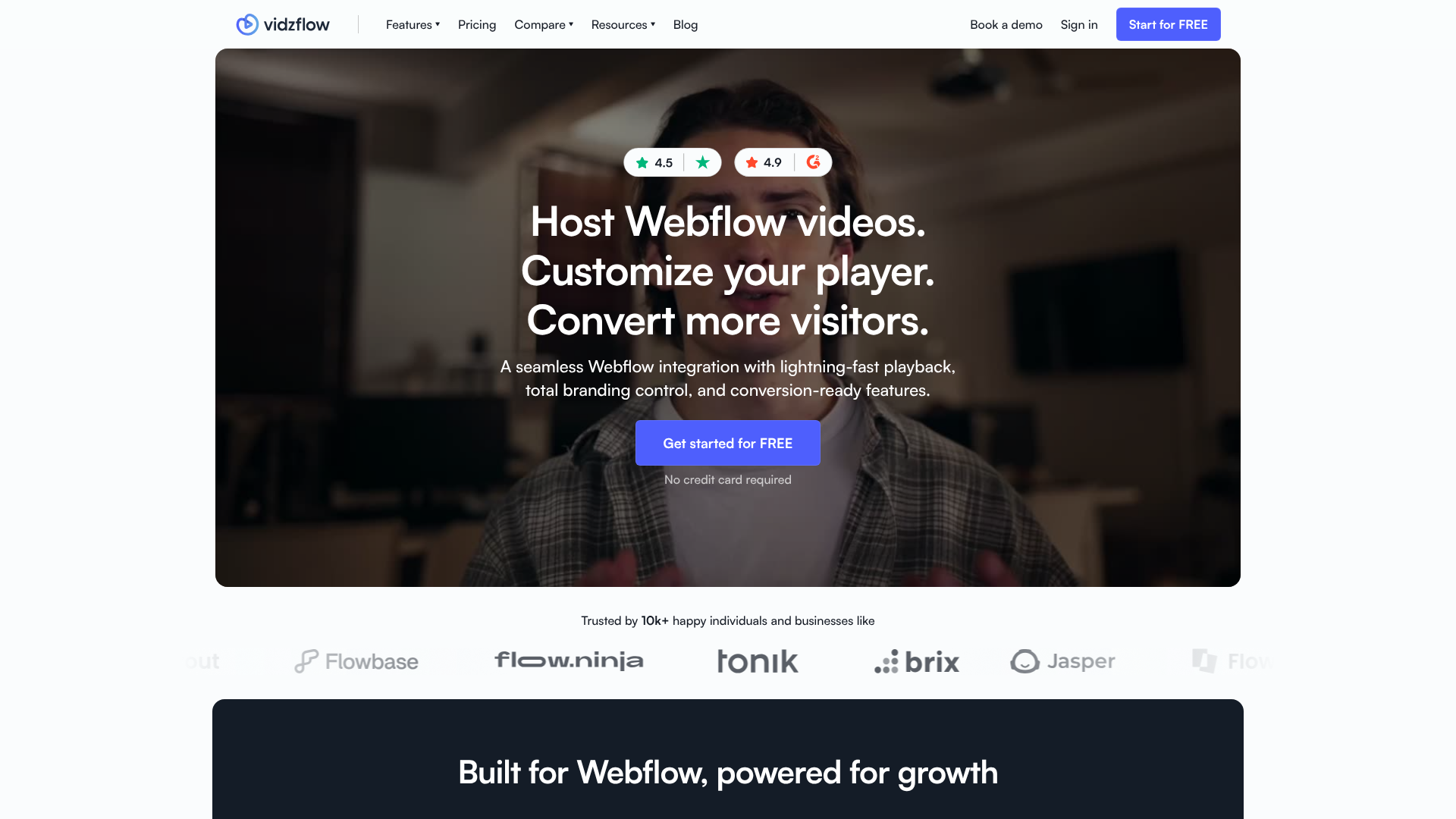
Teams pair the two when default embeds fall short. Grafit Agency, Flow Ninja, Memberstack, and Jasper.ai all run Vidzflow players on their Webflow sites for branded video delivery, landing page video, instructional content, and background hero video. Vidzflow reports that more than 10,000 designers, agencies, and marketers use its player.
The Vidzflow-Webflow integration supports several implementation paths. The Vidzflow app handles video hosting and player customization inside Webflow, including embeds without writing code. Code Embed and custom code place the player without installing an app. For custom builds, the Webflow Data API and Vidzflow API give you control over view-count data and CMS-driven video pages, but require server-side development.
Most implementations combine two or more of these methods depending on the complexity of the setup.
Install the Vidzflow app
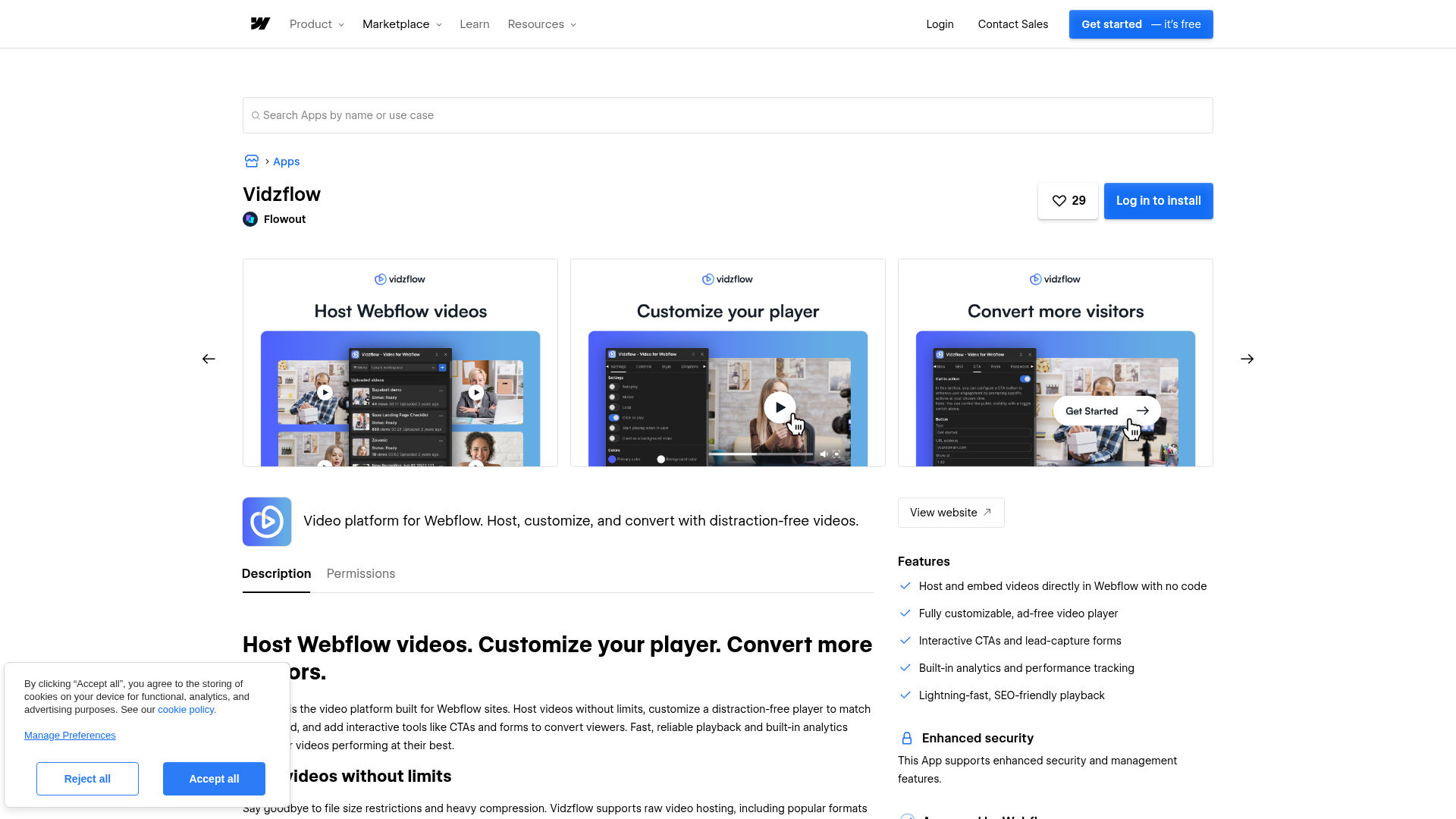
Vidzflow recommends its app, published by Flowout and approved by Webflow. It adds a Vidzflow element to the Apps panel so you can embed and customize videos without leaving the canvas. It runs on Vidzflow's free tier and needs no custom code, so it works even when your Webflow plan can't use Code Embed elements.
To set up the integration:
- Install the Vidzflow app from the Webflow Marketplace and authorize your site.
- Upload your video to your Vidzflow workspace.
- Open the Apps panel in Webflow and drag the Vidzflow element onto your page.
- Select your uploaded video and adjust player settings like colors and thumbnails.
- Publish the site.
Once installed, the app covers:
- Hosting and embedding video up to 4K in mp4, mov, avi, mkv, mpg, and webm formats.
- Player customization for brand colors, custom play buttons, thumbnails, chapters, and subtitles.
- In-video CTA buttons and lead capture forms that sync to HubSpot and Tally.
- Analytics for plays, watch time, completion rates, and drop-off points.
After setup, clients can update video content in the Webflow Editor without design access or code. If you'd rather skip the app entirely, the embed methods below place the same player.
Embed videos with Code Embed and custom code
Two paths place the player without installing the app: paste Vidzflow's component embed into a Code Embed element, or load Vidzflow's script through custom code in your site's head or body tags. Both handle cases the app doesn't, like data-attribute controls and CMS-driven embeds, and both require a paid Workspace or an active Site plan.
Paste embed code with a Code Embed element
This path gives you Vidzflow's full component markup inside a Code Embed element. Vidzflow provides the markup through the video's Share dialog, a change documented in the Vidzflow changelog.
To embed with Code Embed:
- In the Vidzflow dashboard, open the video's Share dialog.
- Select the Webflow tab and copy the component embed.
- In Webflow, add a Code Embed element where the video should appear and paste the code.
- Publish the site. The embed renders in preview, but it only goes live after publishing.
For video libraries, store each video's embed code or URL in a Webflow CMS field and bind it to the embed with dynamic data. Placing that embed inside a Collection List renders a different video for every item. Each Code Embed caps at 50,000 characters and doesn't run server-side languages like PHP or Python.
Add the script embed with data attributes
The script method loads videos through data-attributed containers instead of pasted iframes. You add Vidzflow's script through custom code in your site's head or body tags, then assign attributes to a .video-container element on the page.
Three attributes control playback. data-vf-autoplay autoplays the video, muted automatically because browsers block unmuted autoplay. data-vf-muted mutes the video on load, and data-vf-loop replays it when it ends.
Full setup details live in Vidzflow's embed guide. Site-level custom code shares the 50,000-character limit and only takes effect after you publish.
Build with the Webflow and Vidzflow APIs
Developers can use the API path to build view-count displays or CMS-driven video pages. Vidzflow's public API exposes a single endpoint, so most of the programmatic work happens on the Webflow side. Webflow's Data API can't be called from browser-side JavaScript because of CORS restrictions, so you need a server-side environment such as a serverless function or build step.
For API builds, use these services:
- The Vidzflow API handles video view counts through one public endpoint.
- The Webflow Data API writes CMS items, including published content, and can inject custom code before it publishes sites.
- Webflow webhooks fire real-time events like
site_publishandcollection_item_changed. - The views endpoint is public and needs no authentication, while Webflow Data API writes require an access token with the
cms:writescope.
Vidzflow documents no server-side webhooks, so no event fires when a video uploads or finishes processing. Any sync starts from your side or from a Webflow event.
Display view counts on your site
Vidzflow's only documented REST endpoint returns a video's view count. It's public and requires no authentication.
To show view counts:
- Request
GET /api/v/{slug}/viewswith the video's slug. - Read the JSON response, which contains the
slugand itsviewscount. - Render the number on your page, or write it to a CMS field with
PATCH /v2/collections/{collection_id}/items/live.
Responses cache for 60 seconds, and the endpoint returns 404 for unknown videos and 429 when requests exceed 600 per minute per IP. Full details are in the video views reference.
Sync video embeds through the Webflow CMS
Managing videos as CMS content lets you add or swap videos across a site without opening the canvas. Store each video's slug or embed code in a Collection field and write to it programmatically.
To build the sync:
- Create a Collection with fields for the video's slug or embed code, bound to a Code Embed inside a Collection List.
- Create published items with
POST /v2/collections/{collection_id}/items/live, or stage them withPOST /v2/collections/{collection_id}/itemsand publish viaPOST /v2/collections/{collection_id}/items/publish. Writes require thecms:writescope. - When a video changes, update items with
PATCH /v2/collections/{collection_id}/items/live, then publish the site withPOST /v2/sites/{site_id}/publish.
Because Vidzflow has no webhooks, run this sync manually or automate it from your side with a schedule or a Webflow event rather than waiting on a Vidzflow trigger.
React to player events with postMessage
Embedded Vidzflow players emit playback events through the browser postMessage API, so page scripts can react to what viewers do.
The documented events include:
- videoReady: The player fires this once initialization finishes, signaling that reads and interactions are safe to run.
- videoPlay and videoPause: These fire when playback starts, resumes, or pauses, each carrying the
videoIdandcurrentTime. - videoProgress and videoTimeUpdate: These report watch position and percentage as the video plays, which suits engagement tracking.
- videoEnded and videoError: The first fires when the video finishes, and the second reports a playback failure with a
codeandmessage.
Every message carries source, eventType, videoId, and videoTitle, so you can trigger Webflow interactions when a video ends or forward watch data to your own analytics. Full field details live in the player events reference.
What you can build with the Vidzflow Webflow integration
Integrating Vidzflow with Webflow lets you publish branded, ad-free video across your site without third-party players pushing logos and ad or recommendation units onto your pages.
- Background hero video with sound: Jasper.ai runs its background hero video through Vidzflow for distraction-free playback, and a Vidzflow hero can play with sound and controls where native background video stays muted.
- Landing page and project video: Flow Ninja hosts landing page videos for its SaaS Data Goat and project videos in testimonials, configured with autoplay and custom thumbnails to match the site design.
- Instructional and membership video: Memberstack delivers instructional video content through Vidzflow, citing security for sensitive content and plans that scale with a growing library, which fits gated education sites built in Webflow.
- Lead capture and conversion video: In-video forms placed before, during, or after playback send captured data to HubSpot and Tally, while timed CTA buttons push viewers to book a demo or sign up from a Webflow landing page.
If you need more control over view-count displays or CMS-driven video libraries, the API path covers those cases. Explore how to apply custom code with the Webflow Data API to build them programmatically.
Frequently asked questions
Install the Vidzflow app from the Marketplace, drag the Vidzflow element onto your page from the Apps panel, select a video, and publish. Without the app, open the video's Share dialog in Vidzflow, copy the Webflow component embed, and paste it into a Code Embed element.
Yes, with a caveat. The player has an autoplay toggle, but browser policies require autoplaying video to start muted. The script embed's
data-vf-autoplayattribute reflects this: the video autoplays muted.Not for the app method. The Vidzflow app installs on the free tier, which allows 10 videos up to 5 minutes at 720p with Vidzflow branding shown, per the Vidzflow pricing page. Paid Vidzflow tiers remove branding, raise limits, and add raw hosting. On the Webflow side, the Code Embed element and site custom code require a Core, Growth, Agency, or Freelancer Workspace or an active Site plan.
Yes. Clients can manage and swap video content in the Webflow Editor without opening the design canvas or touching code, as described in the Vidzflow Webflow app guide. Vidzflow also offers team video workspaces for managing content across multiple client sites.

Description
Connect Vidzflow to Webflow through the Marketplace app to embed ad-free, branded video players by dragging an element onto the page. Without the app, paste Vidzflow's component embed into a Code Embed element or load its script through custom code.
This integration page is provided for informational and convenience purposes only.

SVGator
Connect SVGator with Webflow to generate and embed interactive SVG animations on any page without writing animation code from scratch.

StickPNG
Connect StickPNG, a free transparent PNG library, with Webflow to add pre-cut product images, logo overlays, and decorative elements to page compositions without manual background removal.

Pixabay
Connect Pixabay with Webflow to source and publish royalty-free images, videos, and illustrations on your site without per-asset licensing fees.

Pixie - CMS Image Optimizer
Connect Pixie with Webflow to bulk-optimize CMS and Ecommerce images in place, and see where Webflow's own tools already cover the job.

Pngtree
Connect Pngtree, a graphic design asset marketplace, with Webflow to add transparent PNGs, SVG illustrations, and background textures to pages, CMS collections, and campaign layouts.

Pexels
Connect Pexels, a free stock photo and video platform, with Webflow to source royalty-free visuals for pages, CMS collections, and video backgrounds without licensing fees.
Lottieflow by Finsweet
Connect Lottieflow by Finsweet with Webflow to add free, color-customizable Lottie animations to any page using the native Lottie element and Interactions panel.

Lordicon Animated Icons
Connect Lordicon Animated Icons with Webflow to play animated Lottie icons on hover, click, and scroll without a motion designer.

LottieFiles
Bring lightweight, scalable vector animations to your Webflow sites with LottieFiles — the platform that makes adding motion as simple as uploading an image.
Related integrations
Get started for free
Try Webflow for as long as you like with our free Starter plan. Purchase a paid Site plan to publish, host, and unlock additional features.
