






Urgency Deal
Connect Urgency Deal with Webflow to show countdown deal notifications that push visitors to act before a promotion ends.

Webflow has no countdown timer element. Webflow Ecommerce discount codes carry a starts-on and an ends-on date, so the deadline lives in your store settings, but nothing on the page shows a shopper the clock running down. Building that display yourself means custom JavaScript that tracks when each visitor first landed, survives a reload, and decides what happens at zero.
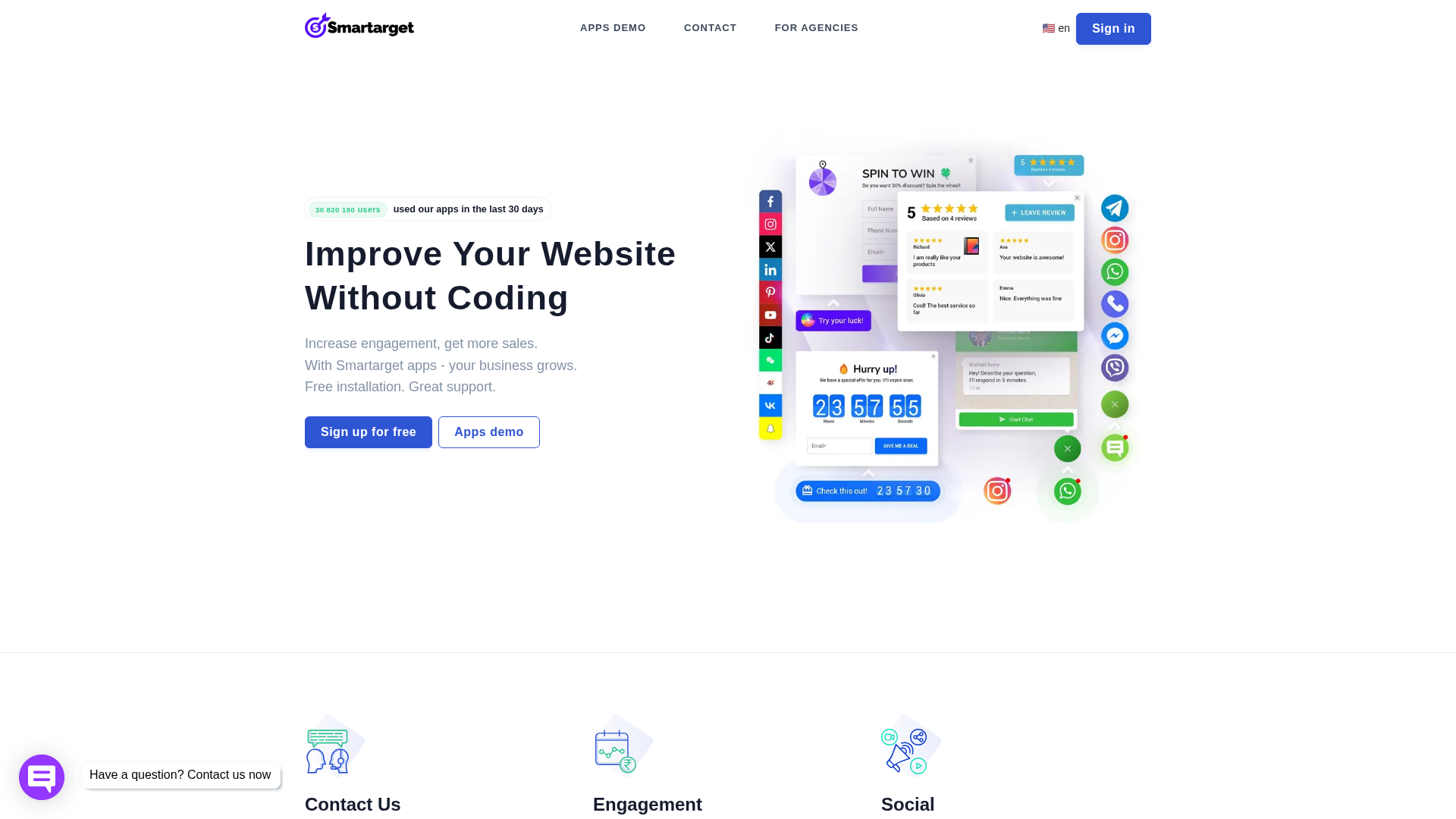
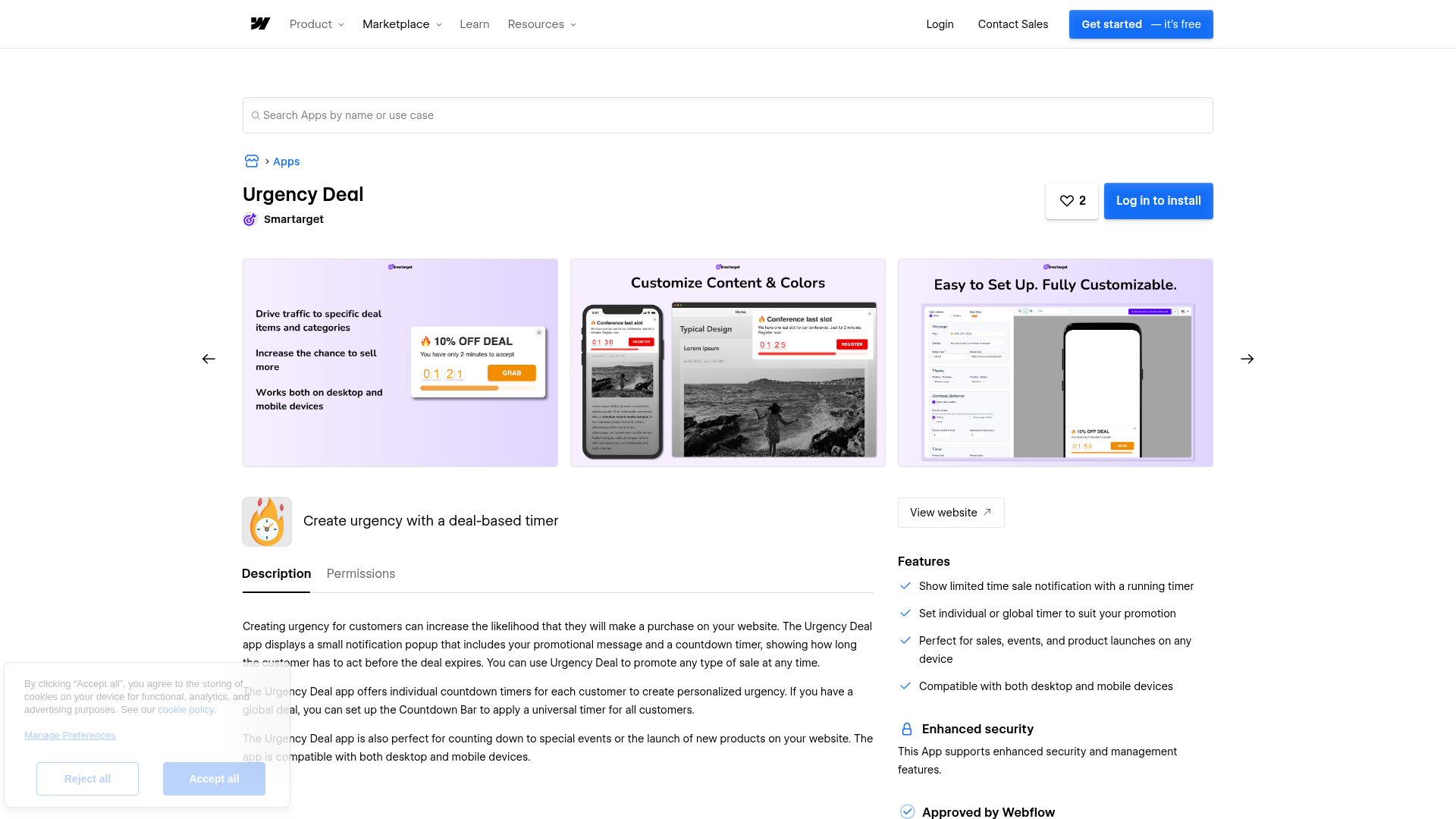
Urgency Deal by Smartarget covers that gap with a small notification popup: your promotional message next to a countdown progress bar, sitting in a corner of the page on desktop and pinned to the top or bottom on mobile. You set the deal up in the Smartarget dashboard, one script loads it on your published site, and the widget can send visitors to a target page as the timer runs out.
The integration suits ecommerce store owners running flash sales, marketers building promotion landing pages, event organizers counting down to a date, and agencies deploying the same widget across client sites. Smartarget sells white-label versions of its apps for that last case. Nothing here needs code beyond pasting a snippet.
Worth being straight about what the app is actually buying you. The countdown itself is a short piece of JavaScript and a styled div, well inside what a competent Webflow build can handle. What the app adds is the awkward part around it: per-visitor timing state, and a dashboard a marketer can edit without touching the site. What it costs you is another third-party script on every page it loads. If your deadline is fixed and identical for everyone, Smartarget's Countdown Bar and Countdown Popup match that shape more directly, and a hand-built embed matches it with no vendor at all.
How to integrate Urgency Deal with Webflow
What is Urgency Deal? Urgency Deal is a deal-based countdown widget from Smartarget, configured under the name "Urgency Offer Deal" in the Smartarget dashboard. It renders a promotional message and a countdown progress bar inside a notification popup, positioned in a corner on desktop and at the top or bottom of the screen on mobile. Its Marketplace description covers individual per-visitor timers and sends you to Countdown Bar for a single universal deadline, while the same listing's feature list names both modes, so confirm in the dashboard which one your deal is running.
Connecting the two means getting Smartarget's script onto your published Webflow site, then setting the timer mode, message, colors, behavior, and expiry redirect from the Smartarget dashboard.
Teams reach for the pairing on limited-time discounts, flash sales, seasonal promotions, product launches, and event countdowns. Smartarget also positions the widget at checkout, where a running timer reminds shoppers to finish, and says the app can reduce bounce rates by creating urgency and engagement.
The Urgency Deal-Webflow integration supports four approaches:
- The Webflow MCP server reads and writes site-level and page-level custom code, so an agent in your AI tool can place or pull the Smartarget snippet for you.
- The Urgency Deal app installs the widget from the Webflow Marketplace with nothing to copy and paste.
- Custom code in head and body tags takes the snippet site-wide, onto a single page, or into a Code Embed element.
- The Webflow Data API gives programmatic control over script registration and deployment, at the cost of server-side work and an OAuth app.
Most sites want the app or one pasted snippet. The MCP and API paths start paying off once the same script has to land on many sites and pages.
Place the snippet with the Webflow MCP server
The MCP server connects your AI client to your Webflow projects, and freeform site-level and page-level custom code is one of the things it can read and write, alongside managing registered scripts. That makes it the shortest route from a snippet in your clipboard to the right pages on the right sites, without building an app first.
The guardrails matter as much as the capability here. Every agent works inside your existing Webflow permissions and roles, an agent can do only what you can do, per-site Agent Instructions shape how it works on a given site, and the changes it makes are written to the site activity log for review.
To run the install through an agent:
- Configure your Urgency Offer Deal in the Smartarget dashboard and copy the JavaScript code from the Integrations screen.
- Connect the MCP server to your AI client and authorize the Workspace that holds the site.
- Ask the agent to add the snippet as custom code on the site or on the specific pages that should show the deal.
- Publish the site, then read the activity log to confirm exactly what the agent changed.
Two documented limits shape this path: each authorization covers a single Workspace, so a second Workspace means re-authenticating, and a custom code change only reaches visitors when the site is published.
Install the Urgency Deal app
The Urgency Deal listing on the Webflow Marketplace is the fastest install path and carries the "Approved by Webflow" badge, which means Webflow reviewed it for site development quality rather than endorsing or certifying it. It asks to read and write custom code and to read site data and publishing, scopes that match a widget delivered as a script. You still build the timer itself, including theme, colors, message, and behavior, in the Smartarget dashboard. Because the widget loads through custom code, your site needs an active Site plan or a Core, Growth, Agency, or Freelancer Workspace.
To set up the integration:
- Open the Urgency Deal listing on the Webflow Marketplace and install the app on your site.
- Create a Smartarget account; signup is free and asks for no credit card.
- Configure your Urgency Offer Deal in the Smartarget dashboard, including timer mode, message, colors, and behavior.
- Publish your site and confirm the notification appears on the published page.
Once installed, the widget gives you:
- Per-visitor countdowns: Each visitor gets their own running deadline, which is the timer mode the app listing describes in the most detail.
- A promotional message: Your offer copy sits alongside the progress bar, so the deadline and the reason to act appear together.
- Desktop and mobile placement: The notification takes a corner of the viewport on desktop and the top or bottom edge on mobile.
- An expiry redirect: Point the timer at a target page and the widget sends visitors there as it runs out, which is how it drives traffic to an offer.
Skip ahead to the snippet method if you would rather not authorize an app on your site.
Add the Smartarget snippet with custom code
Smartarget's own Webflow guide documents a manual install built on a JavaScript snippet: sign up, configure the deal, copy the code from the dashboard, paste it into Webflow. Webflow accepts that snippet in site settings, in page settings, or in a Code Embed element, and each of those fields holds up to 50,000 characters, far more than the snippet needs. The guide stops short of naming a field for Webflow. Every location requires an active Site plan or a Core, Growth, Agency, or Freelancer Workspace, so the free Starter plan on its own will not run it.
First, get the snippet from Smartarget:
- Sign up on Smartarget; it is free and needs no credit card.
- Set up your Urgency Offer Deal configuration in the dashboard.
- Go to Integrations and copy the JavaScript code.
One caution before you paste: pick a single delivery method. Webflow's custom code guidance warns that manually pasted code sits outside an app's lifecycle, and that the same script can run twice when an app also applies it through the API. Then choose the paste location that matches the widget's scope.
Paste site-wide in site settings
Site settings custom code applies the widget to every page, which suits a sale running across the whole site.
To install site-wide:
- Go to Site settings > Custom code.
- Paste the snippet into the Footer code field. Footer placement keeps third-party JavaScript from blocking page rendering.
- Click Save changes and publish your site.
Check your Smartarget plan before relying on this: once the free trial period ends, the free plan drops apps back to homepage-only display with "Powered by Smartarget" branding, so a site-wide paste only shows everywhere on a PRO account.
Paste on a single page in page settings
Page settings scope the widget to one page, such as a promotion landing page or a checkout page.
To install on one page:
- Open the Pages panel, hover over the target page, and click the page settings icon.
- Paste the snippet into the Before
</body>tag section. - Click Save changes and publish.
Repeat that for each page that should show the deal.
Place the widget with a Code Embed element
A Code Embed element pins the snippet to a specific position in a page layout, and it accepts HTML, plus CSS in <style> tags and JavaScript in <script> tags. The notification positions itself at the edge of the viewport rather than in the page flow, so reach for this path when you want the script tied to a particular component or section.
To add the embed:
- Open the Add panel and drag a Code Embed element onto the canvas.
- Paste the snippet into the code editor and save.
- Publish the site.
The widget will not render on the canvas, because anything in a script tag only shows on the live site. Test it on your staging subdomain before publishing to your custom domain. Webflow cannot guarantee custom code compatibility, and support cannot troubleshoot third-party scripts.
Build with the Webflow Data API
Smartarget publishes no API, webhooks, or SDK, so the Urgency Deal side of this offers nothing to call. What the Webflow API gives you is programmatic control of the snippet itself, which is the agency pattern Smartarget targets with its white-label offering. Custom code endpoints are open only to Webflow Apps holding OAuth tokens, not to site or Workspace tokens, and your app needs the custom_code:read, custom_code:write, sites:read, sites:write, pages:read, and pages:write scopes.
Four things shape the Webflow API side of this:
- Custom code endpoints: Register a script against a site, then apply it at site level or page level, which is the whole deployment path for a widget like this one.
- Webflow webhooks: Events including
site_publish,form_submission, andecomm_new_orderlet you re-verify the script after a publish or log conversions while a deal runs. - Publishing: Applying, updating, or removing a script through the API changes the site's custom code, but nothing reaches visitors until the site is published.
- Uninstall scopes: An app has to keep write scopes to remove the code it applied, and remove applied scripts at both site and page level.
Because Smartarget exposes no intake endpoint, timer values and deal rules stay in the Smartarget dashboard whichever path you take.
Inject the snippet site-wide
The site-wide flow takes three API calls.
To implement this:
- Register the script with
POST https://api.webflow.com/v2/sites/{site_id}/registered_scripts/inline. The endpoint reference caps inline scripts at 2,000 characters; past that, register it as hosted throughPOST /v2/sites/{site_id}/registered_scripts/hostedwithhostedLocation,integrityHash,version, anddisplayName. - Apply it site-wide with
PUT https://api.webflow.com/v2/sites/{site_id}/custom_code, passing the scriptid, alocationofheaderorfooter, and theversion. - Push the change live with
POST https://api.webflow.com/v2/sites/{site_id}/publish.
For page-level deployment, list pages with GET /v2/sites/{site_id}/pages, apply the script with PUT /v2/pages/{page_id}/custom_code, then publish.
What you can build with the Urgency Deal Webflow integration
Pairing Urgency Deal with Webflow lets you run deadline-driven promotions without writing countdown logic yourself.
- Flash sale landing pages: A promotion page carrying a corner countdown that redirects visitors to the offer as the timer expires, installed through that page's settings.
- Checkout urgency for Webflow Ecommerce: A running reminder near the checkout section, paired with store discount codes that already carry their own start and end dates.
- Product launch countdowns: A deadline shown across the site through site settings custom code, which the app listing calls out as a fit for events and new product launches.
- Personalized per-visitor offers: The individual timer mode starts a personal countdown for each visitor, which Smartarget positions as a way to speed up purchase decisions.
For rollouts across many sites and pages, see how to apply custom code programmatically with the Data API rather than pasting the snippet site by site.
If you would rather hand the repetitive part to an agent, connect the MCP server to your AI client and let it place and later remove the snippet across your Workspace within your existing permissions.
Frequently asked questions
Use the Footer code field under Site settings > Custom code for site-wide display. For a single page, use the Before
</body>tag section in page settings, and for a fixed spot in a layout, use a Code Embed element. Smartarget's Webflow guide does not name a field, so footer placement is the safe default.No. Custom code requires an active Site plan or a Core, Growth, Agency, or Freelancer Workspace, and the widget loads through custom code. Smartarget signup is free with no credit card, but its free plan reverts to homepage-only display with "Powered by Smartarget" branding once the trial period ends. The PRO plan lifts both limits.
Publish first, then check in an incognito window. Custom code effects show in preview but do not go live until you publish, and script tags never render on the canvas. Smartarget's own advice is to check the site using incognito, because a popup set to display every X days stays hidden after you dismiss it (Smartarget's troubleshooting guide).
Yes. The Marketplace listing states compatibility with both desktop and mobile devices. On desktop the notification sits in one of the page corners; on mobile it appears at the top or bottom of the screen, per Smartarget's Webflow setup guide.
Urgency Deal is a notification popup with a countdown progress bar, and its Marketplace description focuses on an individual timer per customer. Countdown Bar is a bar that counts down to one date and time you set, the same deadline for every visitor. Smartarget's Urgency Deal listing points you to Countdown Bar when the deal is global.
Description
Adds Smartarget's deal-based countdown notifications to Webflow pages through the Urgency Deal Marketplace app, a pasted JavaScript snippet, or the MCP server, with the deal itself configured in the Smartarget dashboard.
This integration page is provided for informational and convenience purposes only.

Chat Whisperer - AI Website Bot Maker
Add Chat Whisperer's AI chatbot to Webflow through the Marketplace app or a pasted embed, and see what it trains on, what it loads, and where visitor messages go.

Flowstar Click to Call

Social Intents
Add Social Intents live chat to Webflow with one script, then answer visitors from Slack, Teams, Google Chat, Zoom or Webex. Setup, plan costs and consent.

Interactivity Studio
Connect Interactivity Studio with Webflow to turn static images into clickable, shoppable content with segment-level bubbles and CTA buttons.

Poper
Connect Poper with Webflow to show behavior-triggered popups, forms, and widgets on your site and route captured leads into the Webflow CMS.

ChatSale
Connect ChatSale with Webflow to add its AI sales assistant to your site, on a Pro or Enterprise plan that includes the website widget.
Lucky Wheel
Add a spin-to-win wheel to a Webflow site with the Marketplace app or one snippet. For programmatic setups, use the Data API.

Salespeak
Connect Salespeak, a B2B inbound sales AI platform, with Webflow to add a conversational agent that qualifies buyers and books demos using the app or embeds.
Smartarget Countdown Popup
Connect Smartarget Countdown Popup with Webflow to display time-limited offers and event deadlines through JavaScript embed codes.
Related integrations
Get started for free
Try Webflow for as long as you like with our free Starter plan. Purchase a paid Site plan to publish, host, and unlock additional features.
