






Typed.js
Connect Typed.js, a JavaScript typing animation library, with Webflow to add animated rotating headlines using Code Embed elements and CMS-driven strings.

Typed.js turns any static heading into a live, character-by-character animation that types, backspaces, and cycles through as many strings as you set. Drop it into a custom code field, point it at a target element, and you get animated headlines without a build pipeline or backend service.
Designers use it for client portfolios, agencies for SaaS marketing sites, and founders for testing headline variations on landing pages. Wire it up once, and content editors can update rotating copy through the CMS without touching the code.
How to integrate Typed.js with Webflow
What is Typed.js? Typed.js is a JavaScript typing animation library created by Matt Boldt. You enter any string and watch it type at the speed you set, backspace what it typed, and begin a new sentence for however many strings you define. It supports looping, smart backspacing, custom cursors, HTML inside strings, and typing into element attributes like placeholder.
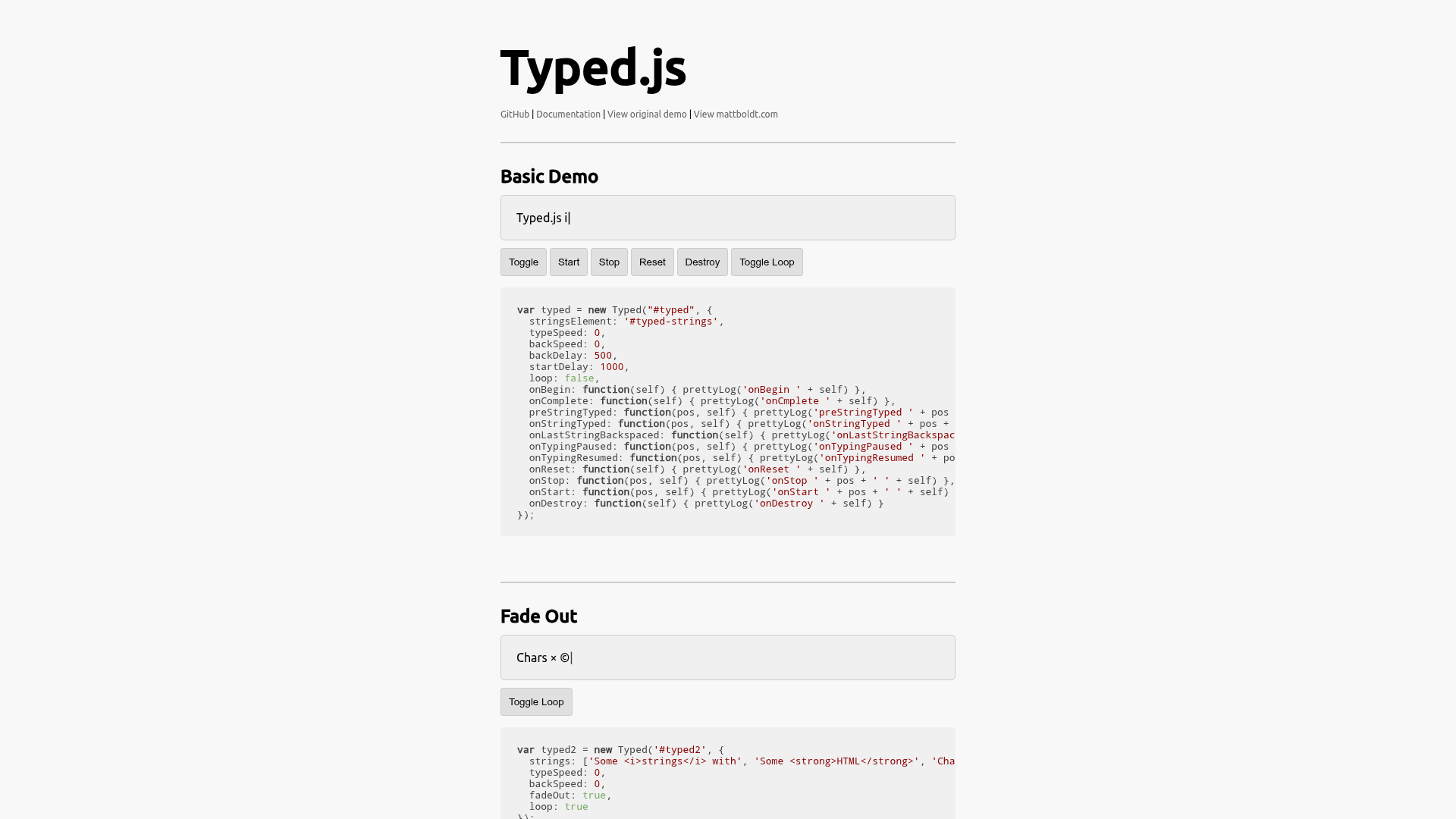
Reach for Typed.js when a hero section needs motion that draws attention to changing copy. A SaaS marketing site might cycle through three product benefits in one headline. An agency might rotate service descriptions. Because the library runs entirely in the browser, you set it up through the native custom code options with no server-side dependencies.
Choose the setup path that matches where the animation lives:
- The Code Embed element loads and initializes Typed.js inline where the animation appears, without editing site-wide settings.
- Custom code in site or page settings loads the library globally or scopes an animation to a single page.
- The CMS feeds editor-managed strings into Typed.js via the
stringsElementoption, so content editors can update rotating text without touching code.
Most implementations combine two or more of these methods depending on the complexity of the setup.
Add Typed.js with a Code Embed element
Add a single Code Embed element when the animation belongs to one section or page. Set up Typed.js with custom code, since there is no marketplace app for it. The embed holds the target span and initialization block together, with the CDN script loaded before the animation runs. You need a paid site plan to access custom code features.
To set up the integration:
- Open the Add panel, drag a Code Embed element to the spot where the animation should appear.
- Paste the target element and the initialization script. Include the CDN script tag before the initialization block.
- Click Save, then publish to a staging domain to test.
Here is the full block for a single embed:
<span id="typed-text"></span>
<script src="https://unpkg.com/typed.js@3.0.0/dist/typed.umd.js"></script>
<script>
  var typed = new Typed('#typed-text', {
    strings: ['Hello World.', 'Welcome to my site.'],
    typeSpeed: 50,
    backSpeed: 30,
    loop: true,
  });
</script>
A Code Embed field accepts up to 50,000 characters, which is far more than any Typed.js configuration needs. Typed.js animations do not run inside the canvas or Editor, so publish to staging.webflow.io before pushing to production.
Load the library in site or page custom code
When you use Typed.js on more than one page, load the CDN once globally and keep only the initialization script on each page. This avoids repeating the script tag and keeps the library available everywhere. For a single-page animation, scope both the library and the init script to that page instead. Both paths use the Custom code in head and body tags fields.
Load the CDN site-wide, then initialize per page
If the initialization script sits inside a Code Embed element in the page body, place the site-wide CDN in Head code so the library loads before the inline initialization runs. If you place the CDN in Footer code, run the initialization after the CDN. You can also use the single Code Embed pattern where the CDN and initialization appear together in order.
To set this up with a site-wide head load:
- Go to Site settings > Custom code and paste the CDN tag into Head code.
<script src="https://unpkg.com/typed.js@3.0.0/dist/typed.umd.js"></script>
- Add a Code Embed element on each page that needs animation. Include the target span and the init script in the embed.
<span id="typed-text"></span>
<script>
  var typed = new Typed('#typed-text', {
    strings: ['First string.', 'Second string.'],
    typeSpeed: 50,
    loop: true,
  });
</script>
This pattern keeps the library in one place and scales across a multi-page site while preserving the correct script order.
Target an existing Webflow text element
Animate a heading or paragraph you already placed on the page by giving it an ID and pointing Typed.js at it. A unique ID is the most reliable way to target one intended element, so make the ID field match your selector.
To wire this up:
- Select the text element and assign it a unique ID in the element settings, for example
typed-heading. - Add a Code Embed or page footer script that references the ID.
<script src="https://unpkg.com/typed.js@3.0.0/dist/typed.umd.js"></script>
<script>
  var typed = new Typed('#typed-heading', {
    strings: ['Hello.', 'Welcome.'],
    typeSpeed: 60,
  });
</script>
Keep IDs unique per page, since the browser matches only the first occurrence when duplicated. A documented community issue shows animations failing when a user sets only a class and forgets to assign a matching element ID.
If the init script runs before the DOM renders the target, the animation breaks. Wrap the initialization in a DOMContentLoaded listener with an element check:
document.addEventListener('DOMContentLoaded', function() {
  var el = document.getElementById('typed');
  if (el) {
    var typed = new Typed('#typed', {
      strings: ['Hello.', 'World.'],
      typeSpeed: 50,
    });
  }
});
Build with the Webflow Data API and Typed.js
Typed.js is a purely client-side library and has no HTTP API. It runs through the Typed constructor and instance methods. The integration that requires developer resources is feeding CMS content into Typed.js so editors can change rotating text without editing code.
Typed.js and the platform each handle a different part of the setup:
- The Typed.js JavaScript API handles typing behavior through the
Typedconstructor, options, and instance methods likestart(),stop(), anddestroy(). - The Data API handles the CMS collections endpoint and CMS collections and item retrieval.
Use stringsElement to read strings from a hidden DOM element instead of a hardcoded JavaScript array.
Feed CMS strings into Typed.js with stringsElement
Bind a Collection List to a hidden container so the CMS renders your rotating strings into the DOM at page load. Typed.js reads them at runtime via the stringsElement option. Editors update copy in the CMS, and the animation reflects the change on republish.
To implement this:
- Create a Collection with a text field for each string, then add a Collection List to the page bound to that Collection.
- Wrap the Collection List in a container with
id="typed-strings"and set it todisplay:none. Each item renders as a child element.
<div id="typed-strings" style="display:none">
  <p>Typed.js is a JavaScript library.</p>
  <p>It types out sentences.</p>
</div>
<span id="typed"></span>
- Initialize Typed.js against the hidden element.
<script>
  var typed = new Typed('#typed', { stringsElement: '#typed-strings' });
</script>
This approach also makes strings visible to search crawlers and to users with JavaScript disabled, since the copy sits in the raw HTML. Reach for the Data API directly only when you need to read or write CMS items from a server-side process rather than render them on the page.
What can you build with the Typed.js Webflow integration?
Integrating Typed.js lets you add animated, rotating text to any element without a custom development pipeline.
- Rotating hero headlines: Cycle a SaaS hero between phrases like "Build faster." and "Launch today." with
loop: trueandsmartBackspace: trueso only the differing characters get deleted between related lines. - Agency service cycling with fade: Rotate service statements such as "We build brands.", "We craft experiences.", "We ship products." using
fadeOut: trueto swap phrases with a CSS fade instead of backspacing. - One-time intro with a CTA reveal: Type a single welcome line with
loop: falseandshowCursor: false, then use theonCompletecallback to display a call-to-action button once typing finishes. - CMS-managed campaign headlines: Bind a Collection List to a hidden
stringsElementcontainer so content editors update the rotating copy in the CMS without touching any JavaScript.
If you need more control over reading or writing CMS strings from a server-side process, the API integration path covers those cases with full flexibility.
Frequently asked questions
For site-wide use, add it to Site settings > Custom code in either Head code or Footer code. For a single page, add it under Page settings > Custom code before the closing body tag. If your initialization script runs inline in a Code Embed element, place the CDN before that initialization, such as in Head code, or keep the CDN and initialization together in the same embed in the correct order. See Webflow's guide to custom code in head and body tags for field locations and the 50,000-character limit per field.
Use a unique ID for the most reliable Webflow setup. Typed.js examples commonly use ID selectors like
#typed; if you use another selector, make sure it resolves to the intended single element. In Webflow, set the element's ID field to match your selector when using an ID.Typed.js animations run on published sites rather than inside the Webflow canvas or Editor mode. Publish to your
staging.webflow.iodomain to test before pushing to production. This is expected behavior for custom JavaScript, since the canvas does not execute page scripts the way a published site does.Use the
stringsElementoption to read strings from a hidden HTML element instead of the JavaScript config. Search engines and users without JavaScript then see the raw HTML copy. Place your strings inside a hidden div and reference its ID in the constructor. This is also the mechanism that makes CMS-bound content work, since the CMS renders strings into that element at load.Yes, once you bind a Collection List to a hidden
stringsElementcontainer. Editors change the text in Webflow CMS fields, and the animation reflects the new strings after republish, with no JavaScript edits. Set up a Collection with a text field per string, render it into a hidden container, and point Typed.js at that container usingstringsElement.
Description
Typed.js is a JavaScript typing animation library. Drop it into a Webflow page and any heading types, backspaces, and cycles through strings on its own.
This integration page is provided for informational and convenience purposes only.

Claritee
Send approved Claritee wireframes into Webflow as editable layouts, then spend your time on styling instead of rebuilding sections.

Flowbase Boosters
Add typewriter text, count-up stats, countdowns, and image sliders to Webflow with Flowbase Boosters: free attribute-driven scripts, no JavaScript to write.

Better Shadows
Better Shadows generates layered CSS box-shadow values and applies them to Webflow classes in one click, for depth you would otherwise tune layer by layer.

gFLUO
Connect gFLUO with Webflow to apply GSAP text animations from the Apps panel, with no JavaScript required.
Flowmonk
Flowmonk syncs Webflow CMS data to Airtable, letting you manage content in Webflow while using Airtable's database features for analysis, collaboration, and automation.

Flowtrix Schema
Connect Flowtrix Schema, a no-code structured data app for JSON-LD markup, with Webflow to add Google-compliant schema to static and CMS pages without code.
Arvow
Timeline
Timeline provides chronological content infrastructure for Webflow sites without requiring custom development.

Azwedo
Install Azwedo's approved Webflow apps to add icon libraries, AI-written copy, prebuilt components, and SVG editing inside Webflow.
Related integrations
Get started for free
Try Webflow for as long as you like with our free Starter plan. Purchase a paid Site plan to publish, host, and unlock additional features.
