






Typed.js
Connect Typed.js, a typewriter animation JavaScript library, with Webflow to animate text that types, backspaces, and cycles through multiple strings on any page.

Webflow handles layout, responsive design, and content management visually. But it does not include a built-in way to create typing animations — the effect where text appears character by character, backspaces, and cycles through multiple strings. Adding that kind of dynamic text to a hero section or landing page requires client-side JavaScript that Webflow does not generate on its own.
Typed.js fills that gap. By loading the library through Webflow's custom code features, you can animate any text element on the page to type, delete, and loop through multiple strings. You can also connect Typed.js to Webflow CMS fields, so content editors can update the rotating text without touching code.
This integration is most useful for freelance web designers building client portfolios, agency teams shipping SaaS marketing sites, startup founders testing headline variations on landing pages, and developers creating terminal-style portfolio effects. Anyone who needs animated text on a Webflow site without a custom development pipeline will find a working approach here.
How to integrate Typed.js with Webflow
What is Typed.js? Typed.js is a JavaScript library that animates text with a typewriter effect. It types out strings at a configurable speed, backspaces them, and cycles through an array of values — with options for looping, shuffle, fade-out, smart backspace, cursor customization, and inline pauses. The library runs entirely in the browser with no server-side dependencies.
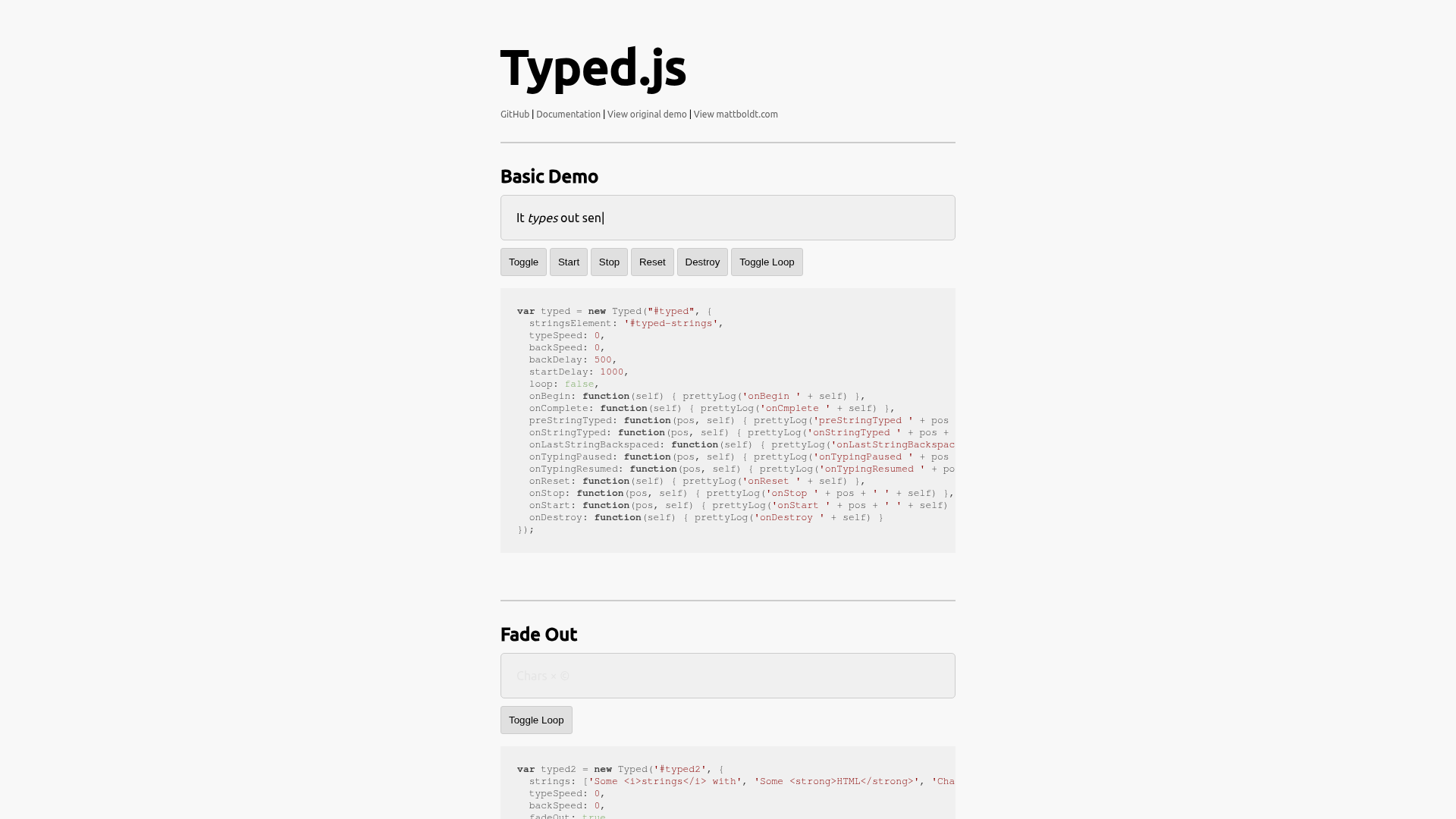
Teams use Typed.js on Webflow sites when a static headline needs to address multiple audiences or communicate a range of services. A SaaS homepage might cycle through feature benefits targeting different buyer personas. A portfolio might rotate through job titles. Because Typed.js is a client-side library with no API keys or backend configuration, the entire setup happens through Webflow's native custom code options.
The Typed.js-Webflow integration supports 2 approaches:
- Code Embed elements and custom code fields handle the core implementation — loading the library, placing the HTML target, and initializing the animation on any page.
- Webflow CMS data attributes let content editors update the typed strings from the CMS without modifying JavaScript.
Most implementations start with the Code Embed approach and add CMS integration when non-technical editors need to manage the rotating text.
Add Typed.js with Code Embed elements and custom code
This method covers the standard Typed.js setup on any Webflow page. You load the library from a CDN, place an HTML target element with a Code Embed, and initialize the animation through custom code in the head or body. It works on any paid Webflow site plan and does not require the CMS.
[image placeholder]
To set up Typed.js on a Webflow page:
- Open Site settings > Custom code > Head code and paste the CDN script tag. This loads the Typed.js library on every page. For single-page use, paste it in Page settings > Custom code > Before tag instead.
<script src="https://cdn.jsdelivr.net/npm/typed.js@2.1.0/dist/typed.umd.js"></script>
- In Webflow, press A (or click +) to open the Add panel. Search for "Embed" and drag a Code Embed element onto the canvas where the animation should appear. Paste the HTML target element inside it.
<span id="typed"></span>
To place the animated text inline within a heading, use this structure instead:
<h1>We build <span id="typed"></span></h1>
- Open Site settings > Custom code > Footer code (or Page settings > Custom code > Before tag for a single page) and paste the initialization script.
<script>
  document.addEventListener('DOMContentLoaded', function() {
    var el = document.getElementById('typed');
    if (el) {
      new Typed('#typed', {
        strings: ["websites", "SaaS products", "brand experiences"],
        typeSpeed: 50,
        backSpeed: 40,
        loop: true
      });
    }
  });
</script>
- Publish the site. Typed.js animations only appear on published sites — not in the Webflow canvas or Editor. Publish to the staging
.webflow.iosubdomain first to verify the animation before pushing to a live domain.
That gives you the basic Typed.js setup: library in the head, target element in an embed, and initialization in the footer.
The initialization script wraps the Typed.js constructor in a DOMContentLoaded listener with an element existence check.
This prevents null reference errors on pages where the #typed element does not exist.
Customize the cursor
Typed.js generates a separate <span> element with the class .typed-cursor for the blinking cursor. This element does not inherit styling from its parent — you need to target it explicitly with CSS. Community members on the Webflow forum consistently report this as a surprise when the cursor appears in the wrong size or color.
To style the cursor, add a <style> block in Site settings > Custom code > Head code or inside a Code Embed element:
<style>
.typed-cursor {
  color: inherit;
  font-size: inherit;
  font-weight: inherit;
  line-height: inherit;
}
</style>
To disable the default cursor CSS that Typed.js injects and apply full custom styling, set autoInsertCss: false in the options object. If the cursor appears vertically misaligned on multi-line text, wrap the typed element in a parent div, set the <span> to display: inline-block, and move all text styling (font size, weight, color) to the wrapper element.
Use the SEO-friendly strings pattern
Search engines may not reliably execute JavaScript, so strings defined only in the Typed.js configuration might not appear in the HTML source that crawlers index. Typed.js includes a stringsElement option that reads strings from an existing DOM element, keeping the text in the HTML for crawlers.
To add SEO-friendly strings, update the Code Embed element to include a hidden div containing your strings as <p> elements:
<div id="typed-strings" style="display:none">
  <p>websites</p>
  <p>SaaS products</p>
  <p>brand experiences</p>
</div>
<span id="typed"></span>
Then update the initialization script to reference the stringsElement instead of the strings array:
<script>
  document.addEventListener('DOMContentLoaded', function() {
    var el = document.getElementById('typed');
    if (el) {
      new Typed('#typed', {
        stringsElement: '#typed-strings',
        typeSpeed: 50,
        backSpeed: 40,
        loop: true
      });
    }
  });
</script>
All strings are now present in the static HTML source. Place target keywords in the page <title> and meta description as well — not solely inside Typed.js strings — per Webflow's page-level SEO guidance.
Handle accessibility for looping animations
A looping Typed.js animation that runs indefinitely fails WCAG 2.2.2 (Level A), which requires that automatically moving content lasting longer than five seconds can be paused, stopped, or hidden. Screen readers may also announce each character insertion individually unless the animated element is removed from the accessibility tree.
To improve accessibility, check the user's prefers-reduced-motion setting before initializing and provide a static text alternative for assistive technology:
<!-- Accessible structure in Code Embed -->
<span class="sr-only" aria-label="websites, SaaS products, brand experiences">
  websites, SaaS products, brand experiences
</span>
<span id="typed" aria-hidden="true"></span>
<!-- Updated initialization in Footer Code -->
<script>
  document.addEventListener('DOMContentLoaded', function() {
    var el = document.getElementById('typed');
    if (!el) return;

    var prefersReduced = window.matchMedia('(prefers-reduced-motion: reduce)');

    if (!prefersReduced.matches) {
      new Typed('#typed', {
        strings: ["websites", "SaaS products", "brand experiences"],
        typeSpeed: 50,
        backSpeed: 40,
        loop: true
      });
    } else {
      el.textContent = 'websites';
    }
  });
</script>
Add the visually hidden class in your custom CSS:
.sr-only {
  position: absolute;
  width: 1px;
  height: 1px;
  padding: 0;
  margin: -1px;
  overflow: hidden;
  clip: rect(0, 0, 0, 0);
  white-space: nowrap;
  border: 0;
}
The aria-hidden="true" attribute on the animated element removes it from the accessibility tree, while the .sr-only span provides the full text content to screen readers. For a looping animation that runs longer than five seconds, you still need a way for users to pause, stop, or hide it to satisfy WCAG 2.2.2.
Connect Typed.js to Webflow CMS data
When the animated strings need to change regularly — for campaigns, seasonal messaging, or client-managed content — hardcoding strings in JavaScript creates a dependency on someone with Webflow code access. Connecting Typed.js to Webflow CMS fields lets content editors update the rotating text from the Editor without modifying any code.
You can implement this pattern using Webflow CMS and data attributes, building on the dynamic CMS content approach.
This approach requires a CMS-enabled site plan. Store multiple strings in a single CMS plain text field using a pipe delimiter (e.g., Designer|Developer|Creator), then read those values with JavaScript at runtime.
Use custom data attributes on Collection List items
This method works well when you have a Collection List on the page and want each item to pull its typed strings from a CMS field.
To set up CMS-connected Typed.js:
- Create a plain text field in your CMS collection (e.g., "Typed Strings") and enter values separated by pipes:
Designer|Developer|Creator. - Add a Collection List bound to your collection. Select an element inside the Collection Item.
- In the right panel, click the gear icon for Element settings > Custom attributes. Add an attribute with name
data-typed-stringsand click the purple dot (Add Field) to bind the value to your CMS plain text field. - Add a second attribute: name
data-typed-target, valuetrue(static). - Add the initialization script in Site settings > Custom code > Footer code:
<script>
  document.addEventListener('DOMContentLoaded', function() {
    document.querySelectorAll('[data-typed-target]').forEach(function(el) {
      var rawStrings = el.getAttribute('data-typed-strings');
      var stringsArray = rawStrings ? rawStrings.split('|') : ['Hello World'];

      el.innerHTML = '<span class="typed-output"></span>';

      new Typed(el.querySelector('.typed-output'), {
        strings: stringsArray,
        typeSpeed: 60,
        backSpeed: 40,
        loop: true
      });
    });
  });
</script>
Content editors can now update the pipe-delimited string values in the CMS Editor, publish, and see the new typed text without any code changes.
Use embedded JSON blocks for structured configuration
When each CMS item needs its own Typed.js configuration (different speeds, different target elements), embedded JSON blocks inside a Code Embed give you more control.
To set up JSON-based CMS integration:
- Add a Collection List bound to your collection. Inside the Collection Item, add a Code Embed element.
- In the Code Embed editor, create a JSON structure. Use + Add Field to insert CMS field values for the strings and slug:
<script type="application/json" class="typed-data">
  {
    "strings": "CLICK_ADD_FIELD_SELECT_YOUR_TEXT_FIELD",
    "target": "typed-CLICK_ADD_FIELD_SELECT_SLUG_FIELD"
  }
</script>
- Bind an
idattribute on the Collection Item's target element to match the JSON"target"value using Custom attributes > + Add Field > Slug field. - Add the parsing script in Site settings > Custom code > Footer code:
<script>
  document.addEventListener('DOMContentLoaded', function() {
    document.querySelectorAll('script[type="application/json"].typed-data').forEach(function(block) {
      var item = JSON.parse(block.innerText);
      var targetEl = document.getElementById(item.target);
      if (!targetEl) return;

      var strings = item.strings.split('|');

      new Typed(targetEl, {
        strings: strings,
        typeSpeed: 50,
        backSpeed: 30,
        loop: true
      });
    });
  });
</script>
This pattern keeps the CMS values structured while still passing plain text into Typed.js at runtime.
One limitation to note — Webflow's Rich Text fields cannot directly emit arbitrary script or HTML into embeds for this pattern. Only plain text values work with this approach, passed through data-* attributes or textContent.
What can you build with the Typed.js Webflow integration?
Integrating Typed.js with Webflow lets you add typing animations to any page without building a custom frontend or managing a separate JavaScript build pipeline.
- Multi-audience hero sections: Build a SaaS homepage hero that types "Built for founders," backspaces, then types "Built for freelancers" and "Built for remote teams" — addressing multiple buyer personas in a single headline block without additional layout.
- Portfolio role cycling: Create a developer portfolio where the hero displays "I'm a" followed by Typed.js cycling through "frontend developer," "open-source contributor," and "technical writer" — communicating professional range in one line.
- Terminal-style product demos: Build a developer tools landing page with a command-line aesthetic that types out terminal commands and their output, using Typed.js multi-line support with
\ncharacters and a custom cursor character. - CMS-managed campaign headlines: Set up a landing page template where marketing editors update rotating headline text from the Webflow CMS Editor — changing "Learn design," "Learn development," "Learn strategy" for each campaign without opening the code.
If you need more control over scroll-triggered activation or viewport-conditional behavior, custom JavaScript covers those cases with full flexibility.
Frequently asked questions
Typed.js animations only run on published sites. They do not appear in the Webflow canvas or Editor mode. Publish to the staging
.webflow.iosubdomain to test. The Webflow Typed.js integration page confirms this as expected behavior. If the animation still does not appear after publishing, check the browser console for errors — the most common cause is a broken CDN link or a script that runs before the target element exists in the DOM.Yes. Both Code Embed elements and custom code fields in site settings require a paid site plan. The free Starter plan does not support custom code. If the implementation also uses Webflow CMS fields for dynamic strings, a CMS-enabled plan is required for the CMS features.
Use jsDelivr or cdnjs. The Webflow integration page warns that deprecated CDNs like rawgit and raw.githubusercontent may stop working. A documented case on the Webflow forum shows a widely-shared tutorial CDN going offline and silently breaking animations on all sites that referenced it. Always verify the current version at the Typed.js GitHub releases page before deploying.
Yes. If the Typed.js initialization script throws an error — such as targeting an element ID that does not exist on the current page — it can prevent Webflow load interactions from executing. Always wrap the initialization in a
DOMContentLoadedlistener with anif (el)existence check. If Typed.js manipulates DOM elements that also have Webflow IX2 interactions attached, you may need to re-initialize IX2 after Typed.js starts.A looping Typed.js animation fails WCAG 2.2.2 (Level A) unless users can pause or stop it. Check
window.matchMedia('(prefers-reduced-motion: reduce)')before initializing, and show static text when the user prefers reduced motion. Addaria-hidden="true"to the animated element and provide a visually hidden<span>with the full text content for screen readers. The MDN prefers-reduced-motion documentation covers the media query syntax and browser support.
Description
Add typing animations to Webflow sites by loading Typed.js through Code Embed elements and custom code, with optional CMS-driven string management.
This integration page is provided for informational and convenience purposes only.

Claritee
Send approved Claritee wireframes into Webflow as editable layouts, then spend your time on styling instead of rebuilding sections.

Flowbase Boosters
Add typewriter text, count-up stats, countdowns, and image sliders to Webflow with Flowbase Boosters: free attribute-driven scripts, no JavaScript to write.

Better Shadows
Better Shadows generates layered CSS box-shadow values and applies them to Webflow classes in one click, for depth you would otherwise tune layer by layer.

gFLUO
Connect gFLUO with Webflow to apply GSAP text animations from the Apps panel, with no JavaScript required.
Flowmonk
Flowmonk syncs Webflow CMS data to Airtable, letting you manage content in Webflow while using Airtable's database features for analysis, collaboration, and automation.

Flowtrix Schema
Connect Flowtrix Schema, a no-code structured data app for JSON-LD markup, with Webflow to add Google-compliant schema to static and CMS pages without code.
Arvow
Timeline
Timeline provides chronological content infrastructure for Webflow sites without requiring custom development.

Azwedo
Install Azwedo's approved Webflow apps to add icon libraries, AI-written copy, prebuilt components, and SVG editing inside Webflow.
Related integrations
Get started for free
Try Webflow for as long as you like with our free Starter plan. Purchase a paid Site plan to publish, host, and unlock additional features.
