






Storylane
Connect Storylane, a demo automation platform, with Webflow to embed interactive product tours as inline demos, click-to-launch overlays, or popup modals on landing pages and CMS-driven galleries.

Storylane turns static product pages into clickable, self-serve tours that visitors can explore directly on your site. Embed auto-playing inline demos, inline demos with overlay, or click-to-launch popups, then sync engagement data to your CMS or marketing stack through Zapier, webhooks, or native integrations.
SaaS product marketers, demand gen teams, and growth engineers use this integration to build demo-led conversion paths, pre-qualify prospects before sales calls, and add interactive product demos to landing pages without custom development.
How to integrate Storylane with Webflow
What is Storylane? Storylane is a demo automation platform that lets teams generate interactive, step-by-step product tours from screenshots, video, or HTML captures. It has built-in lead capture forms, analytics with intent scoring, and integrations with CRMs like HubSpot and Salesforce. You can embed Storylane demos on websites, share them via direct links, or package them into multi-asset deal rooms called Hubs.

Product-led SaaS teams use Storylane and Webflow together when they want prospects to experience the product firsthand. This removes the need to sign up for a trial or wait for a live demo. Marketing teams embed interactive tours on landing pages and blog posts. Sales teams share personalized demos through deal rooms hosted on their sites. Growth engineers send demo engagement data into the CMS and analytics stack for pipeline reporting.
The Storylane-Webflow integration has 4 approaches:
- The Storylane app lives in the Apps Marketplace, and most embedding workflows still use Storylane embed code with the embed or custom-code features.
- Code Embed elements support specific page sections, including CMS-powered templates, where you can paste Storylane iframe code.
- Zapier connects Storylane demo events to CMS collections for automated lead logging.
- The Webflow and Storylane APIs let you control CMS data sync and demo link management, but require server-side development.
Most implementations combine two or more of these methods depending on the complexity of the setup.
Install the Storylane app
You can find the Storylane app in the Apps Marketplace. The app is free to install and supports screenshot captures, while HTML demo capture availability depends on your Storylane plan. It has live chat integration within demos, AI-assisted demo creation, custom lead forms, and secure sharing with password protection. You still use Storylane embed code and the embed functionality to place demos on pages, and you need a paid site plan to use embed functionality, since free plans restrict custom code insertion.
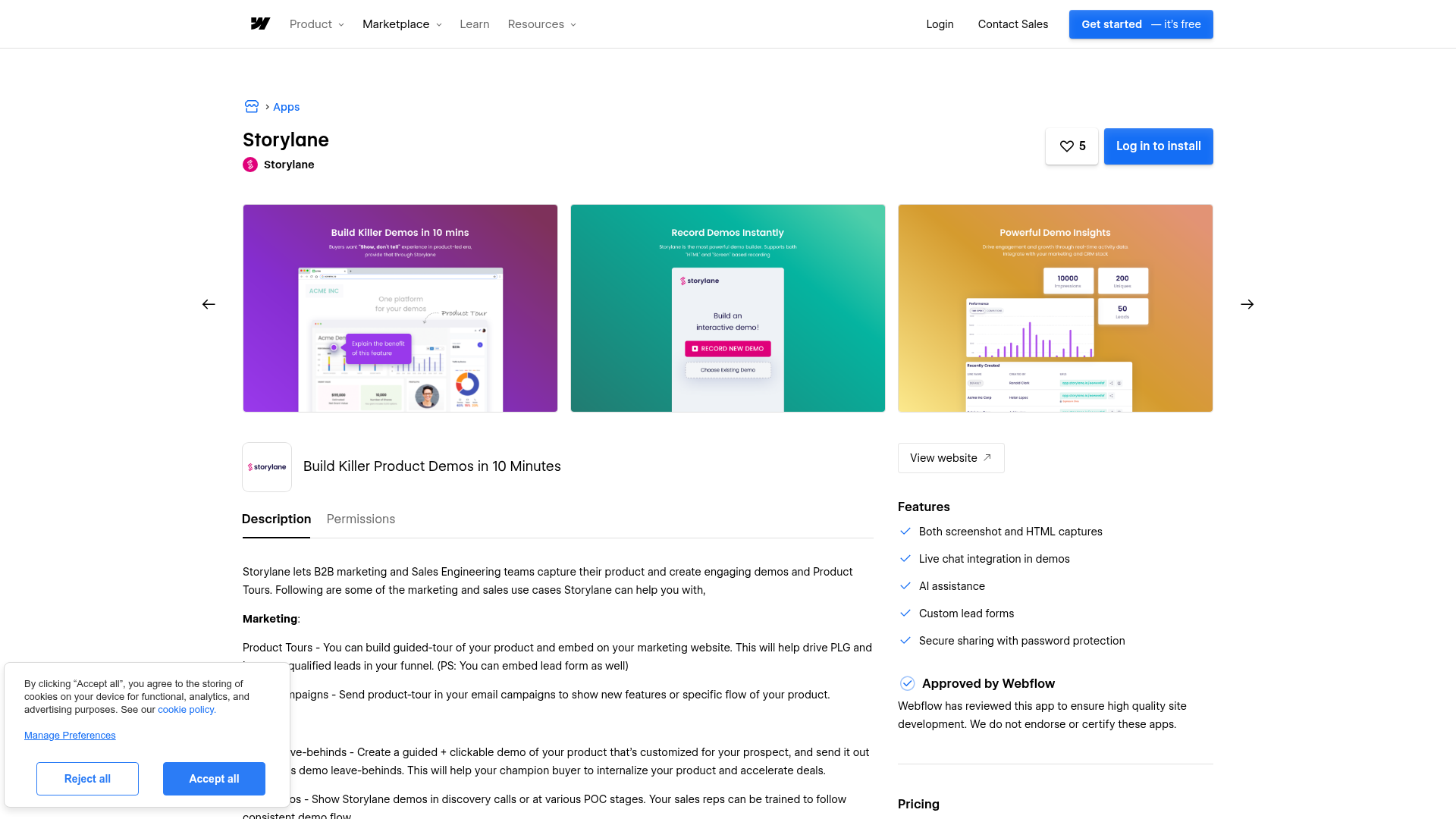
To set up the integration:
- Go to the Storylane app listing in the Apps Marketplace.
- Click Install and authorize the requested permissions (site data access and designer workflow).
- In Storylane, open the demo you want to embed and click Share > Embed.
- Select your embed type (Inline, Inline with Overlay, or Popup) and copy the embed code.
- Place the embed on your page and publish the site.
The app has these capabilities:
- Screenshot and HTML demo captures
- Live chat integration in demos
- AI assistance
- Custom lead forms
- Secure demo sharing with password protection
Publish the demo in Storylane before you generate an embed code. In most embed setups, updates you make in Storylane appear across existing embeds without changing the embed code on your page. Verify the behavior in your own publishing workflow.
Add Storylane demos with Code Embed elements
Use the Code Embed element to control where demos appear on your pages. Paste Storylane's iframe code into specific page sections. This method supports all three Storylane embed formats: inline (auto-start), inline with overlay (click-to-launch), and popup (button-triggered modal). It also supports CMS-powered embeds on pages that pull demo content from a collection.
You need a paid site plan to use Code Embed elements, since free plans don't include them. Each element holds up to 50,000 characters of HTML, CSS, and JavaScript. Server-side languages like PHP or Python won't run.
Embed an inline or popup demo
Inline embeds auto-play the demo when the page loads. Inline embeds with overlay show a static preview image and a CTA button; the full demo loads only when clicked. Popup embeds place a CTA button on the page that opens a full-screen demo modal on click. All three formats use the same process on your end.
To add a Storylane demo to a page:
- In Storylane, open the demo and click Share > Embed.
- Select your format (Inline, Inline with Overlay, or Popup) and copy the embed code.
- Optionally toggle LLM-Friendly ON before copying, which makes demo content readable by search engines.
- Open the Add panel and drag a Code Embed element onto your canvas.
- The code editor opens automatically. Paste the Storylane embed code.
- Click Save and Close, then click Publish.
The embed renders only on the published or staging URL. The Designer canvas shows a placeholder for iframes, not the live demo. Always test on the published site.
You can also place embed code at the page or site level using custom code in head and body tags. Go to Page Settings > Custom Code to add code to a single page, or Site Settings > Custom Code to add code across all pages. Each section holds up to 50,000 characters of HTML, CSS, and JavaScript.
Build CMS-powered demo displays
Bind Code Embed elements to CMS fields to create demo pages that update from collection content. This works well for demo galleries, product tour libraries, or feature-specific pages. Each page pulls its demo embed code from a CMS collection.
To set up a CMS-powered demo embed:
- Create a CMS collection with a plain text field for the Storylane embed code (for example, "Demo Embed Code").
- Add a Code Embed element inside a Collection List or on a Collection page template.
- In the Code Embed editor, click + Add Field in the upper right corner and select the embed code field from your collection.
- Publish the site. Each CMS item now renders its own Storylane demo.
The CMS plan holds up to 2,000 items, and the Business plan holds up to 10,000. For large demo libraries, plan your collection structure accordingly.
React to demo events with cross-frame messaging
A Storylane demo embedded as an iframe sends a window.postMessage() event to the parent page on each user interaction. You can listen for these events with custom JavaScript. Use them to reveal a CTA, pre-fill a form field, or fire an analytics event.
Storylane emits four verified cross-frame events, per the cross-frame events documentation:
demo_finishedfires when the visitor completes all stepslead_identifyfires when a lead is captured, and includes the email addressflow_startfires when a specific demo flow beginschecklist_item_viewfires when a checklist item is clicked
To listen for these events, add the following JavaScript to your page's custom code section (before the </body> tag):
window.addEventListener('message', function(event) {
  var data = event.data;
  if (!data || !data.event) return;

  if (data.event === 'demo_finished') {
    var cta = document.getElementById('post-demo-cta');
    if (cta) cta.style.display = 'block';
  }

  if (data.event === 'lead_identify') {
    var emailInput = document.querySelector('input[name="email"]');
    if (emailInput) emailInput.value = data.lead.email;
  }
});
This approach needs no API credentials, middleware, or third-party automation tools. It runs entirely client-side on the page.
Connect Storylane and Webflow with Zapier
Zapier gives you a production-ready connection between Storylane and your site. This method logs demo engagement data in CMS collections without custom middleware.
Zapier has these Storylane triggers and Webflow actions:
- Demo Viewed (Storylane trigger) > Create Item (Webflow action) logs each demo view as a new CMS entry
- Lead Identified (Storylane trigger) > Create Item (Webflow action) writes captured lead data directly into a CMS collection
To set up the Zapier connection:
- Create a new Zap in Zapier and select Storylane as the trigger app.
- Choose either Demo Viewed or Lead Identified as the trigger event.
- Authenticate your Storylane account and select the demo to monitor.
- Select Webflow as the action app and choose Create Item as the action event.
- Authenticate your Webflow account, select the target site and CMS collection, and map Storylane fields (email, demo name, intent level) to your collection fields.
- Turn on the Zap.
This path is the simplest option for syncing demo data to your site's CMS without server-side code.
Build with the Webflow and Storylane APIs
The API path lets you control how Storylane demo data flows into your CMS collections. This approach requires server-side development. A typical setup uses a serverless function on Vercel, Netlify, or Cloudflare Workers. The function receives Storylane webhook payloads and writes data through the Data API.
Three interfaces are available:
- Storylane webhooks push demo engagement and lead data to your endpoint in real time (Starter plan and above)
- The Data API v2 handles CMS collection reads and writes
- Webhooks trigger events when CMS items, forms, or site publishes change
Storylane's External API is limited to Enterprise plans and requires credentials from support@storylane.io. For most implementations, Storylane webhooks combined with the Data API cover the needed functionality.
Sync Storylane leads to Webflow CMS via webhooks
Storylane webhooks fire on events like lead capture and demo views, sending a JSON payload to your endpoint. Your middleware verifies the request signature and maps the payload fields to your CMS fields. It then creates a new CMS item through the Data API.
To implement this:
- In Storylane, go to Settings > Integration tab > Webhook > Connect. Paste your serverless function URL and select whether to receive all demo sessions or only known leads.
- Build a serverless function that verifies the
x-storylane-signatureheader (HMAC-SHA256, Base64-encoded) against your webhook secret. - Map the Storylane payload fields to your CMS collection fields. The webhook payload includes
lead.email,lead.first_name,lead.last_name,lead.lead_source,intent_level,name(demo name),link, andlocationdata. - Send a
POSTrequest tohttps://api.webflow.com/v2/collections/{collection_id}/itemswith the mappedfieldDataobject. Include your API token in theAuthorization: Bearerheader. - Send a second
POSTrequest tohttps://api.webflow.com/v2/collections/{collection_id}/items/publishwith the new item's ID. New CMS items start as drafts. Without this second call, the item appears in the CMS but not on the published site.
Here is a reference implementation for the middleware:
import crypto from 'crypto';

export async function handler(req) {
  const rawBody = await req.text();
  const signature = req.headers.get('x-storylane-signature');
  const secret = process.env.STORYLANE_WEBHOOK_SECRET;
  const expectedSig = crypto
    .createHmac('sha256', secret)
    .update(rawBody)
    .digest('base64');

  if (signature !== expectedSig) {
    return new Response('Unauthorized', { status: 401 });
  }

  const payload = JSON.parse(rawBody);

  const fieldData = {
    name: payload.lead?.email || payload.lead?.id,
    slug: `lead-${payload.lead?.id}`,
    'demo-name': payload.name,
    'intent-level': payload.intent_level,
    'lead-email': payload.lead?.email,
    'lead-source': payload.lead?.lead_source,
    'location-country': payload.location?.country,
  };

  const createRes = await fetch(
    `https://api.webflow.com/v2/collections/${process.env.WEBFLOW_COLLECTION_ID}/items`,
    {
      method: 'POST',
      headers: {
        Authorization: `Bearer ${process.env.WEBFLOW_API_TOKEN}`,
        'Content-Type': 'application/json',
      },
      body: JSON.stringify({ fieldData }),
    }
  );
  const created = await createRes.json();

  await fetch(
    `https://api.webflow.com/v2/collections/${process.env.WEBFLOW_COLLECTION_ID}/items/publish`,
    {
      method: 'POST',
      headers: {
        Authorization: `Bearer ${process.env.WEBFLOW_API_TOKEN}`,
        'Content-Type': 'application/json',
      },
      body: JSON.stringify({ itemIds: [created.id] }),
    }
  );

  return new Response('OK', { status: 200 });
}
Your API token needs the cms:write scope for both the create and publish requests. Verify that your webhook endpoint receives and processes Storylane payloads correctly before you deploy to production.
What can you build with the Storylane Webflow integration?
Storylane and Webflow let you add interactive product demos to marketing pages without building custom demo infrastructure.
- Self-serve product tours on landing pages: Embed an inline demo with overlay on your homepage or product page. Visitors click through your software before filling out a form. PDQ reported a 92% conversion lift after adding an interactive website demo.
- CMS-powered demo galleries: Create a CMS collection where each item stores a Storylane embed code. Bind those fields to Code Embed elements in a Collection List. This creates a filterable demo library organized by feature, persona, or use case. Content teams can update it without touching the canvas.
- Lead-qualified conversion flows: Use cross-frame
lead_identifyevents to pre-fill a form with the visitor's email after they complete a demo. This connects the interactive experience to your existing form submission workflow and CRM pipeline. - Blog post walkthroughs: Embed Storylane demos inside your blog posts to turn written product explanations into clickable, visual experiences. Product marketers can update the embedded demo in Storylane without re-publishing your site.
If you need more control over custom data routing and engagement scoring, the API integration path covers those cases directly.
Frequently asked questions
Copy the embed code from Storylane: click Share > Embed, select your format, then copy. Paste it into a Code Embed element in Webflow. Drag the Code Embed element from the Add panel onto your canvas and paste the code. Click Save and Close, then publish the site. Three embed formats are available: inline (auto-start), inline with overlay (click-to-launch preview), and popup (button-triggered modal). Full steps are covered in the Storylane embed documentation and the Code Embed documentation.
Storylane does not publish Core Web Vitals benchmarks for embedded demos. Two embed formats defer the full demo load until the visitor interacts. The overlay embed renders only a static preview image on page load. The popup embed loads the demo only when the CTA button is clicked. Use either format on performance-sensitive pages and measure results with your own traffic. The Storylane embed documentation covers configuration for each format.
No. Lead forms inside Storylane demos render within the iframe. Captured data routes to Storylane's system and any connected CRMs. It does not appear in the Webflow form submissions dashboard. If you need lead data in Webflow, use a cross-frame
lead_identifyevent listener. It programmatically populates a native Webflow form on the same page. The Storylane lead capture documentation covers how lead routing works.Yes. Connect your GA4 Measurement ID in Storylane's integration settings. Storylane sends custom events including
sl_demo_open,sl_step_view,sl_lead_identify,sl_demo_finished, and several others directly to GA4. Google Tag Manager is also supported, with events pushed to thedataLayer.In many embed setups, changes made in Storylane appear across existing embeds without updating the Webflow embed code. Because the embed references Storylane's hosted demo URL, content updates on Storylane's side can reflect anywhere the demo is embedded. Check the Storylane sharing overview for the available sharing and publishing options.
Description
Storylane adds interactive product demos to Webflow through its Marketplace app and Code Embed elements for inline, overlay, or popup formats.
This integration page is provided for informational and convenience purposes only.

Chat Everywhere
Connect Chat Everywhere with Webflow to add a floating chat button that routes visitors to WhatsApp, Messenger, SMS, and other messaging platforms.

Chat Whisperer - AI Website Bot Maker
Add Chat Whisperer's AI chatbot to Webflow through the Marketplace app or a pasted embed, and see what it trains on, what it loads, and where visitor messages go.

Flowstar Click to Call

Social Intents
Add Social Intents live chat to Webflow with one script, then answer visitors from Slack, Teams, Google Chat, Zoom or Webex. Setup, plan costs and consent.

Interactivity Studio
Connect Interactivity Studio with Webflow to turn static images into clickable, shoppable content with segment-level bubbles and CTA buttons.

Poper
Connect Poper with Webflow to show behavior-triggered popups, forms, and widgets on your site and route captured leads into the Webflow CMS.

ChatSale
Connect ChatSale with Webflow to add its AI sales assistant to your site, on a Pro or Enterprise plan that includes the website widget.

Lucky Wheel
Add a spin-to-win wheel to a Webflow site with the Marketplace app or one snippet. For programmatic setups, use the Data API.

Salespeak
Connect Salespeak, a B2B inbound sales AI platform, with Webflow to add a conversational agent that qualifies buyers and books demos using the app or embeds.
Related integrations
Get started for free
Try Webflow for as long as you like with our free Starter plan. Purchase a paid Site plan to publish, host, and unlock additional features.
