






StickPNG
Connect StickPNG, a free transparent PNG library, with Webflow to add pre-cut product images, logo overlays, and decorative elements to page compositions without manual background removal.

Layout, responsive design, and hosting are built in, but transparent-background image sourcing still happens outside the platform. For product cutouts, logo overlays, or decorative elements over colored backgrounds, you need pre-cut assets with transparent backgrounds.
StickPNG is a free library of 56,000+ transparent PNGs across 23 categories, and its alpha-channel transparency carries through the upload workflow. Note that StickPNG's Terms of Service restrict usage to non-commercial personal projects, so this integration doesn't apply to client work or revenue-generating sites.
How to integrate StickPNG with Webflow
What is StickPNG? StickPNG is a community-driven library of free transparent PNG images covering categories such as animals, electronics, icons, logos, and world landmarks. Every image is a PNG file with a pre-removed background, so you don't need to do any additional editing before use. The library accepts community contributions that meet a minimum resolution of 400×400 pixels.
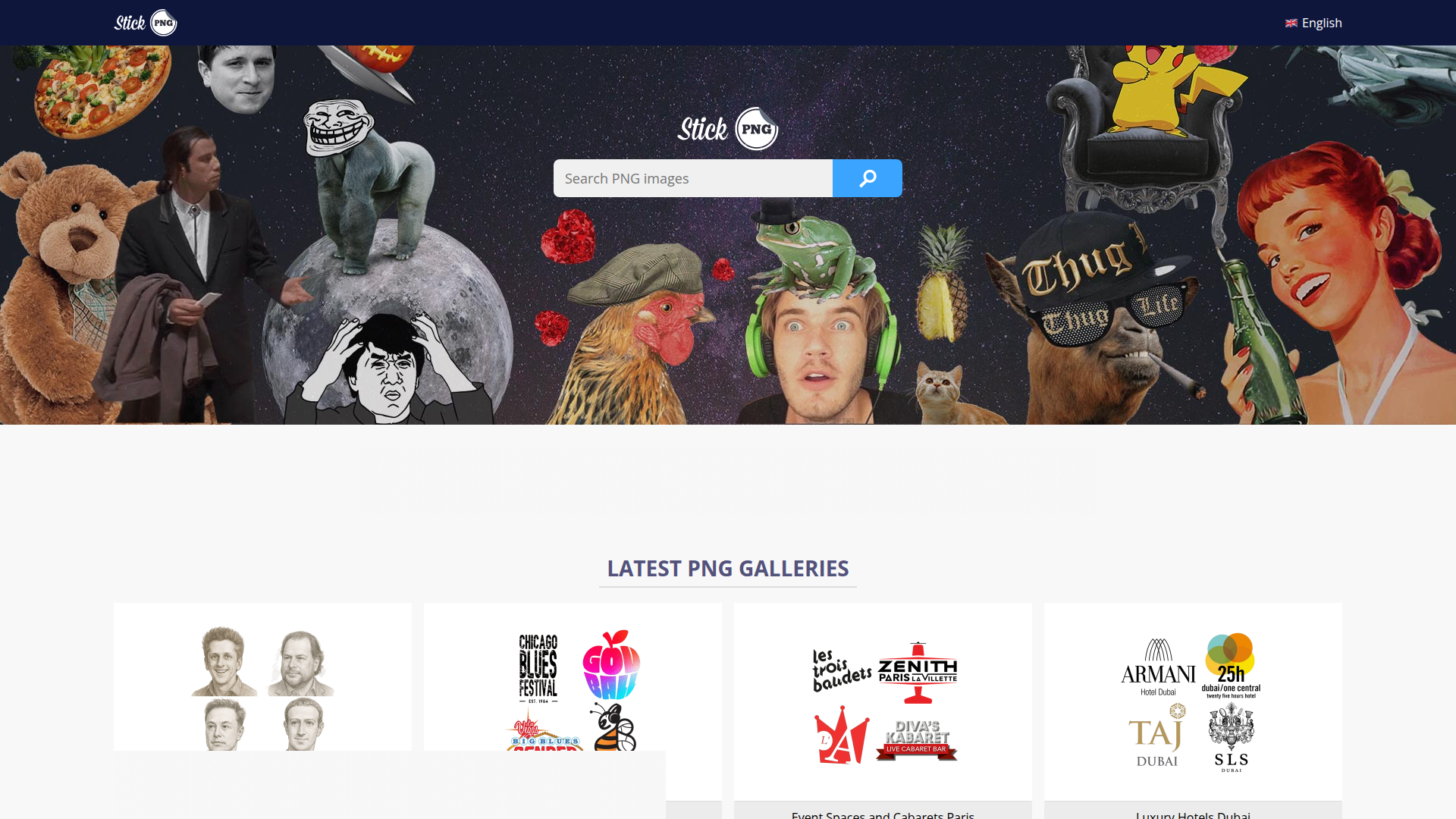
If you're working on personal or educational projects, reach for StickPNG when you need transparent cutouts for hero sections, layered compositions, or decorative page elements without commissioning custom assets. The workflow centers on manually downloading a PNG from StickPNG and uploading it to your site, where you can place it as an Image element, apply it as a background image, or upload it programmatically through the API after download.
The StickPNG-Webflow integration supports 4 approaches:
- The download-and-upload workflow handles placing transparent PNGs as Image elements or background images without writing code.
- Code Embed elements let you build custom gallery layouts for displaying multiple StickPNG assets with HTML and CSS.
- The Webflow Data API gives you programmatic control over asset uploads and Webflow CMS image fields, but requires server-side development.
Most implementations use the download-and-upload workflow alone. Reach for the API path only when you need to upload many manually downloaded images to CMS collections at scale.
Download and add StickPNG images to Webflow
Use a manual download-and-upload workflow to add StickPNG assets to your site. Browse the StickPNG library, download a transparent PNG, and upload it to the Assets panel. You don't need an account or login on StickPNG. Every image downloads as a PNG with the background already removed.
Before uploading, check that the file is under 4MB — the maximum image upload size across all plans. If the file exceeds that limit, compress it with a tool like TinyPNG first. Upload as a 24-bit PNG to preserve the alpha channel. Transparency carries through on upload, and Image elements also benefit from responsive image handling.
One common issue to watch for: if a transparent PNG displays with a black background after upload, compressing the file before re-uploading typically resolves the problem.
To download and upload a StickPNG image:
- Go to stickpng.com and browse by category or search for an image.
- Click the image to open its detail page, then click the Download button.
- If the file exceeds 4MB, compress it using TinyPNG or Squoosh.
- In the Designer, press J to open the Assets panel or click the Assets icon in the left sidebar.
- Click Upload and select the PNG, or drag the file directly from your desktop onto the canvas.
Dragging a PNG directly onto the canvas uploads the file to the Assets panel and places it as an Image element in a single step. Once uploaded, you can reuse the asset across all pages in your project.
Place as an image element
Image elements are the recommended approach for most StickPNG assets. Responsive image variants generate automatically and lazy loading applies to Image elements, both of which improve page performance.
To place a StickPNG image as an Image element:
- Open the Add panel (the + icon in the left sidebar).
- Drag an Image element onto the canvas.
- Click the image placeholder, then select your uploaded PNG from the Assets panel.
- Add alt text in the Element settings panel for accessibility.
- Set dimensions in the Style panel rather than relying on browser-side scaling.
Image elements get responsive variants at multiple widths (500w, 800w, 1080w, 1600w, 2000w, 2600w, 3200w). Transparent areas render correctly over any background color or element behind the image. Image elements are the default choice for most visible StickPNG assets.
Apply as a background image
Background images work well for decorative patterns, full-section treatments, or text layered over a transparent PNG. You can set both a background color and a background image on the same element, so transparent PNG areas reveal the background color underneath.
To apply a StickPNG image as a background image:
- Select any element on the canvas, such as a Section, Div Block, or Container.
- Open the Style panel in the right sidebar.
- Scroll to the Background section and double-click the image slot.
- Upload your PNG directly or select one from the Assets panel.
- Toggle HiDPI on for sharp rendering on retina screens.
- Adjust Size (Cover, Contain, or Tile), Position, and Repeat settings.
Background images don't get responsive variant generation or lazy loading. Pre-optimize the file at the correct display resolution before uploading. For performance-sensitive pages, use an Image element instead. This method works best when the PNG is purely decorative.
Build custom StickPNG galleries with Code Embed elements
When you need to display multiple transparent PNGs in a custom gallery layout that goes beyond the standard grid and flexbox options, Code Embed elements give you direct HTML and CSS control. This approach works well for creating image galleries with custom hover effects, masonry layouts, or interactive galleries where standard Designer elements fall short.
To add a Code Embed gallery:
- Open the Add panel.
- Search for "Embed" and drag a Code Embed element onto the canvas.
- Paste your custom HTML and CSS into the code editor. Reference your uploaded PNG assets by their hosted URLs from the Assets panel.
- Click Save & Close to render the embed on the canvas.
Save this approach for layouts that are difficult to recreate with standard Designer elements alone.
Combine Code Embed elements with a Collection List to pull image data from CMS collections dynamically. Store your StickPNG images as CMS image fields, then bind them to Collection List items for a data-driven gallery.
To apply visual effects to transparent PNGs, such as shape-following drop shadows, add a CSS filter: drop-shadow() rule through a Code Embed or through the custom code in head and body tags in site settings. The native box-shadow property applies to the element's rectangular bounding box, not to the visible pixels of the PNG.
Upload StickPNG assets with the Webflow Data API
For projects that require uploading many StickPNG images, or populating CMS collections with transparent PNG assets, the Webflow Data API gives you programmatic asset management. This approach requires server-side development and an API token with assets:write scope. StickPNG has no public API, so the download step remains manual. The automation applies only to the upload and CMS population side.
The relevant API surfaces are:
- The Webflow Assets API handles file uploads, metadata updates, and asset retrieval
- The Webflow CMS API handles creating and updating collection items with image fields
- Webflow webhooks trigger events when CMS items are created, changed, or published (no asset-specific webhook events exist)
This path is only practical if you're building internal tools or batch-processing workflows. It is not a shortcut for avoiding the manual download step on StickPNG.
Upload assets via the API
Asset upload takes two sequential HTTP requests: one for presigned credentials, and one to Amazon S3 with the actual file.
To upload a StickPNG image programmatically:
- Download the PNG manually from stickpng.com.
- Compute the MD5 hash of the file contents.
- Send a
POSTrequest to/v2/sites/:site_id/assetswith thefileNameandfileHashin the request body. The response includes anuploadUrlanduploadDetailscontaining presigned S3 fields. - Send a
POSTrequest to theuploadUrlwith the file and theuploadDetailsfields. - Use the
fileIdreturned from step 3 infieldDatawhen callingPOST /v2/collections/:collection_id/itemsto associate the uploaded asset with a CMS item.
Once the asset upload succeeds, use the returned file data in subsequent CMS item creation or update requests. That makes the API useful when you need repeatable CMS population after files are already downloaded.
Populate CMS image fields
After uploading an asset, assign it to a CMS collection item's image field using the returned fileId.
To create a CMS item with an image field:
- Send a
POSTrequest to/v2/collections/:collection_id/items. - In the
fieldDataobject, include the image field with thefileIdandurlfrom the asset upload response. - To update an existing item, send a
PATCHrequest to/v2/collections/:collection_id/items/:item_idwith the updated image field data.
The CMS plan supports up to 2,000 items, and the Business plan supports up to 10,000. For gallery fields, pass an array of image objects instead of a single object. This is the most relevant API pattern for CMS-driven galleries built from uploaded StickPNG assets.
What can you build with the StickPNG Webflow integration?
Pairing StickPNG with Webflow lets you add transparent cutout images to page compositions without manual background removal in an external image editor.
- Layered hero sections: Place a device or product cutout from StickPNG's Electronics category over a gradient background, then add scroll-triggered animations from the Interactions panel. The transparent PNG floats over the section without a visible bounding box, creating depth without custom photography.
- Decorative educational pages: Pull science, animal, or landmark images from StickPNG's subject-matter categories and position them alongside text content in course landing pages or explainer sections. The transparent backgrounds let each image sit cleanly within any color scheme.
- Logo and badge displays: Download tech company logos or icon assets from StickPNG's Icons Logos Emojis category and arrange them in trust-bar or partner-logo sections. Transparent PNGs render without white rectangles on dark headers or patterned backgrounds.
- Parallax scroll compositions: Layer multiple transparent cutouts at different z-index values with scroll-triggered interactions. Foreground and background elements move at different speeds, creating a depth effect that requires each asset to have no background.
If you need more control over batch uploads or CMS-driven image galleries, the API integration path covers those cases with full flexibility after manual download from StickPNG.
Frequently asked questions
No. StickPNG's Terms of Service restrict all images to personal non-commercial or educational use only. The platform does not offer a paid tier or commercial license option, and states it cannot provide author contact information for obtaining separate licenses. Client work, business sites, and any revenue-generating projects require a different image source.
Yes. Webflow fully supports 24-bit PNG files with alpha-channel transparency. Transparent areas render correctly over any background color, gradient, or image in your project. Upload as 24-bit PNG to preserve the alpha channel. Webflow's Assets panel documentation confirms PNG as a supported format with a 4MB maximum file size.
Use an Image element whenever possible. Webflow generates responsive image variants automatically for Image elements and applies lazy loading, both of which improve page performance. Background images receive neither responsive variants nor lazy loading, as documented in Webflow's performance guide. Reserve background images for decorative patterns or text-overlay compositions where an Image element does not fit the layout.
Upload as 24-bit PNG, then let Webflow handle conversion to WebP for delivery. Webflow's asset handling maintains alpha-channel transparency during WebP conversion while reducing file size. Avoid uploading AVIF files directly, as pre-compressed formats may prevent Webflow from generating responsive
srcsetvariants, according to community testing.
Description
StickPNG provides 56,000+ transparent PNG images that upload directly to Webflow as Image elements or background images. For batch workflows, the Data API handles programmatic asset uploads and CMS population.
This integration page is provided for informational and convenience purposes only.

Unsplash
Connect Unsplash with Webflow to search, insert, and manage free stock photography without leaving your design environment.

SVGator
Connect SVGator with Webflow to generate and embed interactive SVG animations on any page without writing animation code from scratch.

Pixabay
Connect Pixabay with Webflow to source and publish royalty-free images, videos, and illustrations on your site without per-asset licensing fees.

Pixie - CMS Image Optimizer
Connect Pixie with Webflow to bulk-optimize CMS and Ecommerce images in place, and see where Webflow's own tools already cover the job.

Pngtree
Connect Pngtree, a graphic design asset marketplace, with Webflow to add transparent PNGs, SVG illustrations, and background textures to pages, CMS collections, and campaign layouts.

Pexels
Connect Pexels, a free stock photo and video platform, with Webflow to source royalty-free visuals for pages, CMS collections, and video backgrounds without licensing fees.

Lottieflow by Finsweet
Connect Lottieflow by Finsweet with Webflow to add free, color-customizable Lottie animations to any page using the native Lottie element and Interactions panel.

Lordicon Animated Icons
Connect Lordicon Animated Icons with Webflow to play animated Lottie icons on hover, click, and scroll without a motion designer.

LottieFiles
Bring lightweight, scalable vector animations to your Webflow sites with LottieFiles — the platform that makes adding motion as simple as uploading an image.
Related integrations
Get started for free
Try Webflow for as long as you like with our free Starter plan. Purchase a paid Site plan to publish, host, and unlock additional features.
