






Social Intents live chat
Connect Social Intents live chat with Webflow to answer visitor questions in real time from Microsoft Teams or Slack, with Google Chat also supported.

A Webflow site can collect visitor questions through forms. But a form submission waits in an inbox while the visitor moves on. Nothing answers a visitor in real time while they compare plans on your pages. Adding that capability means installing a chat widget from a live chat service.
Connecting Social Intents to Webflow adds a chat widget to any page and routes every conversation to Microsoft Teams or Slack, with Google Chat also supported. Your team answers visitors from the tools it already uses, with no separate support console. An AI chatbot trained on your site content handles questions around the clock. It hands off to a human when needed.
This integration fits sales and support teams that answer visitor questions, and marketing teams capturing leads from high-intent pages. Founders get chat coverage without staffing a new inbox. Agencies deploy branded widgets across multiple Webflow client sites.
How to integrate Social Intents live chat with Webflow
What is Social Intents live chat? Social Intents is a live chat and AI chatbot platform for websites. A visitor types in the website widget and the message appears in your team's Microsoft Teams, Slack, Google Chat, Zoom, or Webex workspace. Its AI chatbots run on ChatGPT or Claude, with Gemini support as well. They train on website URLs and uploaded documents; they also support custom Q&A pairs.
Webflow gives you the pages; it does not give you a way to talk to the people on them in real time.
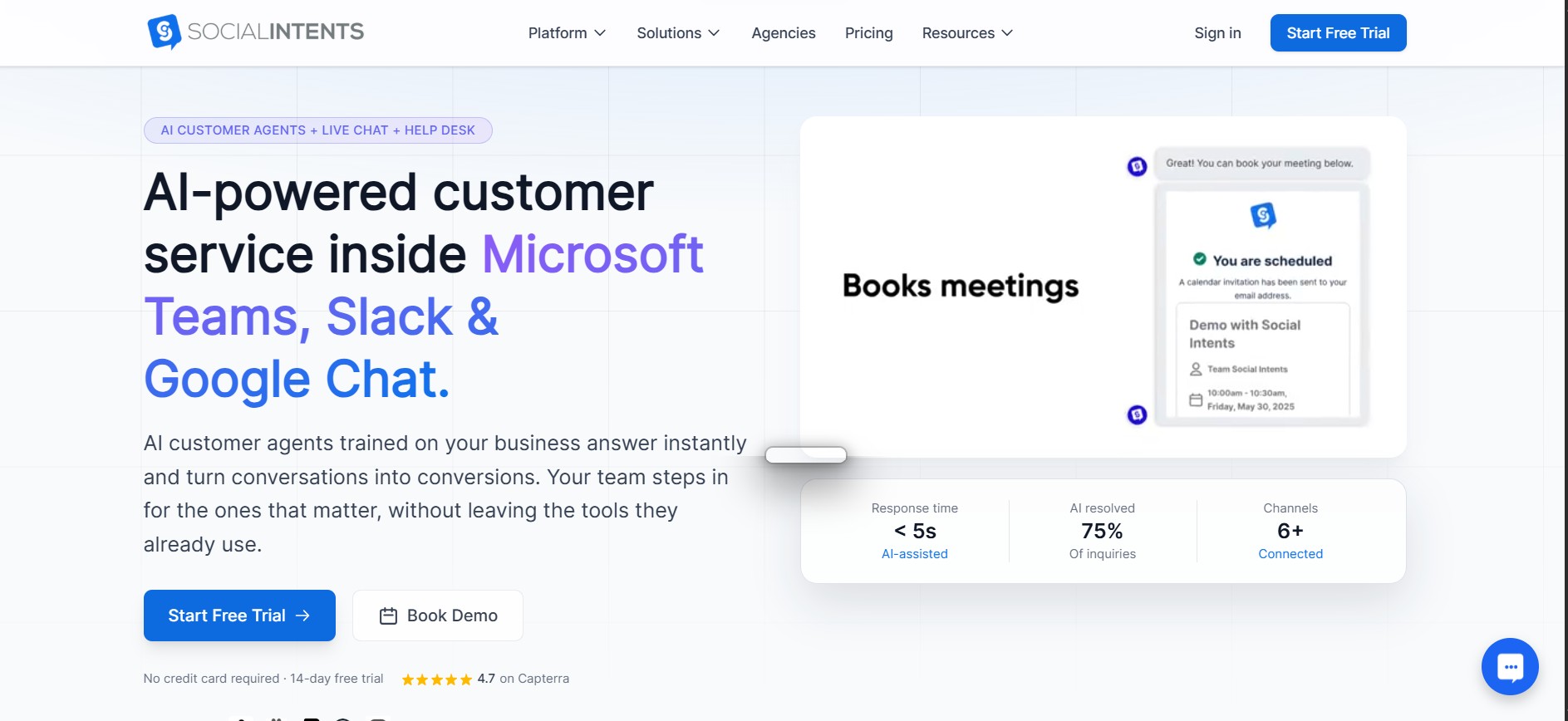
Social Intents pairs the two to add live conversation to a Webflow site. A visitor stuck on a pricing page can ask a question and get an answer before leaving. You still capture leads after hours. The AI chatbot or the offline form keeps working when no agent is available.
The Social Intents live chat-Webflow integration supports four approaches:
- The Social Intents Live Chat app installs the widget from the Webflow Marketplace without writing code.
- Code Embed and site-wide custom code let you place the widget script yourself, on every page or specific ones.
- Zapier sends Social Intents chat and lead events into the Webflow CMS.
- The Webflow Data API and Social Intents APIs give you full control over script deployment and chat data sync. They require server-side development.
Pick the app for a fast install, and add custom code or the API when you need finer control.
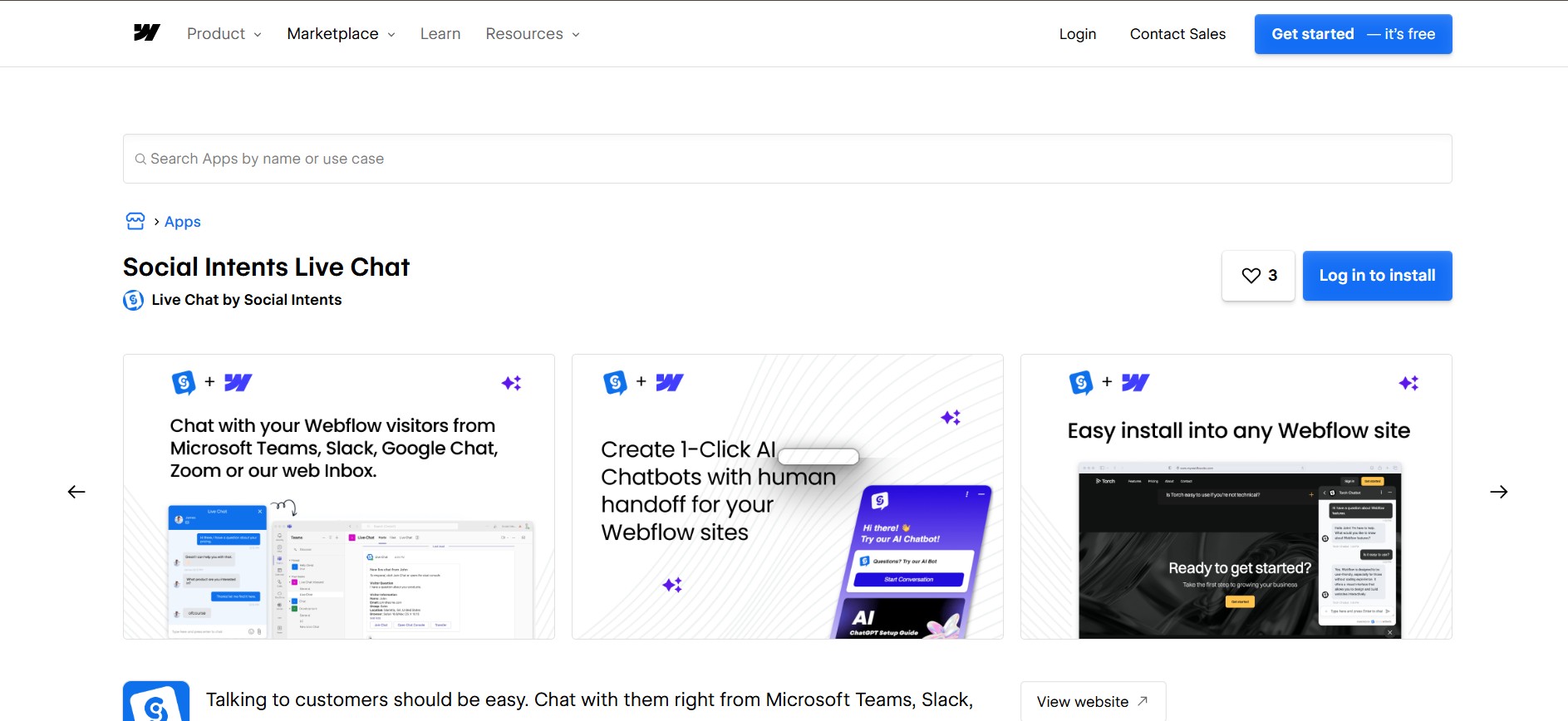
Install the Social Intents live chat app
The Social Intents Live Chat app is the fastest install path and carries an "Approved by Webflow" listing status. It suits site owners who want chat running without touching code. You log in to your Social Intents account during install. Widget and routing settings live in the Social Intents dashboard. Chatbot settings live there too. The Social Intents Webflow guide documents the full flow.
To set up the integration:
- Open the Social Intents Live Chat app in the Webflow Marketplace and log in to your Social Intents account.
- Click Install App and authorize access.
- Select which Webflow sites to enable.
- Optionally connect an agent integration such as Microsoft Teams or Slack.
Once installed, the widget runs on the selected sites with these capabilities:
- Real-time visitor chat routed into Microsoft Teams or Slack channels, with Google Chat also supported
- Proactive chat invitations triggered by visitor behavior
- AI chatbots running on ChatGPT or Claude, with Gemini also supported, and escalation to human agents
- Routing rules that direct conversations to specific team members or channels
The app enables the widget on the sites you select. Use the custom code methods below when you need control over placement on individual pages.
Add the Social Intents widget script with Code Embed and site-wide custom code
You install the widget with a single script tag. Copy it from the Social Intents dashboard under Chat Widgets, select your widget, then open the Deploy tab. Do not modify the snippet.The string after # is your unique widget ID, and the async attribute loads the script without blocking page content. The snippet looks like this:
<script src="https://www.socialintents.com/api/chat/socialintents.1.4.js#YOUR_WIDGET_ID" async="async"></script>
You have two placement options, depending on whether you want the widget everywhere or on selected pages.
Install site-wide through site settings
Site-wide installation loads the widget on every page, and you need a paid Webflow plan for it. The script belongs in the footer, which places it before the closing </body> tag.
To install site-wide:
- Open Site settings > Custom code.
- Paste the snippet into the Footer code section.
- Click Save changes and publish the site.
Each custom code field accepts up to 50,000 characters, so the one-line snippet fits with room to spare.
Install on specific pages with a Code Embed element
Page-level installation shows the widget only where you place it, such as a pricing or contact page. That keeps chat off blog posts and legal pages while it runs where visitors ask buying questions. You need an active Site plan or a Core, Growth, Agency, or Freelancer Workspace, per the Code Embed documentation.
To install on a single page:
- Copy the widget snippet from the Social Intents Deploy tab.
- Open the Add panel and drag a Code Embed element to the bottom of the target page.
- Paste the script into the code editor and click Save and close.
- Publish the site.
You can also control which pages show the widget from the Social Intents dashboard. The URL include and exclude patterns in widget settings do this without moving the embed.
Connect Social Intents to Webflow with Zapier
Zapier is the only automation platform with a native Social Intents connector, and data flows one direction. The Social Intents Zapier integration triggers when a chat closes and when Social Intents receives a new lead or offline message. There are no Social Intents actions. Chat events can therefore create or update Webflow CMS content.
Three Zaps matter most for Webflow sites.
- Social Intents New Lead → Webflow Create Item to log each captured lead as a CMS item
- Social Intents New Offline Message → Webflow Create Item to record after-hours messages
- Social Intents Chat Closed → Webflow Update Item to update a CMS record when a conversation ends
Webflow events cannot start anything inside Social Intents. If you need more control over the Social Intents side, the Social Intents Zapier guide documents a "Webhooks by Zapier" Catch Hook that receives Social Intents webhook data before routing it to Webflow actions.
Build with the Webflow and Social Intents APIs
The API path suits developers who need programmatic control over script deployment or chat data. It requires server-side development, since Social Intents makes custom API calls server-side and you need a backend for token handling. Two patterns cover most use cases: deploying the widget through the Data API, and syncing chat data into the CMS.
Four pieces make up the toolkit.
- The Social Intents REST API provides read access to chats, offline messages, missed chats, contacts, and widget lists
- Social Intents webhooks push chat transcripts and captured leads to any endpoint you register. They also push offline messages
- Webflow's Data API handles custom code registration and CMS collection items
- Webflow webhooks fire on site events such as
form_submissionandcollection_item_created
The Social Intents REST API is read-only for chat and contact data, so all data enters Social Intents through the widget or dashboard rather than API writes.
Deploy the widget script through the Data API
Agencies managing many Webflow sites can register and apply the Social Intents script without opening each site. A studio can add or remove the widget across every client site in a single run. This requires a Data Client app with the custom_code:write scope; site tokens cannot access the custom code endpoints.
To deploy the script:
- Register the widget script as a hosted script with
POST /v2/sites/{site_id}/registered_scripts/hostedand point it at thesocialintents.1.4.jsURL. - Apply it site-wide with
PUT /v2/sites/{site_id}/custom_code, or to a single page withPUT /v2/pages/{page_id}/custom_code. - Confirm the applied scripts with
GET /v2/sites/{site_id}/custom_code.
Scripts must be registered before they can be applied, and each site accepts up to 800 registered scripts.
Sync chat transcripts and leads to the Webflow CMS
The CMS has no native store for chat data. A small server or serverless function receives Social Intents webhooks and writes the items. A completed chat fires a webhook with an empty-string event value. Social Intents also fires "offline_message" and "lead" events. You receive payloads as JSON arrays via HTTP POST, documented in the webhooks reference.
To sync chat data:
- Register the webhook against your widget with
POST /v1/api/apps/{widgetId}/webhook.
POST /v1/api/apps/{widgetId}/webhook
Content-Type: application/json
X-SocialIntentsToken: YOUR_API_TOKEN

{
  "target_url": "https://your-server.com/webhook/chats",
  "event": ""
}
- Return HTTP
200from your endpoint. Social Intents automatically removes webhooks that return410or500+. - Write each payload to Webflow with
POST /v2/collections/{collection_id}/items, or use the/items/liveendpoint to publish immediately. Both require theCMS:writescope.
If you log high chat volume, batch the writes: the bulk endpoint POST /v2/collections/{collection_id}/items/bulk accepts up to 100 items per request.
What can you build with the Social Intents live chat Webflow integration?
Integrating Social Intents live chat with Webflow lets you answer visitors and capture leads in real time without a separate support console or a newly staffed inbox.
Four use cases come up most often:
- Lead capture on high-intent pages: A chatbot on your Webflow pricing page opens proactively and collects name and email along with qualification answers. Hot leads route into Teams or Slack with full conversation history. AI Actions can push each lead to HubSpot or Salesforce; Microsoft Dynamics 365 is also supported mid-conversation.
- 24/7 support with AI-to-human handoff: Train the chatbot on your Webflow site URLs and PDFs; Q&A pairs are also supported. When a visitor's message matches an escalation trigger phrase, the bot stops responding. Agents receive the full transcript, and the chat still lands in the channel and waits if nobody is online.
- Chat-to-video sales demos: A consulting or SaaS site built in Webflow can escalate a text chat to a Zoom or Webex video call in one click. Either call adds screen sharing for product demos and troubleshooting.
- Agency multi-client deployments: A studio running several Webflow client sites deploys a white-label widget per client. Each widget has its own chatbot training and its own Teams or Slack routing, with Google Chat also supported.
Use the API integration path to sync transcripts and leads into the Webflow CMS.
Frequently asked questions
For site-wide installation, yes. Placing the script in Site settings > Custom code requires a paid plan, per the Social Intents Webflow installation docs. Page-level installation with a Code Embed element requires an active Site plan or a Core, Growth, Agency, or Freelancer Workspace. See the Code Embed eligibility notes.
Republish first. Custom code appears in preview mode but won't go live until the site is published, per the custom code documentation. If it still doesn't appear, test in incognito to rule out ad blockers and confirm the Enabled on Site toggle in widget settings. The testing guide also covers Content Security Policy blocks, so add
socialintents.comto your CSP whitelist if the script loads in preview but not live.Yes, two ways. Place the script with a Code Embed element only on the pages you want. Or install site-wide and use include and exclude URL patterns in the Social Intents widget settings. You manage URL-pattern targeting in the Social Intents dashboard.
Add a short CSS override alongside the embed script. The Social Intents Webflow embed article documents this fix:
<style>
#si-wrapper .silc-btn { bottom: 55px !important; right: 25px !important; }
#siWidget-chat { bottom: 120px !important; }
</style>
Add it to your Webflow custom code footer or the same embed, then republish.
Yes. The no-code route is a Zap. Fire it on the Social Intents New Lead or Chat Closed trigger and run a Webflow Create Item or Update Item action. Start from the Social Intents Zapier page. Developers can instead register a Social Intents webhook and write payloads to a collection through the Webflow Data API.
Description
Answer Webflow visitors in real time and keep capturing leads after hours. Install the Social Intents live chat app from the Webflow Marketplace, or place the widget script yourself with a [Code Embed](https://help.webflow.com/hc/en-us/articles/33961332238611-Custom-code-embed) element or [site-wide custom code](https://help.webflow.com/hc/en-us/articles/33961357265299-Custom-code-in-head-and-body-tags).
This integration page is provided for informational and convenience purposes only.

Pensil
Embed Pensil community forums, live sessions, and discussion boards directly in your Webflow site.

Customer.io
Connect Customer.io, a customer engagement platform, with Webflow to turn form submissions and page visits into behavioral triggers for automated email, SMS, and in-app messaging campaigns.

Copilot
Connect Microsoft Copilot Studio, a platform for building and deploying custom AI agents, with Webflow to add conversational chat interfaces for support, lead qualification, and FAQ automation.

ChatGPT
Manage your Webflow site from ChatGPT through the Webflow MCP server, or build a custom OpenAI workflow into your site.

Discord
Connect Discord, a communications platform built around servers and channels, with Webflow to route form submissions, orders, and CMS events into channels or embed live server activity on a page using widgets, automation platforms, or APIs.

Connect WhatsApp, Meta's business messaging platform, with Webflow to add chat buttons, trigger automated messages from form submissions and orders, and build real-time customer communication into any page.

YourGPT Chatbot
Connect YourGPT Chatbot, a no-code AI support platform, with Webflow to deploy an AI agent that answers questions and captures leads using the app or embeds.

FullContext
FullContext provides an embeddable JavaScript solution that handles conversational interfaces through a single code snippet, eliminating the need to build chat infrastructure or maintain form validation logic.

ManyChat
Connect ManyChat, a chat marketing and messenger automation platform, with Webflow to route form submissions into messaging flows and trigger conversations across Instagram, Messenger, and WhatsApp.
Related integrations
Get started for free
Try Webflow for as long as you like with our free Starter plan. Purchase a paid Site plan to publish, host, and unlock additional features.
