






Monto Reviews
Connect Monto Reviews, a review collection and display app, with Webflow to add configurable review widgets, automated post-purchase review requests, and Google Rich Snippets to product and CMS template pages.

Monto Reviews adds configurable review widgets, automated post-purchase email requests, and Google Rich Snippets to product and CMS template pages with no custom JavaScript required for standard embed setups. Configure everything through a visual dashboard or a Webflow app extension.
If you run an ecommerce store, freelance for branded storefronts, or operate a service-based CMS site that relies on testimonials, you'll get the most from this integration. Teams already managing product catalogs in Webflow CMS will find slug-based review targeting (matching reviews to pages by their URL identifier) especially practical.
How to integrate Monto Reviews with Webflow
What is Monto Reviews? Monto Reviews is a review collection and display app within Monto's suite of ecommerce tools. It has five widget layouts, automated Call-to-Review emails triggered by fulfilled orders, photo reviews with up to five images, review moderation and approval workflows, and 17-language auto-detection for international storefronts.
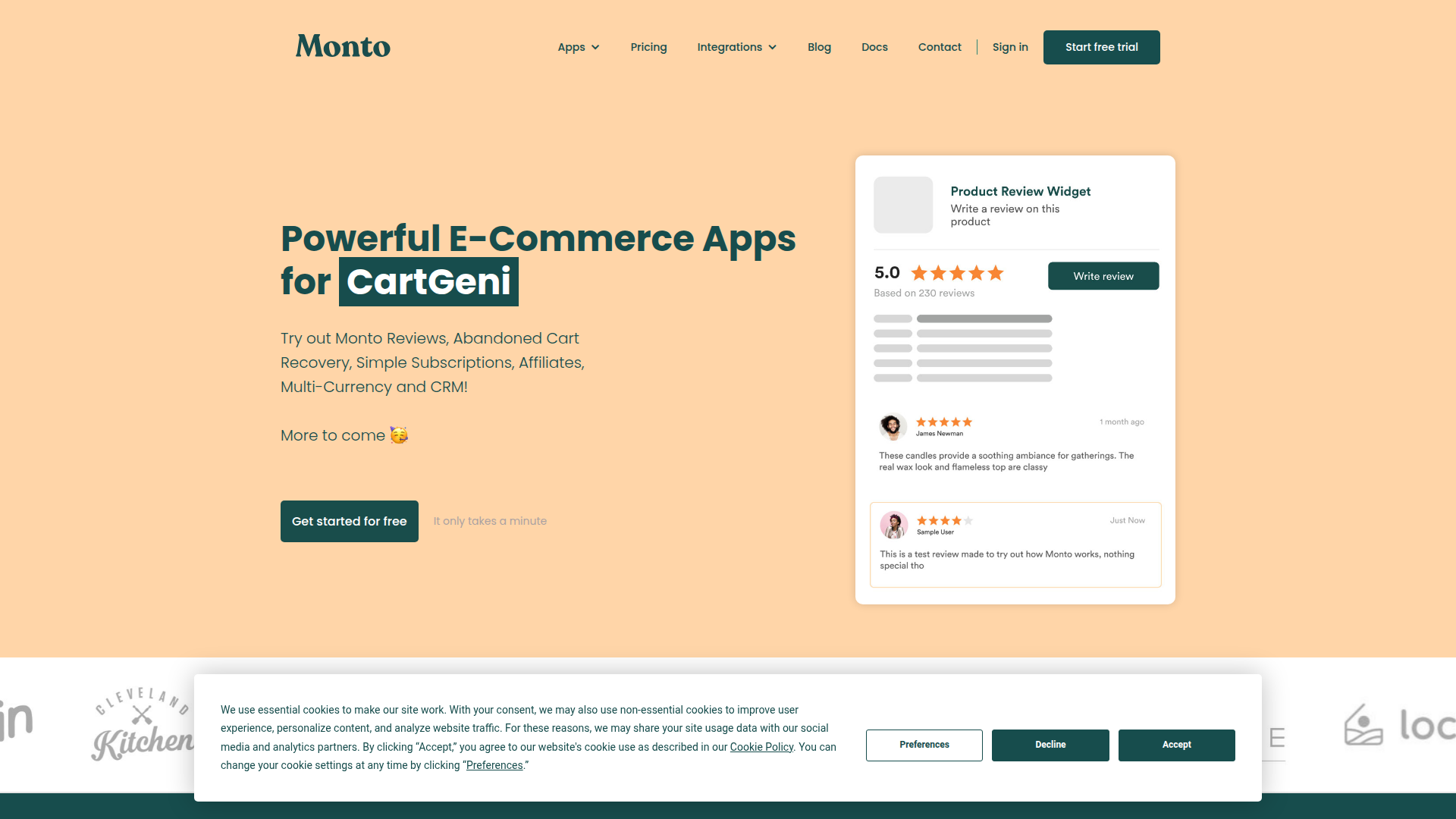
Ecommerce teams and service-based businesses use Monto Reviews with Webflow when they need social proof on product pages, testimonial sections on homepages, or star ratings on product grids. The combination is especially common on sites that already use the CMS for product management. Monto reads your URL slugs to match reviews to the correct product automatically.
You can use the Monto Reviews-Webflow integration in three ways:
- Install the Monto app from the Webflow Marketplace to configure review widgets, generate embed code, and manage reviews from a visual dashboard inside your Designer.
- Add review widgets with Code Embed elements using the separate Monto widget generator to target specific products by slug, configure data attributes, or embed per-item review codes.
- Build with the Webflow and Monto Reviews APIs for documented order-triggered review requests and other custom workflows that may require middleware and confirmation from Monto.
Most implementations use the app and widget generator for display, adding API calls only when you need custom automation or CMS sync.
Install the Monto app
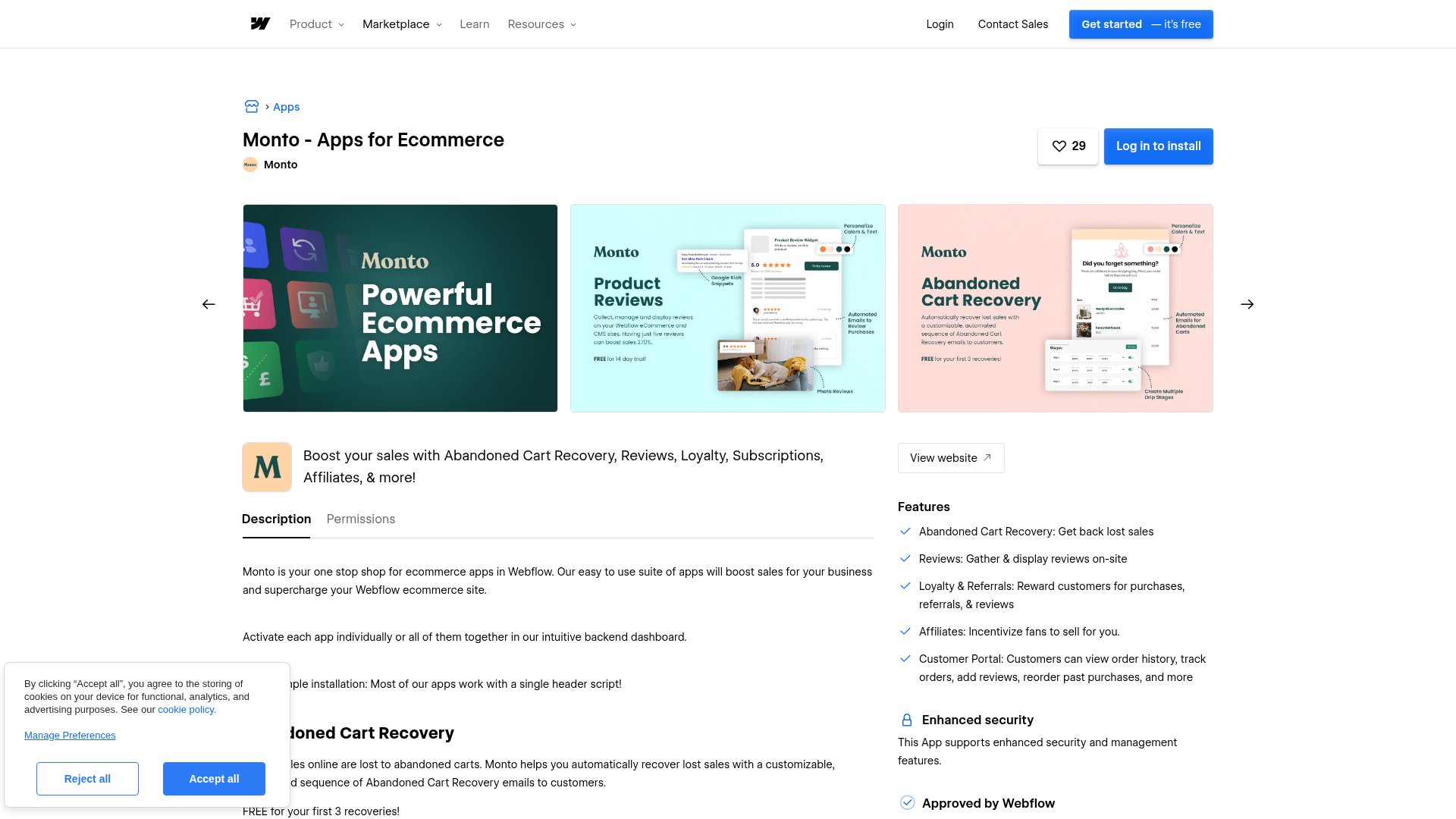
The Monto app on the Webflow Marketplace installs Monto's full suite of ecommerce tools, including Reviews. It has an extension that embeds the widget configurator directly inside the Designer. You can select layouts, set targeting options, and generate embed code without switching tabs. The app is Webflow-approved and has 1,000+ installs. A free plan is available with a 14-day trial on paid features.
To set up the integration:
- Go to webflow.com/apps/detail/monto and click Install. Authorize Monto to access your site.
- In the Monto dashboard, navigate to Reviews and open the Setup tab. Copy your site-specific global script.
- Open Site Settings > Custom Code and paste the global script into the Head Code field. Save and publish. This loads the Monto framework across all pages. For details, see Custom code in head and body tags.
- Open the Designer and press E to access the Apps panel. Select the Monto extension.
- Choose Reviews, pick a widget layout, and configure display options (product scope, colors, featured reviews toggle).
- Copy the generated code from the extension panel.
- Drag a Code Embed element onto the canvas where you want the widget to appear. Double-click it, paste the code, and click Save & Close.
- Publish the site.
The Monto app has:
- Review widget configuration (layout, colors, product scope) inside the Designer
- Five widget layouts: Star Rating, Horizontal, Masonry, Text Slider, and Image Slider
- Automated Call-to-Review emails sent after order fulfillment
- Review moderation, approval, and reply workflows in the Monto dashboard
- Photo reviews with up to five images per submission
- Google Rich Snippets for review stars in search results
The review widget won't render in the Designer's canvas preview because custom code only executes on the published site. Always check the live URL to confirm the widget displays correctly. You need a paid site plan to publish custom code to a live domain.
Add Monto Reviews widgets with Code Embed elements
If you prefer working directly in the Monto dashboard rather than the Webflow extension, the widget generator at monto.io/reviews/widget-generator gives you the same configuration options on a separate page. Use this option to target specific products by slug, display reviews for an entire collection, or configure data attributes.
Place widgets on product and CMS template pages
Most setups place a Star Rating widget near the product title and a Horizontal or Masonry widget further down the product page. On CMS template pages, the "Default: current page's product or CMS item" targeting option reads the page slug automatically. One embed code works across all items in the collection.
To add a review widget using the Monto dashboard:
- Go to monto.io/reviews/widget-generator or open Reviews > Setup in the Monto dashboard.
- Use the Choose the item to review dropdown to select your targeting option: current page's product, a specific product slug, an entire collection, multiple items (comma-separated slugs), all reviews, or your entire store.
- Select a layout: Masonry, Horizontal, Text Slider, Image Slider, or Star Rating.
- Configure display options and click Show Preview to verify.
- Copy the generated code.
- Drag a Code Embed element from the Add panel to the desired position on the page or CMS template.
- Double-click the Code Embed element, paste the code, and click Save & Close.
- Publish the site.
For product grids, place a Star Rating widget inside each Collection List item. For product detail pages, combine a Star Rating widget near the title with a Horizontal or Masonry layout below the product description.
Embed unique review codes per CMS item
In rare cases, you may need different review embed codes on individual CMS items rather than using automatic slug detection.
To set this up:
- In the CMS, open the product or collection settings and click Add New Field. Select Rich Text and name it something like "Review Code."
- On the CMS template page, drag the new Rich Text field onto the canvas and bind it to the CMS field.
- For each CMS item, open the item editor, scroll to the Review Code field, click the Plus button, and add a Code block (not plain text). Paste the Monto embed code for that item's specific slug.
- Save the item and publish the site.
You'll need to edit each CMS item individually with this method. It only makes sense when automatic slug detection does not fit your setup.
Configure widget data attributes
Monto's embed code has data attributes that override default behavior. Add these directly to the generated code snippet inside the Code Embed element.
data-lang="da"forces the widget to display in a specific language instead of auto-detecting the browser languagedata-reviews-per-page="3"changes the number of reviews shown before paginationdata-collection-slug="product"resolves duplicate slugs when multiple CMS collections share the same item slugdata-duplicate-slugs="true"displays reviews across all items that share a slug
Use these attributes when the default widget behavior does not fit your collection structure or language needs.
If two CMS collections contain items with identical slugs, add data-collection-slug="product" to the embed code. Then click Sync Collections in the Monto settings at monto.io/shop. Skip this step and reviews may appear under the wrong product.
Build with the Webflow and Monto Reviews APIs
If you need to trigger verified review requests from custom checkout flows, the API path has a documented automation workflow. This approach requires server-side development and a working understanding of REST APIs, webhooks, and authentication.
You will use:
- Monto's Orders API to register fulfilled orders and trigger Call-to-Review emails with Verified Buyer badges
- Webflow Data API to handle CMS collection reads, writes, and publishing
- Webhooks to trigger real-time notifications when orders arrive or CMS items change
Monto documents only three public API endpoints: authentication, create order, and get subscriptions. Public review-event webhook names, payload schemas, and configuration details are not documented. For additional webhook specifications or endpoint access, contact hello@monto.io directly or check the API help collection.
Trigger verified review requests from custom order flows
When a customer completes a purchase through a non-Webflow checkout (Foxy, Snipcart, or a custom payment flow), you can register the order with Monto's API to trigger a Call-to-Review email. Reviews submitted through this path display a Verified Buyer badge.
To implement this:
- Set up a webhook listener or server-side handler that fires after order fulfillment.
- Send a
POSTrequest tohttps://api.monto.io/orders?api_key=YOUR_KEYwith the order payload:
{
  "order_id": "abc",
  "customer": {
    "name": "John Doe",
    "email": "john@example.com"
  },
  "status": "fulfilled",
  "items": [
    { "slug": "first-product" },
    { "slug": "second-product" }
  ]
}
- Confirm a
200 OKresponse. Monto sends the Call-to-Review email after the delay interval configured at monto.io/reviews/configure.
Make sure each order_id is unique. Duplicate IDs do not re-trigger emails. Item slugs must match your CMS item slugs exactly, with no domain or collection prefix. Before sending API requests, verify your site sync status at monto.io/shop.
Sync reviews to a Webflow CMS collection
If you want reviews stored as CMS items for custom display layouts, filtering, or SEO purposes, you can build middleware around Monto and Webflow only after confirming the required review-event delivery details directly with Monto. This is not a publicly documented Monto workflow because public review-event webhook names, payload schemas, and configuration details are not documented.
To explore this setup:
- Create a "Reviews" CMS collection with custom fields for reviewer name, star rating, review body, product reference, and date.
- Contact hello@monto.io to request review-event webhook specifications. Public event names and payload schemas are not documented.
- If Monto confirms a supported event flow for your account, build a server-side handler that receives the review data, maps the fields to your CMS collection schema, and sends a
POSTto the CMS live items endpoint:
POST /v2/collections/{collection_id}/items/live
Authorization: Bearer YOUR_TOKEN
- For moderated reviews, create items as drafts first using the staged items endpoint, then publish approved items with
POST /v2/collections/{collection_id}/items/publish.
Store the Monto review ID mapped to the Webflow item ID so you can publish approved reviews without creating duplicate entries. CMS plan limits vary by plan, so check current plan limits before storing reviews as CMS items at scale.
Listen for Webflow ecommerce order events
If your store uses native ecommerce, register a webhook to listen for order events and pass them to Monto's API automatically.
To set this up:
- Register a webhook using the webhooks API:
POST /v2/sites/{site_id}/webhooks
{
  "triggerType": "ecomm_new_order",
  "url": "https://your-server.com/order-webhook"
}
- Build a handler at the registered URL that extracts customer name, email, and product slugs from the webhook payload.
- Forward the order data to
POST https://api.monto.io/orders?api_key=YOUR_KEYwith"status": "fulfilled"to trigger the review request.
For post-fulfillment triggers, use ecomm_order_changed as the triggerType instead. Validate incoming requests using the x-webflow-signature header to confirm they originate from your site.
What can you build with the Monto Reviews Webflow integration?
Integrating Monto Reviews with Webflow adds review collection and display to any site. You don't need to build custom forms, databases, or email automation from scratch.
- Product page social proof: Place Star Rating widgets in product grid Collection Lists and Masonry or Horizontal layouts on product detail pages. Reviews auto-match to each product using CMS slugs. One template configuration covers every item in the collection.
- Homepage testimonial sections: Use Text Slider or Image Slider widgets on a homepage to feature top reviews from across the store. Target an entire collection or hand-pick products by slug to control which reviews appear.
- Service business review pages: Non-ecommerce CMS sites (consulting firms, healthcare providers, agencies) can collect and display client testimonials using the impression-based pricing track. Sifter Health, a telemedicine company, uses this approach to let patients review their provider experience.
- Multilingual storefronts: If you serve customers in multiple languages, you can deploy review widgets that auto-detect the visitor's browser language. The widget UI is available in 17 supported languages. Override the default with a
data-langattribute for region-specific landing pages.
If you need more control over review data storage or integration with non-Webflow checkout systems, the API integration path can support some of those cases, though review-event webhook-based workflows require direct confirmation from Monto.
Frequently asked questions
Yes. The free Starter plan does not support custom code on published domains. Monto Reviews requires embedding a JavaScript snippet using a Code Embed element, so you need a paid site plan. For automated Call-to-Review emails triggered by Webflow-native ecommerce orders, a Webflow Ecommerce plan is also required. See Webflow pricing for current plan details.
No. Custom code does not execute in the Webflow canvas. Open your published site URL to confirm the widget renders correctly. This applies to all Code Embed content, not just Monto. The Monto troubleshooting guide covers additional display issues.
Yes. Monto offers a separate CMS pricing track billed by impressions rather than orders. The free plan includes 5,000 impressions per month. Review request emails can be triggered via third-party email platforms like Klaviyo instead of Monto's built-in Call-to-Review system. See the non-ecommerce setup guide for configuration steps.
Yes. Export reviews from your current platform and fill in Monto's Google Sheets template. Required fields include
product_slug,rating,message,created_at, andcustomer_name. Then email the completed CSV to hello@monto.io. Image imports for historical reviews are not supported. See the review import documentation for the full field list and template.Add the
data-collection-slug="your-collection"attribute to the Monto embed code inside the Code Embed element. Replaceyour-collectionwith the actual collection slug. Then go to monto.io/shop and click Sync Collections to update Monto's slug mapping. Without this step, reviews may display under the wrong item. The widget options documentation covers all available data attributes. This is the standard fix when identical slugs exist across collections.
Description
Monto Reviews adds five review widget layouts, automated Call-to-Review emails, photo reviews, and Google Rich Snippets to Webflow through its Marketplace app or Code Embed elements.
This integration page is provided for informational and convenience purposes only.

Elfsight-countdown-timer-widget
Connect Elfsight Countdown Timer with Webflow to add live deadlines to any page with a Code Embed element.

Ecwid
Connect Ecwid, a multi-channel e-commerce platform, with Webflow to embed a shopping cart, product catalog, and checkout on any page while managing orders and inventory from Ecwid's admin panel.

Chec/Commerce.js
Sell things as small as ebooks, licensed software, or run an entire clothing line from your site.
Monto Affiliates
Connect Monto Affiliates, an affiliate and referral marketing app, with Webflow to track referral orders and form submissions, manage commissions, and process PayPal payouts for your affiliate program.
Monto Abandoned Cart Recovery for Webflow Shops
Connect Monto Abandoned Cart Recovery with Webflow to send automated email sequences that bring back shoppers who abandoned checkout.
Related integrations
Get started for free
Try Webflow for as long as you like with our free Starter plan. Purchase a paid Site plan to publish, host, and unlock additional features.
