






Recruit CRM
Connect Recruit CRM with Webflow to publish open jobs on your site and send applications into recruiter pipelines.

A Webflow site can host a careers page, but it has no applicant tracking of its own. Form submissions wait in site settings or an inbox until a recruiter copies each one into the ATS, and job listings stored in the Webflow CMS go stale unless someone edits them by hand when a role closes.
Recruit CRM holds the pipelines and job records that page needs to reflect. Connecting it to Webflow puts open roles on your site, either as Recruit CRM's hosted jobs page inside a Code Embed element or as CMS items with their own pages, and sends applications from Webflow forms into Recruit CRM as candidate records attached to the right job.
Recruitment agencies and executive search firms use this pairing for their own careers sections. Webflow agencies building sites for recruitment clients use it to deliver on-brand job pages without rebuilding the ATS.
How to integrate Recruit CRM with Webflow
What is Recruit CRM? Recruit CRM is an applicant tracking system (ATS) and CRM built for recruitment agencies and executive search firms, developed by Workforce Cloud Tech, Inc. It tracks candidates through stage-based hiring pipelines, stores client and contact records, parses resumes with AI, and on its Business plan posts jobs to free job boards such as ZipRecruiter and Google for Jobs.
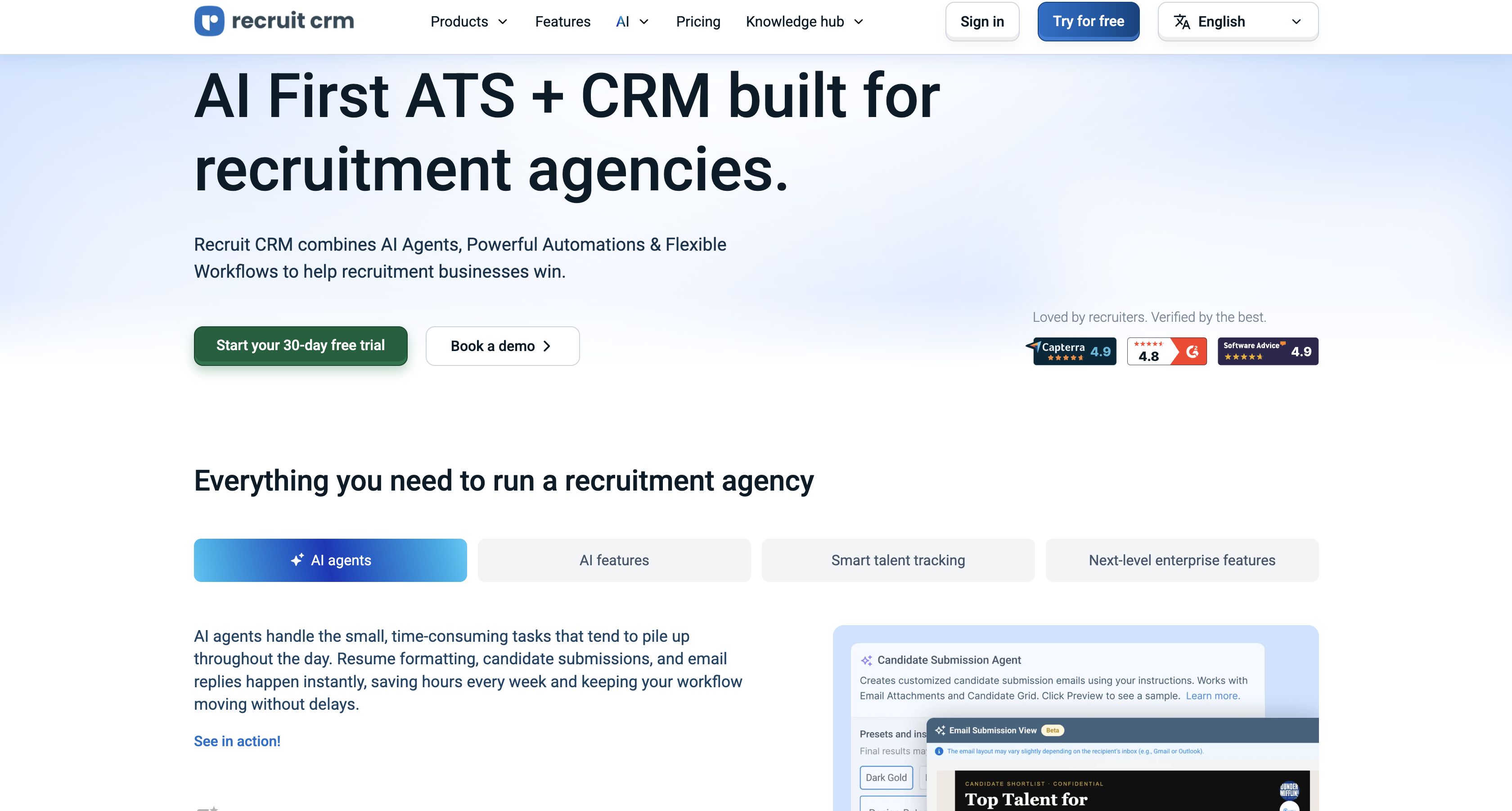
Teams reach for this combination when the marketing site lives in Webflow and the jobs live in Recruit CRM. Einvigi, an IT recruitment agency, runs its site on Webflow, and its designer connected it to Recruit CRM through Make, according to the agency's Made in Webflow page.
The Recruit CRM Webflow integration supports four approaches:
- MCP servers: Recruit CRM and Webflow both publish MCP servers, so one AI agent can read open jobs in Recruit CRM and create or update the matching CMS items in Webflow when you ask it to.
- Code Embed elements: Recruit CRM's hosted jobs page, a single job's application form, or its Talent Pool page drops into a Code Embed element without any code of your own.
- Automation platforms: Zapier, Make, Integrately and viaSocket move data between Webflow forms, the Webflow CMS and Recruit CRM records without a server.
- APIs and webhooks: The Webflow API and the Recruit CRM API give you full control over job sync and candidate creation, but require server-side development.
Most teams start with the embed and move to CMS sync once they want every job on its own page on their own domain.
Connect the Recruit CRM and Webflow MCP servers
Recruit CRM runs a remote MCP server that lets Claude, ChatGPT and Perplexity search and update jobs and candidates, including each candidate's hiring stage. The Webflow MCP server gives the same agent tools to create, update, publish and unpublish CMS items. With both connected, you can ask the agent to pull a client's open roles from Recruit CRM and draft matching items in your Jobs Collection, then review them before anything goes live.
Recruit CRM limits its MCP server to the Business and Enterprise plans, and access follows each user's role: Read Only allows search and view, while Read & Write also allows creating and updating records. Every Webflow MCP action runs within your existing Webflow permissions and roles.
To connect both servers in Claude:
- In Recruit CRM, confirm your role has MCP Access under Admin Settings > User > Roles & Permissions.
- In Claude, add a custom connector with the Recruit CRM MCP server URL
https://agent.recruitcrm.io/mcpand complete the OAuth sign-in. - Add the Webflow connector from Claude's connector list and authorize the sites the agent may manage.
- Give the agent a bounded task, such as listing one client's open jobs and creating a draft Collection item for each.
The agent works on demand rather than as a background sync, so pair it with a webhook or automation route when listings must change the moment a recruiter closes a role.
Add the Recruit CRM jobs page with Code Embed elements
Recruit CRM generates iframe code for its public jobs page, and that code goes straight into a Code Embed element. Its WordPress guide tells anyone not on WordPress to copy the same snippet from Job Page Integration and paste it into their site. Code Embed is available with a Core, Growth, Agency, or Freelancer Workspace, or on a site with an active Site plan. Before embedding, check that each job is not Closed and has Enable Job Application Form checked, because only those jobs appear on the public page.
Link to the hosted jobs page
The lowest-effort path is a button. Every job with the application form enabled gets its own job application link, and the public jobs page has a shareable URL of its own. No code or API access is involved.
To add the link:
- In Recruit CRM, open the job and check Enable Job Application Form.
- Copy the job application URL from the job's detail view, or copy the jobs page link from Public Job Page Settings.
- In Webflow, add a Button element and paste the URL into its link settings.
- Publish the site.
Candidates leave your domain to apply, and their applications arrive under the Applied stage of that job in Recruit CRM.
Embed the jobs page
Recruit CRM's onboarding guide calls the iframe "The simplest and quickest method to display job openings on your website." Candidates browse and apply without leaving your page, and each application goes straight into your Recruit CRM database.
To embed the jobs page:
- In Recruit CRM, open Admin Settings > Public Job Page Settings and select the Job Page Integration tab.
- Copy the iframe code under the website integration option.
- In Webflow, open the Add panel and drag a Code Embed element onto the careers page.
- Paste the code, save the element, and publish the site.
The public jobs page settings control how the embedded page looks:
- Title and subtitle: Job Page Title and Job Page Subtitle set the heading text that sits at the top of the embedded list.
- Search box: The Placeholder Text for Search Box setting defines the prompt candidates see before they start typing.
- Logo and background: An uploaded logo and background image, in .jpg, .jpeg or .png format, carry your branding into the frame.
- Colors: Text, background, list and apply button colors let you match the embed to the palette of your Webflow site.
- Link to More Jobs: This optional URL sends visitors to another jobs page, and the section disappears when you leave it blank.
Anything beyond those settings, such as filtering jobs by industry or location, needs the API route further down.
Embed a single job's application form or the Talent Pool page
The same iframe can show one job's application form instead of the full list: Recruit CRM's guide describes replacing the URL in the iframe's src attribute with that job's application link. The Talent Pool page has its own iframe code under Integrate Talent Pool and collects profiles from candidates who are not applying for a specific role. Paste either version into a Code Embed element on the relevant Webflow page, and each job can have its own page with its application form inside the embed.
Connect with Zapier, Make, Integrately, or viaSocket
Four automation platforms have both a Webflow side and a Recruit CRM side today, but they do not all move data in both directions. Each one authenticates to Recruit CRM with an API token, and Zapier's setup guide lists a Recruit CRM Business plan or higher as a prerequisite for its app.
Here is what each platform supports for this pairing:
- Zapier: Zapier's dedicated pairing page pairs the Webflow New Form Submission trigger with the Recruit CRM Add Candidate and Assign Candidate actions. It also pairs Recruit CRM triggers such as Job Added, Job Updated, Placement Added and Candidate Hiring Stage Updated with the Webflow Create Item, Create Live Item, Update Item and Update Live Item actions.
- Make: The Make Webflow app watches Webflow webhook events and creates, updates, publishes and deletes items, while its Recruit CRM app includes Create a Candidate, Update a Candidate, Watch Candidates and Watch Events. That Recruit CRM app is community-developed by Maxmel Tech, and Make states it does not maintain or support it.
- Integrately: The Webflow pairing on Integrately connects the Webflow form submission trigger to the Recruit CRM add candidates action, and connects Recruit CRM job triggers to Webflow item actions, including create live item and publish item.
- viaSocket: The viaSocket integration page sends Recruit CRM triggers such as Job Created, Job Updated, Company Added and Candidate Added to Webflow actions including Create Item, Create Live Item and Update Item. Its Recruit CRM actions cover notes, hotlists and assigning an existing candidate, so it cannot create a new candidate from a Webflow form.
Any of the four can publish Recruit CRM jobs into Webflow, but viaSocket cannot turn a Webflow form submission into a new candidate, while the other three can.
To send a Webflow form to Recruit CRM in Zapier:
- Submit at least one entry through your Webflow form, because Zapier needs a real submission or a test submission before it can connect.
- In Zapier, choose Webflow as the trigger app and New Form Submission as the event.
- Choose Recruit CRM as the action app, select Add Candidate, and paste your Recruit CRM API token when prompted.
- Map form fields to candidate fields (First Name is the only required one), test the step, and turn the Zap on.
Zapier also publishes this flow as a ready-made Zap template, so you can start from the mapped trigger and action instead of an empty Zap.
Build with the Webflow and Recruit CRM APIs
Server-side code gives you Webflow-native job pages, filtered listings, and candidate records with exactly the fields you choose. Recruit CRM's Open API requires the Business plan or higher, and a key from a free trial account returns a 401 error. Only the Account Owner can turn the API token on under Admin Settings. Keep both tokens on a server: Recruit CRM's careers page endpoint guide warns that querying its endpoints from the front end exposes the API token. A Webflow Cloud app or any serverless function can host that backend.
The Recruit CRM API uses Bearer token authentication against https://api.recruitcrm.io and covers candidates, jobs, contacts, companies and webhook subscriptions. Its rate limiting page sets 60 requests per minute for accounts with six licenses or fewer and 10 requests per minute per license above that, with HTTP 429 once you exceed it.
On the Webflow side, generate a site token under Site settings > Apps & integrations > API access. Only site administrators can create one. Each site holds up to 5 tokens, and a token expires after 365 consecutive days of inactivity. Give it cms:write for the job sync, plus forms:read and sites:write for the form webhook.
Sync open jobs into the Webflow CMS
Recruit CRM sends webhook events for job.created, job.updated, job.status.updated and job.deleted. A backend subscribes to them and writes each job into a Jobs Collection, so recruiters never open Webflow. Store the Recruit CRM job slug in a plain text field on each item and look it up before every write: the List Items endpoint filters on custom field values, so a match means update and no match means create.
To build the sync:
- Register a subscription for each job event with the create subscription endpoint, then repeat it for the other three events:
POST https://api.recruitcrm.io/v1/subscriptions Authorization: Bearer <recruitcrm_api_token> Content-Type: application/json { "event": "job.created", "target_url": "https://your-backend.example.com/rcrm-job-hook" } - For an initial backfill, call
GET https://api.recruitcrm.io/v1/jobs/search?job_status=1, which returns open jobs only. - Create a published item for each new job with the Create Live Items endpoint.
nameandsluggo insidefieldData, alongside your own field slugs:POST https://api.webflow.com/v2/collections/{collection_id}/items/live Authorization: Bearer <webflow_site_token> Content-Type: application/json { "isArchived": false, "isDraft": false, "fieldData": { "name": "Senior Engineer", "slug": "senior-engineer", "rcrm-job-slug": "<recruit_crm_job_slug>" } } - On
job.updated, sendPATCH https://api.webflow.com/v2/collections/{collection_id}/items/livewith the matching item ID. The live update endpoint accepts up to 100 items per call. - On
job.deleted, or whenjob.status.updatedreports a closed status, sendDELETE https://api.webflow.com/v2/collections/{collection_id}/items/livewith the item ID. The unpublish endpoint takes the item off the live site and sets it back to draft.
Bind a Collection List to the Jobs Collection on the careers page, filter it by location or job type, and style the Collection page each job gets. Unpublish closed roles promptly, and add JobPosting structured data to those pages if you want them eligible for job search features in Google.
Send Webflow application forms into Recruit CRM
The form_submission webhook delivers the fields of a Webflow form to your backend as key-value pairs, including a hidden field that holds the Recruit CRM job slug. The backend verifies the request, creates the candidate, and applies them to that job.
To wire the form:
- Register the webhook with the create webhook endpoint, using a token with the
sites:writescope. Use the optionalfilterto target one form, and note the limit of 75 registrations per trigger type on each site. Register it through the API, because webhooks created in site settings do not carry the signature headers:POST https://api.webflow.com/v2/sites/{site_id}/webhooks Authorization: Bearer <webflow_site_token> Content-Type: application/json { "triggerType": "form_submission", "url": "https://your-backend.example.com/webflow-form-hook" } - Verify each delivery as Webflow's webhook guide describes: compute an HMAC SHA-256 of the
x-webflow-timestampvalue, a colon, and the JSON body, signed with your site token secret, compare it tox-webflow-signature, and reject requests older than 5 minutes. - Create the candidate with the create candidate endpoint.
first_nameis the only required field, andresumeaccepts a public file URL or a file sent asmultipart/form-data:POST https://api.recruitcrm.io/v1/candidates Authorization: Bearer <recruitcrm_api_token> Content-Type: application/json { "first_name": "Jane", "last_name": "Doe", "email": "jane@example.com" } - Attach the candidate to the job with
POST https://api.recruitcrm.io/v1/candidates/{candidate}/apply?job_slug=<job_slug>. The apply to job endpoint takes the job slug as a required query parameter. - Return HTTP 200 as soon as the request is accepted. Webflow retries failed deliveries, so make the handler safe to run twice for the same submission.
Resume collection needs form file upload, which requires a Premium Site plan (or a legacy Business Site plan), Ecommerce Plus, or Ecommerce Advanced, and accepts one file of up to 10MB per upload button. Confirm how your backend receives the file before mapping it to the resume field. On the free Starter plan a site accepts 50 form submissions in its lifetime, while paid Site plans are unlimited. A custom Webflow form also bypasses Recruit CRM's hosted application form, so add your own consent checkbox for EU candidates and pass its value to the candidate record.
Report on applications across both systems
The site submissions endpoint, GET https://api.webflow.com/v2/sites/{site_id}/form_submissions, lists every form submission on a site. Recruit CRM's API returns each candidate's hiring stages for a job, so a small internal dashboard can compare applications received on the website with candidates moving through the pipeline.
What you can build with the Recruit CRM Webflow integration
These builds use the routes above, from a single Zap to a full webhook sync.
Common builds include:
- Live agency careers page: A Jobs Collection fed by
job.createdandjob.updatedwebhooks, shown through a filtered Collection List with a styled page for every open role. - Branded application flow: A Webflow form with a hidden job slug that creates a candidate in Recruit CRM and applies them to the right job within seconds of submission.
- Client-specific job pages: A Webflow page per client fed by
GET /v1/jobs/search?job_status=1&company_name=Your%20Company%20Name, so an executive search firm shows each account only its own searches. - Recent placements feed: A Zap that turns each Placement Added event in Recruit CRM into a CMS item, so a recently placed section on the homepage updates without an editor touching it.
Automate job board listings with the Webflow CMS and Make to add the JobPosting schema and expiry rules these job pages need. To let an agent handle routine updates, connect the Webflow MCP server alongside the Recruit CRM connector.
Frequently asked questions
No. There is no Recruit CRM app in the Webflow Apps Marketplace, and Recruit CRM's own integrations page lists Zapier, Integrately, Pabbly and its built-in Workflow Automation rather than Webflow. You connect the two through Recruit CRM's embed code, an automation platform, the two MCP servers, or the APIs.
Yes. Recruit CRM provides iframe code for its public jobs page in the Job Page Integration tab, and you can point that iframe at a single job's application form or use the separate Talent Pool page code instead. Paste the code into a Code Embed element and publish. The embedded form keeps Recruit CRM's styling, and removing Recruit CRM branding from it requires the Business plan.
Recruit CRM's GDPR page describes its role as a data processor, which leaves your organization as the controller for candidate data collected on your Webflow site. Its data security page states that traffic uses 128-bit SSL/TLS encryption and that sensitive data is encrypted at rest with AES on AWS infrastructure.
Keep the Recruit CRM token and the Webflow token on a server and never in page code, because either one can read and write records within its scopes. Only the Account Owner, or a custom role granted API access, can manage the Recruit CRM key, so turn on two-factor authentication for that account.
The hosted jobs page, job application links and the iframe embed need no API access. API access and the Recruit CRM MCP server require the Business plan or higher, as does removing Recruit CRM branding from external pages. Zapier's setup guide also lists Business or higher for its Recruit CRM app.
Job text inside the iframe is served from Recruit CRM's page, not from your Webflow page, so it does not add content to your careers page. For job pages on your own domain, sync jobs into the Webflow CMS and add
JobPostingstructured data to each Collection page. Separately, on the Business plan Recruit CRM posts eligible jobs to free boards including Google for Jobs when the application form is enabled, the job was updated in the last 30 days, the required fields are filled in, and Post On Job Boards is turned on in Admin Settings.
Description
Recruit CRM is an applicant tracking system and CRM for recruitment agencies. Embed its jobs page in Webflow, sync open jobs into the CMS, or send Webflow form applications into Recruit CRM.
This integration page is provided for informational and convenience purposes only.

Polymer
Connect Polymer with Webflow to sync open roles into the CMS and keep your careers page current as you hire.
Related integrations
Get started for free
Try Webflow for as long as you like with our free Starter plan. Purchase a paid Site plan to publish, host, and unlock additional features.
