Poptin

Connect Poptin, a popup builder and lead capture tool, with Webflow to add exit-intent popups, scroll-triggered forms, countdown overlays, and A/B-tested campaigns managed entirely from Poptin's dashboard.

Install app
View website
View lesson
A record settings
CNAME record settings
Poptin

Webflow gives you control over layout, content, and hosting, but popup behavior and advanced lead capture usually require an extra tool.

Webflow handles layout, content, and hosting. Popup and overlay behavior requires an external tool. Exit-intent offers and email capture lightboxes require an external tool. Native Webflow forms collect submissions and focus on form capture, while behavioral triggers, display rules, and templates built for conversion live in external tools.

Poptin adds a popup builder and embedded form tool that runs on top of any Webflow site. After a one-time code snippet install, you create and manage all popup campaigns from Poptin's dashboard without returning to Webflow for each new campaign. Poptin handles exit-intent detection, scroll triggers, A/B testing, page targeting, and lead routing to 70+ marketing platforms.

Teams often use this setup to grow email lists, reduce cart abandonment, convert pricing page visitors, or manage popup campaigns across multiple client sites. Anyone who needs overlays focused on conversion on a Webflow site will benefit from this setup.

How to integrate Poptin with Webflow

What is Poptin? Poptin is a popup builder and embedded forms tool that helps website owners capture leads, grow email lists, and reduce cart abandonment. It offers 40+ templates, a drag-and-drop editor, behavioral triggers like exit-intent and scroll depth, and native connections to email marketing and CRM tools. All popup creation, targeting, and analytics happen inside Poptin's own dashboard.
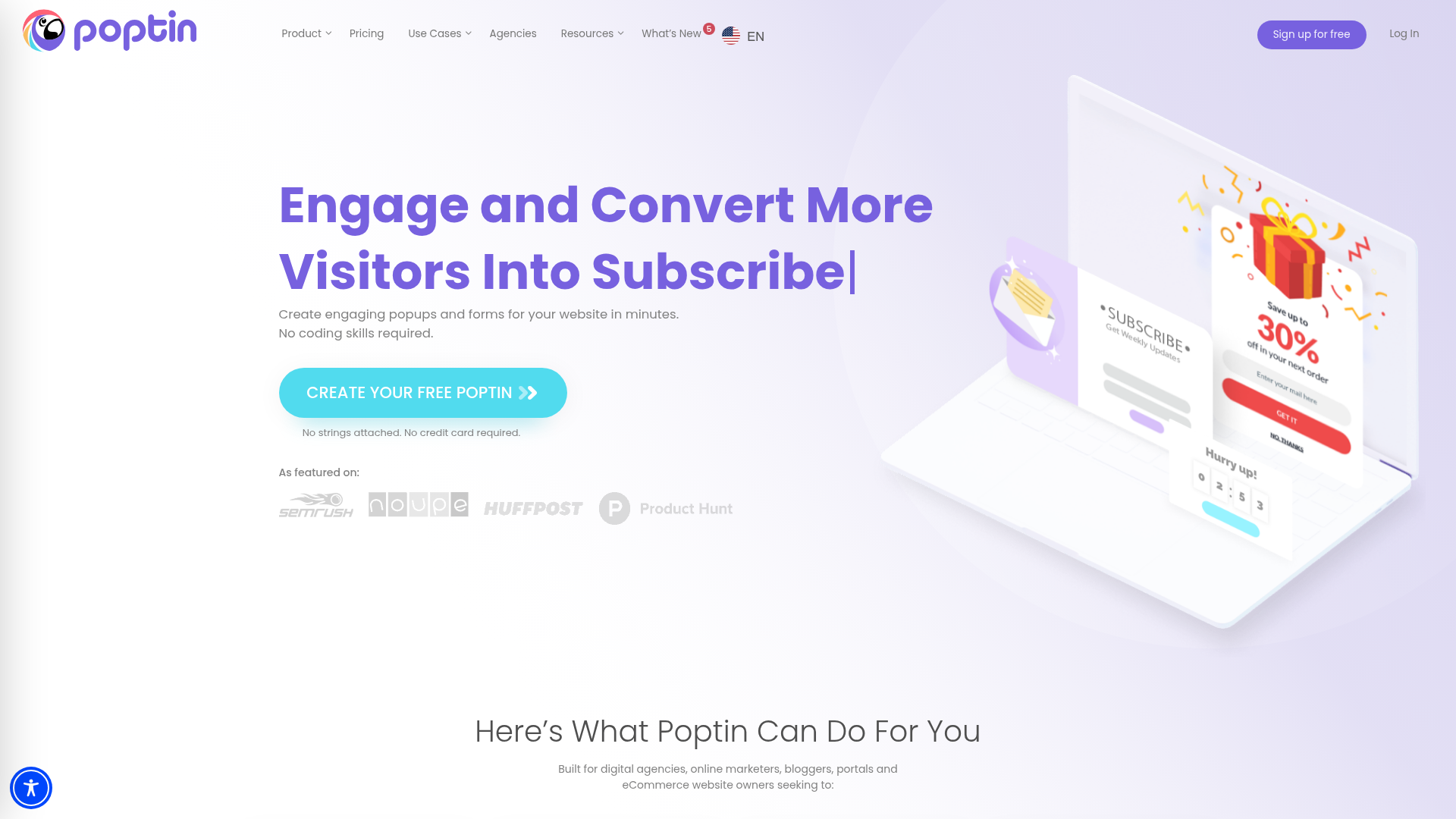
Teams connect Poptin with Webflow when they need overlays that respond to visitor behavior. A Webflow site handles the design and content layer, while Poptin adds lead capture on top. Once the initial snippet is installed, marketers can launch new popups, run A/B tests, and adjust targeting rules without touching site settings again.

You can connect Poptin to Webflow in three ways:

  • Custom code snippets load Poptin site-wide or on specific pages, activating all popup types without any per-page configuration.
  • Code Embed elements place inline Poptin forms at exact positions on the Webflow canvas.
  • Zapier connects Poptin's "New Lead" trigger to Webflow CMS actions or other downstream tools, sending form submissions automatically.

Most implementations combine the site-wide snippet with one or both of the other methods depending on whether inline forms or lead routing automation are needed.

Add Poptin to your site with custom code

Most teams paste Poptin's JavaScript snippet into custom code in head and body tags at the site level. This loads Poptin on every published page, and all popup management happens from the Poptin dashboard afterward. You install the snippet once per domain, and every new popup you create in Poptin appears automatically on your site without further changes. A paid Webflow plan is required, either a paid Workspace plan (Core, Growth, Agency, or Freelancer) or an active paid Site plan, because the free Starter plan does not support custom code. Poptin accounts on any plan, including Free, generate a valid snippet.

To set up site-wide Poptin loading:

  1. Log in to your Poptin dashboard and click Installation Code in the left sidebar.
  2. Select Any Website and copy the JavaScript snippet.
  3. Open your Webflow Dashboard, select your site, and click the gear icon to open Site Settings.
  4. Click the Custom Code tab.
  5. Paste the Poptin snippet into the Footer Code field. Footer placement prevents render-blocking and keeps page load times fast.
  6. Click Save Changes, then click Publish to push the snippet live.

After publishing, you can create and launch popups entirely from Poptin:

  • Choose from lightbox modals, full-screen overlays, slide-ins, floating bars, countdown popups, gamified spin-to-win wheels, and video popups
  • Set behavioral triggers including exit-intent, time delay, scroll depth, page count, inactivity, and on-click
  • Target by URL path, geography, device type, traffic source, new vs. returning visitors, and day/hour scheduling
  • Run A/B tests (or multi-variant A/B/C/D tests) on any popup, available on all plans including Free

Saving in site settings alone does not make changes live. You must also publish. Poptin's snippet is short and will not approach the 50,000-character limit per custom code section.

Scope Poptin to a single page

If you only need popups on specific landing pages, you can add the Poptin snippet to individual page settings instead of site-wide settings.

To add Poptin to a single page:

  1. Open the target page in Webflow.
  2. Open Page Settings for that page.
  3. Scroll to the Custom Code section.
  4. Paste the Poptin snippet into the Before tag field.

  5. Save and publish.

Page-level code applies only to that specific page and renders after any site-wide custom code. You can also skip per-page code entirely by installing the snippet site-wide and using Poptin's built-in page targeting rules to control which URLs display each popup.

Place inline Poptin forms with Code Embed elements

Poptin uses two distinct code types, and confusing them is the most common setup error. The site-wide Installation Code, covered above, activates Poptin's popup engine. A separate per-form embed code places a specific inline form at an exact position on your page. Use this second method when you want a visible, static form embedded in your page layout rather than a triggered popup overlay. This approach works well for newsletter signup sections, contact forms within content blocks, or CTA forms placed between page sections.

[image placeholder]

Poptin uses different code for each purpose. The Installation Code comes from the top-level dashboard. The per-form embed code is generated inside the form builder at Step 3 (Display Rules).

Get the per-form embed code from Poptin

To retrieve the embed code:

  1. In your Poptin dashboard, go to Forms and click New Form.
  2. Select a template and customize the form with the drag-and-drop editor.
  3. Proceed to Step 3: Display Rules.
  4. Copy the unique embed code shown on the right side of the Display Rules screen.
  5. Click Publish changes within Poptin.

Publish the form inside Poptin so it can render on your Webflow site.

Add the form to your Webflow page

To embed the form in Webflow:

  1. Open your page in Webflow.
  2. Open the Add panel (the + icon).
  3. Navigate to Components → Embed and drag the Code Embed element to the desired position on the canvas.
  4. Paste the per-form embed code into the Custom Code modal.
  5. Click Save & Close.
  6. Publish your site.

Publish both the Poptin form and the Webflow site so the form can appear. Code Embed elements support up to 50,000 characters, which is much more than any Poptin form snippet requires. If you want both popups and inline forms, combine this method with the site-wide snippet from the previous section.

Connect Poptin and Webflow with Zapier

Zapier supports direct Poptin-to-Webflow connections. You can send Poptin lead submissions into Webflow CMS collections, email tools, CRMs, or spreadsheets without writing server-side code. Use Zapier when you need new popup leads to appear as Webflow CMS items or trigger downstream workflows.

Zapier has one Poptin trigger relevant here: "New Lead," which fires each time a visitor submits a Poptin popup or form. Webflow's available actions include creating new CMS collection items.

Available triggers and actions:

  • Poptin "New Lead" trigger fires on form submission, passing name, email, phone, message, lead source, conversion page URL, and landing page URL
  • Webflow "Create Item" action writes a new CMS collection item with the lead data
  • Webflow "New Comment" trigger can initiate workflows in the other direction

These are the core Zapier events used in this integration.

To set up a Poptin-to-Webflow Zap:

  1. In Poptin, open your popup editor, go to Email and integrations, click +Add integration, and select Zapier. Copy the API key and note the Poptin ID.
  2. In Zapier, create a new Zap. Select Poptin as the trigger app and choose New Lead. Authenticate with the API key from step 1.
  3. Select your specific popup by name and ID.
  4. Add Webflow as the action app. Choose Create Item and select your target CMS collection.
  5. Map Poptin fields (email, name, phone) to your Webflow CMS collection field slugs.
  6. Test the Zap and turn it on.

If you need more control over how lead data moves, the webhook and API section below covers a custom route.

Build with the Webflow API and Poptin webhooks

For custom data flows beyond what Zapier offers, you can connect Poptin's outbound webhooks directly to a server-side handler that calls the Webflow Data API. This approach requires development resources but gives you full control over field mapping, data transformation, and multi-step workflows.

Poptin does not have a public REST API. Instead, it sends outbound webhook POST requests on every form submission. The Webflow Data API (v2) handles the receiving side, with endpoints for CMS item creation, custom code management, and webhook subscriptions.

Available integration surfaces:

All Webflow API calls require Authorization: Bearer <token> and the appropriate OAuth scopes (cms:write for item creation, custom_code:write for script injection).

Route Poptin leads to a Webflow CMS collection

When a visitor submits a Poptin popup form, the webhook sends a JSON payload containing form fields, lead source, conversion page URL, and landing page URL. Your middleware maps these fields to Webflow CMS collection field slugs and creates a new item.

To implement this:

  1. In your Poptin popup editor, go to Email and integrations, click Add integration, search for Webhooks, paste your middleware endpoint URL, and click Approve. Clicking Approve immediately sends a test payload to your URL.
  2. Retrieve your target CMS collection's field slugs with GET /v2/collections/{collection_id} (requires cms:read scope).
  3. In your middleware, map the incoming Poptin fields to the collection's field slugs and POST to https://api.webflow.com/v2/collections/{collection_id}/items with a fieldData object.
  4. Optionally publish the item by calling POST /v2/collections/{collection_id}/items/publish.

This flow gives you a direct way to write Poptin lead data into a Webflow CMS collection.

The slug field must be unique per collection item. Generate it from the email address plus a Unix timestamp to avoid collisions. CORS restrictions prevent calling the Webflow API directly from client-side JavaScript, so a server-side proxy or serverless function is required.

Inject the Poptin script programmatically

If you manage multiple sites, the Custom Code API lets you register and apply the Poptin script without opening site settings manually.

To inject the script via API:

  1. Register Poptin's CDN script as a hosted script with POST /v2/sites/{site_id}/registered_scripts/hosted (requires custom_code:write scope).
  2. Apply it site-wide with PUT /v2/sites/{site_id}/custom_code. This endpoint uses full replacement, so call GET /v2/sites/{site_id}/custom_code first to retrieve any existing scripts before overwriting.
  3. Publish the site with POST /v2/sites/{site_id}/publish to make the script active.

This method is useful for agencies deploying Poptin across a group of Webflow client sites from a single automation script.

What can you build with the Poptin Webflow integration?

Poptin with Webflow adds behavioral lead capture, targeted promotions, and other engagement elements to any page without building your own popup system.

  • Exit-intent lead capture on pricing pages: Create a lightbox popup that triggers when a visitor moves to leave your SaaS pricing page. The popup offers a free trial or demo signup, and Zapier routes the submission to your CRM and triggers a follow-up email sequence automatically.
  • Scroll-triggered newsletter forms on blog posts: Add a slide-in popup that appears after a reader scrolls 60% through a blog post. Poptin's URL pattern targeting (/blog/*) applies the popup across all Collection List pages without per-page configuration, and submissions flow directly to Mailchimp or ConvertKit through Poptin's native integrations.
  • Countdown promotions for seasonal campaigns: Display a full-screen overlay with a countdown timer during a limited-time sale. Schedule the popup to run only during specific dates and hours using Poptin's date scheduling rules, and remove Poptin branding on paid plans for a consistent brand experience.
  • Agency-managed popup campaigns across client sites: Install the Poptin snippet on each client's Webflow site once, then manage all popup creation, targeting, and A/B testing from a single Poptin Agency account with sub-accounts and user permissions for each client.

If you need more control over lead data flow, such as writing popup submissions into a Webflow CMS collection with custom field mapping, the webhook and API integration path covers those cases with full flexibility.

Frequently asked questions

  • You install the Poptin snippet once per domain. After the initial setup, all popup creation, editing, targeting, and publishing happens inside the Poptin dashboard. The only reason to return to Webflow's custom code settings is if you add a new custom domain that needs its own snippet.

  • Footer placement is recommended. Placing third-party scripts in the Footer Code section (before </body>) prevents render-blocking and keeps your page loading fast. The custom code documentation explains the difference between head and body code placement. If you use head placement, add async or defer to the script tag to avoid slowing initial page rendering.

  • Yes. The site-wide snippet loads on every published page, including CMS collection pages and template pages. To show a popup only on a specific collection, for example, blog posts, use Poptin's page targeting rules with a URL path pattern like /blog/*. No per-page code changes are needed.

  • Poptin forms and Webflow native forms are separate systems. Poptin submissions are stored and managed inside Poptin's dashboard, and they route to external tools through Poptin's 70+ native integrations, webhooks, or Zapier. Webflow's form submission records do not include them. If you need lead data in both places, use the webhook or Zapier integration to write Poptin leads into a Webflow CMS collection.

  • Yes. A/B testing is available on all Poptin plans, including Free. You can test multiple variants (A/B/C/D) of any popup, comparing different triggers, designs, copy, and timing. Poptin automatically rotates variants between visitors and reports conversion rates per variant in its built-in analytics. No changes to your Webflow site are required to set up or run tests.

Poptin
Poptin
Joined in

Description

Poptin adds behavioral popups, inline forms, and A/B testing to Webflow through a one-time code snippet install. Create and manage campaigns from Poptin's dashboard with exit-intent, scroll, and targeting rules with no return to Webflow needed.

Install app

This integration page is provided for informational and convenience purposes only.


Other Customer engagement integrations

Other Customer engagement integrations

WhatsApp

WhatsApp

Connect WhatsApp, Meta's business messaging platform, with Webflow to add chat buttons, trigger automated messages from form submissions and orders, and build real-time customer communication into any page.

Customer engagement
Learn more
FullContext

FullContext

FullContext provides an embeddable JavaScript solution that handles conversational interfaces through a single code snippet, eliminating the need to build chat infrastructure or maintain form validation logic.

Customer engagement
Learn more
ManyChat

ManyChat

Connect ManyChat, a chat marketing and messenger automation platform, with Webflow to route form submissions into messaging flows and trigger conversations across Instagram, Messenger, and WhatsApp.

Customer engagement
Learn more
Zendesk Chat (Zopim)

Zendesk Chat (Zopim)

Connect Zendesk Messaging, a live chat and AI-powered support platform, with Webflow to add a chat widget, bot responses, help center search, and persistent conversations to any page.

Customer engagement
Learn more
Zendesk

Zendesk

Connect Zendesk, a cloud-based customer service platform, with Webflow to add live chat, AI-assisted messaging, and ticket creation to any page on your site.

Customer engagement
Learn more
Website Toolbox Forum

Website Toolbox Forum

Connect Website Toolbox Forum, a hosted community discussion platform, with Webflow to embed threaded forums, user management, and moderation tools on any page without backend code.

Customer engagement
Learn more
UserVoice

UserVoice

Connect UserVoice's powerful feedback management platform with Webflow to collect user insights, prioritize feature requests, and build customer-driven websites. Transform visitor feedback into actionable improvements with voting systems, roadmap transparency, and seamless design integration.

Customer engagement
Learn more
Trustpilot

Trustpilot

Build trust and credibility by showcasing authentic customer reviews on your Webflow site. Connect Trustpilot's review platform to display ratings, collect feedback automatically, and boost conversions with social proof that updates in real-time.

Customer engagement
Learn more
Storylane

Storylane

Connect Storylane, a demo automation platform, with Webflow to embed interactive product tours as inline demos, click-to-launch overlays, or popup modals on landing pages and CMS-driven galleries.

Customer engagement
Learn more

Related integrations

No items found.

Get started for free

Try Webflow for as long as you like with our free Starter plan. Purchase a paid Site plan to publish, host, and unlock additional features.

Get started — it’s free