






Network Solutions
Connect Network Solutions with Webflow to point an existing domain to a Webflow-hosted site without transferring registrars or disrupting email services.

Webflow handles hosting, SSL, and CDN delivery, but not domain registration or DNS for external registrars. If your domain lives elsewhere, you need to configure DNS records that point browsers to your Webflow site.
Network Solutions is a common registrar where clients already own domains. Pairing it with Webflow keeps the registrar account, WHOIS data, and email in place while Webflow hosts the site and auto-provisions SSL.
This setup suits agencies delivering client sites, freelancers managing multiple projects, and small businesses upgrading from older sites without disrupting existing email.
How to integrate Network Solutions with Webflow
What is Network Solutions? Network Solutions is a domain registrar and online services provider founded in 1979, managing over 16 million domains. It offers domain registration across hundreds of TLDs, shared web hosting, business email, SSL certificates, and DNS management through its Advanced DNS Manager interface.
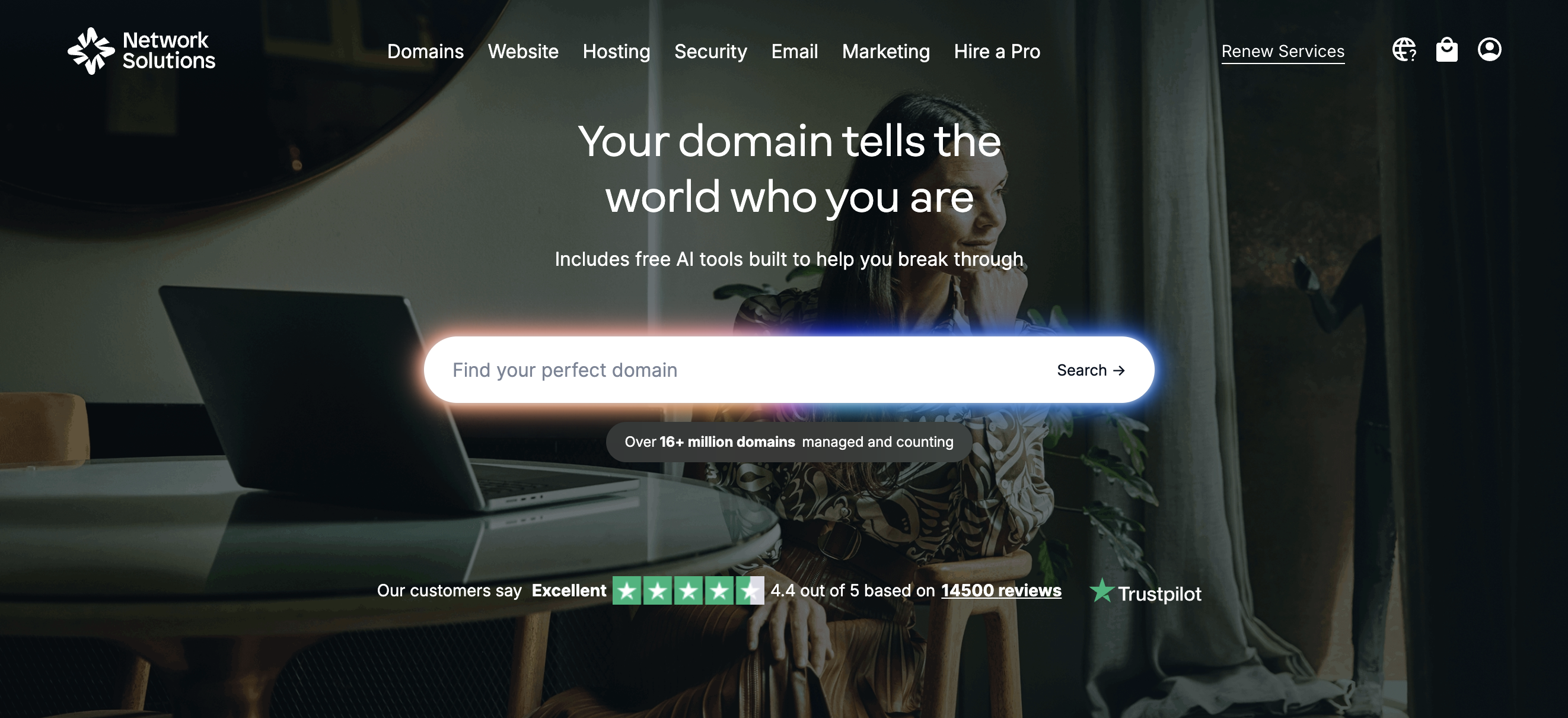
Teams connect Network Solutions and Webflow when a client or business already owns a domain at Network Solutions and needs that domain to resolve to a Webflow-hosted site. The goal is typically straightforward: keep the domain where it is, point it to Webflow, and preserve any existing email services running on the same domain.
The Network Solutions-Webflow integration supports 3 approaches:
- Quick Connect automates DNS configuration through Webflow's Entri integration without manual record entry.
- Manual DNS configuration gives you full control over A, CNAME, and TXT records in Network Solutions' Advanced DNS Manager.
- Webflow Data API lets you automate publishing to your connected custom domain programmatically. DNS setup on the Network Solutions side is always manual.
Most implementations use either Quick Connect or manual DNS configuration. The API approach adds value when you need to trigger site publishes as part of a larger deployment workflow.
Connect your domain with Quick Connect
Quick Connect uses Webflow's Entri integration to configure DNS records at Network Solutions automatically. This is the fastest path to connecting your domain. It works well for domains with no other active services like email or subdomains running on them. You still need a paid Webflow site plan and login access to both your Webflow and Network Solutions accounts.
To set up Quick Connect:
- Open your site in Webflow and go to Site Settings > Publishing > Production.
- Click Add a custom domain and select Quick connect domain.
- Follow the on-screen prompts to authorize Entri to configure your DNS records at Network Solutions.
- Return to Site Settings > Publishing > Production and click Check Status to verify domain ownership.
- Once verified, click Publish to deploy your site to the custom domain.
Quick Connect handles DNS configuration and propagation monitoring automatically. It also adds the TXT record Webflow requires for domain ownership verification.
If you have active email services on this domain, Quick Connect may overwrite your existing MX, SPF, or other DNS records. Review the DNS changes screen carefully before confirming. When you run email or other services alongside Webflow on the same domain, use manual DNS configuration instead.
Manually configure DNS records
Manual DNS configuration is the recommended approach when you need to preserve existing records for email, subdomains, or third-party services. You add three specific records in Network Solutions' Advanced DNS Manager while leaving all other records untouched. This method requires a paid Webflow site plan and access to both dashboards.
Before making changes, document all existing DNS records. Network Solutions does not support zone file export, so you need to manually record your current configuration as a backup.
Add your domain in Webflow
Start on the Webflow side to get the DNS record values your site needs.
To get your DNS values:
- Open your site in Webflow and go to Site Settings > Publishing > Production.
- Click Add a custom domain and select Manually add domain.
- Enter your root domain (e.g.,
yourdomain.com) and click Add Domain. - Keep this screen open. Webflow displays the exact A record IP, CNAME value, and TXT verification code for your site.
Always use the values shown in your own Webflow site settings dashboard. Static values in external documentation can become outdated when Webflow updates its infrastructure.
Configure records in Network Solutions
With your Webflow DNS values visible, switch to Network Solutions to add the records.
To add DNS records in Network Solutions:
- Log in at networksolutions.com.
- Select Domains from the left navigation panel.
- Click your domain name.
- Scroll to Advanced Tools and click Manage next to Advanced DNS Records.
- Delete any existing A records pointing to a previous host's IP address. Do not delete MX records.
- Delete any existing CNAME records for
wwwpointing to another host. - Click +Add Record and create an A record with hostname
@and value198.202.211.1. - Click +Add Record and create a CNAME record. In the "Refers to" dropdown, select Other Host and type
cdn.webflow.com. Set the hostname towww. - Click +Add Record and create a TXT record with hostname
_webflowand the verification code from your Webflow dashboard (starts withone-time-verification=).
The CNAME field in Network Solutions shows a dropdown with preset options like autodiscover, mail, and smtp. Selecting "Other Host" and typing the value manually is the only way to enter cdn.webflow.com correctly. Using a preset option will misconfigure the record.
Network Solutions does not support ANAME or ALIAS records, and CNAME records cannot be created for the apex domain. That is why a static A record is required for the root domain.
Verify and publish
DNS changes through Network Solutions take 24 to 48 hours to propagate globally. You can monitor propagation at dnschecker.org or whatsmydns.net.
To complete the connection:
- Wait for DNS propagation. Check progress with a propagation tool.
- Return to Webflow, go to Site Settings > Publishing > Production, and click Check Status next to your domain.
- Once Webflow confirms the domain is verified, SSL provisions automatically. No manual certificate installation is needed.
- Click Publish to deploy your site.
- Set your preferred default domain (www or root) by clicking the star icon next to your chosen format.
TXT records can take 12 to 24 hours to propagate, sometimes longer than A and CNAME records. If verification fails initially, wait the full 48-hour window before troubleshooting.
Preserve email when connecting
Webflow does not host or route email. When you add DNS records for Webflow, leave all existing MX records untouched in Network Solutions' Advanced DNS Manager. MX records control email routing independently of A and CNAME records used for website hosting.
Do not change nameservers when connecting to Webflow. Changing nameservers at Network Solutions terminates all NS-hosted services, including email, Premium DNS, and web forwarding, for that domain. Only modify individual DNS records as described above.
If your domain uses SPF records for email authentication, only one SPF record is allowed per domain. Merge SPF values into a single record rather than creating duplicates.
Connect a subdomain
You can point a subdomain (e.g., blog.yourdomain.com) to a separate Webflow site while keeping the root domain elsewhere.
To connect a subdomain:
- In Network Solutions, add a CNAME record with the subdomain prefix (e.g.,
blog) as the hostname, pointing tocdn.webflow.com. - Add a TXT record with hostname
_webflowand the verification code from your Webflow dashboard. - In Webflow, go to Site Settings > Publishing > Production and add the full subdomain (e.g.,
blog.yourdomain.com).
The root domain and other subdomains remain unaffected by this change.
Update DNS for sites created before April 21, 2025
Webflow migrated its hosting infrastructure to Cloudflare. Sites created before April 21, 2025 require updated DNS settings. As of January 13, 2026, publishing to a custom domain on legacy DNS is blocked. Existing sites remain live, but new publishes are disabled.
To update your DNS records:
- Check your migration status in Workspace settings > Domain Updates.
- In Network Solutions, update the CNAME record for
wwwfromproxy-ssl.webflow.comtocdn.webflow.com. - Verify the A record matches the value shown in your current Webflow site settings dashboard.
- If your domain has CAA records, add entries for both
letsencrypt.organdpki.googper Webflow's CAA record documentation. - Return to Webflow and click Check Status in Site Settings > Publishing > Production.
After these updates are in place, sites created after April 21, 2025 still require no changes, while older sites can move off legacy DNS.
Build with the Webflow Data API
The Webflow Data API lets you automate site publishing and CMS content management for sites connected to Network Solutions domains. This approach requires server-side development. It is useful when publishing needs to happen as part of a CI/CD pipeline or content sync workflow. Network Solutions does not offer a public REST API. All DNS configuration on the Network Solutions side remains manual regardless of how much you automate on the Webflow side.
Two APIs are relevant to this integration:
- Webflow's Data API v2 handles site publishing, CMS collection management, and custom domain retrieval.
- Webflow webhooks trigger real-time notifications for events like site publishes and form submissions.
Network Solutions' only programmatic interfaces are a legacy SOAP/XML eCommerce API scoped to online store data and an XML-based Partner Protocol. The Partner Protocol is restricted to approved wholesale reseller partners. Neither is accessible to standard Webflow developers or relevant to domain-to-Webflow workflows.
Publish to a connected domain via API
Once your Network Solutions domain is connected through the Webflow UI (domains cannot be added via API), you can trigger publishes programmatically.
To publish via the API:
- Generate a site token in Webflow under Site Settings > Apps & Integrations > API Access with
sites:readandsites:writescopes. - Retrieve your custom domain ID with a GET request to
https://api.webflow.com/v2/sites/{siteId}/custom-domains. - Publish by sending a POST request to
https://api.webflow.com/v2/sites/{siteId}/publishwith the domain ID in the request body:
{
  "customDomains": ["<domain_id>"],
  "publishToWebflowSubdomain": false
}
Custom domain IDs are UUIDs returned by the custom domains endpoint, not the domain URL string.
Sync CMS content and publish
For sites using the Webflow CMS, the Data API supports content management. You can create, update, and publish CMS items programmatically, then trigger a site publish to push changes to your Network Solutions domain.
To create and publish a CMS item:
- List collections with a GET request to
https://api.webflow.com/v2/sites/{siteId}/collections(requirescms:readscope). - Create a live item with a POST request to
https://api.webflow.com/v2/collections/{collectionId}/items/live(requirescms:writescope). - Publish the site to your custom domain using the publish endpoint described above.
The CMS plan supports 2,000 items and the Business plan supports 10,000 items. All CMS API operations require Bearer token authentication.
What can you build with the Network Solutions Webflow integration?
Integrating Network Solutions with Webflow lets you run a production website on Webflow's infrastructure using an existing Network Solutions domain without transferring registrars or disrupting active services.
- Agency client delivery on existing domains: Build a client's site in Webflow and connect it to their Network Solutions domain. The client retains full ownership of their domain registration and email while the agency manages the website. DNS configuration takes one session, and the client can self-manage their domain going forward.
- Small business website upgrades: Replace an outdated site on Network Solutions' website builder with a Webflow site. Keep the same domain and business email addresses. MX records stay untouched, so email continues working throughout the migration.
- Campaign landing pages on subdomains: Launch a marketing landing page at
promo.yourdomain.comon Webflow while the root domain continues to serve a different platform. A single CNAME record in Network Solutions points the subdomain to Webflow without affecting the main site. - Multi-domain brand consolidation: Register variant domains (.com, .net, .org) at Network Solutions. Use domain forwarding to redirect them all to a single Webflow-hosted site. Domain registration and redirect rules stay in Network Solutions, while Webflow handles the primary website.
If you need more control over automated publishing workflows or CMS content syncing across multiple connected domains, the API integration path covers those cases with full flexibility.
Frequently asked questions
No. You keep your domain registered at Network Solutions and add DNS records that point to Webflow's hosting infrastructure. Domain transfers are not required. You only need to add an A record, a CNAME record, and a TXT record in Network Solutions' Advanced DNS Manager. Webflow's domain connection guide walks through the process.
Your email will continue working as long as you leave MX records unchanged in Network Solutions' Advanced DNS Manager. A and CNAME records control website routing. MX records control email routing independently. Do not use Quick Connect if you have active email, because it may overwrite existing records. Manual DNS configuration gives you control over which records to add without modifying email-related entries. Network Solutions documents MX record management in their help center.
The most common causes are incomplete DNS propagation (wait the full 48-hour window), incorrect record values, conflicting A records left over from a previous host, or DNSSEC being enabled on the domain. Verify your records match the values in your Webflow site settings dashboard exactly. If DNSSEC is enabled, disable it in your Network Solutions account before connecting. Webflow's domain error troubleshooting guide covers each cause in detail.
No. Network Solutions does not support ANAME or ALIAS records. CNAME records can only be created for third-level domains (like
www.yourdomain.com), not the apex domain. This is why Webflow requires a static A record pointing to198.202.211.1for the root domain. If Webflow changes its infrastructure IP in the future, you will need to update this A record manually.Yes, but with an extra step. NameSecure domains cannot self-serve SRV or TXT records through the dashboard. Webflow requires a
_webflowTXT record for domain verification. You need to contact Network Solutions support by email to have this record added. A and CNAME records can still be managed through the NameSecure interface directly.
Description
Connect a Network Solutions domain to Webflow through Quick Connect, manual DNS configuration, or the Webflow Data API. Keep domain registration and email at Network Solutions while hosting the site on Webflow.
This integration page is provided for informational and convenience purposes only.

iPage
Connect iPage with Webflow to publish a Webflow-hosted site on an iPage domain without moving the registration or the mailboxes.

Host Europe
Serve a Webflow site on your Host Europe .de domain with three records in the KIS DNS editor.

Hover
Connect Hover, a domain registrar by Tucows, with Webflow to point a custom domain to your Webflow site while keeping domain registration and DNS management at Hover.

Google Domains
Connect Google Domains with Webflow to publish your site on a domain you already own through the Squarespace Domains DNS dashboard.

Gandi
Connect Gandi with Webflow to publish your site on a Gandi-registered domain while LiveDNS and Gandi Mail stay where they are.

GoDaddy (domaincontrol.com)
Point your GoDaddy domain to a Webflow-hosted site by editing its DNS records.

Crazy Domain (Freeparking)
Connect Crazy Domains (Freeparking), a domain registrar and hosting provider, with Webflow to serve your site on a domain registered in Australia or New Zealand.

Enom

DreamHost
Connect DreamHost with Webflow to publish a Webflow site on a DreamHost-registered domain while email stays at DreamHost.
Related integrations
Get started for free
Try Webflow for as long as you like with our free Starter plan. Purchase a paid Site plan to publish, host, and unlock additional features.
