






Neo Mail
Connect Neo Mail with Webflow to run branded mailboxes on your custom domain and route form leads to a Neo inbox.

A Webflow site launches on a custom domain, but email at that domain needs a separate host. Site hosting answers web traffic through the A and CNAME records at your registrar, and it carries no mailboxes and no MX records. Visitors who find you at yourbrand.com expect to reach a person at hello@yourbrand.com, and that address has nowhere to deliver until a mail host adds MX records.
Neo Mail adds those MX records beside the web records already sitting at your registrar, so one domain runs a live site and working mailboxes at the same time. Webflow form notifications then land in a Neo inbox with no code, and developers can push form, CMS, and order events to Neo over webhooks and SMTP when the default notification is not enough.
The setup suits freelancers who want a portfolio and a matching hello@ address on one domain, and agencies that provision sales@ and info@ mailboxes during a client handoff. Small businesses running lead capture through Webflow forms get those leads in a branded inbox instead of a personal one.
How to integrate Neo Mail with Webflow
What is Neo Mail? Neo Mail is a business email hosting and productivity suite from Neo Workspace, aimed at small businesses, freelancers, and startups. Plans cover custom-domain mailboxes, a built-in calendar, appointment booking through Neo Bookings, and IMAP, POP, and SMTP access for mail clients and scripts.
Putting that suite behind a domain Webflow already serves is mostly a DNS job, with optional form and webhook wiring on top.
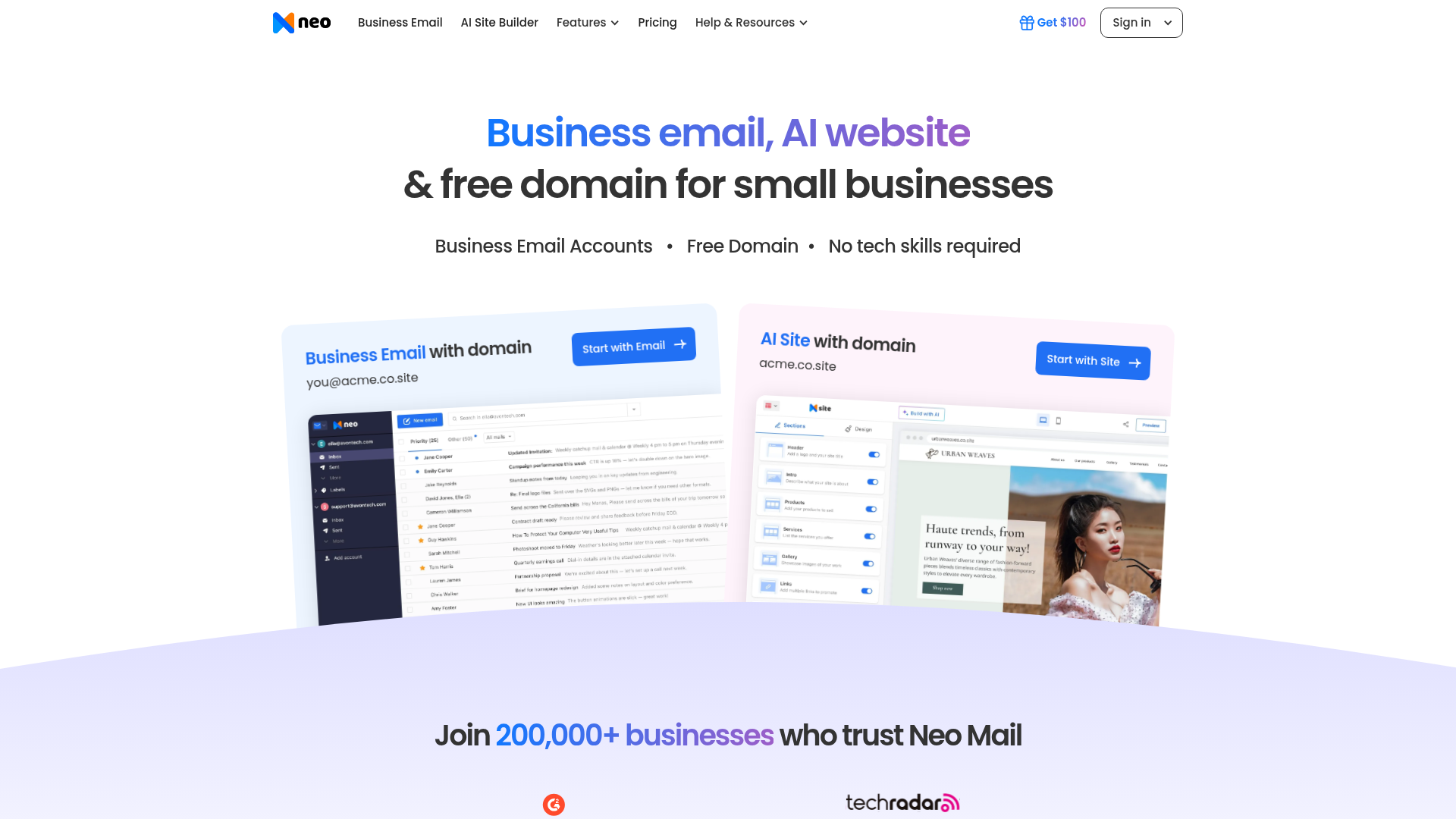
Most Webflow and Neo Mail setups happen at the DNS layer, where one domain serves the Webflow site and the Neo mailboxes at once. Teams that already publish through Webflow keep mail and web records in a single registrar account, then add form notifications or webhook middleware on top.
Choose the integration method that matches where you want the setup to run:
- The Neo Mail app handles Neo account setup and domain configuration from the Webflow Marketplace, without writing code.
- DNS records and form notifications put Neo mailboxes on your Webflow domain and route form leads to a Neo inbox.
- The Webflow Data API and Neo SMTP give you full control over custom notification flows, and they take server-side development.
You can combine two or more of these depending on how much control you need.
Install the Neo Mail app
The Neo Mail app is listed in the Webflow Marketplace under email hosting services, published by Neo Workspace and approved by Webflow rather than certified. It covers Neo account management and mailbox provisioning on your domain, plus the domain configuration that points email records at Neo. Start here if you are setting up Neo for the first time on a Webflow-hosted domain. You still add the DNS records at your registrar, because DNS lives there and not in Webflow.
To set up the integration:
- Open the Neo Mail listing in the Webflow Marketplace and install it on your site.
- Sign up for a Neo account on the domain your Webflow site publishes to.
- Add Neo's MX and SPF records at your registrar, covered in the next section.
- In the Neo control panel, open Domain verification and click Verify Domain.
Once the domain verifies, Webflow form notifications route submissions to that inbox with no code. A catch-all mailbox in Neo picks up anything sent to a misspelled address on the domain.
Set up DNS records and form notifications
Add DNS records at your registrar and set the form notification recipients in Webflow. Together they cover the most common setup, which is branded email plus lead capture on one domain, and neither step needs a developer.
Add Neo's MX, SPF, and DKIM records at your registrar
Neo's mail records sit beside the site's web records in the same DNS zone. Webflow's A record at 198.202.211.1 and the www CNAME to cdn.webflow.com direct web traffic, while Neo's MX records direct email. The record types do not overlap, so connecting a domain to Webflow should leave your existing MX records untouched: Webflow hosts the site, and the mail provider keeps the mail.
To add the records:
- If the domain is not connected yet, copy the DNS values from Site settings > Publishing > Production and add them at your registrar, following the steps for connecting a custom domain.
- Add two MX records at
@, pointing tomx0001.neo.spaceat priority 10 andmx0002.neo.spaceat priority 20, each with a TTL of 3600 seconds. - Add a TXT record at
@with the SPF valuev=spf1 include:spf0001.neo.space ~all. - In the Neo Admin Panel, open the Email Reputation tab and click Add DKIM record, then add the generated TXT record at your registrar as Setup a DKIM record describes.
- Click Verify DKIM Record in the Neo Admin Panel, then click Verify Domain in the Neo control panel once the rest of the records resolve.
An unverified domain cannot send or receive mail through Neo, so finish verification before you hand the new address to anyone.
Route Webflow form notifications to a Neo inbox
Any Webflow form can send its submission notifications to a Neo Mail address with no code, which is the fastest way to move leads from a Webflow site into a branded inbox. The Form submissions guide covers the full settings.
To set up per-form notifications:
- Select the form on the canvas or in the Navigator and open the Settings panel.
- Under Form settings, click Email Notifications.
- Add your Neo address as a recipient, set the subject and message, and click Apply.
To set a site-wide default instead, go to Site settings > Forms > Default form email notifications and fill in the "Send form submissions to" field, per the Forms overview. Notifications arrive from no-reply-forms@webflow.com, no-reply@webflow.com, or no-reply@webforms.io, so allowlist those senders in Neo. Use a name-based recipient like jane@yourdomain.com rather than info@ or support@, because role-based addresses get filtered as spam more often. The free Starter plan stops a site at 50 form submissions, and a paid Site plan lifts that cap.
Add a Neo Bookings link to a Webflow page
Neo Bookings comes with a Neo mailbox subscription on the Max plan and generates a unique booking page link. Linking to that URL is the verified no-code approach, because Neo documents no Webflow-specific embed. In Webflow, point a button or text link at it.
To add the link:
- Copy your booking page link from Neo Bookings, following the Neo Bookings link guide.
- In Webflow, add a button or link element and set the booking URL as its destination.
Visitors then book meetings against the same branded identity that receives your form leads.
Build with the Webflow Data API and Neo SMTP
Neo Mail's public documentation covers IMAP, POP, and SMTP, and stops short of a REST API, OAuth registration, or outbound webhooks. Custom flows therefore run through middleware you host, and traffic moves one direction: from Webflow events to Neo email. This path suits developers who need control over notification content and routing logic, and it takes server-side development.
Four pieces do most of the work in a build like this:
- Stored form data: Read submissions already collected on the site through the list submissions endpoint, at base URL
https://api.webflow.com/v2/. - CMS structure: The List collections endpoint returns every collection on the site, which is what a CMS-triggered notification keys off.
- Event triggers: Webhooks push real-time
form_submission,collection_item_created, andecomm_new_orderevents to an endpoint you control. - Neo SMTP sending: Neo's email scripts guide documents scripted sending through
smtp0001.neo.space, with examples in PHP, Python, and Node Mailer.
For lead routing, the form submission webhook is the piece to start with.
Route form submissions to a Neo inbox with a webhook
Use the form_submission trigger as the main touchpoint for developer builds. It is the only trigger type that accepts a filter field, so you can target one specific form instead of processing every submission on the site. See the Create webhook reference for the request shape.
To implement this:
- Register a webhook with
POST https://api.webflow.com/v2/sites/{site_id}/webhooksand settriggerTypetoform_submission. The call requires thesites:writescope. Add afilterfor the target form. - Receive the payload at your middleware endpoint. The
dataobject carries each field's value, and the schema array describes each field with afieldNameand afieldTypesuch asFormTextInput, per the form_submission event reference. - Relay the content to your Neo mailbox through
smtp0001.neo.spaceon port 465 for SSL/TLS or port 587 for STARTTLS. Neo's IMAP and SMTP settings list both ports. - Before the first send, enable third-party access for that mailbox in Neo settings. Neo blocks third-party clients while two-factor authentication is on, so it has to be off for the sending mailbox.
Webhooks created through site settings with a site token after April 14, 2025 each carry their own secret key, which you store and use to verify webhook signatures. The same middleware pattern extends to the collection_item_created and collection_item_changed triggers, whose payloads carry fieldData, and to ecomm_new_order, whose payload carries customerInfo and totals for order alerts.
What you can build with the Neo Mail Webflow integration
Integrating Neo Mail with Webflow lets you run branded mailboxes and lead capture on one domain, without standing up a second hosting setup.
Here are four builds this integration supports:
- Portfolio with matching branded email: A freelance designer runs a Webflow portfolio at yourname.com with hello@yourname.com hosted on Neo, so outreach and the site share one identity.
- Lead capture in a branded inbox: A consulting site's quote-request form sends submissions to jane@yourdomain.com through the form's Email Notifications panel, with a site-wide default catching the remaining forms.
- Client handoffs with provisioned email: An agency ships a client's Webflow site with sales@ and info@ mailboxes plus a catch-all, adding the MX records in the same DNS session as the launch.
- Order alerts for a store team: A Webflow Ecommerce store fires
ecomm_new_orderwebhooks to middleware, which emails order details including customer name and totals to a shared Neo mailbox.
Take the API path when notification content or event routing needs custom logic. To change what those alerts actually say before they reach a Neo inbox, see how to customize form notification emails.
Frequently asked questions
Yes. Webflow serves the site through its A and CNAME records while MX records point mail wherever you like, and the two record types do not conflict. Add Neo's MX and SPF records at the same registrar that holds the web records; connecting a domain to Webflow leaves any existing MX records alone. The Webflow hosting overview sets out what site hosting does and does not include.
Most misses come from spam filtering rather than a broken setup. Check the spam folder and the recipient address first, then allowlist
no-reply@webflow.com,no-reply@webforms.io, andno-reply-forms@webflow.comin Neo. Moving from a role-based recipient to a name-based one likejane@yourdomain.comhelps too, because role-based addresses attract filtering. The full checklist for missing form notification emails covers the rest.No. Neo documents IMAP, POP, and SMTP for mail clients and scripts, and publishes no REST API, developer portal, or outbound webhooks. Build custom flows in the other direction instead: read site events with Webflow's Data API and send the resulting mail through Neo's SMTP server.
Neo puts propagation at up to 6 hours for its MX and TXT records, though many registrars resolve sooner. Sending and receiving stay blocked until the domain is verified, so click Verify Domain in the Neo control panel once the records resolve. Neo's steps for domain verification cover that final check.
No. Neo publishes no Webflow-specific DNS guide, so use its general setup guide, which works with any registrar. Watch the SPF value: the general guide ends in
~allwhile Neo's Cloudflare guide ends in-all, so follow the one that matches your DNS provider.
Description
Run branded Neo Mail mailboxes on your Webflow domain and send form leads to a Neo inbox. Setup uses the Neo Mail Marketplace app, MX and SPF records at your registrar, and native Webflow form notifications.
This integration page is provided for informational and convenience purposes only.
SMTP
Send Webflow form and order email through SMTP.com so each message leaves from your own SPF-authorized and DKIM-signed domain. Webflow's native notifications keep sending from a fixed webflow.com address unless you remove that destination.
Zoho Mail
Pair Zoho Mail with Webflow for custom-domain email and form delivery.

Gmail
Connect Gmail, Google's email and communication platform, with Webflow to route form submissions to inboxes, send branded confirmation emails, and trigger multi-step workflows across your marketing stack.
Related integrations
Get started for free
Try Webflow for as long as you like with our free Starter plan. Purchase a paid Site plan to publish, host, and unlock additional features.
