






Gmail
Connect Gmail, Google's email and communication platform, with Webflow to route form submissions to inboxes, send branded confirmation emails, and trigger multi-step workflows across your marketing stack.

Route form submissions straight into Gmail to send branded confirmations, alert the right teammate, and sync leads to your CRM, spreadsheets, or support tools. The connection works through native form settings, automation platforms, client-side scripts, or the Gmail API.
Whether you're a freelancer handling client inquiries, an agency routing leads to sales, or a SaaS team building onboarding sequences, this setup fits if you use Gmail or Google Workspace for business email.
How to integrate Gmail with Webflow
What is Gmail? Gmail is an email and communication platform within the Google Workspace productivity suite. It has custom domain email, collaborative inboxes, email aliases, and integrations with Google Calendar, Drive, Sheets, and Meet. The Gmail API provides programmatic access to send messages, manage drafts, apply labels, and monitor inbox changes via OAuth 2.0 authentication.
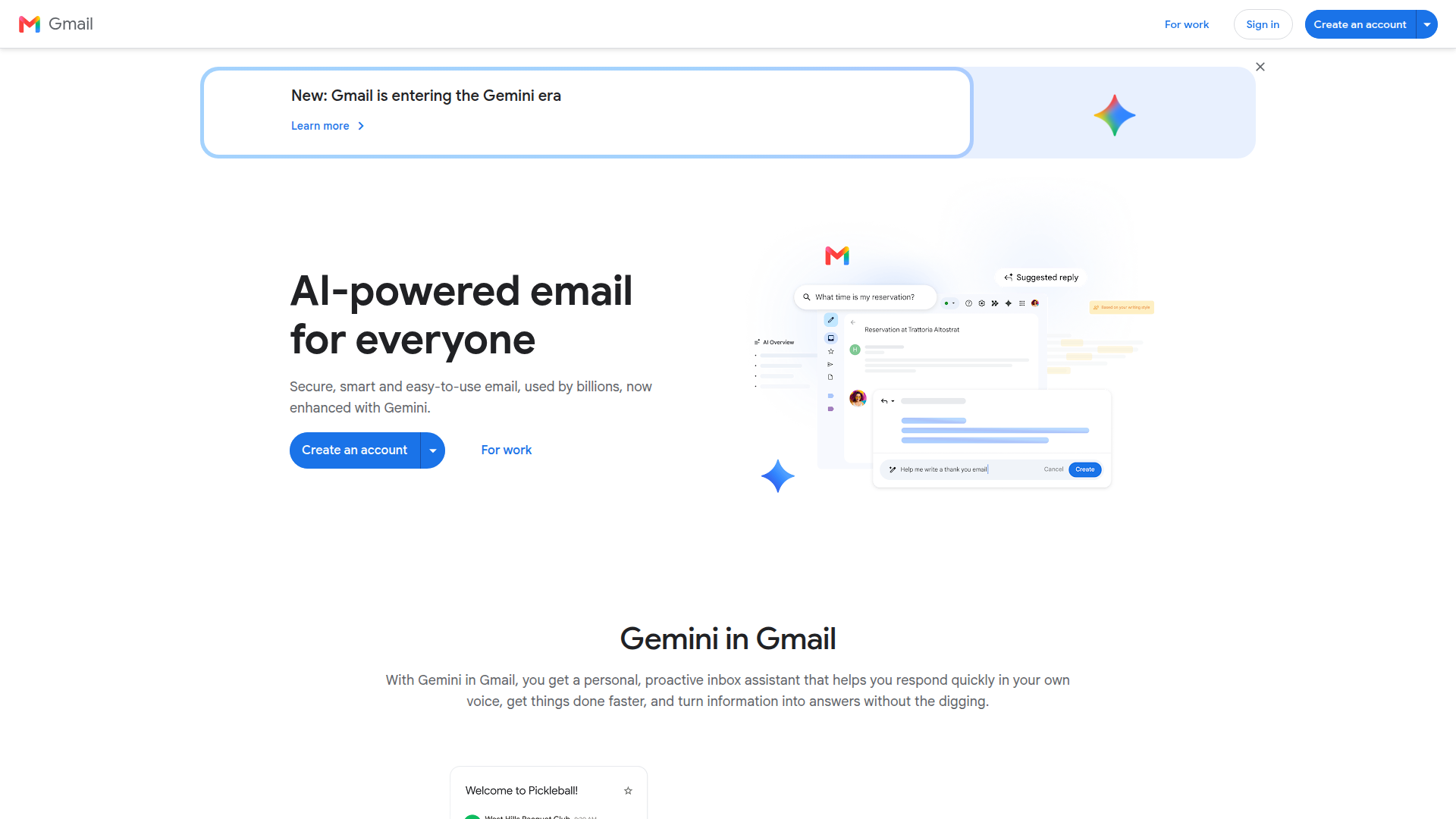
Pair Gmail with your Webflow site to get form submission alerts in your inbox, send auto-reply emails to submitters, and run multi-step workflows that log leads and alert sales reps. Choose native notifications for simple routing, automation tools for conditional logic, and the APIs for direct handling of email content and delivery.
You can connect Gmail and Webflow in 4 ways:
- Native form email notifications handle basic form-to-inbox routing without any code or external tools.
- EmailJS with a Code Embed element lets you send emails through your Gmail account directly from the browser using a small script.
- Zapier, Make, and n8n connect form submissions to Gmail actions like sending emails, creating drafts, and applying labels, with conditional logic and multi-step workflows.
- The Webflow and Gmail APIs let you manage transactional emails, inbox monitoring, and Webflow CMS syncing, but require server-side development.
Most implementations combine two or more of these methods depending on the complexity of the setup.
Route form notifications to Gmail
The built-in form notification system sends submission alerts to any Gmail or Google Workspace email address. This is the simplest approach and needs no external tools, code, or third-party accounts. Each form on your site can route to different recipients with its own sender name, subject line, and reply-to address. Per-form notification settings became available in October 2025. You get granular routing options without touching site-level defaults.
To set up native Gmail notifications:
- Select the form element on your canvas or in the Navigator.
- Open the Settings panel in the right sidebar.
- Under Form settings, click Send to and then Email Notifications.
- In the To field, enter a Gmail or Google Workspace address and press Return.
- Set the Sender name, Reply-to address, and Subject line. Use dynamic variables like
{{formName}}and{{formData}}in the subject and body. - Click Apply, then publish your site.
Native form notifications support several useful configurations:
- Multiple recipients per form, each receiving every submission
- Dynamic reply-to addresses using
{{Name}} <{{Email}}>so replies go directly to the submitter - Site-level defaults in Site settings > Forms that apply to all forms unless you override them at the form level
- Variables including
{{siteName}},{{formName}},{{formData}}, and{{formDashboardUrl}}
Notifications from Starter, Core, and Freelancer Workspaces send from no-reply-forms@webflow.com. Growth Workspaces and above send from no-reply@webforms.io. Add these addresses to your Gmail filters so notifications don't land in spam. Reach for an automation platform or the Gmail API when you need confirmation emails, conditional routing based on field values, or high-volume delivery.
Send emails through Gmail with EmailJS and code embed
If you need to send confirmation emails to form submitters from your own Gmail address, EmailJS is a client-side approach that needs no backend server. EmailJS connects to Gmail via OAuth (no SMTP password needed) and sends emails directly from the browser. You load a small JavaScript snippet into your site and map your form fields to an email template. You need a paid site plan for this method because it uses custom code in the head and body and a Code Embed element.
Set up EmailJS with your Gmail account
Before adding code to your site, configure the email service and template in the EmailJS dashboard.
To configure EmailJS:
- Create an account at emailjs.com.
- Add a new email service, select Gmail, and authorize via OAuth.
- Create an email template using variables like
{{name}},{{email}}, and{{message}}in the subject and body fields. - Note your Public Key, Service ID, and Template ID.
These three identifiers connect your form to the correct Gmail account and email template.
Add the EmailJS script to your Webflow site
With your EmailJS credentials ready, add the SDK and form handler to your site's custom code sections.
To add the EmailJS code:
- Go to Site settings > Custom code > Head code and paste the SDK loader:
<script type="text/javascript"
  src="https://cdn.jsdelivr.net/npm/@emailjs/browser@4/dist/email.min.js">
</script>
<script type="text/javascript">
  emailjs.init({ publicKey: "YOUR_PUBLIC_KEY" });
</script>
- In Site settings > Custom code > Footer code, add the form handler:
document.getElementById('contact-form').addEventListener('submit', function(event) {
  event.preventDefault();
  emailjs.sendForm('YOUR_SERVICE_ID', 'YOUR_TEMPLATE_ID', this)
    .then(function() {
      console.log('SUCCESS!');
    }, function(error) {
      console.log('FAILED...', error);
    });
});
- Set the form element's ID to
contact-formand confirm that each field'snameattribute matches the variable names in your EmailJS template. - Publish the site. Custom code does not run in preview mode.
EmailJS connects to your Gmail account via OAuth, so you don't need an SMTP password. If your setup uses your own Google Cloud OAuth app, publish the OAuth consent screen to "Production" status to avoid 7-day token expiration in Testing mode.
Connect Gmail and Webflow with Zapier, Make, or n8n
Zapier, Make, and n8n give you a no-code way to connect your forms to Gmail. These platforms can send confirmation emails to submitters, route notifications to different team members based on form responses, and chain Gmail actions with CRM updates, spreadsheet logging, and Slack alerts in a single workflow.
Common triggers and actions across these platforms include:
- Zapier: Webflow: New Form Submission → Gmail: Send Email, Create Draft Email, or Add Label
- Make: Webflow: New Form Submission → Gmail: Send email
- n8n: Webflow: Form Submission, Ecomm New Order, or Site Publish → Gmail: Send, Reply, or Send and Wait for Response
- IFTTT supports two basic one-way automations: Webflow Form Submitted → Send an email via Gmail and Webflow Form Submitted → Send yourself an email via Gmail.
Set up a Zapier workflow
Zapier offers 7 confirmed pre-built templates for the Webflow-Gmail connection, including form-to-email notifications, order confirmations, and draft creation. Setup typically takes under 6 minutes.
To create a Webflow-to-Gmail Zap:
- Connect your Webflow account to Zapier via OAuth from the Zapier dashboard.
- Choose a trigger: select Webflow: New Form Submission (Instant) from the Webflow trigger list.
- Choose an action: select Gmail: Send Email from the Gmail action list.
- Map form fields to Gmail message fields (recipient, subject, body).
- Test and activate the Zap.
Zapier also supports Gmail-to-Webflow workflows. For example, the "Update Webflow live items when new Gmail attachments arrive" template uses a Gmail trigger to update Webflow CMS items. Renaming a form breaks connected Zaps. If you rename a form, reopen the Zap and reselect the site and form in the trigger step.
Set up a Make scenario
Make has 40 Webflow modules (2 triggers, 26 actions, 12 search modules) and a verified Webflow app. Make supports conditional logic, file attachment handling, and batch processing.
To create a Make scenario:
- Open a new scenario in Make, click +, and search for Webflow.
- Select the Webflow module, click Create a Connection, then Save and log in to your Webflow account.
- Grant the Forms data scope when prompted.
- Configure the module to watch Webflow: New Form Submission.
- Add a Gmail module as the next step and map form fields to the email message.
Make lets you send different emails based on form field values, which native notifications can't do. A common pattern is Webflow: New Form Submission → Gmail: Send email.
Set up an n8n workflow
n8n has the most detailed Gmail action set of all platforms reviewed, including a Send and Wait for Response action that pauses workflow execution until a Gmail reply arrives. n8n is also self-hostable if you have data privacy requirements.
To create an n8n workflow:
- Add a Webflow Trigger node and select Webflow: Form Submission as the event.
- Connect your Webflow account via OAuth.
- Add a Gmail node, authenticate with your Google account, and configure the Send action.
- Map form fields from the Webflow trigger output to the Gmail message fields.
n8n's Webflow trigger also supports events beyond form submissions, including collection item created, collection item updated, ecommerce new order, and site publish. Gmail can then handle follow-up actions such as send, reply, or draft creation depending on your workflow.
Build with the Webflow and Gmail APIs
The Webflow and Gmail APIs cover transactional email systems, inbox monitoring, and bidirectional CMS syncing. This path requires server-side development, OAuth 2.0 configuration, and middleware hosting (a serverless function on Vercel, AWS Lambda, or similar).
Use these APIs:
- The Gmail API handles sending messages, creating drafts, managing labels, and monitoring inbox changes via push notifications
- The Webflow Data API handles CMS collections and form submissions
- Webhooks trigger real-time events like
form_submission,collection_item_published, andecomm_new_order
All Gmail API calls require OAuth 2.0 authentication. Use the gmail.send scope for notification-only integrations. Request broader scopes like gmail.modify or gmail.readonly only if your use case requires inbox reading.
Send transactional emails on form submission
Register a webhook to fire on form submissions, then process the payload in your middleware and send a Gmail message.
To implement this flow:
- Register a webhook by calling
POST https://api.webflow.com/v2/sites/{site_id}/webhookswithtriggerTypeset toform_submissionand your middleware URL. - In your middleware, validate the
x-webflow-signatureheader using HMAC-SHA256 before processing any payload. Return HTTP 200 immediately, then process the Gmail send asynchronously. - Construct an RFC 2822 MIME message, base64url-encode it (replace
+with-,/with_, strip trailing=), and send viaPOST https://gmail.googleapis.com/gmail/v1/users/me/messages/sendwith the encoded message in therawfield.
Sample webhook registration:
curl -X POST "https://api.webflow.com/v2/sites/{site_id}/webhooks" \
  -H "Authorization: Bearer YOUR_WEBFLOW_ACCESS_TOKEN" \
  -H "Content-Type: application/json" \
  -d '{
    "triggerType": "form_submission",
    "url": "https://your-middleware.com/webhook/form",
    "filter": { "name": "Contact Us" }
  }'
Sample Gmail send function:
async function sendTransactionalEmail(formData) {
  const gmail = google.gmail({ version: 'v1', auth: oauthClient });

  const emailLines = [
    `From: sender@yourdomain.com`,
    `To: ${formData.email}`,
    `Subject: Thanks for contacting us, ${formData['First Name']}`,
    `Content-Type: text/html; charset=utf-8`,
    `MIME-Version: 1.0`,
    ``,
    `<p>Hi ${formData['First Name']},</p>`,
    `<p>We received your message and will be in touch shortly.</p>`
  ];

  const raw = Buffer.from(emailLines.join('\r\n'))
    .toString('base64')
    .replace(/\+/g, '-').replace(/\//g, '_').replace(/=+$/, '');

  return (await gmail.users.messages.send({
    userId: 'me',
    requestBody: { raw }
  })).data;
}
Webhooks deactivate permanently after 3 consecutive failed deliveries. Always return HTTP 200 from your endpoint upon receipt, then handle the Gmail send asynchronously to avoid timeouts.
Create Gmail drafts for human review
For high-value inquiries that need a personal touch before sending, create pre-addressed Gmail drafts instead of sending automatically. The drafts.create endpoint costs 10 quota units per call (compared to 100 for messages.send), and drafts appear in the team member's Gmail ready for review.
To implement draft creation:
- Register a
form_submissionwebhook as described above. - Build the email message and base64url-encode it.
- Call
POST https://gmail.googleapis.com/gmail/v1/users/me/draftswith the encoded message in the request body. The minimum OAuth scope for this action isgmail.compose.
This approach works well for sales teams reviewing qualified leads before responding.
Monitor Gmail and sync to the Webflow CMS
You can create or update CMS items when specific emails arrive in Gmail. Gmail's push notification architecture uses Google Cloud Pub/Sub, not direct HTTP webhooks.
To set up inbox monitoring:
- Create a Cloud Pub/Sub topic in your Google Cloud project and grant Gmail publish permission on that topic.
- Call
POST https://gmail.googleapis.com/gmail/v1/users/me/watchwith your topic name and label filters. The response includes anexpirationtimestamp. Renew the watch before this time or notifications stop. - When a Pub/Sub push arrives, decode the
message.datafield to get thehistoryId. CallGET https://gmail.googleapis.com/gmail/v1/users/me/history?startHistoryId={id}to retrieve actual message changes. Push notifications contain only theemailAddressandhistoryId, never email content. - For each new message, call
GET https://gmail.googleapis.com/gmail/v1/users/me/messages/{id}?format=fullto get the content, then create a CMS item viaPOST https://api.webflow.com/v2/collections/{collection_id}/items.
Push notifications arrive at a maximum rate of 1 event per second per watched user. Excess notifications get dropped. Implement a scheduled fallback that calls history.list periodically to catch any missed events.
What can you build with the Gmail Webflow integration?
Integrating Gmail with your Webflow site turns form submissions into real-time email workflows without making you manage a separate email system.
- Instant lead alerts for sales teams: A visitor submits a contact form on your site. Zapier sends a formatted Gmail notification to the assigned sales rep with the lead's name, company, and inquiry details. Simultaneously, the lead data logs to Google Sheets and syncs to a CRM like Pipedrive or HubSpot. Nursa, a healthcare staffing company, uses this exact pattern to route facility inquiries to their sales team.
- Auto-reply confirmation emails from your brand address: A prospect fills out a demo request form and immediately receives a confirmation email from your actual Gmail or Google Workspace address (not a generic
no-reply@webflow.com). EmailJS or a Zapier workflow handles the send. You can set expectations for response time and link to relevant resources. - Conditional team routing based on form responses: A support form includes a dropdown for issue type. Make evaluates the selected value and routes billing questions to the finance team's Gmail, technical issues to engineering, and partnership inquiries to the business development lead. Each recipient gets only the submissions relevant to them.
- CMS-triggered content notifications: When you publish a blog post or resource in the CMS, a webhook fires and your middleware sends a Gmail notification to the content team or stakeholders with the item title, URL, and publish date. This keeps editorial workflows visible without requiring everyone to check the CMS dashboard.
If you need more direct handling of email templating, inbox monitoring, or bidirectional data sync between Gmail and your CMS, the API integration path covers those cases.
Frequently asked questions
No. Webflow form notifications are sent from Webflow's own infrastructure, not through Gmail's servers. Notifications arrive from
no-reply-forms@webflow.comorno-reply@webforms.iodepending on your Workspace plan. You can set any Gmail address as the recipient, but the "From" address is always Webflow's. To send emails through your actual Gmail account, use EmailJS, an automation platform like Zapier, or the Gmail API with server-side middleware.Use Zapier or Make and map the submitter's email as the "To" address, use EmailJS to send client-side through your Gmail account, or register a Webflow webhook and call the Gmail API's
messages.sendendpoint from your own server. Webflow's native form notifications send only to site owners and team members.No. Gmail does not have an app or listing on the Webflow Apps Marketplace. All Gmail integrations require either native form notification routing, a third-party automation platform, or custom API work.
Renaming a form in Webflow breaks connected Zaps. The trigger loses its reference to the form and stops firing. To fix this, open the Zap in Zapier, go to the trigger step, and reselect your site and the renamed form.
Use
gmail.send. This is the narrowest scope that permits outbound email and is classified as "Sensitive" by Google. It requires OAuth App Verification but not a full security assessment. Broader scopes likegmail.readonlyandgmail.modifyare classified as "Restricted" and require additional compliance steps. Requesting only the scope you need also reduces the risk of being blocked by Google Workspace admin policies. See the Gmail API OAuth scopes reference for the full classification list.
Description
Gmail receives Webflow form submissions through native email notifications, EmailJS for client-side confirmation emails, Zapier or Make for conditional routing, or the Gmail API for transactional email and inbox monitoring.
This integration page is provided for informational and convenience purposes only.
Neo Mail
Connect Neo Mail with Webflow to run branded mailboxes on your custom domain and route form leads to a Neo inbox.
SMTP
Send Webflow form and order email through SMTP.com so each message leaves from your own SPF-authorized and DKIM-signed domain. Webflow's native notifications keep sending from a fixed webflow.com address unless you remove that destination.
Zoho Mail
Pair Zoho Mail with Webflow for custom-domain email and form delivery.
Related integrations
Get started for free
Try Webflow for as long as you like with our free Starter plan. Purchase a paid Site plan to publish, host, and unlock additional features.
