






Microsoft Outlook
Send Webflow form submissions and orders to Outlook mail, contacts, and calendars with Zapier, Make, or Microsoft Graph, and embed Microsoft Bookings pages.

Webflow forms store submissions and send notification emails. Those emails always leave from Webflow sender addresses such as no-reply-forms@webflow.com, never from a Microsoft 365 mailbox. Webflow also has no built-in scheduling, so a page cannot show live staff availability or write an appointment into a calendar. Teams that run on Microsoft Outlook end up rekeying leads and meeting requests by hand.
Connecting Outlook with Webflow routes each form submission into Microsoft 365. The destination can be an inbox or contact list, and booking requests can become calendar events. A Shared Bookings page embedded on a Webflow page lets visitors pick a slot, checking staff Outlook calendars for conflicts. Calendar events can travel the other direction and become published Webflow CMS items on a public events page.
Consultants and small businesses on Microsoft 365 Business plans get self-service appointment booking without a separate scheduling tool. Sales and marketing teams get campaign leads delivered as Outlook emails and contacts. Agencies delivering sites into a client's Microsoft 365 stack, and developers building on Microsoft Graph, get an API path with change notifications and webhooks.
How to integrate Microsoft Outlook with Webflow
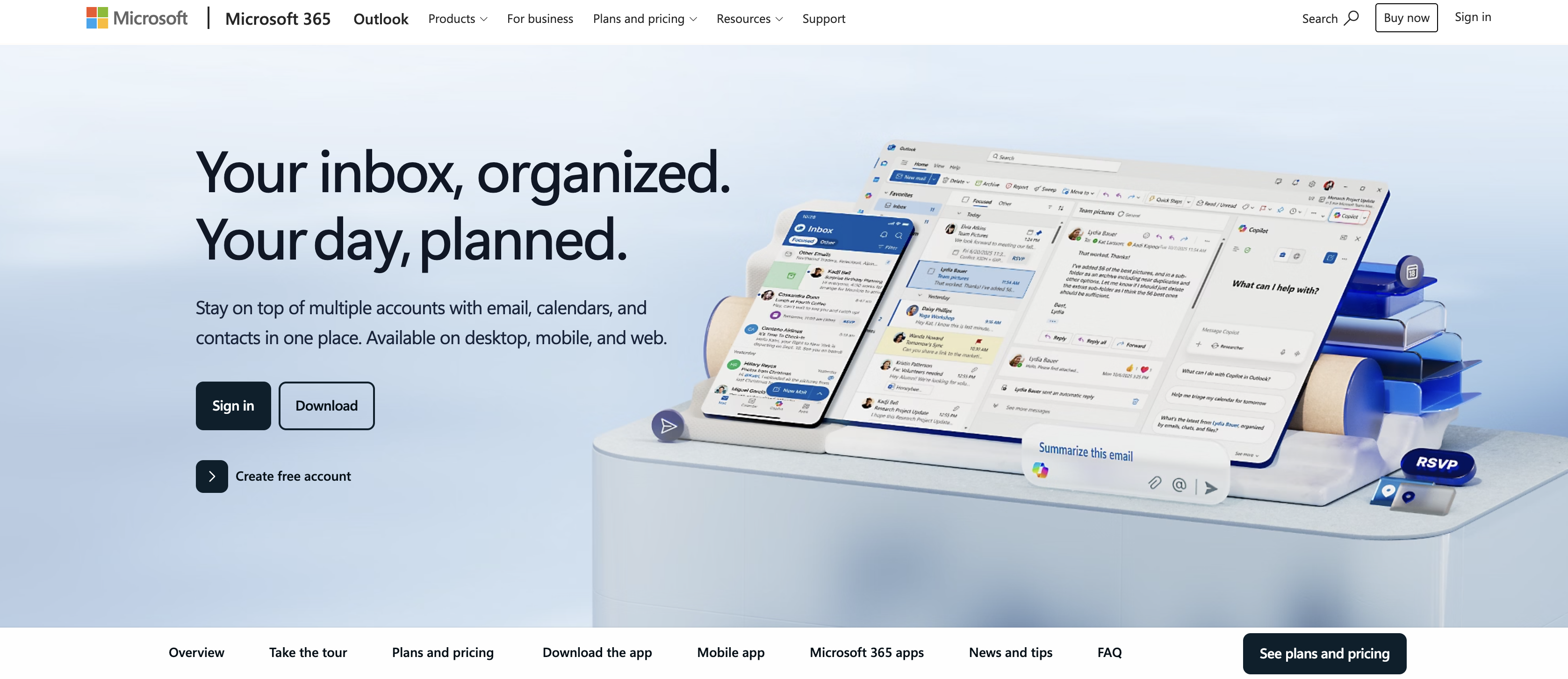
What is Microsoft Outlook? Microsoft Outlook is Microsoft's email and calendar app within Microsoft 365. It keeps email, calendars, and contacts in one place and runs on desktop, mobile, and the web. Microsoft 365 business and enterprise plans host Outlook mailboxes in Exchange Online, which is also where Microsoft Bookings stores its data.
Teams reach for this pairing when the marketing site runs on Webflow and everything else runs on Microsoft 365. A consultancy wants clients booking against real Outlook availability instead of trading emails. A sales team wants a demo request sitting in the shared inbox before a rep opens the Webflow dashboard.
The Microsoft Outlook-Webflow integration supports three approaches. Code Embed elements place a Microsoft Bookings page or a Microsoft Forms form on a Webflow page without writing code, and a published Outlook calendar link goes in a Link Block or Button element. Zapier, Make, n8n, and viaSocket connect Webflow form, order, and CMS events to Outlook mail, calendar, and contact actions. The Webflow Data API and Microsoft Graph API give you full control over mail, events, contacts, and change notifications, but require server-side development.
Most implementations combine two or more of these methods depending on the complexity of the setup. Your account type decides which paths are open. Shared Bookings needs a Microsoft 365 or Office 365 subscription that includes Bookings, and Zapier's Outlook app requires a Microsoft 365 Business or Enterprise account with an Exchange Online mailbox, per its Outlook setup guide. A personal Outlook.com account can still be reached through Microsoft Graph with the account holder's consent.
Embed Microsoft Bookings, Forms, and calendar links with Code Embed elements
Using Code Embed requires a Core, Growth, Agency, or Freelancer Workspace, or an active Site plan, and each element holds up to 50,000 characters. The element accepts HTML, CSS in style tags, and JavaScript in script tags, which covers the iframe code Microsoft generates. An iframe can preview on the canvas, while a script shows a placeholder until you preview or publish the site. Shared Bookings needs one of the subscriptions listed in the FAQ below. Pick the sub-method that matches what visitors should do on the page.
Embed a Shared Bookings page
Shared Bookings generates iframe embed code from the Booking page tab, and the Bookings FAQ documents that iframe as the way to host a booking page on your own site. Bookings with me, the personal version, can only be used for 1:1 meetings, according to the Personal Bookings FAQ. Staff members share their Outlook calendars at the "Can view when I'm busy" level so the booking page can avoid conflicts. When a visitor books, both parties receive a confirmation email with an .ics file.
To embed a Shared Bookings page:
- As a global admin in the Microsoft 365 admin center, go to Settings > Org settings > Shared Bookings, select Allow your organization to use Bookings, and save to turn Bookings on. Outlook on the web must also be enabled, because Bookings isn't available as a standalone app.
- Open Bookings > Shared booking pages > Booking page. Use the customize and publish guide to configure services, staff, availability, and scheduling policy, then select Publish.
- On the Booking page tab, open the embed option and copy the generated iframe code.
- In Webflow, add a Code Embed element to the page, paste the iframe, adjust width and height, and publish the site.
If the booking page setting "Require a Microsoft 365 account from my organization to book" is enabled, anonymous visitors cannot book, so leave it off for public pages.
Embed a Microsoft Forms form
Microsoft Forms works when you want responses stored in Microsoft 365 rather than in Webflow form submissions, for example a client intake questionnaire owned by an operations team. Microsoft's Share a form steps include an Embed button that copies iframe code. The plan requirements for Code Embed are the same as for Bookings above.
To embed a form:
- In Microsoft Forms, open the form and select Collect responses. Choose Anyone can respond so visitors outside your organization can submit, then select Embed and copy the code.
- In Webflow, add a Code Embed element, paste the code, and set the element's height so the full form is visible.
- Publish the site and test a submission on the live URL.
Because the response data never touches Webflow forms, native Webflow notifications and webhooks do not fire for these submissions.
Publish an Outlook calendar as a read-only link
Outlook on the web can publish a calendar as an HTML browser view and an ICS feed, and either link can sit behind a button on a Webflow page. Published calendars are read-only; visitors see availability or event details but cannot edit anything. Microsoft's instructions describe opening the HTML link in a new browser window and say nothing about framing it, so link out rather than embed. The share your calendar guide covers Outlook on the web; new Outlook for Windows has an equivalent view-only flow.
To publish and link a calendar:
- In Outlook on the web, go to Settings > Calendar > Shared calendars > Publish a calendar.
- Choose the calendar and a detail level: Can view when I'm busy, Can view titles and locations, or Can view all details. Select Publish.
- Copy the HTML link for a browser view or the ICS link for subscriptions.
- In Webflow, add a Link Block or Button element and paste the URL as its destination.
If the Publish option is missing, the Anonymous domain is usually not configured in the Exchange Online sharing policy, and the troubleshooting article walks an administrator through the fix. For single events, host an .ics file and link to it; an imported .ics is a snapshot, while a subscribed ICS feed refreshes automatically.
Install a Marketplace booking app with Outlook sync
Three third-party Webflow Marketplace apps connect to Outlook calendars, which gives you a scheduling widget without Bookings or a Business plan. CozyCal offers two-way Google Calendar and Outlook sync so availability reflects real time. ScheduLinks syncs bookings with Google and Outlook to prevent scheduling conflicts. Events Calendar syncs events from Outlook and lets visitors add single events to Google, Yahoo, Outlook, or iCalendar. None of these are built by Microsoft.
To add one of these apps:
- Open the app's Marketplace listing and install it to your site.
- Connect your Outlook account inside the app's dashboard and set availability rules.
- Place the app's widget on a Webflow page and publish.
The apps cover the booking surface; for order alerts, lead routing, or CMS sync you need one of the automation platforms below.
Connect with Zapier, Make, n8n, or viaSocket
Each platform lists both a Webflow connection and a Microsoft Outlook (or Microsoft 365) connection, so a new Webflow form submission can trigger Outlook actions without server code. Zapier's account requirement is covered above. Make's Outlook docs ask for a Microsoft Office or Microsoft 365 account without saying whether personal accounts qualify, and viaSocket's integration pages don't state a requirement. Webflow help covers the platform side for Zapier and Make.
Available triggers and actions include:
- Zapier: Webflow New Form Submission → Outlook Send Email, Create Contact, or Create Event. Prebuilt templates cover sending an email per submission and creating contacts from form submissions.
- Zapier: Webflow New Order or Updated Order → Outlook Send Email or Create Event.
- Zapier: Outlook New Calendar Event → Webflow Create Item or Create Live Item.
- Zapier: Outlook New Email in Personal Inbox or New Attachment → Webflow Create Item. The full Zapier integration page lists every supported trigger and action.
- Make: Webflow Watch Events (a webhook trigger) → Microsoft 365 Email Send an Email, Create a Draft Email, Reply to an Email, or Forward an Email, as listed in Make's Microsoft 365 Email docs.
- Make: Webflow Watch Events → Microsoft 365 Calendar Create an Event, Search Events, or List Calendars. Send an Email needs the
Mail.Send,offline_access, andUser.Readpermissions; Create an Event needsCalendars.ReadWrite,offline_access, andUser.Read. - n8n: Webflow node Item Create, Update, Get, Get All, or Delete ↔ Microsoft Outlook node Message Send, Reply, or Move; Event Create or Update; Contact Create or Update; Draft Create or Send. The node authenticates with Outlook OAuth2, Microsoft OAuth2 (Graph) with manual scope grants, or a Microsoft Entra Service Principal from node version 2.
- viaSocket: Webflow New Form Submission, New Order, or Updated Order → Microsoft Outlook Send Email, Create Draft Email, Create Calendar Event, Cancel Calendar Event, Create Contact, or Update Contact.
- viaSocket: Outlook new contact, new email, or new calendar event → Webflow Create Item, Create Live Item, or Update Item, per its Outlook and Webflow page.
One n8n detail matters for older workflows: the Webflow credential's Legacy toggle exists only for Webflow's deprecated Data API v1, and the credentials doc says to leave it off otherwise. If an Outlook connection fails on a consent error, a Microsoft 365 administrator has to approve the platform's app, which is common in tenants that restrict user consent.
Build with the Webflow and Microsoft Graph APIs
Host the integration on a server or serverless function. It can send from specific mailboxes and dedupe contacts while keeping a CMS collection in sync with Outlook calendars. Start by registering an app in the Microsoft Entra admin center. Application permissions such as Mail.Send and Calendars.ReadWrite always require admin consent. Under the Microsoft-managed user consent setting, the default for new tenants, Microsoft also blocks user consent to delegated Mail.ReadWrite, Calendars.ReadWrite, and Contacts.ReadWrite, so plan on an administrator approving the app. Build on Microsoft Graph rather than older Exchange interfaces. Microsoft scheduled the Outlook REST endpoints for full decommissioning in March 2024. Microsoft starts blocking Exchange Web Services in Exchange Online by default in October 2026, ahead of a final EWS shutdown on April 1, 2027, and SMTP AUTH Basic authentication becomes disabled by default for existing tenants at the end of December 2026.
The APIs involved:
- Microsoft Graph endpoints for mail, calendar, and contacts handle sending mail (
Mail.Send), creating events (Calendars.ReadWrite), and creating contacts (Contacts.ReadWrite) athttps://graph.microsoft.com/v1.0 - Microsoft Graph change notifications push created, updated, and deleted messages, events, and contacts to your endpoint
- Webflow's Data API handles CMS items and form submissions at
https://api.webflow.com/v2with a bearer token - Webflow webhooks trigger real-time events between systems, including
form_submission,ecomm_new_order, andcollection_item_created
For app-only access, request a token from https://login.microsoftonline.com/{tenant}/oauth2/v2.0/token with grant_type=client_credentials and scope=https://graph.microsoft.com/.default, per the client credentials flow, then send Authorization: Bearer {token} on every Graph call.
Send an Outlook email or create an event from a Webflow form submission
This path replaces the Webflow notification email with a message sent from your own Microsoft 365 mailbox, or turns a booking-request form into a calendar event with a Teams link. A Webflow webhook posts the submission to your server, and your server calls Graph.
To implement this:
- Register the webhook with
POST https://api.webflow.com/v2/sites/{site_id}/webhooks(scopesites:write) according to the create webhook reference. Thefilterobject works only withform_submissionand limits delivery to one form by name. Store the signing key: a webhook created with a site token returns its ownsecretKey, while a webhook created by an OAuth app is signed with that app's client secret.
{
  "triggerType": "form_submission",
  "url": "https://your-server.example.com/webhook/form",
  "filter": { "name": "Contact Us" }
}
- Verify each request: join the
x-webflow-timestampheader value, a colon, and the request body, compute an HMAC-SHA256 with your signing key, and compare it tox-webflow-signature. Reject requests whose timestamp is older than 5 minutes. Return HTTP200promptly; Webflow retries a failed delivery up to 3 times at 10-minute intervals. - Read the form_submission payload:
payload.nameis the form name,payload.dataholds the submitted fields, andpayload.ididentifies the event. - Send the email with
POST https://graph.microsoft.com/v1.0/me/sendMail(or/users/{id}/sendMailfor app-only access) underMail.Send. Graph returns202 Accepted. See the sendMail reference.
{
  "message": {
    "subject": "New form submission: Contact Us",
    "body": { "contentType": "Text", "content": "Name: ...\nEmail: ...\nMessage: ..." },
    "toRecipients": [{ "emailAddress": { "address": "team@contoso.com" } }],
    "replyTo": [{ "emailAddress": { "address": "<payload.data.Email>" } }]
  },
  "saveToSentItems": false
}
- For a calendar event instead, call
POST https://graph.microsoft.com/v1.0/me/eventsfor delegated access orPOST https://graph.microsoft.com/v1.0/users/{id}/eventsfor app-only access underCalendars.ReadWrite, per the create event reference. Setsubject,start, andend;startandendaredateTimeTimeZoneobjects withdateTimeandtimeZone. AddattendeeswithemailAddressandtype, setisOnlineMeeting: truewithonlineMeetingProvider: "teamsForBusiness"for a Teams link, and passpayload.idastransactionIdso a retried request does not create a duplicate event. Graph returns201 Created.
Scope application Mail.Send to specific mailboxes with RBAC for Applications in Exchange Online; Entra grants and Exchange RBAC grants combine as a union, so an unscoped Entra grant defeats the mailbox restriction. Client secrets last 24 months at most, and Microsoft recommends a certificate instead of a client secret for production.
Create Webflow CMS items from new Outlook calendar events
When someone adds an event to a team calendar, a Graph change notification subscription can publish it to an events page. Subscriptions on Outlook messages, events, and contacts without resource data last at most 10,080 minutes (under seven days), and any value under 45 minutes is raised to 45 minutes, so renewal is part of the design.
To implement this:
- Create the subscription with
POST https://graph.microsoft.com/v1.0/subscriptions, per the subscription reference.changeType,notificationUrl(HTTPS),resource, andexpirationDateTime(UTC) are required;clientState(up to 128 characters) is echoed in every notification so you can reject forged posts. Event subscriptions needCalendars.Read.
{
  "changeType": "created",
  "notificationUrl": "https://your-server.example.com/graph/notifications",
  "resource": "/users/{id}/events",
  "expirationDateTime": "2026-10-05T12:00:00Z",
  "clientState": "webflow-events-sync"
}
- Answer the validation handshake: Graph posts to
notificationUrlwith avalidationTokenquery parameter, and your endpoint must respond within 10 seconds with HTTP200 OK,Content-Type: text/plain, and the URL-decoded token as the body. - On each notification, read
resourceData.idfrom thevaluearray, fetch the event from Graph, and map its fields to your collection. - Publish the item with
POST https://api.webflow.com/v2/collections/{collection_id}/items/live(scopecms:write), per the create live item reference.fieldData.nameandfieldData.slugare required. Items created through the staged/itemsendpoint instead stay unpublished until you publish them.
{
  "fieldData": {
    "name": "Quarterly planning workshop",
    "slug": "quarterly-planning-workshop"
  }
}
- Renew with
PATCH /subscriptions/{id}before expiry, and pointlifecycleNotificationUrlat a handler that reauthorizes onreauthorizationRequired, recreates onsubscriptionRemoved, and runs a full resync onmissed, as described in the lifecycle events doc.
If you would rather poll, GET https://graph.microsoft.com/v1.0/me/calendarView/delta with startDateTime and endDateTime returns changed events plus an @odata.deltaLink to store for the next round, per the event delta reference. Bookings appointments are not among the resources Graph change notifications support, so a Bookings-to-CMS sync has to poll /solutions/bookingBusinesses/{id}/appointments.
Sync Webflow leads into Outlook contacts
The Webflow event ID can travel with each qualified lead into the Outlook People list, where sales teams already work. Reuse the webhook from the first sub-method and add three Graph calls.
To implement this:
- Check for an existing contact with
GET https://graph.microsoft.com/v1.0/me/contacts?$filter=emailAddresses/any(a:a/address eq '<email>'). The list contacts reference notes that only theaddresssub-property witheqis filterable;ne,startswith(), and name filters are not supported. - If no match exists, call
POST https://graph.microsoft.com/v1.0/me/contactsunderContacts.ReadWritewithgivenName,surname,emailAddresses(objects withnameandaddress),businessPhones,companyName, andjobTitle, per the create contact reference. If a match exists,PATCH /me/contacts/{id}with only the changed properties. - Store the Webflow IDs on the contact with an open extension at
POST /me/contacts/{id}/extensions. Set@odata.type: "microsoft.graph.openTypeExtension", a reverse-DNSextensionNamesuch ascom.yourcompany.WebflowLead, and your own properties such aswebflowFormNameandwebflowEventId, filled frompayload.nameandpayload.id.
For a later reverse sync, GET /me/contactFolders/{id}/contacts/delta returns only contacts changed since the stored @odata.deltaLink.
What you can build with the Microsoft Outlook Webflow integration
These examples apply the booking, automation, and API methods above to specific team workflows.
- Self-service consultation booking: A financial advisory firm embeds a Shared Bookings page on its Webflow "Schedule a consultation" page. Clients pick a time that respects each advisor's Outlook calendar, both sides get a confirmation with an .ics file, and Bookings' automated notification emails reduce no-shows, per the Bookings FAQ.
- Lead alerts and contacts for sales reps: A B2B campaign landing page sends each demo request through Zapier to a shared Outlook inbox and creates an Outlook contact from the same submission, using the Zapier templates above. Reps flag the email for follow-up without leaving Outlook.
- Fulfillment deadlines in a shared calendar: A Webflow Ecommerce store turns each new order into an Outlook event on the operations team's shared calendar, so every member sees the ship-by date the moment it lands, via the
ecomm_new_orderwebhook or the Zapier template for new orders. - Public events page synced from Outlook: A community organization keeps its schedule in an Outlook calendar. New events become live CMS items through the Graph subscription above, render in a Collection List, and the Events Calendar app lets visitors subscribe to the whole calendar or add single events to Outlook.
If the Webflow notification email only needs a clearer subject or a reply-to address, customize form notification emails before adding Outlook. For more control, scope Graph permissions to the sending mailbox and store Webflow event IDs to resolve duplicates. Bookings appointments require polling /solutions/bookingBusinesses/{id}/appointments before they can reach the CMS.
Frequently asked questions
The Webflow sender address cannot be changed: it is
no-reply-forms@webflow.comby default orno-reply@webforms.ioon a Growth Workspace. You can set the sender name, Reply-to, recipients, subject, and body, as the form submissions article explains. Zapier or Make can send from a Microsoft 365 mailbox. You can instead have your server handle a webhook and callPOST /me/sendMail, while a custom form action bypasses Webflow form processing entirely. No native notifications go out with a custom action, and it cannot be combined with Webflow storage, per the forms setup guide. If notifications from the Webflow addresses are landing in junk, allowlistno-reply@webflow.com,no-reply@webforms.io, andno-reply-forms@webflow.comin Exchange Online, as the troubleshooting article recommends.Microsoft lists Bookings in Microsoft 365 A3, A5, E1, E3, E5, F1, F3, Business Basic, Business Standard, Business Premium, Teams Essentials, and Teams Premium, and in Office 365 A3, A5, E1, E3, E5, F1, F3, G1, G3, and G5, per the Bookings overview. Consumer plans such as Microsoft 365 Personal and Family are not on that list. Bookings is on by default for Business Standard, A3, and A5, and off by default for Office 365 Enterprise E3 and E5, according to Microsoft's booking page article. If your plan qualifies, start with step 1 of the Shared Bookings sub-method above and confirm an administrator has enabled Shared Bookings in the Microsoft 365 admin center.
It depends on the connection method. Zapier's Outlook app requires a Microsoft 365 Business or Enterprise account with an Exchange Online mailbox, and Shared Bookings needs a Microsoft 365 or Office 365 subscription that includes Bookings. Make's Outlook docs ask for a Microsoft Office or Microsoft 365 account without saying whether personal accounts qualify. Microsoft Graph can reach personal Outlook.com accounts with the account holder's consent, though some Graph permissions are not supported for personal accounts, so check each one in Microsoft's Graph permissions reference before you build.
Microsoft documents publishing an Outlook calendar, not embedding one. Outlook on the web's publish flow, covered above, gives you an HTML link that opens the calendar in a browser window and an ICS link that people can subscribe to. Both are read-only, so visitors can view events but not change them. Put the HTML link behind a Button or Link Block rather than framing it. If visitors need to book time, embed a Shared Bookings page instead.
Webflow signs each webhook request with an
x-webflow-signatureheader: an HMAC-SHA256 of thex-webflow-timestampvalue, a colon, and the request body, keyed with the webhook's own secret key or your OAuth app's client secret. Recompute it on your server, compare the two, and reject requests older than 5 minutes. On the Graph side, compare theclientStatein each change notification to the value you set when you created the subscription, and drop notifications that do not match.
Description
Embed Microsoft Bookings pages with Code Embed, route Webflow form and order events to Outlook mail, calendar, and contacts through Zapier or Make, and sync Outlook events into the CMS via Microsoft Graph.
This integration page is provided for informational and convenience purposes only.

Bookla
Connect Bookla with Webflow to take appointment, class, and ticket bookings directly on your site.

Flowstar Open Hours Widget
Connect the Flowstar Open Hours Widget with Webflow to show accurate, timezone-aware business hours on any page without code.

SimplyBook
Connect SimplyBook widgets directly into Webflow pages using custom code embed elements for immediate booking functionality.

Hostaway
Connect Hostaway with Webflow to add live rental search, availability calendars, and reservation data to a Webflow site.

Cal.com
Connect Cal.com with Webflow to let visitors book meetings from live availability on any page.

Google Meet
Connect Google Meet, Google's video conferencing platform, with Webflow to embed scheduling widgets, generate Meet links from form submissions, and store meeting data in CMS collections.

Acuity Scheduling
Connect Acuity Scheduling with Webflow to add client booking, scheduling, and appointment management to your site.

FlowBookings
Connect FlowBookings, a booking management platform built for Webflow, to accept appointments and reservations using native Webflow form elements with Stripe payments and no iframes.

ZealSchedule
Embed ZealSchedule in Webflow to let visitors book and pay for appointments without leaving your site.
Related integrations
Get started for free
Try Webflow for as long as you like with our free Starter plan. Purchase a paid Site plan to publish, host, and unlock additional features.
