






Lordicon Animated Icons
Connect Lordicon Animated Icons with Webflow to play animated Lottie icons on hover, click, and scroll without a motion designer.

The Lottie Animation element plays any Lottie JSON or dotLottie file, but it ships with no icon library. Every animated icon has to come from somewhere, and drawing one in After Effects takes a motion designer. Lordicon Animated Icons fills that gap with a library of ready-made icons that export straight to Lottie JSON.
Lordicon's Lottie export uploads into the Assets panel and plays through the Lottie Animation element on any plan. Interactions then trigger the icon on click, hover, or when it scrolls into view. A paid plan adds a second route. Drop Lordicon's lord-icon element into a Code Embed for loop-on-hover, boomerang, and sequence triggers, or vary the icon per Webflow CMS item.
The workflow fits freelancers, agencies, in-house marketers, and no-code builders with no motion designer on the team. Product designers can prototype the same icons in Figma and carry them into a live Webflow navigation. Developers building an icon picker, or syncing icon references into CMS records, work with the Lordicon API and the Webflow Data API.
How to integrate Lordicon Animated Icons with Webflow
What is Lordicon Animated Icons? Lordicon Animated Icons is an animated icon library organized into the Wired, System, and Doodle families. Its pricing page lists a free tier that requires attribution and a PRO tier that opens the full library with no attribution needed. Each icon exports as Lottie JSON, GIF, MP4, WebP, APNG, PNG, SVG, and After Effects files. The built-in editor lets you change colors, stroke width, speed, and animation type before you download.
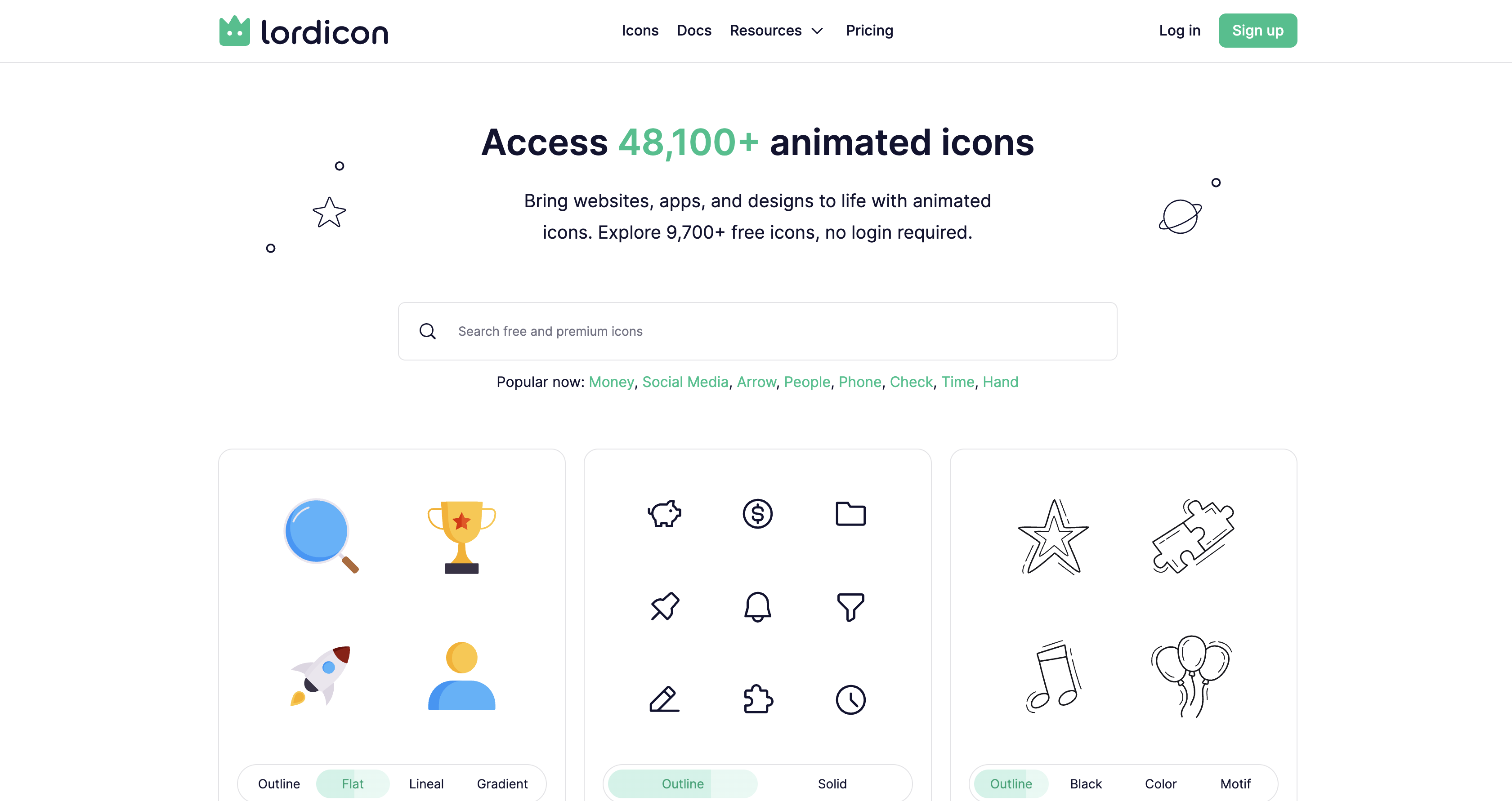
Teams pair the two when feature cards, buttons, menus, or form states need motion, and nobody on the team animates. Lordicon's icon-style guide puts System icons in menu tabs, buttons, and navigation bars, and Wired icons in larger explanatory layouts. Lordicon's own Webflow demo shows hover, scroll-in, loop-in-viewport, and morph behaviors, all built on the native Lottie Animation element. Lordicon has no app in the Webflow Marketplace, so every route below is manual.
The Lottie Animation element plays Lordicon's Lottie JSON exports through Interactions triggers without any code. Code Embed elements run the lord-icon custom element with its full trigger set and can bind icons to CMS fields. The Webflow and Lordicon APIs handle asset uploads, CMS records, and script registration from a server. Lordicon's own Webflow guide treats the Lottie route as the default, and the other two build on it.
Add Lordicon icons with the Lottie Animation element
This is the only method in Lordicon's own Webflow guide, and it needs no custom code or paid plan. You export an icon as Lottie JSON, upload it to the Assets panel, and place it with the Lottie Animation element. Interactions then decide when it plays. Lordicon's format guide lists Lottie JSON as the format that supports all of its animation triggers. The file is stored on Webflow servers rather than Lordicon's CDN, so the CDN request caps that govern HTML Embeds don't apply.
To set up the integration:
- In the Lordicon library, select an icon, adjust color and stroke in the side editor, and export it as Lottie JSON with the default "Minified" option.
- In Webflow, click the Assets icon in the left toolbar, then the cloud upload icon, and select the JSON file.
- Open the Add panel, choose Media, and drag a Lottie animation element onto the page.
- Click Replace Lottie sequence and pick the uploaded file from the Assets panel.
- In Element settings > Lottie animation settings, set built-in duration, loop, play in reverse, and render mode (SVG or canvas).
- Open the Interactions panel, select the element that should trigger playback, create an interaction on that trigger, and add a Lottie action from the Add action menu.
- Click Play to preview, then publish.
Once the element is placed, these settings and triggers control playback.
- Default playback: Every Lottie animation plays as the page loads, so visitors never see a below-the-fold animation play unless it loops or an interaction drives it, per Embed Lottie animations.
- GSAP triggers: Interactions with GSAP, the default on sites without existing Classic Interactions, offers Click, Hover, Mouse move, Page load, Scroll, and Custom event triggers.
- Lottie action: The GSAP Lottie action sets start and end frames, easing, duration, and repeat for any
.jsonor.lottiefile. - Classic Interactions: Classic pairs the Mouse click (tap) or Scroll into view trigger with a Lottie playback action, and offers a Reverse option for scroll-out.
Morph icons work here too. The demo plays a morph-... icon forward on hover and in reverse when the cursor leaves, and it starts loop-... icons only when they scroll into view, which keeps offscreen icons idle. Lordicon's named triggers such as boomerang and sequence belong to its own element and aren't available on this route. Its trigger, colors, and stroke attributes don't apply to the Lottie element either, so set colors and stroke in the Lordicon editor before export.
Run the lord-icon element in a Code Embed
Use this route when you need Lordicon's own trigger engine, the target attribute, CSS color variables, or an icon that changes per CMS item. A Code Embed accepts HTML, CSS in style tags, and JavaScript in script tags, up to 50,000 characters per element. You need a Core, Growth, Agency, or Freelancer Workspace, or a site with an active Site plan. Which sub-path you take depends on when you created your Lordicon account. Lordicon's August 2026 update closed the HTML Embed export to new users. Existing users can still create embeds until the end of 2026, and embeds already in place keep working until December 31st, 2030.
Paste an existing HTML Embed snippet
If your Lordicon account predates that update, the library still generates an HTML Embed snippet. The snippet loads lordicon.js from Lordicon's CDN and points at a JSON file hosted there too. Lordicon's license terms cap those CDN requests at 1 million on the Free license and 1 million per month on Standard PRO. Above that you self-host the JSON or buy an extended display license limited to one year. Lordicon's Terms of Service say it can't guarantee that HTML Embed hosting will always run without interruptions, and suggest hosting icons and scripts on your own server.
To add the snippet:
- In the Lordicon library, select and customize the icon, export it as an HTML Embed, and copy the snippet.
- In Webflow, open the Add panel and add a Code Embed element where the icon belongs.
- Paste the snippet into the code editor and click Save & Close.
- Publish the site, since some embeds render only on the live site.
To make the icon scale with its layout, wrap it in a square container that sizes to its parent, as in this snippet.
<script src="https://cdn.lordicon.com/lordicon.js"></script>
<div class="responsive-icon-container">
  <lord-icon src="https://cdn.lordicon.com/rmkpgtpt.json" trigger="hover" style="width:100%;height:100%;"></lord-icon>
</div>
<style>
  .responsive-icon-container { position: relative; width: 100%; padding-top: 100%; }
  .responsive-icon-container lord-icon { position: absolute; top: 0; left: 0; width: 100%; height: 100%; }
</style>
Load lordicon.js only once per page, as Lordicon's troubleshooting guide advises. If icons appear on many pages, put the script tag in Site settings > Custom code > Head code instead and keep only the lord-icon tag in each embed.
The lordicon.js URL carries no version number, and Lordicon warns against pairing new icons with an old copy of the script. We read the file it serves today: it still ships an older generation of the element, whose observed attributes leave out speed and which has no follow trigger and no reduced-motion handling. New builds belong on the current player described next.
Neither player script carries telemetry. We searched both shipped files, the CDN lordicon.js and the current jsDelivr build, for analytics or session-replay code and for browser storage calls, and found none. The element's one network request fetches the icon JSON named in src. Each visitor's browser still contacts whichever hosts serve the script and the JSON, and Lordicon meters HTML Embed requests against its license caps, so self-hosted JSON keeps the icon request off Lordicon's servers.
Host the icon yourself with the current player
New Lordicon accounts skip the CDN embed and use the @lordicon/element player instead. Lordicon's web docs install it from npm for bundled projects, and the element's README documents a self-contained build on jsDelivr for pages without a bundler, which is the shape a Webflow site has. Hosting the icon JSON yourself follows the Terms of Service suggestion and keeps you clear of the CDN request cap.
To set it up:
- Export the icon as minified Lottie JSON and host it at a URL you control. A CMS File field accepts JSON files up to 10 MB if you want Webflow to host it. The element parses JSON, so use the JSON export rather than dotLottie here.
- Add the player once, in head code or at the top of the embed:
<script type="module" src="https://cdn.jsdelivr.net/npm/@lordicon/element@3"></script>. The README notes that this build defines thelord-iconelement itself, so no setup call is needed. - Add a Code Embed containing
<lord-icon trigger="hover" src="/my-icon.json"></lord-icon>, withsrcpointing at your hosted file. - Publish and check the icon on the live site.
The current element accepts the following optional attributes.
- trigger: Takes
in,click,hover,loop,loop-on-hover,morph,boomerang,sequence, orfollow, which plays in step witharia-pressedon the target. - colors: Takes a palette such as
"primary:#ff0000,secondary:#00ff00", and the CSS variables--lord-icon-primaryand--lord-icon-secondaryswap colors without JavaScript, which suits dark and light modes. - stroke: Takes
light,regular, orboldon icon styles that support stroke changes. - speed: Multiplies playback speed, with a default of
1. - target: Names a CSS selector that receives the trigger events instead of the icon, so a whole button can fire its icon.
- state: Plays a named animation such as
hover-jump, andstate="*"plays every state. - loading: Takes
lazy,interaction, ordelayto defer fetching the JSON.
The current element also respects a visitor's request for less motion by default: one-shot animations show their last frame and loops stay still, unless you set motion="always".
Lordicon's web docs and the README describe different generations of the player, so match syntax to the script you load. The README puts trigger options in parentheses, as in loop(1000) for a 1000 ms delay, and chains states with sequence(play in-reveal, wait 500, play hover-jump). For scripted control, the CDN lordicon.js exposes element.playerInstance, while the current element takes icon.play({ state: 'in-reveal' }), icon.pause(), icon.seek('end'), and await icon.load() directly.
Bind Webflow CMS fields into the embed
A Code Embed inside a Collection List or on a Collection page can read CMS fields, so each item renders its own icon. Store the icon's JSON URL or state name in a field, then insert that field into the src or state attribute. Webflow swaps the field value into the markup when the page loads, as described in dynamic data in embeds. Lordicon's Webflow guide doesn't cover CMS-driven icons, so this pattern applies Webflow's dynamic-embed feature rather than a Lordicon recipe.
To bind a field:
- Drag a Code Embed into the Collection List item or onto the Collection page template.
- Select it, click Edit code, and place the cursor inside the quotes of the
srcattribute. - Click the purple dot, choose the field, and click Save & Close.
- Publish to see the per-item icons live.
Load the player script once in site-wide head code rather than inside the repeating embed, because each Collection List item would otherwise add it again.
Build with the Webflow and Lordicon APIs
This route suits developers building an icon picker that serves many sites, or syncing icon references into CMS records from a backend. The Lordicon REST API is labeled BETA, runs at api.lordicon.com, and authenticates with Authorization: Bearer YourAuthenticationToken, issued when you create a project. A new project starts as a demo with part of the library, and verification upgrades it to a Free or PRO plan. Lordicon's API guidelines are written for apps that put a Lordicon icon picker in front of end users, require download tracking, and state that the API is for "non-automated, high-quality, and authentic experiences". For one team's own sites, exporting from the library is the simpler fit. File links in responses expire, so you download and host the files yourself. Everything here runs server-side, not inside a Code Embed.
The Lordicon and Webflow APIs split the work this way.
- Lordicon icon search: The Lordicon API lists families and styles through
GET /v1/variantsand searches icons throughGET /v1/icons. - Lordicon download tracking:
POST /v1/download/trackreports each icon your app distributes, andGET /v1/download/statsreturns the totals. - Webflow Data API: Asset uploads, CMS collections, and registered scripts cover the Webflow side.
- Webflow webhooks: Webflow webhooks send events such as
collection_item_createdandsite_publish, while Lordicon's API documentation lists no webhooks, so library changes must be polled throughGET /v1/icons.
Icon responses include preview, svg, and json links, and svg and json appear only when the icon is in your plan.
Upload Lordicon JSON to the Assets panel through the Data API
Programmatic uploads let a script push icon files into a site's Assets panel before designers place anything. You need a Webflow App or site token with the assets:read and assets:write scopes. The Assets panel accepts both JSON and dotLottie, so files uploaded this way appear alongside manual uploads.
To implement this:
- Start from Lottie JSON you exported from the library. In a verified Lordicon API project, call
GET https://api.lordicon.com/v1/icons?family=systemwith your bearer token instead, filtering withsearch,style, orpremiumand paging withpageandper_page(max 100), then download the file at thejsonlink before it expires. - Compute the MD5 hash of the file's contents.
POST https://api.webflow.com/v2/sites/{site_id}/assetswithfileName(extension included, under 100 characters) andfileHash.- Take
uploadUrlanduploadDetailsfrom the response and POST the file to Amazon S3 with them. - If the file came through the Lordicon API, report it with
POST https://api.lordicon.com/v1/download/track(family, style, index), which returns 201 Created and which Lordicon's guidelines require.
Confirm the upload with GET https://api.webflow.com/v2/sites/{site_id}/assets, then place the file through the Lottie Animation element as in the first method.
Store icon references in CMS items
A backend can create or update CMS items that hold an icon's JSON URL, state name, or trigger, which the bound Code Embed then renders. Field types include PlainText, Link, File, and Image, and the docs leave the choice of type for an icon reference to you. Staged updates handle up to 100 items per request.
To implement this:
GET https://api.webflow.com/v2/collections/{collection_id}to read the schema and confirm field slugs (cms:read).POST https://api.webflow.com/v2/collections/{collection_id}/items/insertto create items (cms:write). Webflow's item creation guide names it the endpoint for new integrations, and the olderPOST /itemsandPOST /items/bulkkeep working.PATCH https://api.webflow.com/v2/collections/{collection_id}/itemsto update staged items, addingcmsLocaleIdfor any locale other than the primary.POST https://api.webflow.com/v2/collections/{collection_id}/items/publishto push the changes live.
POST https://api.webflow.com/v2/collections/{collection_id}/items/live creates items directly on the live site through one of those older endpoints, and a collection_item_changed webhook (cms:read) sends your server the item's id, collectionId, and fieldData whenever an editor changes an icon reference.
Register the player script with the Custom Code API
Apps that manage many sites can register the Lordicon player on each site and apply it site-wide without opening Site settings. These endpoints require an OAuth bearer token from the Code Grant Flow and the custom_code:write scope, and Webflow's custom code guide states that site and Workspace tokens can't call them. A script must be registered to a site before you can apply it.
To implement this:
POST https://api.webflow.com/v2/sites/{site_id}/registered_scripts/hostedwithhostedLocationset to the script URL,integrityHashset to its SRI hash, and the requiredversionanddisplayName. An SRI hash matches one exact file, so pointhostedLocationat a URL pinned to an exact release rather than the floating player URLs above.PUT https://api.webflow.com/v2/sites/{site_id}/custom_codeto apply it, including every script your app maintains, because omitting one removes it. If you register the jsDelivr build, passtypeset tomodulethrough the script'sattributes.- Publish, since registered-script changes take effect only then.
POST https://api.webflow.com/v2/sites/{site_id}/publishtakescustomDomainsorpublishToWebflowSubdomain, but Webflow's guide recommends prompting the site owner to publish rather than publishing on their behalf, because a publish pushes every staged change live.
Inline registration through POST https://api.webflow.com/v2/sites/{site_id}/registered_scripts/inline also exists, but the inline script reference caps inline scripts at 2000 characters, far short of a player bundle that runs to hundreds of kilobytes, so the hosted route is the one that fits.
What you can build with the Lordicon Animated Icons Webflow integration
Integrating Lordicon Animated Icons with Webflow lets you add trigger-driven animated icons across a site without commissioning custom motion work for each one.
- Hover-animated feature grids: A three-card services section where each card's icon plays on mouseover. Use
hover-...icons on the Lottie Animation element with a Hover trigger in Interactions, ortrigger="hover"in a Code Embed. - CTA button micro-interactions: A pricing-page button whose icon plays on click, with
targetpointing at the button so the whole hit area fires it. Lordicon reports a 20% MRR increase after adding one animated "Subscribe to PRO" button to its own library, in its own write-up, a vendor-reported figure, and its design guidance caps click animations at 500 ms. - Morphing menu toggles: A mobile menu button that morphs into a close icon and back. Place a
morph-...icon withtrigger="follow"inside the button and flip itsaria-pressedwhen the menu opens. On the native route, Navbar open and close triggers exist only in Classic Interactions, per Webflow's version comparison. - Form feedback and loaders: A contact form that shows a
loopspinner while submitting and a single-shot checkmark on success. Visitors who ask for less motion see still icons from the current element by default, and Interactions with GSAP has its own reduced-motion settings.
If the player is going onto more than one site, start with our guide to applying custom code by API rather than pasting it into Site settings by hand. Teams that already work from an AI client can make the same changes through the Webflow MCP server, which reads and writes site and page custom code, manages registered scripts, and updates CMS items.
Frequently asked questions
No. A search of the Webflow Apps directory returns no Lordicon listing, and Lordicon's own Webflow guide documents only the manual Lottie JSON method, so nothing needs to be authorized against your Webflow account. Lordicon lists an official MCP integration as "Coming soon" for AI assistants and coding tools.
Not for the Lottie Animation element route, which works on Starter sites publishing to .webflow.io. Code Embed elements and site-level or page-level custom code require a Core, Growth, Agency, or Freelancer Workspace, or a site with an active Site plan, per the custom code eligibility rules. Custom code shows in preview and comment modes but goes live only when you publish.
Yes. Hover is one of the trigger types in Interactions with GSAP, alongside Click, Scroll, and Page load. Lordicon's demo uses
hover-...icons this way and playsmorph-...icons forward on hover and backward on leave. Lordicon's research puts the hover-animation sweet spot at 1500 to 3000 ms, per its post From delight to annoyance. To inspect a working setup, clone the Lordicon Animated Icons example from Made in Webflow.Only for accounts that existed before Lordicon's August 2026 update. Lordicon's changelog entry for August 6, 2026 states HTML Embed "is no longer available to new users", and the update's announcement gives existing users until the end of 2026 to create new embeds, with placed embeds running until December 31st, 2030. Lordicon recommends its Custom Element (
@lordicon/element) or Lottie instead. If you placed embeds before October 10th, 2023, the glitching embed troubleshooting page explains that "Size" and "Padding" no longer work and stroke values changed to light, regular, and bold.Yes, with attribution. Lordicon's Free license allows commercial use and requires credit, and Lordicon's license terms base it on CC Attribution-NoDerivatives 4.0, modified to allow commercial use. Lordicon's attribution page gives the snippet
<a href="https://lordicon.com/">Animated icons by Lordicon.com</a>and recommends placing it in the footer when icons appear on every page. A PRO license removes the attribution requirement and covers unlimited client projects, as the PRO license page confirms. Standard PRO still bars including icons in HTML templates or themes unless Lordicon's API Terms are met, which matters if you sell Webflow templates, per section 2.4 of Lordicon's license terms.
Description
Upload Lordicon's Lottie JSON exports to the Lottie Animation element and drive them with Interactions, or run the lord-icon element in a Code Embed for hover, morph, and loop triggers.
This integration page is provided for informational and convenience purposes only.

Rive
Connect Rive, an interactive experience engine for real-time vector animation, with Webflow to add reactive animations using the native Rive element or embeds.

Dropbox
Connect Dropbox, a cloud storage and collaboration platform, with Webflow to host media via shared links and sync folder changes to the CMS using Zapier or APIs.

Cloudinary
Connect Cloudinary, an image and video API platform, with Webflow to deliver transformed media through URL parameters, embed upload and gallery widgets, and automate CMS population from processed assets.

YouTube
Connect YouTube, a video hosting platform, with Webflow to embed videos, display channel feeds, and sync video metadata to CMS collections.

Hugeicons
Connect Hugeicons, an icon library with 51,000+ icons across 10 styles, with Webflow to add scalable iconography to pages, CMS templates, and design systems through an app, CDN font, or inline SVG.

Vectary 3D & AR
Embed Vectary's browser-based 3D scenes in Webflow as an iframe, with native mobile AR and a Model API for variant-driven product configurators.

AI Image Enhancer
Connect AI Image Enhancer with Webflow to improve and generate site images with AI prompts without leaving the canvas.

Vimeo
Connect Vimeo with Webflow to embed ad-free video and keep CMS-driven galleries in sync automatically.

Videezy
Connect Videezy, a stock video platform, with Webflow to add HD and 4K video backgrounds, embed externally hosted footage, and build CMS-driven video libraries.
Related integrations
Get started for free
Try Webflow for as long as you like with our free Starter plan. Purchase a paid Site plan to publish, host, and unlock additional features.
