






Hugeicons
Connect Hugeicons, an icon library with 51,000+ icons across 10 styles, with Webflow to add scalable iconography to pages, CMS templates, and design systems through an app, CDN font, or inline SVG.

Webflow projects need icons for feature grids, navigation, dashboards, and CMS-driven pages, but managing them manually is tedious. Exporting from a design tool and re-uploading whenever designs change slows production and creates visual inconsistency across landing pages, client builds, and CMS templates.
Hugeicons offers Webflow users several ways to handle that workflow depending on how visual or code-driven the project is, making it useful for marketing sites, SaaS interfaces, and client projects where icons need to stay flexible across layouts and content types.
How to integrate Hugeicons with Webflow
What is Hugeicons? Hugeicons is an icon library offering over 51,000 icons across 10 styles, spanning Rounded (Stroke, Twotone, Duotone, Solid, Bulk), Standard (Stroke, Duotone, Solid), and Sharp (Stroke, Solid) families. It provides icons in SVG and PNG formats alongside web fonts, with framework packages for React, Vue, Angular, and Svelte. Hugeicons also ships a REST API, a Figma plugin, and a dedicated Webflow marketplace app.
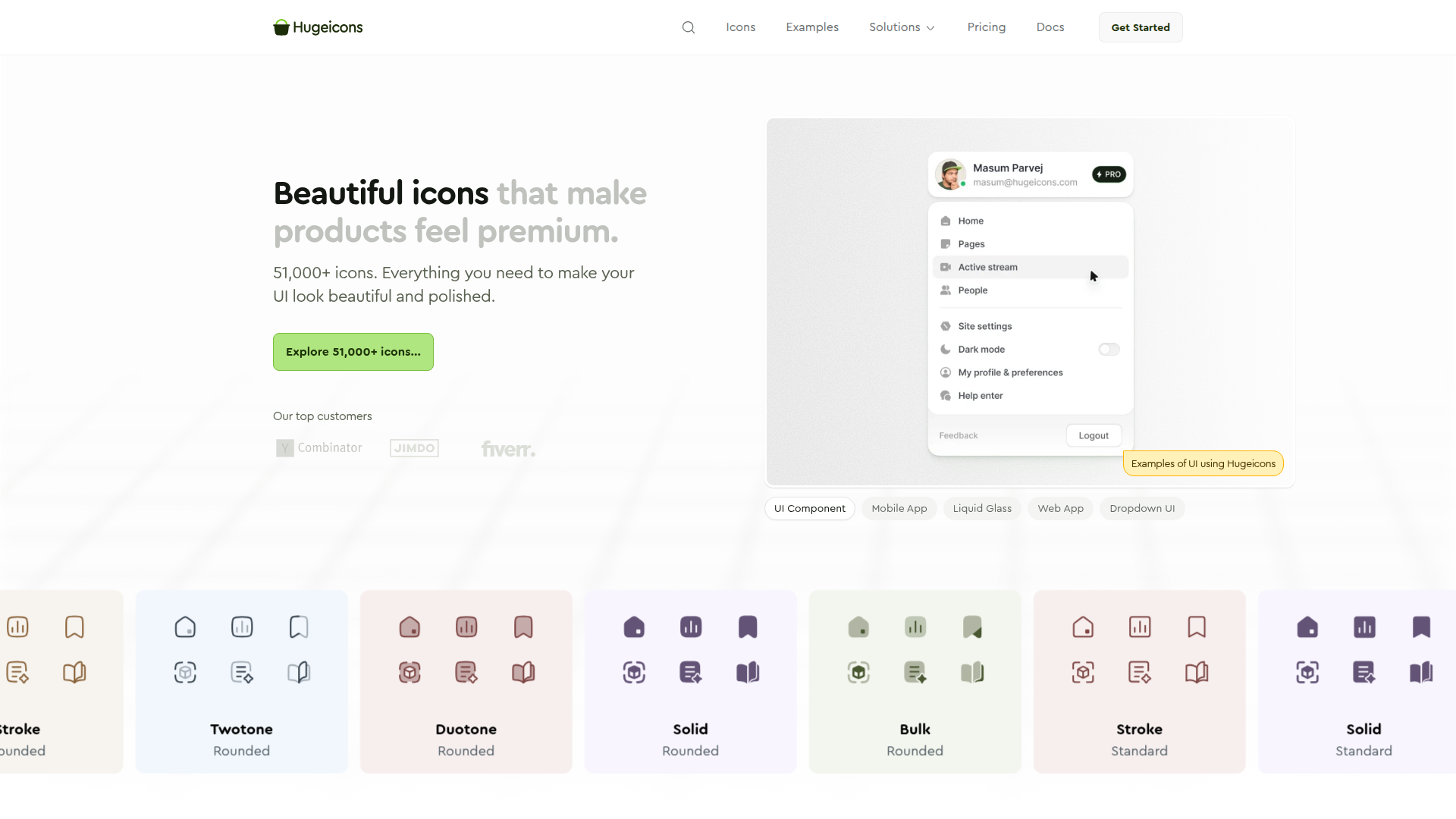
Teams use Hugeicons with Webflow when they need a single, scalable icon system that works across pages, CMS templates, and design states. Instead of exporting icons from Figma for every project update, you pick icons directly inside Webflow or load them from a CDN stylesheet. The result is fewer manual steps between design decisions and published pages.
The Hugeicons-Webflow integration supports 4 approaches:
- The Hugeicons app handles icon browsing and one-click SVG insertion without writing code.
- Code Embed methods let you paste inline SVG markup or load the full icon font via a CDN stylesheet for site-wide access.
- Hugeicons REST API workflows let you programmatically search for and retrieve icon data, but require server-side development.
- Webflow Data API and webhooks support CMS automation and publishing workflows around that icon data.
Most implementations combine two or more of these methods depending on the complexity of the setup.
Install the Hugeicons app
The Hugeicons app on the Webflow Marketplace is the fastest way to add icons to any Webflow project. It gives you access to over 4,000 free SVG icons across 59 categories, with an in-app upgrade path to 40,000+ Pro icons. The app inserts icons as editable SVG layers directly on the canvas. You can recolor them using Webflow's style panel, resize them, and apply interactions. For CMS-driven icon rendering, Hugeicons documents separate Code Embed and CMS workflows described later in this guide. No code editing is required.
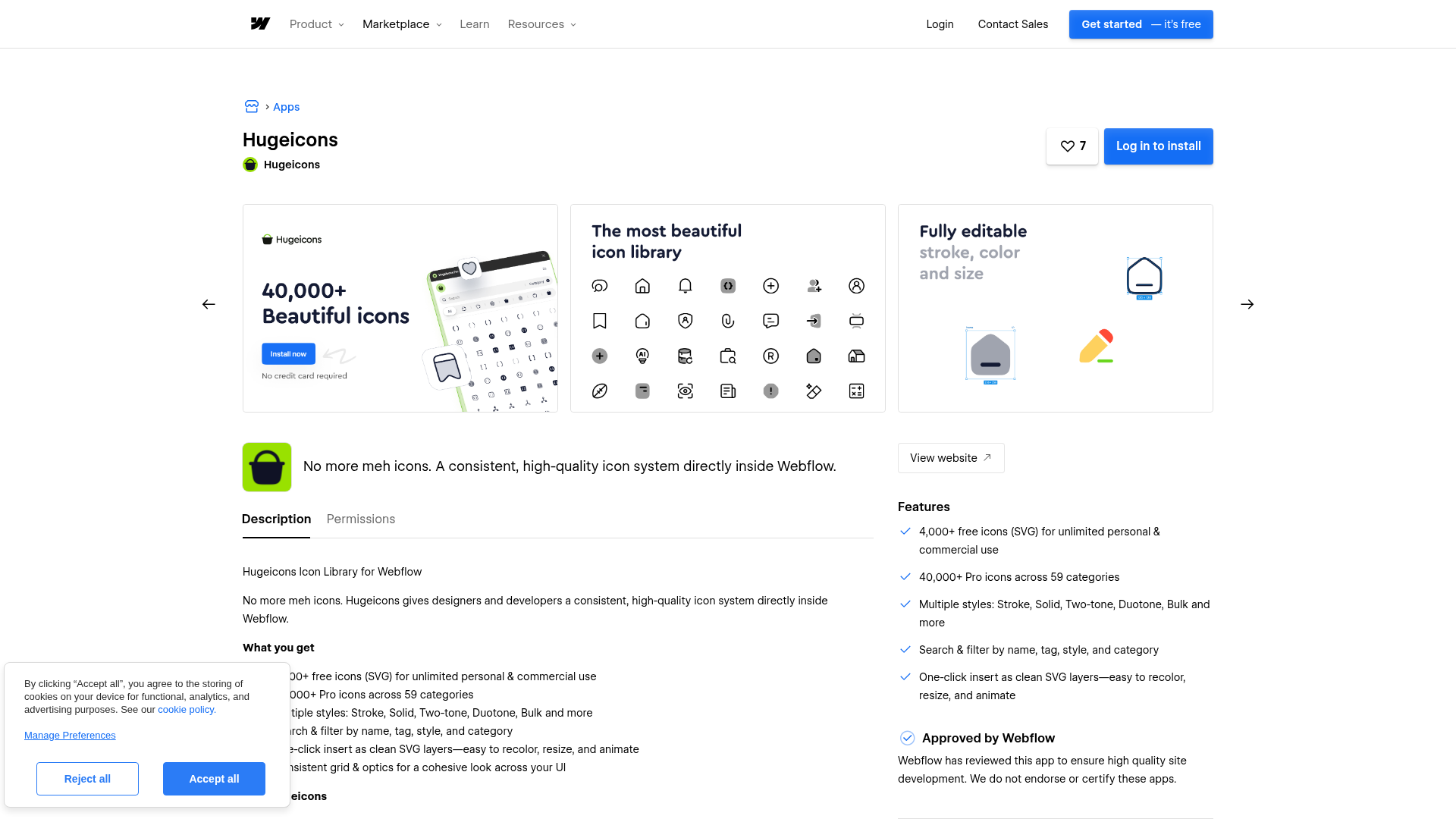
To set up the integration:
- Open the Apps panel inside Webflow, or go directly to the Hugeicons app listing and click Log in to install.
- Search for "Hugeicons" if browsing the marketplace, then install the app.
- Once installed, open the Hugeicons panel from the Apps panel in your project.
- Browse or search for an icon, select a style, and click Insert.
The app supports these capabilities after installation:
- Real-time search and filtering with instant visual preview of icons
- One-click SVG insertion that creates editable vector layers on the canvas
- Instant style switching between all available icon style variants (Stroke, Solid, Twotone, Duotone, Bulk)
- Bulk icon placement with a grid layout for inserting multiple icons at once
- Compatibility with Webflow interactions and styling, with CMS use handled through separate embed-based workflows
Inserted icons behave like any other Webflow element. You can apply color variables from your design system, add hover states, and place them inside layouts that also use Collection List templates. The app is listed as Approved by Webflow and published by Hugeicons / Halallab as a third-party application. Commercial use is permitted with no attribution required, though redistributing the raw icon library as part of Webflow templates sold to others is prohibited per the Hugeicons license terms.
Add Hugeicons with Code Embed elements
When you need more control over how icons load and render, or want to use icons outside the app's interface, Code Embed methods give you two distinct paths. Inline SVG embeds work well for individual icons where you need full color and animation control. The CDN icon font method is better for sites using many icons across multiple pages, since one stylesheet in the site head gives you access to over 5,100 icons everywhere.
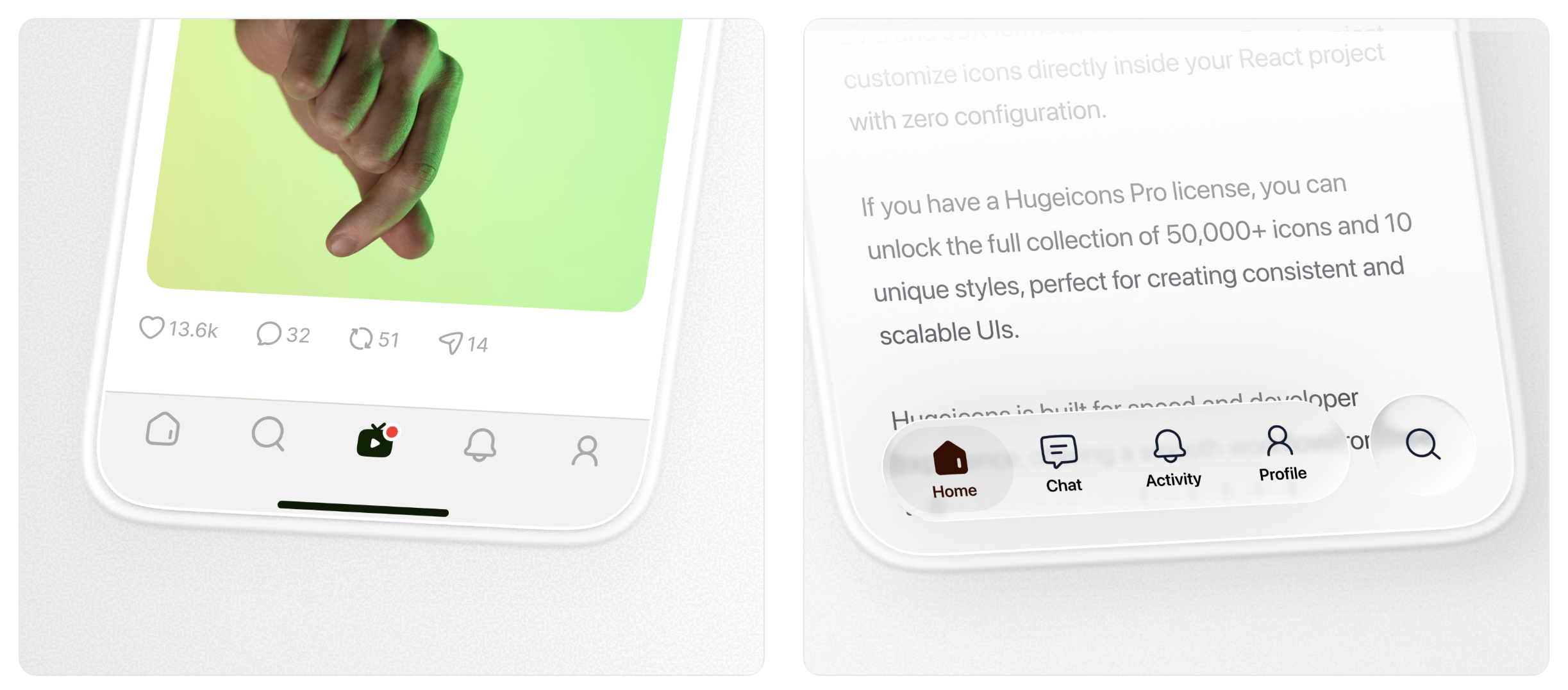
Both methods require a Code Embed element, which is available on paid Webflow site plans.
Paste inline SVG code
This method places a complete SVG element directly in your page HTML. The icon renders without additional HTTP requests and supports full styling through Webflow's visual tools, including multi-color rendering for Twotone, Duotone, and Bulk icon styles. Icon font methods cannot reproduce these multi-tone styles because they only support single-color rendering via the CSS color property.
To add an inline SVG icon:
- Go to hugeicons.com/icons, find your icon, and customize its color, stroke weight, and size in the preview panel.
- Copy the SVG code from the panel.
- In Webflow, open the Add panel and drag a Code Embed element onto your canvas.
- Double-click the Code Embed element to open the code editor and paste the SVG code.
- Click Save & Close.
Each Code Embed element supports up to 50,000 characters. For CMS-driven content, you can store SVG markup in a plain text field within a CMS Collection, then connect a Code Embed element to that field inside a Collection List or Collection page template. Icons render automatically for each CMS item.
Load the icon font from Hugeicons CDN
This method loads the entire free icon font as a single cached stylesheet. One installation in site settings gives you access to all 5,100+ stroke-rounded icons across every page. Each icon reference is a lightweight HTML tag using CSS classes rather than a full SVG block.

To set up the CDN icon font:
- In Webflow, click the Webflow icon (top-left corner), then go to Site Settings.
- Open the Custom Code tab and paste the following in the Head Code section per the custom code in head and body tags documentation:```html
``` 3. Click Save Changes. 4. On any page, drag a Code Embed element onto the canvas and paste an icon reference:```html ``` 5. Replace `hgi-home-01` with the specific icon's class name, which you can find on the Hugeicons icon listing page by clicking any icon.
Adding code to the site head requires a paid Webflow hosting plan. The CDN font serves WOFF2, WOFF, TTF, and EOT formats automatically. Pro users with an active subscription get access to a private CDN at sets.hugeicons.com covering all 51,000+ icons across 10 styles, configured through the Hugeicons Pro CDN sets documentation.
Icon font rendering is limited to a single color controlled by the CSS color property. If you need multi-tone icons (Twotone, Duotone, or Bulk styles), use the inline SVG method instead. For sites that only use a handful of icons, the Hugeicons Icon Font Generator can produce a custom subset containing only the icons your project needs, which reduces file size.
Build with the Webflow and Hugeicons APIs
For teams managing large icon libraries programmatically or populating CMS collections with icon data at scale, Hugeicons and Webflow expose different capabilities that work together. Hugeicons provides a REST API for searching and retrieving icon data. Webflow provides the Data API for CMS operations and webhooks for event-driven CMS automation. This approach requires server-side development and is suited to developers building custom tooling, content pipelines, or automated workflows.
The relevant APIs are:
- The Hugeicons REST API handles icon search, retrieval, category listing, and SVG export via
GETendpoints athttps://api.hugeicons.com/v1/ - Webflow Data API handles CMS collections and item creation, updates, and publishing
- Webflow webhooks trigger real-time events when CMS items are created, changed, or published
Hugeicons does not provide webhooks, so webhook-based automation in this workflow comes from Webflow only.
Custom API integration is the correct path for programmatic workflows.
Populate CMS collections with icon data
A common use case is building a CMS collection where each item includes an icon, such as a features list, services grid, or category index. Instead of manually inserting icons item by item, you can fetch icon SVGs from the Hugeicons API and write them into Webflow CMS fields.
To implement this workflow:
- Authenticate with the Hugeicons API using your license key in the
x-api-keyheader. Retrieve your key from the Licenses tab in the Hugeicons dashboard. - Fetch icon SVG content using the
GET /v1/icon/:name/svgendpoint, specifying the style via query parameter (defaults tostroke-rounded). - Create or update CMS items with the Webflow CMS Items API, storing the SVG markup in a plain text or rich text field.
- Publish those items using the corresponding Webflow CMS publish endpoint.
This workflow lets you keep icon rendering centralized while scaling CMS updates programmatically.
What can you build with the Hugeicons Webflow integration?
Integrating Hugeicons with Webflow lets you add consistent, scalable iconography across any project without managing individual SVG exports or maintaining separate asset folders.
- SaaS feature grids: Build pricing tables, feature comparison sections, and benefit blocks where each row carries a distinct icon. Use the Webflow app to insert icons visually, or store SVG markup in CMS fields so marketing teams can update feature lists without touching the page layout.
- Agency design systems: Create a shared icon style across multiple client projects by selecting from Hugeicons' 10 available styles. Agencies working in Webflow can standardize on Stroke Rounded for one client and switch to Sharp Solid for another, all from the same library.
- CMS-driven service pages: Set up a CMS collection for services or product categories where each item includes an icon stored as SVG code in a plain text field. A Code Embed element inside the Collection List template renders each icon automatically, so adding a new service only requires a new CMS entry.
- Dashboard and web app interfaces: Use the CDN icon font for navigation sidebars, status indicators, and action buttons across a data-heavy Webflow site. The single stylesheet caches efficiently, and each icon reference is a lightweight CSS class rather than a full SVG block.
If you need more control over bulk icon management or programmatic CMS population, the API integration path covers those cases with full flexibility.
Frequently asked questions
Yes. The Hugeicons Webflow app includes over 4,000 free SVG icons across 59 categories, available to any logged-in Webflow user. The free CDN icon font at
cdn.hugeicons.comcovers 5,100+ stroke-rounded icons, documented in the Hugeicons CDN quick start guide. Both free tiers permit commercial use with no attribution required per the Hugeicons license FAQ.It depends on the method. The Hugeicons marketplace app works for any logged-in Webflow user with no stated plan requirement. The Code Embed element and custom code in site settings both require a paid Webflow site plan per the Webflow plans overview. If you only use the marketplace app to insert SVG icons visually, you can work within Webflow's free tier.
Any SVG files or icon font files you downloaded during your subscription remain accessible permanently. However, CDN access, the Figma plugin, npm packages, and your license key stop working when the subscription ends, as documented in the Hugeicons payments and billing FAQ. If your Webflow site references a Pro CDN URL (
sets.hugeicons.com), icons will stop loading site-wide. To avoid this, download icon font files while the subscription is active and host them on an external CDN.Yes, but only with the inline SVG method. Multi-tone icon styles (Twotone, Duotone, Bulk) require SVG format because they depend on multiple distinct path fills. The icon font CDN method renders all icons in a single color via the CSS
colorproperty. Use Code Embed elements with pasted SVG code for any icon that needs more than one color.You can use Hugeicons inside Webflow CMS content by storing SVG markup in a CMS field and rendering it with a Code Embed element. Then add a Code Embed element inside a Collection List or Collection page template and connect it to that CMS field. Each CMS item renders its own icon automatically. For simpler setups, load the icon font stylesheet in your site head and reference icon CSS classes (like
<i class="hgi-stroke hgi-home-01"></i>) inside Rich Text code blocks.
Description
Add 4,000+ free or 40,000+ pro SVG icons to Webflow projects using the Hugeicons marketplace app, CDN icon fonts, or inline SVG embeds.
This integration page is provided for informational and convenience purposes only.

Vectary
Connect Vectary with Webflow to embed interactive 3D models and app-free AR experiences on any page.

Icon Drop
Connect Icon Drop with Webflow to search, insert, and manage 20,000+ open-source SVG icons directly inside the Designer, no code or external tools required.

Remove Background
Connect Remove Background with Webflow to remove image backgrounds on the canvas without uploading files to external servers.

SVG Import
Connect SVG Import, a free app that converts pasted SVG code into editable DOM elements, with Webflow to add path-level control to SVGs on the canvas.

Icons8 Graphics
Connect Icons8 Graphics, a design asset platform, with Webflow to access 500,000+ icons, vector illustrations, and stock photos through drag-and-drop, SVG embeds, icon fonts, or API-driven CMS population.

Logo To Use

Modulo
Connect Modulo with Webflow to add pre-built, customizable UI components directly to your canvas and bind them to CMS data.

Stockpress
Connect Stockpress with Webflow to search and place approved brand files from your DAM inside Webflow without downloading and re-uploading them.
Stockpress
Connect Stockpress, a digital asset management platform, with Webflow to browse, search, and place brand assets directly in Webflow without switching platforms.
Related integrations
Get started for free
Try Webflow for as long as you like with our free Starter plan. Purchase a paid Site plan to publish, host, and unlock additional features.
