






Image Management
Convert Webflow CMS collection images to WebP or AVIF inside Webflow with the Image Management app, or script the same job with the Assets API.

Webflow serves responsive sizes for the images on your site, but it does not convert your CMS collection images to a modern format for you. A JPEG imported through CSV or the Webflow Data API stays a JPEG, at whatever resolution the source file had. Once a Webflow CMS collection holds enough of them, the template pages rendering that collection carry far more image weight than the layout needs.
Image Management, an app from Pixl Events, closes that gap from inside Webflow. It converts collection images to WebP or AVIF, with compression quality and resolution set per image, so you decide file size in the same place you look at the picture. You can select images across several collections in one session and back them up before converting. A PDF contact sheet exports the set for anyone who needs to review it without opening Webflow.
The app fits agencies running images across a set of client sites, and real estate teams processing bulk-imported listing photos. It also suits event producers publishing gallery sets after a shoot, and editorial teams whose image library grows with every post. If you migrated into Webflow through a CSV import, it targets exactly the images that import path left alone.
How to integrate Image Management with Webflow
What is Image Management? Image Management is a Webflow app built by Pixl Events that converts CMS collection images to WebP and AVIF. It runs in the Webflow interface and adds per-image compression controls, selection across multiple collections, full-screen previews with auto color labeling, image backups, and PDF contact sheets. Its Marketplace listing carries the Approved by Webflow label.
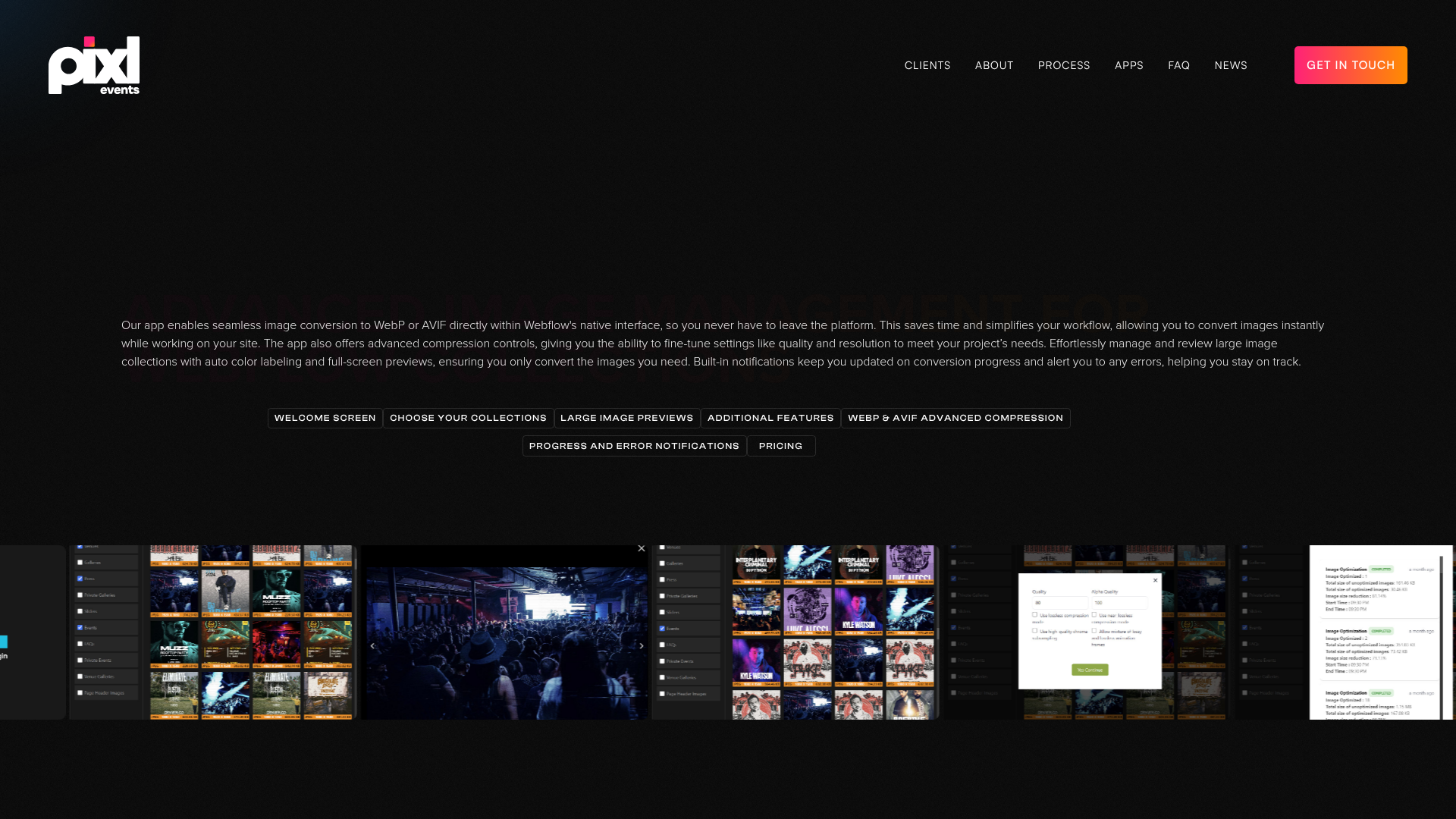
Teams usually reach for this combination right after a CSV import or a platform migration, when a large CMS image library needs format conversion and nobody wants to prepare files by hand. The app doubles as a review surface, since full-screen slideshows replace the small thumbnails in the CMS panel and a contact sheet gives a client something to look at without a Webflow seat.
The Image Management and Webflow integration supports two approaches:
- The Image Management app handles format conversion, compression, review, and backups inside Webflow with no code.
- The Webflow Data API gives you programmatic control over assets and CMS items for the workflows the app does not cover, and it needs server-side development.
Every feature Pixl Events documents works without code, so most teams stop at the first method and use the API only to script the work around it.
Install the Image Management app
The Marketplace listing is the only integration path Pixl Events documents, and it needs no Code Embed and no server of your own. You install the app, paste in a token you generate inside it, and start converting collection images. Authorization scopes to one site or to a whole workspace, which is what makes it practical for an agency running the same conversion job across every client site from a single authorization.
To set up the integration:
- Open the Apps panel in Webflow and search for Image Management, or open its Marketplace listing directly.
- Sign in to Webflow if you are not already, then pick the site you want the app installed on.
- Generate an app token inside the app and copy it into the main app interface.
- Choose the authorization scope, either a single site or your whole workspace.
- Select the CMS collections you want to manage.
Once connected, the app handles:
- Format conversion: WebP and AVIF output, with compression quality and resolution set per image rather than fixed for the whole batch.
- Multi-collection selection: Pick images from several CMS collections in one session instead of working through them collection by collection.
- Conversion state at a glance: Auto color labeling marks which images already carry a converted format and which still do not.
- Review and sharing: Full-screen previews and slideshows replace CMS thumbnails, and PDF contact sheets travel to people who have no Webflow seat.
- Backups and alerts: Export existing collection images before a run, and get in-app progress alerts plus email notifications when a conversion errors.
Export the originals before your first conversion, not after. The app ships that export for a reason, and re-sourcing a client's original photography because one compression setting was too aggressive is a bad afternoon. Animated GIF to WebP conversion is listed as coming soon on the Pixl Events product page, so treat GIFs as out of scope today. To revoke access later, open the Apps and integrations tab in the settings for whatever you authorized, the site or the workspace.
Build with the Webflow Data API
Pixl Events publishes no public API or webhooks for Image Management, and no Zapier or comparable automation connector exists for it, so conversion always runs in the app interface. What you can script is the work around a conversion: pulling originals down before a bulk run, or pushing in files you converted somewhere else. The Data API manages assets and asset folders directly, with every endpoint under https://api.webflow.com/v2 and Bearer token authentication, and this path needs a developer.
Image work around this app touches a few parts of the platform, plus one gap worth knowing about up front:
- Assets API: The Assets endpoints list, upload, update, and delete site assets under the
assets:readandassets:writescopes. - CMS API: Manage collections and items, including the image fields that hold your gallery and listing photos.
- Webhooks: Webflow webhooks push CMS item events to any endpoint you control, so a downstream job can react to a change.
- No asset events: The event catalog carries no asset-level trigger, so you cannot subscribe to asset uploads or edits directly.
The three sections below cover the jobs that come up most often around a conversion run.
Export collection images for backup
Before a bulk conversion, pull copies of the originals on a schedule instead of exporting them by hand in the app.
To export assets:
- Call
GET https://api.webflow.com/v2/sites/{site_id}/assetswith a token scoped toassets:read. - Paginate with
offsetandlimit, which caps at 100 assets per page, or passfolderIdto scope results to one folder and its descendants. - Download each file from the
hostedUrlin the response.
The app's own export does the same job without code. The API version earns its keep when the backup has to run on a schedule rather than on someone remembering.
Upload converted images programmatically
Asset uploads take two steps. You register the file with Webflow first, then post the binary to the Amazon S3 URL Webflow hands back.
To upload an asset:
- Send
POST https://api.webflow.com/v2/sites/{site_id}/assetswith theassets:writescope, afileNameunder 100 characters, and an MD5fileHash. See the Create Asset reference. - Read
uploadUrlanduploadDetailsfrom the response, along with the asset'sid,assetUrl, andhostedUrl. - POST the file to the returned
uploadUrlas multipart form data, using theuploadDetailsvalues in the request.
Once the upload lands, PATCH https://api.webflow.com/v2/assets/{asset_id} sets the asset's displayName and altText.
React to image changes with webhooks
No asset-level event exists to subscribe to, so CMS item events are the closest proxy. When your images live in collection fields, collection_item_created and collection_item_changed fire on the item, and the fieldData payload carries the image fields defined in that collection's schema.
To react to CMS image changes:
- Register a webhook for
collection_item_changedorcollection_item_createdpointing at your endpoint. - Verify each request against the
x-webflow-signatureSHA-256 HMAC header before you process it. - Read image URLs out of the
fieldDataobject and run your downstream logic.
For static assets outside the CMS, poll GET /v2/sites/{site_id}/assets on a schedule instead.
What you can build with the Image Management Webflow integration
Integrating Image Management with Webflow gets WebP and AVIF images out of your CMS collections without you maintaining an image processing pipeline somewhere else.
- Event photo galleries: Convert festival photography imported by CSV to WebP, then review the whole set in a slideshow before the gallery page goes live.
- Real estate listing sites: Batch-process property photos across listing collections at one compression setting so every listing delivers at a consistent weight.
- Editorial publishing platforms: Move images off a legacy CMS with bulk format conversion while the collection structure you already built stays exactly as it is.
- Portfolio and client-review sites: Convert high-resolution work to WebP or AVIF for delivery, then hand clients a PDF contact sheet instead of a link to a staging page.
This app does one-time conversion of what already sits in a collection, which is a different job from resizing and cropping images on the fly at request time. If you need the second one, an image CDN fits better: see how to serve responsive Cloudinary images on a Webflow site. And once your images are converted, the tedious half of image work is finding the ones that are still wrong. Connect the Webflow MCP server and an agent can audit your collections for missing alt text and broken links, then fix them in place.
Frequently asked questions
No. It works on images held in CMS collection fields, including images that arrived through a CSV import or the Data API. Static files you uploaded straight into the Assets panel sit outside what the app touches.
No. You install it from the Apps panel or the Webflow Marketplace, then authenticate with a token you generate in the app itself. Every feature Pixl Events documents runs without code, and the listing carries our Approved by Webflow label.
Either one. A Webflow app can be authorized for a single site or for a whole workspace, depending on how its developer registered it, as covered in the app registration docs. Agencies pick the workspace scope so one authorization covers every client site they run.
The app outputs WebP and AVIF, and Pixl Events lists animated GIF to WebP as coming soon. Webflow itself accepts PNG, JPEG and JPG, GIF, SVG, WebP, and AVIF, with a 4MB ceiling per image under the documented asset upload limits.
Pixl Events does. The app emails you when a conversion run errors, and their support address is support@pixlevents.com. Marketplace apps are built and maintained by their own developers, so app-level troubleshooting goes to Pixl Events rather than to us.
Description
Convert Webflow CMS collection images to WebP or AVIF inside Webflow using the Image Management app, with per-image compression controls and exportable backups. No code required.
This integration page is provided for informational and convenience purposes only.

SVGator
Connect SVGator with Webflow to generate and embed interactive SVG animations on any page without writing animation code from scratch.

StickPNG
Connect StickPNG, a free transparent PNG library, with Webflow to add pre-cut product images, logo overlays, and decorative elements to page compositions without manual background removal.

Pixabay
Connect Pixabay with Webflow to source and publish royalty-free images, videos, and illustrations on your site without per-asset licensing fees.

Pixie - CMS Image Optimizer
Connect Pixie with Webflow to bulk-optimize CMS and Ecommerce images in place, and see where Webflow's own tools already cover the job.

Pngtree
Connect Pngtree, a graphic design asset marketplace, with Webflow to add transparent PNGs, SVG illustrations, and background textures to pages, CMS collections, and campaign layouts.

Pexels
Connect Pexels, a free stock photo and video platform, with Webflow to source royalty-free visuals for pages, CMS collections, and video backgrounds without licensing fees.

Lottieflow by Finsweet
Connect Lottieflow by Finsweet with Webflow to add free, color-customizable Lottie animations to any page using the native Lottie element and Interactions panel.

Lordicon Animated Icons
Connect Lordicon Animated Icons with Webflow to play animated Lottie icons on hover, click, and scroll without a motion designer.

LottieFiles
Bring lightweight, scalable vector animations to your Webflow sites with LottieFiles — the platform that makes adding motion as simple as uploading an image.
Related integrations
Get started for free
Try Webflow for as long as you like with our free Starter plan. Purchase a paid Site plan to publish, host, and unlock additional features.
