






Icons8 Graphics
Connect Icons8 Graphics, a design asset platform, with Webflow to access 500,000+ icons, vector illustrations, and stock photos through drag-and-drop, SVG embeds, icon fonts, or API-driven CMS population.

Icons8 Graphics puts 500,000+ icons, vector illustrations, and stock photos one drag away from your canvas. No more leaving the Designer to hunt down assets on third-party sites. Drag from a panel, paste SVG code, load an icon font, or pull assets programmatically through an API.
Whether you're a freelancer building client sites, an agency juggling brand identities, or a developer wiring up programmatic icon delivery, this integration replaces the scattered-library shuffle with a single source.
How to integrate Icons8 Graphics with Webflow
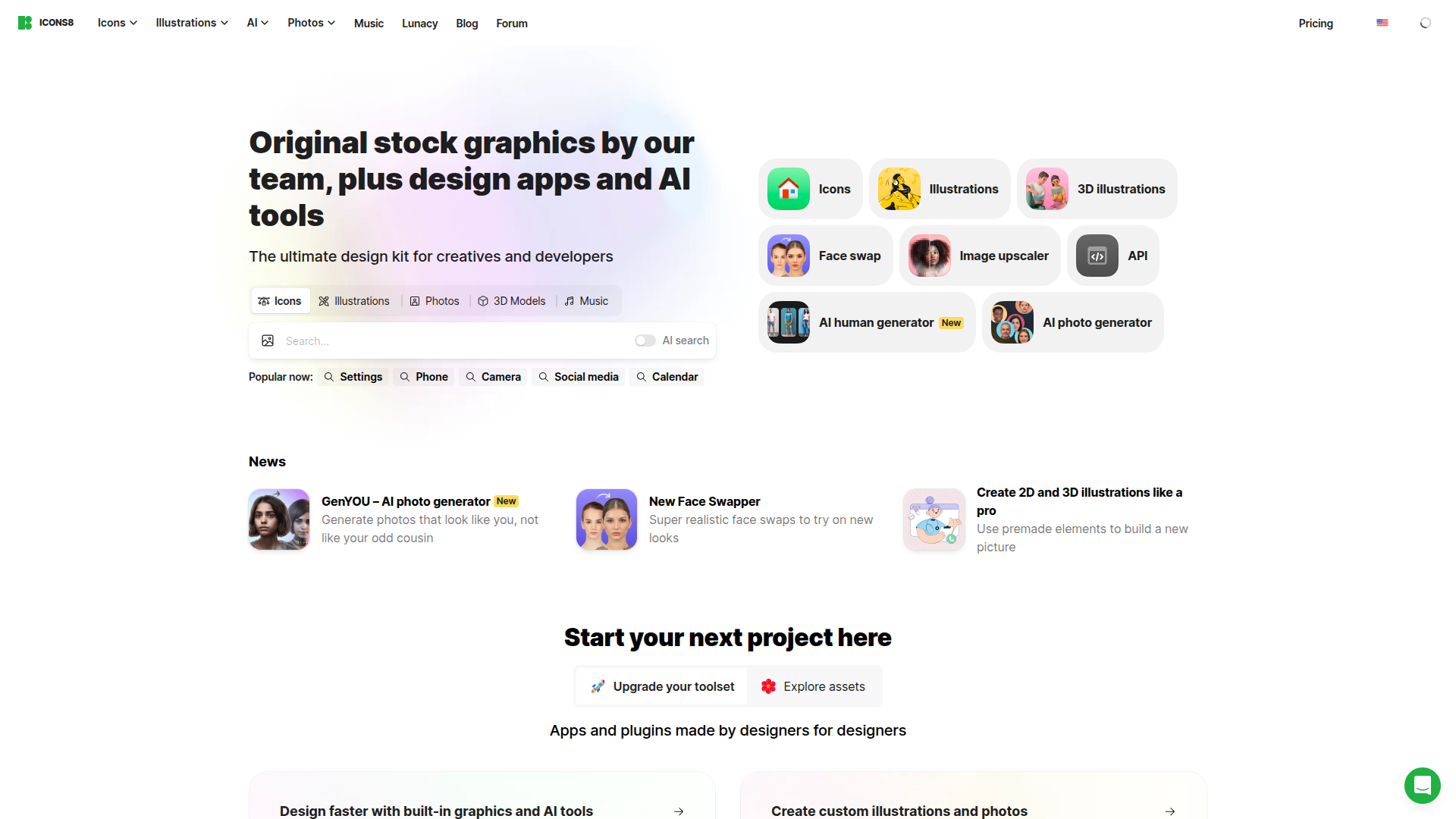
What is Icons8 Graphics? Icons8 is a design asset platform covering icons, illustrations, stock photos, music, 3D models, and AI-generated imagery. Its icon library includes over 1.5 million icons across 45+ visual styles, with formats spanning PNG, SVG, GIF, and Lottie JSON. Icons8 also offers Lunacy, a standalone design application, and a REST API for programmatic asset access.
If you're building in the Designer and need consistent visual assets without sourcing from multiple stock libraries, you can reach for Icons8. A SaaS company building a feature comparison page, for example, can pull a matched set of icons from one Icons8 style pack rather than mixing assets from three different providers. Agencies maintaining design systems across client projects benefit from the 45+ icon style families, which keep visual identity consistent without custom illustration work.
You can integrate Icons8 Graphics in 3 ways:
- Icons8 Graphics app: handles drag-and-drop asset insertion without writing code.
- Direct embed methods: let you add icons, illustrations, and photos through SVG pasting, file uploads, CDN URLs, icon fonts, and Lottie animations.
- Webflow and Icons8 APIs: provide programmatic asset delivery and CMS population, but require server-side development.
Install the Icons8 Graphics app
The Icons8 Graphics app gives you an in-canvas panel for icons, illustrations, and stock photos inside the Designer. You search for assets in the panel, then drag them directly onto the canvas. Search and placement happen in one place.
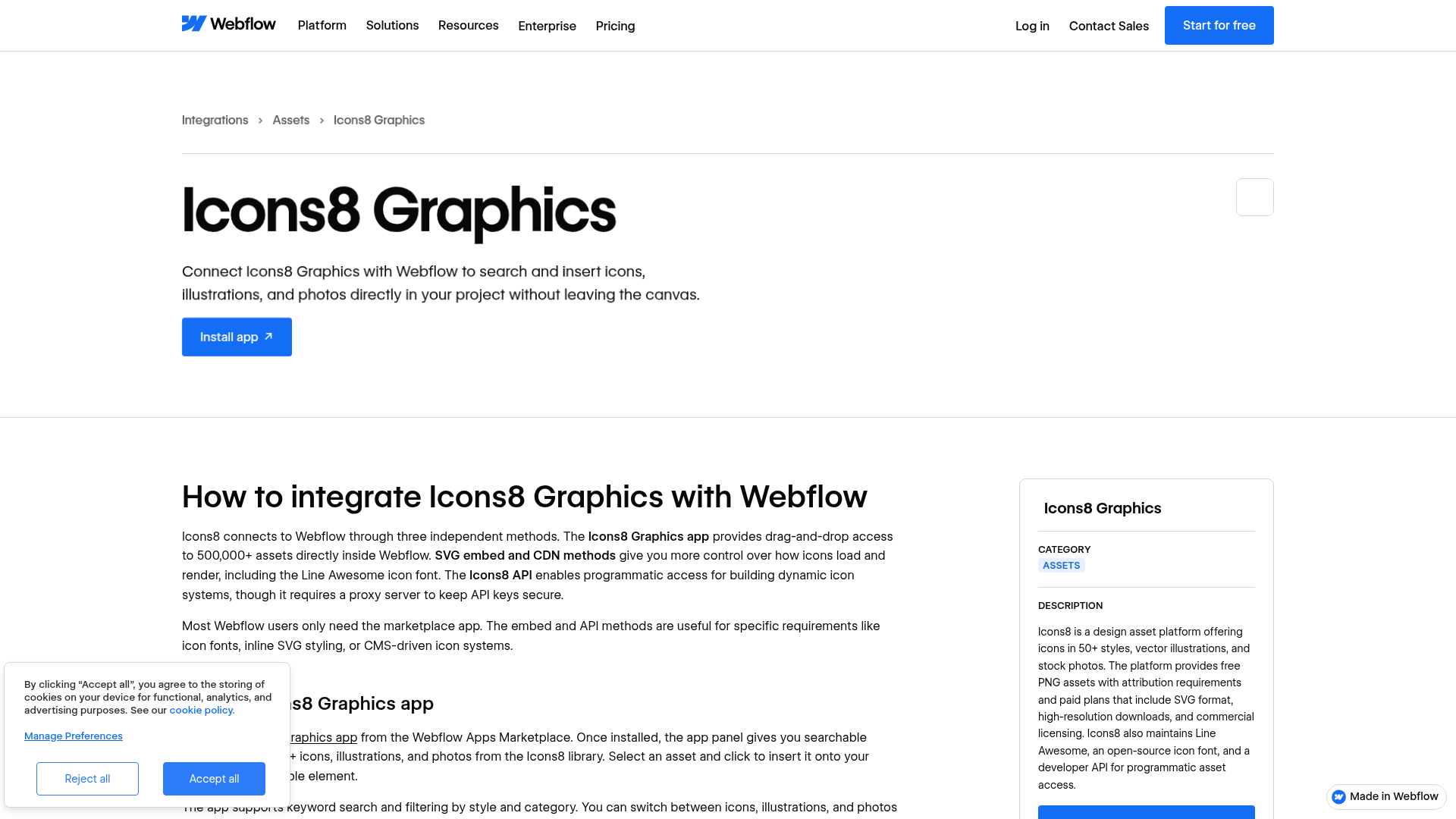
To set up the integration:
- Go to webflow.com/integrations/icons8-graphics and click Install app.
- Open your project. If installation succeeds, the Icons8 panel should appear inside the canvas.
- Search for icons, illustrations, or photos within the panel.
- Drag the asset directly onto the frame to insert it into your project.
Available asset types include:
- Icons across 45+ visual styles
- Flat and 3D vector illustrations
- Stock photos from the Icons8 Moose library
Use the integration page directly for installation. You can also visit the Icons8 Webflow plugin page on Icons8's own domain. If the app is unavailable, use any of the direct embed methods below.
Add Icons8 assets with Code Embed elements and direct uploads
Direct embed methods let you control formatting, color, animation, and CMS rendering beyond the marketplace app. These approaches range from simple copy-paste to loading an entire icon font.
Copy SVG code into a Code Embed element
Inline SVG gives you full CSS control over icon color, size, and hover states. You copy the SVG markup from Icons8 and paste it into a Code Embed element. SVG format requires a paid Icons8 plan.
To add an inline SVG icon:
- Go to icons8.com/icons and find your icon.
- Click the icon to open the detail panel. Select the Embed HTML option and choose SVG format.
- Copy the SVG code.
- Open the Add panel and drag a Code Embed element onto the canvas.
- Double-click the Code Embed element to open the code editor.
- Paste the SVG code and click Save & Close.
For responsive color control, set the SVG fill and stroke values to currentColor. The icon then inherits from the parent element's color property, so you can change colors on hover or between light and dark modes without maintaining separate SVG files. Each Code Embed element has a 50,000-character limit, so keep an eye on usage when adding complex SVGs.
Download and upload as a Webflow asset
Download a PNG or SVG file from Icons8, then upload it through the Assets panel. This option works on every plan and requires no code.
To upload an Icons8 asset:
- On icons8.com/icons, find your icon and click it to open the detail panel.
- Select PNG or SVG format and click Download. SVG requires a paid Icons8 plan.
- Click the Assets panel (folder icon in the left sidebar) and click Upload.
- Select your downloaded file. The upload limit is 4 MB per image.
- Drag an Image element onto the canvas from the Add panel and select your uploaded asset in the image settings.
This is the most compatible option across all plan tiers. Compress high-resolution Icons8 illustrations before uploading if they exceed 4 MB.
Embed icons via the Omg-Img CDN
Icons8 hosts icons on its own CDN at img.icons8.com, so you can display icons without downloading or uploading files. You reference icons by URL, and they load directly from Icons8's servers.
To embed an icon via CDN:
- On an Icons8 icon page, locate the Embed HTML option in the right-side panel and copy the generated
<img>snippet. - Drag a Code Embed element onto the canvas.
- Paste the
<img>tag snippet and click Save & Close.
You can also use the Omg-Img URL pattern directly in an Image element's external URL field: https://img.icons8.com/[style]/[size]/[icon-name].png.
If you use CDN-hosted icons for free, you need to include a visible attribution link to icons8.com on every page displaying the icons. Free PNG icons are capped at 512 px. CDN-hosted assets may change based on licensing or subscription status, so self-hosting is the safer approach for long-term reliability.
Load the Line Awesome icon font
Line Awesome is a Font Awesome-compatible icon font from Icons8. Once you load it, your project has hundreds of outlined icons that you control through the Typography panel, with no individual file management.
To add Line Awesome to your project:
- Go to icons8.com/line-awesome and copy the CDN
<link>tag. - Go to Project Settings → Custom Code and paste the
<link>tag into the Head Code section. - Save your site settings.
- In any Text element or HTML Embed, use the class syntax:
<i class="las la-[icon-name]"></i>. - Control icon size and color through the Typography settings on the parent element.
Custom code sections require a paid plan. On Free and Starter plans, you can't add code to the head or body.
Add animated icons with Lottie
Icons8 offers over 4,500 animated icons in Lottie JSON format. You get a native Lottie element in the Designer, so you can add animated icons without writing any code once you've downloaded the file.
To add a Lottie animation:
- On icons8.com/icons, find an animated icon (identified by an animation badge).
- Select JSON as the download format and click Download.
- Drag a Lottie element from the Add panel onto the canvas.
- Upload the downloaded JSON file through the Lottie element's settings panel.
- Set the playback trigger (on load, on hover, or on scroll) in the Lottie settings.
Lottie animations render as vector graphics, so they stay crisp at any screen size. This method works well for interactive UI states like button hovers, loading indicators, and feature highlights.
Build with the Webflow and Icons8 APIs
The API integration path supports programmatic asset delivery, CMS-driven icon systems, and automated pipelines. This approach requires server-side development. Never put Icons8 API keys in client-side code, since they're visible in page source. Use serverless functions (AWS Lambda, Cloudflare Workers) or a backend service to proxy API calls.
You can use these APIs:
- The Icons8 Search API finds icons by keyword, style, and category in the full library
- The Icons8 Renderer API generates icon files in PNG, SVG, or other formats by icon ID or name
- The Icons8 Illustrations API searches and retrieves vector illustrations
- The Webflow Data API manages CMS collections, asset uploads, and site publishing
- Webhooks trigger real-time events when CMS items are created or updated
Together, these APIs cover asset retrieval, rendering, CMS updates, and event-driven workflows.
All Icons8 APIs authenticate with an API key, passed either as an Api-Key HTTP header or a token query parameter. You generate keys at developers.icons8.com/api-keys with a paid API subscription.
Any automated workflow between Webflow and Icons8 requires custom development.
Populate CMS items with Omg-Img URLs
You can store Icons8 icon URLs in CMS fields and render them dynamically on Collection List pages. The native Image field requires a fileId from internal storage, so external URLs — including Icons8 CDN URLs — need to go in PlainText or Link CMS fields instead. Then render them through a Code Embed element.
To build a CMS-driven icon system:
- Create a CMS Collection with
PlainTextfields for icon name, color, style, and size. - Use a serverless function to query the Icons8 Search API (
GET https://search.icons8.com/api/iconsets/v5/search?term=cart&token=YOUR_API_KEY) and construct Omg-Img renderer URLs. - Write the URLs to CMS items via
POST /v2/collections/{collection_id}/items/bulk(max 100 items per request). - Publish the items with
POST /v2/collections/{collection_id}/items/publish. - On Collection pages, add a Code Embed element that reads the CMS field and renders the icon:
<div id="icon-container"></div>
<script>
  var iconName = "{{wf {\"path\":\"icon-name\",\"type\":\"PlainText\"} }}";
  var iconColor = "{{wf {\"path\":\"icon-color\",\"type\":\"PlainText\"} }}";
  var img = document.createElement('img');
  img.src = 'https://img.icons8.com/fluency/96/' + iconColor + '/' + iconName + '.png';
  document.getElementById('icon-container').appendChild(img);
</script>
To bind CMS fields in Code Embed elements, you need a Business plan. The Omg-Img URL requires no API key at render time, so no credentials are exposed in the browser.
Auto-assign icons on CMS item creation with webhooks
A webhook listener can detect new CMS items and automatically assign a matching icon. This pattern uses a collection_item_created webhook to trigger a serverless function.
To implement auto-assignment:
- Register a webhook for the
collection_item_createdevent via the webhooks API. - When the webhook fires, parse the item payload to extract a keyword (such as a category name).
- Query the Icons8 Search API with that keyword to find a matching icon.
- Construct an Omg-Img URL from the search result.
- Patch the CMS item with
PATCH /v2/collections/{collection_id}/items/{item_id}, writing the icon URL to aPlainTextfield. - Publish the updated item with
POST /v2/collections/{collection_id}/items/publish.
Content-heavy CMS sites can use this pattern to remove manual icon selection. Icons8 doesn't support outbound webhooks, so all event-driven automation originates from the Webflow side.
Upload processed images to Webflow's asset storage
If you need Icons8 assets in native Image fields instead of PlainText workarounds, upload them through the Assets API. That path produces a fileId compatible with Image CMS fields.
To build an upload pipeline:
- Fetch a photo or illustration from the Icons8 Photos API or Illustrations API.
- Optionally process the image with the Icons8 Background Remover API.
- Upload the resulting file via
POST /v2/sites/{site_id}/assets. This is a two-step process: you get back presigned S3 fields, then POST the file binary to S3. - Use the returned
fileIdin a CMS item's Image field when creating or updating items.
This is the only workflow in this guide that populates native Image fields with Icons8-sourced content.
What can you build with the Icons8 Graphics Webflow integration?
With Icons8 Graphics, you can source visual assets from a single library without switching between multiple stock sites and download tabs.
- SaaS feature grids with matched icon sets: Pull icons from a single Icons8 style pack (like Fluency or Material Outlined) for pricing tables, feature comparison pages, and product tours. Each style contains thousands of icons, so visual consistency holds across dozens of categories.
- CMS-driven blog illustrations: Store Omg-Img URLs in CMS fields so content editors can assign category-specific illustrations to blog posts and help articles without uploading files. A Code Embed element on the Collection template renders the correct illustration automatically.
- Landing pages with cohesive illustration sets: Use Icons8's flat, 3D, or animated illustration packs for hero sections, step-by-step explainers, and testimonial backgrounds. All illustrations in a set share the same visual style, so the page reads as a unified design.
- Interactive UI elements with animated Lottie icons: Add micro-animations to buttons, navigation states, and loading indicators using Icons8's 4,500+ animated icons in Lottie JSON format. You configure playback triggers (on hover, on scroll, on load) natively in the Lottie element settings.
If you need programmatic icon assignment or automated CMS population, use the API integration path.
Frequently asked questions
Yes, with conditions. The free tier limits you to PNG format at smaller sizes, with no SVG access. You must include a visible, clickable hyperlink to icons8.com on every page that displays Icons8 content. A footer link satisfies this requirement if icons appear on most pages. Paid plans remove the attribution requirement and add SVG and high-resolution PNG formats. See the Icons8 license page for full attribution rules and the Icons8 attribution placement guide for platform-specific examples.
The Icons8 Graphics integration page documents the app and provides an Install app button. The direct app listing URL (
webflow.com/apps/detail/icons8-graphics) may return a 404. Try the install button on the integration page first. If the app is not accessible, the Icons8 Webflow plugin page documents the same integration. You can also use any of the direct embed methods (SVG pasting, file uploads, CDN URLs, icon font, or Lottie) as alternatives.SVG is the best format for icons because it scales to any screen size and allows CSS color control through the
currentColorvalue. SVG requires a paid Icons8 plan. PNG works on all Webflow plans but is raster-only and may appear blurry on high-density displays. Lottie JSON is the right choice for animated icons and works with the native Lottie element. SVG files are not supported in Webflow Ecommerce product or variant image fields, so use PNG or JPEG for product images. See the Icons8 icons pricing page for format availability by plan tier.The marketplace app inserts static assets onto the canvas, so CMS-driven icon systems require a different approach. Store an Omg-Img CDN URL (like
https://img.icons8.com/fluency/96/icon-name.png) in aPlainTextCMS field. On Collection templates, add a Code Embed element that reads the field value and renders it as an<img>tag. Webflow's native Image field requires afileIdfrom Webflow's own asset storage and does not accept external URLs directly. CMS field binding in Code Embed elements requires a Business plan. See the Webflow dynamic data in embeds guide for setup details.Yes, but only through custom development. Automated workflows require the Icons8 REST API and the Webflow Data API. A serverless function (AWS Lambda, Cloudflare Workers) or backend service is needed to store API keys securely. The Icons8 API key must never appear in Webflow's client-side code. For a starting point, the Icons8 API getting started guide covers authentication and basic search queries.
Description
Access 500,000+ icons, illustrations, and stock photos from Icons8 through a marketplace app, Code Embed elements, CDN URLs, or the Icons8 API.
This integration page is provided for informational and convenience purposes only.

Dropbox
Connect Dropbox, a cloud storage and collaboration platform, with Webflow to host media via shared links and sync folder changes to the CMS using Zapier or APIs.

Cloudinary
Connect Cloudinary, an image and video API platform, with Webflow to deliver transformed media through URL parameters, embed upload and gallery widgets, and automate CMS population from processed assets.

YouTube
Connect YouTube, a video hosting platform, with Webflow to embed videos, display channel feeds, and sync video metadata to CMS collections.

Hugeicons
Connect Hugeicons, an icon library with 51,000+ icons across 10 styles, with Webflow to add scalable iconography to pages, CMS templates, and design systems through an app, CDN font, or inline SVG.

Vectary 3D & AR
Embed Vectary's browser-based 3D scenes in Webflow as an iframe, with native mobile AR and a Model API for variant-driven product configurators.

AI Image Enhancer
Connect AI Image Enhancer with Webflow to improve and generate site images with AI prompts without leaving the canvas.

Vimeo
Connect Vimeo with Webflow to embed ad-free video and keep CMS-driven galleries in sync automatically.

Videezy
Connect Videezy, a stock video platform, with Webflow to add HD and 4K video backgrounds, embed externally hosted footage, and build CMS-driven video libraries.

Unsplash
Connect Unsplash with Webflow to search, insert, and manage free stock photography without leaving your design environment.
Related integrations
Get started for free
Try Webflow for as long as you like with our free Starter plan. Purchase a paid Site plan to publish, host, and unlock additional features.
