HelpDesk

Connect HelpDesk with Webflow to turn form submissions into trackable support tickets with automated routing, agent assignment, and status tracking.

Install app
View website
View lesson
A record settings
CNAME record settings
HelpDesk

HelpDesk turns every form submission on your site into a trackable support ticket—with status labels, agent assignments, tags, and automated routing rules. Contact forms, demo requests, and order questions all flow into one ticketing dashboard your team can prioritize and respond from without switching tools.

That structure fits e-commerce stores tracking order issues, SaaS teams triaging trial questions, agencies handing off client sites, and solo operators alike. Whoever handles support, your forms get a real ticketing back end instead of an unmanageable inbox.

How to integrate HelpDesk with Webflow

HelpDesk is a cloud-based ticketing system built by Text, Inc., the same company behind LiveChat, ChatBot, and KnowledgeBase. It converts email, contact form submissions, and widget messages into support tickets with automated assignment, AI-generated summaries, collision detection, and multi-inbox management. HelpDesk also includes a visual email template builder, canned responses, and custom fields for categorizing tickets by type, urgency, or department.
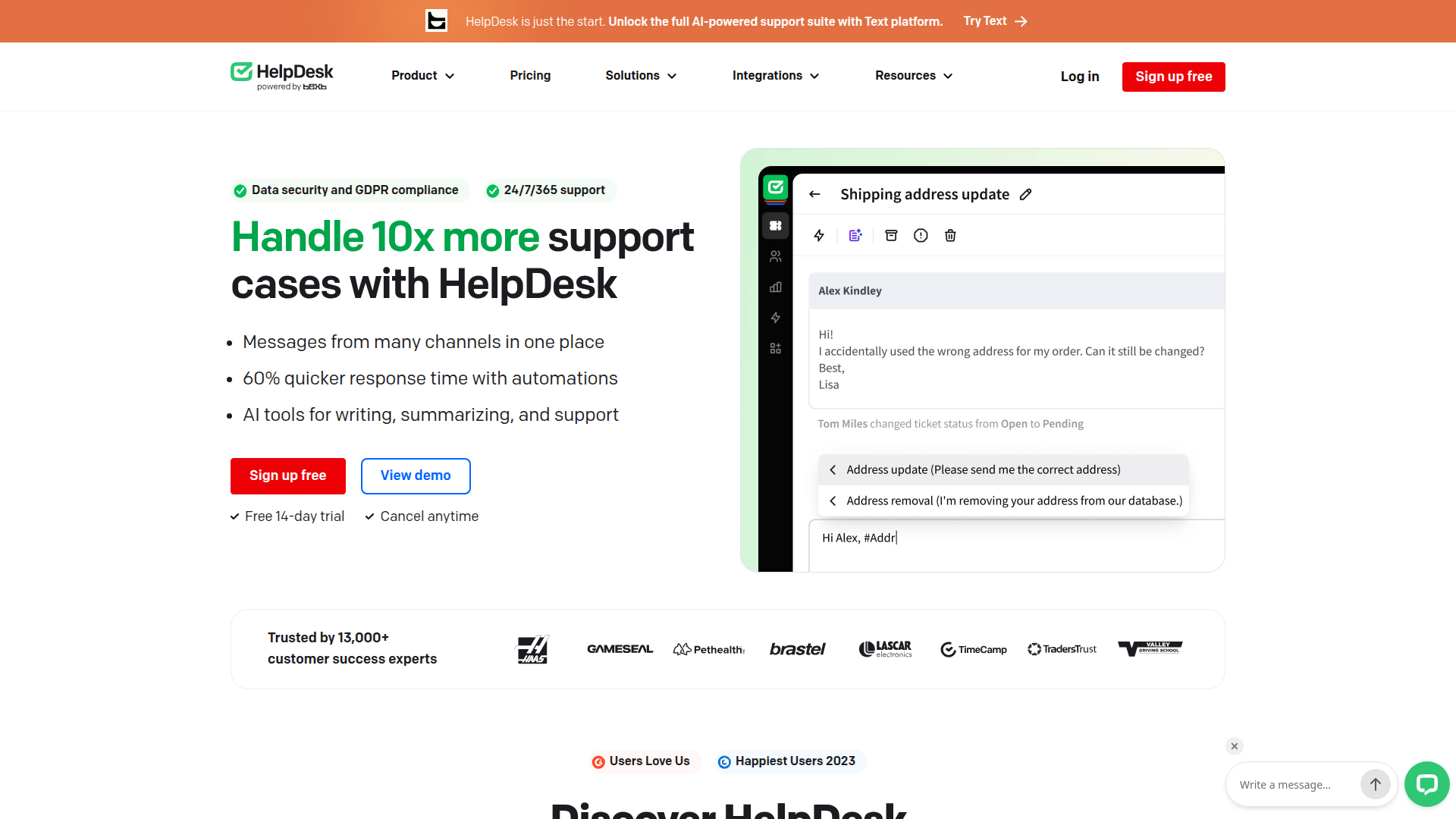
Teams pair HelpDesk with Webflow when they want form submissions to trigger real support workflows. A contact form on your site collects the inquiry. HelpDesk handles everything after that: routing to the right agent, tracking resolution status, and reporting on response times. You keep all your design flexibility while adding structured ticket management on the back end.

You can connect HelpDesk and Webflow in 4 ways:

  • The HelpDesk app converts your form submissions into tickets without writing code.
  • Code Embed elements and custom code injection let you place HelpDesk contact forms or floating widgets directly on your pages.
  • Zapier offers a direct connection between Webflow forms and HelpDesk with conditional logic and multi-step workflows.
  • The Webflow Data API and HelpDesk API give you direct access to ticket creation, Webflow CMS syncing, and webhook-driven automation, but require server-side development.

Most implementations start with the marketplace app and add embed or API methods as support needs grow.

Install the HelpDesk app

The HelpDesk app on the Webflow Marketplace connects the two platforms with no code and no middleware. It reads your existing form submissions and creates HelpDesk tickets automatically. Text, Inc. built the app, and it's approved for the Marketplace. It also supports additional security features. You need an active Site plan and a HelpDesk account.
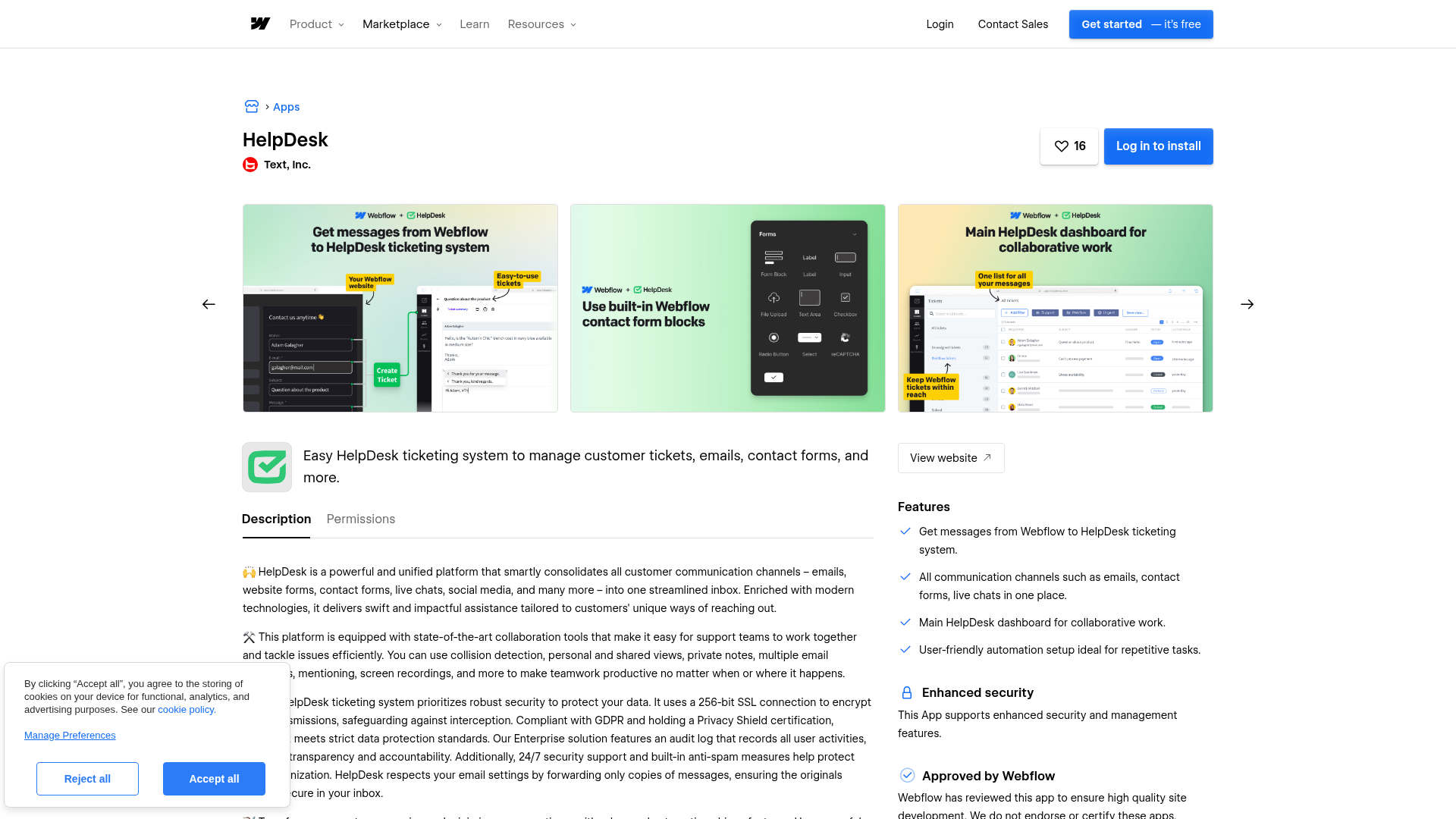
To set up the integration:

  1. Add a contact form to your page using the native Form element if you haven't already.
  2. Open your Dashboard and go to Apps & Integrations.
  3. Click Find an App and search for "HelpDesk."
  4. Install the app, then select the specific page with the form you want to connect.
  5. Create a new HelpDesk account or sign in to an existing one.
  6. Authorize the connection to your HelpDesk account.
  7. Submit a test form entry and confirm it appears as a ticket in HelpDesk.

After installation, the app:

  • Auto-converts every form submission into a HelpDesk ticket
  • Centralizes submissions from multiple forms in one inbox
  • Supports HelpDesk custom fields for categorizing tickets
  • Includes built-in spam filtering

For most teams, this is the simplest way to turn form submissions into structured support tickets. The app reads your site forms, submissions, and site data. It works on any active Site plan, including ones that restrict code injection. See the official HelpDesk Webflow integration guide for setup details.

Add HelpDesk components with Code Embed elements and custom code

You might want HelpDesk's own form builder instead of the native Form element. You can also add a floating support widget. Both options work by embedding HelpDesk components directly. These methods just require pasting a code snippet, not writing code from scratch. You need a paid Site plan to use custom code in head and body tags and Code Embed elements.

Custom code doesn't render in the canvas preview due to content security policy restrictions. Always verify embedded components on your published live site.

Embed a HelpDesk contact form

HelpDesk includes a drag-and-drop form builder with default fields for name, email, subject, and message, plus custom fields you add through the builder. The form generates an HTML snippet that you paste into your page. Submissions go directly to HelpDesk as tickets, bypassing the native form submission system entirely.

To embed a HelpDesk contact form:

  1. In HelpDesk, open your contact form in the form builder.
  2. Click the Publish and Integrate tab.
  3. Click Copy code to copy the embed snippet.
  4. Drag a Code Embed element to the desired location on your page.
  5. Double-click the Code Embed element, paste the HelpDesk snippet, and click Save & Close.
  6. Publish your site.

For site-wide placement (such as a floating form), paste the snippet into the Footer Code field under Site Settings > Custom Code instead of using a Code Embed element. See the HelpDesk contact form documentation for form customization options.

Add the OpenWidget floating widget

OpenWidget is a free floating support widget made by Text, Inc. that adds a contact button, FAQ section, and product cards to your site. Messages submitted through OpenWidget feed into HelpDesk as tickets. The widget itself doesn't require a HelpDesk paid plan.

To add OpenWidget to your site:

  1. Sign up at openwidget.com (free, no credit card required).
  2. Configure the widget with your email address, avatar, name, and welcome message.
  3. Go to the Add to Website section and copy the HTML snippet.
  4. Open Site Settings > Custom Code and paste the snippet in the Footer Code field.
  5. Click Save Changes and publish your site.

OpenWidget appears on every page when you place it in site-wide custom code. If you only need it on specific pages, use Page Settings > Custom Code > Before tag for each target page. See the OpenWidget integration guide for configuration details.

Connect HelpDesk and Webflow with Zapier

Zapier offers a direct connection between Webflow and HelpDesk, with both platforms providing confirmed connectors. Use this method when you need conditional routing, multi-step workflows, or data transformation. For example, you can create tickets only when a form field contains "urgent." You can also notify Slack or update a CRM in the same workflow. Your existing native forms stay in place.

The Zapier HelpDesk + Webflow integration page lists the available triggers and actions.

Zapier Webflow triggers available:

  • Webflow New Form Submission (instant)
  • Webflow New Order (instant)
  • Webflow New Site Member (instant)

These triggers fire instantly when the corresponding event happens on your site.

Zapier HelpDesk actions available:

  • HelpDesk Create Ticket
  • HelpDesk Update Ticket / Send Reply
  • HelpDesk Find Ticket

Each action accepts mapped field data from the preceding trigger step.

Zapier HelpDesk triggers available:

  • HelpDesk New Ticket (instant)
  • HelpDesk Ticket Status Changed (instant)
  • HelpDesk Ticket Priority Changed (instant)
  • HelpDesk New Message in a Ticket (instant)
  • HelpDesk Ticket Assignment Changed (instant)
  • HelpDesk Ticket Tags Changed (instant)
  • HelpDesk Ticket Followers Changed (instant)

These triggers let you push HelpDesk ticket events into other tools in your workflow.

Zapier Webflow actions available:

  • Webflow CMS Create Item (adds a CMS item)
  • Webflow CMS Create Live Item (creates and publishes a CMS item)
  • Webflow CMS Update Live Item
  • Webflow Ecommerce Fulfill Order
  • Webflow CMS Find Item
  • Webflow API Request

These actions let you write data back into your CMS or e-commerce store from HelpDesk events.

To set up a form-to-ticket Zap:

  1. Log into Zapier and click Create Zap.
  2. Set the trigger to Webflow > Form Submission, then connect your Webflow account and select your site and form.
  3. Set the action to HelpDesk > Create Ticket, then connect your HelpDesk account.
  4. Map your form fields (name, email, message) to HelpDesk ticket fields (requester name, requester email, message text).
  5. Test the Zap and turn it on.

After you modify your forms, republish your site so changes propagate to connected automation platforms.

Build with the Webflow and HelpDesk APIs

For custom integrations that go beyond what the marketplace app or Zapier can handle, both platforms offer REST APIs. Typical API use cases include creating tickets from webhook events with custom field mapping. You can also sync ticket status data into Webflow CMS collections for public status boards. Routing tickets based on CMS item data is another common pattern. These integrations require server-side development. Any API call involving credentials must originate from a backend function host (Vercel, Netlify Functions, AWS Lambda, or Cloudflare Workers)—never from client-side code.

Available APIs:

  • The HelpDesk API handles ticket creation, updates, custom fields, team management, agent provisioning, and webhook registration
  • The Webflow Data API v2 handles CMS collections, form submissions, and site publishing
  • Webflow webhooks trigger real-time events like form_submission, ecomm_new_order, and collection_item_changed

The v1 API reached end-of-life on March 31, 2025. Use only v2 endpoints with the https://api.webflow.com/v2/ base URL.

Create tickets from Webflow form submissions

Register a webhook for the form_submission trigger type, pointed at your serverless function. When a visitor submits a form, the webhook fires a POST request to your endpoint with the form data. Your function then calls the HelpDesk API to create a ticket.

To implement this:

  1. Register a webhook for form submissions:
curl -X POST "https://api.webflow.com/v2/sites/{site_id}/webhooks" \
  -H "Authorization: Bearer YOUR_WEBFLOW_TOKEN" \
  -H "Content-Type: application/json" \
  -d '{
    "triggerType": "form_submission",
    "url": "https://your-function.example.com/create-ticket",
    "filter": { "name": "Contact Us" }
  }'

The filter parameter only works with the form_submission trigger type and restricts the webhook to a specific form by name.

  1. Verify the incoming webhook signature using x-webflow-signature and x-webflow-timestamp headers via HMAC-SHA256. Reject any payload with a timestamp older than 5 minutes.
  2. Map the form data to a HelpDesk ticket creation request. For example, an illustrative payload shape might look like this:
POST https://api.helpdesk.com/v1/tickets
{
  "subject": "Contact form: Zaphod Beeblebrox",
  "requesterEmail": "zaphod@heartofgold.ai",
  "message": "...",
  "customFields": {
    "webflow-form-id": "65429eadebe8a9f3a30f62d7",
    "webflow-page": "Contact Us",
    "webflow-site-id": "65427cf400e02b306eaa049c"
  }
}

Verify the exact POST /v1/tickets request schema in the live HelpDesk API reference before you implement.

HelpDesk authentication uses either a Personal Access Token (PAT) via HTTP Basic auth for development, or OAuth 2.0 Authorization Code Grant for production. Create PATs at the LiveChat Developer Console using your HelpDesk credentials. See the authorization documentation for the full OAuth flow.

Sync ticket data to Webflow CMS collections

You can write HelpDesk ticket data into CMS collections to build public-facing support status boards, resolved issues logs, or transparency pages. Register a HelpDesk webhook for ticket status changes, then use the Webflow CMS API to create or update live items.

To implement this:

  1. Register a HelpDesk webhook for status events:
POST https://api.helpdesk.com/v1/webhooks
{
  "name": "status-to-webflow-cms",
  "url": "https://your-function.example.com/sync-status",
  "eventType": "tickets.events.status"
}
  1. When the webhook fires, your function receives a payload with the ticket ID, new status, and update timestamp. Use a persistent mapping store (a database or key-value store) to look up the corresponding CMS item ID.
  2. Update the CMS item:
PATCH https://api.webflow.com/v2/collections/{collection_id}/items/{item_id}/live
Authorization: Bearer YOUR_WEBFLOW_TOKEN

{
  "fieldData": {
    "ticket-status": "solved",
    "last-message-at": "2024-07-30T20:07:15.220Z"
  }
}

HelpDesk supports 10 webhook event types, all scoped to ticket activity: tickets.create, tickets.update, tickets.statusChange, tickets.events.status, tickets.events.priority, tickets.events.message, tickets.events.tags, tickets.events.followers, tickets.events.assignment, and tickets.events.customFields. Each event type needs its own webhook registration. This setup keeps your CMS items aligned with ticket changes as those events occur.

What can you build with the HelpDesk Webflow integration?

Integrating HelpDesk with Webflow lets you run structured customer support directly from your site. HelpDesk gives you a ticketing system tied to your forms without building custom ticketing infrastructure.

  • Contact form ticketing for e-commerce stores: Connect your store's contact, returns, and shipping inquiry forms to HelpDesk so each submission becomes a prioritized ticket. Support agents see order context, assign by issue type, and track resolution times across product categories.
  • SaaS trial support triage: Route questions from your marketing site's "Get Help" or "Contact Sales" forms into HelpDesk with automatic team assignment. Trial users get faster responses because tickets land with the right team member instead of sitting in a shared inbox.
  • Agency client support handoff: Embed a HelpDesk contact form or OpenWidget on client sites before handoff. End-customers submit issues through the widget, and tickets appear in HelpDesk with full conversation history, so post-launch support runs without the client managing a separate email account.
  • Public support status board: Use the API integration to sync resolved HelpDesk tickets into a CMS collection displayed as a status page. Visitors see real-time updates on known issues and resolutions, pulled directly from your ticketing data without manual page updates.

If you need more control over ticket routing logic, CMS field mapping, or two-way data sync, the API integration path covers those cases.

Frequently asked questions

  • The marketplace app works on any active Webflow Site plan. The free Starter plan allows only 50 total lifetime form submissions, and they do not reset. All paid Webflow Site plans include unlimited form submissions. For production support use, a paid Site plan is the practical minimum.

  • Use the marketplace app when you want a direct form-to-ticket connection with no conditional logic. It requires no configuration beyond installation and keeps your native Webflow forms in place. Switch to Zapier when you need multi-step workflows (for example, creating a ticket and notifying a Slack channel), conditional rules (only create tickets when a specific field value is present), or data transformation before the ticket is created.

  • No. Webflow's canvas preview blocks third-party scripts due to content security policy restrictions. This applies to all embedded widgets and custom code, not just HelpDesk. Always test embedded components on your published live site. If your HelpDesk widget script uses domain validation, update it to include *.webflow.io and *.canvas.webflow.com.

  • Yes. Register a Webflow webhook with the form_submission trigger type, point it at a serverless function, and have that function call POST https://api.helpdesk.com/v1/tickets with the form data. This approach requires server-side development. HelpDesk uses the same authentication system as LiveChat, so you create API tokens at the LiveChat Developer Console. See the HelpDesk API reference for the full ticket creation schema.

  • HelpDesk has no /contacts or /requesters endpoint. All customer data is managed at the ticket level through the requester object (email and name) on ticket create and update requests. If you need CRM-style contact management alongside ticketing, connect HelpDesk to a dedicated CRM through its HubSpot or Salesforce integrations.

HelpDesk
HelpDesk
Joined in

Description

HelpDesk is a cloud-based ticketing system by Text, Inc. that converts Webflow form submissions into support tickets with automated assignment, collision detection, and multi-inbox management.

Install app

This integration page is provided for informational and convenience purposes only.


Other Customer engagement integrations

Other Customer engagement integrations

Flowstar Spin Wheel Gamification

Flowstar Spin Wheel Gamification

Connect Flowstar Spin Wheel’s gamification widget platform with Webflow to add interactive pop-ups that capture leads in exchange for discount codes and rewards.

Customer engagement
Learn more
Tidio

Tidio

Connect Tidio, a customer service platform with live chat and AI, with Webflow to add a chat widget, automate visitor responses with the Lyro AI agent, and capture leads through proactive triggers.

Customer engagement
Learn more
Twilio

Twilio

Connect Twilio with Webflow to add SMS, voice, WhatsApp, and email communication to your site.

Customer engagement
Learn more
Chatbot

Chatbot

Connect Chatbot, an AI chatbot platform by Text, Inc., with Webflow to add a 24/7 chat widget for lead qualification, visitor support, and conversation-driven data collection.

Customer engagement
Learn more
Pensil

Pensil

Embed Pensil community forums, live sessions, and discussion boards directly in your Webflow site.

Customer engagement
Learn more
Customer.io

Customer.io

Connect Customer.io, a customer engagement platform, with Webflow to turn form submissions and page visits into behavioral triggers for automated email, SMS, and in-app messaging campaigns.

Customer engagement
Learn more
Copilot

Copilot

Connect Microsoft Copilot Studio, a platform for building and deploying custom AI agents, with Webflow to add conversational chat interfaces for support, lead qualification, and FAQ automation.

Customer engagement
Learn more
ChatGPT

ChatGPT

Connect ChatGPT with Webflow to add AI-powered chat, content generation, and form processing to your site.

Customer engagement
Learn more
WhatsApp

WhatsApp

Connect WhatsApp, Meta's business messaging platform, with Webflow to add chat buttons, trigger automated messages from form submissions and orders, and build real-time customer communication into any page.

Customer engagement
Learn more

Related integrations

No items found.

Get started for free

Try Webflow for as long as you like with our free Starter plan. Purchase a paid Site plan to publish, host, and unlock additional features.

Get started — it’s free