






Google Maps
Connect Google Maps with Webflow to display CMS-driven location pins with filtering, search, custom markers, and interactive pop-ups using the Dynamic Map app by No Code Flow.

Webflow has a built-in map element, but it only displays a single pinned address. If you need to show dozens or hundreds of locations pulled from a CMS collection, with filtering, custom markers, and interactive pop-ups, the native element can't do it. You need additional tools or code to bind CMS data to map pins or render a CMS-driven, multi-location map.
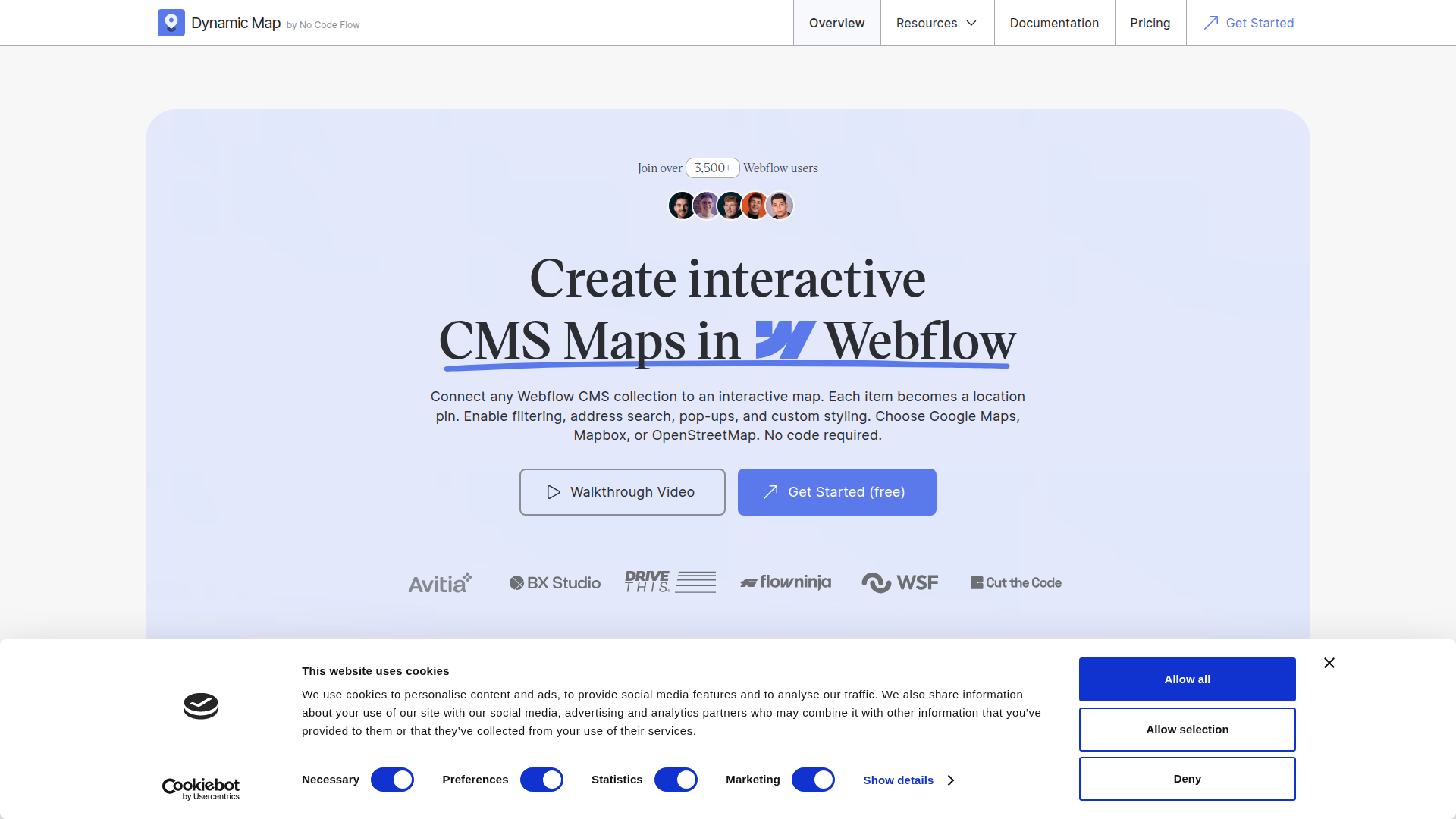
The Dynamic Map app by No Code Flow connects Google Maps to your Webflow CMS collection items for interactive location pins on a fully styled map. Visitors can filter, search, and click through to location details, all driven by CMS content you already manage.
This integration fits teams managing store locators, property listings, destination guides, or location directories in Webflow. Any team that manages location data in Webflow and needs it shown on a map will benefit.
How to integrate Google Maps with Webflow
What is Google Maps? Google Maps is a mapping platform from Google that provides map rendering, geocoding, place search, and routing services through both browser-based and server-side APIs. It supports interactive map embeds, custom markers, and place detail retrieval across 200 million locations worldwide.
Teams use the Dynamic Map app by No Code Flow when they manage location-based content in the CMS and need visitors to browse those locations visually. Retail brands, tourism companies, and real estate agencies often share the same requirement: CMS data rendered as map pins with filtering and interaction.
The Dynamic Map app is the primary option for CMS-connected, multi-location maps with filters, pop-ups, and custom pins without writing code. Code Embed elements can display a basic Google Maps iframe for simple, non-CMS use cases. Webflow and Google Maps APIs provide a custom development path for teams that need full control beyond the app.
Most projects start with the Dynamic Map app and only move to direct API work when they need custom geocoding workflows or place data enrichment.
Install the Dynamic Map app
The Dynamic Map app, built by No Code Flow, is a native Webflow marketplace app that turns any CMS collection into an interactive Google Maps map. Each CMS item becomes a location pin, and you configure filters, pop-ups, and pin styles inside Webflow without writing code. The app supports Google Maps, Mapbox, MapLibre, and OpenStreetMap as map providers, and you can switch between them at any time in the app settings. You need a Webflow project with a CMS collection containing location data, and a free No Code Flow account created at app.nocodeflow.net/register.
To set up the integration:
- Add two Plain Text fields named
LatitudeandLongitudeto your CMS collection, and populate them with decimal-format coordinates for each item. Use latlong.net to look up coordinates for any address. - Open the Apps panel in Webflow, find Dynamic Map, and install it from the Webflow Marketplace. Log in with your No Code Flow credentials.
- Inside the Dynamic Map panel, go to Map Overview, select your CMS collection from the dropdown, and map the
LatitudeandLongitudefields. - Click Insert Map in the app panel. This places the map element and auto-generates a Map Item CMS List (a Collection List that bridges your CMS items to the map scripts). Do not delete this list; if you want a map-only layout, set the
cru-ncf-map-itemclass toDisplay: None. - Click Insert Code in the app panel, then paste the generated snippet into a Code Embed element on the page.
- Publish your site. The app runs free on
.webflow.iostaging domains indefinitely. Live custom domains require a paid No Code Flow license.
The Dynamic Map app includes these capabilities once installed:
- Custom-designed location pins with Default, Hover, and Active states, with the option to assign unique pins per CMS category; individual item pins are also supported but do not include Hover or Active states
- CMS-connected pop-ups (on click) and tooltips (on hover), styled in Webflow using standard elements like images, text, and links
- Real-time filtering by any CMS field, with combinable filters, a filter reset button, and empty state handling
- Text-based smart search across CMS fields, address search with radius selector (Mapbox only), and sort functionality
- Favorites functionality with optional Memberstack integration for saving locations to user profiles
- URL parameter support for shareable filtered map views
When you add or update features like filters or sorting in the app panel, re-insert the updated code snippet into your Code Embed element. Configure the Google Maps API key inside the Dynamic Map app settings if you are using that app. Do not place it in Webflow's Custom code in head and body tags settings. For a complete walkthrough, see the 5-minute quick start guide.
Alternative methods outside Dynamic Map
Projects that do not need a CMS-connected map can still display Google Maps in Webflow through simpler embed methods or a custom API build. These are secondary options compared with the Dynamic Map app.
Add Google Maps with Code Embed elements
If you only need a simple, single-location Google Map without CMS integration, you can embed it directly with a Code Embed element. This works best for contact pages or one-off location sections. These methods require a paid Webflow site plan because the Code Embed element does not work on the free Starter plan.
Embed a single-location Google Maps iframe
A Google Maps iframe works well for contact pages or "find us" sections where you need to show one fixed address. If you copy the standard iframe embed code directly from Google Maps, you can add a simple location map without writing code.
To embed a single-location map:
- Go to Google Maps, search for your address, click Share, then Embed a map, and copy the
<iframe>code. - In Webflow, drag a Code Embed element onto your page and paste the iframe HTML into the code editor.
- Click Save & Close, then publish your site. Custom code does not run in the Webflow preview.
Set the iframe's width attribute to 100% instead of a fixed pixel value so the map scales with its container on smaller screens. You may also need to define explicit height on the parent container in Webflow.
Embed Google My Maps for multiple static pins
If you need multiple manually managed pins and do not need Webflow CMS sync, Google My Maps is another secondary embed option.
To embed a Google My Maps map:
- Go to Google My Maps, create a new map, and add your pins manually.
- Click the three-dot menu and select Embed on my site to generate the iframe code.
- In Webflow, add a Code Embed element to your page and paste the iframe code.
- Publish your site.
This approach works best for maps that are managed manually in Google My Maps rather than through Webflow CMS.
Pins are managed entirely inside Google My Maps, not in Webflow's CMS. Changes you make in the Google My Maps editor reflect automatically on your Webflow site without republishing, but there is no real-time CMS sync or filtering.
Build with the Webflow and Google Maps APIs
Teams that need geocoding automation, place data enrichment, or full control over map rendering and interaction can use the Google Maps Platform APIs and Webflow Data API as building blocks. This is a custom approach beyond the normal Dynamic Map setup.
The APIs used in this setup are:
- The Maps JavaScript API renders interactive maps in the browser with custom markers, info windows, and event handling
- The Geocoding API converts addresses to latitude/longitude coordinates (and vice versa) via server-side requests
- The Places API (New) retrieves place details, ratings, hours, and phone numbers by place ID
- Webflow Data API reads and writes to CMS collections and items
- Webflow webhooks fire
collection_item_created,collection_item_changed, andcollection_item_deletedevents as POST requests to your registered endpoint
All Google Maps web service calls (Geocoding, Places) should run server-side with IP-restricted API keys. Browser-side API keys should use HTTP referrer restrictions limited to your domain.
Render CMS locations on a CMS-driven map
You can load the Maps JavaScript API on a Webflow page and read location coordinates from CMS items to generate markers directly. This gives you full control over map behavior, marker styling, and click interactions.
To render CMS-driven markers:
- Create a CMS collection called "Locations" with
Name(text),Latitude(number), andLongitude(number) fields. Populate items with coordinate values. - Add a Collection List bound to the Locations collection. Inside each list item, add a hidden
<div>with custom attributesdata-lat,data-lng, anddata-namebound to the corresponding CMS fields. - Add a Code Embed element containing the map container and initialization script:
<div id="map_canvas" style="width:100%;height:500px;"></div>
<script async defer
  src="https://maps.googleapis.com/maps/api/js?key=YOUR_API_KEY&callback=initMap">
</script>
<script>
function initMap() {
  var map = new google.maps.Map(document.getElementById('map_canvas'), {
    zoom: 10,
    center: { lat: 40.7128, lng: -74.0060 }
  });
  var locationItems = document.querySelectorAll('[data-lat]');
  locationItems.forEach(function(item) {
    var lat = parseFloat(item.getAttribute('data-lat'));
    var lng = parseFloat(item.getAttribute('data-lng'));
    var name = item.getAttribute('data-name');
    new google.maps.Marker({
      position: new google.maps.LatLng(lat, lng),
      map: map,
      title: name
    });
  });
}
</script>
- Publish and test on your live domain.
Store coordinates directly in CMS number fields. Do not call the Geocoding API on page load to convert addresses, because that generates one billable request per CMS item per page view with no caching.
Geocode addresses and write coordinates to the CMS
If your CMS items contain street addresses but not coordinates, a server-side script can batch-geocode those addresses using the Geocoding API and write the resulting latitude/longitude values back to the CMS using Webflow's Data API.
To implement geocoding sync:
- Fetch CMS items from your collection using the Webflow Data API:
GET https://api.webflow.com/v2/collections/{collection_id}/items
Authorization: Bearer YOUR_WEBFLOW_TOKEN
- For each item missing coordinates, send the address to the Geocoding API:
GET https://maps.googleapis.com/maps/api/geocode/json?address=1600+Amphitheatre+Pkwy,+Mountain+View,+CA&key=YOUR_API_KEY
- Extract
geometry.location.latandgeometry.location.lngfrom the response, then batch-update items using the Webflow Data API (up to 100 items per request):
PATCH https://api.webflow.com/v2/collections/{collection_id}/items
Authorization: Bearer YOUR_WEBFLOW_TOKEN
Content-Type: application/json

{
  "items": [
    {
      "id": "ITEM_ID",
      "fieldData": {
        "latitude": 37.4224764,
        "longitude": -122.0842499
      }
    }
  ]
}
Run this as a scheduled server-side job (cron task or serverless function), not on page load. You can also register a Webflow webhook for collection_item_created events to geocode new items automatically when content editors add them to the CMS.
What can you build with the Google Maps Webflow integration?
Integrating Google Maps with Webflow lets you turn CMS-managed location data into interactive, filterable map experiences without building a custom application from scratch. For most of these use cases, the Dynamic Map app is the fastest path.
- Store locator with address search: Build a searchable retail store finder where customers filter by services offered, search by address, and view store hours and contact details in pop-ups. The NCF Store Locator cloneable shows this pattern with CMS-driven markers and category filtering.
- Real estate property map: Create an Airbnb-style property browsing experience with price range filters, property type checkboxes, and synchronized list/map views where clicking a listing highlights its map pin. The Book a Bed cloneable shows this pattern with CMS-connected pins and location detail views.
- Interactive travel guide: Display destination attractions with category-filtered pins (sights, parks, flea markets) and rich pop-up content with booking links. NocodeFlow's Berlin travel guide demo illustrates this with category pins and CMS-driven content cards.
- Distributor or partner directory: Show a filterable map of business partners, dealers, or certified providers where each pin pulls profile information from CMS fields. Companies like Unicontrol use this pattern to display 80+ global distributors with a "Get Directions" button in each pop-up.
If you need more control over geocoding pipelines, place data enrichment, or real-time route calculations, the API integration path covers those cases with full flexibility.
Frequently asked questions
For a basic iframe embed copied from Google Maps, no API key is needed. For any use of the Maps JavaScript API (including the Dynamic Map app), you need a valid API key with a billing account linked in the Google Maps FAQ. Configure the key inside the Dynamic Map app settings if you are using that app. Do not place it in Webflow's site settings. Apply HTTP referrer restrictions to your key (not IP address restrictions) and whitelist both your custom domain and your
.webflow.iostaging subdomain.It connects directly to any CMS collection through the app panel in Webflow. Select your collection, map the latitude and longitude fields, and click Insert Map. Each CMS item automatically becomes a location pin. Any CMS field (category, tag, type, price range) can be configured as a filter. Adding or updating CMS items updates the map automatically on publish. See the Dynamic Map quick start guide for full setup steps.
All pins cluster at coordinates 0°N, 0°E (off the coast of West Africa) when latitude or longitude fields are empty or contain invalid values like "N/A" in your CMS items. Validate that every CMS item has decimal-format coordinates in both fields before publishing. The NocodeFlow troubleshooting guide covers this issue and common fixes.
Yes, for
.webflow.iostaging domains; no for publishing to a custom domain without paid requirements. The app runs free on.webflow.iostaging domains, so you can build and test without a paid plan or credit card. Publishing to a custom live domain requires a paid No Code Flow license. Using CMS-driven maps also requires a Webflow site plan that supports CMS collections and the Code Embed element. The Code Embed element does not work on the free Starter site plan. Check Webflow pricing to confirm which plan fits your project.Yes. The Dynamic Map app installs from the Webflow App Marketplace and handles all map rendering, CMS binding, filtering, and pop-up logic through its visual configuration panel. You paste one generated code snippet into a Code Embed element, but you do not write or modify any code yourself. For a single static location, you can also paste a Google Maps iframe into a Code Embed element, which requires copying the iframe code from Google Maps.
Description
Add CMS-connected Google Maps to Webflow using the Dynamic Map app or Code Embed elements for multi-location maps with filters, custom pins, and interactive pop-ups.
This integration page is provided for informational and convenience purposes only.

OpenStreetMap
Connect OpenStreetMap's collaborative mapping platform to your Webflow site for cost-effective, customizable maps. Display store locations, visualize service areas, and create interactive location-based experiences without Google Maps fees or restrictions.
Dynamic Map
Connect Dynamic Map, a native app that turns any CMS collection into an interactive map, with Webflow to render filterable location pins without custom code.

Closeby
Connect Closeby with Webflow to add a searchable store locator map that turns online visitors into in-person customers.

Storepoint Locator
Connect Storepoint Locator with Webflow to embed a searchable store locator map and sync location data from the Webflow CMS.

Flowstar: Store Locator Map
Connect Flowstar: Store Locator Map with Webflow to add a searchable Google Maps store locator, with unlimited locations, opening hours and directions configured inside the app.
Google Business Profile
Display Google Business Profile data on Webflow through third-party widgets (Elfsight, SociableKIT, Shapo), custom API integration with backend infrastructure, or automation platforms that handle server-side API calls.

Stay22
Connect Stay22 with Webflow to monetize travel content with affiliate accommodation maps and automated booking links.

StoreRocket
Connect StoreRocket, a store locator widget, with Webflow to add a searchable map of your locations to any page.

Open Street Map
Connect OpenStreetMap, a free community-maintained map platform, with Webflow to build CMS-driven locators using the Dynamic Map app, Leaflet.js, or embeds.
Related integrations
Get started for free
Try Webflow for as long as you like with our free Starter plan. Purchase a paid Site plan to publish, host, and unlock additional features.
