






Dynamic Map
Connect Dynamic Map, a native app that turns any CMS collection into an interactive map, with Webflow to render filterable location pins without custom code.

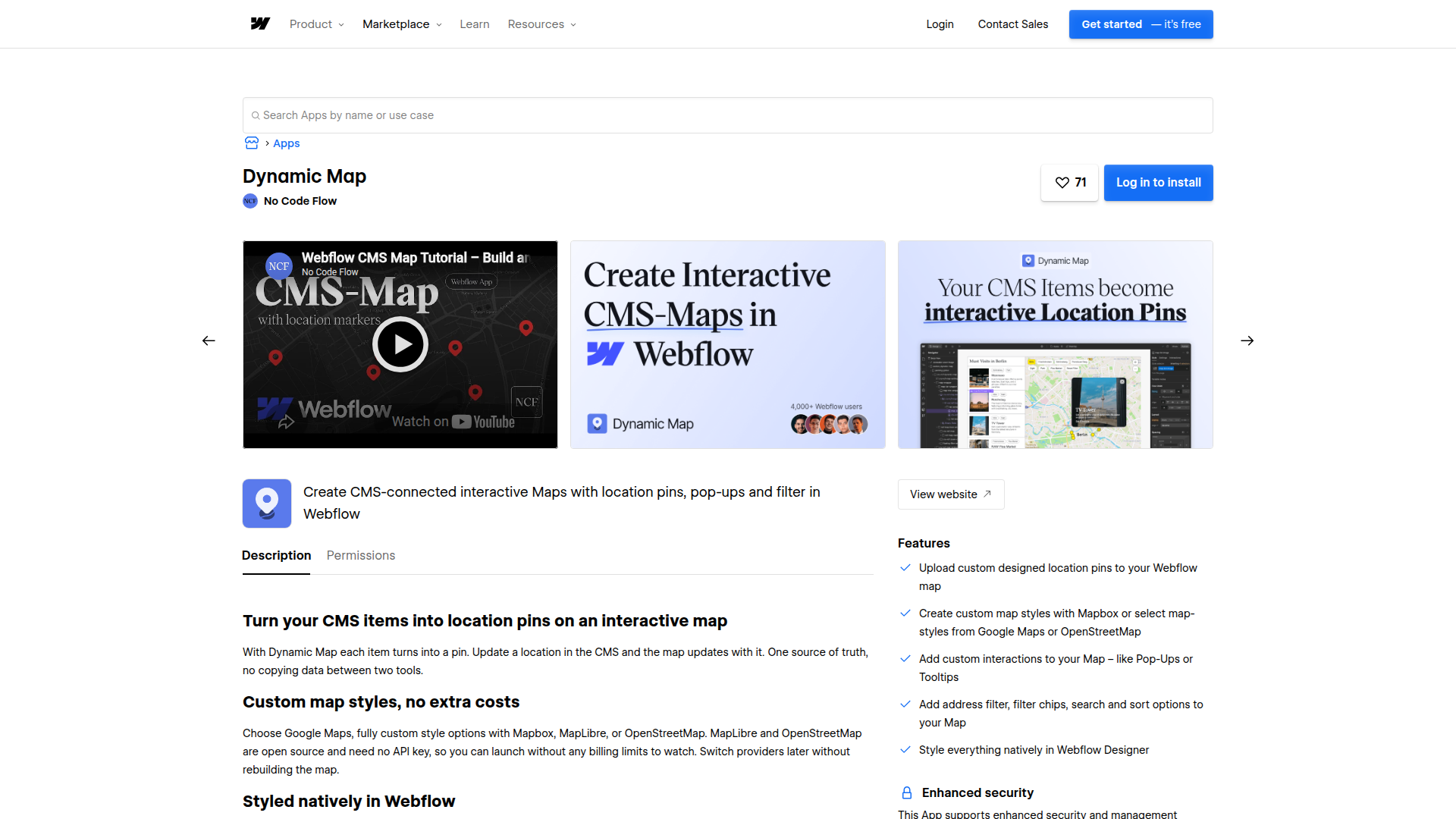
Dynamic Map turns any CMS collection into an interactive map with filterable pins, address-radius search, custom pin styles, and click-triggered pop-ups — no custom JavaScript, no server, no API credentials.
Store locators, real estate maps, travel guides, and facility finders all share the same shape: a CMS collection of locations rendered as filterable pins. Marketing teams ship dealer directories and event maps without developer time, and agencies like Flow Ninja and BX Studio run it across client projects.
How to integrate Dynamic Map with Webflow
What is Dynamic Map? Dynamic Map is a native App by NoCodeFlow that converts any CMS collection into an interactive, filterable location map without custom code. Each item in a Collection List becomes a pin. You can attach category filters connected to your CMS fields. Click pop-ups and hover tooltips can use CMS content too. It supports Google Maps, Mapbox, MapLibre, and OpenStreetMap as providers, and 3,500+ designers and developers already use it.

Reach for this combination when your project needs location data driven by content that changes often. Store locators and clinic finders share the same shape: a CMS collection of locations, each with coordinates, rendered as pins with filters and pop-ups. Dynamic Map reads that collection and handles the rendering client-side, so content editors update locations in the CMS and the map stays current.
Most projects start with the Dynamic Map app, which reads your CMS collection and renders pins without writing code. You then place the app-generated connection snippet with Code Embed on a page or site-wide. When location data comes from an external system, use the Data API to write and update CMS data programmatically — that path requires server-side development.
Most implementations combine the app with Code Embed placement, then add the Data API only when location data comes from an external system.
Install the Dynamic Map app
The Dynamic Map app is the primary way to connect the tool. It has an official Marketplace listing, marked "Approved by Webflow" with the disclaimer that third-party apps are not endorsed or certified. Install it from the Apps panel, then point it at a CMS collection and its coordinate fields. The app generates the map structure and the connection snippet for you.
Before you start, confirm two things. Your CMS collection needs two Plain Text fields named Latitude and Longitude. To place the connection snippet on a live domain, you need a paid Site plan, since Custom Code Embed features require one.
To set up the integration:
- Add two Plain Text fields named Latitude and Longitude to your CMS collection, then fill in coordinates for each item.
- Open the Dynamic Map app from the Apps panel and log in with your NoCodeFlow credentials.
- Go to Map Overview, select your CMS collection, then map the Latitude and Longitude fields.
- Click Insert Map to place the map element and its required structure on the page.
- Click Insert Code, then paste the generated snippet into a Code Embed element on the page.
- Press Save in the Dynamic Map app.
Once configured, the app handles these capabilities through its panel:
- CMS-driven pins where each collection item renders as a marker
- Category filtering and live address search with a radius selector, plus sorting
- Click pop-ups and hover tooltips connected to CMS content
- Custom pin styles assignable per collection item
Test the full setup for free on .webflow.io staging domains with no time limit and no credit card. A paid live-domain license applies once you publish to a custom domain.
Add the connection snippet with Code Embed elements
The Dynamic Map app generates a connection snippet, and you decide where it lives. A Code Embed element on the page is the recommended placement for most maps, since it keeps the script next to the map structure. Code Embed accepts HTML. You can include CSS in <style> tags and JS in <script> tags, up to 50,000 characters per element. Server-side languages like PHP or Python are not supported, and custom code is not covered by support.
Page-level Code Embed element
Use a Code Embed element on the canvas when the map lives on a single page. This is the placement the quick start assumes, and it keeps the script scoped to the page that renders the map.
To add the snippet with a Code Embed element:
- Open the Add panel and drop a Code Embed element onto the canvas.
- Paste the Dynamic Map connection snippet into the element.
- Save and close the modal.
Toggle Enable custom code in the bottom-left corner to preview the map before publishing.
Site-wide or page-specific custom code
Use custom code in head and body tags when the same map logic runs across several pages or when you prefer global placement. You can add it at the site level or the page level. Each section holds up to 50,000 characters.
To add the snippet site-wide:
- Go to Site settings > Custom code tab.
- Paste the snippet into the Head code or Footer code section.
- Click Save changes.
For a single page, open Page settings > Custom code and use the Inside <head> tag or Before </body> tag section instead. Note that sites include jQuery v3.5.1 by default, so importing another jQuery version through custom code can cause conflicts.
Build with the Data API
Dynamic Map does not expose a public API. It reads CMS data client-side using an attribute-based architecture, so the map itself needs no credentials. The Data API becomes relevant when an external system feeds location data into your CMS, which the map then renders automatically. This path requires server-side development and a Bearer token with the right OAuth scope.
The Data API work splits into CMS writes and event sync:
- The CMS collection items endpoints handle creating, reading, updating, and deleting location items, and require the
CMS:writescope for writes. Use Get collection schema to return field details when you need to confirm your Latitude and Longitude field names. - Webhooks fire on CMS item lifecycle events to trigger real-time sync.
Use these endpoints to automate the data layer, then let Dynamic Map handle rendering on the published page.
Bulk-load location data into the CMS
When location records live in a CRM or spreadsheet, write them into the CMS with the collection items endpoints. Dynamic Map reads the resulting items and plots them without further configuration.
To sync location data:
- Fetch collection field names with
GET https://api.webflow.com/v2/collections/{collection_id}to confirm your Latitude and Longitude fields. - Create items with
POST https://api.webflow.com/v2/collections/{collection_id}/items. Includename,slug, and your coordinate fields insidefieldData. - Update existing records in bulk with
PATCH https://api.webflow.com/v2/collections/{collection_id}/items.
Batch your writes and publish the collection when records go live.
Sync map data in real time with webhooks
When you need the published map to reflect CMS changes automatically, register webhooks on your integration server. Each event delivers a POST payload with the affected item's data, so you can trigger downstream logic when locations change.
To wire up real-time sync:
- Register your endpoint for collection item events like
collection_item_created,collection_item_changed, andcollection_item_deleted. - Read the shared payload fields, including
collectionId,lastPublished,isDraft, andfieldData. - Run your sync logic, then republish the collection so the map reflects the change.
Dynamic Map does not subscribe to or publish webhooks of its own, so any CMS-change-to-map-refresh automation is a custom implementation you build on top of the platform's events.
What can you build with the Dynamic Map Webflow integration?
Integrating Dynamic Map with Webflow lets you plot an entire CMS collection as filterable, interactive pins without writing marker logic by hand.
- Build searchable store and dealer locators where each store is a CMS item with hours and contact info in a click pop-up. The NCF Store Locator cloneable template does exactly this and has 120 clones in Made in Webflow.
- Render real estate property maps as pins with price and type filters and synchronized list and map views. The Book a Bed Airbnb-style template shows this pattern and has 426 clones.
- Create travel and destination guides with custom pins per category and detailed pop-up content, like the Berlin Travel Guide cloneable that filters points of interest by type.
- Publish healthcare facility finders where visitors search by address within a radius, the pattern behind the Avitia cancer testing clinic finder.
If you need more control over syncing location data from an external system, the API integration path covers those cases with full flexibility.
Frequently asked questions
Add two Plain Text fields named Latitude and Longitude to your Webflow CMS collection, then fill in valid coordinates for each item. The app reads these fields to place each item as a pin. The 5-minute quick start walks through the full field setup and app configuration. If pins cluster in the ocean near West Africa, your items are missing valid coordinates and defaulting to 0,0.
You can test on staging for free, but publishing to a live domain requires a paid Webflow Site plan. The connection snippet goes into a Code Embed element, and Code Embed features are gated behind paid Site plans. Dynamic Map itself is free forever on
.webflow.iostaging domains with no time limit, and a separate paid license applies per live custom domain.Yes, if you choose Google Maps as your provider. A Google Maps JavaScript API key from the Google Cloud Console is required, and you should add your live domain to the key's website restrictions. The Google Maps setup guide covers key creation and domain restrictions. If your map renders gray on the live site, a missing or unrestricted key is the usual cause. MapLibre and OpenStreetMap have no usage caps, so they can be lower-risk defaults for high-traffic sites.
The product page states there is no hard limit and that the tool handles 1,000+ CMS items without performance issues. For collections above 100 items, enable the Unlimited Items capability documented by NoCodeFlow. Keep the CMS item ceiling in mind as a separate constraint: the CMS plan holds 2,000 items and the Business plan holds 10,000 items.
Yes, but not through a prebuilt connector. There is no direct Dynamic Map integration on Zapier, Make, n8n, IFTTT, or viaSocket. To automate location data, write to your CMS with the Webflow collection items API or register Webflow webhooks for real-time triggers, then let Dynamic Map render the updated data client-side.
Description
Dynamic Map is a native app that turns any CMS collection into an interactive map. Every collection item becomes a filterable pin with pop-ups and search.
This integration page is provided for informational and convenience purposes only.

OpenStreetMap
Connect OpenStreetMap's collaborative mapping platform to your Webflow site for cost-effective, customizable maps. Display store locations, visualize service areas, and create interactive location-based experiences without Google Maps fees or restrictions.

Closeby
Connect Closeby with Webflow to add a searchable store locator map that turns online visitors into in-person customers.

Storepoint Locator
Connect Storepoint Locator with Webflow to embed a searchable store locator map and sync location data from the Webflow CMS.

Flowstar: Store Locator Map
Connect Flowstar: Store Locator Map with Webflow to add a searchable Google Maps store locator, with unlimited locations, opening hours and directions configured inside the app.
Google Business Profile
Display Google Business Profile data on Webflow through third-party widgets (Elfsight, SociableKIT, Shapo), custom API integration with backend infrastructure, or automation platforms that handle server-side API calls.

Stay22
Connect Stay22 with Webflow to monetize travel content with affiliate accommodation maps and automated booking links.

StoreRocket
Connect StoreRocket, a store locator widget, with Webflow to add a searchable map of your locations to any page.

Open Street Map
Connect OpenStreetMap, a free community-maintained map platform, with Webflow to build CMS-driven locators using the Dynamic Map app, Leaflet.js, or embeds.
Google Maps
Connect Google Maps with Webflow to display CMS-driven location pins with filtering, search, custom markers, and interactive pop-ups using the Dynamic Map app by No Code Flow.
Related integrations
Get started for free
Try Webflow for as long as you like with our free Starter plan. Purchase a paid Site plan to publish, host, and unlock additional features.
