






Frontify
Connect Frontify with Webflow to browse and embed brand-approved assets, then sync them directly into your site.

You upload site assets to the asset panel one file at a time, while your approved logos, product shots, and campaign imagery live in a separate brand library. Every site update then means downloading files and re-uploading them by hand, so versions drift and outdated assets ship to production. On its own, the asset panel can't confirm that an image on a live page matches the current approved version.
Connecting Frontify with Webflow closes that gap. The Frontify app for Webflow puts your Brands, Libraries, and Projects inside Webflow, so you can search and preview approved assets before embedding them without leaving the canvas. Dynamic CDN links always resolve to the latest asset revision, so you update an image once in Frontify and it updates everywhere it appears on your site.
Agencies managing multiple client brands use this integration alongside enterprise marketing teams that maintain distributed web properties. Design teams keep brand materials current, while brand managers get governed access to approved files only. Developers get a GraphQL API and the Webflow Data API for automated asset and content sync.
How to integrate Frontify with Webflow
What is Frontify? Frontify is a brand management platform where guidelines and digital assets live in one place. Its digital asset management covers metadata and approval workflows, with CDN-based asset delivery. Frontify offers native integrations with Webflow, Adobe Creative Cloud, and Figma.

Teams pair these tools when a Webflow site has to stay on brand at scale. A regional marketing team pulls approved campaign imagery straight into landing pages. An agency embeds a client's living brand guidelines on a site and never manually updates them again, since the asset changes once, in Frontify, and every embed follows.
The Frontify-Webflow integration supports four approaches:
- The Frontify Workspace app handles browsing and searching, then embeds brand assets inside Webflow without writing code.
- CDN links and Code Embed elements let you place individual assets or entire brand guidelines on any page.
- Zapier connects Frontify's new-asset webhook to Webflow CMS item actions.
- The Webflow and Frontify APIs give you full control over automated asset and content sync, but require server-side development.
Most implementations combine two or more of these methods depending on the complexity of the setup.
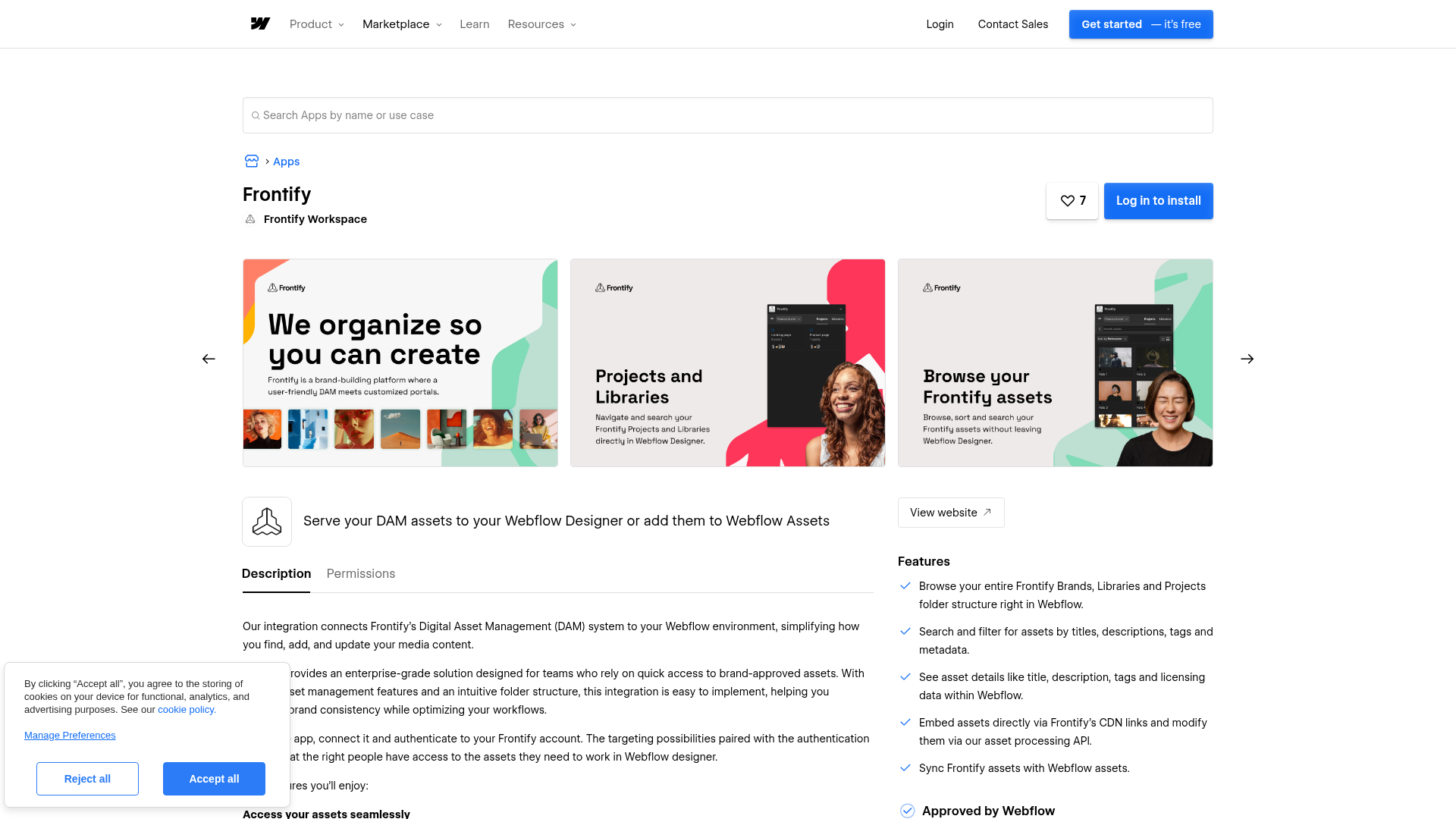
Install the Frontify app for Webflow
The Frontify app is a native Marketplace app that brings your full Frontify folder structure into Webflow. It suits teams that need quick access to brand-approved assets while building pages. Installing the app requires Webflow Administrator permissions, and each user needs a Frontify account with at least a Viewer role in the relevant projects and libraries.
To set up the integration:
- In the Webflow Marketplace, find the Frontify app and install it.
- Open the app from the side navigation in Webflow.
- Enter your Frontify domain (for example,
https://monobrand.frontify.com/) and confirm access through OAuth 2.0.
Once connected, the app lets you:
- Browse your full Frontify structure of Brands, Libraries, and Projects.
- Search and filter assets by titles, descriptions, tags, and metadata.
- View asset details, including title, description, tags, and licensing data.
- Embed assets through Frontify's CDN links or sync them into your Webflow assets.
Synced files cap at 4 MB through the Data API. Supported formats are jpeg, jpg, png, gif, svg, bmp, webp, and avif. For larger files, embed via CDN link instead. Frontify also recommends a dedicated User Group for all Webflow users to keep access governed.
Embed Frontify assets with CDN links and Code Embed
Every Frontify asset carries a CDN link you can copy from its Share modal, no app install required. Static links point to a specific revision and never expire, even if the asset is deleted. Dynamic links always resolve to the latest revision, so live sites stay current automatically. Embedded content must be served over HTTPS, allow public sharing, and carry no anti-embedding headers.
Paste a CDN link into an Image field
This is the fastest path and works on any Webflow plan, including free Starter. No custom code is involved.
To embed an asset by URL:
- In Frontify, open the asset's Share modal and copy the static or dynamic CDN link.
- In Webflow, paste the URL into an Image element or a CMS Image field.
Font files are not supported through CDN links, and if your organization runs a firewall or proxy, permit traffic from https://media.ffycdn.net.
Embed assets and guidelines with Code Embed
Individual Frontify assets generate embed code from a Share fly-out. Public brand guideline links can sit inside an iframe on any Webflow page. This path requires a paid plan.
To embed with code:
- In Frontify, open the asset's action fly-out (three dots), select Share, and copy the code from the Embed tab. For guidelines, an Owner activates a public link from the Share icon.
- In Webflow, add a Code Embed element and paste the code, or wrap the public link in an iframe.
- Publish the site, since custom code effects don't go live until you publish.
Each Code Embed element holds up to 50,000 characters and supports HTML, CSS, and JavaScript, but no server-side languages. Embeds apply to individual assets, with no bulk option. You can bind CMS fields into embed code when the element sits inside a Collection List or on a Collection page. You can also load site-wide scripts through custom code in head and body tags in Site settings.
Connect Frontify and Webflow with Zapier
Zapier offers a no-code Frontify connector and a Frontify and Webflow pairing page. Developer-oriented iPaaS tools such as Prismatic and elastic.io also connect to Frontify through its GraphQL API. Zapier provides triggers and actions for building your own Zap, though it does not ship a pre-built template, so use it for no-server event-driven sync.
Useful pairings run in both directions. A Frontify New Asset Webhook can trigger Create Item or Update Item in the Webflow CMS, so newly approved assets land in a Collection with their CDN URLs. In reverse, a Webflow New Form Submission can trigger Create File Based Asset or Create External Asset by URL in Frontify, so files submitted through your site enter the DAM.
The New Asset Webhook fires as soon as an asset uploads to a specified Frontify project. Configuring it requires selecting a Brand and a Project or Library.
Build with the Webflow and Frontify APIs
Custom development gives you full control over asset sync, transformation, and publishing, and it requires server-side code. Frontify's entire developer surface is GraphQL, served per domain at POST https://{your-domain}/graphql. For production, authenticate with OAuth 2.0 or a machine-to-machine service app. Developer tokens suit local development and CI/CD only, and secrets must never appear in client-side code.
Both sides of the sync have supported endpoints. The Frontify GraphQL API handles asset, brand, and library queries, plus createAsset and uploadFile mutations. The Webflow Data API handles CMS collection items and asset uploads, while Webflow webhooks fire real-time events like collection_item_created and collection_item_changed.
Plan around one gap. Frontify webhooks cover asset events, but the GraphQL asset query offers limited server-side filtering by date. A common pattern is to poll a library on a schedule and compare each asset's createdAt and modifiedAt timestamps against the previous run, on its own or alongside webhooks.
Sync a Frontify library into the Webflow CMS
This pattern turns a Frontify library into a CMS Collection, so pages render approved assets dynamically.
To implement the sync:
- Query
library(id: $id)with itsassetsconnection to retrieve each asset'spreviewURL(static CDN link) ordynamicPreviewURL(dynamic CDN link). - Map each asset to Webflow
fieldData, wherenameandslugare required, and place the CDN URL in an Image or URL field. POST /v2/collections/{collection_id}/items/bulkto create up to 100 staged items per request with theCMS:writescope. Items default to drafts.POST /v2/collections/{collection_id}/items/publishto publish those items, orPATCH /v2/collections/{collection_id}/itemsto update staged items on later syncs.POST /v2/sites/{site_id}/publishwithcustomDomainsorpublishToWebflowSubdomainto push changes live.
CMS Image fields require a publicly accessible URL and stay within the 4 MB limit. Route larger media through dynamic CDN links in URL fields instead.
Upload Frontify files to the Webflow asset library
Use this path when assets should live in Webflow's own asset library rather than load from Frontify's CDN. Uploads follow a two-step flow.
To upload an asset:
- Fetch the file from its Frontify CDN URL and compute an MD5 hash.
POST /v2/sites/{site_id}/assetswithfileName(under 100 characters, extension included) andfileHash. The response returns anuploadUrlanduploadDetails.- Send a
POSTrequest with the file binary to the returned S3uploadUrl.
The final response includes a hostedUrl and assetUrl, and uploaded assets are publicly available and discoverable, so keep restricted brand files on Frontify's side.
What you can build with the Frontify Webflow integration
Integrating Frontify with Webflow lets you serve approved brand assets across every page without manual download-and-reupload cycles.
- Multi-brand product pages: Store each brand's Frontify CDN URLs in CMS fields. An agency managing several client brands then renders brand-specific imagery across dozens of product pages, all from one Collection structure.
- Living brand guideline pages: Embed an entire Frontify guideline through a public link and an iframe, so a press or partner page always shows the current logos and colors, with usage rules and zero maintenance.
- Localized regional sites: Share core assets across regional Webflow sites through dynamic CDN links, so when headquarters approves a new campaign visual in Frontify, every regional page updates on its own.
- Campaign asset libraries: Sync a versioned Frontify campaign library into a CMS Collection. Render it with a Collection List to produce a press-kit page that stays aligned with the approved asset set.
For finer control over sync timing, asset transformation, and publishing, the API path covers those cases. For a related walkthrough on delivering images from an external CDN, see how to serve responsive images on a Webflow site.
Frequently asked questions
Frontify CDN URLs work in an Image element or CMS Image field on any plan, including free Starter. The Code Embed element requires a paid plan. Embed code doesn't go live until you publish the site.
The app syncs
jpeg,jpg,png,gif,svg,bmp,webp, andaviffiles up to 4 MB through the Data API. For files above 4 MB, such as high-resolution photography, embed through a CDN link instead of syncing.The native app pulls assets from Frontify into Webflow only. For a reverse path, build a Zap on the Frontify and Webflow pairing page that sends a Webflow New Form Submission to Frontify's Create File Based Asset action.
Preview and comment modes run on
{shortName}.canvas.webflow.com, so external resources with CSP restrictions or domain validation may block them. Update domain validation logic to include.canvas.webflow.comalongside.webflow.io, and enable the Run custom code in Preview toggle in Site settings > Custom code.Use dynamic links for live pages and static links for records that must never change. Dynamic CDN links always resolve to the latest asset revision, so approved updates reach your site automatically. Static links lock to a specific revision and never expire, even if the asset is deleted, which suits compliance and archival needs. Font files are not supported through CDN links on either type.
Description
Browse and search brand-approved Frontify assets inside Webflow, then embed them through the Frontify Workspace app, CDN links, or the GraphQL and Data APIs. Asset updates in Frontify propagate to your published site automatically.
This integration page is provided for informational and convenience purposes only.

SVGator
Connect SVGator with Webflow to generate and embed interactive SVG animations on any page without writing animation code from scratch.

StickPNG
Connect StickPNG, a free transparent PNG library, with Webflow to add pre-cut product images, logo overlays, and decorative elements to page compositions without manual background removal.

Pixabay
Connect Pixabay with Webflow to source and publish royalty-free images, videos, and illustrations on your site without per-asset licensing fees.

Pixie - CMS Image Optimizer
Connect Pixie with Webflow to bulk-optimize CMS and Ecommerce images in place, and see where Webflow's own tools already cover the job.

Pngtree
Connect Pngtree, a graphic design asset marketplace, with Webflow to add transparent PNGs, SVG illustrations, and background textures to pages, CMS collections, and campaign layouts.

Pexels
Connect Pexels, a free stock photo and video platform, with Webflow to source royalty-free visuals for pages, CMS collections, and video backgrounds without licensing fees.

Lottieflow by Finsweet
Connect Lottieflow by Finsweet with Webflow to add free, color-customizable Lottie animations to any page using the native Lottie element and Interactions panel.

Lordicon Animated Icons
Connect Lordicon Animated Icons with Webflow to play animated Lottie icons on hover, click, and scroll without a motion designer.

LottieFiles
Bring lightweight, scalable vector animations to your Webflow sites with LottieFiles — the platform that makes adding motion as simple as uploading an image.
Related integrations
Get started for free
Try Webflow for as long as you like with our free Starter plan. Purchase a paid Site plan to publish, host, and unlock additional features.
