






FlowBookings
Connect FlowBookings, a booking management platform built for Webflow, to accept appointments and reservations using native Webflow form elements with Stripe payments and no iframes.

Webflow doesn't do bookings out of the box. If you want to take reservations or payments, you need another tool — and most of them stick you with clunky iframes that wreck your site's design.
FlowBookings plugs straight into Webflow as a Marketplace app. It builds booking forms from native Webflow elements, so everything matches your design perfectly. No iframes, no overlays.
Payments run through Stripe with zero commission, and confirmation emails send themselves.
It's a solid fit for service businesses, freelancers, and agencies — think salons, gyms, clinics, consultants, photographers. Agencies can also drop it into client sites without building scheduling from scratch.
How to integrate FlowBookings with Webflow
What is FlowBookings? FlowBookings is a booking management platform built specifically for Webflow. It lets site owners collect appointments and reservations using native Webflow form elements, manage services with configurable durations and buffer times, and accept Stripe payments at the time of booking. A centralized dashboard handles booking statuses, customer records, email notifications, and revenue reporting.
Teams use FlowBookings alongside Webflow when they need to accept appointments or reservations directly from a branded website without redirecting visitors to an external scheduling page. The combination is common for service businesses that want full design control over the booking experience while keeping operational management in a single dashboard.
The FlowBookings-Webflow integration supports 3 approaches:
- The FlowBookings app handles form creation, script injection, and booking management without writing code.
- Zapier lets you connect FlowBookings and Webflow through trigger/action workflows.
- The Webflow Data API v2 gives you programmatic access to Webflow CMS collections and webhooks for custom server-side workflows — note that FlowBookings itself has no publicly documented REST API or native webhook endpoints.
Most implementations start with the FlowBookings app and add Zapier or API workflows as the booking operation grows.
Install the FlowBookings app
The FlowBookings app is the primary integration method. It adds a form builder panel directly inside Webflow that generates booking forms from native form elements. No iframes, no external embed codes, no manual script pasting. The app automatically inserts the required JavaScript into the page head and copies a pre-built form component to the clipboard. The app has been reviewed and approved by Webflow, and it supports enhanced security features as noted on the Marketplace listing.
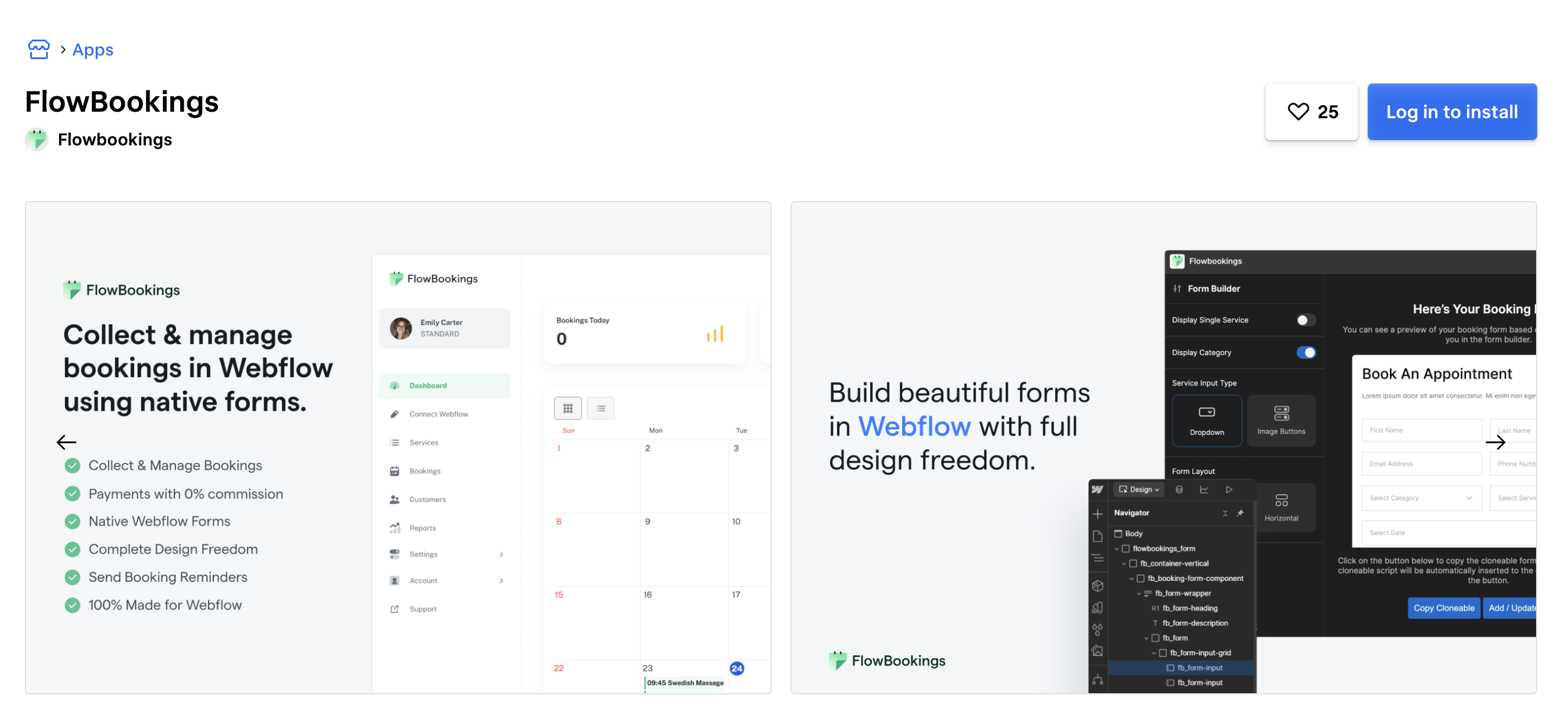
Before inserting a form, set up at least one service category and service in the FlowBookings dashboard:
- Log in to your FlowBookings account and go to the Services page.
- Create a category first, since every service requires one.
- Click New Service and fill in the service name, category, duration, buffer time, image, and description.
- Switch to the Working Hours tab to configure availability and breaks, then click Save Changes.
To install the app and insert a booking form in Webflow:
- Open the Apps panel in Webflow and search for FlowBookings.
- Click Install App, select the target site, and click Authorize.
- Open the FlowBookings app panel and log in with your FlowBookings credentials.
- In the Form Builder, choose between a single-service or multi-service form.
- Configure options: category dropdown (yes or no), service input type (dropdown or image button), and form layout (horizontal or vertical).
- Click Copy Cloneable & Insert Script. This inserts the booking script into the page custom code in the head and copies the form component to the clipboard.
- Press Ctrl+V (Windows) or Cmd+V (Mac) to paste the form onto the page canvas.
Once placed, the form works like any other Webflow element. You can adjust the following without restrictions:
- CSS styling, fonts, colors, and hover states
- Layout and field arrangement within sections
- Custom classes, margins, and padding
- Animations and interactions
Do not delete any default fields, classes, IDs, or custom attributes assigned to the form elements. These attributes (like fb = "book-form" on the form container, fb = "firstName" on the name input, and fb = "datepicker" on the date picker) are required for the booking system to function. The FlowBookings customization guide documents all required attributes in detail.
One visual limitation: the date picker calendar popup uses a default jQuery datepicker and cannot be restyled. The input field and icon image around it can still be customized.
Connect FlowBookings with Zapier
Zapier can connect FlowBookings and Webflow without code. This method requires a FlowBookings Premium or Power plan. Because Zapier also supports Webflow as a connected app, you can build automations that explicitly connect FlowBookings and Webflow. For example:
- FlowBookings New Booking → Webflow Create Live Item to display a booking-related record in a CMS collection.
- FlowBookings Booking Cancelled → Webflow Update Live Item so the site reflects the latest booking status.
- Webflow Form Submission → FlowBookings Find Booking when you need to connect a site form workflow to booking data.
These examples are most useful when you want Webflow to display or react to data that originates in FlowBookings while keeping the booking form itself native to Webflow.
Build custom workflows with the Webflow Data API
For teams that need to programmatically read or write site data based on booking events, the Webflow Data API v2 provides full access to CMS collections, items, and webhooks. This approach requires server-side development and is best suited for custom dashboards, booking-to-CMS sync pipelines, or event-driven architectures.
FlowBookings does not currently publish a public REST API reference. The API key generated in Dashboard > Settings > Integrations is documented for Zapier authentication, but endpoint paths and payload schemas are not available in any public FlowBookings documentation. Developers needing direct FlowBookings API access should contact FlowBookings support for details.
On the Webflow side, the available tools are well documented:
- The Webflow CMS API handles collection and item operations for reading, creating, updating, and deleting CMS content.
- Webflow webhooks trigger real-time notifications for events like
form_submissionandsite_publish. - The Sites API provides site publishing and domain management endpoints.
Sync booking data to Webflow CMS
If you want to display confirmed bookings, available services, or testimonials on your Webflow site with a Collection List, you can write booking data into a CMS collection using the Webflow API.
To set up a booking-to-CMS sync:
- Create a CMS collection in Webflow with fields matching your booking data (service name, date, status, customer name).
- Set up a Zapier Zap with a FlowBookings New Booking trigger and a Webflow Create Live Item action.
- On your server or via a Zapier action, format the booking data and POST it to
https://api.webflow.com/v2/collections/{collection_id}/itemswith a Bearer token for authentication. - Publish the site via the Sites API or wait for the next manual publish to make new items visible.
The CMS plan supports 2,000 items, and the Business plan item count should be verified directly at webflow.com/pricing before making architectural decisions. Keep these limits in mind when planning how much booking data to sync. The CMS items API supports bulk operations of up to 100 items per request for batch updates.
What can you build with the FlowBookings Webflow integration?
Integrating FlowBookings with Webflow lets you accept and manage bookings directly from a branded website without redirecting visitors to a third-party scheduling page.
- Spa and salon booking pages: Build a wellness site where clients browse services by category, select a treatment, pick a date and time slot, and pay through Stripe, all within a form that matches the site's design system. FlowBookings publishes a Wellness & Spa demo template as a starting point.
- Fitness class registration: Create a gym or yoga studio site where members book group classes or one-on-one training sessions. Capacity settings limit the number of bookings per time slot, and automated email reminders reduce no-shows.
- Consultation scheduling for professional services: Add a booking form to a consultant, coach, or therapist's Webflow site that collects upfront payment at the time of scheduling. Buffer times between appointments prevent back-to-back overload, and the dashboard tracks revenue alongside bookings.
- Multi-service agency client sites: Agencies building Webflow sites for service businesses can add booking functionality using the FlowBookings app, then hand off the FlowBookings dashboard to the client for self-service management. The agency solutions page documents this workflow, though each client project requires its own FlowBookings account.
If you need more control over how booking data flows into your CMS or external systems, the API integration path covers those cases with full flexibility.
Frequently asked questions
No. FlowBookings manages booking submissions through its own system, separate from Webflow's native form submission quotas. The applicable limit is the monthly booking count defined by the FlowBookings plan.
Yes, with one exception. Because FlowBookings uses native Webflow form elements, you have full control over CSS, fonts, colors, layout, spacing, hover states, and animations. The only element you cannot restyle is the date picker calendar popup, which uses a default jQuery datepicker. The input field and surrounding elements are still customizable. See the form customization guide for the full list of required attributes that must stay intact.
The form will stop working. FlowBookings relies on specific custom attributes (like
fb = "book-form"andfb = "email") on each form element to connect the front-end form to the booking system. Deleting fields, changing input types, or removing attributes breaks this connection. If a form stops working after edits, verify all required attributes are present using the attribute reference in the documentation, or delete the form and re-paste it from the Form Builder.No. Stripe is the only supported payment processor. FlowBookings charges zero commission on transactions. An offline or in-person payment option is also available as an alternative. See the payments feature page for setup details.
Install the FlowBookings app from the Webflow Apps Marketplace. The app connects directly to your Webflow site and handles bookings through native forms with integrated payments. For extended workflows, like syncing booking data to a CRM or triggering email sequences, use the Zapier integration with triggers such as New Booking or Booking Cancelled.
Description
FlowBookings adds native booking forms to Webflow through a Marketplace app that injects required scripts automatically and pastes form components directly onto the canvas.
This integration page is provided for informational and convenience purposes only.

Bookla
Connect Bookla with Webflow to take appointment, class, and ticket bookings directly on your site.

Flowstar Open Hours Widget
Connect the Flowstar Open Hours Widget with Webflow to show accurate, timezone-aware business hours on any page without code.

SimplyBook
Connect SimplyBook widgets directly into Webflow pages using custom code embed elements for immediate booking functionality.

Microsoft Outlook
Send Webflow form submissions and orders to Outlook mail, contacts, and calendars with Zapier, Make, or Microsoft Graph, and embed Microsoft Bookings pages.

Hostaway
Connect Hostaway with Webflow to add live rental search, availability calendars, and reservation data to a Webflow site.

Cal.com
Connect Cal.com with Webflow to let visitors book meetings from live availability on any page.

Google Meet
Connect Google Meet, Google's video conferencing platform, with Webflow to embed scheduling widgets, generate Meet links from form submissions, and store meeting data in CMS collections.

Acuity Scheduling
Connect Acuity Scheduling with Webflow to add client booking, scheduling, and appointment management to your site.

ZealSchedule
Embed ZealSchedule in Webflow to let visitors book and pay for appointments without leaving your site.
Related integrations
Get started for free
Try Webflow for as long as you like with our free Starter plan. Purchase a paid Site plan to publish, host, and unlock additional features.
