






Flowblock - Code AI
Connect Flowblock - Code AI, an AI-powered code editor, with Webflow to write and deploy custom JavaScript and CSS

Custom code in Webflow lives in a Code Embed element or in the site and page head and body fields. Those fields accept HTML, CSS in <style> tags, and JavaScript in <script> tags as raw text. Those fields are plain text areas with no autocompletion, suggestions, or error detection. Flowblock - Code AI was built to close that gap.
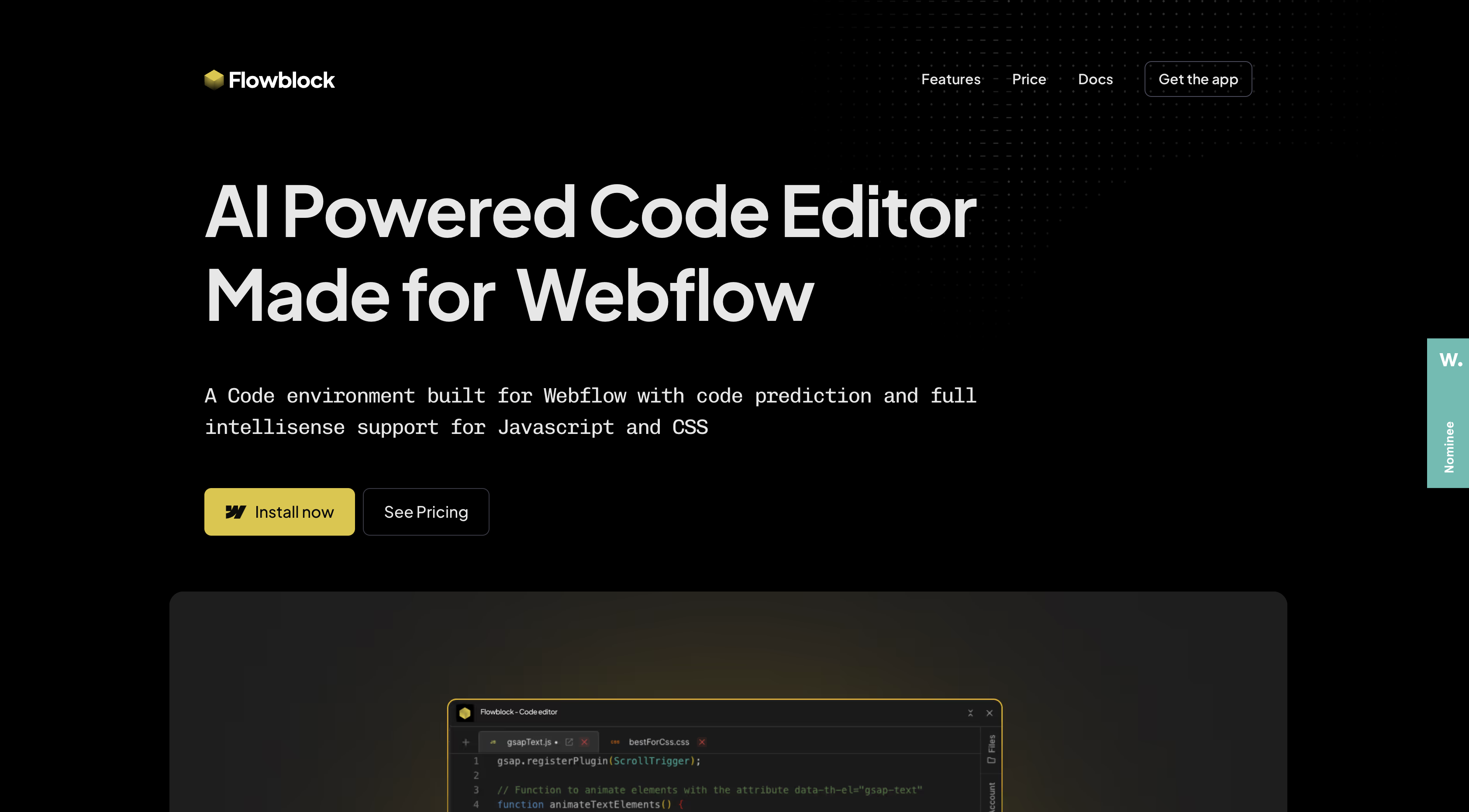
Flowblock is an installed app inside Webflow and puts an editor built on the same engine as VS Code next to your canvas. You prompt for JavaScript or CSS with ⌘+K, accept live predictions with Tab, and see common mistakes flagged before you save. Saved files serve from a Cloudflare CDN, with a staging copy on your webflow.io domain and a production copy on custom domains. Snippets you want inline still paste into a Code Embed element as before.
The app suits anyone writing scroll animations or form validation code against a Webflow site without standing up a separate build step. It also fits agency work, where a staging file on a client's webflow.io domain lets you prove a script behaves before that client's custom domain ever loads it.
How to integrate Flowblock - Code AI with Webflow
What is Flowblock - Code AI? Flowblock - Code AI is an AI-powered code editor made for Webflow and operated by Thind Ventures Ltd. It provides code prediction and IntelliSense for JavaScript and CSS. An Ask AI command opens with ⌘+K, and the editor includes error detection. Saved files are hosted on a Cloudflare CDN with separate staging and production copies.
Teams reach for Flowblock when a page needs JavaScript or CSS that Webflow's built-in interactions and styles don't produce. Examples include a before-and-after slider or a multi-step signup form with conditional field requirements. Webflow's own AI code components already generate pricing calculators and multi-step forms from a prompt, and every generation spends Webflow AI credits. Flowblock differs by giving you an editor for the code itself, with predictions, error detection, and a staging file you can test on webflow.io before it reaches a custom domain.
The Flowblock - Code AI-Webflow integration supports three approaches:
- The Flowblock - Code AI app installs from the Webflow Marketplace and serves your saved files from its CDN, with nothing to paste into Webflow.
- Code Embed elements and custom code fields let you paste Flowblock-generated snippets into a page, a component, or the site head and footer.
- The Webflow Data API and Designer API give you scripted control over registered scripts, Webflow CMS collections, and publishing, but require server-side development. Flowblock itself has no public API.
These methods can be combined depending on the setup.
Install the Flowblock - Code AI app
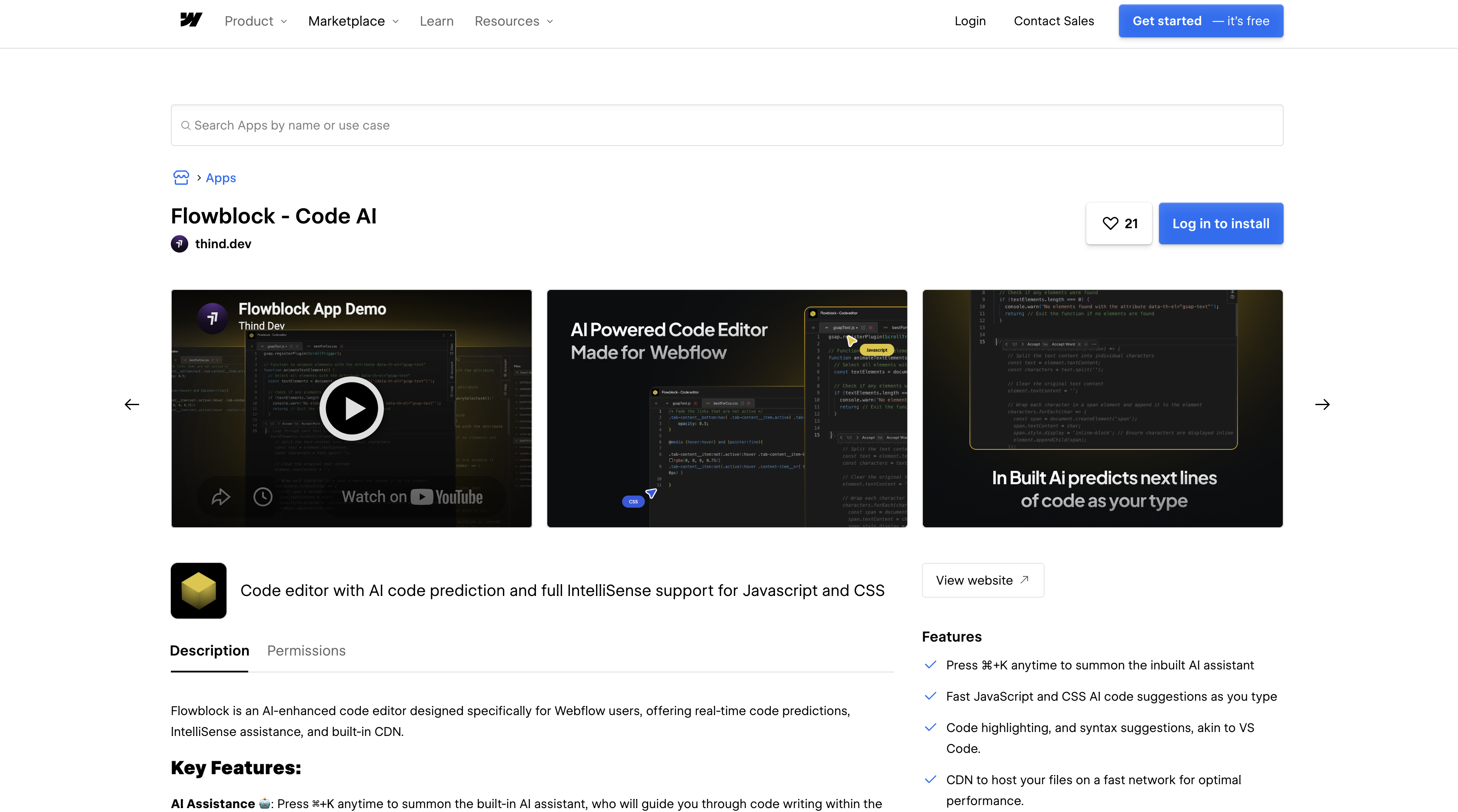
The Flowblock - Code AI app is a Designer Extension on the Webflow Marketplace carrying the Approved by Webflow badge, whose own wording is that Webflow reviewed the app rather than endorsing or certifying it. Install it once and open it from the Apps panel whenever you need to write JavaScript or CSS. You authorize through OAuth, so there's no API key to enter. The listing requests six scopes: custom_code:read, custom_code:write, site_config:read, site_config:write, sites:read, and authorized_user:read. It cannot publish your site, because publishing needs sites:write and the app never asks for it. Install it on a single site or a whole Workspace, and a Workspace authorization covers every current and future site in it.
To set up the integration:
- Go to the Flowblock - Code AI page on the Webflow Marketplace.
- Click Add to site.
- Select the Workspaces and/or sites to add the app to.
- Click Authorize app.
- Click Go to "Flowblock" on the pop-up banner.
- Follow the app's instructions to finish setup.
You can also install from inside Webflow by opening the Apps panel, searching for Flowblock, and clicking Install on site. Once installed, the editor gives you:
- Ask AI generates code from a prompt with ⌘+K on Mac or Ctrl+K on Windows.
- Code Predictions that suggest JavaScript and CSS as you type; press Tab to accept.
- IntelliSense with syntax highlighting, suggestions, and autocompletion.
- Error detection that flags common coding mistakes and recommends fixes.
- A staging file served to your webflow.io domain and a production file served only on custom domains.
- Cloudflare CDN hosting for saved files, so a script loads from an edge network instead of from inline page markup.
View the authorization later under Site settings > Integrations > Authorized apps, or at Workspace level under Workspace settings > Integrations > Connected apps. Revoking sits on a different tab: Site settings > Apps & integrations > Revoke, or Workspace settings > Apps & integrations > Uninstall app, which drops the app from every site in that Workspace.
Generate and save code with Ask AI
After installation, launch Flowblock from the Apps panel and write in its editor instead of a Webflow text area. The editor handles prompting, accepting a suggestion in full or in part, renaming files, and saving to staging and production. Saving to staging updates the file on your webflow.io domain without publishing the Webflow site. Two costs are worth knowing before you paste client work into it. Flowblock's help centre at help.flowblock.co currently fails to load for every visitor with a Cloudflare CNAME error, so the in-app prompts are the only working reference. And code you type in the editor is processed to produce suggestions, with the vendor's privacy policy stating that interactions with the AI assistant may be stored to improve accuracy. That policy names the categories of processor it shares data with rather than the AI provider itself.
To generate and stage a script:
- Open the Apps panel, hover over Flowblock, and click Launch.
- Press ⌘+K (Mac) or Ctrl+K (Windows) and describe the JavaScript or CSS you need.
- Accept the full suggestion or only part of it, then press Tab to take inline predictions as you edit.
- Press ⌘+S to save the file to staging and open your webflow.io domain to test it.
- Save the file to production once staging behaves correctly; that copy serves only on custom domains.
Rename a file in the editor if the staging copy needs a clearer label before you save to production.
Add Flowblock code with Code Embed elements and custom code fields
Paste Flowblock's output into Webflow when you want the code inline on the page rather than loaded from Flowblock's CDN. This path needs a Core, Growth, Agency, or Freelancer Workspace, or an active paid Site plan. The free Starter Site plan does not include custom code. Each Code Embed element and each of the four head and body fields holds up to 50,000 characters. Server-side languages such as PHP, Python, Ruby, and Perl don't run in these fields. Code Embed also blocks the structural <html>, <head>, and <body> tags.
Paste a snippet into a Code Embed element
Use a Code Embed element for page-specific markup and scripts, such as a live chat widget on a support page or a before-and-after slider on a case study. The element sits in the page tree like any other element and renders on publish. Convert it to a component when the same snippet appears on several pages; one edit then updates every instance.
To add Flowblock code to a page:
- Write or generate the code in Flowblock and copy it.
- Open the target page in Webflow.
- Drag a Code Embed element from the Add panel onto the canvas.
- Paste the code and click Save and close.
- Publish the site.
A script that outgrows the 50,000-character limit belongs in a Flowblock-hosted file instead of an embed.
Load code site-wide from the head and body fields
Use Site settings for code every page needs, such as a global CSS override or a script that runs on load. Site-wide head and footer code live under Site settings > Custom code. Page-level code lives in Page settings, either inside the <head> tag or before the </body> tag. You need a Site manager or Designer role to edit these fields. Each of the four fields counts its 50,000 characters independently.
To add site-wide code:
- Copy the finished code from Flowblock.
- Go to Site settings > Custom code.
- Paste into the Head code or Footer code section.
- Click Save changes and publish the site.
Use Page settings for a single page. That keeps a checkout-only payment script off the rest of the site.
Build with the Webflow Data API and Designer API
Flowblock exposes no public API, webhooks, or SDK. It is available only as an installed editor inside Webflow. Any scripted workflow therefore runs against the Data API or the Designer API. The Data API v2 manages registered scripts and CMS items over REST. It also handles publishing, with a bearer token in the Authorization header. The Designer API runs as client-side JavaScript inside an extension iframe and only touches the current page. Both need server-side or extension development. Data API v1 was deprecated on March 31, 2025, so target the /v2/ namespace.
The Data API and Designer API cover the scripted pieces:
- Custom code endpoints register hosted or inline scripts and apply them to a site or page; a site holds up to 800 registered scripts.
- The Data API handles CMS collections, pages, and site publishing.
- Webhooks trigger real-time events such as
site_publish,form_submission, andcollection_item_published. - The Designer API v2 inserts elements and styles on the current page from inside an extension, the same extension surface Flowblock runs in.
The custom_code:read and custom_code:write scopes are available only to Data Client apps, so a site token cannot manage registered scripts.
Call the Data API from Flowblock-written code
Code you deploy through Flowblock runs on the published site and can call Webflow's endpoints with standard fetch() requests. Those requests hit the Data API, and each one needs a bearer token. We recommend routing those requests through an endpoint you control so the token stays out of page code. A typical case renders live CMS items into a page with your own markup, such as a filtered feed of the newest items.
To implement this:
- In Flowblock, write a
fetch()call to your proxy. Your proxy forwardsGET /v2/collections/{collection_id}/items/livewith theAuthorization: Bearerheader attached server-side. - Parse the JSON response and render the
fieldDatavalues (each item includes at leastnameandslug) into the page. - Press ⌘+S to save to staging, check the result on webflow.io, then save to production.
The cms:read scope covers the live items endpoint; add cms:write only if the same proxy also creates or updates items.
Deploy scripts through the custom code endpoints
Code you author in Flowblock can also ship through Webflow's registered scripts instead of Flowblock's CDN, which suits a CI pipeline that already manages site releases. A Data Client app registers the script, applies it to the site or a page, then publishes. Hosted scripts point at a URL on a CDN you control; inline scripts carry the source in the request body. Hosted registration expects a stable URL and an integrity hash, so use a CDN you control.
To deploy a script:
- Register it with
POST /v2/sites/{site_id}/registered_scripts/hosted(fields:hostedLocation,integrityHash,versionin SemVer,displayName). For inline code, usePOST /v2/sites/{site_id}/registered_scripts/inlinewithsourceCode,version, anddisplayNameof 1 to 50 alphanumeric characters. - Apply it with
PUT /v2/sites/{site_id}/custom_codefor the whole site orPUT /v2/pages/{page_id}/custom_codefor one page; read the current state with the matchingGETcalls. - Publish with
POST /v2/sites/{site_id}/publish, which needs thesites:writescope.
Inline scripts are capped at 2,000 characters per the inline script registration reference, so hosted scripts are the safer route for anything longer.
What you can build with the Flowblock - Code AI Webflow integration
Integrating Flowblock - Code AI with Webflow lets you add custom JavaScript and CSS with AI generation and error checking without leaving Webflow for an external editor or a developer handoff.
- Scroll-triggered animations and sliders: Prompt Flowblock for a before-and-after image slider or a scroll-triggered reveal. Drop the output into a Code Embed element on a case study page. Error detection flags common coding mistakes before you publish.
- Third-party widgets: Write the initialization JavaScript for a live chat widget on a support page or a payment form on a checkout page, and serve it from Flowblock's CDN or a Code Embed element.
- Custom form validation: Build a multi-step signup form with real-time field formatting and conditional requirements. Test it on webflow.io through the staging file before the production copy reaches your domain.
- CDN-hosted scripts for high-traffic pages: Move a heavy script out of inline fields onto Flowblock's Cloudflare CDN, so a campaign landing page loads the file from Cloudflare instead of from inline markup.
If you need tighter control over where a script lands, see how to apply custom code to specific pages through the Data API.
Frequently asked questions
No. You can install the app without a paid Webflow plan. Pasting Flowblock code into Webflow's own fields is different. The Code Embed element and the head and body custom code fields need a Core, Growth, Agency, or Freelancer Workspace, or an active paid Site plan. The free Starter Site plan treats custom code as a premium feature, per the Site plans overview. To get started, open the listing on the Webflow Marketplace and click Add to site.
On Flowblock's Cloudflare CDN, as two separate files. The staging file serves to your webflow.io domain and the production file serves only to custom domains, so saving to staging never changes what a visitor on your live domain sees. Code you paste into a Webflow field instead lives in that field and counts against that field's own 50,000-character limit.
Revoking an app's access leaves any elements it added in place. Any custom code the app added is removed the next time you publish, per the Webflow Apps overview. Snippets you pasted into a Code Embed element yourself weren't added by the app, so they stay. Files served from Flowblock's CDN carry a separate risk: its terms reserve the right to discontinue the service, and say that for CDN-hosted files "users will get an upfront notice and guidelines about how to migrate their code to a new CDN, with a clear cut-off date".
Flowblock runs inside Webflow, so Webflow's browser support applies. Use the last three major versions of Chrome, Edge, Firefox, or Safari, per the Intro to Webflow article. Designer Extensions such as Flowblock are single-page applications in a secure iframe, per the Designer Extensions documentation.
Flowblock runs a free tier plus two paid tiers at $4 and $7 per month, listed in the pricing section of its site. The free tier is metered rather than open-ended: it allows 10 saved files per project, 1,000 code completions, and 50 Ask AI prompts. The paid tiers raise those caps, and the top tier removes the saved-file limit.
Description
Install the Flowblock - Code AI app to write JavaScript and CSS with AI prompts and error detection, or paste its output into a Code Embed element. Test on webflow.io before production.
This integration page is provided for informational and convenience purposes only.

Flowbase Boosters
Add typewriter text, count-up stats, countdowns, and image sliders to Webflow with Flowbase Boosters: free attribute-driven scripts, no JavaScript to write.

Better Shadows
Better Shadows generates layered CSS box-shadow values and applies them to Webflow classes in one click, for depth you would otherwise tune layer by layer.

gFLUO
Connect gFLUO with Webflow to apply GSAP text animations from the Apps panel, with no JavaScript required.
Flowmonk
Flowmonk syncs Webflow CMS data to Airtable, letting you manage content in Webflow while using Airtable's database features for analysis, collaboration, and automation.

Flowtrix Schema
Connect Flowtrix Schema, a no-code structured data app for JSON-LD markup, with Webflow to add Google-compliant schema to static and CMS pages without code.
Arvow
Timeline
Timeline provides chronological content infrastructure for Webflow sites without requiring custom development.

Azwedo
Install Azwedo's approved Webflow apps to add icon libraries, AI-written copy, prebuilt components, and SVG editing inside Webflow.
Finsweet Webflow Hacks
Add Finsweet Hacks to Webflow with custom code: named form success messages, clean anchor URLs, a checkbox price calculator, and when to use Attributes.
Related integrations
Get started for free
Try Webflow for as long as you like with our free Starter plan. Purchase a paid Site plan to publish, host, and unlock additional features.
