






Firebase Studio
Connect Firebase Studio, Google's AI-assisted full-stack development environment, with Webflow to add authentication, Firestore data, and Cloud Functions to your site.

Firebase Studio is Google's AI-assisted development environment for building full-stack apps, complete with authentication, a live database, and serverless functions. Pair it with your site to ship the backend pieces that don't run natively — logins, user accounts, and authenticated data reads.
Connect the two through embeds, custom code, automation tools, or direct API calls. It's the missing layer for SaaS MVPs, client portals, gated courses, and role-based experiences.
How to integrate Firebase Studio with Webflow
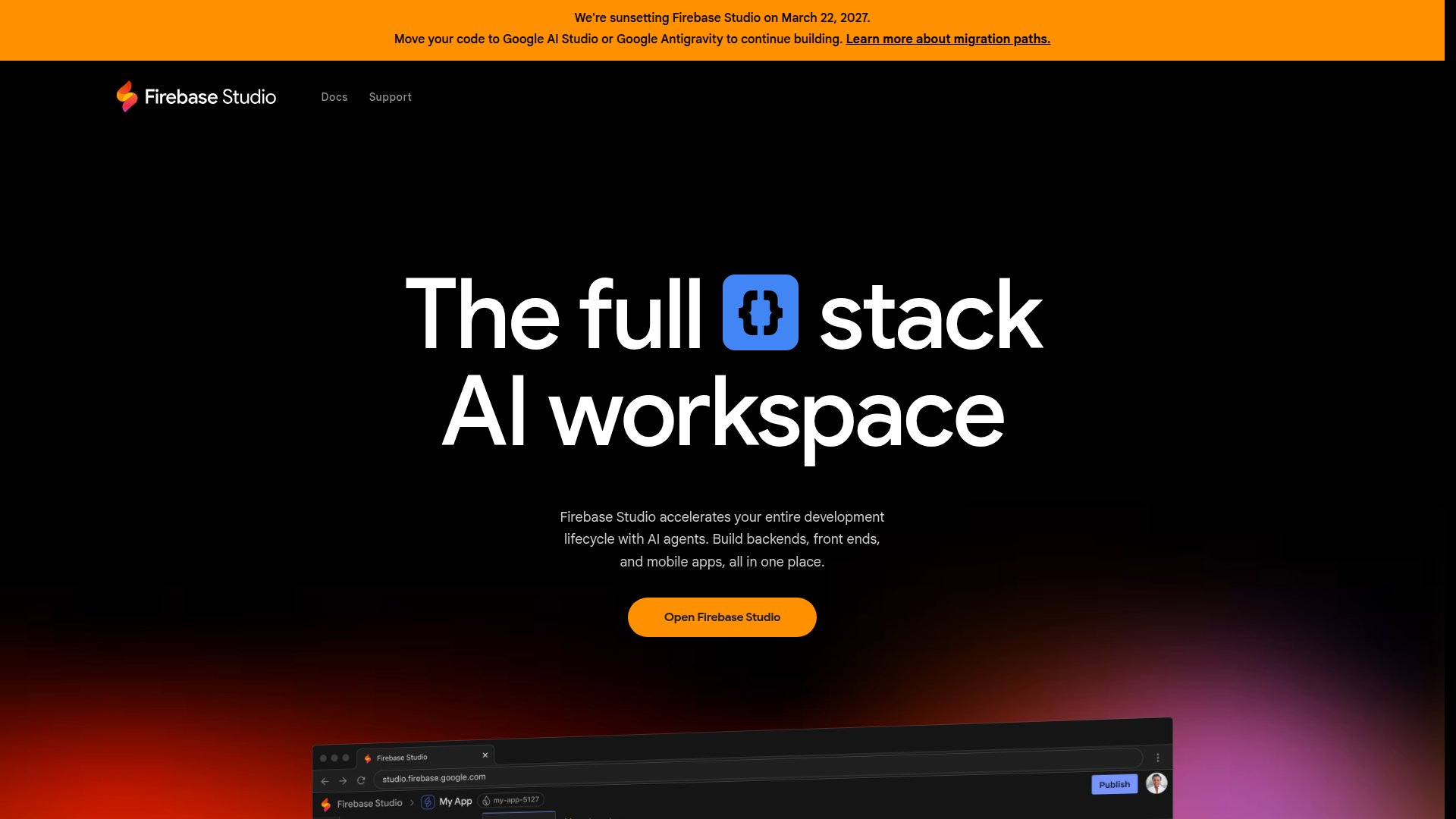
What is Firebase Studio? Firebase Studio is an agentic cloud-based development environment that helps you build and ship full-stack AI apps, including APIs, backends, frontends, and mobile. Gemini assists with coding, debugging, testing, refactoring, and documenting code. The App Prototyping agent can generate a full-stack web app from natural language prompts or design inputs such as mockups and screenshots, and add Cloud Firestore and Firebase Authentication automatically.
Reach for this combination when your site needs a real backend. You might gate content behind a login or sync product data from Firestore into the CMS. Firebase Studio builds and deploys the backend; your site renders the public-facing experience. No native Marketplace app exists for Firebase Studio, so every method below uses custom implementation.
Common Firebase Studio integration paths include:
- Code Embed elements let you load deployed app output or the Firebase JS SDK directly into pages without a server.
- Automation tools like Zapier, Make, and n8n connect your site to Firebase backend services without writing code.
- The Data API and webhooks connect CMS collections, form data, and site events to external systems.
- Firebase APIs and Cloud Functions handle authentication, Firestore access, and server-side logic for custom builds.
Most implementations combine two or more of these methods depending on the complexity of the setup.
Embed Firebase Studio apps with Code Embed elements
The lowest-code path embeds a deployed Firebase Studio app or the Firebase JavaScript SDK directly into a page. Deploy your app from Firebase Studio first, then drop the output or SDK scripts into a Code Embed element. This works for embedding an interactive component, wiring up Firebase Authentication, or reading Firestore data client-side. You need a paid plan to use custom code: a Core, Growth, Agency, or Freelancer Workspace, or an active Site plan. The free Starter plan can't inject custom code, which blocks any client-side Firebase integration.
To deploy an app and embed it:
- Open your workspace in Firebase Studio, click the Firebase Studio icon in the navigation pane, expand the Firebase Hosting section, and click Deploy to Production.
- Open the Add panel and drop a Code Embed element onto the page.
- Paste your embed code or Firebase SDK script tags, then save and close.
This method covers several scenarios:
- Embed a deployed app component inside a page or link to it from a button.
- Load the Firebase JS SDK to add Firebase Authentication sign-in flows across your site.
- Read and write Firestore data client-side using a Firebase ID token.
Code Embed elements support HTML with CSS in <style> tags and JS in <script> tags only. Server-side languages aren't supported, and code can't exceed 50,000 characters across all custom code locations.
Add the Firebase SDK site-wide
When you need Firebase available across the whole site rather than one page, add the SDK in your site settings custom code instead of a single embed. This suits authentication flows that span multiple pages, like a login that protects gated content everywhere. The same plan requirements apply, and the same 50,000-character limit covers all custom code locations combined.
To add Firebase scripts site-wide:
- Go to Site settings > Custom code tab. See Custom code in head and body tags for details.
- Add your Firebase SDK script tags in the Head code section.
- Click Save changes, then publish the site.
Site managers and Designers with site access can edit site-wide code. Use it for SDK initialization and reserve page-level Code Embed elements for page-specific logic.
Bind Firebase data with Wized
If you want to avoid writing JavaScript, Wized provides a visual bridge between your elements and Firebase data. Install the Wized script in the Custom Code section, then use Wized's dashboard to configure Firebase connections and build workflows that bind data to elements on the page. This connects elements to Firestore or Realtime Database without a line of JavaScript. Wized-based implementations have served education platforms with 60,000+ active students and 1.2+ million database records.
To set up Wized:
- Install the Wized script in the Custom Code section.
- In the Wized dashboard, configure your Firebase connection.
- Build workflows and bind Firestore or Realtime Database fields to your elements.
This is the closest thing to a no-code option for binding live Firebase data into your design.
Connect with automation platforms
To move data between your site and Firebase backend services without custom code, reach for an automation platform. Zapier ships both a Webflow connector and a Cloud Firestore connector, and Make and n8n can also connect the two systems. These platforms talk to Firebase backend services like Firestore and Realtime Database, not to the Firebase Studio workspace itself. Zapier maintains pre-built templates for syncing user information, updating collections, and handling form submissions between the two platforms.
Common triggers and actions include:
- New Form Submission trigger → Create Cloud Firestore Document action
- New Document Within a Firestore Collection trigger → Create Item or Update Item action
- New Order trigger → write to Firebase Realtime Database or Firestore
- Firestore document change → update a CMS collection item
Pick Zapier when you want pre-built templates, Make when you want to build scenarios manually, or n8n when you want self-hosted control over the workflow.
Build with the Webflow and Firebase APIs
For full control over data sync and authenticated event handling, connect the two platforms directly through their APIs. This path requires server-side development, typically a Cloud Function that reads Firebase data and calls the Data API, or a webhook that pushes site events to a function. It suits teams using Firestore as the primary database while keeping the site as the presentation layer. Manage content in Firestore for real-time updates, then sync it to the CMS so your pages render CMS-backed content.
The available APIs are:
- Cloud Firestore REST API handles document reads, writes, queries, and listing collections
- Firebase Authentication REST API handles account creation, sign-in flows, and token refresh
- The Data API handles CMS collections and form data
- Webhooks trigger real-time events between systems
Remember: the CMS plan holds 2,000 items and the Business plan holds 10,000, so plan your sync volume against the right tier.
Sync Firestore changes to the Webflow CMS
This pattern uses a Cloud Function to detect a Firestore document change and write the result into a CMS collection. A SaaS platform might manage product data in Firestore for real-time updates, then transform and push each change into the CMS so the public product pages stay current.
To implement this sync:
- Deploy a Cloud Function using
onDocumentCreatedoronDocumentUpdatedon a Firestore path likeusers/{userId}. Readevent.data.after.data()for the new values. See Firestore triggers. - Call
POST https://api.webflow.com/v2/collections/{collection_id}/itemswith a Bearer token and the mapped field data. - Call
POST https://api.webflow.com/v2/collections/{collection_id}/items/publishto make the item live.
The Data API allows one successful site publish per minute, so batch your updates rather than publishing on every single change.
Create a Webflow CMS profile on user sign-up
This pattern creates a CMS profile record automatically when a user registers through Firebase Authentication. When someone signs up, a Cloud Function fires and writes a matching item into a "User Profiles" collection.
To build this flow:
- Call
POST https://identitytoolkit.googleapis.com/v1/accounts:signUp?key=[API_KEY]with the user's email and password to create the account. See the Firebase Auth REST reference. - Firebase triggers a Cloud Function on user creation.
- The function calls
POST https://api.webflow.com/v2/collections/{collection_id}/itemsto create the profile record.
Account creation is capped at 100 accounts per hour per IP address, so account for that limit in any bulk import.
Push Webflow form submissions to Firestore
This pattern sends form data straight to Firestore through a webhook and a Cloud Function. You can store leads or signups in your own database without an automation platform in the middle.
To wire it up:
- Register a webhook with
POST https://api.webflow.com/v2/sites/{site_id}/webhooks, settriggerTypetoform_submission, and point the callback at your Cloud Functions URL. See working with webhooks. - The form data goes to your Cloud Function endpoint on each submission.
- The function validates the
x-webflow-signatureheader and writes the record to Firestore.
Validate every incoming request against the signature header before writing, since the endpoint is publicly reachable.
What can you build with the Firebase Studio Webflow integration?
Integrating Firebase Studio with your site lets you add login and live app data without running your own backend server.
- Gated member portal: Add Firebase Authentication through site-wide custom code to protect course lessons or client documents. A course creator can lock lesson pages behind email or social login and show content only to enrolled users.
- Real-time CMS sync: Keep Firestore as the source of truth and mirror changes into the CMS through a Cloud Function. A SaaS platform updates product data once in Firestore and the public product pages refresh automatically.
- Embedded full-stack app: Build and deploy an app with Firebase Studio's App Prototyping agent, then embed it on a page with a Code Embed element. A marketing site can host an interactive calculator or dashboard inline.
- Form-to-database pipeline: Capture form submissions and store them in Firestore through a webhook and Cloud Function. A booking site can write each request to its own database for downstream processing.
If you need more control over data transformation or authenticated reads, the API integration path covers those cases with full flexibility.
Frequently asked questions
No. There is currently no native Webflow Marketplace app for Firebase Studio, so all integration methods require a custom implementation.
Yes. Custom code is required for any client-side Firebase SDK integration, and it is not available on Webflow's free Starter plan. You need a paid Site plan or a Core, Growth, Agency, or Freelancer Workspace, as documented in the Code Embed help article. On the Firebase side, Firebase App Hosting requires the Blaze pay-as-you-go plan, while Firebase Hosting for static apps does not.
Webflow supports two locations for custom code: site and page settings for head and footer code, and the Code Embed element for inline page code. Both support HTML with CSS and JS only, so server-side languages like PHP or Python are not supported. See Custom code in head and body tags for setup details. All custom code shares a 50,000-character limit across all custom code locations combined.
Deploy a Cloud Function that listens for Firestore document changes and calls the Webflow Data API to create or update CMS items. Use an
onDocumentCreatedoronDocumentUpdatedtrigger, then callPOST /v2/collections/{collection_id}/itemsfollowed by the publish endpoint. Keep in mind the CMS plan holds 2,000 items, and the Business plan holds 10,000.Yes, through Wized or an automation platform. Wized binds Webflow elements to Firestore or Realtime Database visually after you install its script in your custom code section. For data sync, Zapier offers pre-built templates connecting Webflow form submissions and CMS collections to Firestore. Make and n8n also support Webflow-to-Firestore workflows if you prefer to build scenarios manually.
Description
Firebase Studio is Google's AI-assisted environment for building full-stack apps. Connect it with Webflow to add login, Firestore sync, and Cloud Functions.
This integration page is provided for informational and convenience purposes only.

Google Docs
Connect Google Docs with Webflow to embed live documents, sync content to CMS Collections, or build custom API publishing pipelines.

Zapier
Connect Zapier with Webflow to automate form routing, CMS updates, and ecommerce order processing across 7,000+ apps.

Airtable
Connect Airtable with Webflow to publish base records as CMS items and route form submissions back into Airtable.

Pipe dream
Connect Pipedream with Webflow to turn form submissions and CMS changes into automated workflows across thousands of connected apps. Orders can trigger workflows too.

Smartarget Contact Us
Connect Smartarget Contact Us with Webflow to add a floating multi-channel contact widget that lets visitors reach you on WhatsApp, Telegram, email, and 12+ messaging platforms.
CMS Bridge
Connect CMS Bridge with Webflow to sync Airtable records to your CMS collections with record-level control over content states and publishing.
Osmo SVG Import
Connect Osmo SVG Import with Webflow to add fully editable SVG elements to your site without character limits or manual code editing.
Telegram Chat - Contact Us
Connect Telegram Chat - Contact Us to your Webflow site to add a floating Telegram chat widget that lets visitors message you directly from any page.
Form Fields Pro
Connect Form Fields Pro with Webflow to add advanced input types, including searchable selects, date pickers, number range pickers, and file uploaders, to native Webflow forms.
Related integrations
Get started for free
Try Webflow for as long as you like with our free Starter plan. Purchase a paid Site plan to publish, host, and unlock additional features.
