






Event Calendar App

Add Event Calendar App to Webflow when you need a public event calendar that stays updated from the tools your team already uses.
Webflow does not include a native calendar component. Building event listings with Webflow CMS Collection pages requires manual event entry, custom date formatting, and ongoing content management for every new event. Teams that already manage schedules in Google Calendar, Outlook, or Eventbrite end up duplicating work across systems.
Event Calendar App adds an embeddable calendar widget to Webflow sites that syncs with external calendar sources and renders events in month, week, agenda, or card layouts. Depending on your Event Calendar App plan, visitors can RSVP, submit events for review, filter by category, switch timezones, and add events to their personal calendars directly from the Webflow page. All calendar management happens in the Event Calendar App dashboard or through synced sources rather than inside Webflow's CMS.
This integration is a good fit for nonprofit communications managers, fitness studio owners, event venue operators, Webflow agencies delivering client sites, and anyone who needs a public-facing calendar that stays current without manual site updates. It works for community event hubs, class schedules, conference agendas, and workshop listings.
How to integrate Event Calendar App with Webflow
What is Event Calendar App? Event Calendar App is an embeddable SaaS calendar widget that displays events on websites in multiple layout views. It supports syncing from Google Calendar, Outlook, Eventbrite, Zoom, and iCalendar feeds, and includes features like RSVP collection, guest event submissions, recurring events, and 25-language localization with RTL support.

Teams use Event Calendar App with Webflow when they need a self-updating calendar that pulls from existing scheduling tools. Instead of rebuilding event listings as CMS items, the calendar widget renders directly on the page and stays current through external sync. This is especially useful for sites where non-technical clients manage their own event schedules through Google Calendar or similar tools.
For Webflow, the official and supported method is the native app from the Webflow App Marketplace. The app is the documented Webflow installation path for Event Calendar App. Some teams may still explore manual workarounds or developer-led CMS workflows for special cases, but those are not the primary documented Webflow path:
- Events Calendar app installs from the Webflow App Marketplace and handles calendar creation and embedding without writing code.
- Code Embed elements may be used as an unofficial manual workaround for the calendar's JavaScript snippet, including filtered views created through the Customizations feature, but this is not the documented Webflow installation method.
- Webflow CMS API can support custom CMS-based event workflows, but this is a developer-led setup that relies on Webflow's API plus manual processes or middleware rather than a native Event Calendar App API.
Most implementations should use the native app. Any manual embed or API-based workflow should be treated as a custom approach for teams that need special placement, filtered views across multiple pages, or CMS-native event records in Webflow.
Install the Events Calendar app
The Events Calendar app is the recommended and officially supported method for adding Event Calendar App to a Webflow site. It handles installation directly inside Webflow with no code required. The app carries an "Approved by Webflow" badge and supports calendar creation, external calendar syncing, recurring events, and layout customization. Depending on your Event Calendar App plan, you can also use features like RSVP collection, guest event submissions, categories, multiple views, and timezone controls. You configure the calendar through Event Calendar App's external dashboard after the initial install. A video walkthrough from Event Calendar App covers the full setup process.
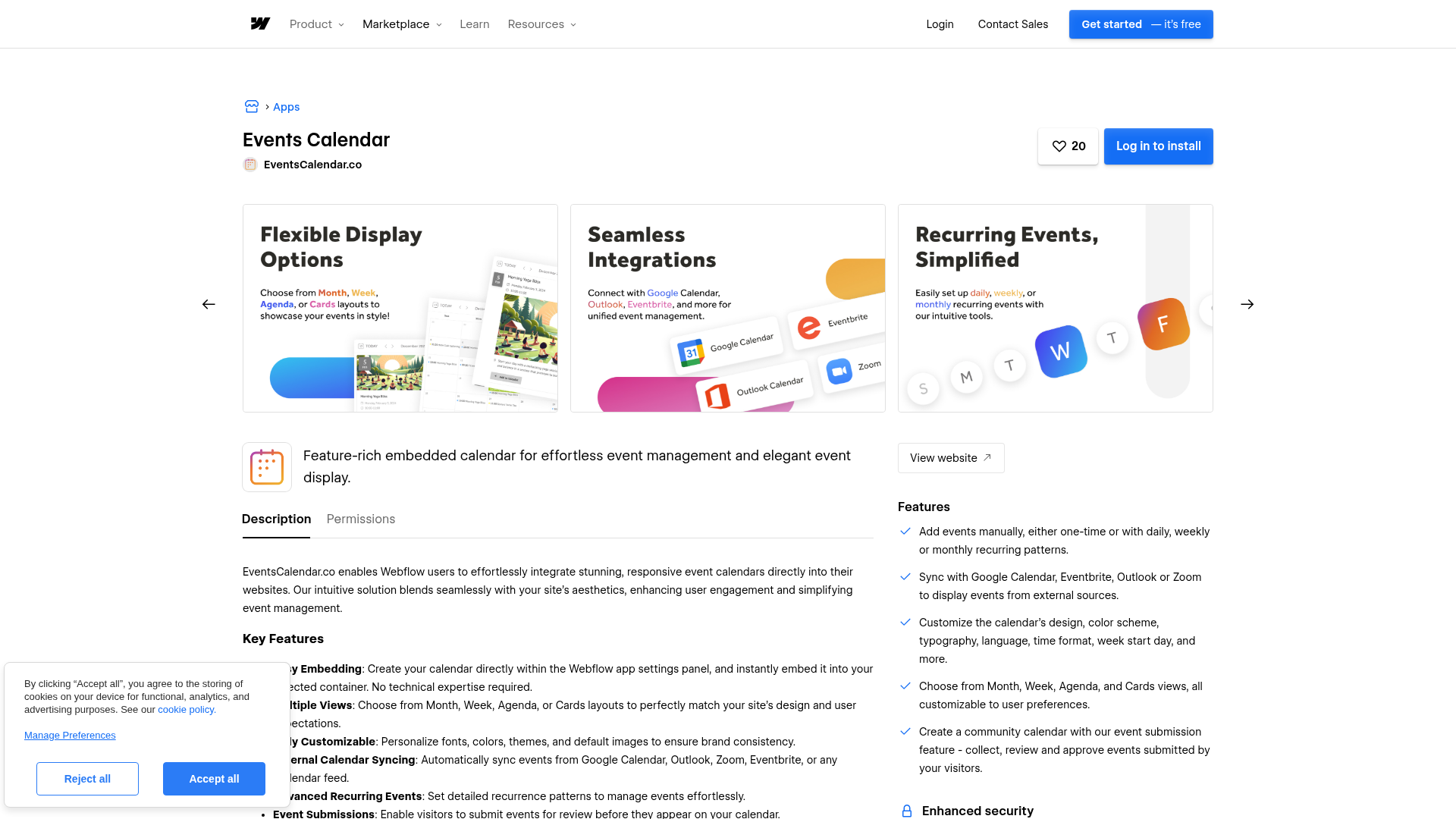
To set up the integration:
- Open your site in Webflow and click the Apps icon in the left sidebar.
- Search for "Events Calendar" or go to webflow.com/apps/detail/events-calendar directly.
- Click "Install on website" and confirm the "Installed Successfully" message.
- Click "Launch App" from the app's information box.
- Select the container on your canvas where the calendar should appear, then click "Create calendar".
- To edit your calendar later, launch the app again and select the calendar element by clicking it on the canvas or via the Navigator panel.
The native app can provide these capabilities, depending on your Event Calendar App plan and settings:
- Month, week, agenda, and cards layout views
- External calendar syncing from Google Calendar, Outlook, Zoom, Eventbrite, and iCalendar feeds
- RSVP collection and guest event submission forms on paid plans
- Customizable fonts, colors, and themes
- Recurring events with advanced recurrence patterns
- Add-to-calendar buttons for Google, Yahoo, Outlook, and iCalendar
- 25-language support with full RTL text rendering
- Categories, visitor timezone switching, and multiple view switching on supported higher-tier plans
To edit an existing calendar, launch the app again and select the calendar element by clicking it on the canvas or through the Navigator panel. The calendar renders inside Webflow when using this method, unlike the manual Code Embed approach described below.
Add Event Calendar App with Code Embed elements
The Code Embed method is an unofficial workaround rather than the primary documented Webflow installation path. Event Calendar App documents the native Webflow app as the supported route for Webflow sites. Some teams still test manual embeds when they want more control over placement or multiple filtered calendar views across different pages, but this should be treated as a custom approach rather than standard Webflow setup. This method requires a Webflow site plan that supports custom code embeds.
Event Calendar App renders through a client-side JavaScript widget, not an iframe. The snippet includes a <div> placeholder with your unique project ID and a <script> tag that loads the calendar from Event Calendar App's CDN.
Embed the calendar snippet
This method is for teams intentionally trying a manual embed instead of the native app. You get the snippet from the Event Calendar App dashboard and paste it into a Code Embed element in Webflow.
To get your embed snippet:
- Sign up or log in at eventscalendar.co and customize your calendar in the dashboard.
- Click the "Install" menu button in the dashboard.
- Copy the provided snippet, which looks like this:
<div events-calendar-app project-id="proj_YOURPROJECTID"></div>
<script type="text/javascript" src="//dist.eventscalendar.co/main.js"></script>
To add the snippet in Webflow:
- Open the Add panel by clicking the "+" icon in the left toolbar.
- Scroll to the Advanced section and drag a Code Embed element onto your canvas. Do not use the Code Block element — that displays code as visible text instead of rendering it.
- Paste your Event Calendar App snippet into the code editor modal.
- Click "Save and close".
- Publish your site. The calendar renders on the live published site only, not on the Webflow canvas.
Both lines of the snippet must be pasted together. The project-id attribute is unique to your Event Calendar App account.
Display filtered calendar views with Customizations
The Customizations feature lets you create multiple filtered views from a single calendar's event list. Each Customization gets its own embed code with a preset default view and optional category filters. This is useful for showing "New York Events" in month view on one page and "Workshops" in cards view on another — both drawing from the same event data.
To create a filtered calendar view:
- In the Event Calendar App dashboard, go to the Customizations tab under Install or Embed.
- Click Create Customization and enter a name.
- Choose a default view (month, week, agenda, or cards) and select preset category filters.
- Toggle Lock on to restrict visitors to the filtered view, or leave it off to let visitors change the filter.
- Go to the Install tab, select your Customization from the dropdown, and copy the embed code.
- Paste the Customization-specific embed code into a Code Embed element on the relevant Webflow page.
Repeat this process for each page that needs a distinct calendar view. Categories and multi-view setups depend on your Event Calendar App plan, with categories requiring a Business plan or higher.
Build with the Webflow Data API
For developers who need programmatic control over how event data appears in Webflow CMS, the Webflow Data API provides endpoints for creating, updating, and publishing CMS items. This is not a native Event Calendar App integration path. It is a custom developer workflow built on Webflow's API, while Event Calendar App itself does not offer a public API.
The relevant resources are:
- Webflow's CMS Collection Items API handles creating, updating, and publishing event items in your CMS
- Webflow webhooks trigger real-time events when CMS items change, forms submit, or sites publish
This path makes sense when you need event data stored in Webflow CMS for use in Collection Lists, dynamic pages, or site search — rather than relying solely on Event Calendar App's embedded widget for display.
Sync RSVP data to Webflow CMS items
If your team has a separate way to access RSVP or event data outside a public Event Calendar App API, you can route that data into a Webflow CMS Collection through a middleware-to-API workflow. This lets you display registration data on your Webflow site using native CMS elements, but it depends on your own middleware and data source rather than a documented direct Event Calendar App API connection.
To implement this:
- Create an "Events" or "RSVPs" Collection in Webflow CMS with fields matching your event data (event name, date, attendee count, status).
- Generate a Webflow API site token with
cms:readandcms:writescopes from Site settings > Apps & Integrations > API access. - Use middleware that sends a
POSTrequest to the Webflow CMS endpoint:
POST https://api.webflow.com/v2/collections/{collection_id}/items/live
- Map your available event or RSVP data to your Webflow CMS Collection fields in the request body.
- Test the workflow to confirm items appear in your published Webflow CMS Collection.
Using the /items/live endpoint creates and publishes CMS items in a single request, which avoids the extra step of publishing staged items separately. Keep in mind that Webflow CMS has item limits by plan tier — check your specific Webflow plan for the applicable limits before building out a large event collection. This workflow gives you a CMS-native record of registrations while keeping the calendar itself embedded on the front end.
What can you build with the Event Calendar App Webflow integration?
Integrating Event Calendar App with Webflow lets you add self-updating, interactive event calendars to any Webflow site without building custom CMS collection templates or managing manual content updates.
- Community event hub: Display a public calendar on a nonprofit or civic organization site that syncs from Google Calendar and Eventbrite, accepts guest event submissions from community members on supported paid plans, and lets visitors filter by event type using categories on Business plans or higher. The calendar stays current without staff touching the Webflow site.
- Fitness class schedule: Show a weekly or monthly class schedule for a boutique studio that auto-syncs from the studio's Google Calendar, with category filters for class types like yoga, HIIT, and cycling on higher-tier plans. Visitors can RSVP directly from the calendar on paid plans.
- Conference session agenda: Build a multi-session conference page where attendees browse sessions synced from Eventbrite in agenda view, filter by session track, and export individual sessions to their personal calendars via the add-to-calendar button.
- Multi-page filtered calendar system: Use the Customizations feature to power multiple distinct calendar views from a single event list — a full month view on the events page, a cards view on the homepage, and a category-filtered view on a location-specific landing page — each with its own Code Embed element.
If you need more control over how event data appears in native Webflow CMS Collection pages or dynamic templates, the API integration path covers those cases as a custom developer workflow.
Frequently asked questions
Use the native app from the Webflow App Marketplace. Open your site in Webflow, click the Apps icon, search for "Events Calendar," and click "Install on website." The full step-by-step process is documented in Event Calendar App's Webflow installation guide. This is the officially supported method.
Yes. Event Calendar App supports syncing from Google Calendar, Outlook, Eventbrite, Zoom, and any iCalendar feed. The number of external calendars you can connect depends on your Event Calendar App plan tier, and automatic syncing requires a paid plan. The free plan allows one external calendar with manual sync only. See the Event Calendar App help center for sync setup instructions.
No. Event Calendar App handles event display and RSVP collection only. It does not process tickets, bookings, or payments on any plan. For ticketing, connect an external service like Eventbrite and sync those events into your Event Calendar App calendar. The Webflow Marketplace listing confirms the tool is designed for display and engagement, not transactions.
Webflow sites apply global CSS resets and typography rules that can cascade into embedded third-party elements, sometimes overriding Event Calendar App's color or font settings. Start by adjusting colors in the Event Calendar App dashboard using the color selection settings. If text is still hard to read, check Webflow's Style Manager for global styles that may be overriding the calendar's rendered elements. Also note that calendars added via Code Embed elements only render on the published site, not on the Webflow canvas.
Yes, on paid plans. Guest event submissions let visitors propose events through a customizable form, and you approve them before they go live. The Professional plan allows 100 submissions per month, and the Business plan allows 500. Setup details are in the Event Calendar App help center. The free plan does not include guest submissions.
Description
Embed customizable event calendars on Webflow sites through the native app or [Code Embed](https://help.webflow.com/hc/en-us/articles/33961332238611-Custom-code-embed) elements, with Google Calendar, Outlook, Eventbrite, and Zoom sync.
This integration page is provided for informational and convenience purposes only.

Bookla
Connect Bookla with Webflow to take appointment, class, and ticket bookings directly on your site.

Flowstar Open Hours Widget
Connect the Flowstar Open Hours Widget with Webflow to show accurate, timezone-aware business hours on any page without code.

SimplyBook
Connect SimplyBook widgets directly into Webflow pages using custom code embed elements for immediate booking functionality.

Microsoft Outlook
Send Webflow form submissions and orders to Outlook mail, contacts, and calendars with Zapier, Make, or Microsoft Graph, and embed Microsoft Bookings pages.

Hostaway
Connect Hostaway with Webflow to add live rental search, availability calendars, and reservation data to a Webflow site.

Cal.com
Connect Cal.com with Webflow to let visitors book meetings from live availability on any page.
Google Meet
Connect Google Meet, Google's video conferencing platform, with Webflow to embed scheduling widgets, generate Meet links from form submissions, and store meeting data in CMS collections.

Acuity Scheduling
Connect Acuity Scheduling with Webflow to add client booking, scheduling, and appointment management to your site.

FlowBookings
Connect FlowBookings, a booking management platform built for Webflow, to accept appointments and reservations using native Webflow form elements with Stripe payments and no iframes.
Related integrations
Get started for free
Try Webflow for as long as you like with our free Starter plan. Purchase a paid Site plan to publish, host, and unlock additional features.
