






Enzuzo Data Privacy
Connect Enzuzo Data Privacy with Webflow to manage cookie consent, generate legal policies, and handle data access requests across your site.

Enzuzo Data Privacy scans your site for cookies, displays geo-specific consent banners, blocks tracking scripts until visitors opt in, and generates auto-updating privacy policies and terms of service — all from a native marketplace app, with no code changes required.
That matters because any site running Google Analytics, Meta Pixel, or other third-party scripts collects personal data, triggering obligations under GDPR, CCPA, and dozens of other regulations. Marketing teams use it to manage region-specific consent, agencies install it across client portfolios to centralize compliance, and legal teams rely on the audit-ready consent logs and built-in DSAR workflows.
How to integrate Enzuzo Data Privacy with Webflow
What is Enzuzo Data Privacy? Enzuzo is a consent management platform that handles cookie consent banners, legal policy generation, and data subject access requests (DSARs). It's a Google Consent Mode Gold certified CMP vendor, compliant with IAB Europe's Transparency and Consent Framework (TCF), covering GDPR, CCPA/CPRA, PIPEDA, LGPD, Quebec Law 25, and other global privacy regulations.
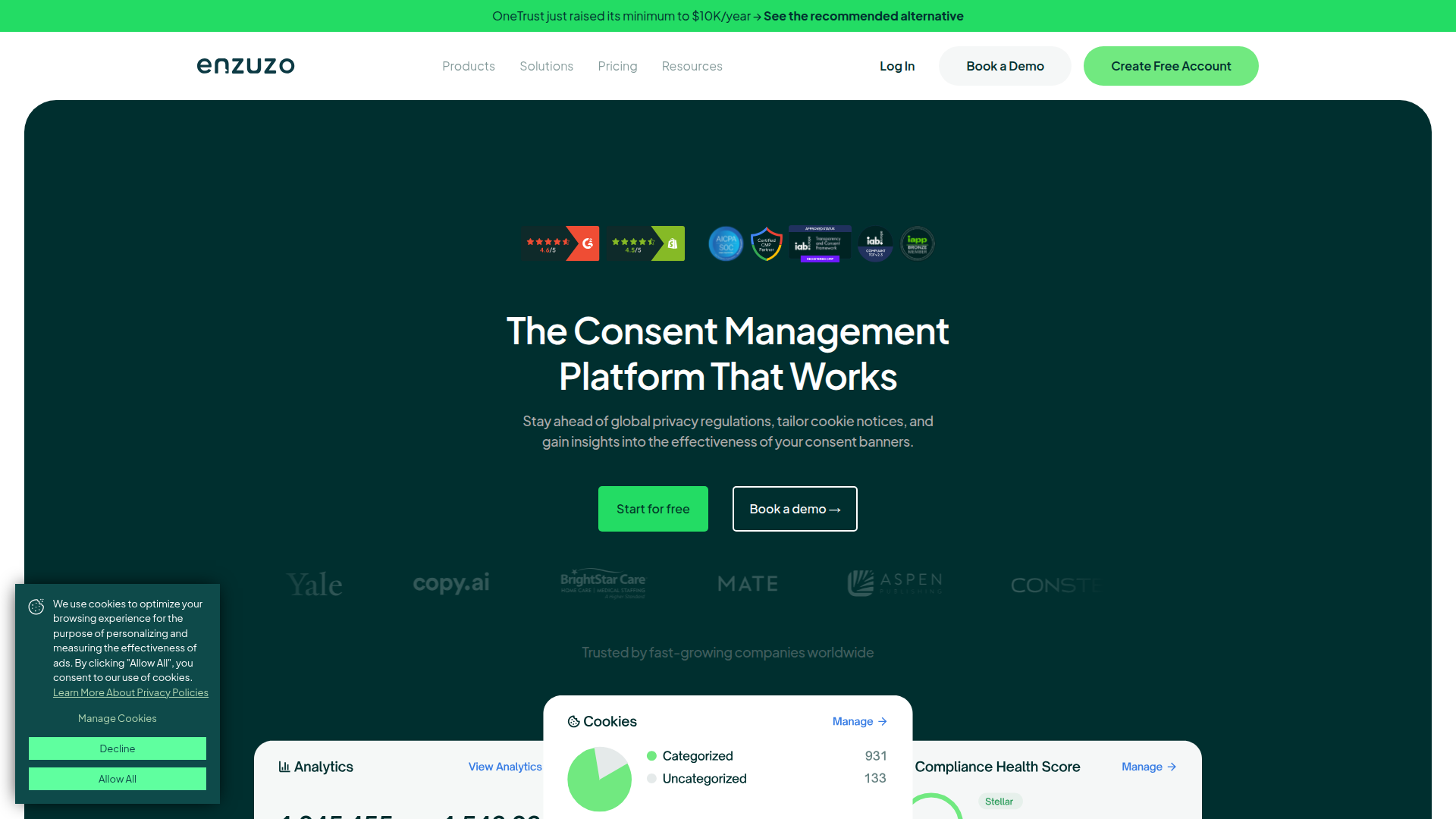
Connect Enzuzo to block tracking scripts until visitors consent. You can also display different banners for different regions or embed auto-updating legal pages. Agencies running multiple client sites use the centralized Enzuzo dashboard to manage compliance across all domains from one account.
You can set up the Enzuzo Data Privacy integration in 3 documented ways, plus a separate developer-managed automation pattern for custom code deployment:
- The Enzuzo Data Privacy app installs cookie consent banners, script blocking, and consent logging without writing code.
- Custom code embedding lets you place the Enzuzo banner script or policy embed code in specific locations across your site.
- Google Tag Manager lets you deploy Enzuzo inside existing tag-management workflows.
- The Data API helps developers manage custom code deployment across sites and pages. Enzuzo doesn't document this as an official Enzuzo integration path and doesn't publish a public REST API.
Most implementations use the native app alone. If you already have custom code workflows or GTM setups, you can combine the native app, manual embed, or GTM deployment depending on your setup. The Data API path is a separate automation workflow for developers managing deployment across sites and pages.
Install the Enzuzo Data Privacy app
The Enzuzo Data Privacy app is available on the Webflow Apps Marketplace. It handles cookie scanning, banner display, and consent logging without opening any code panel. After installation, Enzuzo automatically scans your site for cookies, categorizes them, and injects the consent banner script when you publish. You configure banner appearance, cookie categories, and regional consent rules through the Enzuzo dashboard. CSS customization of the banner requires a paid Enzuzo plan.
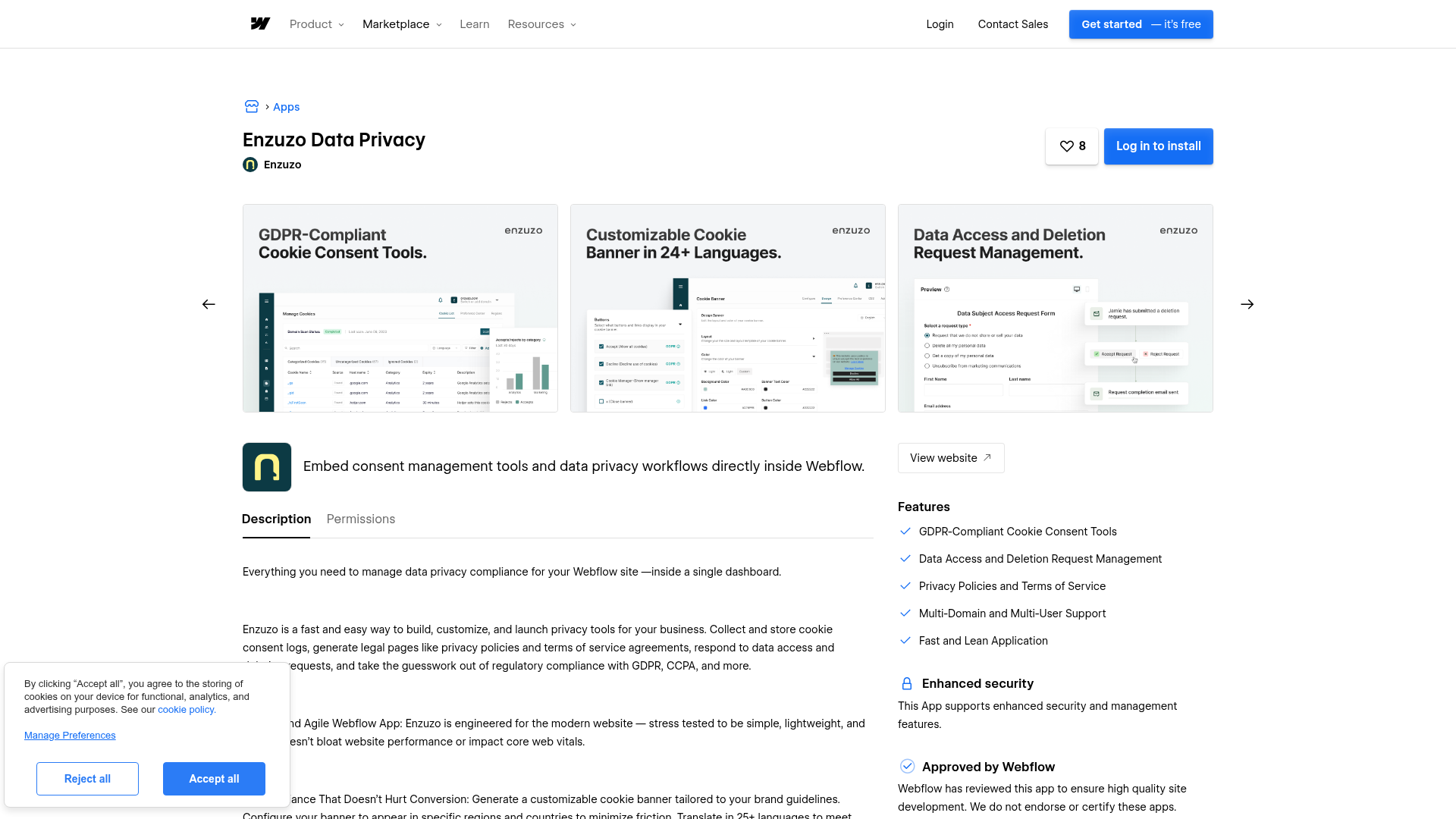
To set up the integration:
- Go to the Enzuzo Data Privacy app listing and click Install.
- Authorize Enzuzo to access your site using your Webflow SSO credentials.
- Open the Enzuzo dashboard and let the built-in scanner detect and categorize your site's cookies.
- Configure your banner settings, cookie categories, and regional consent rules under Consent Banner > Configure in the Enzuzo dashboard.
- Customize colors, fonts, layout, and copy to match your brand.
- Publish your site to activate the consent banner.
The app covers these capabilities:
- Cookie consent banners that display automatically and match your brand colors and typography
- Geo-specific compliance that shows opt-in banners for EU visitors (GDPR) and opt-out notices for California visitors (CCPA) based on IP detection
- Automatic cookie categorization into necessary, preferences, statistics, and marketing groups
- Script blocking that prevents tracking scripts from firing until visitors grant consent
- Google Consent Mode v2 integration for compliant ad delivery and analytics tracking in the EEA
- Consent logging with timestamps for audit records
These features cover the standard no-code setup for most sites.
The app requests write access to your site's custom code and the ability to trigger publishes. Review these permissions in your site settings before installing in sensitive environments. The native app manages script load order automatically. This eliminates the most common compliance failure, where tracking scripts fire before the consent banner loads.
Add Enzuzo components with custom code
Use custom code when you need consent banners on specific pages only. It also works when you want to integrate with existing scripts in your site's head code. You can also use it to embed Enzuzo's legal policy content inline on a page. For this method, you'll work with custom code in head and body tags settings. You need a paid Workspace (Core, Growth, Agency, or Freelancer) or an active site plan.
Add the cookie consent banner via site settings
The consent banner script must load before any tracking scripts fire on your page. Placing it in the site-wide head code is the standard approach for cookie consent. It loads the banner before other scripts in the document.
To add the consent banner site-wide:
- Open the Enzuzo dashboard and go to Cookie Consent > Cookie Banner > Add to Website to copy your account-specific script URL.
- In your dashboard, go to Site Settings > Custom Code.
- Paste the Enzuzo script into the Head code section, above any tracking scripts already present.
- Click Save changes.
- Republish your site.
This keeps the banner in the correct position for consent-based script blocking.
Script placement order matters. If a Google Analytics or Meta Pixel script appears above the Enzuzo script, it fires before the banner collects consent. Script order isn't enforced at the platform level. Any collaborator who later adds a tracking script above Enzuzo's snippet will break compliance. Document the required script order for your team.
Add the consent banner to a single page
If you only collect personal data on specific pages, scope the consent banner to those pages instead of running it site-wide.
To add the banner to one page:
- Open the page and go to the page's settings panel.
- Paste the Enzuzo script into the Inside
<head>tag custom code field. - Save and republish.
This approach works best when site-wide tracking scripts don't fire before the page-level banner loads.
Page-level custom code renders after any site-wide custom code in the HTML markup. If you also have tracking scripts in the site-wide head code, those scripts may fire before the page-level banner loads.
Embed privacy policies and terms of service
Enzuzo generates auto-updating legal documents: privacy policy, terms of service, and EULA. You can display these inline on any page using a Code Embed element. This is different from the consent banner script. It displays policy text content on dedicated legal pages.
To embed a legal policy:
- In the Enzuzo dashboard, open the policy you want to embed (Privacy Policy or Terms of Service).
- Click Add to Website at the top of the page.
- In the dialogue window, click Copy Code to Clipboard.
- Add a Code Embed from the Add panel on the page where you want the policy to appear.
- Paste the copied code snippet into the Code Embed.
- Save and publish.
Use this embed to render legal document content on dedicated pages, not to control cookie consent behavior.
The embedded policy text updates automatically when Enzuzo detects regulation changes. The embed loads content from Enzuzo's servers, so policy text updates without a republish. Enzuzo's help center has dedicated guides for privacy policies and terms of service.
Use Google Tag Manager with Enzuzo on Webflow
If you already manage tracking scripts through Google Tag Manager on your site, configure Enzuzo's consent layer within GTM. This is one of the documented setup methods and replaces placing the script directly in site settings.
To set up Enzuzo in GTM:
- In GTM, go to Templates > Search Gallery and select the Enzuzo Cookie Manager template.
- Click Add To Workspace > Add.
- Go to Tags > New, name the tag, and select Enzuzo Cookie Manager as the tag type.
- Set the trigger to Consent Initialized – All Pages (not Page View).
- Enter your Enzuzo Script URL from Cookie Consent > Cookie Banner > Add To Site in your Enzuzo dashboard.
- Save and publish the GTM container.
This keeps consent initialization ahead of your tracking tags when GTM is configured correctly.
The consent banner must load before GTM fires any tracking tags. If GTM loads first, pixels like Meta Pixel may fire before the consent signal is available. Enzuzo's GTM setup guide covers the full configuration in detail.
Advanced Webflow automation with the Data API
If you're building Marketplace apps, use the Data API to programmatically register and apply scripts to sites and pages. The same approach works if you're managing custom code across multiple sites. You'll need OAuth authentication — site tokens and workspace tokens can't access the Custom Code endpoints. Enzuzo has no public REST API, and public-facing documentation doesn't list an official programmatic Enzuzo integration path. The documented Enzuzo setup methods are the native Marketplace app, manual JavaScript embed via the Custom Code UI, and GTM.
The relevant APIs include:
- The Custom Code API registers and applies scripts to sites and individual pages (OAuth tokens only, scopes:
custom_code:read,custom_code:write) - The Site Publish endpoint triggers a publish after script injection (scope:
sites:write) - The Forms API reads form submissions for DSAR-related data retrieval (scope:
forms:read)
These endpoints cover script deployment and DSAR-related form data retrieval.
They all require OAuth tokens. Site tokens and workspace tokens can't access Custom Code endpoints.
Register and deploy consent scripts programmatically
If you're an agency or app developer managing Enzuzo across many sites, the Custom Code API can replace manual script placement. This handles deployment on the platform side rather than as a documented Enzuzo integration method.
To deploy the Enzuzo consent script via API:
- Register the Enzuzo script as an externally hosted script using
POST /v2/sites/:site_id/registered_scripts/hosted, providing the account-specific Enzuzo script URL from the Enzuzo dashboard. - Apply the registered script to the site using
PUT /v2/sites/:site_id/custom_code. Include all scripts you want active in the request body, since this endpoint replaces the full script set. - Publish the site using
POST /v2/sites/:site_id/publishto activate the consent banner.
Use this deployment pattern in multi-site environments where you need to manage script changes centrally.
The PUT endpoint for custom code is a full replacement operation. Include every script you want active on the site in each request. Omitting a script from the request body removes it.
Process data subject requests with form submission data
If your site collects personal data through native forms, use the Forms API to pull submission data. This supports DSAR requests processed from the Enzuzo dashboard.
To retrieve form submissions:
- List all forms on the site using
GET /v2/sites/:site_id/forms. - Fetch submissions for a specific form using
GET /v2/sites/:site_id/forms/:form_id/submissions. - Delete individual submissions using
DELETE /v2/sites/:site_id/form_submissions/:submission_idto fulfill "right to be forgotten" requests.
These steps cover retrieval and deletion workflows for native form data.
The PATCH endpoint for form submissions can modify hidden fields only. It can't change user-submitted field values. For full DSAR compliance workflows, coordinate between Enzuzo's DSAR dashboard and the Forms API.
What can you build with the Enzuzo Data Privacy Webflow integration?
Connect Enzuzo Data Privacy to add region-aware consent management and legal compliance infrastructure to any site. You don't need to build custom consent logic or hire a privacy attorney.
- Multi-region marketing site with geo-targeted consent: A SaaS company with visitors from the EU, California, and Canada displays GDPR opt-in banners for European visitors. It shows CCPA opt-out notices for Californians and can support compliance for Quebec Law 25 alongside GDPR and CCPA requirements. All of this runs from a single site configured through Enzuzo's geofencing rules.
- E-commerce store with compliant ad tracking: A DTC brand running Google Analytics and Meta Pixel blocks both scripts from firing until visitors grant consent. Google Consent Mode v2 preserves modeled conversion data for ad campaigns targeting EEA audiences.
- Agency compliance service across client portfolios: An agency installs Enzuzo on every client site from a centralized dashboard. It manages consent logs per client and packages ongoing compliance monitoring as a recurring managed service. This follows the model documented in the Uroboro case study.
- Membership site with data subject request handling: A site with user accounts embeds Enzuzo's DSAR form so members can request access to, export, or delete their personal data under GDPR Articles 15 through 17. DSAR forms require the Growth plan or above, and request tracking is managed through Enzuzo's dashboard.
If you need more control over multi-site script deployment or DSAR-related data retrieval, use the Data API path.
Frequently asked questions
No. Tracking scripts added to a Webflow site load immediately on page load with no consent layer intercepting them. You need a third-party consent management tool like Enzuzo to block non-essential cookies until visitors opt in.
The native app handles script injection and load order automatically after you publish. The manual embed method gives you direct control over script placement in specific code locations. It requires you to manage load order yourself. If a tracking script appears above the Enzuzo snippet in your head code, it fires before consent is collected. For most sites, the native app is the simpler and safer option. The Enzuzo cookie banner Webflow help article covers both methods.
The free Enzuzo plan includes a cookie consent banner, basic privacy policy, cookie scanning, and consent logging at no cost. Two commonly needed features require a paid plan. CSS customization of the banner requires a paid plan. Geo-specific consent rules and DSAR forms require the Growth plan or above. Review the Enzuzo pricing page to confirm which features your site requires.
Yes, but domain limits vary by plan. The Free and Starter plans cover one domain each. Growth supports four domains, Pro supports ten, and the Agency plan supports twenty. For unlimited domains with centralized consent logs and per-client configuration, agencies need the Enterprise plan. The Enzuzo consent management page for agencies describes the multi-site management workflow.
Enzuzo's consent decisions can integrate with the Webflow Browser API. This API provides functions to get, allow, or deny user tracking consent. It connects Enzuzo's consent state with Webflow's own Optimize and Analyze features.
Description
Enzuzo adds cookie consent banners, legal policy generation, and data subject request handling to Webflow sites through a native marketplace app or custom code.
This integration page is provided for informational and convenience purposes only.

Google site tools for Webflow
Google site tools for Webflow is Webflow's own app for reading GA4 and Search Console data inside Webflow and adding your Google Tag Manager script without code.

Data Goat (by Flow Ninja)
Data Goat shut down in November 2024. Replace its tracking with Webflow Analyze or a marketplace analytics app, GA4 scripts you install through Code Embed, and the Webflow Data API v2 for form data server-side.

Countdown Bar Timer
Connect Countdown Bar - Timer with Webflow to add urgency-driven countdown timers to landing pages, product pages, and sitewide promotions.
Smartarget Reviews
Connect Smartarget Reviews with Webflow to display curated customer testimonials and star ratings on your site without building a review system from scratch.
TripleChecker
Connect TripleChecker, an automated proofreading tool, with Webflow to scan your published site for spelling errors, grammar mistakes, and broken links on a recurring schedule.
Cookie Consent
Connect Cookie Consent, a GDPR and CCPA compliance app, with Webflow to add configurable cookie banners that block third-party scripts until visitors make a consent choice.
Gemini
Connect Google Gemini to Webflow to add AI text generation, image analysis, and automated content pipelines to your site.
Datadog
Connect Datadog with Webflow to monitor real user performance, track frontend errors, and run synthetic uptime checks on your published site.
Braintrust
Connect Braintrust with Webflow to monitor AI-powered features on your site and sync evaluation data into your CMS.
Related integrations
Get started for free
Try Webflow for as long as you like with our free Starter plan. Purchase a paid Site plan to publish, host, and unlock additional features.
