






Elfsight
Connect Elfsight, a cloud-based widget platform, with Webflow to add review displays, social media feeds, chat buttons, and interactive elements through embeddable code snippets.

Use Elfsight with your Webflow site to place review widgets, social feeds, chat buttons, and other widgets without building each feature yourself.
Your Webflow site generates production-ready HTML and CSS, but you won't find built-in support for social media feeds, third-party review widgets, chat overlays, countdown timers, or event calendars. To add these features natively, you'd need to develop custom JavaScript or source and maintain separate scripts for each widget type. If your team needs several interactive elements across a site, that creates significant development overhead.
Elfsight fills that gap with a library of 96 configurable widgets that install through a single code snippet. You configure each widget visually in Elfsight's dashboard, copy the generated embed code, and paste it into your Webflow site. Updates you make in the Elfsight dashboard propagate to the live site automatically, so you don't need to return to the Designer after the initial setup.
This setup fits Webflow freelancers, agency designers, small business owners, e-commerce managers, and marketing teams that need ready-made widgets on client or company sites. If you're building on Webflow and need configurable widgets, you'll find a practical fit here.
How to integrate Elfsight with Webflow
What is Elfsight? Elfsight is a cloud-based widget platform that offers 96 configurable apps covering social feeds, review aggregation, chat buttons, forms, e-commerce tools, and more. You configure widgets through a visual editor and deploy them via an HTML/JavaScript snippet that works on any platform supporting custom code. All widget content and styling updates happen in the Elfsight dashboard and reflect on the live site without re-embedding.
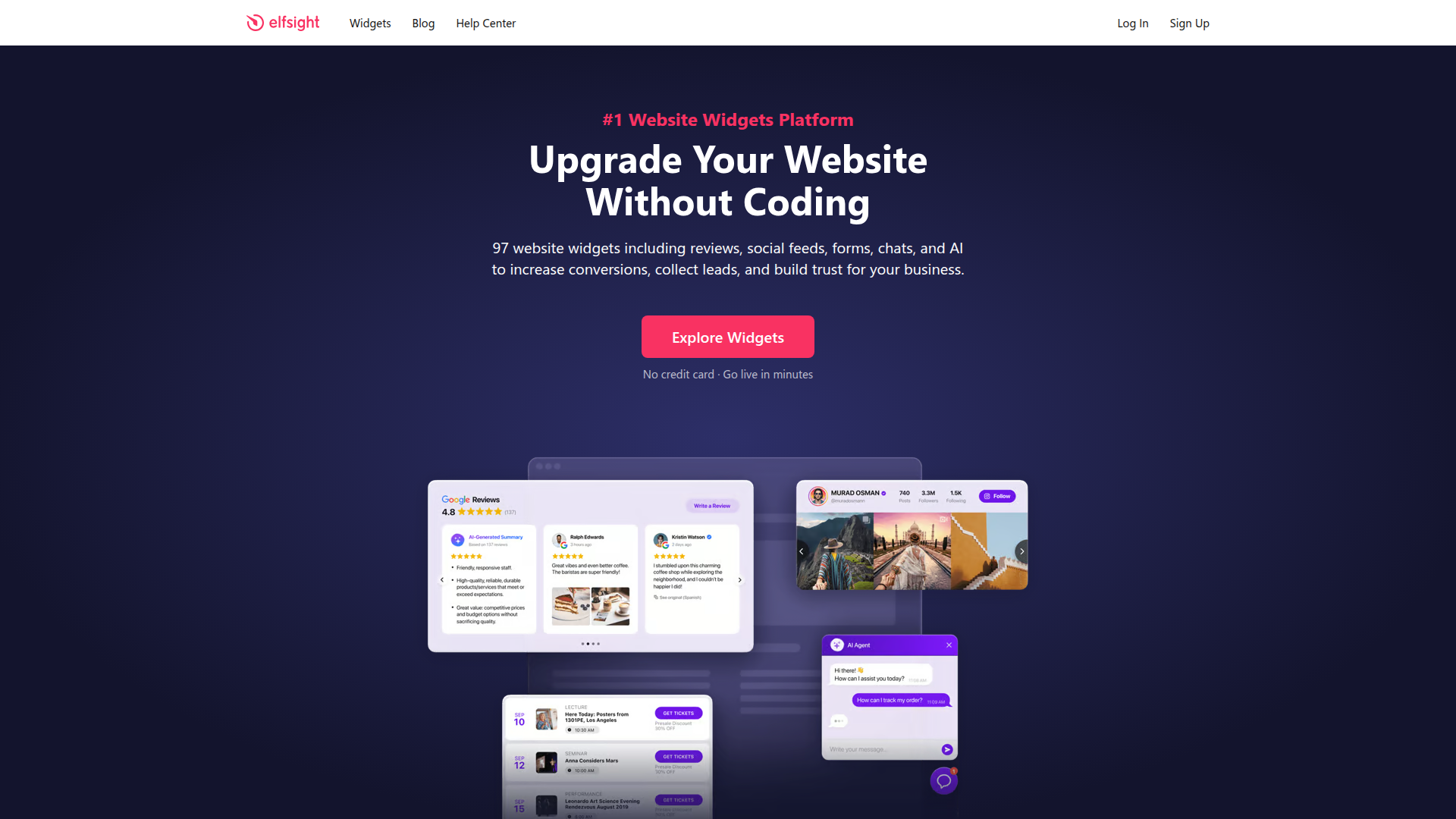
Reach for Elfsight when your project needs interactive elements that fall outside the native feature set. A restaurant site might need a Google Reviews widget near its booking section. An agency portfolio might need an auto-updating Instagram feed. Instead of building each feature from scratch, you can drop a preconfigured Elfsight widget into your site through a short code snippet.
Choose one of these 2 approaches:
- Code Embed elements and site-wide custom code let you place widgets on individual pages, across all pages, and within CMS templates or Collection List setups without writing code.
- If you're a developer, you can combine CMS data with custom frontend logic and the Elfsight Embed SDK for custom implementations, though this is a more specialized pattern that requires JavaScript development.
Most implementations rely on the Code Embed or site-wide custom code method. Take the developer route only for more specialized use cases.
Add Elfsight widgets with Code Embed elements and custom code
Elfsight widgets install on your site through a client-side embed pattern. You configure the widget in Elfsight's dashboard, copy a short HTML snippet containing a <script> tag and a <div> with your widget ID, and paste it into your site. The visitor's browser fetches and renders the widget from Elfsight's servers at page load. You need a paid plan to use custom code on a live site. Free Starter plans don't support these live custom-code workflows. You can also test widgets in preview mode when you've enabled custom code preview, but the widget won't render inside the Designer canvas.
Use a Code Embed element for one page, custom code settings for all pages, and a template embed for CMS pages:
- Place a widget at a specific location on a single page with a Code Embed element
- Load a widget across every page with the site-wide custom code settings — best for floating widgets like chat buttons
- Display a widget across all Collection pages by adding a Code Embed element inside a CMS template
Each option uses the same Elfsight embed code, pasted in a different location.
Embed on a single page
Place the widget at a specific position on one page. This works best for inline, positional widgets like social media feeds, review displays, photo galleries, pricing tables, and contact forms.
[image placeholder]
To get the embed code from Elfsight:
- Log in to your Elfsight account and open the widget you want to embed.
- Click Publish in the top-right corner of the editor.
- In the Dashboard, click Install next to the widget.
- Select the Embed Code tab and copy the code.
Once you've copied the snippet, you're ready to place it inside your site.
To place the widget:
- Open your site and go to the page where you want the widget.
- Open the Add panel (the ➕ icon).
- Find the Code Embed element under Advanced and drag it to the desired position on the page.
- Paste the Elfsight code into the Code Embed editor window and click Save & Close.
- Adjust width and height in the right sidebar if needed.
- Click Publish and select Publish to Selected Domains.
After publishing, check the live page to confirm the widget loads in the intended position.
The widget will appear as a blank placeholder inside the Designer canvas. That's expected — the canvas doesn't execute external JavaScript. Depending on your preview settings, you can also test custom code in preview mode, but the most reliable check is still on the published site.
Add to all pages with site-wide custom code
Use this method to paste the Elfsight snippet into every page on your site. It works best for floating widgets like WhatsApp chat buttons, popups, notification bars, and age verification overlays. For static (inline) widgets on all pages, Elfsight recommends contacting their support team for assistance.
To add the widget site-wide:
- Go to
webflow.com/dashboardand find your site. - Click the three dots on the site card, then click Settings.
- In the left sidebar, click Custom Code.
- Paste the Elfsight embed code into the Head Code field.
- Click Save Changes.
- Click Publish and select Publish to Selected Domains.
This publishes the same widget code across the full site instead of limiting it to one page.
Elfsight's official Webflow instructions use the Head Code field for site-wide installation. If performance is a concern, the custom code guidance points to Footer Code (before </body>) as the lighter option, since it's less likely to block initial rendering. In practice, Head Code matches Elfsight's documented method, while Footer Code is the lower-impact alternative when your widget setup allows it.
Embed in CMS Collection templates
Place Elfsight widgets inside CMS Collection templates to display them across all items in a Collection. This approach works well when you want to show testimonials on each service page, social feeds on blog posts, or review widgets on product pages without duplicating the embed code manually.
To set this up:
- Open your site and go to the CMS Collection template page.
- Add a Code Embed element at the desired position within the template layout.
- Paste the Elfsight embed code and click Save & Close.
- Publish the site.
Every item in that Collection will display the widget. To show a different widget per CMS item, store the Elfsight widget ID in a CMS field and reference that field inside the Code Embed element. You'll need a CMS plan or higher for this.
Build with the Data API and Elfsight Embed SDK
If you need a more customized implementation, you can pull CMS content through the Data API while using the Elfsight Embed SDK to drive custom frontend workflows around Elfsight widgets. This approach requires JavaScript development and a server-side component for API calls, but it gives you more control over how widget-related logic is handled across CMS-driven pages.
Developer resources for this approach include:
- The Elfsight Embed SDK provides developer tools for building custom interfaces around Elfsight widgets
- The Data API reads CMS Collections and items via REST endpoints
- The Custom Code API lets you register scripts programmatically across sites and pages
Together, these resources cover the main pieces you'll use in a custom implementation built around CMS data and frontend logic.
Elfsight offers no public REST API. There's no HTTP interface for reading widget analytics, updating widget content programmatically, or receiving webhook events. The Embed SDK is the only developer-facing product.
Use CMS data in a custom developer workflow
Drive widget-related logic on each page from CMS Collection items. A typical use case is an agency site where each client portfolio page references a different widget ID.
To implement this:
- Create a CMS Collection field (plain text) to store the Elfsight widget ID for each item.
- Use the Data API to fetch Collection items via
GET /v2/collections/{id}/items, retrieving the widget ID stored in each item's field. - Include the necessary frontend script for your implementation and pass the widget ID from the CMS data into your custom logic.
- Render the appropriate result on the page based on the CMS data and your implementation approach.
This setup helps you support more customized implementations across CMS-driven pages without manually duplicating embed code.
What can you build with the Elfsight Webflow integration?
Elfsight adds auto-updating widgets to your pages through an embed code, so you don't need separate custom scripts for each feature.
- Review sections: Pull reviews from Google, Yelp, Tripadvisor, and 30+ other platforms into a single display near pricing sections or service descriptions. On a local restaurant site, you can place recent Google Reviews near the reservation form.
- Social media feeds: Display Instagram, TikTok, LinkedIn, or multi-platform feeds that refresh automatically when you post new content. For a fashion brand, you can show the latest Instagram posts in a grid layout without manual updates.
- E-commerce tools: Add countdown timers, popup forms, announcement bars, and before-and-after sliders. For an online store running a weekend sale, you can place a countdown timer and exit-intent popup in minutes.
- Site-wide overlays: Float a WhatsApp chat button, AI chatbot, or age verification popup across every page with a single code injection. For a beverage brand, you can gate site content behind an age verification overlay deployed through Site Settings.
If you need more control over CMS-driven widget deployment across many Collection pages, the developer route with CMS data and custom frontend logic gives you room for more customized workflows.
Frequently asked questions
Yes for the custom-code methods covered in this guide. Code Embed elements and site-wide custom code require a paid Webflow plan for live use. You can test Elfsight widgets in preview mode without publishing, but a paid plan is required for the live site. See Webflow's custom code documentation for plan-specific details on Code Embed element availability.
Webflow's Designer canvas does not execute external JavaScript. A blank Code Embed placeholder is normal and does not indicate a broken installation. If custom code preview is enabled, you may be able to test the widget in preview mode, but the published site is still the clearest place to verify the final result. If the widget still does not appear after publishing, check whether the embed code was accidentally commented out with
<!-- -->tags, or test in an incognito browser window to rule out extension conflicts. The Elfsight troubleshooting guide covers additional causes.Yes, but this requires a Webflow CMS plan or higher. Store each widget's unique Elfsight ID in a CMS plain text field, then reference that field inside a Code Embed element on the Collection template page. Webflow dynamically inserts the correct widget ID per item at publish time. On lower-tier plans, you can only embed a single static widget that appears identically across all Collection items.
Elfsight integrates with Webflow through a manual code embed. It appears in Webflow's integrations directory, and those pages state they are "provided for informational and convenience purposes only." Elfsight does not have a listing on the Webflow Apps Marketplace. The installation method is documented in the Elfsight Webflow installation guide.
A CSS conflict with Webflow's
.global-stylesclass can cause width issues on mobile devices. Add the following CSS in the Custom CSS field inside the Elfsight dashboard (not in Webflow):.global-styles, .ceewi-wrap, [class*="elfsight-app"] { width: 100%; }. Also confirm the Code Embed element is placed inside a Div or Section element, not inside a Button element, as Button containers cause rendering failures. The Elfsight community thread explains this fix in detail.
Description
Elfsight adds 96 configurable widgets to Webflow, including review aggregators, social feeds, chat buttons, and e-commerce tools, through Code Embed elements or site-wide custom code injection.
This integration page is provided for informational and convenience purposes only.

Finsweet Webflow Hacks
Add Finsweet Hacks to Webflow with custom code: named form success messages, clean anchor URLs, a checkbox price calculator, and when to use Attributes.

Drupal
Connect Drupal with Webflow to deliver managed content through a visual frontend using API sync, automation tools, or client-side embeds.

Finsweet Components
Connect Finsweet Components, a native Webflow app, to add JavaScript-powered sliders, marquees, social feeds, favorites, and auto tabs directly inside the Webflow Designer without custom code.

EX.CO
Connect EX.CO with Webflow to add interactive video players and monetize content through custom embed codes.
Finsweet Class Adder
Add and remove CSS classes on Webflow elements on click, hover, scroll, or page load using a script generated by Finsweet's Visual Builder.

Pixie
Connect Pixie with Webflow to automate CMS image optimization, reduce file sizes, and speed up page load times.
One2 Menu
Add a One2 Menu restaurant menu to a Webflow page with a code snippet, for QR menus and price edits that go live without a republish.
PowerImporter
PowerImporter automtes content updates that can create bottlenecks when marketing teams manage information in Airtable or spreadsheets but developers must manually transfer data to Webflow CMS.

Flowstar Tabs
Connect Flowstar Tabs, a no-code tab builder, with Webflow to organize product details, including specs, into customizable tabbed info sections.
Related integrations
Get started for free
Try Webflow for as long as you like with our free Starter plan. Purchase a paid Site plan to publish, host, and unlock additional features.
