






Drawer Design
Connect Drawer Design with Webflow to place ready-made Lottie animations on your pages, with no-code embedding through the native Lottie element and scripted delivery through custom code or the [Webflow Data API](https://developers.webflow.com/data/reference/rest-introduction).

Webflow renders Lottie animations natively, but it does not create them. Producing a Lottie file from scratch means Adobe After Effects, the Bodymovin plugin, and a motion designer, which is not a skill set most web teams keep on staff. The usual fallback is a static image or a heavy GIF.
Drawer Design supplies the animation files and Webflow supplies the runtime. You download a Lottie JSON file from one of its packs, upload it to your site's Assets panel, and place it with the Lottie animation element. You set the duration, the triggers, and the frame range inside Webflow, so nobody has to rebuild the animation by hand.
Drawer sells to designers and developers who need motion on marketing pages without commissioning custom animation work. The catalog runs from animated icon sets to character illustrations, with packs aimed at healthcare, e-commerce, education, logistics, and food delivery sites.
How to integrate Drawer Design with Webflow
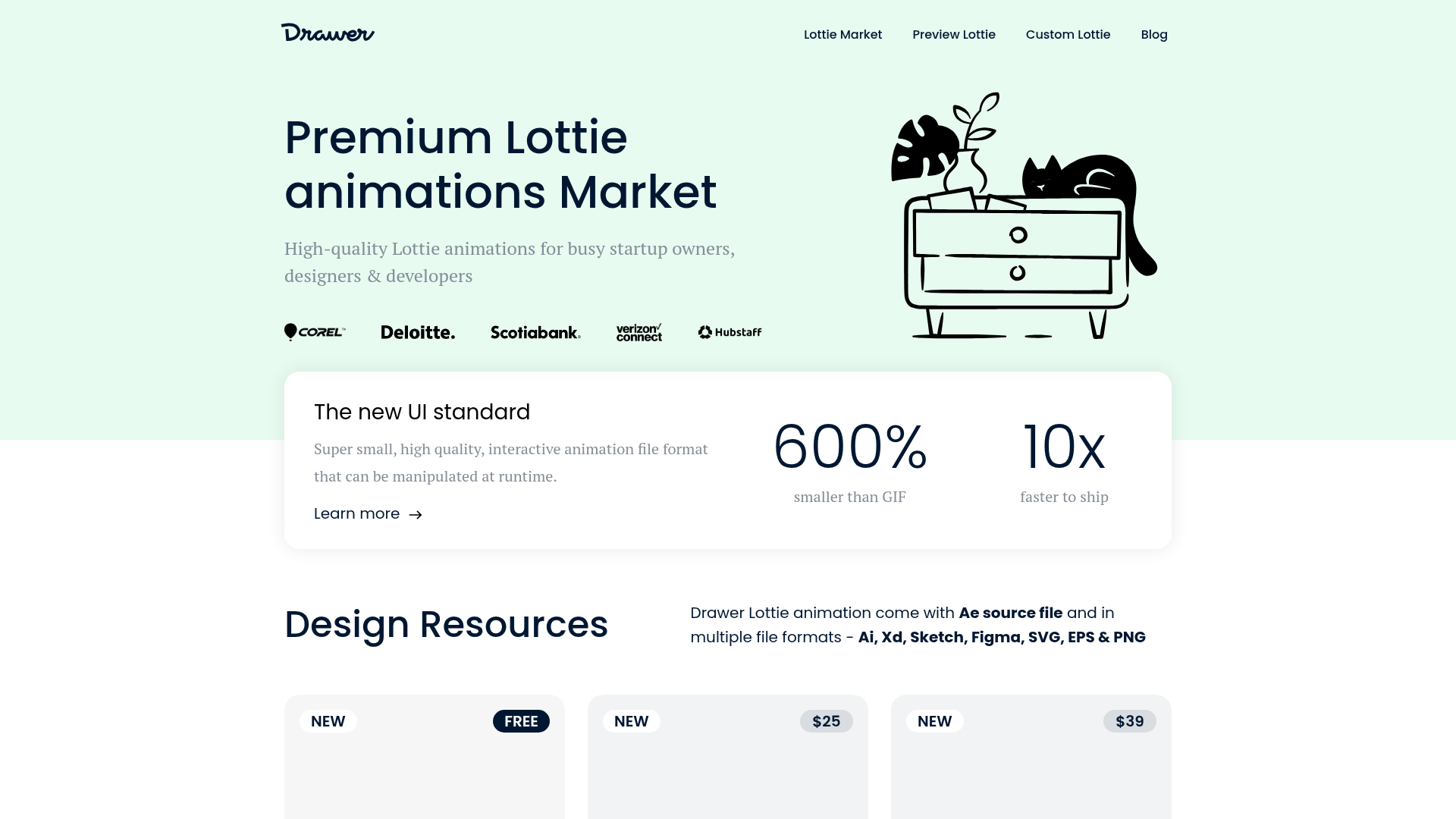
What is Drawer Design? Drawer Design, branded on its own site simply as Drawer, is a marketplace for Lottie JSON animations and vector illustrations. Most packs ship the After Effects source file alongside exports in AI, XD, Sketch, Figma, SVG, EPS, and PNG, and the assets are vector based, so they scale without quality loss. Drawer also runs a free browser tool for previewing and recoloring Lottie files with no signup, and it takes commissions for custom animation.
Teams reach for Drawer when a site needs motion but has no animation pipeline behind it. Drawer publishes no API and no webhooks, and it has no Webflow Marketplace app, so the handoff is a file: you download the JSON, and everything after that happens on the Webflow side. Its own Webflow walkthrough is dated March 2021, so the interface steps in it no longer match the product. Follow Webflow's current documentation for those, and use Drawer's guide for the concepts.
Three approaches cover the work. The native Lottie animation element places a file on the canvas and hands playback to Interactions. Code Embed and custom code load a Lottie player library so JavaScript controls playback. The Webflow Data API uploads files and drives CMS items programmatically, which calls for a developer on the server side. Most implementations combine two of them, depending on how much of the page is dynamic.
Lottie is also not the only format Webflow animates: Rive covers state-driven interactive motion, and a Lottie file itself can come from anywhere, including LottieFiles. What Drawer adds is paid packs that include the After Effects source, which is the difference between editing an animation and only placing it.
Place Drawer animations with the native Lottie element
This is the no-code path, and it is where most landing page work ends. Webflow accepts both Lottie JSON and dotLottie files, reads the animation's native duration and frame count from the file, and exposes element settings for built-in duration, loop, reverse, and renderer.
To set up the integration:
- Download a Lottie JSON file from a free or purchased Drawer pack.
- In Webflow, open the Assets panel, click the cloud upload icon, and select the JSON file.
- Go to Add panel > Media and drag the Lottie animation element onto the canvas.
- Click Replace Lottie sequence in the element settings and pick your file from the Assets panel.
- Set the built-in duration, loop, reverse, and renderer under Lottie animation settings.
By default every animation plays as the page loads, so a visitor never sees one that sits below the fold. A trigger fixes that. In Interactions with GSAP, the Lottie action targets any JSON or dotLottie file on the canvas and controls duration, start and end frames, easing, and repeat behavior, and it can sit in a timeline alongside other GSAP actions. Classic Interactions offers the older Lottie playback animation instead. Webflow supports both, so build on whichever one the site already uses.
Load a Lottie player with Code Embed and custom code
Reach for code when the JSON file lives at an external URL, or when you want JavaScript control over speed, looping, and autoplay. Drawer's web animation guide documents the pattern with either a Lottie library script tag or a LottieFiles web component. One correction to make before you copy it: the lottie-player web component repository it points at is archived, so new builds should use the dotLottie web player or lottie-web. Custom code needs a paid Workspace plan or an active Site plan.
Add the player script site-wide
Load the player library once through the site's head and body tags custom code settings.
To add the script:
- Go to Site settings > Custom code tab.
- Paste the player script tag into the Footer code section, which places it at the end of the body so page content loads before the script runs.
- Click Save changes and publish the site.
The Head code and Footer code sections each accept up to 50,000 characters. Drawer also recommends serving the library from a CDN, preconnecting that host with a <link rel="preconnect"> tag, and prefetching the JSON file, which are cheap wins on a page carrying several animations.
Initialize the animation with a Code Embed element
With the player loaded, one Code Embed element holds the markup and initialization script for each animation.
To add the embed:
- Copy your initialization code to the clipboard.
- Open the Add panel and place a Code Embed element where the animation should render.
- Paste the code, point it at the JSON file path, and set the speed, loop, autoplay, and background color properties.
- Save and close the modal.
Code Embed runs front-end code only: HTML, CSS in <style> tags, and JavaScript in <script> tags. Server-side languages such as PHP or Python do not run on Webflow. A single embed cannot exceed 50,000 characters, which is another reason to reference the player from a CDN rather than paste it inline. Embeds can also read CMS field values, and that binding is what the API work below depends on.
Automate delivery with the Webflow Data API
Drawer publishes no API or webhooks, and its own FAQ sends readers to the Lottie project's documentation instead, so every programmatic piece of this integration runs on the Webflow side, against the Data API v2 at base URL https://api.webflow.com/v2. This path suits developers pushing animations across many pages or CMS items, and it needs a server-side codebase to run in.
The work spreads across four groups of endpoints:
- Assets: The upload endpoint takes a fileName and an MD5 fileHash, then returns an uploadUrl and uploadDetails you post the actual file to on Amazon S3.
- CMS Collection Items: The items endpoints create, update, and publish the content that references each animation, and the bulk update call handles up to 100 items at a time.
- Registered scripts: Register a hosted script with a subresource integrity hash, or an inline script capped at 2,000 characters, then apply it to the site.
- Webhooks: Webflow webhooks fire events such as
collection_item_publishedandsite_publish, which keeps any downstream system in step with animation changes.
Registered scripts only take effect once the whole site publishes, so pair the apply call with a site publish in your deployment flow. If you would rather describe the change than write the requests, our MCP server exposes the same CMS, asset, and custom code surfaces to an AI agent working inside your existing Webflow permissions.
What you can build with the Drawer Design Webflow integration
Pairing Drawer Design with Webflow gets animated pages shipped without building an animation pipeline first, because the motion work already exists as a file.
Here is what that looks like in practice:
- Animated hero sections: Place an illustration from Drawer's Start It Up pack in a hero and trigger it on scroll into view, so a launch page carries vector motion that stays sharp at any viewport size.
- Loading and waiting states: The 60 Minimal UX Lottie Preloaders pack gives you looping load indicators for content-heavy pages, long forms, and anything else that makes a visitor wait.
- Icon and button micro-interactions: Wire a hover or click trigger to a Lottie action, set the start and end frames you want, and reverse the animation on the second interaction so the icon returns to its resting state.
- CMS-driven illustration libraries: Store each animation URL in a Plain Text field, then render it from a Code Embed inside a Collection List, so every item in a directory or service listing carries its own motion.
See how to apply custom code programmatically when you need the same player wired into every page of a site rather than one at a time.
Frequently asked questions
No. Drawer has no Webflow Marketplace listing, and it documents no automation connector for Webflow. The integration is file-based: you download a Lottie JSON file and place or script it yourself. The Webflow Apps overview covers what a Marketplace app does differently.
Code Embed and the site custom code sections need a paid Workspace plan or an active Site plan. The free Starter Site plan is limited to 2 static pages, 50 CMS items, and 1,000 monthly visits on the .webflow.io subdomain, per the Site plan guide.
Yes. Store each animation's URL in a Plain Text field and render it through a Code Embed placed in a Collection list or on a Collection page. Webflow's connect menu binds the field value into your code. See dynamic data in embeds for the exact steps.
Mouse click, hover, and mouse move over element all work as element triggers, along with scroll into view, while scrolling in view, and the page triggers. In Interactions with GSAP, a Lottie action also sets start and end frames, easing, and repeat behavior, and it can reverse on the second interaction without any code.
Drawer grants royalty-free use in personal and commercial projects, including sites you build for clients, and you may modify the files. Ownership stays with Drawer, and redistributing or reselling the files is prohibited. Free packs carry the same terms as paid ones, per the Drawer license.
Description
Place Drawer Design's Lottie animations on any Webflow page with the native Lottie element, then control playback with Interactions. For coded workflows, load a player script through custom code or automate delivery across [Webflow CMS](https://webflow.com/cms) items with the Data API.
This integration page is provided for informational and convenience purposes only.

LottieFiles
Bring lightweight, scalable vector animations to your Webflow sites with LottieFiles — the platform that makes adding motion as simple as uploading an image.

LottieFiles for Webflow
Search and recolor Lottie animations inside Webflow, then insert them straight onto the canvas.

IconScout
Connect IconScout, a design asset marketplace, with Webflow to add SVG icons, vector illustrations, 3D graphics, and Lottie animations to pages through drag-and-drop, code embeds, or API-driven CMS population.

Free images
Connect iStock with Webflow to search, license, and place stock photos on your pages without leaving the canvas.

Charttt
Embed image charts into Webflow sites, emails, blog posts, and anywhere else.

Assemble
Easily produce custom video content for your products
Related integrations
Get started for free
Try Webflow for as long as you like with our free Starter plan. Purchase a paid Site plan to publish, host, and unlock additional features.
