






IconScout
Connect IconScout, a design asset marketplace, with Webflow to add SVG icons, vector illustrations, 3D graphics, and Lottie animations to pages through drag-and-drop, code embeds, or API-driven CMS population.

Drop SVG icons, vector illustrations, 3D graphics, and Lottie animations straight onto the canvas with no exporting, reformatting, or hunting through stock libraries.
IconScout plugs into Webflow through a desktop app, embed code, and a REST API. Start on the dedicated icons for Webflow page to find the right workflow for your project.
How to integrate IconScout with Webflow
What is IconScout? The best starting point is IconScout's dedicated icons for Webflow page. IconScout is a design asset marketplace offering SVG icons, vector illustrations, 3D graphics, and Lottie animations. The platform has built-in editing tools for customizing colors, converting SVGs to Lottie files, and editing 3D assets. IconScout has plugins for Figma, Adobe tools, and Canva, along with a desktop app for Webflow.
Reach for IconScout when you need consistent, professional visuals across pages without designing every asset from scratch. A SaaS landing page might pull animated Lottie icons for feature sections. An agency building multiple client sites can draw from a single asset library to keep visual consistency. E-commerce pages can use 3D product illustrations instead of custom photography.
You can integrate IconScout with Webflow in 3 ways:
- The IconScout Desktop App lets you drag and drop assets onto the canvas without writing code.
- Code-based embed methods let you paste SVG markup, load Lottie animations, or add the Unicons icon font directly into your pages.
- The Webflow and IconScout APIs give you full control over programmatic asset search, download, and CMS population, but require server-side development.
Most implementations combine two or more of these methods depending on how complex your setup is.
Add assets with the IconScout desktop app
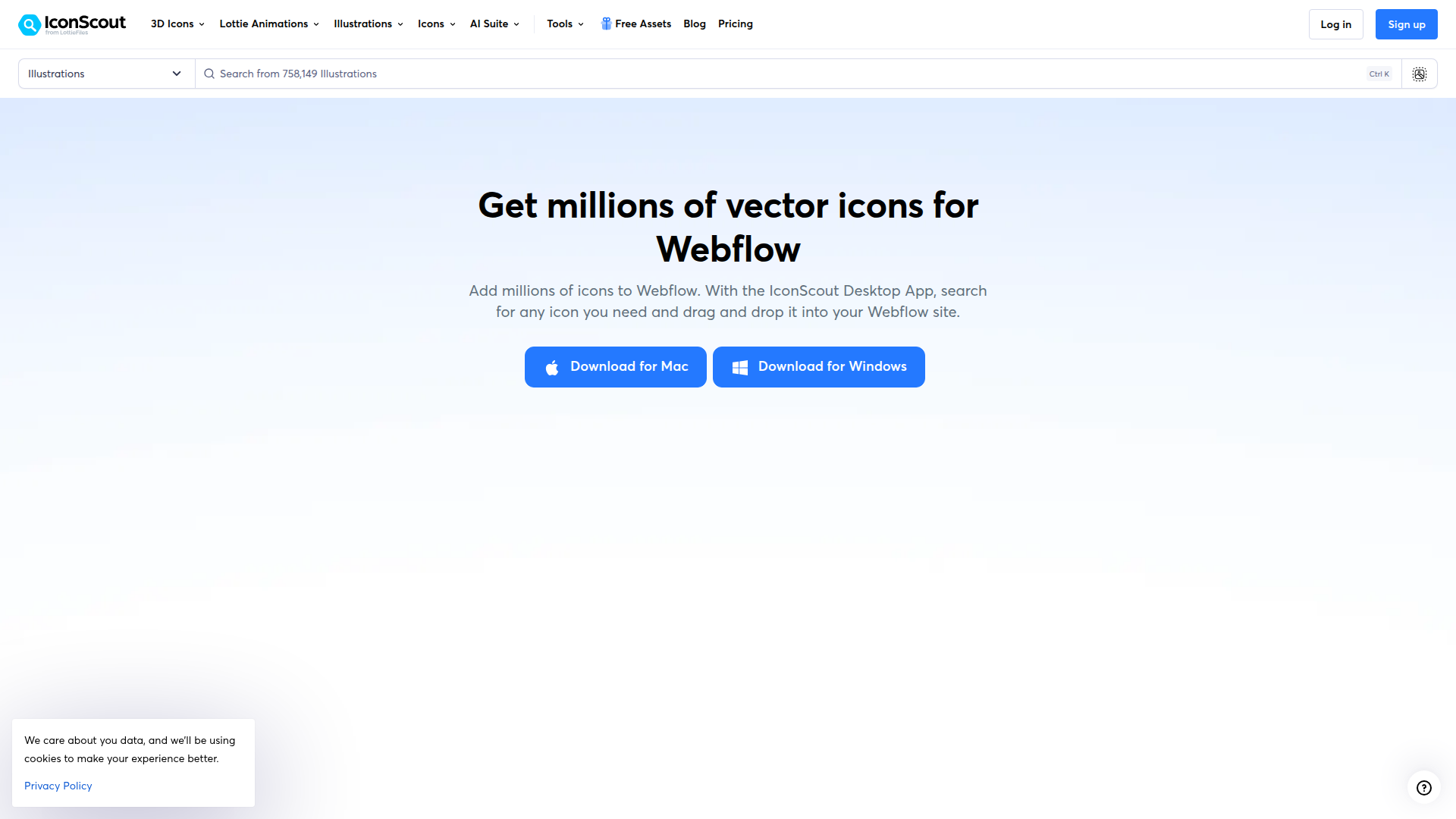
The IconScout Desktop App is the primary way to move assets from IconScout into your Webflow project. It runs on Mac and Windows as a standalone application alongside your browser. You search for assets inside the app, then drag them directly onto the canvas. You don't need to export, re-upload, or convert file formats. This method works on any Webflow plan, including the free tier, though the asset formats you get depend on your IconScout subscription.
To set up the integration:
- Download the IconScout Desktop App from iconscout.com/desktop-app/for-mac or iconscout.com/desktop-app/for-windows.
- Open your Webflow project in the browser and position the Desktop App window alongside it.
- Search for any asset (icon, illustration, 3D graphic, or Lottie animation) inside the Desktop App.
- Drag the asset from the Desktop App directly onto the canvas.
The Desktop App supports different output formats depending on the asset type:
- Icons and illustrations drop as SVG or PNG
- 3D assets drop as PNG
- Lottie animations drop as GIF, MP4, or Lottie JSON
On a free IconScout account, icons export as PNG only, illustrations as PNG, and Lottie animations as GIF. You need a paid IconScout plan for SVG and Lottie JSON formats. Free assets also require attribution. The Desktop App itself is free to download regardless of plan.
Embed IconScout assets with code
When you need more control over styling, animation triggers, or icon rendering, code-based methods give you direct access to SVG markup, Lottie players, and icon font libraries. You'll need a paid site plan to use Code Embed elements and custom code in head and body tags.
Paste inline SVG with a Code Embed element
Inline SVG gives you full CSS control over icon colors, hover states, and scroll-triggered animations through the Interactions panel. Unlike uploading an SVG as an image file, where fill colors stay locked, inline SVG markup responds to CSS class changes and interactions.
To embed inline SVG from IconScout:
- Download an SVG file from IconScout (you'll need a paid IconScout plan for SVG format).
- Open the
.svgfile in any plain text editor and copy the full<svg>...</svg>markup. - Open the Add panel and drag a Code Embed element onto the canvas.
- Paste the SVG markup into the code editor modal and click Save & Close.
- Style hover states or scroll-triggered animations on SVG paths using the Interactions panel.
Code Embed elements have a hard 50,000-character limit. Complex or highly detailed SVGs can exceed this. If your SVG file is too large, minify the markup, host the file externally and reference it via a script tag, or upload the file to the Assets panel as an image instead — with the trade-off of losing inline CSS control.
Add Lottie animations with the native Lottie element
The native Lottie animation element accepts JSON and .lottie files. This method gives you timeline control, scroll-triggered playback, click triggers, and frame-specific start points through the Interactions panel.
To add a Lottie animation from IconScout:
- Download the Lottie JSON file from IconScout (you'll need a paid plan; the free tier provides GIF only).
- Open the Assets panel and upload the
.jsonor.lottiefile. - From the Add panel, drag a Lottie animation element (under Media) onto the canvas.
- In the element settings, select the uploaded animation file.
- Open the Interactions panel and add a trigger: scroll into view, click, or page load.
Keep Lottie files under 1MB for good Core Web Vitals performance. Uploads can go up to 30MB, but files near that limit may fail to upload. The dotLottie format (.lottie) produces smaller files than standard Lottie JSON and is worth using when available. One additional note: Safari and iOS Chrome sometimes display flickering with SVG render mode on Lottie elements. Switching to Canvas render mode in the Lottie element settings fixes the flickering, though Canvas mode may affect aspect ratio behavior.
Load the Unicons icon font via CDN
IconScout's Unicons library has 7,000+ icons available as a web font. A single <link> tag in your site's head code loads the entire library, and you reference individual icons using CSS class names inside HTML elements.
To add Unicons to a project:
- Go to Site settings > Custom Code > Head Code.
- Paste the CDN link tag for your preferred icon style. For example, the line style setup page provides the specific tag.
- Add an HTML element or Code Embed element on any page.
- Insert an
<i>tag with the appropriate Unicons class name to display the icon.
You'll need a paid site plan for this method (custom code in head isn't available on the free Starter plan). Unicons render as font glyphs, so they scale cleanly at any size and respond to CSS color and font-size properties.
Embed externally hosted Lottie with a web component
For Lottie animations that exceed the 50,000-character Code Embed limit, or that you want to host externally, the dotlottie-wc web component loads animations from a URL.
To embed an externally hosted Lottie animation:
- Upload your Lottie file to the Assets panel and copy the hosted URL, or host it on any external server.
- Drag a Code Embed element onto the canvas.
- Paste the following code, replacing
<URL HERE>with your animation's URL:
<script
  type="module"
  src="https://cdn.jsdelivr.net/npm/@lottiefiles/dotlottie-wc@latest/dist/dotlottie-wc.js">
</script>
<dotlottie-wc
  src="<URL HERE>"
  speed="1"
  style="width: 300px; height: 300px"
  mode="forward"
  loop
  autoplay>
</dotlottie-wc>
You control playback behavior through web component attributes like loop and autoplay. For scroll-triggered or click-triggered control, you'll need additional custom JavaScript beyond the basic embed.
Build with the Webflow and IconScout APIs
If you're managing large icon libraries, populating Webflow CMS collections with asset metadata, or building custom search-and-insert tools, the API path gives you full programmatic control. This approach requires server-side development and separate API credentials from both platforms.
The relevant APIs are:
- The IconScout REST API v3.0 provides asset search and download. Search requests use the
Client-IDheader, while download requests such asPOST /v3/items/{uuid}/api-downloaduse bothClient-IDandClient-Secret. API plans start at $99/month with credit-based quotas. - The Data API v2 covers CMS collections, asset uploads, and item publishing. Authenticate with Bearer tokens using scoped permissions.
- Webhooks can trigger server-side callbacks when CMS items change, which can kick off asset sync workflows.
IconScout doesn't offer webhooks or event-driven notifications. Any sync between the two platforms runs as a pull-based workflow initiated from your server.
Search IconScout assets and populate a CMS collection
This pattern uses IconScout as the asset source and the CMS as the destination. A server-side script calls IconScout's GET /v3/search endpoint to retrieve asset metadata, then writes it into a CMS collection for display through Collection Lists on the published site.
To implement this workflow:
- Call
GET /v3/searchonhttps://api.iconscout.comwith yourClient-IDheader to retrieve matching assets. - Create a CMS collection via
POST /v2/sites/{site_id}/collectionson the Data API with fields for asset URL, type, and tags. - Write items into the collection using
POST /v2/collections/{collection_id}/items/bulk(up to 100 items per request). - Publish the items with
POST /v2/collections/{collection_id}/items/publish, since CMS items created via API default to draft status.
This gives you a repeatable way to turn IconScout search results into published CMS content.
CMS plans support up to 2,000 items per collection, and Business plans support up to 10,000. Factor these limits into any automated population workflow.
Upload IconScout assets to the Webflow asset library
This pattern downloads assets from IconScout's API and uploads them to the Webflow asset CDN so you can use them across pages.
To implement this workflow:
- Download the asset via
POST /v3/items/{uuid}/api-downloadon the IconScout API, specifying the format (SVG, PNG, or JSON) in the request body. - Generate an upload URL via
POST /v2/sites/{site_id}/assetswith the file name and hash. The response returns anuploadUrlanduploadDetails. - POST the binary file to the returned Amazon S3
uploadUrlusing the credentials fromuploadDetails. Asset uploads always use this two-step process.
Review IconScout's API License and Development Agreement before you build any pipeline. The agreement prohibits caching downloaded assets on your own servers and scopes each API key to a single product. Contact support@iconscout.com to confirm compliance for workflows that upload IconScout assets to the Webflow CDN.
What can you build with the IconScout Webflow integration?
Integrating IconScout with Webflow lets you add professionally designed visual assets to any page without commissioning custom illustration or animation work.
- Scroll-triggered landing pages: Build SaaS or product marketing pages where Lottie animations play as visitors scroll through feature sections. Download animations from IconScout, upload the JSON files, and configure scroll-into-view triggers through the Interactions panel for each section.
- Consistent multi-site icon systems: If you're an agency managing several client sites, pull icons from a single IconScout library to keep a consistent visual language. The Desktop App keeps the workflow fast, and paid plans remove attribution requirements for client-facing work.
- 3D-enhanced e-commerce pages: Use IconScout's 3D icon collection on product and category pages. Shopping cart, payment, and product category icons in 3D PNG format add depth to e-commerce layouts without custom 3D modeling. Note that SVGs aren't supported in product and variant image fields, so PNG is the correct format for these contexts.
- CMS-driven icon galleries: If you're on a developer team, use the IconScout and Webflow APIs to populate a CMS collection with categorized icon metadata, then display those icons through Collection Lists on the site. This approach works for design resource directories, icon documentation pages, or internal asset catalogs.
If you need more control over asset syncing, automated CMS population, or custom in-canvas search panels, the API integration path covers those cases.
Frequently asked questions
No. IconScout is not in the Webflow Apps Marketplace. The integration works through the IconScout Desktop App, which runs alongside Webflow as a standalone application on Mac or Windows. You drag assets from the Desktop App window onto the Webflow canvas.
Webflow supports SVG, PNG, GIF, Lottie JSON, and dotLottie files from IconScout. SVG and Lottie JSON formats require a paid IconScout plan. The free tier provides PNG for static assets and GIF for animations. SVGs work as uploaded images or as inline code in Code Embed elements, though they are not supported in Webflow product and variant image fields, or e-commerce email brand logos.
No. IconScout's Digital License explicitly prohibits redistributing assets in templates, tools, or products that include source files. Selling a Webflow template containing IconScout assets violates the license terms. The same restriction applies to using IconScout assets as logos, trademarks, or brand marks, regardless of plan level.
Code Embed elements in Webflow have a 50,000-character limit. Large Lottie animations or complex SVGs can exceed this. The recommended workaround is to host the file externally (or upload it to Webflow's Assets panel) and reference it by URL using the dotlottie-wc web component or Webflow's native Lottie element. In some cases, you may also be able to split code across multiple Code Embed elements or minify the file before pasting, but that depends on the asset structure and is not always practical.
Description
Connect IconScout, a design asset marketplace, with Webflow to add SVG icons, vector illustrations, 3D graphics, and Lottie animations to pages through drag-and-drop, code embeds, or API-driven CMS population.
This integration page is provided for informational and convenience purposes only.

Vectary
Connect Vectary with Webflow to embed interactive 3D models and app-free AR experiences on any page.

Icon Drop
Connect Icon Drop with Webflow to search, insert, and manage 20,000+ open-source SVG icons directly inside the Designer, no code or external tools required.

Remove Background
Connect Remove Background with Webflow to remove image backgrounds on the canvas without uploading files to external servers.

SVG Import
Connect SVG Import, a free app that converts pasted SVG code into editable DOM elements, with Webflow to add path-level control to SVGs on the canvas.

Icons8 Graphics
Connect Icons8 Graphics, a design asset platform, with Webflow to access 500,000+ icons, vector illustrations, and stock photos through drag-and-drop, SVG embeds, icon fonts, or API-driven CMS population.

Logo To Use

Modulo
Connect Modulo with Webflow to add pre-built, customizable UI components directly to your canvas and bind them to CMS data.

Stockpress
Connect Stockpress with Webflow to search and place approved brand files from your DAM inside Webflow without downloading and re-uploading them.
Stockpress
Connect Stockpress, a digital asset management platform, with Webflow to browse, search, and place brand assets directly in Webflow without switching platforms.
Related integrations
Get started for free
Try Webflow for as long as you like with our free Starter plan. Purchase a paid Site plan to publish, host, and unlock additional features.
