






Descope
Connect Descope, an authentication and user management platform, with Webflow to add passwordless login, social sign-in, enterprise SSO, and role-based access control to any page.

Webflow doesn't natively support OAuth, passwordless login, enterprise SSO, or role-based access control. And with the built-in User Accounts feature being deprecated on January 29, 2026, anyone relying on native memberships will need an outside auth provider or be stuck building it all from scratch.
That's where Descope comes in. You can drop in email OTP, social login, magic links, passkeys, and SAML/OIDC SSO using simple script tags and embeds. Need more than just login? Descope's REST APIs and webhooks keep user data in sync with your Webflow CMS.
It's a solid fit for SaaS founders adding signup to marketing sites, agencies spinning up gated member portals, or teams replacing the soon-to-be-gone User Accounts, with an API path ready for enterprise needs like multi-tenant SSO or RBAC.
How to integrate Descope with Webflow
What is Descope? Use Descope to add authentication, authorization, and user management to Webflow through both a flow builder and developer APIs. It includes passwordless methods (magic links, OTP, passkeys), social login, enterprise SSO (SAML 2.0, OIDC), and role-based access control. Its web component and JavaScript SDK load via standard <script> tags, so no build system is required.
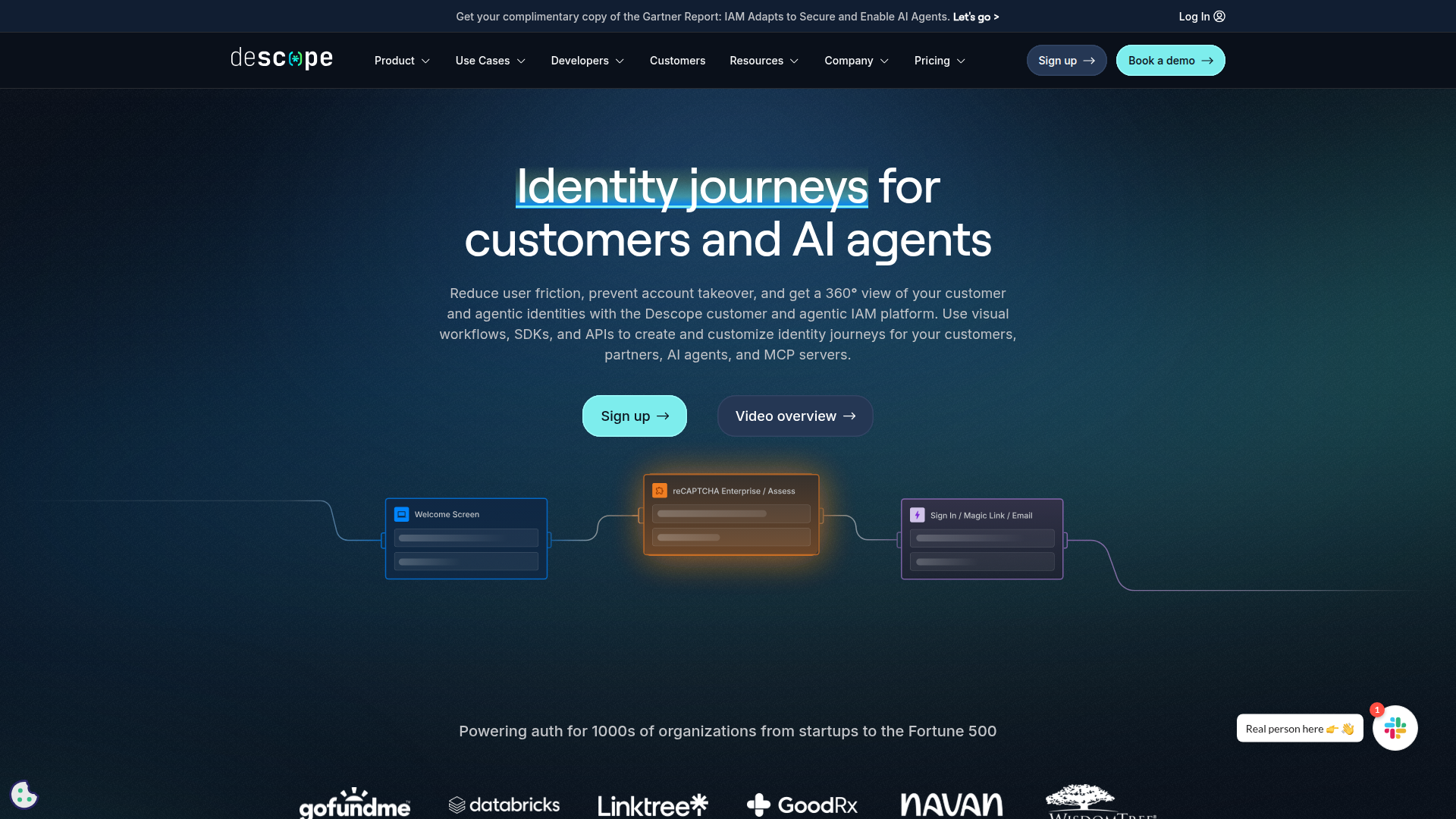
Teams connect Descope with Webflow when they need to protect pages behind login, display user-specific content, or manage member roles on a Webflow-hosted site. The flow builder in Descope's console lets non-developers set up the authentication experience, and there is an API layer with endpoints for user sync and access logic.
There are 3 ways to integrate Descope with Webflow:
- Descope web components via Code Embed elements handle inline authentication UI, session management, and user profile display without a separate backend.
- The Descope Auth Hosting App redirects visitors to a fully managed login page, requiring no scripts or embeds on the Webflow side.
- The Webflow Data API and Descope APIs handle user-to-CMS sync, RBAC-gated content delivery, and webhook-based automation through direct endpoint access, but require server-side development.
Most implementations combine two or more of these methods depending on the complexity of the setup.
Add Descope authentication with Code Embed elements
Descope's <descope-wc> web component renders a complete login and signup UI inside any Webflow page. You load the component's script in your site's custom code head section, then place the component on a page using a Code Embed element. The component connects to a Descope Flow (a drag-and-drop authentication sequence you set up in the Descope Console), and emits JavaScript events on success or error that your page can respond to. This approach works for any Webflow site on a plan that supports custom code.
To add the login component:
- Open your Webflow site dashboard, go to Site Settings > Custom Code, and paste the following in the Head Code section:
Replacex.x.xwith the current version from npm. 2. Create a new page in Webflow (for example, a page with the sluglogin). 3. Open the Add Elements panel, scroll to the Code Embed option under Advanced, and drag a Code Embed element onto the page canvas. 4. Double-click the embed and paste:
5. Replace `YOUR_PROJECT_ID` with your Project ID from the Descope Console (found under **Settings** > **Project**). Replace `sign-up-or-in` with a different flow ID if you created a flow. Change `'/'` to your desired post-login destination (for example, `'/dashboard'`).
6. Click Save and Publish the site.

Once the page is published, you can test the login flow on the live site.

The authentication UI includes these methods (set up in the Descope Console under the Flows tab):

- Email OTP and SMS OTP
- Social login (Google, GitHub, Apple, Microsoft)
- Magic links and passkeys (FIDO2/WebAuthn)
- SAML 2.0 and OIDC enterprise SSO

These options are all set in the same Descope Flow that powers the embed.

The embed only renders on the published live site. It will not appear in the Webflow canvas preview.

#### **Protect pages with a session guard**

After setting up the login page, you can redirect unauthenticated visitors away from protected pages. Add the following script to the **Head Code** section in **Site Settings** > **Custom Code** (for site-wide protection) or to a specific page's custom code block:
html
This checks for a valid Descope session token on page load and sends unauthenticated visitors to `/login`. Server-side token validation through middleware provides stronger security for sensitive content (see the API section below).

#### **Display user profile data**

To show the authenticated user's name and email on a page, call the `sdk.me()` method after login:
javascript
async function getProfile() {
const profile = await sdk.me(sdk.getRefreshToken())
userName.innerHTML = profile.data.name
userEmail.innerHTML = profile.data.email
}
You can call this function inside the `onSuccess` event handler or on any page where the session guard confirms the user is logged in.

#### **Add a user profile widget**

Descope provides a self-service profile management widget that lets authenticated users view and update their own information. Place another Code Embed element on a post-login page and paste:
html
```
Replace YOUR_PROJECT_ID with your Project ID. The widget ID and embed code are also available in the Descope Console under the Widgets page by selecting a widget and clicking Show Code > Web Component. This widget requires the SDK scripts from the head code setup to already be present on the site.
Clone the Descope Webflow template
For new projects, Descope offers a pre-built Webflow template with authentication already embedded. Clone the template into your Webflow account, find all instances of YOUR_PROJECT_ID in embed elements and custom code blocks, replace them with your actual Project ID, and publish. This approach requires no manual embed setup, but retrofitting it into an existing site design takes more effort than Method 2.
Redirect to the Descope Auth Hosting app
Use the Auth Hosting App for a fully managed login page hosted by Descope. Instead of embedding components on your Webflow pages, you link visitors to an external authentication URL. After login completes, users return to your Webflow site. This method requires no scripts, no Code Embed elements, and works on any Webflow plan, including the free Starter tier.
To set up the Auth Hosting redirect:
- In the Descope Console, open the Auth Hosting App configuration under Applications or OIDC Applications, depending on your console version.
- Set the Flow Hosting URL to point to the Descope Flow you want users to complete.
- Optionally set a custom domain for branding (requires a Descope Pro plan or above).
- Note the full hosted URL (for example,
https://auth.yourdomain.com). - In Webflow, select the sign-in button or link on your page, open the Settings panel in the right sidebar, and set the Link field to your Descope Auth Hosting URL.
- Publish the site.
Visitors click the link, authenticate on the Descope-hosted page, and return to your site with an active session. Without a custom domain, users see a generic Descope URL during authentication. The redirect-based experience also means users leave your Webflow page temporarily, which is less integrated than the inline embed approach.
Build with the Webflow and Descope APIs
For production sites that need user data stored in Webflow CMS collections, RBAC-gated content filtering, or webhook-driven sync between systems, the API path provides direct access to both platforms. This approach needs server-side development (serverless functions on Vercel, Netlify, Cloudflare Workers, or a backend) because Webflow cannot execute server-side code, and CORS restrictions prevent direct client-side calls to the Webflow Data API.
The Descope Auth API handles OTP signup/verify, magic link exchange, and SSO authorization. The Descope Management API handles user search, role assignment, and profile retrieval (requires a Management Key). Webflow's Data API v2 handles CMS collection item creation, updates, and deletion. Descope audit webhooks trigger real-time events when users are created, modified, or deleted.
Together, these handle authentication, user management, CMS writes, and ongoing sync.
All Descope REST calls use api.descope.com with bearer token authentication. Many Descope auth examples use the Project ID for authorization, while management operations require a composite token: <ProjectID>:<ManagementKey>. Webflow Data API calls use api.webflow.com with a bearer token scoped to cms:read or cms:write.
Sync new signups to a Webflow CMS collection
When a user signs up through Descope, your middleware can create a corresponding CMS item in a "Members" collection in Webflow. This keeps your member directory in the CMS up to date without manual entry.
To implement signup sync:
- Your frontend initiates signup via
POST https://api.descope.com/v1/auth/otp/signup/email, then verifies withPOST https://api.descope.com/v1/auth/otp/verify/email. The verify response includes asessionJwt,refreshJwt, anduserId. - Your middleware extracts the
userIdand email from the JWT, then creates a draft CMS item viaPOST https://api.webflow.com/v2/collections/:collection_id/items. Store the DescopeuserIdas a custom field in the CMS item for future lookups. - Publish the item with
POST https://api.webflow.com/v2/collections/:collection_id/items/publish.
Items created via the API default to draft status and require a separate publish call unless you use the live items endpoint. Always store the Descope userId (which is immutable) as the foreign key in your CMS collection.
Sync user changes with audit webhooks
Descope's Audit Webhook Connector fires events when users are created, modified, or deleted. Your server-side handler receives these events and writes the corresponding changes to the Webflow CMS.
To set up webhook sync:
- In the Descope Console, go to Connectors > Audit Webhook. Set the Base URL to your webhook endpoint. Under Event Type, select Stream filtered audit events only, set Action to Includes, and add
User Created,User Modified, andUser Deleted. - Optionally set an HMAC (Hash-based Message Authentication Code) Secret for payload signing. Descope sends the signature in the
x-descope-webhook-s256header. - In your handler, verify the HMAC signature, then route by action:
User CreatedtriggersPOST /v2/collections/:id/items,User ModifiedtriggersPATCH /v2/collections/:id/items/:item_id, andUser DeletedtriggersDELETE /v2/collections/:id/items/:item_id. Follow each write with a publish call.
Audit webhook events are asynchronous and can be throttled. Descope recommends periodic re-syncs using the Search Users API (POST /v1/mgmt/user/search) as a fallback to catch missed events.
Gate content by role using JWT claims
Descope embeds user roles and custom claims directly in the session JWT. Your middleware can validate the JWT, read the roles, and filter CMS content server-side before returning it to the browser.
To implement role-based content filtering:
- Fetch the Descope JWKS once from
GET https://api.descope.com/v1/keys/<ProjectID>and cache it. Do not call this endpoint on every request. - On each authenticated request, validate the JWT signature against the cached JWKS and extract roles from the payload.
- Query Webflow CMS items via
GET https://api.webflow.com/v2/collections/:id/itemsand filter based on arequired-rolefield you define in the collection. Return only items the user's roles match.
Roles can be assigned and removed through the Descope Management API at POST /v1/mgmt/user/update/role/add and POST /v1/mgmt/user/update/role/remove. Content filtering logic runs server-side so clients never receive items they are not authorized to view. For details on setting up RBAC flows, see the Descope RBAC tutorial for Webflow.
What you can build with the Descope Webflow integration
Descope gives Webflow teams a way to add authentication, access control, and user management through setup and embedded components.
- Gated content portals: Protect premium articles, course material, or downloadable assets behind login. Descope's session guard redirects unauthenticated visitors to a login page, and server-side JWT validation prevents client-side bypass. A media company could gate its research library so only logged-in subscribers see download links.
- SaaS signup and onboarding pages: Capture authenticated signups directly on a Webflow marketing site using Descope's web component. A B2B SaaS product can embed a magic link or Google login flow on its landing page, verify the user's identity, and route them into the product without a separate signup portal.
- Member directories synced to the CMS: Maintain a Collection List of members in a Webflow CMS collection that stays current through Descope webhooks. An agency building a professional community site can automatically add new user profiles to a public directory when they sign up and remove them when they delete their account.
- Role-based CMS applications: Assign editor, viewer, and admin roles through Descope and control which CMS content each role can access. A publishing team could build a Webflow-hosted editorial tool where writers see only their own drafts while editors see all pending submissions.
If you need more control over multi-tenant SSO, cross-domain session management, or bulk user operations, the API integration path handles those cases.
Frequently asked questions
Yes, with limitations. The Descope Auth Hosting App (redirect-based login) and the cloneable template both work on any Webflow plan. The Code Embed approach, however, requires a Webflow plan that supports custom code (Core or above). Descope's free tier includes monthly active user and SSO connection limits that cover most early-stage projects.
No. Descope is not listed in the Webflow Apps Marketplace. The integration is a manual, code-based process using script tags and Code Embed elements.
No. Webflow forms submit data via POST/GET to Webflow's backend or a custom action URL. They cannot handle OAuth redirects, magic link exchanges, OTP verification, or session token issuance. Use Descope's
<descope-wc>web component inside a Code Embed element instead.Client-side JavaScript on a Webflow page cannot call the Webflow Data API directly due to CORS restrictions. You need a server-side middleware layer (Vercel, Netlify, Cloudflare Workers) that receives the Descope JWT, validates it, and proxies the write request to the Webflow CMS API. For ongoing sync, set up Descope's Audit Webhook to fire on
User Created,User Modified, andUser Deletedevents, and have your middleware handle the corresponding CMS operations.Sites using Webflow Memberships or User Accounts need to migrate to an external authentication provider. Descope's web component embed is designed for exactly this scenario, and the Descope RBAC tutorial demonstrates how to replicate membership and role-based access functionality on a Webflow site using Descope Flows.
Description
Descope adds login flows, session management, and RBAC to Webflow through an embeddable web component or a hosted auth redirect.
This integration page is provided for informational and convenience purposes only.

Outseta
Connect Outseta, an all-in-one membership platform, with Webflow to add subscription billing, user authentication, content gating, and CRM management without a backend developer.

Memberful
Connect Memberful, a membership and subscription billing platform, with Webflow to add checkout, member account management, and gated content delivery through your own Stripe account.

MemberStack
Add user authentication, subscription billing, and content gating to Webflow sites using Memberstack's data-attribute system and official Webflow app.

MemberSpace
Connect MemberSpace with Webflow to add membership plans, content gating, and recurring billing to any Webflow site.

Kajabi
Connect Kajabi, an all-in-one platform for courses, memberships, and digital products, with Webflow to sync leads and orders using embeds, Zapier, or the API.

Cotter
The legacy Cotter pattern gated Webflow pages with passwordless magic link and OTP login loaded through custom code in the head and body tags. Stytch acquired Cotter in 2021 and the product is no longer reachable, so new builds need a current provider.
Related integrations
Get started for free
Try Webflow for as long as you like with our free Starter plan. Purchase a paid Site plan to publish, host, and unlock additional features.
