






Webflow Tabs
Connect Webflow Tabs with CMS collections, Finsweet Attributes, and custom JavaScript to build dynamic tabbed interfaces with CMS-generated content, deep linking, and auto-rotation.

The native Tabs component handles basic tabbed content, but it's static: you create tab links and panes manually, content can't pull from Webflow CMS collections, and there's no built-in deep linking, auto-rotation, or mobile dropdown conversion.
Combining Webflow Tabs with CMS data, Finsweet Attributes, and custom JavaScript adds runtime content generation, URL-based targeting, and hover switching from a single CMS source. Four implementation paths cover zero-code, CMS, and API-based workflows, so you can layer complexity as needs grow.
How to integrate Webflow Tabs with Webflow
What is Webflow Tabs? Webflow Tabs is a native component with clickable tab links and corresponding content panes inside a Tabs Wrapper, Tabs Menu, and Tabs Content hierarchy. You can style each sub-element individually, and the component ships with three tab-pane pairs, parent-width sizing, and built-in fade transitions.
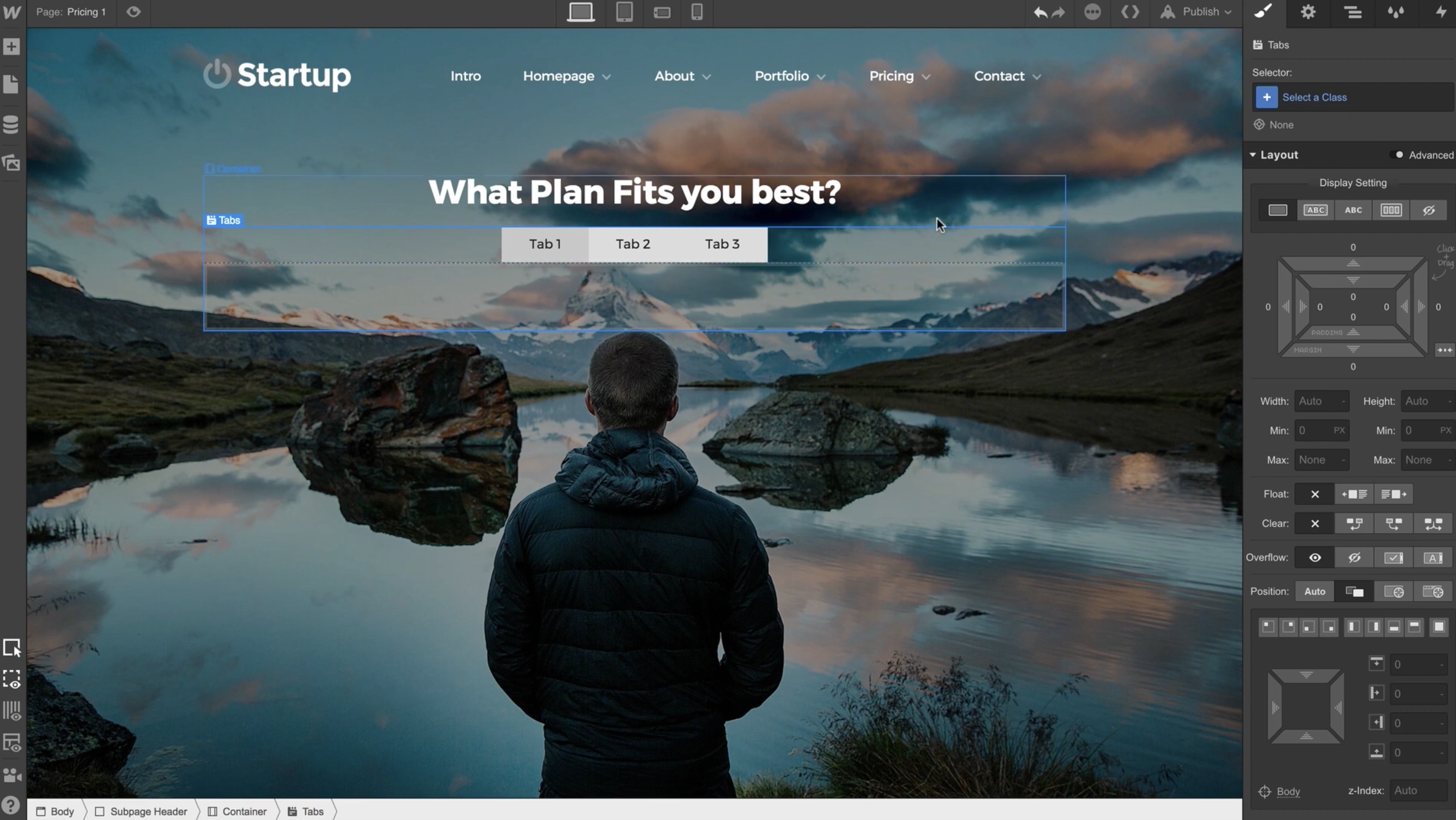
Reach for Webflow Tabs whenever content needs to be organized into switchable sections on a single page. Common patterns include feature comparisons, pricing period toggles, dashboard interfaces, and categorized portfolio displays. The native component covers basic use cases. Projects with CMS content, accessibility requirements, or advanced interactivity need additional tooling.
You can integrate Webflow Tabs in four ways:
- The native Tabs setup handles static tabbed content with built-in styling, transitions, and the Current state for active tab links.
- The Finsweet Attributes method links Collection List data to native Tabs. It generates tab links and panes from CMS items.
- The custom JavaScript and CSS approach adds deep linking, auto-rotation, hover switching, and mobile-responsive layouts that the native component does not support.
- The Webflow Data API manages CMS items and publishing workflows that can feed tab content through REST endpoints. It requires server-side development and does not control the native Tabs element directly.
Most implementations combine two or more of these methods depending on the complexity of the setup.
Set up and style native Webflow Tabs
The native Tabs component works best when tab content is static and you know the number of tabs at design time. A three-tab pricing comparison or product details layout fits this pattern. Start here before adding CMS data, Finsweet Attributes, or JavaScript customizations. Add the component from the Add panel under Components. Three tab links and three matching panes appear immediately.
To add and manage tabs:
- Select any element inside the Tabs component, then open the Element Settings panel.
- Click the plus icon under Tabs settings to create a new tab link and pane pair.
- Click the trash icon next to any tab to delete it. This also deletes the corresponding pane and all content inside it.
- Use the Set Active Tab list to choose which tab displays by default on page load.
- Set transition timing with the Easing Method dropdown and Fade In/Out duration (ms) fields.
Native Tabs has these styling and interaction capabilities:
- Apply shared classes across all tab links, then style the base (None) state for font color, background, and font size.
- Style the active tab using the Current state. This is applied automatically as a green class once you assign a class to a tab link.
- Add Hover state styles to non-active tab links. Set CSS transitions for easing and duration in the Style panel.
- Attach animations via the Tab change trigger in Classic Interactions. This fires when a tab link becomes active or inactive.
- Style the Tabs Wrapper, Tabs Menu, Tabs Content, and individual Tab Panes independently through the Style panel.
These controls cover the built-in design workflow before you move into CMS or code-based extensions.
Native Tabs is for static layouts and manual pane editing. For CMS content binding, URL hash deep linking, auto-rotation, and mobile accordion conversion, use the methods below.
Connect CMS content with Finsweet Attributes
The native Tabs element cannot pull content from CMS collections. Each pane contains static content edited directly in the Designer. Finsweet Attributes v2 uses a hidden Collection List as the data source. The script populates a standard Tabs component at runtime. Each CMS item generates one tab link and one tab pane automatically. The Collection List is removed from the DOM (the page's rendered HTML structure) after the script runs, leaving only the Tabs component visible.
Adding the Finsweet script gives you a free setup that works with the existing styling in the Designer. The CMS Library Tabs integration page confirms that native tabs require manual content management, so you need third-party tools for CMS-generated tabs.
To set up CMS-powered tabs:
- Add the Finsweet Attributes v2 script to Site Settings -> Custom Code (in
<head>or before</body>). Grab the current script URL at finsweet.com/attributes/list-tabs. - Add a Collection List to the page and connect it to the CMS collection that contains tab data. On the Collection List Wrapper, add a custom attribute with Name
fs-list-elementand Valuelist. - Inside each Collection List Item, add an element for the tab label. A text element bound to a CMS Name field works for this. On that element, add a custom attribute with Name
fs-list-elementand Valuetab-link. - Add a standard Tabs component to the page. On the Tabs element (the outermost wrapper), add a custom attribute with Name
fs-list-elementand Valuetabs. - Bind CMS fields to elements inside the Collection List Item using the purple dot icon in Element Settings. The script moves these bound elements into the generated Tab Panes at runtime.
- Style the Tab Links and Tab Panes on the Tabs component as normal. Padding, background, and typography applied to panes are preserved by the script.
Finsweet List Tabs also supports these configurations:
- Multiple instances on one page: Wrap each Collection List and Tabs pair in a parent element, then add
fs-list-instancewith a unique value (e.g.,1,blog,team) to each wrapper. - Interactions on dynamic tabs: Add
fs-list-resetixwith valuetrueto the Tabs element. This resets all interactions with an Initial State after CMS tabs load. It can produce unexpected behavior in interaction sequences that depend on state persistence. - Combining with List Filter, List Load, and List Sort: Apply these Finsweet Attributes to the same Collection List to add filtering, runtime loading, and reordering of tabs.
These options extend the same CMS-driven setup without changing the core tab structure.
A legacy version (Finsweet Attributes v1) using fs-cmstabs-element attributes is documented separately and remains functional. Use v2 for new projects.
Add custom interactions with JavaScript and CSS
Custom code covers deep linking, auto-rotation, hover switching, vertical layouts, and mobile-responsive tab menus. Most scripts target the data-w-tab attribute that is applied to every tab link element automatically. Many existing tab snippets use jQuery, so verify library availability in your project setup before relying on it.
Place all interaction scripts before </body> in Page Settings > Custom Code, or site-wide in Site Settings > Custom Code > Footer Code. Scripts placed in the <head> can fail if the DOM is not ready.
Deep link to specific tabs via URL hash
URL hash deep linking lets users bookmark or share a link that opens a specific tab. An example URL looks like https://yoursite.com/page#Tab-Name. The native Tabs component has no built-in mechanism for this.
To add deep linking, place this script before </body> using a Code Embed element or the page-level custom code field:
<script>
$(function() {
  function changeTab() {
    var tabName = window.location.hash.substr(1);
    var tabEl = $('[data-w-tab="' + tabName + '"]');
    if (tabEl.length) {
      tabEl.click();
    }
  }
  if (window.location.hash) {
    changeTab();
  }
  $(window).on('hashchange', changeTab);
  $('[data-w-tab]').on('click', function() {
    history.pushState({}, '', '#' + $(this).data("w-tab"));
  });
});
</script>
Tab names with spaces cause hash-matching failures. Add this snippet alongside the deep-linking script to replace spaces with hyphens:
jQuery('[data-w-tab]').each(function() {
  var $this = $(this);
  var dataWTabValue = jQuery($this).attr('data-w-tab');
  var parsedDataTab = dataWTabValue.replace(/\s+/g, "-");
  jQuery($this).attr('data-w-tab', parsedDataTab);
});
With this fix applied, a tab named "About Us" becomes reachable at #About-Us. This is a community workaround documented in the Webflow Community Forum.
Auto-rotate tabs with a timer
Auto-rotation cycles through tabs on an interval, with an optional pause on hover. Use this pattern for feature tours and product walkthroughs where users should not need to click.
Use setInterval to advance tabs:
function startAutoPlay() {
  interval = setInterval(function() {
    currentIndex = (currentIndex + 1) % $tabs.length;
    showTab(currentIndex);
  }, intervalDuration);
}

startAutoPlay();

$tabs.hover(
  function() { clearInterval(interval); },
  function() { startAutoPlay(); }
);
On iOS and Safari, auto-rotating tabs that call .click() can cause the page to scroll to the tab position. A community fix uses an Intersection Observer so clicks only trigger when the tabs are visible in the viewport. See a full implementation of this workaround in the Webflow Community Forum autoplay thread.
For an attribute-only alternative, MemberScript #111 adds auto-rotation with a single custom attribute. Set ms-code-rotate-tabs to the rotation interval in milliseconds on the Tabs Menu element, then include the MemberScript code before </body>.
Switch tabs on hover
For portfolios or product pages where hover-to-switch beats clicking:
<script>
document.addEventListener('DOMContentLoaded', function() {
  const tabLinks = document.querySelectorAll('[data-w-tab]');
  tabLinks.forEach(link => {
    link.addEventListener('mouseenter', () => {
      link.click();
    });
  });
});
</script>
This script fires a click event when the user hovers over a tab link. See a tutorial for this pattern at dereksiu.com.au.
Create a vertical tab layout
Vertical tabs require three Style panel changes with no custom JavaScript:
- Set the Tabs Wrapper to
display: flexwithflex-direction: row. - Set the Tabs Menu to a fixed width (e.g.,
200px) withflex-direction: column. - Set the Tabs Content to
flex: 1to fill the remaining space.
Grab a cloneable reference implementation in the Made in Webflow gallery.
Convert tabs to a dropdown on mobile
Webflow Tabs does not natively convert to an accordion or dropdown at mobile breakpoints. This is tracked as a wishlist item. The community workaround uses a dual-element approach:
- Create and style the tab component for desktop.
- Create a blank
<div>directly above the tab component and hide it on desktop. - On the mobile breakpoint, show the
<div>and style it as a dropdown (e.g.,height: 60px, dropdown arrow via background image). - Style tab links inside the Tabs Menu to
width: 100%,display: block,height: 60pxso they stack vertically on mobile.
Grab a cloneable implementation by Charlie Jackman in the Made in Webflow showcase.
Build with the Webflow Data API
Webflow Tabs does not have a dedicated API. Tab elements are native components and are not directly addressable through the Data API. For programmatic content management of tab-based interfaces, use CMS collections and items. This approach requires server-side development. It suits teams that need to create, update, or publish tab content from external systems before rendering that content into tabs with Finsweet Attributes or custom front-end code.
The relevant API surfaces include:
- Webflow CMS API for creating collections (e.g., a "Tabs" collection), defining fields (tab label, tab body), and managing items that map to individual tabs.
- Webflow Pages and Components API for reading page and component content structures. It gives you developer context, not a direct Tabs API.
- Webflow webhooks for events like
collection_item_created,collection_item_changed, andcollection_item_published. These trigger real-time updates when tab content changes.
These endpoints support the content layer around tab implementations even though they do not control the native Tabs element directly.
All Data API endpoints use the base URL https://api.webflow.com/v2 and require OAuth authorization scopes such as cms:read and cms:write.
Manage tab content programmatically
Manage CMS-powered tab content through the API in this sequence:
- Call
GET /v2/sites/:site_id/collectionsto find the collection ID for the tabs collection. - Call
POST /v2/collections/:collection_id/itemsto create a new tab item, orPOST /v2/collections/:collection_id/items/bulkto create items in bulk. - Call
PATCH /v2/collections/:collection_id/items/:item_idto update a single tab's content. UsePATCH /v2/collections/:collection_id/itemsfor bulk updates (up to 100 items per request). - Call
POST /v2/collections/:collection_id/items/publishto publish specific tab items to the live site.
For read-heavy applications, swap api.webflow.com for api-cdn.webflow.com to use the CDN-cached Content Delivery API. This returns only published items and avoids calls to the primary API for public-facing reads.
The front-end rendering still needs Finsweet Attributes or custom JavaScript to populate the native Tabs component from CMS data. The API manages the content. The client-side script handles the display.
What can you build with the Webflow Tabs Webflow integration?
Integrating Webflow Tabs with CMS collections, Finsweet Attributes, and custom JavaScript lets you build tabbed interfaces from a single content source, replacing manual duplication across static panes.
- CMS-driven feature comparison pages: Create a "Features" collection in the CMS with fields for feature name, description, and screenshot. Finsweet List Tabs generates one tab per feature, and adding a new feature to the CMS automatically adds a new tab to the page.
- Pricing period toggles with deep linking: Set up a pricing section where tabs switch between monthly and annual billing. Add URL hash deep linking so marketing campaigns can link directly to
yoursite.com/pricing#Annual, opening the annual tab on page load. - Auto-rotating product tours: Add a timer-based auto-rotation script to a product feature section, with pause-on-hover support. The Jasper enterprise redesign documents an automatic tabs component that advances through sections as users scroll.
- Dashboard-style section switching without page reloads: Use tabs for client portals or membership areas. Each pane can contain account details, billing history, or settings. The Memberstack Dashboard Template demonstrates this pattern with tabs as the primary interface layer.
If you need more control over programmatic content syncing from external systems, the API integration path covers those cases at the CMS content layer.
Frequently asked questions
Webflow's Tabs component supports static content edited directly in Webflow. To generate tabs from CMS data, use Finsweet Attributes v2 List Tabs. This tool uses a hidden Collection List as the data source. It populates the native Tabs component at runtime. A custom JavaScript alternative without Finsweet is also documented for teams avoiding third-party script dependencies.
Webflow lists Tabs as an accessible element, but full WCAG compliance may require additional work. Webflow's accessible elements documentation recommends setting a focused state style on tab links. This helps keyboard users identify their current position. Tab links do not have a visible focus state by default. Add focus styling via the States panel in the Style panel. Community guidance also points to custom JavaScript overrides for more advanced keyboard behavior such as roving tabindex and arrow key patterns. Community discussion also notes that matching the W3C ARIA Authoring Practices specification may require custom implementation beyond the default component behavior.
Add a deep-linking script that reads
window.location.hashon page load. The script triggers a click on the matching tab. It targets thedata-w-tabattribute that Webflow applies to every tab link. With the script in place, URLs likehttps://yoursite.com/page#Tab-Nameopen the specified tab directly. Tab names with spaces need a companion snippet that replaces spaces with hyphens. Full implementation details and code are available in this Webflow Community Forum thread.Non-active tab panes are hidden with CSS
display:nonebut remain in the DOM. Search engines may discount or deprioritize content in hidden panes. A Webflow Community thread documents a relevant case. Crawling without JavaScript detected only 1 of 8 H2 headings on a page. The rest sat inside hidden tab panes. Place SEO-critical content in the first (default) tab pane or outside the Tabs component entirely to avoid this risk.Webflow Tabs does not natively convert to an accordion or dropdown at mobile breakpoints. This is an open Webflow wishlist request. The standard workaround uses a dual-element approach. Create tabs for desktop, then add a hidden
<div>styled as a dropdown. This becomes visible at mobile breakpoints. Restyle tab links to stack vertically. A cloneable reference implementation is available in the Made in Webflow gallery.
Description
Webflow Tabs extends beyond static panes when paired with Finsweet Attributes for CMS-driven tab generation, custom JavaScript for deep linking and auto-rotation, or the Data API for programmatic content management feeding tab layouts.
This integration page is provided for informational and convenience purposes only.
Finsweet Webflow Hacks
Add Finsweet Hacks to Webflow with custom code: named form success messages, clean anchor URLs, a checkbox price calculator, and when to use Attributes.

Drupal
Connect Drupal with Webflow to deliver managed content through a visual frontend using API sync, automation tools, or client-side embeds.

Finsweet Components
Connect Finsweet Components, a native Webflow app, to add JavaScript-powered sliders, marquees, social feeds, favorites, and auto tabs directly inside the Webflow Designer without custom code.

EX.CO
Connect EX.CO with Webflow to add interactive video players and monetize content through custom embed codes.
Finsweet Class Adder
Add and remove CSS classes on Webflow elements on click, hover, scroll, or page load using a script generated by Finsweet's Visual Builder.

Pixie
Connect Pixie with Webflow to automate CMS image optimization, reduce file sizes, and speed up page load times.
One2 Menu
Add a One2 Menu restaurant menu to a Webflow page with a code snippet, for QR menus and price edits that go live without a republish.
PowerImporter
PowerImporter automtes content updates that can create bottlenecks when marketing teams manage information in Airtable or spreadsheets but developers must manually transfer data to Webflow CMS.

Flowstar Tabs
Connect Flowstar Tabs, a no-code tab builder, with Webflow to organize product details, including specs, into customizable tabbed info sections.
Related integrations
Get started for free
Try Webflow for as long as you like with our free Starter plan. Purchase a paid Site plan to publish, host, and unlock additional features.
