






ChatSale
Connect ChatSale with Webflow to add its AI sales assistant to your site, on a Pro or Enterprise plan that includes the website widget.

Webflow forms collect contact details and messages. They don't provide real-time conversation to answer a visitor's questions before they leave. Closing that gap can take a conversational layer like ChatSale.
ChatSale supports conversations through several messaging services and a website widget. Its assistant responds quickly and guides prospects through the sales process.
ChatSale has no public Webflow integration guide, widget installation guide or embed script.
How to integrate ChatSale with Webflow
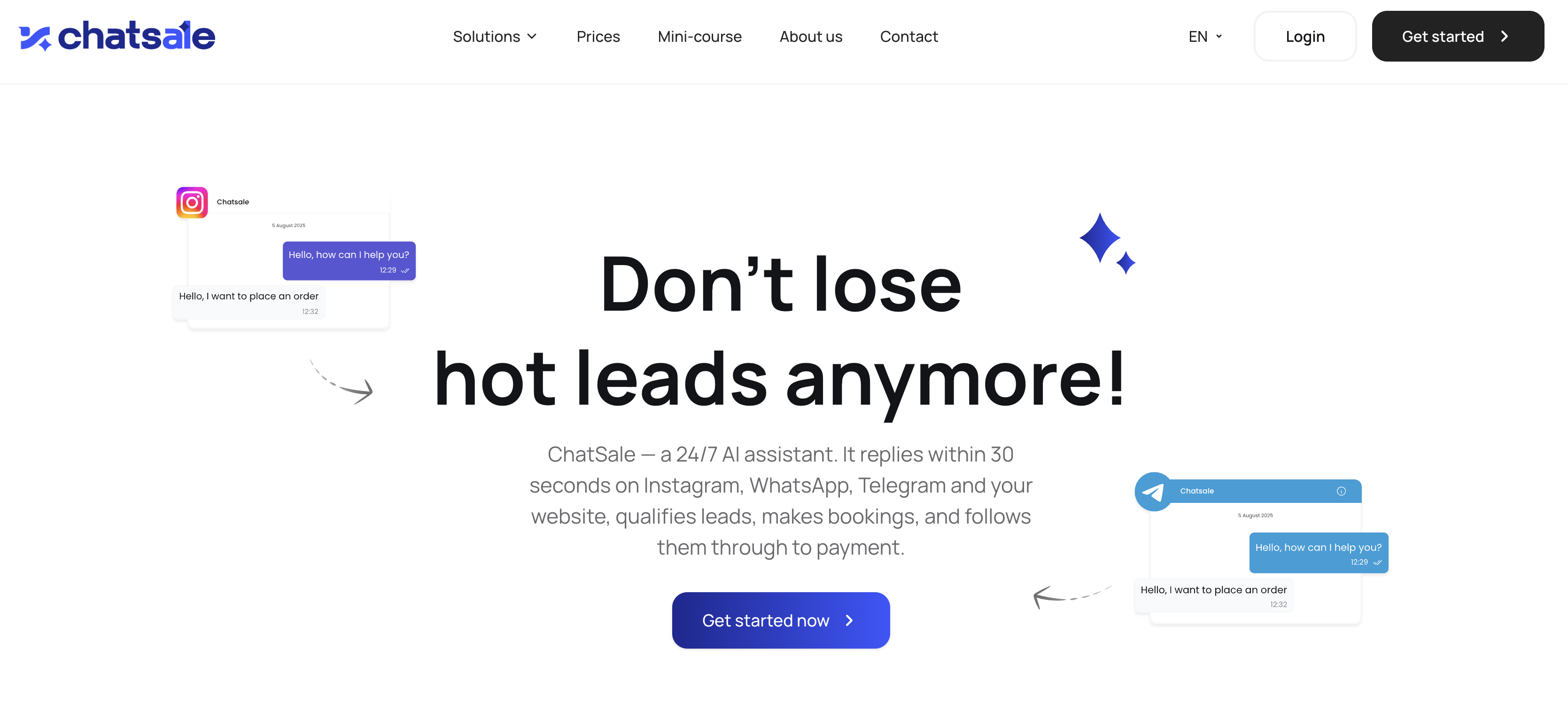
What is ChatSale? ChatSale is an omnichannel conversational sales automation platform operated by DataMind LLC. It supports sales conversations across Instagram, WhatsApp, Telegram, and website chat. Its documented capabilities include answering inquiries, qualifying leads, making bookings, and helping move prospects toward payment.
The pairing may fit a Webflow site whose team already uses ChatSale for social-commerce conversations and wants to extend the same sales-assistant model to its website.
The ChatSale-Webflow setup has one potential approach:
- A website widget added through head and body tags or a Code Embed element may work if ChatSale provides your account with a standalone embed script or equivalent installation instructions.
Complete the access checks below before changing your Webflow site.
Confirm access to the ChatSale website widget
The Pro and Enterprise plans list the website widget. The Pro plan costs $589 per month and includes up to three accounts per supported channel, 80,000 messages per month, and the website widget. Enterprise pricing requires contacting ChatSale and includes up to 10 accounts per platform, unlimited messages, and the website widget. Free and Standard accounts exclude website-widget access.
Before setting up Webflow:
- Sign in to ChatSale or contact its sales team.
- Verify the website-widget entitlement listed for your plan.
- Request the current embed code and its installation instructions.
- Confirm whether the supplied code is intended for a site-wide footer, a page-level body field, or an inline page element.
- Ask whether the widget requires any account identifier, allowed-domain setting, or other configuration.
- Keep the supplied code unchanged unless ChatSale's instructions explicitly require an edit.
ChatSale does not publicly document the dashboard path for finding widget code. It also does not publish technical details about the widget's script URL, initialization settings, domain requirements, or behavior inside Webflow.
Add the ChatSale script with custom code and Code Embed elements
This path applies only if ChatSale provides a standalone embed script or equivalent website-widget code. Webflow can place third-party scripts across a site or on selected pages; Code Embed elements provide inline placement. The correct location depends on ChatSale's instructions. Page-level custom code and Code Embed elements need an active Site plan. A Core, Growth, Agency, or Freelancer Workspace also works.
Add the script to a single page
Pricing, booking, or contact pages may be the only places that need the chatbot. Page settings limit the code to those selected pages.
To add a supplied script to one page:
- Open the Pages panel and click the settings icon for the page.
- Under Custom code, paste the script into the location specified by ChatSale. For a body script, use Before
</body>tag. - Add
deferorasynconly if ChatSale's instructions permit it. - Save, then publish the site.
Code pasted here applies only to that page. This can limit the widget to pages where visitors are most likely to ask sales questions or request a booking.
Place the script in a Code Embed element
Some supplied code is designed to render within a specific page section or reusable layout. Webflow lists live chat apps as a supported use case for Code Embed elements, but ChatSale does not publicly state whether its website widget supports this placement.
To place supplied widget code in a layout section:
- Drag a Code Embed element from the Add panel onto the page.
- Paste the code, leaving out
<html>,<head>, and<body>wrapper tags. - Save, then publish the site.
The embed renders in preview, but its effects don't go live until you publish. Place a conventional script in page or site custom code when ChatSale specifies the closing body tag.
Load the script site-wide
Visitors may need access to chat throughout the site. If ChatSale permits global placement, footer code provides that coverage.
To load supplied widget code on every page:
- Go to Site settings > Custom code > Footer code.
- Paste the script provided by ChatSale.
- Add
deferorasynconly if the provider confirms that the widget supports the attribute. - Save, then publish the site.
If the widget doesn't appear after publishing, verify that the ChatSale account includes website-widget access, the correct domain is configured, and the supplied code was copied completely. You can also check for conflicts with the jQuery v3.5.1 bundle your site loads. Webflow support does not provide direct troubleshooting for third-party custom code, so unresolved widget errors need to go to ChatSale.
Understand the API and data-sync limitations
A Webflow form submission has no documented ChatSale endpoint to call. ChatSale at chatsale.ai does not publish a public API, developer portal, webhook specification, REST endpoints, authentication scheme, or payload documentation.
That means there is no supported, documented procedure for:
- Creating Webflow Collection items from ChatSale conversations
- Sending Webflow form submissions into ChatSale
- Synchronizing bookings between ChatSale and Webflow
- Updating ChatSale with content published in Webflow
- Building a custom ChatSale integration with Webflow APIs
A two-way integration requires both the Webflow Data API, which provides interfaces for sites, forms, Collections, and webhooks, and a documented ChatSale destination or outbound event. Neither ChatSale component is publicly available for the DataMind LLC product.
If DataMind LLC provides private integration documentation for your account, evaluate it separately and follow the authentication, privacy, and data-handling requirements in that documentation.
What you can build with the ChatSale Webflow integration
A visitor could use the assistant to ask sales questions and move toward a booking or payment. The exact website behavior depends on the configuration options available in your ChatSale account.
- Lead qualification on landing pages: A visitor can use the website widget to discuss their needs before contacting the sales team.
- Booking assistant on service pages: ChatSale states that its assistant can make bookings. A visitor can move from questions to an appointment through the conversation.
- Faster responses to website inquiries: ChatSale describes its assistant as available around the clock and able to reply within 30 seconds.
- A website channel alongside social messaging: Teams already using the messaging channels described above can add website chat with an eligible account.
- Sales conversations that continue toward payment: The assistant can continue the sales conversation through its final stage, although the public site does not document the technical payment flow or available payment providers.
These use cases operate through the website widget, and the data-sync limits above still apply. The Webflow MCP server can place and update site and page custom code for you once ChatSale has given you the snippet, but it cannot obtain that snippet or stand in for the API ChatSale does not publish. If you want a chat experience you can change and extend yourself, build the interface directly instead.
Frequently asked questions
No. ChatSale has no listing in the Webflow Marketplace, so there is no app to authorize and no scopes to grant. The widget goes on through custom code instead: request the embed code from ChatSale, then paste it into page or site custom code, or into a Code Embed element.
The manual custom-code path needs an active Site plan or an eligible Workspace: Core, Growth, Agency, or Freelancer. ChatSale does not publish a separate Webflow-specific plan requirement.
Your ChatSale account must also meet the eligibility requirements in the setup section.
Webflow custom code does not become live on the published site until you publish. Code inside a Code Embed element can render in preview, but its effects don't go live until publication (custom code guide). ChatSale does not separately document its widget's Designer or preview behavior.
If ChatSale gives you a standalone widget script, place it in the page-level custom code field. Code pasted under Pages > Page settings > Custom code applies only to that page.
You can also test a Code Embed element on a specific page if ChatSale confirms that its widget supports inline placement. ChatSale does not document a dashboard setting for enabling or disabling the website widget by Webflow page.
ChatSale has no publicly documented consent mechanism for its website widget. If the supplied widget code sets nonessential cookies or loads tracking technologies, gate the script with Consent Pro or the OneTrust app. Consent Pro supports strict opt-in consent and blocks scripts before consent. OneTrust's documentation advises managing third-party scripts through the app and removing those scripts from site custom code.
Test consent gating on a staging domain and review ChatSale's current privacy terms before collecting visitor information. The public ChatSale materials do not provide technical details about widget cookies, retention periods, subprocessors, or consent signals.
Description
ChatSale adds an AI sales assistant to a Webflow site through a website widget pasted into custom code. The widget is limited to the Pro and Enterprise plans, and ChatSale publishes no API or installation docs, so you request the embed code from the vendor.
This integration page is provided for informational and convenience purposes only.

Pensil
Embed Pensil community forums, live sessions, and discussion boards directly in your Webflow site.

Customer.io
Connect Customer.io, a customer engagement platform, with Webflow to turn form submissions and page visits into behavioral triggers for automated email, SMS, and in-app messaging campaigns.

Copilot
Connect Microsoft Copilot Studio, a platform for building and deploying custom AI agents, with Webflow to add conversational chat interfaces for support, lead qualification, and FAQ automation.

ChatGPT
Manage your Webflow site from ChatGPT through the Webflow MCP server, or build a custom OpenAI workflow into your site.

Discord
Connect Discord, a communications platform built around servers and channels, with Webflow to route form submissions, orders, and CMS events into channels or embed live server activity on a page using widgets, automation platforms, or APIs.

Connect WhatsApp, Meta's business messaging platform, with Webflow to add chat buttons, trigger automated messages from form submissions and orders, and build real-time customer communication into any page.

YourGPT Chatbot
Connect YourGPT Chatbot, a no-code AI support platform, with Webflow to deploy an AI agent that answers questions and captures leads using the app or embeds.

FullContext
FullContext provides an embeddable JavaScript solution that handles conversational interfaces through a single code snippet, eliminating the need to build chat infrastructure or maintain form validation logic.

ManyChat
Connect ManyChat, a chat marketing and messenger automation platform, with Webflow to route form submissions into messaging flows and trigger conversations across Instagram, Messenger, and WhatsApp.
Related integrations
Get started for free
Try Webflow for as long as you like with our free Starter plan. Purchase a paid Site plan to publish, host, and unlock additional features.
