






Chat.io
Connect Chat.io (LiveChat + ChatBot), a live chat and AI chatbot ecosystem, with Webflow to add real-time support using the Marketplace app or custom code.

Live chat widgets and AI-driven chatbots turn a static Webflow site into a real-time conversation. Agents answer questions as visitors browse, and bots handle FAQs around the clock. The LiveChat and ChatBot ecosystem from Text, Inc. brings both to your site through the Webflow Marketplace app or a custom code snippet.
It fits ecommerce teams recovering abandoned carts, SaaS marketers onboarding new users, B2B sites gathering RFP details, and agencies deploying branded widgets across client sites from a single account.
How to integrate Chat.io with Webflow
What is Chat.io? Chat.io refers colloquially to the LiveChat and ChatBot ecosystem built by Text, Inc. LiveChat is a live chat platform that connects agents with website visitors in real time, and ChatBot is a standalone product that builds AI chatbots with a drag-and-drop interface. ChatBot uses natural language processing to interpret inputs and continuously analyzes interactions with machine learning algorithms to improve performance. It hands off to a live agent whenever a human touch is needed.
Teams reach for this combination when a Webflow site needs conversational support that static pages can't provide. A visitor stuck on checkout gets an agent. A late-night browser gets a bot that answers FAQs and captures the lead. The setup path you choose depends on how much control you need and whether you plan to sync chat data back into your CMS.
Most teams start with the LiveChat Marketplace app, which handles widget installation without writing code, or custom code embeds, which let you place the LiveChat or ChatBot snippet site-wide or on a single page. Reach for API work later, when you need to sync data between chats and Webflow CMS collections using the Webflow Data API and LiveChat APIs — and expect to write server-side code to do it.
Most implementations combine two or more of these methods depending on the complexity of the setup.
Install the LiveChat app
The LiveChat for Webflow app is the simplest path and works on any plan, including free. Text, Inc. publishes it as a reviewed Marketplace app. You install the widget without touching code, then manage which sites display it from the app. This method suits marketing and support teams who want chat live fast without a developer.
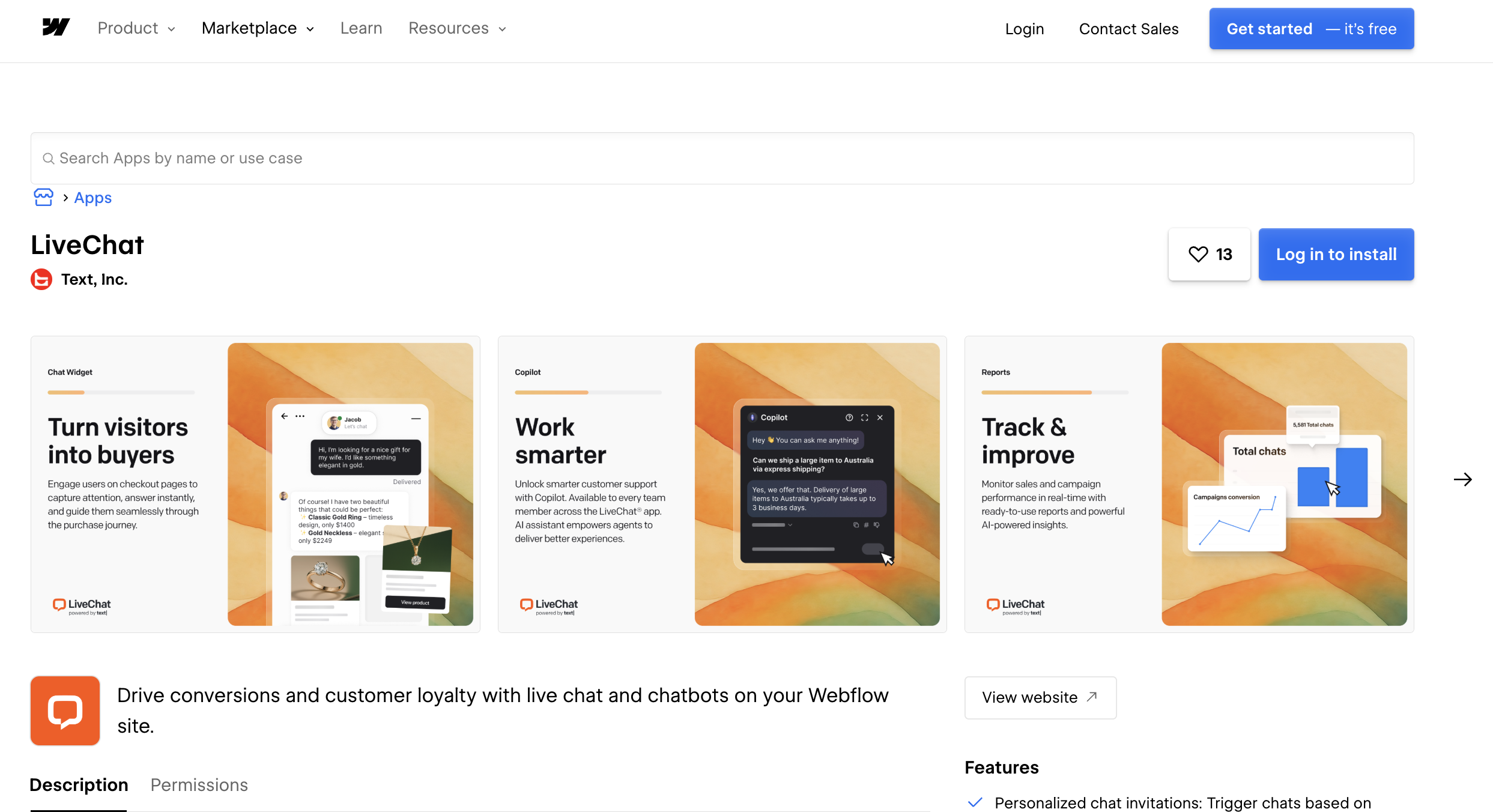
To set up the integration:
- Open the LiveChat app in the Webflow Marketplace and select Install App.
- Select the site or sites you want to add LiveChat to, then select Authorize App.
- Create a LiveChat account or log in.
- Toggle on every website where you want the chat widget to appear.
- Click Go to Webflow, then Publish > Publish to selected domains.
Once you install it site-wide, the widget covers what you'd expect:
- Personalized chat invitations based on visitor behavior or pages viewed
- Message sneak-peek so agents see what a visitor is typing before they send
- A customizable widget for language, greeting, availability, routing, and design
- 200+ integrations with CRM, email, ecommerce, and messenger apps
Install it site-wide and the widget also appears automatically on all CMS Collection and Ecommerce product pages. You don't need a paid plan, which makes this the clear starting point for most teams.
Add ChatBot components with Code Embed elements
When you need more control over placement, paste the widget snippet directly using custom code. This path covers both the LiveChat widget and the standalone ChatBot product. You need a paid Site plan or a Core, Growth, Agency, or Freelancer Workspace plan, since the free Starter Workspace doesn't include custom code. Custom code only runs on published sites, so you won't see the widget in preview.
Install the LiveChat widget with custom code
Use this when you want to place the LiveChat snippet yourself instead of using the app. First, copy the code from LiveChat under Settings > Channels > Website, then click Copy code.
To add it site-wide:
- Go to Site Settings > Custom Code > Footer Code. See Custom code in head and body tags for details.
- Paste the snippet before the closing
</body>tag. - Click Save changes, then republish.
For a single page, use Page Settings > Custom Code and paste before the </body> tag instead. LiveChat's widget loads asynchronously, so you can embed it without slowing down Core Web Vitals.
Restrict the widget to one page with a Code Embed
When you only want chat on a specific page, drop the snippet into a Code Embed element on the canvas.
To do this:
- Open the Add panel and drag a Code Embed element onto the page.
- Paste the LiveChat or ChatBot snippet into the element.
- Save the element and publish the site.
A Code Embed element accepts up to 50,000 characters per embed, which covers any standard chat widget snippet.
Install the ChatBot widget with custom code
The standalone ChatBot product uses a different snippet and a different placement. ChatBot specifies Head Code rather than Footer Code, and both locations work.
To install it:
- Log in to ChatBot, open your bot, click the Integrations icon, then Connect next to Chat Widget.
- Go to Publish and click Copy code.
- In Webflow, go to Site Settings > Custom Code > Head Code and paste the snippet.
- Click Save Changes, then Publish > Publish to selected domains.
Follow the ChatBot Webflow integration guide for product-specific detail. If your site uses a Content Security Policy, whitelist *.livechatinc.com so the widget can load.
Connect with Zapier, Make, or viaSocket
For workflows that move data between systems without server code, several automation platforms connect Webflow and LiveChat directly. On most of these platforms, LiveChat triggers workflows rather than receiving writes. Make gives you the most flexibility for bidirectional scenarios.
Zapier connects LiveChat triggers such as New Chat and Finished Chat to Webflow actions such as Create Item and Update Live Item. viaSocket connects the same LiveChat triggers to Webflow actions including Create Item and Update Live Item. Make can watch incoming chats or tagged threads, then create a Webflow item or get a form.
On both Zapier and viaSocket, LiveChat offers no write actions, so use these platforms to push chat events into Webflow rather than the reverse. IFTTT doesn't support a Webflow ↔ LiveChat trigger/action pair. Make.com gives you the most flexibility for bidirectional workflows between LiveChat and Webflow.
Build with the Webflow and LiveChat APIs
To sync data between chats and your CMS, work directly with both APIs. This path suits developers who need to write chat records into CMS collections or update customer data based on chat events. You'll need server-side code because API tokens must never appear in client-side JavaScript.
Use the LiveChat Agent Chat API (v3.6) for chat records and events. The Webflow Data API handles CMS collections and form submissions. Webhooks trigger real-time events between systems.
Both APIs use OAuth bearer tokens for authenticated calls, and LiveChat also supports Personal Access Tokens for one-time setup tasks.
Sync Webflow form submissions to a LiveChat customer record
When a visitor submits a form, you can create or update a matching customer record in LiveChat. This gives agents context before the chat starts.
To implement this:
- Register a form submission webhook by sending
POST https://api.webflow.com/v2/sites/{site_id}/webhookswithtriggerTypeset toform_submissionand your middleware URL. You'll need thesites:writescope. - Validate each delivery using the
x-webflow-signatureheader, an SHA-256 HMAC signed with your OAuth client secret. - From your middleware, call
POST https://api.livechatinc.com/v3.6/agent/action/update_customerto write the form data into LiveChat.
Register any custom properties you plan to attach once through the LiveChat Configuration API using a Personal Access Token before you send them.
Write chat records into Webflow CMS when a chat ends
When a chat closes, LiveChat fires a chat_deactivated webhook. Catch that event and store the transcript or metadata as a CMS item.
To implement this:
- Subscribe to the
chat_deactivatedwebhook, which requires thechats--all:rworchats--access:rwscope. - From your middleware, create a staged item with
POST https://api.webflow.com/v2/collections/{collection_id}/items, includingnameandsluginfieldData. - Publish the item with
POST https://api.webflow.com/v2/collections/{collection_id}/items/publish.
Keep in mind that the CMS plan holds up to 2,000 CMS items and the Business plan up to 10,000, so plan your archival strategy accordingly.
What can you build with the LiveChat + Webflow integration?
Integrate LiveChat with Webflow to answer visitors in real time and automate support without leaving your published site or replacing your CMS.
- Proactive sales chat: Trigger personalized chat invitations based on the page a visitor is viewing, similar to how AutoAccessoriesGarage used LiveChat to lift conversions. A pricing page can greet a hesitating visitor with a targeted message.
- 24/7 chatbot support: Deploy a ChatBot widget that handles FAQs and appointment booking overnight, then hands off to a live agent when needed. SOFTSWISS reported ChatBot handling up to 15% of chats.
- Lead capture into your CMS: Route a form submission through a webhook to create a LiveChat customer record, so agents see the lead's details before the conversation starts.
- Chat archives as CMS items: Store finished-chat transcripts and metadata in a CMS collection using the
chat_deactivatedwebhook. This creates a searchable record of support conversations on your own site.
If you need more control over bidirectional data sync between chats and your CMS, the API integration path covers those cases with full flexibility.
Frequently asked questions
No, not if you use the Marketplace app. The LiveChat for Webflow app installs the widget without custom code and works on any Webflow plan, including free. You only need a paid Webflow Site plan or a Core, Growth, Agency, or Freelancer Workspace plan if you install the snippet manually through custom code. The free Starter Workspace does not include custom code.
It depends on the product. The LiveChat widget goes in Footer Code before the closing
</body>tag, while the standalone ChatBot widget goes in Head Code. Both locations are functional, so follow the guidance for whichever product you're installing.Custom code only runs on published Webflow sites, so it won't show in preview. Publish the site and visit your live domain to confirm the widget loads. If it still doesn't appear, check for ad blockers, clear your browser cache, and confirm you pasted the snippet into the correct section, head versus footer, for your product.
Yes, through server-side development with both APIs. Subscribe to a LiveChat webhook like
chat_deactivated, then create a CMS item using the Webflow Data API endpointPOST https://api.webflow.com/v2/collections/{collection_id}/items. API tokens must run on a server and never appear in client-side JavaScript. Start with the Webflow webhooks documentation to set up the trigger.Yes, use a Code Embed element instead of site-wide custom code. Drag a Code Embed element onto the page, paste the widget snippet, and save. The element accepts up to 50,000 characters, and the widget then loads only on that page rather than across the whole site.
Description
Chat.io is the LiveChat and ChatBot ecosystem by Text, Inc. On a Webflow site, agents chat in real time while bots handle FAQs and capture leads overnight.
This integration page is provided for informational and convenience purposes only.

Hyvor Talk
Connect Hyvor Talk, a commenting platform with GDPR compliance and data stored in Germany, with Webflow to add real-time discussions, reactions, and membership-gated content to any page.

Drift
Add Drift live chat and AI playbooks to a Webflow site with a JavaScript snippet, and keep an existing install running while Salesloft sunsets the product.

Disqus
Add Disqus comments to Webflow through a Code Embed so every CMS item gets its own thread, then sync comments into the CMS with Zapier, Make or the APIs.

Crisp
Connect Crisp (AI-powered live chat and omnichannel messaging) with Webflow to enable real-time conversations, automate support with intelligent chatbots, and manage every customer interaction from a single, unified inbox

BotStar
Connect BotStar with Webflow to run lead-capture, booking, and support conversations on your site and route the results into the CMS.

Chatwoot
Connect Chatwoot, an open-source customer support platform, with Webflow to add live chat, AI-assisted replies, and a shared multi-channel inbox covering email, WhatsApp, Instagram, and more.

Bannernote
Connect Bannernote with Webflow to launch and manage banner campaigns on your site through a single script embed.
Related integrations
Get started for free
Try Webflow for as long as you like with our free Starter plan. Purchase a paid Site plan to publish, host, and unlock additional features.
