






Cal.com
Connect Cal.com with Webflow to let visitors book meetings from live availability on any page.

Connect Cal.com with Webflow so visitors can book meetings from live availability on any page.
Webflow forms collect a visitor's name, email, and message, but no native element reads a calendar or reserves a time slot. A prospect who wants a demo submits the form and waits for someone to reply with options. Each round of that exchange adds hours or days before the meeting exists. Cal.com puts live availability on the page itself.
Connecting Cal.com and Webflow lets visitors pick a slot and confirm, and the meeting lands on the host's calendar. Booking data can also populate records in the Webflow CMS.
Agencies use this pairing to add booking to client service sites without building a backend. SaaS marketing teams route demo requests to the right rep. Consultants and coaches sell paid discovery calls from their portfolio pages. Clinics and recruiting teams let patients and candidates self-schedule with the right person.
How to integrate Cal.com with Webflow
What is Cal.com? Cal.com is scheduling software that turns calendar availability into bookable event types, from one-on-one calls to the round-robin, collective, managed, and recurring events on its Teams plan. Its pricing page lists integrations with 100+ apps on the Free plan, including Google Calendar, Outlook, Zoom, HubSpot, Salesforce, and Stripe. In April 2026 Cal.com moved its production code to a private repository; the open-source, self-hostable edition continues under the MIT license as Cal.diy, which ships with API v2 only.
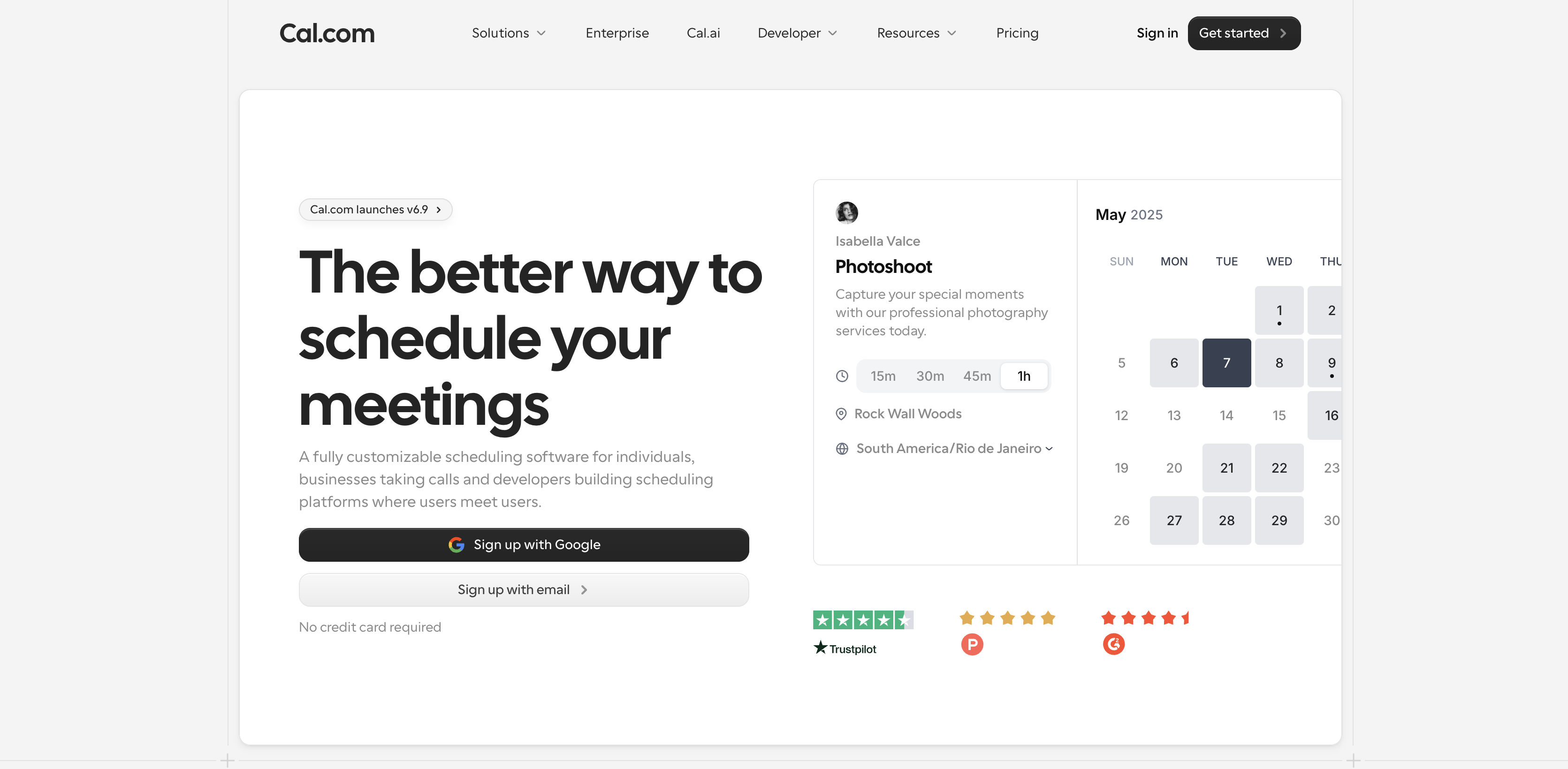
Teams pair the two when a Webflow site needs to turn interest into a scheduled meeting on the spot. Gemeos Agency built Prismia's Webflow site, launched January 30, 2026, with Cal.com integrated so executives and HR leaders can book meetings directly from the site. 3SIX5 Digital moved its own Webflow site from Calendly to Cal.com in 2025 and reports that, in most cases, the switch meant swapping out a snippet in Webflow.
The Cal.com-Webflow integration supports three approaches:
- Code Embed elements and custom code place Cal.com's inline, popup, and floating-button embeds on any page without a backend.
- Zapier, Make, n8n, IFTTT, and viaSocket move booking events into CMS items and form submissions toward Cal.com without code.
- The Webflow and Cal.com APIs give you full control over booking creation, availability, and CMS sync through server-side code, and both vendors expose them to AI agents through MCP servers.
Most implementations combine two or more of these methods depending on the complexity of the setup.
Add Cal.com embeds with Code Embed elements
An active paid Site plan, or a Core, Growth, Agency, or Freelancer Workspace, is required to add custom code. The free Starter Site plan excludes custom code. Cal.com generates an HTML snippet for each event type, profile page, or Routing Form, and a Code Embed element drops it onto any Webflow page. This method needs no server. The Embed Snippet Generator in Cal.com lets you set the following before you copy the code:
- Size of the embed
- Theme
- A toggle for event type details
- Brand color
- Layout
- Floating button text and position
For deeper styling, Cal("ui", { cssVarsPerTheme: { light: { "cal-brand": "#6F61C0" } } }) overrides brand colors per theme, as documented in the CSS variables guide.
Embed a booking calendar inline
An inline embed renders the full scheduler directly in the page flow. It suits a dedicated booking page and service or intake pages where the calendar is the main content. Cal.com's embed overview describes it as "Show the embed inline anywhere on the webpage."
To embed the calendar inline:
- In Cal.com, open the three-dot menu on an event type, choose Embed, then select Inline.
- Set size, theme, brand color, layout, and event type details, then copy the HTML snippet.
- In Webflow, open the Add panel and drag a Code Embed element onto the canvas.
- Paste the snippet, then save and close the modal. Leave out
<html>,<head>, and<body>tags. - Publish the site.
Hosts change availability in Cal.com afterward, and the embed reflects it without republishing the Webflow site.
Open a popup from a Webflow button
A button or link can open an element-click popup as a modal over the current page. An image can trigger the same interaction. Use it for hero CTAs where a full inline calendar takes too much space. It also works on pricing and careers pages. The button carries a data-cal-link attribute, and a script block in the page or site code initializes Cal.com.
To attach a popup to a button:
- In Cal.com, open the event type's Embed menu and choose Pop-up via element click, then copy the generated
<script>block. - In Webflow, add a Button element and give it a custom attribute
data-cal-linkset toyour-username/your-event. If the generated snippet uses a namespace, also copy itsdata-cal-namespaceattribute to the button. - Optionally add a
data-cal-configattribute with a value such as'{"layout":"month_view"}'. - Use Webflow's custom code settings to paste the script block into Page settings under Before
</body>tag, or into Site settings > Custom code > Footer code for site-wide use. - Publish the site.
Add Cal("preload", { calLink }) from the embed instructions so the calendar loads before the click and the modal opens without delay.
Add a floating booking button site-wide
A floating button sits in a fixed corner of every page and opens the scheduler in a popup. It suits portfolios and marketing sites where visitors should be able to book at any scroll depth, and you never edit individual pages. The snippet lives once in site-wide footer code.
To add the floating button:
- In Cal.com, choose Floating button pop-up from the Embed menu and set button text, position, theme, and brand color.
- Copy the HTML snippet.
- In Webflow, go to Site settings > Custom code and paste the snippet into Footer code.
- Publish the site.
Footer code loads on every page, so one snippet covers the whole site, and changing the button later means editing it once in Site settings.
Connect with Zapier, Make, n8n, IFTTT, or viaSocket
All five platforms have both a Cal.com connector and a Webflow connector, so a Cal.com booking can create or update a CMS item without server code, and Zapier, IFTTT, and viaSocket each publish a dedicated Cal.com and Webflow pairing page. Cal.com's own webhooks help page points to Zapier as the path for triggering automations without development work.
To sync bookings into the CMS with Zapier:
- Create a Zap with Cal.com as the trigger app and choose the booking event you want to track.
- Connect your Cal.com account and test the trigger to pull a sample booking payload.
- Set Webflow as the action app and choose Create Item for a staged draft or Create Live Item to publish immediately.
- Select the site and the target collection, such as a "Bookings" collection.
- Map the booking's title, start time, and attendee name from the sample to the collection's
name,slug, and custom fields, then turn on the Zap.
Each platform exposes a different set of Webflow-facing triggers and actions:
- Zapier: Cal.com Booking Created, Booking Cancelled, Booking Rescheduled, Meeting Ended, or Out of Office Created → Webflow Create Item, Create Live Item, Update Item, Update Live Item, Find Item, or Find Live Item.
- Make: Cal.com Watch Booking Created, Watch Booking Cancelled, Watch Booking Rescheduled, or Watch Meeting Ended → Webflow Create an Item, Update an Item, or Delete an Item, and the Webflow app's Watch Events module starts scenarios from the Webflow side. In Make, booking creation requires "Make an API call" against
POST https://api.cal.com/v2/bookings. - n8n: Cal Trigger for Booking Created, Booking Cancelled, Booking Rescheduled, or Meeting Ended → Webflow node Create, Update, or Delete Item. n8n has no Cal.com action node, so turning a Webflow Form Submission trigger into a booking takes an HTTP Request node that calls the Cal.com Bookings API.
- IFTTT: Cal.com New booking, New cancelled booking, New rescheduled booking, or Booking starting soon → Webflow Create collection item or Create live collection item, and Webflow Form submitted → Cal.com Create a booking. IFTTT is the only one of the five with a prebuilt Cal.com booking-creation action.
- viaSocket: Cal.com Booking Created, Booking Reschedules, or Booking Is Cancelled → Webflow Create Item, Create Live Item, or Update Item, plus Webflow New Form Submission and Site Published triggers. viaSocket does not list Meeting Ended as a Cal.com trigger.
For seated event types, the attendees array in a Cal.com booking payload holds only the attendee whose seat triggered the event, according to Cal.com's webhooks documentation, so map one attendee per CMS item.
Build with the Webflow and Cal.com APIs
A Code Embed element runs in the visitor's browser, so any API key pasted there is visible in devtools, and Cal.com's API introduction warns against putting secret keys in client-side code. Use the APIs to store booking data in your own database. They also support custom availability layouts and booking creation without showing the Cal.com UI. Both directions require a server you control. Cal.com API v1 shut down on April 8, 2026, and Webflow Data API v1 was deprecated on March 31, 2025. Target https://api.cal.com/v2 and https://api.webflow.com/v2, and send a cal-api-version header on every Cal.com request; the value depends on the resource group. Webflow Cloud can host the receiver as a Next.js, Astro, or Vite app on Cloudflare's Workers runtime, or you can deploy it to your own Cloudflare Workers or Vercel project.
Both platforms also expose their APIs to AI agents. Cal.com's hosted MCP server wraps API v2 behind an OAuth sign-in and includes booking tools such as get_bookings and create_booking, while Webflow's MCP server can manage and publish CMS items. With both connected, an agent can pull recent bookings and publish them to a collection without a webhook receiver; start with our MCP setup guide.
The relevant APIs:
- Cal.com Bookings API handles
POST /v2/bookingsplus/cancel,/reschedule,/confirm, and/declineon a booking UID - Cal.com Slots API returns open times for an event type through
GET /v2/slots - Cal.com webhooks push
BOOKING_CREATED,BOOKING_RESCHEDULED,BOOKING_CANCELLED,BOOKING_PAID,MEETING_ENDED, andFORM_SUBMITTEDevents to your endpoint - Webflow's Data API handles CMS collections and form submissions
- Webflow webhooks trigger real-time events for
form_submission,collection_item_created,collection_item_published, andsite_publish
Webflow tokens need the cms:write scope to create items, forms:read to read submissions, and sites:write to register webhooks.
Sync Cal.com bookings into the Webflow CMS with webhooks
Cal.com's hosted service accepts only HTTPS subscriber URLs and blocks localhost and private IP ranges, so the receiver must be publicly reachable; self-hosted Cal.com instances also accept HTTP and private addresses. Each booking change sends a webhook to that public receiver, which writes the result to a collection. This gives an agency client a live sessions dashboard, or a clinic an appointment log, rendered through a Collection List.
To build the sync:
- Register the webhook with
POST https://api.cal.com/v2/webhooks, withBOOKING_CREATED,BOOKING_RESCHEDULED, andBOOKING_CANCELLEDintriggers, your HTTPS endpoint assubscriberUrl,activeset totrue, and asecret. You can also register it in Cal.com under Settings > Developer > Webhooks. - On each POST, compute an HMAC-SHA256 of the raw body with your secret and compare it to the
X-Cal-Signature-256header. - Read
payload.uid,payload.title,payload.startTime,payload.endTime,payload.status, andpayload.attendees[0].name. Branch ontriggerEventfirst, becauseMEETING_STARTEDandMEETING_ENDEDarrive in a flat format with nopayloadwrapper. - Use collection field slugs as the identifiers when mapping those values. Use
payload.titlefornameandpayload.uidforslug. - Call
POST https://api.webflow.com/v2/collections/{collection_id}/itemswithAuthorization: Bearer <webflow_token>and afieldDataobject, then callPOST /v2/collections/{collection_id}/items/publish. The/v2/collections/{collection_id}/items/liveendpoint skips the staged step. - On
BOOKING_CANCELLED, find the item by itsslugand callPATCH /v2/collections/{collection_id}/itemsto setisArchived: trueor update a status field. OnBOOKING_RESCHEDULED, patch the start and end fields.
Add payload.metadata.videoCallUrl to a Link field if the dashboard should show the Cal Video or Google Meet link, as described in the webhook payload reference.
Create Cal.com bookings from a Webflow form submission
Form values arrive as strings, so parse numbers and dates before your server sends a Webflow submission to the Bookings API to create the booking directly. This suits intake flows where the site collects qualification answers first and books a fixed slot without the Cal.com UI.
To implement this:
- Register a Webflow webhook with
POST https://api.webflow.com/v2/sites/{site_id}/webhooks, settriggerType: "form_submission", and add an optionalfilter.nameto target one form. - Verify each delivery as the webhooks guide describes. Concatenate
timestamp + ":" + JSON.stringify(request_body), compute HMAC-SHA256 with the webhook's secret key (or your OAuth app's client secret), compare tox-webflow-signature, and reject timestamps older than 5 minutes. - Read the visitor's answers from
payload.data, for examplepayload.data["First Name"]andpayload.data.email. - Optionally call
GET https://api.cal.com/v2/slotswithstartandendin ISO 8601 UTC, plus thecal-api-versionvalue the Slots reference specifies, to confirm the requested time is open. - Call
POST https://api.cal.com/v2/bookingswithAuthorization: Bearer cal_live_...and thecal-api-versionvalue the Bookings reference specifies. The body needsstartin UTC,eventTypeId(oreventTypeSlugwithusername), anattendeeobject with the requirednameandtimeZoneplusemail, and anybookingFieldsResponseskeyed by field slug. - Write the returned booking to the CMS for a dashboard, or redirect the visitor to a confirmation page.
For most sites a redirect to a prefilled booking link, such as https://cal.com/johndoe/book?email=johndoe%40example.com¬es=Test+Notes, is simpler and keeps Cal.com's UI in the flow; see the prefill fields guide.
What you can build with the Cal.com Webflow integration
The page stays in Webflow while Cal.com supplies live availability and booking, so visitors can confirm a time without going to an external scheduling site or requiring you to build a booking backend.
- Demo request page with rep routing: Embed a Cal.com Routing Form (
forms/YOUR_FORM_ID) in a Code Embed element on a demo page. Visitors answer qualification questions, and Cal.com routes them to the right account executive by round-robin or attribute. Routing rules change in Cal.com while the Webflow embed stays static. Cal.com's pricing page lists routing forms under its Teams plan, and the routing overview covers the rules. - Agency client portal with a sessions dashboard: A Zapier Booking Created trigger writes each client booking to a "Bookings" collection, and a Collection List on a password-protected portal page lists upcoming sessions.
- Paid consultation page for a coach or consultant: An inline embed on a services page sells discovery sessions with Stripe payment collected at booking. Cal.com's pricing page lists Stripe and PayPal payments on its Free plan, and Cal.com supports Apple Pay and Google Pay once you enable them in the connected Stripe account.
- Campaign landing page with booking attribution: A popup button on a paid-traffic landing page passes
utm_source,utm_medium, andutm_campaignthroughdata-cal-config, orCal.config.forwardQueryParams = trueforwards them from the page URL; the UTM embed guide covers the setup. Cal.com's HubSpot integration can write those UTMs to fields on the HubSpot meeting record, a feature that needs HubSpot's custom meeting properties beta.
If you need more control over where booking data lands, which slot gets booked, or how availability is rendered, the API integration path covers those cases with full flexibility. To build the CMS sync yourself, start with our CMS API guide.
Frequently asked questions
Custom code, including the Code Embed element and the head and footer code fields, needs a Core, Growth, Agency, or Freelancer Workspace, or an active paid Site plan. On the free Starter Site plan, a plain link to
https://cal.com/username/event-slugon a button still works, because it needs no custom code.Script-based custom code shows a placeholder on the canvas rather than the live widget. Cal.com's snippet uses a
<script>tag, so you see the placeholder until you preview or publish. In Preview mode, turn on the Enable custom code toggle in the bottom-left corner; the Preview mode article explains that this renders the page on an isolated{shortName}.canvas.webflow.comsubdomain. The embed goes live for visitors only after you publish the site.Pass the values through the embed
configobject or turn on query parameter forwarding. The prefill guide documentsCal("inline", { config: { name: "Name", email: "booker@example.org" } }), and other booking fields, from notes and guests to questions you added, prefill the same way they do as URL parameters on a booking link. Alternatively, setCal.config.forwardQueryParams = trueas shown in the auto-forwarding article, and anynameoremailparameter on the page URL passes into the embed. The Webflow form Settings panel redirects to a page on your site or a URL you enter, so to carry the submitted values into a Cal.com link, build that URL with a short script in a Code Embed element.Yes, through Google Tag Manager or an embed event listener. Cal.com's analytics help page identifies GTM as the sole analytics app that receives booking events. Connect the Google Tag Manager app in Cal.com, create custom-event triggers in GTM, and attach GA4 event tags to them. For a code-based route, add
Cal("on", { action: "bookingSuccessfulV2", callback: (e) => { ... } })from the embed events reference and push todataLayerinside the callback;bookingSuccessfulV2replaces the olderbookingSuccessfulevent.No. There is no Cal.com listing in Webflow Apps, whose Scheduling category lists other booking apps instead, and Cal.com's own App Store has no Webflow app. Cal.com connects to Webflow through its embed: generate the snippet with the Embed Snippet Generator in Cal.com, paste it into a Code Embed element, and publish the site.
Description
Add Cal.com scheduling to Webflow and send booking data into your site's CMS and workflows through the Webflow Data API.
This integration page is provided for informational and convenience purposes only.

Timekit
Connect Timekit with Webflow to take real-time appointment bookings directly on your pages.

Taskeo Appointment Scheduling
Connect Taskeo Appointment Scheduling, a booking and CRM platform, with Webflow to let visitors self-book appointments directly on your pages with automatic CRM contact import.

GoSchedule
With GoSchedule, allow visitors to schedule video meetings, collect payments, and send notifications in one place.

Event Calendar App

CozyCal
Connect CozyCal, a web-based appointment scheduling tool, with Webflow to embed booking calendars, intake forms, and Stripe payments directly on any page as inline widgets or modal overlays.

Calendly
Connect Calendly with Webflow to embed appointment scheduling directly on your site and sync booking data to your CMS.

AddEvent
Connect AddEvent, a calendar marketing and event management platform, with Webflow to embed event calendars, add-to-calendar buttons, RSVP forms, and subscription calendars on any page.
Related integrations
Get started for free
Try Webflow for as long as you like with our free Starter plan. Purchase a paid Site plan to publish, host, and unlock additional features.
