






Brevo
Connect Brevo, a marketing and sales platform, with Webflow to sync form submissions to email lists, send transactional emails, track visitor behavior, and automate campaign workflows.

Site design, CMS, and form collection are built in, but email marketing and contact list management aren't. Form submissions land in your dashboard, but moving contacts into an email list or welcome sequence requires an external tool.
Brevo fills that gap by syncing form data into segmented lists, running email and SMS sequences, tracking visitor behavior, adding live chat, and sending transactional emails for form submissions or e-commerce orders. If you run lead capture funnels, waitlists, client sites, or e-commerce stores, you'll find a setup path here.
How to integrate Brevo with Webflow
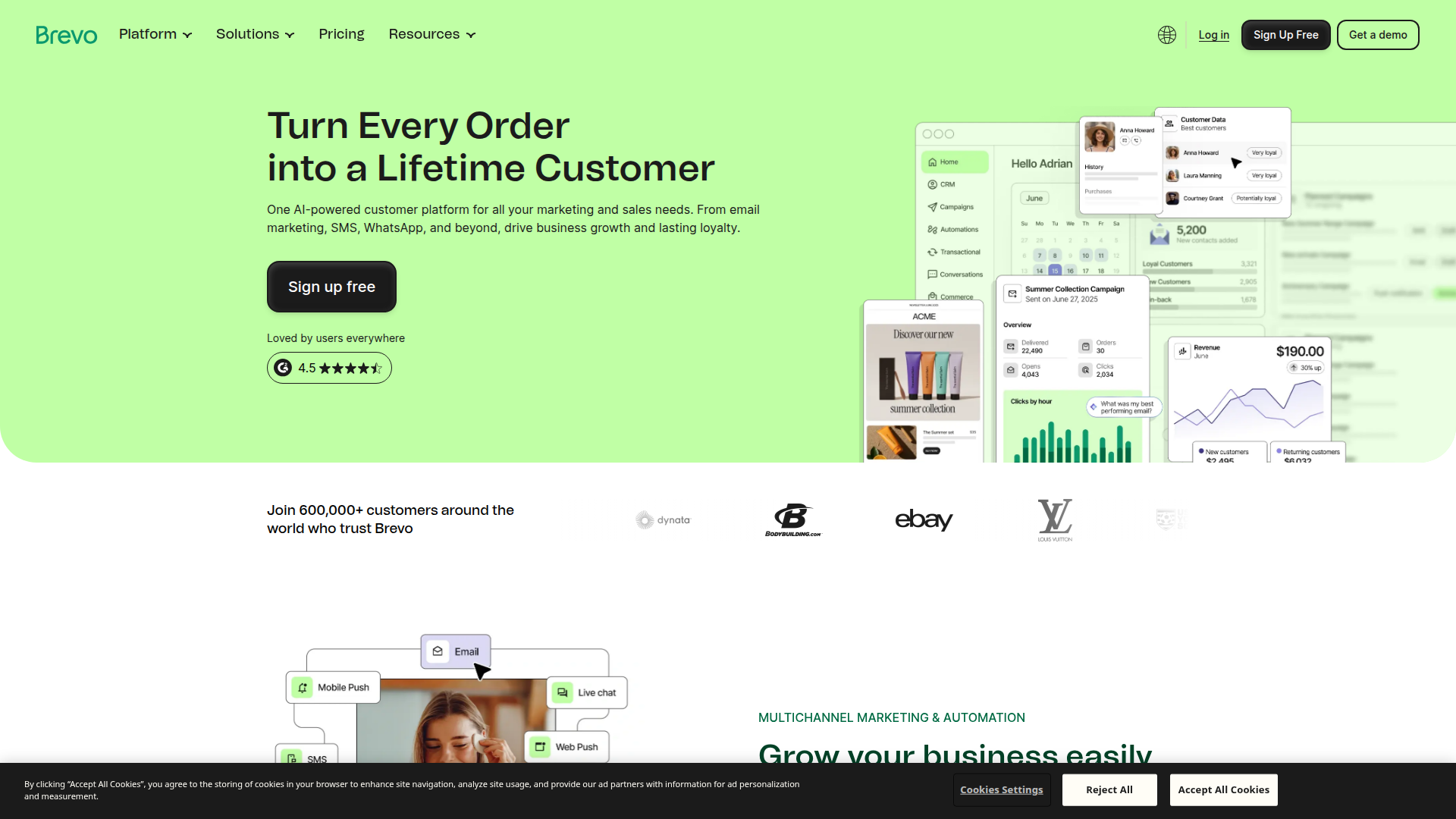
What is Brevo? Brevo (formerly Sendinblue) is a marketing and sales platform with email campaigns, transactional email, SMS, CRM, and marketing automation in a single account. It has REST APIs for programmatic access and webhook events for real-time data synchronization. Brevo has over 600,000 customers and includes a free tier with API access and up to 300 emails per day.
Connect Brevo when you need form submissions to feed directly into email lists, when published CMS content should send subscriber notifications, or when visitor behavior on your site should drive follow-up emails. The integration also applies to e-commerce stores that need branded transactional emails beyond what's available natively.
You can connect Brevo in 4 ways:
- Brevo forms and tracking scripts handle signup form embeds, visitor tracking, and live chat without backend code.
- Native form posting lets you submit your designed forms directly to Brevo endpoints while keeping full design control.
- Zapier and Make connect form submissions and CMS events to Brevo contact lists and email sends through pre-built automation templates.
- The Webflow and Brevo APIs give you full control over contact syncing, transactional email, webhook-driven workflows, and bidirectional data exchange, but require server-side development.
Most implementations combine two or more of these methods depending on the complexity of the setup.
Embed Brevo signup forms and tracking scripts
You can add Brevo signup forms, the Brevo marketing automation tracker, and the Brevo Conversations chat widget to your site without writing backend code. All three use client-side scripts that you paste into either a Code Embed element or your site's custom code in head and body tags section.
Brevo's form builder generates embeddable signup forms with built-in field validation, double opt-in handling, and CAPTCHA support. The tracker script monitors page visits by identified contacts and feeds that data into Brevo's automation engine. The chat widget adds a live chat bubble to every page, with visitor conversations routed to Brevo's Conversations inbox.
Add a Brevo signup form
Brevo generates iFrame, HTML, and Simple HTML embed code for signup forms. The iFrame option works well for most sites because it avoids CSS conflicts between Brevo's form styles and your site styles.
To embed a Brevo signup form:
- In Brevo, go to Contacts > Forms and create or select a signup form.
- Configure your form fields, double opt-in settings, and confirmation messages.
- Click Share and copy the iFrame embed code.
- In the Designer, open your page and navigate to the Add panel (+) > Components > Embed, then drag the Embed element onto your page.
- Paste the Brevo iFrame code into the code editor, then click Save and Close.
- Publish your site.
Submissions go directly to your Brevo contact list with double opt-in and CAPTCHA handled by Brevo. The iFrame form uses Brevo's own styling, so it won't inherit your site's fonts or CSS automatically. If you want to place multiple Brevo forms on a single page, all of them must use the iFrame embed method.
Install the Brevo marketing automation tracker
The Brevo tracker monitors page visits by identified contacts on your site. Once you install it, you can set up Brevo automations that fire when a known contact visits a specific page, like your pricing page or a product landing page.
To install the tracker:
- In Brevo, go to Automation > Settings and copy the tracking script.
- Open Project Settings > Custom Code.
- Paste the script into the Footer Code field (before
</body>). - Save and publish your site.
Brevo tracks anonymous visitors but doesn't identify them until they click a link in a Brevo email or submit a tracked form. The tracker doesn't create new contacts on its own. To track custom events for specific interactions like button clicks, you'll need additional track() JavaScript calls, documented in Brevo's website activity tracking guide.
Add the Brevo Conversations chat widget
The Brevo chat widget adds a floating chat bubble to every page on your site. Visitor conversations appear in Brevo's Conversations inbox, and Brevo CRM automatically captures contacts.
To add the chat widget:
- In Brevo, go to Settings > Inbox > Chat widget.
- Customize the widget appearance (name, profile picture, colors).
- Click Add the chat widget to your website(s) and copy the JavaScript snippet.
- Open Project Settings > Custom Code and paste the snippet into the Footer Code section.
- Save and publish.
Install the Brevo tracker first so the chat widget can function. If you want to open the chat from a custom button instead of the default floating bubble, use the customWidgetButton CSS selector approach documented in Brevo's developer docs. To identify logged-in users by passing a visitorId, you'll need additional JavaScript configuration.
Post native forms to Brevo
Post your form directly to a Brevo endpoint to keep your layout, fonts, colors, and success states while sending contact data to Brevo on submission. You don't need a Code Embed element or a third-party tool.
Setting a custom form action URL bypasses native form processing entirely. You won't receive email notifications for these submissions, and they won't appear in your form submissions dashboard. If you need both native form storage and Brevo contact creation, use the Zapier or Make method instead.
To post a form to Brevo:
- In Brevo, go to Contacts > Forms, open or create a form, and click Embed to view the embed code.
- Locate the
actionURL within the HTML embed code and copy it. - Select your Form element on the canvas.
- In the Settings panel, set Method to
POST. - Paste the Brevo URL into the Form Action field.
- Select your email input field, open its Settings panel, and change the Name attribute to
EMAIL(all caps, case-sensitive). - Repeat for any additional fields, using Brevo's exact attribute names:
FIRSTNAME,LASTNAME, and so on. - Publish your site.
Your field names must match Brevo's contact attribute naming exactly. Brevo requires uppercase attribute keys (EMAIL, FIRSTNAME, LASTNAME), and mismatched names fail silently. This method doesn't include double opt-in by default. To handle confirmation emails for forms created outside of Brevo, configure a separate double opt-in automation in Brevo.
Connect with Zapier or Make
Both Zapier and Make offer direct integrations with pre-built templates. These tools sit between your site and Brevo, passing data automatically when events occur. Compared with the direct POST method, native form processing stays intact: you still get form notifications and see submissions in your dashboard while also syncing contacts to Brevo.
You'll need a paid site plan for form submission triggers to work in either tool.
Set up a Zapier automation
Zapier offers 8 pre-built Webflow-Brevo templates. The most popular one adds new Brevo subscribers from new form submissions.
To create a Zap:
- Go to the Brevo + Webflow integration page on Zapier and select a template, or click + Create Zap to start from scratch.
- Set the trigger to Webflow > New Form Submission and connect your account.
- Set the action to Brevo > Contact Create or Update and connect your Brevo account using your v3 API key (found at Account dropdown > SMTP & API > API Keys).
- Map your form fields to Brevo contact attributes and select the target Brevo list.
- Test the Zap and activate it.
Available triggers include new form submissions, new orders, and updated orders. Available Brevo actions include contact create or update, send transactional email, send transactional SMS, and managing deals. A documented issue exists where migrating from the old Brevo Zapier connector to the new version can silently break data flow, so test thoroughly after any connector update.
Set up a Make scenario
Make provides 74 total modules across Webflow and Brevo, with conditional filtering and multi-step logic.
To create a scenario:
- In Make, create a new Scenario.
- Add a trigger module: Webflow > Watch Form Submissions.
- Add an action module: Brevo > Create or Update a Contact.
- Connect both accounts (Webflow via OAuth, Brevo via API key).
- Map fields, add filters if needed, and activate the scenario.
The Brevo Get a Contact module in Make returns a document_not_found error when a contact doesn't yet exist. Right-click the module, select Add error handler, and chain a Create a Contact module in the error handler path to convert the error into a creation step.
Build with the Webflow and Brevo APIs
For workflows that go beyond form-to-list syncing, the Webflow and Brevo APIs allow full bidirectional data exchange. You can register webhooks to react to events in real time, create contacts programmatically with custom attributes, send transactional emails with template variables, and write Brevo engagement data back to CMS collections and a Collection List on the front end. This path requires a server or serverless function to handle webhook payloads and make authenticated API calls.
Use these APIs:
- The Brevo API v3 handles contact creation, list management, transactional email, campaign management, and webhook registration.
- The Webflow Data API handles CMS collections, form submissions, and site publishing.
- Webflow webhooks send real-time events for form submissions, CMS item changes, and e-commerce orders.
Every Brevo API call must originate from your backend. Never expose your api-key in client-side JavaScript or public repositories. Brevo authenticates via an api-key header; the Data API uses a Bearer token.
Sync form submissions to Brevo contacts
A form_submission webhook fires when a visitor submits a form, your server receives the payload, and a Brevo API call creates or updates the contact.
To implement this flow:
- Register a webhook for form submissions:
POST /v2/sites/:site_id/webhooks
Authorization: Bearer <token>
Content-Type: application/json

{
  "triggerType": "form_submission",
  "url": "https://your-server.com/webhooks/webflow-form"
}
- Parse the incoming webhook payload on your server. The
payload.dataobject contains key-value pairs of submitted field names and values. - Call the Brevo contacts endpoint to create or update the contact:
POST https://api.brevo.com/v3/contacts
api-key: YOUR_API_KEY
Content-Type: application/json

{
  "email": "john@example.com",
  "attributes": {
    "FNAME": "John",
    "LNAME": "Doe"
  },
  "listIds": [3],
  "updateEnabled": true
}
Setting updateEnabled to true converts the call to an upsert. Without it, the API returns a 400 duplicate_parameter error if the contact already exists. Brevo attribute keys must be uppercase, and you have to pre-define them in your Brevo account before use.
Send transactional emails from form events
You can extend the form submission webhook handler to also send a transactional email through Brevo, like a confirmation or a lead magnet delivery.
To send a transactional email after form submission:
- Use the same
form_submissionwebhook from the previous step. - In your webhook handler, add a second API call to Brevo's transactional email endpoint:
POST https://api.brevo.com/v3/smtp/email
api-key: YOUR_API_KEY
Content-Type: application/json

{
  "sender": { "name": "Your Company", "email": "hello@yourcompany.com" },
  "to": [{ "email": "john@example.com", "name": "John Doe" }],
  "templateId": 42,
  "params": { "FNAME": "John" },
  "tags": ["form-confirmation"]
}
Template variables use the syntax {{params.variable_name}} inside Brevo email templates. The templateId must reference an active template in your Brevo account.
Write Brevo email events back to CMS
Brevo webhooks can fire on opens, clicks, unsubscribes, or hard bounces. Your server can receive these events and update corresponding CMS items to reflect engagement status.
To implement this reverse sync:
- Register a Brevo webhook for the events you want to track:
POST https://api.brevo.com/v3/webhooks
api-key: YOUR_API_KEY
Content-Type: application/json

{
  "url": "https://your-server.com/webhooks/brevo-events",
  "events": ["hardBounce", "unsubscribed", "click"],
  "type": "transactional",
  "description": "Webflow CMS sync"
}
- When your server receives an event, look up the corresponding CMS item by email using the Data API.
- Update the CMS item with the new status:
PATCH /v2/collections/:collection_id/items
Authorization: Bearer <token>
Content-Type: application/json

{
  "items": [
    {
      "id": ":item_id",
      "fieldData": {
        "subscription-status": "unsubscribed"
      }
    }
  ]
}
- Publish the updated item using
POST /v2/collections/:collection_id/items/publish.
Brevo supports a maximum of 40 webhooks combined across marketing and transactional types. Brevo retries failed webhook deliveries 4 times at increasing intervals (+10 minutes, +1 hour, +2 hours, +8 hours), but stops retrying on 4xx responses other than 429, as well as on 5xx responses.
Trigger GDPR double opt-in via API
For sites serving European visitors, the Brevo API supports a dedicated double opt-in endpoint that sends a confirmation email before adding a contact to any list.
To create a double opt-in contact from a form submission:
- Use the
form_submissionwebhook to receive the subscriber's data. - Call the Brevo double opt-in endpoint:
POST https://api.brevo.com/v3/contacts/doubleOptinConfirm
api-key: YOUR_API_KEY
Content-Type: application/json

{
  "email": "john@example.com",
  "includeListIds": [3],
  "templateId": 7,
  "redirectionUrl": "https://yoursite.com/thank-you",
  "attributes": { "FNAME": "John", "LNAME": "Doe" }
}
Brevo doesn't add the contact to any list until they click the confirmation link in the email. The templateId must reference a Brevo template that contains the {{ doubleoptin }} placeholder. Templates missing this placeholder won't appear in the double opt-in template dropdown. This flow keeps contact creation and confirmation handling inside Brevo until consent is completed.
What you can build with the Brevo integration
Integrating Brevo lets you turn form submissions and site visits into email marketing workflows without manual data exports or third-party CRM subscriptions.
- Use a native signup form, or embed a Brevo form, to add subscribers to a segmented Brevo list and start a multi-step welcome email series. A SaaS company can capture waitlist signups on a landing page and immediately start a drip sequence explaining the product.
- Connect a download form to Brevo so that each submission creates a contact tagged with the specific asset they requested. A consulting firm offering multiple whitepapers can route each lead into a different follow-up sequence based on which resource they downloaded.
- Replace Ecommerce's default order emails with fully branded Brevo transactional templates sent by new order webhooks. A product store can send order confirmations, shipping updates, and post-purchase review requests through Brevo's template system with custom variables for order details.
- Use Brevo webhooks to write campaign open, click, and unsubscribe data back to CMS items. A membership site can display engagement scores or subscription status on member profile pages, pulling data from Brevo events written to CMS collection fields.
For more control over multi-step form data, progressive contact enrichment, or conditional list assignment, the API integration path covers those cases with full flexibility and can reduce manual work.
Frequently asked questions
Yes for some methods, but no for others. Embedding a Brevo signup form via a Code Embed element requires a paid Webflow site plan or a Core, Growth, Freelancer, or Agency workspace plan. The same applies to adding the Brevo tracker or chat widget through custom code in site settings. Posting a native Webflow form directly to a Brevo URL works on any plan, but Webflow's free Starter site plan caps total form submissions at 50 with no reset, making it impractical for real list building. Zapier and Make integrations require a paid Webflow site plan for form submission triggers.
No. There is no installable Brevo app in the Webflow Apps Marketplace. All integration paths require manual configuration through embed codes, site settings, automation tools, or API development.
Webflow stops sending form submission notifications and stops storing submissions in the Webflow dashboard. Per Webflow's form submissions documentation, adding a custom form action URL bypasses Webflow's form processing entirely. If you need both Webflow form storage and Brevo contact creation, use Zapier or Make instead of the direct POST method. Both automation tools trigger on Webflow's native form submissions without changing the form action URL.
Two options are available. If you embed a Brevo-hosted form using a Code Embed element, select "Double confirmation" in Brevo's form builder, and the opt-in flow works automatically. If you use a native Webflow form, configure a separate double opt-in automation in Brevo for forms created outside of Brevo. For API implementations, use the
POST /v3/contacts/doubleOptinConfirmendpoint documented in Brevo's DOI API reference. Brevo stores data on EU servers in France, Germany, and Belgium, and automatically includes List-Unsubscribe headers in all campaigns and transactional emails.Yes. Install the Brevo tracker script in your Webflow site's Footer Code field. The tracker automatically records page visits for identified contacts (those who have clicked a Brevo email link or submitted a tracked form). You can then build Brevo automations based on page visit conditions. For example, send a follow-up email when a known contact visits your pricing page. Custom event tracking for specific interactions like button clicks requires adding
track()function calls, documented in Brevo's website activity tracking guide. The tracker requires Brevo's Standard plan or above for automation workflows.
Description
Brevo adds email campaigns, transactional email, SMS, live chat, and marketing automation to Webflow.
This integration page is provided for informational and convenience purposes only.

Mailjet
Connect Mailjet with Webflow to add form signups to contact lists and send transactional email from your own domain.

AtomPark Software
Connect AtomPark with Webflow to route form submissions to bulk email and SMS campaigns
ConnectMagic
Connect ConnectMagic with Webflow to sync form submissions and ecommerce events to Klaviyo for email marketing automation, abandoned cart recovery, and customer segmentation.

Campaign Monitor
Connect Campaign Monitor with Webflow to send form submissions straight into email lists and automated journeys.

Flodesk
Connect Flodesk, an email marketing platform, with Webflow to capture subscribers using embedded forms, automation workflows, or direct API integration.

Sendgrid
Connect SendGrid, an email delivery platform, with Webflow to send transactional and marketing emails triggered by form submissions and orders.

Constant Contact
Connect Constant Contact, an email marketing and automation platform, with Webflow to capture form subscribers, sync contacts to email lists, and trigger automated campaigns from site activity.

GetResponse
Connect GetResponse's powerful email marketing and automation tools with your Webflow site to capture leads, nurture subscribers, and drive conversions through automated campaigns.

AWeber
Connect AWeber with Webflow to add form submissions and orders to tagged email lists with automated follow-up.
Related integrations
Get started for free
Try Webflow for as long as you like with our free Starter plan. Purchase a paid Site plan to publish, host, and unlock additional features.
