






Constant Contact
Connect Constant Contact, an email marketing and automation platform, with Webflow to capture form subscribers, sync contacts to email lists, and trigger automated campaigns from site activity.

Your site handles design, CMS content, and form submissions, but there are no built-in email marketing tools. When a visitor fills out a newsletter form, that submission sits in your dashboard. To send those contacts to an email list, assign them to segments, and start welcome sequences, you need a separate platform and a connection between the two.
Connecting your site to Constant Contact turns isolated form entries into usable subscriber records and follow-up workflows. Instead of manually exporting contacts, you can send signups straight into the right lists, organize them for targeted campaigns, and start welcome emails or nurture sequences based on how your site is set up.
This integration is useful if you're building email lists from your site and routing leads from forms into follow-up sequences.
How to integrate Constant Contact with Webflow
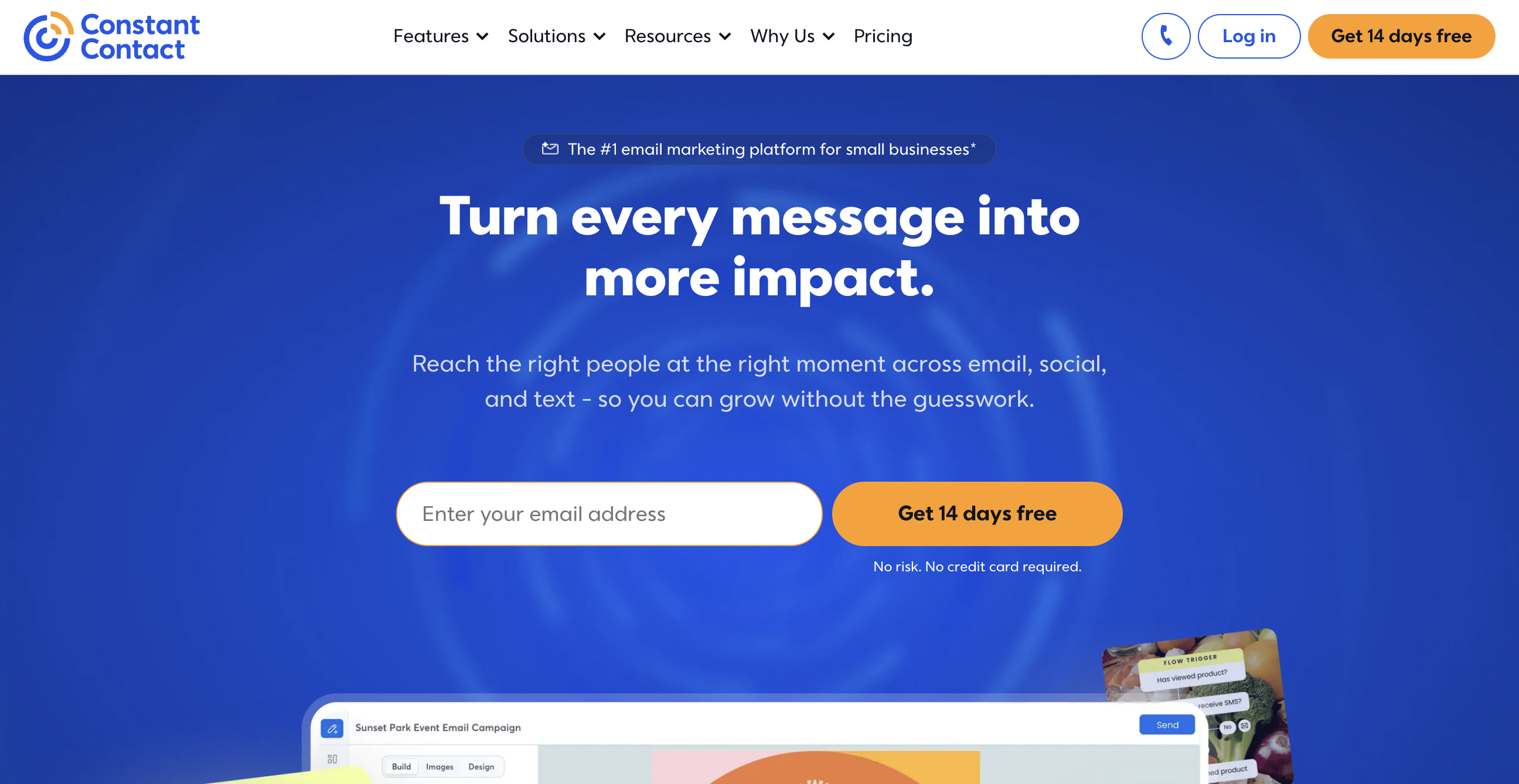
What is Constant Contact? Constant Contact is a digital and email marketing platform for small businesses. It includes email campaigns, marketing automation, contact list management, social media publishing, and SMS messaging in a single interface. The platform includes a drag-and-drop email editor, sign-up form builder, A/B testing, and reporting tools across its plan tiers.
Connect Constant Contact with your site when you need visitors to land directly on email lists without manual CSV exports or copy-paste data entry. For example, a restaurant collecting subscribers for weekly specials or a nonprofit onboarding new volunteers can capture a form submission on your site, then create or update a contact record in Constant Contact.
You can connect them in three ways:
- Embedded Constant Contact sign-up forms let you place inline forms, pop-ups, or landing page links on your site without writing code beyond pasting embed snippets.
- Webflow-triggered automations such as Zapier's Webflow New Form Submission → Constant Contact Create or Update Contact, IFTTT's Webflow Form submitted → Constant Contact Create contact, and viaSocket's Webflow New Form Submission → Constant Contact Add Contact To Lists let you keep native form elements and send submissions automatically.
- The Webflow and Constant Contact APIs give you control over contact creation, list management, CMS updates, and campaign triggers, but require server-side development.
Most implementations use two or more of these methods depending on the complexity of your setup.
Embed Constant Contact sign-up forms
Constant Contact generates embeddable sign-up forms you can place directly on your site. Use this method when you want Constant Contact to handle list assignment, double opt-in, and consent language natively. Configure the form's appearance and behavior inside Constant Contact, then paste the generated code into your site. Embedded forms render inside iframes, so your CSS classes can't style the form elements directly. All styling happens in Constant Contact's form builder before you copy the embed code.
Constant Contact offers inline forms, pop-ups, and hosted landing pages.
Add an inline sign-up form with a Code Embed element
Inline forms display directly within your page layout at a specific location. This approach needs two separate code snippets from Constant Contact: a Universal Code that connects your site to your Constant Contact account, installed once site-wide, and an Inline Code that places the form at a specific spot on a page.
You need a paid site plan because both Code Embed elements and custom code in head and body tags are locked to paid plans.
To set up an inline form:
- In Constant Contact, go to Channels > Sign-up forms and click Create a sign-up form. Select Inline, name your form, and customize the title, description, contact fields, email lists, and button styling. Under Settings > Devices, choose which devices display the form.
- Copy the Universal Code: go to Audience Growth > Sign-up Forms, open the Inline Code overlay, click View universal code, and copy it.
- Copy the Inline Code: go to Channels > Sign-up Forms, click the three dots next to your form, select View inline code, and copy it.
- Open your site settings, go to the Custom Code tab, paste the Universal Code into the Footer Code field, and click Save Changes.
- Open the target page, add a Code Embed element where you want the form to appear, double-click it, paste the Inline Code, and click Save & Close.
- Publish your site.
Once published, the inline form appears in the exact location of the Code Embed element.
Any changes you make to the form inside Constant Contact, such as updating the title, fields, or colors, automatically show up on your published site without re-embedding. Make sure the form is activated in Constant Contact for it to display.
Add a pop-up sign-up form via site settings
Pop-up forms appear as overlays across your site. Pop-ups only need the Universal Code.
To set up a pop-up form:
- In Constant Contact, go to Channels > Sign-up forms, click Create a sign-up form, and select Pop-up. Name your form (80-character limit), customize the content, and configure timing under Settings > Timing. Options include a timed delay (1 to 15 seconds) or exit intent.
- Copy the Universal Code from Constant Contact.
- Open your site settings, go to the Custom Code tab, paste the Universal Code into the Footer Code field, and click Save Changes.
- Publish your site.
By default, this setup applies the pop-up across your whole site unless you move the script to page-level custom code instead.
The pop-up appears across all published pages. For page-specific deployment, paste the script in the page-level Before </body> tag field instead. Constant Contact recommends keeping only one active form at a time to prevent multiple forms from displaying simultaneously.
Link to a Constant Contact sign-up landing page
This method works on free site plans because it needs no embed code. Constant Contact hosts the sign-up page on its own domain, and you link to it from your site.
To set up a landing page link:
- In Constant Contact, create a Sign-up Landing Page and copy the hosted URL.
- Select any button, text, or image element on your site and paste the Constant Contact URL as the link destination. Optionally set it to open in a new tab.
- Publish your site.
This is the simplest option when you want to avoid code entirely.
Visitors leave your site to complete the signup on a Constant Contact-hosted page. This removes the embed setup and shifts the signup experience off-site.
Connect with Zapier, IFTTT, or viaSocket
Automation tools let you keep native form elements, styled to match your site, while routing submissions to Constant Contact in the background through form-submission triggers. You keep design control and avoid the iframe styling limits of embedded Constant Contact forms. Set up behaviors like double opt-in and consent language in the automation layer rather than in Constant Contact's form.
Zapier has Webflow New Form Submission → Constant Contact Create or Update Contact, Webflow New Order → Constant Contact Add Contact to List, and other documented Webflow-triggered workflows across 8 pre-built templates. IFTTT has Webflow Form submitted → Constant Contact Create contact and Webflow New order → Constant Contact Create contact. viaSocket has Webflow New Form Submission → Constant Contact Create Contact, Webflow New Form Submission → Constant Contact Add Contact To Lists, and other direct trigger-action pairs.
To connect your forms to Constant Contact via Zapier:
- Build a form using the native form element, at minimum including name and email fields. Don't add a custom form action URL, as this disables form processing and breaks the Zapier trigger.
- Publish your site and submit a test entry on the live form. Zapier needs at least one submission to detect the form during setup.
- In Zapier, select the pre-built template "Add contacts to Constant Contact from new Webflow submissions." Connect both your Webflow and Constant Contact accounts, map the form fields to Constant Contact contact fields, and activate the Zap.
Available Webflow-to-Constant Contact automations include:
- Webflow New Form Submission → Constant Contact Create or Update Contact
- Webflow New Order → Constant Contact Add Contact to List
- Webflow New Form Submission → Constant Contact Tag Contact
- Webflow New Form Submission → Constant Contact Add Contact to List
- IFTTT: Webflow Form submitted → Constant Contact Create contact
- IFTTT: Webflow New order → Constant Contact Create contact
- viaSocket: Webflow New Form Submission → Constant Contact Create Contact
- viaSocket: Webflow New Form Submission → Constant Contact Add Contact To Lists
Available Constant Contact-to-Webflow automations include:
- Constant Contact New Contact → Webflow Create Item or Create Live Item in Webflow CMS
- Constant Contact New Email Open → Webflow Create or Update Webflow CMS live item
These examples cover the main automation patterns available before you move to a custom API build.
IFTTT supports the same core pattern, Webflow Form submitted → Constant Contact Create contact, but needs a Pro subscription for Webflow triggers. viaSocket offers 7 pre-built templates and includes conditional logic and data filtering. If Zapier doesn't detect forms inside Components, move the form outside the Component.
Build with the Webflow and Constant Contact APIs
Using both APIs gives you direct access to contact creation, list management, CMS updates, and campaign automation. This approach needs server-side development and suits teams that need custom field mapping, bulk imports, bidirectional CMS updates, or automated campaign creation triggered by site events.
Real-time webhooks fire for form submissions, orders, and CMS changes. Constant Contact doesn't provide webhooks for contact or email events, so real-time data flows from your site to Constant Contact. The reverse direction requires polling the Constant Contact API.
Use these APIs:
- The Constant Contact V3 API handles contact creation, list management, bulk imports, and email campaign operations
- The Webflow Data API handles form submissions, CMS collections, and site publishing
- Webhooks send real-time events when forms are submitted, orders are placed, or CMS items change
Both platforms use OAuth 2.0 for authentication. Constant Contact requires the contact_data and offline_access scopes at minimum. To create webhooks, you need an OAuth Data Client App token; site tokens can't create webhooks.
Route form submissions to Constant Contact contacts
A common API pattern sends form data to Constant Contact's contact creation endpoint in real time. A form_submission webhook fires when a visitor submits a form, your middleware parses req.body.payload.data, and a POST to https://api.cc.email/v3/contacts creates the contact record.
To implement this:
- Register a webhook on your site with
triggerType: "form_submission". Theform_submissiontrigger type supports an optionalfilterparameter to target a specific form, which isn't available for other trigger types. - Build a server-side endpoint, or serverless function, that receives the webhook payload, extracts the submitted fields from
payload.data(email, first name, last name), and maps them to Constant Contact's contact schema. - Call
POST https://api.cc.email/v3/contactswith theemail_address,first_name,last_name, andlist_membershipsfields. Includepermission_to_send: 'implicit'for web form signups. Thelist_membershipsarray accepts up to 50 list UUIDs.
app.post('/webhooks/webflow-form', async (req, res) => {
  const { payload } = req.body;
  const formData = payload.data;

  const response = await fetch('https://api.cc.email/v3/contacts', {
    method: 'POST',
    headers: {
      'Authorization': `Bearer ${CC_ACCESS_TOKEN}`,
      'Content-Type': 'application/json'
    },
    body: JSON.stringify({
      email_address: { address: formData.email, permission_to_send: 'implicit' },
      first_name: formData['first-name'],
      last_name: formData['last-name'],
      list_memberships: ['your-list-uuid-here'],
      create_source: 'Contact'
    })
  });

  res.sendStatus(200);
});
For high-volume scenarios like event registrations, queue submissions in your middleware and use the bulk import endpoint (POST /v3/activities/contacts_json_import) instead. This endpoint processes contacts asynchronously and returns an activity_id you can poll for completion status.
Sync CMS item changes to Constant Contact list memberships
When CMS items store subscriber or membership data, changes to those items can update list memberships in Constant Contact. For example, toggling a subscription status field from active to inactive can automatically remove that contact from a Constant Contact list.
To implement this:
- Register a webhook with
triggerType: "collection_item_changed". This trigger fires for all collection changes site-wide, so your middleware must filter by collection ID from the payload. - Fetch the current item state with
GET /v2/collections/{collection_id}/items/{item_id}and evaluate the relevant field value. - Call
POST /v3/activities/add_list_membershipsorPOST /v3/activities/remove_list_membershipson the Constant Contact API depending on the field value.
Use this pattern when the CMS is the controlled source of truth for subscription state.
CMS plan sites support up to 2,000 CMS items, and Business plan sites support up to 10,000. Plan your update volume accordingly.
Trigger email campaigns from CMS publishes
When a new blog post or content item publishes in your CMS, you can automatically create and schedule a Constant Contact email campaign that announces it. This takes three sequential API calls to Constant Contact, all using the campaign_data scope.
To implement this:
- Register a webhook with
triggerType: "collection_item_created"and fetch the published item's content via the Webflow Data API. - Call
POST /v3/emailsto create a campaign shell. You can't assign contact lists in this initial call. - Call
PUT /v3/emails/activities/{campaign_activity_id}to configure the campaign content and assign a contact list. You can't specify bothlist_idsandsegment_idsin the same request. - Call
POST /v3/emails/activities/{campaign_activity_id}/schedulewith an ISO-8601 date to schedule delivery.
Developers often run into errors here because list assignment doesn't work in the initial campaign creation call.
What can you build with the Constant Contact Webflow integration?
Integrating Constant Contact with your site lets you turn visitors into segmented email subscribers without manual data exports or disconnected marketing workflows.
- Newsletter sign-up with automated welcome sequences: Place an inline or pop-up sign-up form on your site that feeds directly into a Constant Contact list. New subscribers receive an automated welcome email series configured in Constant Contact's automation builder. A coffee roaster's site could capture email subscribers on the homepage and trigger a three-part welcome series introducing their sourcing story, brewing guides, and a first-order discount.
- E-commerce customer sync for post-purchase campaigns: Route new store orders to Constant Contact via Zapier or the API, automatically adding customers to a buyers list. A skincare brand could segment customers by product category and send targeted replenishment reminders based on purchase history.
- Event registration with attendee segmentation: Capture RSVP data from an event page form and create Constant Contact contacts tagged by event type, location, or ticket tier. A nonprofit running a fundraising gala could automate pre-event reminder emails and post-event thank-you sequences for each attendee segment.
- Multi-location subscriber management: Aggregate form submissions from multiple location sites into a single Constant Contact account with location-based list segmentation. A franchise with separate sites for each location could run both brand-wide campaigns and location-specific promotions from one Constant Contact account.
If you need more control over campaign creation, CMS-driven email triggers, or bidirectional data updates, the API integration path covers those cases in full.
Frequently asked questions
The method determines the plan requirement. Embedding Constant Contact forms requires a paid Webflow site plan because both Code Embed elements and site-level custom code fields are restricted to paid plans. Linking to a Constant Contact-hosted sign-up landing page works on free plans since it only requires adding a URL to a button or text link. Zapier setups based on Webflow New Form Submission require a paid site plan to receive form submissions on a custom domain. The Webflow custom code documentation details plan requirements for code injection.
Embedded third-party forms, including Constant Contact sign-up forms, do not render in Webflow's preview mode. They only appear after the site is published to a production or staging domain. If the form still does not display after publishing, verify that the form is activated in Constant Contact. For inline forms specifically, confirm that both the Universal Code (in site settings footer) and the Inline Code (in the Code Embed element) are installed. The Constant Contact form installation guide covers the two-code requirement in detail.
Use Constant Contact's embedded form when you want native double opt-in, consent language, and automatic list assignment without configuring middleware. Use Webflow's native form when design consistency is the priority, since embedded Constant Contact forms render inside iframes and cannot be styled with Webflow CSS classes. With native Webflow forms, route submissions through explicit workflows such as Zapier Webflow New Form Submission → Constant Contact Create or Update Contact, or through the API, and handle consent checkboxes and list assignment at the automation layer. This trade-off between native features and design control is discussed in the Webflow community.
Zapier requires at least one test submission on the published form before it can detect the form in the trigger setup dropdown. Submit a test entry on the live site, then retry the Zapier trigger configuration. Forms nested inside Webflow Components may also not be detected by Zapier. Move the form outside the Component. The Webflow community thread on this issue documents these causes and resolutions.
Constant Contact does not send this data to Webflow through webhooks. Constant Contact's webhook system is restricted to billing event notifications for registered API partners and does not fire webhooks for contact creation, email opens, or list changes. To send Constant Contact data to Webflow CMS, you need to poll the Constant Contact V3 API on a schedule and write results to Webflow CMS via the Data API. Automation tools like Zapier handle this with polling triggers: the "New Contact" and "New Email Open" triggers in Constant Contact check for new data at regular intervals and can create or update Webflow CMS items when changes are found.
Description
Constant Contact adds email list management, automated sequences, and campaign tools to Webflow through embedded sign-up forms, automation platforms like Zapier, or direct API integration for custom contact sync and campaign triggers.
This integration page is provided for informational and convenience purposes only.

Letterdrop
Connect Letterdrop to Webflow to publish, manage, and track B2B blog content directly from a collaborative content platform.

Postmark
Connect Postmark with Webflow to send branded transactional email from your own verified domain, triggered by form submissions, orders, or CMS events.
Sendingflow
Connect Sendingflow, an email marketing automation platform, with Webflow to trigger automated email campaigns from form submissions on your site.
Apex
Connect Apex with Webflow to automate email marketing journeys triggered by form submissions and ecommerce orders.
Campaigner
Connect Campaigner with Webflow to automatically sync form contacts to email lists and trigger automated email and SMS marketing campaigns.
Omnisend
Connect Omnisend with Webflow to capture subscribers, trigger automated email, SMS, and push campaigns, and sync customer data for e-commerce marketing.

Systeme.io
Connect Systeme.io, an all-in-one marketing platform with funnels, email, and courses, with Webflow to capture leads and trigger sequences via embeds or Zapier.

Pardot
Connect Account Engagement (formerly Pardot) with Webflow to turn form submissions and page visits into tracked prospects that sync to Salesforce.

Amazon SES
Send Webflow form confirmations and CMS newsletters through Amazon SES from your own verified domain.
Related integrations
Get started for free
Try Webflow for as long as you like with our free Starter plan. Purchase a paid Site plan to publish, host, and unlock additional features.
