






Beehiiv
Connect Beehiiv, a newsletter platform for creators and publishers, with Webflow to capture subscribers through embedded forms and sync newsletter posts to Webflow CMS collections automatically.

Site design, CMS content, and hosting are handled natively. Capturing email subscribers, managing audience segments, running referral programs, and sending newsletters requires a separate tool. Without one, visitor traffic leaves the site without a reliable way to bring those visitors back.
A Beehiiv connection turns a Webflow site into both a publishing surface and a subscriber acquisition channel. Place Beehiiv subscribe forms on landing pages, blogs, and high-intent pages, then use Zapier, Make, or direct API automations to move subscriber and content data between the two platforms.
This integration fits independent creators running Webflow portfolio sites, SaaS marketing teams capturing leads, media companies syncing newsletter archives to a CMS, and agencies building repeatable newsletter infrastructure for clients. Anyone publishing a newsletter alongside a Webflow site will find a setup path here.
How to integrate Beehiiv with Webflow
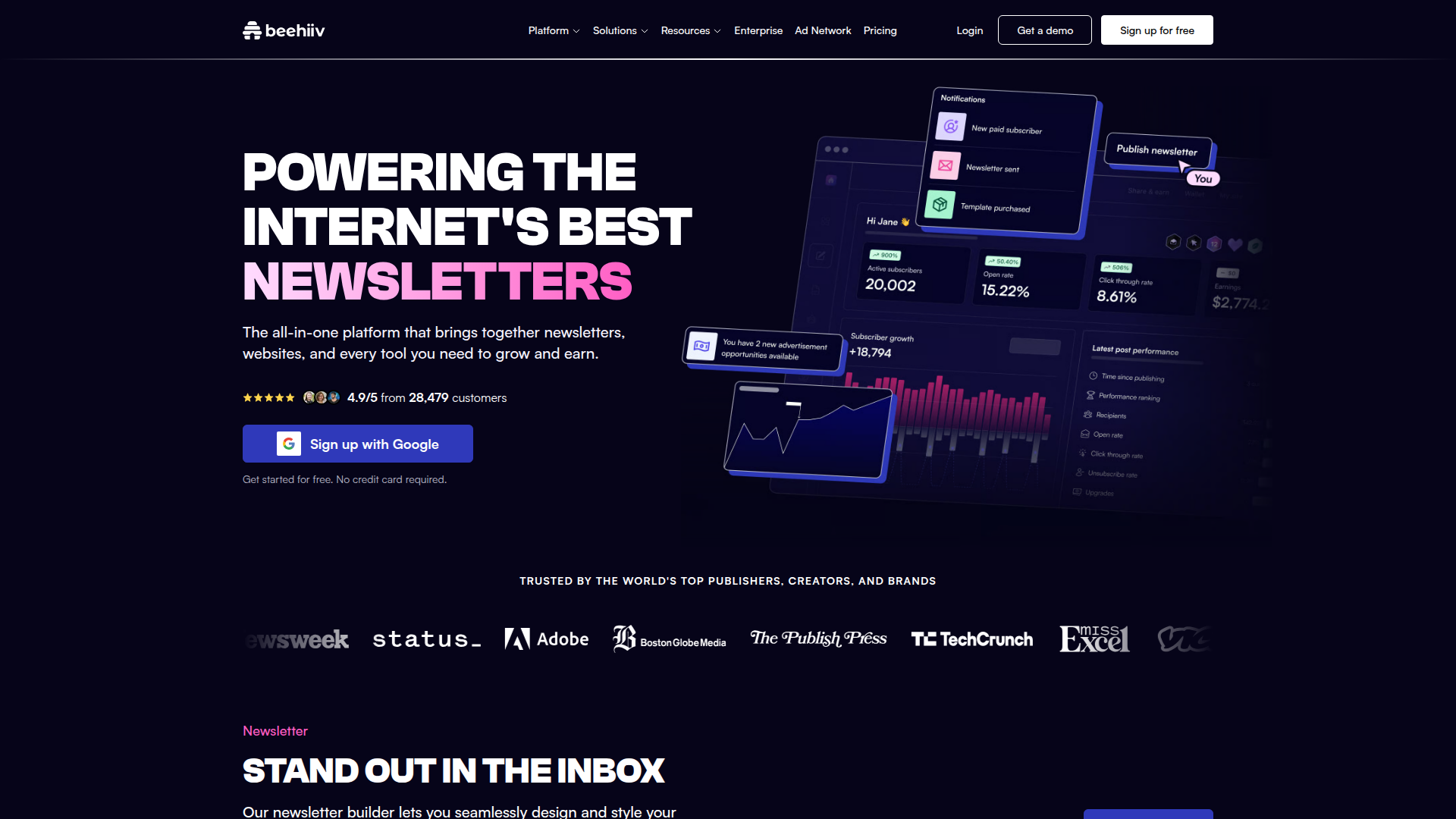
Beehiiv is a newsletter platform that combines email publishing, subscriber growth tools, referral programs, and monetization features including paid subscriptions and an ad network. The platform has over 150,000 publishers, including individual creators and organizations like TIME, TechCrunch, and Adobe. API access is available on all plans, with webhooks starting at the Scale tier.
Pair Beehiiv with Webflow when the Webflow site is the public-facing brand presence and Beehiiv handles everything related to newsletters: subscriber management, email delivery, audience segmentation, and monetization. Start by embedding a Beehiiv subscribe form on a homepage or blog sidebar, then add automated content sync or API automations as the audience grows.
Beehiiv and Webflow connect in 3 ways.
- Beehiiv embed forms add subscriber capture to any page using a Code Embed element, with no custom code required.
- Form Submission triggers can create Beehiiv subscribers, and Beehiiv New Post Sent triggers can create CMS items through Zapier or Make.
- The Data API and Beehiiv APIs let you create subscribers, sync CMS content, and enroll people in automations, but require server-side development.
Most implementations combine two or more of these methods depending on the complexity of the setup.
Add Beehiiv subscribe forms with Code Embed elements
Beehiiv generates a single <script> tag for each subscribe form you create. Pasting that script into a Code Embed element renders a working email capture form directly on the published site. This method works on Beehiiv's free Launch plan and requires a paid site plan (the Code Embed element is not available on the free Starter plan). The Beehiiv embed form documentation explains the form builder, including layout types, trigger options, and post-submission settings.
To embed a Beehiiv subscribe form:
- In Beehiiv, go to Subscribers > Subscribe Forms > Create new form. Configure your form content, style, and settings. Choose a layout type (Regular or Slim) and an embed type (Inline, Popup, Slide left, Slide right, Sticky top, or Sticky bottom).
- Click the arrow next to Save changes, then click Save & get embed code. Copy the
<script>tag from the modal. - In the Designer, open the Add Elements panel and drag a Code Embed element to the desired location on the canvas. Double-click it to open the code editor, paste the Beehiiv script, and click Save & Close.
- Publish the site. The form appears only on the published live site, not in the Designer preview.
Beehiiv embed forms support several configurations beyond basic inline placement:
- Non-inline embed types (Popup, Slide, Sticky) can trigger on page load, after a time delay, on scroll percentage, when an element becomes visible, on click, or on exit intent
- Post-submission behavior options include displaying a success message, redirecting to an external URL, and requiring double opt-in
- Subscribers captured through specific embed forms can be segmented automatically in Beehiiv, and form submissions can trigger Beehiiv email automations
The Beehiiv form's HTML and CSS cannot be modified directly from the Designer. Styling is controlled through the Beehiiv form builder's Style tab. For pixel-perfect design control over the form, consider the Zapier or Make method described in the next section. It routes native Webflow form submissions to Beehiiv.
Add site-wide attribution tracking
Beehiiv provides a separate attribution tracking script alongside the embed code. Paste this script before </body> in Site Settings -> Custom Code -> Footer Code for site-wide tracking.
To add attribution tracking:
- In the Beehiiv embed code modal, copy the attribution tracking script (separate from the form embed script).
- Go to Site settings > Custom Code. Paste the attribution script into the Footer Code field. See Custom code in head and body tags for details on where code runs.
- Click Save Changes, then publish the site.
Attribution data then appears in Beehiiv's subscriber analytics, linked to the referring page.
Reuse the embed across multiple pages
Wrapping the Code Embed element inside a Component lets you place the subscribe form on every page without re-pasting the script. Updates to the component propagate across all instances automatically.
Connect with Zapier or Make
Use Zapier or Make for Webflow-triggered and Webflow-action automations such as Form Submission -> Beehiiv Create Subscriber and Beehiiv New Post Sent -> Add Item or Create Live Item. Use this approach when you need full visual control over form design, want to sync Beehiiv newsletter posts to the CMS, or need to tag and segment subscribers based on which form they submitted.
The Zapier Beehiiv + Webflow integration page includes two pre-built templates: Webflow Form Submission -> Beehiiv Create Subscriber and Beehiiv New Post Sent -> Webflow Create Live Item. Make's Beehiiv integration includes a featured Webflow New Form Submission -> Beehiiv Create Subscriber template.
Available Webflow-triggered and Webflow-action automations for the Webflow-Beehiiv pairing include:
- Webflow Form Submission trigger > Beehiiv Create Subscriber action (map email and name fields)
- Beehiiv New Post Sent trigger > Webflow Add Item action (auto-populate a newsletter archive collection)
- Webflow Form Submission trigger > Beehiiv Create Subscriber + Add Tags actions (single multi-step automation)
- Beehiiv User Unsubscribes trigger > Webflow Update Item action (mark a member record inactive in a CMS collection)
- Beehiiv New Subscription Upgrades trigger > Webflow Update Item action (reflect premium status in a CMS member directory)
Use these automations for two primary jobs: subscriber capture with design control, and content sync.
Route Webflow form submissions to Beehiiv
Building the signup form as a native Form Block gives you full CSS control while still routing subscribers to Beehiiv. Use Webflow Form Submission -> Beehiiv Create Subscriber instead of a direct Beehiiv embed.
To set up form-to-subscriber sync with Zapier:
- Drag a Form Block element onto the page. Add at minimum an Email input field. Give the form a recognizable name in the Form Block settings (for example, "Newsletter Signup"). Publish the site.
- In Zapier, create a new Zap. Set the trigger to Webflow > New Form Submission. Connect the Webflow account and select the site and form name.
- Set the action to Beehiiv > Create Subscriber. Connect the Beehiiv account with an API key, map the email field, and optionally add UTM parameters or tags. Turn on the Zap.
The Make alternative uses the Webflow "Watch Form Submissions" module connected to the Beehiiv "Create Subscriber" module. The setup flow is similar, and Make's featured template covers this exact scenario.
Sync Beehiiv posts to the Webflow CMS
Every newsletter sent in Beehiiv can appear automatically as an indexed CMS page on the site. This creates an SEO-accessible archive of newsletter content.
To set up newsletter-to-CMS sync:
- Create a CMS Collection with fields matching the data you want from each newsletter (title, slug, published date, preview text, thumbnail image, and a link field for the original post URL).
- In Zapier, create a new Zap. Set the trigger to Beehiiv > New Post Sent. Connect the Beehiiv account.
- Set the action to Webflow > Create Live Item. Select the CMS Collection and map the Beehiiv post fields to the collection fields.
An RSS-based alternative also works: enable the RSS feed in Beehiiv under Settings > RSS Feed, copy the feed URL, and use Zapier's "RSS by Zapier" trigger connected to a Webflow "Create Live Item" action. RSS export is available on all Beehiiv plans.
Keep in mind that the CMS has item limits that vary by plan tier. Check the current pricing page for the exact limits on your plan. Plan archive collection size accordingly.
Build with the Webflow and Beehiiv APIs
The API approach lets you manage subscribers, create CMS content, enroll people in automations, and handle real-time events between both platforms. This path requires server-side development because both the Beehiiv and Webflow APIs enforce CORS restrictions. Direct browser-to-API calls from custom code will fail and would expose API keys in page source. All API calls must run through a server-side proxy, typically a serverless function on Vercel, Netlify Functions, or Cloudflare Workers.
Three APIs and event systems matter here:
- The Beehiiv API handles subscriber creation, post retrieval, automation enrollment, segment management, and webhook configuration
- The Data API handles CMS collections and form submissions
- Webhooks and Beehiiv webhooks trigger real-time events between systems
Beehiiv webhooks require the Scale plan or above. Webhook registration requires an OAuth token (site tokens cannot register webhooks).
Create Beehiiv subscribers from Webflow form webhooks
This automation registers a webhook for form submissions, receives the payload at a serverless function, and creates a Beehiiv subscriber via the API.
To implement form-to-subscriber sync via API:
- Register a webhook for the
form_submissiontrigger type by sending aPOSTrequest tohttps://api.webflow.com/v2/sites/{site_id}/webhookswith an OAuth token. Set theurlfield to the serverless function endpoint and optionally filter by form name. - In the serverless function, extract the email from the incoming
payload.data.emailfield and validate it before proceeding. - Send a
POSTrequest tohttps://api.beehiiv.com/v2/publications/{publicationId}/subscriptionswith the subscriber email, UTM parameters, and any custom fields. Store the Beehiiv API key in a server-side environment variable, never in client-side code.
A complete serverless handler for this workflow:
export default async function handler(req, res) {
  const { payload } = req.body;
  const email = payload?.data?.email;

  if (!email) {
    return res.status(400).json({ error: "No email in form submission" });
  }

  const BEEHIIV_API_KEY = process.env.BEEHIIV_API_KEY;
  const PUBLICATION_ID = process.env.BEEHIIV_PUBLICATION_ID;

  const response = await fetch(
    `https://api.beehiiv.com/v2/publications/${PUBLICATION_ID}/subscriptions`,
    {
      method: "POST",
      headers: {
        "Authorization": `Bearer ${BEEHIIV_API_KEY}`,
        "Content-Type": "application/json",
      },
      body: JSON.stringify({
        email: email,
        reactivate_existing: false,
        send_welcome_email: true,
        utm_source: "webflow",
        utm_medium: "form",
        double_opt_override: "not_set",
      }),
    }
  );

  if (response.status === 429) {
    return res.status(429).json({ error: "Rate limited by Beehiiv" });
  }

  if (!response.ok) {
    const err = await response.json();
    return res.status(response.status).json({ error: err });
  }

  const data = await response.json();
  return res.status(200).json({ success: true, subscription: data.data });
}
The double_opt_override: "not_set" value respects the publication's default double opt-in configuration. To enroll new subscribers in a Beehiiv automation at creation time, add an automation_ids array to the request body. Each referenced automation must have its trigger set to "Add by API" in the Beehiiv automation builder.
Sync Beehiiv posts to Webflow CMS via webhooks
For real-time content sync without Zapier or Make, configure a Beehiiv post.sent webhook that points to a serverless function. The function then creates a live CMS item.
To implement webhook-driven content sync:
- In Beehiiv, go to Settings > Integrations > Webhooks. Create a new webhook endpoint with the
post.sentevent type and the serverless function URL. This requires the Scale plan or above. - In the serverless function, extract the post title, slug, web URL, preview text, and thumbnail URL from the webhook payload.
- Send a
POSTrequest tohttps://api.webflow.com/v2/collections/{collection_id}/items/livewith the mapped field data. ThefieldDatakeys must match the CMS collection field slugs. Thenameandslugfields are required for all collections.
curl -X POST \
  "https://api.webflow.com/v2/collections/{collection_id}/items/live" \
  -H "Authorization: Bearer <token>" \
  -H "Content-Type: application/json" \
  -d '{
    "fieldData": {
      "name": "Newsletter Title from Beehiiv",
      "slug": "newsletter-title-slug",
      "post-url": "https://yourpub.beehiiv.com/p/slug",
      "published-date": "2025-05-21T00:00:00.000Z"
    },
    "isArchived": false,
    "isDraft": false
  }'
Using the /items/live endpoint bypasses the staging workflow and publishes the CMS item immediately. For a review step, use the staged endpoint (/items) instead, then explicitly publish with a separate POST to /items/publish. When publishing staged items, always check the errors array in the response. A 200 status does not guarantee all items published successfully.
Enroll existing subscribers in Beehiiv automations
When a subscriber already exists in Beehiiv and a Webflow event (form submission, CMS item update) should trigger a new automation sequence, use the Automation Journeys endpoint instead of recreating the subscription.
Send a POST request to https://api.beehiiv.com/v2/publications/{pubId}/automations/{autId}/journeys to enroll the subscriber without creating a duplicate record. This endpoint requires the automations:write OAuth scope.
What can you build with the Beehiiv Webflow integration?
Integrating Beehiiv with Webflow lets you capture newsletter subscribers and publish newsletter content on a Webflow site without rebuilding either platform's functionality.
- Newsletter signup across every page: Embed Beehiiv subscribe forms in the homepage hero section, blog sidebar, and footer. Use popup or exit-intent triggers on high-traffic landing pages. Each form can feed a different Beehiiv segment, so you know exactly which pages drive the most subscriptions.
- SEO-indexed newsletter archive: Sync every published Beehiiv newsletter to a CMS collection automatically using Zapier, Make, or the API. Each newsletter becomes its own indexed page on the site with a Collection List displaying titles, dates, and preview text.
- Subscriber-aware member directory: Use Beehiiv's
subscription.confirmedandsubscription.upgradedwebhooks to create and update CMS items in a "Members" collection. Display subscriber counts, tier status, or community member profiles directly on the site. - Multi-form lead capture with tagging: Build distinct forms for different landing pages (product launch, webinar registration, content download), then route each form through Zapier or Make to Beehiiv with unique tags. Beehiiv automations then deliver targeted email sequences based on which form the subscriber completed.
For more control over subscriber verification, content gating, or real-time bidirectional data sync, the API integration path covers those cases with full flexibility.
Frequently asked questions
Beehiiv does not have an app on the Webflow Marketplace. You can use two methods instead: Code Embed elements for subscribe forms and the Beehiiv API for advanced workflows. Beehiiv has its own separate app marketplace for connecting newsletters to external platforms, but that is not a Webflow app.
Beehiiv embed forms render only on published Webflow sites, not in the Webflow canvas preview. The
<script>tag executes at page load in a browser, which the preview does not fully simulate. Publish your site and check the live URL. If the form still does not appear, confirm the full script was pasted correctly in the Code Embed element and that your Webflow site is on a paid site plan.Partially. The Beehiiv form builder controls layout, colors, button text, and embed type through its Style tab. You cannot modify the form's underlying HTML from Webflow. For full design control, build a native Webflow Form Block and route submissions to Beehiiv through Zapier or Make. This gives you complete CSS control in Webflow while still adding subscribers to your Beehiiv publication.
The embed form method and API access (excluding the Send API) work on Beehiiv's free Launch plan. Webhooks, which are required for real-time event-driven sync like auto-creating Webflow CMS items when a post is published, require the Scale plan or above. The Send API for programmatically triggering newsletter sends is exclusive to the Enterprise plan.
No. The Beehiiv API enforces CORS restrictions, so browser-side
fetch()calls toapi.beehiiv.comwill fail. This is also a security concern because placing your API key in a Code Embed element exposes it in page source. Route all API calls through a server-side proxy such as a Vercel, Netlify, or Cloudflare Workers function.
Description
eehiiv adds newsletter subscriber capture and content sync to Webflow through an embeddable form script or Zapier workflows.
This integration page is provided for informational and convenience purposes only.

AWeber
Connect AWeber with Webflow to add form submissions and orders to tagged email lists with automated follow-up.

SendPulse
Connect SendPulse, a marketing automation platform, with Webflow to add email campaigns, web push notifications, chatbots, and pop-ups to your site and route form submissions into automated sequences.

Mailchimp
Connect Mailchimp, an email and SMS marketing platform, with Webflow to route form submissions into audiences, apply subscriber tags, and trigger automated email sequences.

MailerLite
Connect MailerLite with Webflow to capture email subscribers and trigger automations from form submissions, pop-ups, and e-commerce events.

Marketo
Connect Adobe Marketo Engage, a B2B marketing automation platform, with Webflow to render lead capture forms, track visitor behavior with Munchkin, and trigger Smart Campaign workflows from page visits and form submissions.

Klaviyo
Connect Klaviyo, an email and SMS marketing platform, with Webflow to turn form submissions and orders into automated flows.

Kit
Connect Kit, an email marketing platform for creators, with Webflow to capture subscribers through embedded forms, route form submissions into automated sequences, and manage audience segmentation across your site.

Get Response
Connect GetResponse, an email marketing and automation platform, with Webflow to capture leads through embedded forms, route submissions to segmented contact lists, and trigger automated email sequences.

Buttondown
Connect Buttondown, an email newsletter platform for writers and developers, with Webflow to collect subscribers through embedded forms, sync CMS blog posts to email drafts, and manage audience segments.
Related integrations
Get started for free
Try Webflow for as long as you like with our free Starter plan. Purchase a paid Site plan to publish, host, and unlock additional features.
