






Acuity Scheduling
Connect Acuity Scheduling with Webflow to add client booking, scheduling, and appointment management to your site.

Connecting Acuity Scheduling with Webflow adds a full booking system directly to your pages. Visitors can view availability, select appointment types, fill out intake forms, and pay deposits, all within an embedded scheduler or popup. Automation tools like Zapier can sync appointment data to Webflow CMS collections, keeping your site content up to date without manual entry.
This integration is useful for consultants, therapists, fitness studios, salons, photographers, and any service business running on Webflow. Agencies building client sites also benefit, since booking is one of the most common feature requests for service-industry projects.
How to integrate Acuity Scheduling with Webflow
What is Acuity Scheduling? Acuity Scheduling is appointment scheduling software that lets clients book, reschedule, or cancel appointments on their own. It supports custom appointment types, intake forms, automated reminders, payment collection through Stripe, Square, and PayPal, and calendar syncing with Google Calendar and other providers. Acquired by Squarespace in 2019, Acuity operates as a standalone product compatible with any website platform.
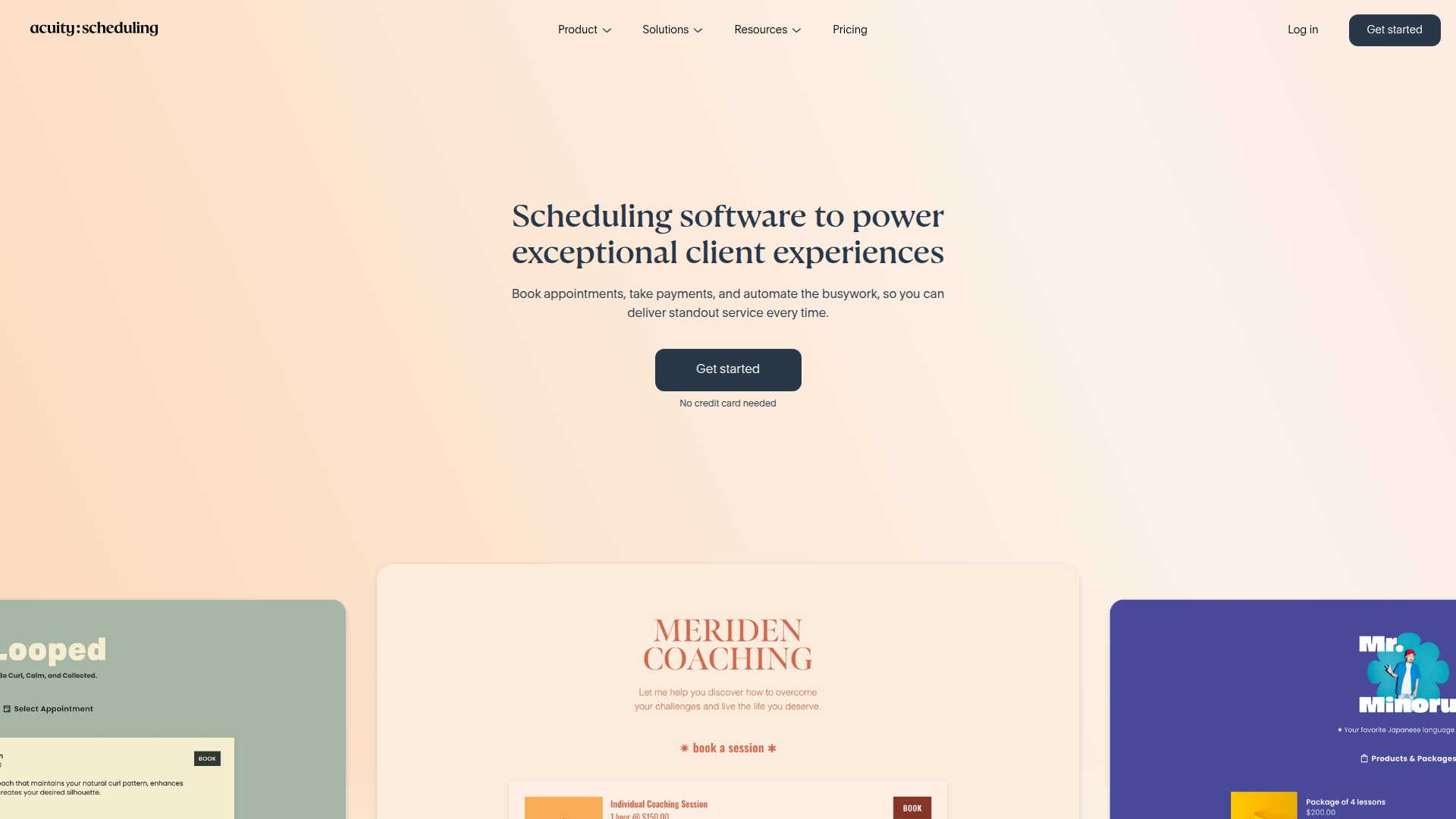
Service businesses use Acuity with Webflow when they need visitors to book directly from their site without redirecting to a separate scheduling page. The combination works well for single-practitioner practices embedding a scheduler on a dedicated booking page, multi-service businesses offering different appointment types on separate pages, and agencies delivering client sites that need booking functionality at launch.
The Acuity Scheduling-Webflow integration supports 3 approaches:
- Acuity embed codes let you add an inline scheduler, popup booking button, or persistent booking bar to any Webflow page without writing custom code.
- Zapier syncs appointment data between Acuity and Webflow CMS collections automatically when bookings are created, rescheduled, or canceled.
- The Webflow and Acuity Scheduling APIs give you full control over custom booking flows, real-time availability displays, and CMS data syncing, but require server-side development.
Most implementations start with an embed code for the booking interface, then add Zapier if appointment data needs to appear in CMS collections.
Add Acuity Scheduling to your site with embed codes
Acuity provides three embed formats that work with Webflow without any API configuration or server-side setup. Each format is generated from the Embed tab inside your Acuity account and consists of standard HTML and JavaScript. The inline scheduler displays the full booking interface on a page. The booking button opens the scheduler in a popup modal. The booking bar adds a persistent booking strip across all pages of your site. A fourth option, a simple hyperlink button, works on any Webflow plan including free.
To get your embed code from Acuity:
- Log into Acuity and go to Scheduling Page > Link.
- Under Direct Links & Embedding, use the drop-down to select your default scheduler or a specific calendar and appointment type.
- Click the Embed Scheduler, Booking button, or Booking bar tab.
- Click Copy.
Each embed format maps to a specific placement method in Webflow. The sections below cover all three options.
Embed the inline scheduler on a page
The inline scheduler displays the full booking calendar directly on your page. Visitors select an appointment type, pick a date and time, fill out intake forms, and complete payment without leaving your site. This is the best option for dedicated booking pages.
To add the inline scheduler:
- Copy the embed code from Acuity's Embed Scheduler tab.
- In Webflow, open the Add Elements panel and drag a Code Embed element onto your page where you want the scheduler to appear.
- Paste the Acuity iframe and script code into the Code Embed editor.
- Click Save & Close.
- Publish your site.
The embed code looks like this:
<iframe src="YOUR_SCHEDULER_URL" width="100%" height="800" frameBorder="0"></iframe>
<script src="https://embed.acuityscheduling.com/js/embed.js" type="text/javascript"></script>
Replace YOUR_SCHEDULER_URL with the URL from your Acuity Embed tab. The scheduler will not render in the Webflow canvas. You will see a gray placeholder box, which is standard behavior for Code Embed elements. Test on the published site or in Preview mode.
Add a booking button with a popup modal
The booking button opens the scheduler in a modal overlay when clicked. This works well for hero sections, call-to-action areas, and pricing tables where a full inline calendar would take up too much space.
To add the booking button:
- Copy the code from Acuity's Booking button tab.
- In Webflow, go to the page where you want the button to appear. Open Page settings > Custom code.
- Paste the code into the Before
</body>tag field. - Click Save Changes and publish your site.
The booking button script must go in the body section, not the <head>, because it depends on JavaScript to render. Refer to the custom code in head and body tags documentation for details on where different code types belong.
Add a site-wide booking bar
The booking bar attaches a persistent strip to the edge of every page on your site. Visitors can access booking from any page without needing a dedicated scheduling page.
To add the booking bar:
- Copy the code from Acuity's Booking bar tab.
- In Webflow, go to Site settings > Custom code.
- Paste the code into the Footer Code field (renders before
</body>on every page). - Click Save Changes and publish your site.
Once added to Site Settings → Custom Code → Footer Code, the booking bar appears automatically on all published pages.
Link to Acuity with a standard button (free plan compatible)
If you are on a free Webflow plan or prefer not to embed code, you can link directly to your Acuity scheduling page using a native Webflow Button element.
To add a booking link button:
- In Webflow, drag a Button element onto your page.
- Select the button and open Element Settings (gear icon).
- In Link Settings, select URL as the link type.
- Paste your Acuity scheduling page URL.
- Optionally check Open in new tab.
- Publish your site.
This method works on every Webflow plan, including free. It redirects visitors to your Acuity-hosted scheduling page rather than embedding the scheduler on your site.
Pre-fill the scheduler with URL parameters
Acuity's embed script supports URL parameters that pre-populate client data in the scheduler. You can pass firstName, lastName, email, phone, calendarID, appointmentType, datetime (ISO 8601 format), certificate, quantity, location, and custom intake form fields using the field:{fieldID}=value pattern.
For example:
https://example.acuityscheduling.com/schedule.php?firstName=Jane&lastName=Smith&email=jane@example.com&appointmentType=184520
This is useful for multi-step booking flows where a preceding page collects contact information. JavaScript on the Webflow page can read those values and append them to the iframe src attribute before the embed script runs. Pre-filling is one-directional only. There is no mechanism to receive events back from the iframe due to cross-frame security restrictions.
Connect Acuity Scheduling and Webflow with Zapier
Automation platforms bridge the gap between Acuity appointment events and Webflow CMS data. This is useful when you need appointment information to appear on your site, for example displaying upcoming classes, showing practitioner availability, or building a client-facing appointment directory. Zapier offers a direct Acuity-Webflow connection with Webflow CMS actions.
Zapier supports these Acuity-to-Webflow automation paths:
- Acuity New Appointment → Webflow Create Item creates a Webflow CMS item when a booking is created.
- Acuity New Appointment → Webflow Create Live Item creates and publishes a Webflow CMS item when a booking is created.
- Acuity Appointment Rescheduled → Webflow Update Item updates a Webflow CMS item when a booking moves to a new time.
- Acuity Appointment Canceled → Webflow Update Item updates a Webflow CMS item when a booking is canceled.
These paths cover the main appointment status changes most teams need to reflect in Webflow.
Zapier's Webflow actions available for Acuity automations include:
- Webflow Create Item adds a new Webflow CMS item from appointment data.
- Webflow Create Live Item adds and publishes a Webflow CMS item in one step.
- Webflow Update Item modifies an existing Webflow CMS item.
- Webflow Find Item locates a Webflow CMS item by name or slug.
- Webflow Find Live Item locates a published Webflow CMS item.
These actions are enough for straightforward create, update, publish, and lookup workflows.
To set up a Zapier workflow that syncs new appointments to a Webflow CMS collection:
- Create a Zap at zapier.com and select Acuity Scheduling as the trigger app.
- Choose New Appointment as the Acuity trigger event and authorize your Acuity account.
- Select Webflow as the action app and choose Create Live Item.
- Authorize your Webflow account, then select the target site and CMS collection.
- Map Acuity fields (client name, appointment type, date, time) to Webflow CMS collection fields.
- Test the action and click Publish Zap to activate.
Automation workflows sync data but do not embed the booking interface. Pair this method with one of the embed approaches above to give visitors a way to book.
Build with the Webflow and Acuity Scheduling APIs
The API path gives you full control over the booking experience. You can build a custom scheduling UI styled entirely with Webflow's design tools, display real-time availability without an iframe, create appointments programmatically from Webflow form submissions, and sync appointment data to CMS collections through webhooks. This approach requires server-side development because Acuity does not support cross-origin requests from the browser. All API calls must go through a serverless proxy (Netlify Functions, Vercel, AWS Lambda, or similar).
The relevant APIs:
- The Acuity Scheduling API handles appointments, availability, clients, calendars, forms, and webhooks
- Webflow's Data API v2 handles CMS collections, items, and site webhooks
- Acuity webhooks send real-time notifications when appointments are created, rescheduled, or canceled
Together, these APIs support custom booking interfaces and real-time sync workflows.
Acuity API access requires a Premium or Powerhouse plan. Authentication uses HTTP Basic Auth (User ID and API Key from Acuity's Integrations settings) for single-account setups, or OAuth 2.0 for multi-account applications.
Sync appointments to Webflow CMS with webhooks
The most common API use case is syncing appointment data into a Webflow CMS collection in real time. When someone books, reschedules, or cancels through Acuity, a webhook fires and a serverless function creates or updates the corresponding CMS item.
Acuity supports five webhook events:
appointment.scheduledfires once when a booking is createdappointment.rescheduledfires when a booking moves to a new timeappointment.canceledfires on cancellationappointment.changedfires on any modification (using this alongside other appointment events produces duplicates)order.completedfires when a package, gift certificate, or subscription purchase completes
These events cover both appointment lifecycle changes and order-related purchases.
Webhook payloads are delivered as application/x-www-form-urlencoded (not JSON) and contain only IDs: action, id, calendarID, and appointmentTypeID. A follow-up GET /api/v1/appointments/{id} call retrieves the full appointment data.
To implement the sync:
- Deploy a serverless function that accepts POST requests. Verify the
x-acuity-signatureheader using HMAC-SHA256 with your API key, then return HTTP200immediately before processing. - Call
GET /api/v1/appointments/{id}with Basic Auth to fetch the complete appointment record. - Map appointment fields to your Webflow CMS collection schema. Store the Acuity
idin a dedicated text field for deduplication. - For
scheduledevents, callPOST /v2/collections/{collection_id}/items/liveto create and publish a CMS item. Forrescheduledorcanceledevents, find the existing item by Acuity ID and callPATCH /v2/collections/{collection_id}/items/{item_id}/liveto update it.
A reference handler pattern for Netlify or Vercel:
export default async function handler(req, res) {
  const hash = crypto.createHmac('sha256', process.env.ACUITY_WEBHOOK_SECRET)
    .update(req.rawBody).digest('base64');
  if (hash !== req.headers['x-acuity-signature']) {
    return res.status(401).json({ error: 'Invalid signature' });
  }

  const { action, id } = req.body;

  const acuityResponse = await fetch(
    `https://acuityscheduling.com/api/v1/appointments/${id}`,
    { headers: { 'Authorization': 'Basic ' + Buffer.from(
        `${process.env.ACUITY_USER_ID}:${process.env.ACUITY_API_KEY}`
      ).toString('base64') } }
  );
  const appointment = await acuityResponse.json();

  const cmsItem = {
    fieldData: {
      name: `${appointment.firstName} ${appointment.lastName} - ${appointment.id}`,
      'appointment-date': appointment.datetime,
      'client-email': appointment.email,
      'acuity-id': String(appointment.id),
      'status': action
    }
  };

if (action === 'scheduled') {
    await fetch(
      `https://api.webflow.com/v2/collections/${process.env.WEBFLOW_COLLECTION_ID}/items/live`,
      { method: 'POST', headers: {
          'Authorization': `Bearer ${process.env.WEBFLOW_API_TOKEN}`,
          'Content-Type': 'application/json'
        }, body: JSON.stringify(cmsItem) }
    );
  }

  return res.status(200).json({ received: true });
}
Acuity retries webhook deliveries on HTTP 500 errors using exponential backoff, starting at 2 seconds and extending up to 24 hours. Returning 200 before processing prevents false retries. Implement idempotency checks using the stored Acuity ID to handle potential duplicate deliveries.
Display real-time availability on a Webflow page
You can build a custom availability display using Acuity's availability endpoints and a serverless proxy. This approach avoids the iframe entirely, giving you full styling control.
The endpoint sequence:
GET /api/v1/appointment-typesreturns service type IDs for building a type selector.GET /api/v1/availability/dates?month=YYYY-MM&appointmentTypeID={id}returns dates with open slots.GET /api/v1/availability/times?date=YYYY-MM-DD&appointmentTypeID={id}returns available time slots for a specific date.
These three endpoints form the core read path for a custom availability UI.
To implement this:
- Deploy a serverless proxy function that forwards requests to Acuity's availability endpoints with Basic Auth credentials.
- Add a Code Embed element or page-level
<script>in Webflow that calls your proxy endpoint. - Parse the JSON response and inject the availability data into pre-built Webflow DOM elements (divs, lists, or buttons styled in Webflow).
Availability data is too dynamic to store in CMS items. The browser-to-proxy-to-Acuity pattern is the standard approach for real-time display.
Create appointments from Webflow form submissions
You can use Webflow form submissions as the entry point for creating Acuity appointments. A Webflow form webhook sends submission data to your serverless function, which then calls POST /api/v1/appointments on Acuity.
Required fields for appointment creation: appointmentTypeID, datetime, firstName, lastName, email, and phone. All six fields must be present. Missing any field causes the API call to fail with no partial save.
An alternative approach skips the booking API entirely. Collect contact information through a Webflow form, then redirect the user to a pre-filled Acuity scheduler URL using the parameters from the form submission. This avoids the server-side proxy requirement for the actual booking step.
What can you build with the Acuity Scheduling Webflow integration?
Integrating Acuity Scheduling with Webflow lets you add appointment booking, class registration, and intake collection to your site without building a scheduling system from scratch.
- Service page booking: Embed appointment-type-specific schedulers on individual Webflow service pages. A photography studio could place a "Wedding Package" scheduler on the wedding page and a "Headshot Session" scheduler on the portrait page, each scoped to the relevant calendar using Acuity's drop-down selector in the embed settings.
- Class registration with CMS sync: Use Zapier to create Webflow CMS items whenever group class bookings come in through Acuity. A yoga studio could display upcoming class details and seat counts on a Collection List that updates automatically as registrations happen.
- Consultation funnels with pre-filled intake: Build a multi-step flow where a Webflow form collects company information, then redirects visitors to an Acuity scheduler pre-populated with their name, email, and service selection using URL parameters. A consulting firm could qualify leads before the booking step without requiring visitors to re-enter their details.
- Custom availability calendars: Use the Acuity API through a serverless proxy to display real-time open slots on a Webflow page styled to match the site design. A med spa could show available appointment times for each practitioner without the iframe's styling constraints.
If you need more control over the booking UI or data flow between systems, the API integration path covers those cases with full flexibility.
Frequently asked questions
Copy your embed code from Acuity (Scheduling Page > Link > Direct Links & Embedding > Embed Scheduler tab > Copy). In Webflow, drag a Code Embed element onto your page, paste the code, click Save & Close, and publish. The scheduler renders only on the published site, not in the Webflow canvas. See the official Acuity embed guide for step-by-step instructions.
Partially. The scheduler loads inside an iframe, so Webflow styles cannot reach the booking interface. You can use Acuity's built-in appearance settings to adjust colors and branding. The custom CSS panel (available on Premium and Powerhouse plans) provides additional control, but only for a specific set of supported selectors. For complete styling freedom, build a custom booking UI using the Acuity API. Note that Acuity is rolling out a new scheduler experience that changes supported CSS selectors, so existing custom CSS may need updating.
Yes. Zapier's Acuity-Webflow integration supports Acuity triggers such as New Appointment, Appointment Rescheduled, and Appointment Canceled with Webflow actions such as Create Item, Create Live Item, Update Item, Find Item, and Find Live Item. This requires a Webflow CMS plan (or higher) to access CMS collections. Developers can also build a custom webhook-to-CMS sync using the Acuity and Webflow APIs.
Currently, no. The integration is done manually through embed codes, automation platforms, or API development.
It depends on the method. Embedding the scheduler with a Code Embed element or adding custom code in site or page settings requires either a paid Webflow Workspace plan (Core, Growth, Agency, or Freelancer) or an active Site plan. A simple hyperlink button that points to your Acuity scheduling URL works on any Webflow plan, including free. If you plan to sync data to CMS collections through Zapier, you need a CMS plan or higher. See the Webflow custom code documentation for plan requirements.
Description
Embed Acuity Scheduling's booking calendar, popup buttons, or persistent booking bars into Webflow pages using embed codes, or sync appointment data to the CMS with Zapier.
This integration page is provided for informational and convenience purposes only.

Timekit
Connect Timekit with Webflow to take real-time appointment bookings directly on your pages.

Taskeo Appointment Scheduling
Connect Taskeo Appointment Scheduling, a booking and CRM platform, with Webflow to let visitors self-book appointments directly on your pages with automatic CRM contact import.

GoSchedule
With GoSchedule, allow visitors to schedule video meetings, collect payments, and send notifications in one place.

Event Calendar App

CozyCal
Connect CozyCal, a web-based appointment scheduling tool, with Webflow to embed booking calendars, intake forms, and Stripe payments directly on any page as inline widgets or modal overlays.

Calendly
Connect Calendly with Webflow to embed appointment scheduling directly on your site and sync booking data to your CMS.

AddEvent
Connect AddEvent, a calendar marketing and event management platform, with Webflow to embed event calendars, add-to-calendar buttons, RSVP forms, and subscription calendars on any page.
Related integrations
Get started for free
Try Webflow for as long as you like with our free Starter plan. Purchase a paid Site plan to publish, host, and unlock additional features.
