






Monto Abandoned Cart Recovery for Webflow Shops
Connect Monto Abandoned Cart Recovery with Webflow to send automated email sequences that bring back shoppers who abandoned checkout.

Webflow Ecommerce sends transactional email on its own. A shopper gets an order confirmation, the store manager gets an order received notice, and fulfilling an order sends the shopper an order shipped email. Every one of those fires after a purchase. Nothing fires for a cart that was filled and then left, which is where most of the traffic goes: Baymard Institute's cart abandonment statistics put the documented average at 70.22% across 50 studies.
Connected to Webflow, Monto tracks carts on your published site through one global script and follows up automatically. Shoppers who entered an email address receive a customizable three-stage recovery sequence. You watch abandoned, pending, and converted carts update in real time from the Monto dashboard.
The integration fits DTC founders selling on Webflow. It also fits freelancers handing off ecommerce builds and agencies standardizing recovery across client stores. Marketing managers can review each email stage's open and click rates alongside its conversion rate without exporting data. Stores that pair Webflow with Foxy for checkout are supported too.
How to integrate Monto Abandoned Cart Recovery for Webflow Shops with Webflow
What is Monto Abandoned Cart Recovery for Webflow Shops? Monto Abandoned Cart Recovery is an email-based cart recovery app, one of the ten apps Monto lists in its ecommerce suite alongside Reviews, Simple Subscriptions, Affiliates, and Order Management. It sends a multi-stage email sequence to shoppers who leave without buying. Monto is not a Webflow-only vendor: it also supports Foxy, Snipcart, BigCommerce, and Duda storefronts, and this page covers the Webflow path.
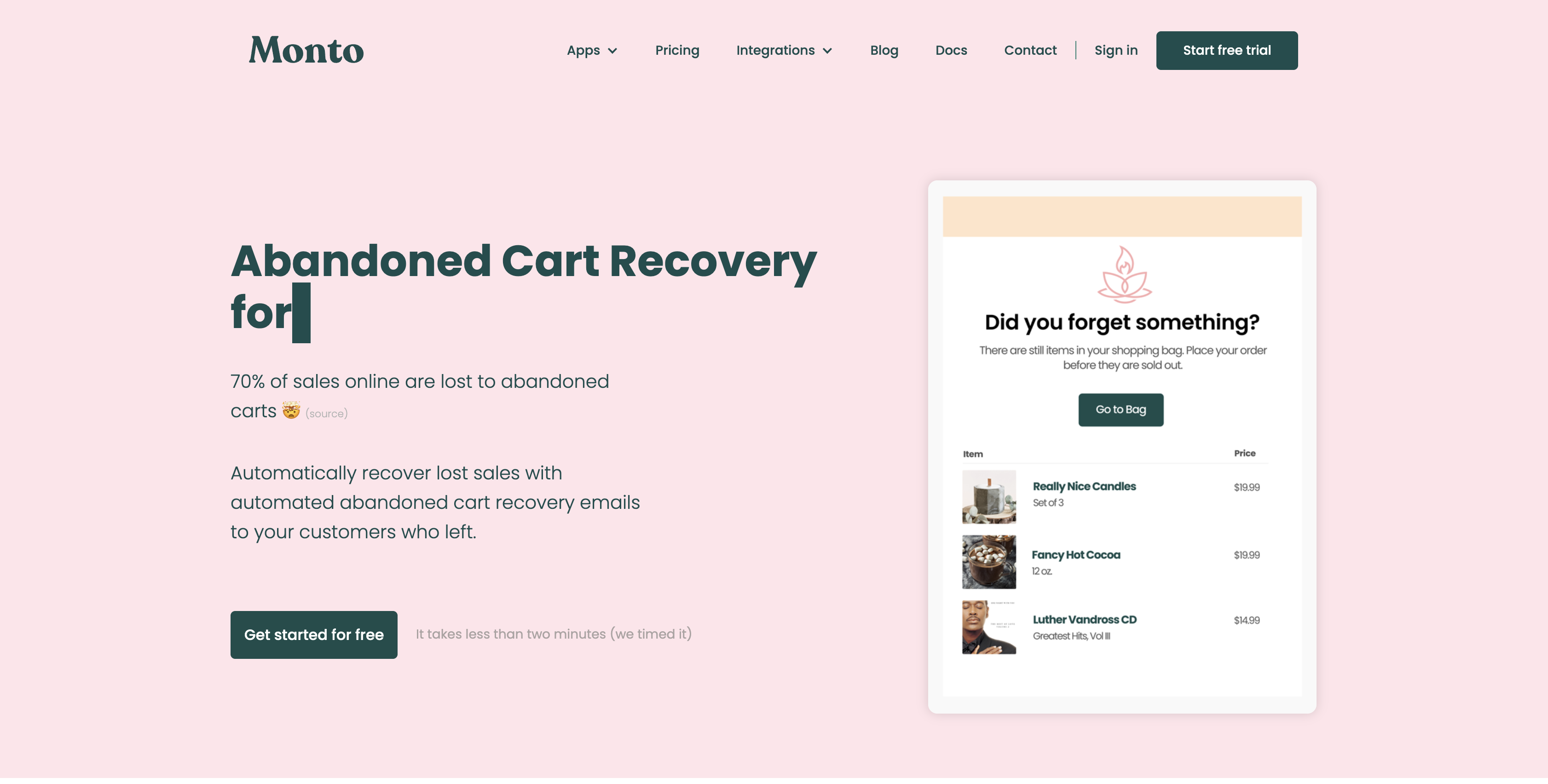
Teams add Monto when a store is losing money at checkout and nobody is following up. A cart with a captured email address gets a timed sequence instead of silence. Read Monto's definition of a recovery before you judge any number attached to the app: the shopper has to abandon a cart, receive at least one stage email, and then buy within 14 days of it. The same page lists when Monto will not email at all, including carts with no address, addresses on its bounce blacklist, shoppers it emailed in the past 14 days, and shoppers who ordered in the past 7 days. Monto also publishes a headline sales-lift figure with no methodology behind it, so read that one as marketing rather than evidence.
Installation depends on your checkout and on how much shopper data you want attached to a cart. The Monto app and required global script handle authorization and cart tracking and hold the email settings, installed from the Webflow Marketplace with one script paste and no backend work. The Monto global script and custom form attributes add coupon application and extra shopper fields on top of that. The Webflow and Monto APIs handle completed orders from checkouts Webflow does not run, and that path needs server-side development. Most stores install the app plus the script and stop there.
Install the Monto app from the Webflow Marketplace
Installing the app authorizes Monto against your site, and once you add the global script, recovery emails run without backend work. The Monto listing on the Webflow Marketplace carries the "Approved by Webflow" label and is published by the Monto workspace. The install asks for read and write on ecommerce data, custom code, and CMS data, plus read-only on forms, pages, sites, assets, and the authorizing user. Forms are read-only, so the app can see a submission but cannot change one. You still need an Ecommerce site plan to enable checkout before recovery emails have anything to recover, and this method suits store owners who want recovery running without touching code beyond one paste.
To set up the integration:
- Open the Monto listing on the Marketplace and click Add to site.
- Select the Workspaces or sites you want to add the app to, then click Authorize app.
- In the Monto dashboard, go to Settings > Options and upload your shop logo.
- On the Stages page, customize the email wording and the delay between stages.
- On the Configure page, add a reply-to email address and set your preferences.
The default sequence ships with three email stages, and you control the wording, the delay between them, and how many run. The Carts page tracks abandoned, pending, and converted carts as their status changes. Each stage takes your logo and brand colors, supports Markdown in the text fields, and can carry a coupon code in the last stage. Monto's guidance on how many stages to run and what to put in a subject line comes from its own merchant base rather than a published study, so treat it as a starting point and measure your own results. None of it works without the global script, covered next.
Add the Monto global script and custom form attributes
Cart detection runs entirely in the browser. Webflow's Data API has no cart endpoint and no abandoned-cart webhook, so Monto tracks carts with a site-specific JavaScript snippet instead. The script is not optional: Monto's global script guide says many of its apps cannot function as they are supposed to without it, and names cart capture as the first example.
Paste the global script into your site's head code
Each site you add to Monto gets its own unique script, which goes into your site's custom code head section. Custom code requires an active Site plan or a Core, Growth, Agency, or Freelancer Workspace plan.
To install the script:
- Copy your unique global script from monto.io/setup.
- In Webflow, go to Site settings > Custom code and paste the script into the Head code section.
- Click Save changes and publish the site. Custom code appears in preview but only goes live on publish.
The head code section accepts up to 50,000 characters, which leaves plenty of room for the script alongside analytics tags. If you manage the site through an AI agent instead, Webflow's MCP server reaches the same surface through its scripts tool, which reads and writes the head and footer blocks and registers scripts. Registering a script and applying it to a site are separate calls there, and an inline script is capped at 2,000 characters.
Capture custom shopper data with monto-meta classes
The global script captures email and name automatically at checkout and from any site form, including newsletter and contact forms. To attach more data to an abandoned cart, tag form fields with a class. Phone number and city are common additions.
To capture a custom field:
- Select the form field in Webflow and add a class in the format
monto-meta-_______, for examplemonto-meta-phoneormonto-meta-city. - Publish the site so the class takes effect on the live form.
Monto's custom cart fields guide lists monto-meta-phone, monto-meta-address, monto-meta-address2, monto-meta-city, monto-meta-state, monto-meta-zip, monto-meta-country, and monto-meta-message, and any other suffix you invent is picked up the same way. The Monto extension gives you a second place to handle custom form field data. Open the Apps panel in the left sidebar, select Monto, then select Abandoned Cart Recovery.
Apply a coupon code after a form submission
Monto ships a client-side function for applying coupon codes, since there is no native way to apply one to a cart automatically. Use it to reward shoppers who submit a newsletter or lead form mid-browse.
To apply a coupon automatically:
- Go to Site settings > Custom code and add a script in the Footer code section.
- Call
window.MONTO.Webflow.applyDiscountCode('COUPON')with your code when the form submits.
Monto's coupon application guide documents the full setup.
Build with the Webflow and Monto APIs
Developers who run checkout outside Webflow's native cart can combine Webflow's REST APIs with Monto's inbound Orders API. Monto's published API documentation covers inbound requests only: authentication, order creation, and subscription lookup by order ID. Nothing in it exposes an outbound webhook, so there is no documented way to subscribe to cart-abandoned or cart-recovered events. This path requires server-side development.
Four pieces do the work on this path, and each one is documented separately.
- Monto Orders API: The order creation endpoint accepts a completed order at
POST https://api.monto.io/ordersand records it against the shop. - Webflow ecommerce endpoints: Webflow's Data API lists and updates orders and products, and the list endpoint requires the
ecommerce:readscope. - Webflow CMS endpoints: Products and content records are collection items, so the same API reads and writes the catalog your recovery emails link back to.
- Webflow webhooks: Site webhooks post
ecomm_new_order,ecomm_order_changed, andecomm_inventory_changedto your endpoint, signed as a SHA-256 HMAC in thex-webflow-signatureheader.
Those three are the only ecommerce events Webflow publishes, and none of them describes a cart. Monto covers a dropped webhook with a full sync every 24 hours on every shop, across all collection items and all orders.
Create orders in Monto via the Orders API
Use this sub-method when an order completes somewhere Webflow's checkout cannot see it and Monto still needs the order on record. Monto describes the call as creating an order line item in the shop and, for Reviews customers, triggering a call-to-review email after the delay you configure. Authentication uses an API key passed as a URL query parameter.
To create an order:
- Get your API key from
https://www.monto.io/shop/api. - Send
POST https://api.monto.io/orders?api_key=<key>withorder_id,customer.name,customer.email,status, anditems[].slugin the payload. - Set
statusto"pending"or"fulfilled"; a successful request returns HTTP 200.
Webflow deprecated the v1 Data API on March 31, 2025. Our deprecation notice says v1 may continue to function past that date but receives no maintenance, updates, or support. Monto put it more bluntly, warning that "Any Monto store that hasn't been updated to v2 at that time will no longer function properly," so check your shop against Monto's v2 upgrade steps.
What you can build with the Monto Abandoned Cart Recovery Webflow integration
Integrating Monto Abandoned Cart Recovery with Webflow recovers abandoned checkout revenue without building email infrastructure. Your store stays on Webflow.
- Automated three-stage recovery sequences: A DTC store sends branded reminder emails on a schedule you set. A purchase within 14 days of an email counts as a recovery.
- Coupon-incentivized final reminders: Drop a discount code into the Stage 3 email, and set the same code to apply itself when a shopper submits a form earlier in the visit.
- Email-first checkout with Augmented Email Capture: This Webflow-only setting is off by default, moves the checkout email field earlier in the funnel, and then auto-populates it at checkout, so more abandoned carts arrive with an address attached.
- A Webflow CMS store with Foxy checkout: Authorize the Foxy account from Monto, add the global script, and cart tracking starts, per Monto's Foxy setup guide. The older Foxy webhook route is deprecated.
If your checkout runs outside Webflow, the API path is what tells Monto an order completed. For the transactional half Webflow does send, see how to send order confirmations through your own email provider.
Frequently asked questions
No. Webflow's native ecommerce emails are transactional: order confirmation, order received, and order shipped, plus the digital download and subscription messages. All of them follow a completed order. The webhook event catalog lists exactly three ecommerce events and none is cart-related, so abandoned cart recovery comes through Marketplace apps such as Monto.
Yes, for native checkout. You can only enable checkout on one of the three Ecommerce site plans, and native cart tracking depends on checkout being live. Monto also runs on a Webflow CMS site that uses Foxy for checkout instead, which needs no Webflow Ecommerce plan.
With auto-upgrade off, the app switches off until the next billing period or an upgrade. Per Monto's quota article, carts already in a sequence still receive their remaining stages, new carts get nothing, and a new cart that sits more than 10 days while the app is off is lost for good. On upgrade, carts 10 days old or newer resume.
Cookies, usually. Monto's cart persistence depends on browser cookies, per its empty-cart guide. A shopper who browsed in one browser and opened the email in another, used a private window, or has cookies switched off sees an empty cart. That guide adds a fourth cause: items removed from the cart shortly before the email went out. No Webflow setting changes any of this.
That depends on your jurisdiction, and neither Webflow nor Monto decides it for you. Monto's GDPR statement takes the position that recovery emails are transactional rather than marketing, and says each one carries an opt-out and that shop or customer data is deleted on request. That is Monto's reading of the rules, not a ruling on your store, so check it against your own legal advice before you switch the sequence on.
Description
The integration sends automated, multi-stage recovery emails to shoppers who abandon carts on a Webflow store. Setup runs through the Monto Marketplace app plus one global script pasted into the site's custom code settings in the head and body tags.
This integration page is provided for informational and convenience purposes only.

Flow Phantom Upsells

Elfsight-countdown-timer-widget
Connect Elfsight Countdown Timer with Webflow to add live deadlines to any page with a Code Embed element.

Ecwid
Connect Ecwid, a multi-channel e-commerce platform, with Webflow to embed a shopping cart, product catalog, and checkout on any page while managing orders and inventory from Ecwid's admin panel.

Chec/Commerce.js
Sell things as small as ebooks, licensed software, or run an entire clothing line from your site.
Monto Affiliates
Connect Monto Affiliates, an affiliate and referral marketing app, with Webflow to track referral orders and form submissions, manage commissions, and process PayPal payouts for your affiliate program.
Related integrations
Get started for free
Try Webflow for as long as you like with our free Starter plan. Purchase a paid Site plan to publish, host, and unlock additional features.
