










Neon is a serverless Postgres database that connects over HTTP, scales to zero between requests, and runs natively on Webflow Cloud. No TCP, connection pool to configure, or separate infrastructure to manage.
Webflow Cloud's built-in storage options handle a lot. Key-value for config, SQLite for structured data, object storage for files. But they're SQLite. The moment you need full Postgres (a JOIN across three tables, a JSON column with GIN indexing, repeatable-read transactions, foreign key constraints with ON DELETE CASCADE), you need additional implementations.
Neon is where I keep landing. It's serverless Postgres built specifically for this environment: the database autoscales to zero when idle, branches like a git repo, and ships a driver that connects over HTTP instead of TCP.
This guide builds a waitlist app: a Webflow form that submits emails, a Webflow Cloud Route Handler that writes them to Neon, and a read endpoint that returns the current count. The pattern extends to any data model you need.
What do you need to connect Neon Postgres to a Webflow Cloud App?
You need three things: a Neon project, a Webflow Cloud App, and the @neondatabase/serverless driver. No additional infrastructure or connection pooler to configure separately. Neon handles pooling on its side, and you reference the pooled connection string from your app.
Here are the specific prerequisites before you start:
- A Neon account: The free tier includes one project with enough compute for most early apps.
- AWebflow Cloud Appalready scaffolded: Using Next.js (this guide uses Next.js App Router, but the same approach works with Astro); run
webflow auth login && webflow cloud initif you haven't yet. - Node.js 19 or higher: The GA version of the Neon serverless driver requires it
The setup adds one npm package, one environment variable, and two Route Handlers. Total time: under 30 minutes if your Neon project is already created.
5 steps to build a serverless Neon app on Webflow Cloud
The Route Handlers live in the Cloud App. The form lives in the Webflow site. Neon sits outside both: a fully managed Postgres database that both environments access via HTTP. No VPC, no connection pool to babysit.
Here's how each piece comes together.
1. Create your Neon project and provision the schema
Every Neon project ships with a default database called neondb on the main branch. That's where the schema goes.
Log in at console.neon.tech, create a new project, then navigate to SQL Editor in the left sidebar.
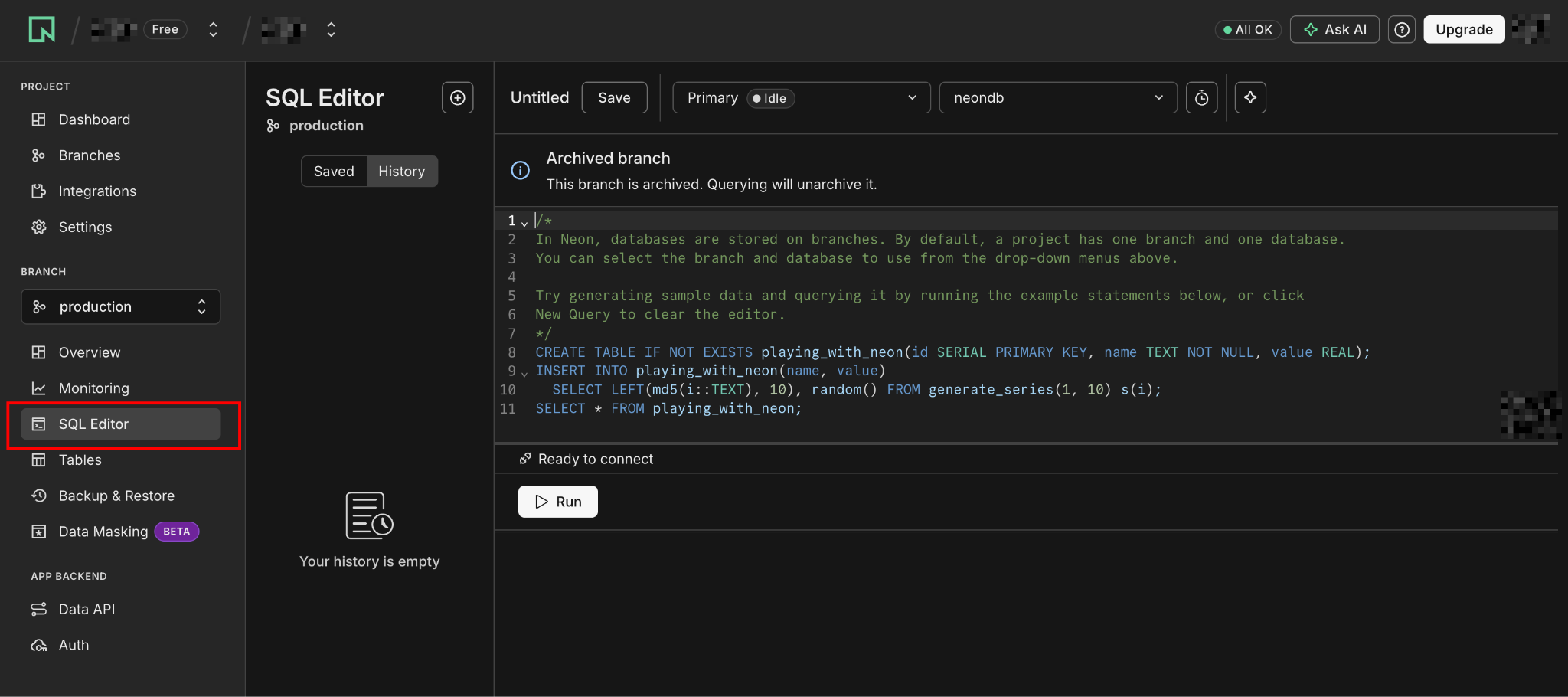
Run this to create the waitlist table:
CREATE TABLE waitlist (
  id        SERIAL PRIMARY KEY,
  email     TEXT NOT NULL UNIQUE,
  joined_at TIMESTAMPTZ NOT NULL DEFAULT NOW()
);

CREATE INDEX waitlist_joined_at_idx ON waitlist (joined_at DESC);
The UNIQUE constraint on email means duplicate submissions return a Postgres error rather than creating duplicate rows. I handle that gracefully in the Route Handler in Step 3. The constraint enforces the business rule at the database level, which is where it belongs.
Getting your connection string
Next, get your connection string. Click Connect on the Project Dashboard to open the connection modal. In the dropdown, switch from Direct connection to Pooled connection. This adds -pooler to the hostname.
Pooled connections are required for serverless environments because Cloudflare Workers can't hold a TCP socket open between requests.
Copy the string; it looks like this:
postgresql://alex:AbC123dEf@ep-cool-darkness-123456-pooler.us-east-2.aws.neon.tech/neondb?sslmode=requireCheckpoint: The SQL Editor should show the table created with no errors. Copy the pooled connection string before closing the modal. You'll need it in the next step.
2. Install the Neon serverless driver in your Cloud App
The @neondatabase/serverless package is the only dependency you need. It works over HTTP and WebSockets rather than TCP, which is what makes it compatible with Cloudflare Workers.
In your Cloud App project root:
npm install @neondatabase/serverlessAfter installation, create a database client helper at lib/db.ts. Centralizing the connection here means that every Route Handler imports from a single place rather than instantiating its own client.
Here's what that helper looks like:
// lib/db.ts
import { neon } from '@neondatabase/serverless';

if (!process.env.DATABASE_URL) {
  throw new Error('DATABASE_URL environment variable is not set');
}

export const sql = neon(process.env.DATABASE_URL);
The neon() function returns a tagged template literal query function. Queries written as sql`SELECT * FROM waitlist WHERE id = ${id}` are parameterized automatically. The driver separates the SQL from the values before sending the request, so there's no SQL injection risk from template variable interpolation.
Checkpoint: Run npx tsc --noEmit to confirm the TypeScript compiles without errors. If it throws on the @neondatabase/serverless import, check that your tsconfig.json targets ES2020 or higher.
3. Add the connection string and build the write Route Handler
The DATABASE_URL must be set in two places: .env.local for local development and the Webflow Cloud environment panel for production.
Add to .env.local:
DATABASE_URL=postgresql://alex:AbC123dEf@ep-cool-darkness-123456-pooler.us-east-2.aws.neon.tech/neondb?sslmode=requireBefore deploying, add the same value to your Webflow Cloud environment. Navigate to your Webflow site settings, open Webflow Cloud, select your environment, and add DATABASE_URL under Environment Variables. The value is masked after save and is never exposed in your deployed bundle.
Now create the write endpoint at app/api/waitlist/route.ts:
// app/api/waitlist/route.ts
export const runtime = 'edge';

import { sql } from '@/lib/db';

export async function POST(request: Request) {
  const { email } = await request.json();

  if (!email || typeof email !== 'string' || !email.includes('@')) {
    return Response.json({ error: 'Valid email required' }, { status: 400 });
  }

  try {
    await sql`
      INSERT INTO waitlist (email)
      VALUES (${email.toLowerCase().trim()})
    `;

    return Response.json({ success: true });
  } catch (err: any) {
    // Postgres unique violation error code
    if (err.code === '23505') {
      return Response.json({ error: 'Already on the waitlist' }, { status: 409 });
    }

    console.error('Waitlist insert error:', err);
    return Response.json({ error: 'Something went wrong' }, { status: 500 });
  }
}
The export const runtime = 'edge' directive tells Next.js to run this handler in the Cloudflare Workers runtime. Without it, the handler defaults to Node.js, which works locally but not in production on Webflow Cloud.
The err.code === '23505' check specifically catches Postgres unique constraint violations. When a duplicate email hits the UNIQUE constraint, Neon returns error code 23505 rather than a generic 500. I always handle this case explicitly. Returning 409 Conflict lets the client display a "you're already signed up" message rather than a generic error.
Checkpoint: Test the write endpoint locally:
curl -X POST http://localhost:3000/app/api/waitlist \
  -H "Content-Type: application/json" \
  -d '{"email": "test@example.com"}'
# Expected: {"success":true}

curl -X POST http://localhost:3000/app/api/waitlist \
  -H "Content-Type: application/json" \
  -d '{"email": "test@example.com"}'
# Expected: {"error":"Already on the waitlist"} with 409 status
Open the Neon SQL Editor and run SELECT * FROM waitlist; to confirm the row appears.
4. Build the read Route Handler
The read endpoint returns the total signup count and the ten most recent emails. A separate endpoint for reads keeps the logic clean and makes it easy to add caching or rate limiting to each independently.
Create app/api/waitlist/count/route.ts:
// app/api/waitlist/count/route.ts
export const runtime = 'edge';

import { sql } from '@/lib/db';

export async function GET() {
  const [countResult, recentResult] = await sql.transaction([
    sql`SELECT COUNT(*)::int AS total FROM waitlist`,
    sql`SELECT email, joined_at FROM waitlist ORDER BY joined_at DESC LIMIT 10`,
  ]);

  return Response.json({
    total: countResult[0].total,
    recent: recentResult,
  });
}
sql.transaction() sends both queries in a single HTTP round-trip to Neon. I use it here not because the read requires transactional guarantees, but because it halves the number of HTTP requests. With Cloudflare Workers at the edge, each round trip to the database adds latency, so batching reads matters at scale.
The ::int cast on COUNT(*) is a Postgres detail worth knowing. COUNT(*) returns bigint by default. Neon's driver serializes this as a string in JSON (to avoid JavaScript precision loss on large integers). Casting to int means the JSON response has { total: 47 } instead of { total: "47" }, which is what you want when displaying the count in a Webflow page.
Checkpoint: Hit the read endpoint locally and confirm both total and recent return with the expected types:
curl http://localhost:3000/app/api/waitlist/count
# Expected: {"total":1,"recent":[{"email":"test@example.com","joined_at":"..."}]}
Once the read endpoint is returning the right shape, the data layer is complete. Step 5 wires the deployed app to a Webflow form.
5. Deploy and wire up the Webflow form
Deploy the Cloud App:
webflow auth login
webflow cloud deploy
Or push to your connected GitHub branch to trigger an automatic deployment.
Once deployed, add the form and custom JavaScript to your Webflow site.
In the Webflow Designer, create a form with:
- A Text Input element with ID
waitlist-emailand type set toEmail - A Submit Button with ID
waitlist-submit - A Div Block with ID
waitlist-messageset to Display: None for feedback text - An optional Text Block somewhere on the page with ID
waitlist-countto show the total signups
In the page's Before </body> tag settings, add:
<script>
const form = document.querySelector('[data-name="waitlist-form"]');
const emailInput = document.getElementById('waitlist-email');
const message = document.getElementById('waitlist-message');
const countEl = document.getElementById('waitlist-count');

// Load the current count on page load
async function loadCount() {
  try {
    const res = await fetch('/app/api/waitlist/count');
    const data = await res.json();
    if (countEl) countEl.textContent = `${data.total} people signed up`;
  } catch (e) {
    console.error('Count fetch failed:', e);
  }
}

// Handle form submit
if (form) {
  form.addEventListener('submit', async (event) => {
    event.preventDefault();
    const email = emailInput?.value?.trim();
    if (!email) return;

    try {
      const res = await fetch('/app/api/waitlist', {
        method: 'POST',
        headers: { 'Content-Type': 'application/json' },
        body: JSON.stringify({ email }),
      });
      const data = await res.json();

      message.style.display = 'block';
      message.textContent = res.ok
        ? "You're on the list."
        : data.error || 'Something went wrong.';

      if (res.ok) loadCount();
    } catch (e) {
      message.style.display = 'block';
      message.textContent = 'Something went wrong.';
    }
  });
}

loadCount();
</script>
event.preventDefault() stops Webflow from handling the form submission natively. The fetch calls go to /app/api/waitlist and /app/api/waitlist/count, which resolve to the Cloud App Route Handlers because Webflow Cloud mounts the app at /app/ on the same domain.
Checkpoint: Submit a real email on the published page, open the Neon SQL Editor, and run SELECT * FROM waitlist ORDER BY joined_at DESC LIMIT 5;. The row should appear within one second of submission.
What causes Neon queries to fail on Webflow Cloud?
Most Neon and Webflow Cloud failures fall into one of four patterns. Each one has a clear diagnostic path.
The standard pg driver throws on import
If you see an error like Error: Cannot find module 'net' or TypeError: dns.lookup is not a function, you've installed the standard pg (node-postgres) package instead of @neondatabase/serverless.
Standard Postgres drivers rely on Node.js's net and dns modules to establish TCP connections. Cloudflare Workers don't expose those modules. Replace pg with @neondatabase/serverless and update your imports from import { Pool } from 'pg' to import { neon } from '@neondatabase/serverless'.
DATABASE_URL not available in the Route Handler
The Route Handler returns a 500 with "DATABASE_URL environment variable is not set." This means either .env.local is missing locally, or the variable wasn't added to the Webflow Cloud environment panel before deploying.
Environment variables added to the Webflow Cloud panel only take effect after a fresh deployment. Adding them mid-session doesn't hot-reload the Worker. Add the variable, then redeploy.
Direct connection string instead of pooled
Queries succeed locally but time out in production. The symptom: requests hang for 10-30 seconds before failing. The cause: you're using the direct connection string (without -pooler in the hostname) rather than the pooled one.
Direct connections use TCP, which Workers don't support. In the Neon Console, go to Project Dashboard → Connect, enable the Pooled connection toggle, copy the updated string, and redeploy.
Pool connections not closing between requests
If you're using Pool instead of neon() for interactive transactions, you'll see connection exhaustion errors under load: Error: remaining connection slots are reserved. In Cloudflare Workers, Pool connections can't outlive a single request.
Create and close the pool within the handler, never at module scope:
// Correct: pool created and closed inside the handler
export async function POST(request: Request) {
  const pool = new Pool({ connectionString: process.env.DATABASE_URL });
  try {
    const result = await pool.query('INSERT INTO waitlist (email) VALUES ($1)', [email]);
    return Response.json({ success: true });
  } finally {
    await pool.end(); // always close
  }
}

// Wrong: pool at module scope leaks connections across requests
const pool = new Pool({ connectionString: process.env.DATABASE_URL });
For simple queries without interactive transactions, neon() over HTTP is the better choice and doesn't have this limitation.
Where to take your Neon and Webflow Cloud integration next
You now have serverless Postgres running alongside your Webflow site, with a write endpoint that gracefully handles duplicates and a read endpoint that batches queries into a single HTTP round trip.
The most common next layer I add is an ORM. Drizzle ORM pairs with Neon natively. The drizzle-orm/neon-http adapter wraps the neon() function and gives you type-safe queries without leaving TypeScript. Schema migrations are version-controlled files rather than manual SQL Editor sessions.
Explore Webflow + Neon to see what else you can build with Neon on Webflow Cloud, including background jobs, authentication, and multi-tenant data architectures.
Frequently asked questions
Why can't I use the standard pg driver with Webflow Cloud?
Standard Postgres drivers open TCP connections using Node.js's net module. Cloudflare Workers, which power Webflow Cloud, run in a V8-based sandbox that doesn't expose TCP primitives. Any driver that uses net.createConnection() fails on import. The @neondatabase/serverless driver solves this by connecting via HTTP (fetch) or WebSockets, both of which Workers natively support.
Does the Neon free tier work for production apps?
Neon's free tier includes 100 projects, each with 0.5 GB storage and 100 CU-hours per month. For a low-traffic waitlist or internal tool, that's plenty. The database scales to zero when idle, so a lightly used app consumes almost no compute. For higher traffic or storage, Neon's paid plans are usage-based. Check Neon's pricing page for current limits.
When should I use Pool instead of the neon() function?
Use the neon() HTTP function for single queries and batched non-interactive transactions. Use Pool (WebSocket mode) when you need interactive transactions in which multiple queries must share a session and the second query's input depends on the first query's result. In both cases on Webflow Cloud, make sure any Pool instance is created and closed within the same request handler. Module-scope pool instances leak connections and exhaust Neon's connection limits under load.
Can I use Drizzle ORM or Prisma with Neon on Webflow Cloud?
Yes for Drizzle, with a caveat for Prisma. Drizzle works cleanly with the @neondatabase/serverless driver via drizzle-orm/neon-http and runs fine in the edge runtime. Prisma requires @prisma/adapter-neon and the WebSocket-mode Pool, which works in Workers but requires careful management of the connection lifecycle. I use Drizzle in production on Webflow Cloud; Prisma is possible, but adds configuration overhead. The Neon serverless driver docs show setup examples for both.



















