









Turn travel content into bookings with a Booking.com affiliate widget that fits every screen, from a desktop sidebar to a phone.
Travel blogs that earn affiliate commissions send readers of each hotel recommendation to another site. Booking.com's Affiliate Partner widgets put hotel search and maps on your own Webflow page, so readers can browse stays there.
The generated code sets a fixed pixel width, which can overflow on mobile and add a horizontal scrollbar.
I embed an Affiliate Partner search box in a Code Embed element and size it to fill its container. Two attributes do the work: data-width set to 100%, and data-height set to a number or auto.
A data-height of 100% makes the script throw an error and render nothing, so avoid that value.
These widgets send visitors to Booking.com to finish the transaction, so they can't complete a booking on your site.
First, confirm which type of Booking.com widget you need.
3 types of Booking.com widgets, and which one do you need?
"Booking.com widget" means three distinct things, and choosing the wrong one can cost you time rebuilding.
The three types are:
- Affiliate Partner widgets: These redirect users to Booking.com and pay you a commission.
- Reviews widgets: These pull your property's guest ratings onto your site via a third-party service.
- Direct booking widgets: These replace Booking.com entirely and live on a separate platform.
Compare the three types side by side:
| Widget type | What it does | Best for | Requires |
|---|---|---|---|
| Affiliate Partner widgets | Embed search, maps, deals, or banners that redirect users to Booking.com and earn you a commission | Travel bloggers, destination guides, and review sites | A Booking.com affiliate account |
| Reviews widgets (third-party) | Display your property's Booking.com guest reviews on your own site | Hotels, vacation rentals, and B&Bs showing social proof | A third-party reviews service and a Booking.com property listing |
| Direct booking widgets (competitors) | Accept bookings directly on your site, bypassing Booking.com entirely | Property owners reducing online travel agency commission fees | A separate booking platform with its own pricing |
| Widget type → What it does → Best for → Requires |
|---|
| Affiliate Partner widgets |
| Embed search, maps, deals, or banners that redirect users to Booking.com and earn you a commission |
| Travel bloggers, destination guides, and review sites |
| A Booking.com affiliate account |
| Reviews widgets (third-party) |
| Display your property's Booking.com guest reviews on your own site |
| Hotels, vacation rentals, and B&Bs showing social proof |
| A third-party reviews service and a Booking.com property listing |
| Direct booking widgets (competitors) |
| Accept bookings directly on your site, bypassing Booking.com entirely |
| Property owners reducing online travel agency commission fees |
| A separate booking platform with its own pricing |
I build the affiliate type here, because it's the one that pays you a commission.
Affiliate widgets come in these formats:
| Affiliate widget | What visitors see | Use case |
|---|---|---|
| Search box | Destination and date inputs, plus a guest count | General travel sites |
| Map widget | Accommodation prices on an interactive regional map | Destination guides |
| Deals finder | Trending hotels with original and discounted prices | Deal-focused content |
| Banners | Visual ads in standard ad sizes | Sidebar or header monetization |
| Inspiring search box | Destination images linking to a country's top 3 locations | Editorial "where should I go" content |
| Affiliate widget → What visitors see → Use case |
|---|
| Search box |
| Destination and date inputs, plus a guest count |
| General travel sites |
| Map widget |
| Accommodation prices on an interactive regional map |
| Destination guides |
| Deals finder |
| Trending hotels with original and discounted prices |
| Deal-focused content |
| Banners |
| Visual ads in standard ad sizes |
| Sidebar or header monetization |
| Inspiring search box |
| Destination images linking to a country's top 3 locations |
| Editorial "where should I go" content |
For content about one destination, such as "Best hotels in Lisbon" or "Where to stay in Kyoto," use the search box or map widget. The inspiring search box suits top-of-funnel content like "Where to travel in Southeast Asia," where readers haven't picked a destination yet.
What do you need to embed Booking.com widgets in Webflow?
You need three things before you open Webflow. Without the first two, you can't generate the widget code or publish it.
Booking.com Affiliate Partner account
You need an affiliate account to generate widget embed codes.
Start on the Booking.com Affiliate Partner Program page. It tells you to select your region and complete your registration with CJ (Commission Junction).
Booking.com doesn't list an approval time or commission rates on that page.
Until your account is active, you can set up your Webflow embed structure so you're ready to paste the widget code as soon as you have access.
Paid Webflow site plan
Code Embed works on any site with a paid Site plan and on sites inside a Core, Growth, Agency or Freelancer Workspace. A Starter site without either can't publish custom code.
Basic is enough for a static travel site. If you generate destination pages from a CMS collection, you need a plan with CMS. Choose Premium, the paid Site plan that includes the CMS.
A Starter site includes a CMS limited to 50 items, but it still needs a qualifying Workspace plan to publish custom code.
Basic HTML knowledge (helpful but not required)
You'll copy embed codes and paste them into Webflow's Code Embed element. If you can copy code and read a few HTML attributes, you're set. The most complex part is sizing the widget, and Step 4 shows it with specific code.
With all three in place, you can start building.
6 steps to embed a Booking.com Affiliate widget in Webflow
To embed Booking.com widgets in Webflow, you create an affiliate account and generate widget code. Then you paste it into a Code Embed element and make it responsive.
The trickiest part is sizing the widget so it doesn't overflow on mobile.
1. Generate your widget code in your affiliate account
Sign in to your Booking.com affiliate account after you complete registration.
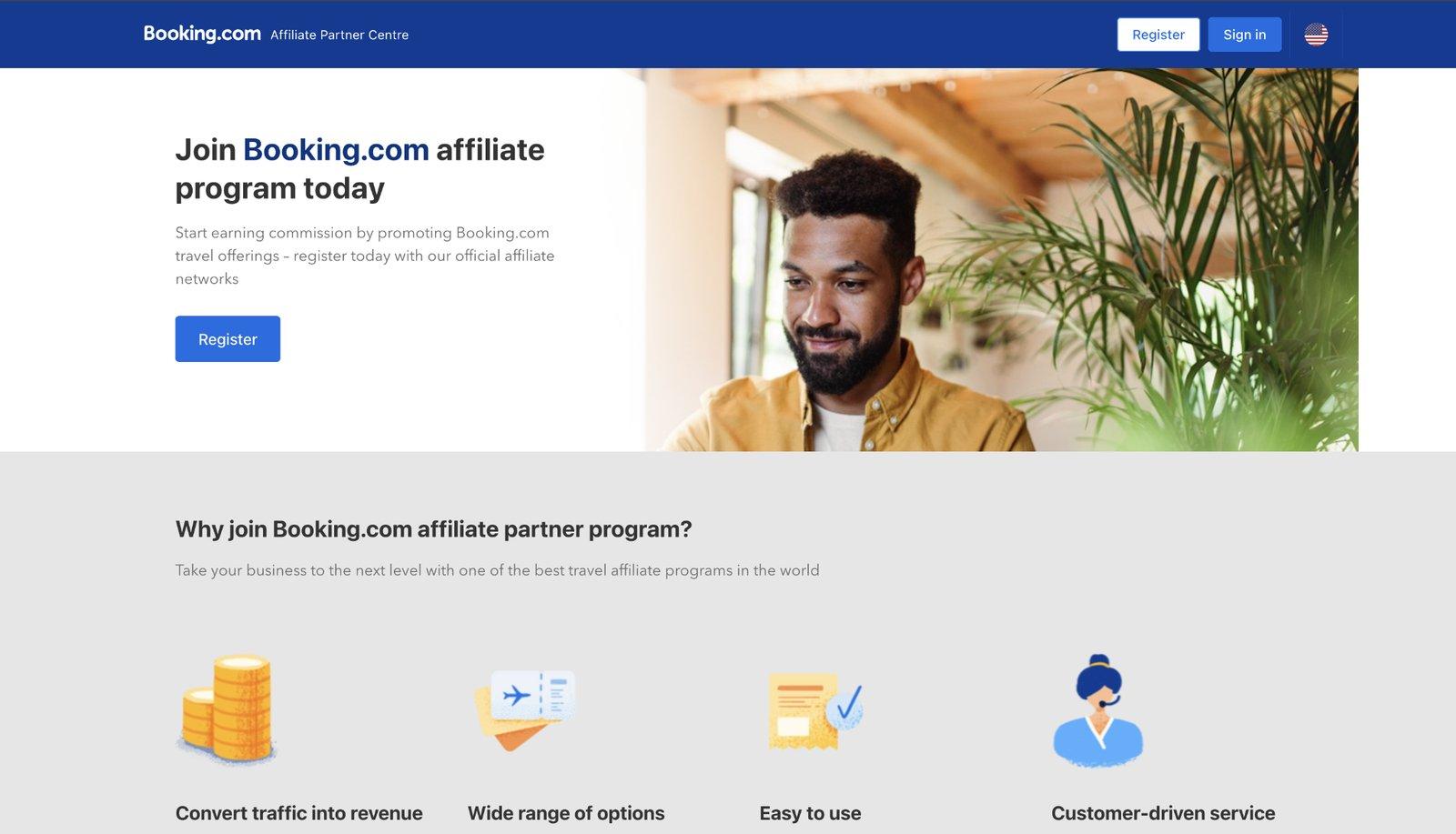
Open the widget products in your account. The example below uses the search box.
Choose the search box from the product list, then set the options the generator offers, such as these:
- Language: Pick the language for the widget text.
- Width and height: Enter any starting size, because Step 4 replaces it.
- Destination: Leave it blank for a general search box, or pre-fill a city or landmark ID.
- Style: Match the colors and fonts to your site design.
- Currency: Pick the currency to display, such as USD or EUR.
Copying the generated code
Generate the code, and you'll see an embed block similar to this illustration:
<ins class="bookingaff" data-aid="YOUR_AFFILIATE_ID" data-target_aid="YOUR_TARGET_AID" data-prod="nsb" data-width="400" data-height="300" data-dest_id="" data-dest_type="city">
<!-- Widget loads here -->
</ins>
<script type="text/javascript">
(function(d, sc, u) {
 var s = d.createElement(sc), p = d.getElementsByTagName(sc)[0];
 s.type = 'text/javascript';
 s.async = true;
 s.src = u + '?v=' + (+new Date());
 p.parentNode.insertBefore(s, p);
})(document, 'script', '//aff.bstatic.com/static/affiliate_base/js/flexiproduct.js');
</script>
Your generated code includes your own IDs and may differ from this illustration, so keep every attribute the generator outputs. In this snippet, data-aid holds your affiliate ID.
Copy the entire code block, including both the <ins> tag and the <script> tag. The script loads Booking.com's JavaScript library that renders the widget.
Other widgets use the same structure with a different data-prod value, such as map for the map widget. For the deals finder and the other formats, use the value your generated code contains.
2. Add a Code Embed element to your Webflow page
Open your site in Webflow.
Navigate to the page where you want the widget, for example a destination guide page for "Best hotels in Barcelona":
- Open the Add panel: Click the plus icon on the left.
- Find Code Embed: Find the Code Embed element in the Add panel.
- Place the element: Drag the Code Embed element onto your page where you want the widget to appear.
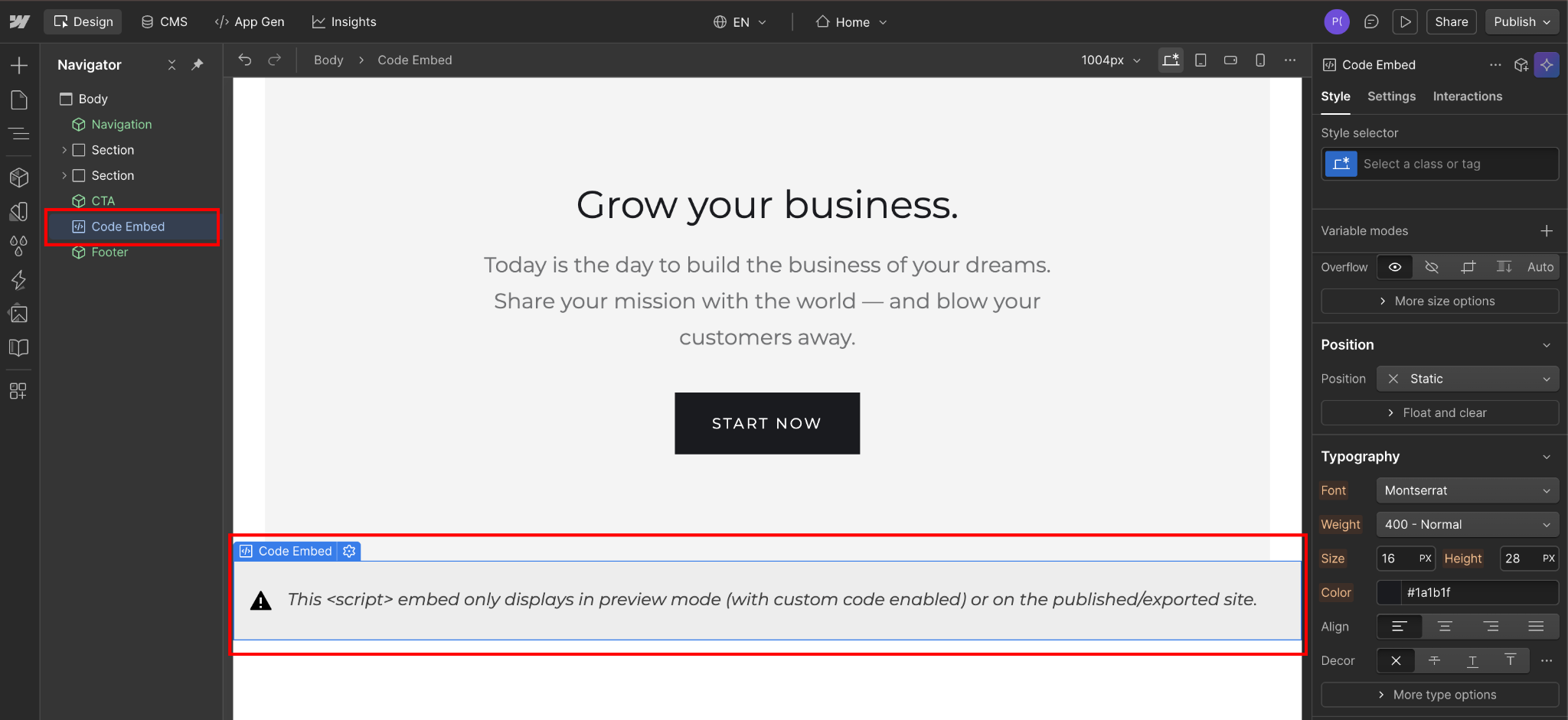
The canvas shows only a placeholder for script embeds, which is normal. The script runs when you preview or publish the site.
Handling EU visitors and cookie consent
Booking.com widgets load third-party JavaScript from aff.bstatic.com. If your Webflow site serves visitors in the EU or UK, this script likely falls under your cookie consent obligations. Make sure your consent setup covers third-party scripts.
Webflow's custom code settings load a consent tool site-wide, and a tool such as Osano adds the banner and holds third-party scripts until the visitor consents.

Publishing the embed loads the script right away, so your consent tool has to block the embed until the visitor consents. Our Cookiebot setup guide shows one way to block scripts until consent.
3. Paste your Booking.com widget code into the Code Embed element
Click the Code Embed element you just added to open its code editor.
Paste the entire widget code you copied from your Booking.com affiliate account into the editor. The Code Embed element accepts up to 50,000 characters, far more than this snippet needs.
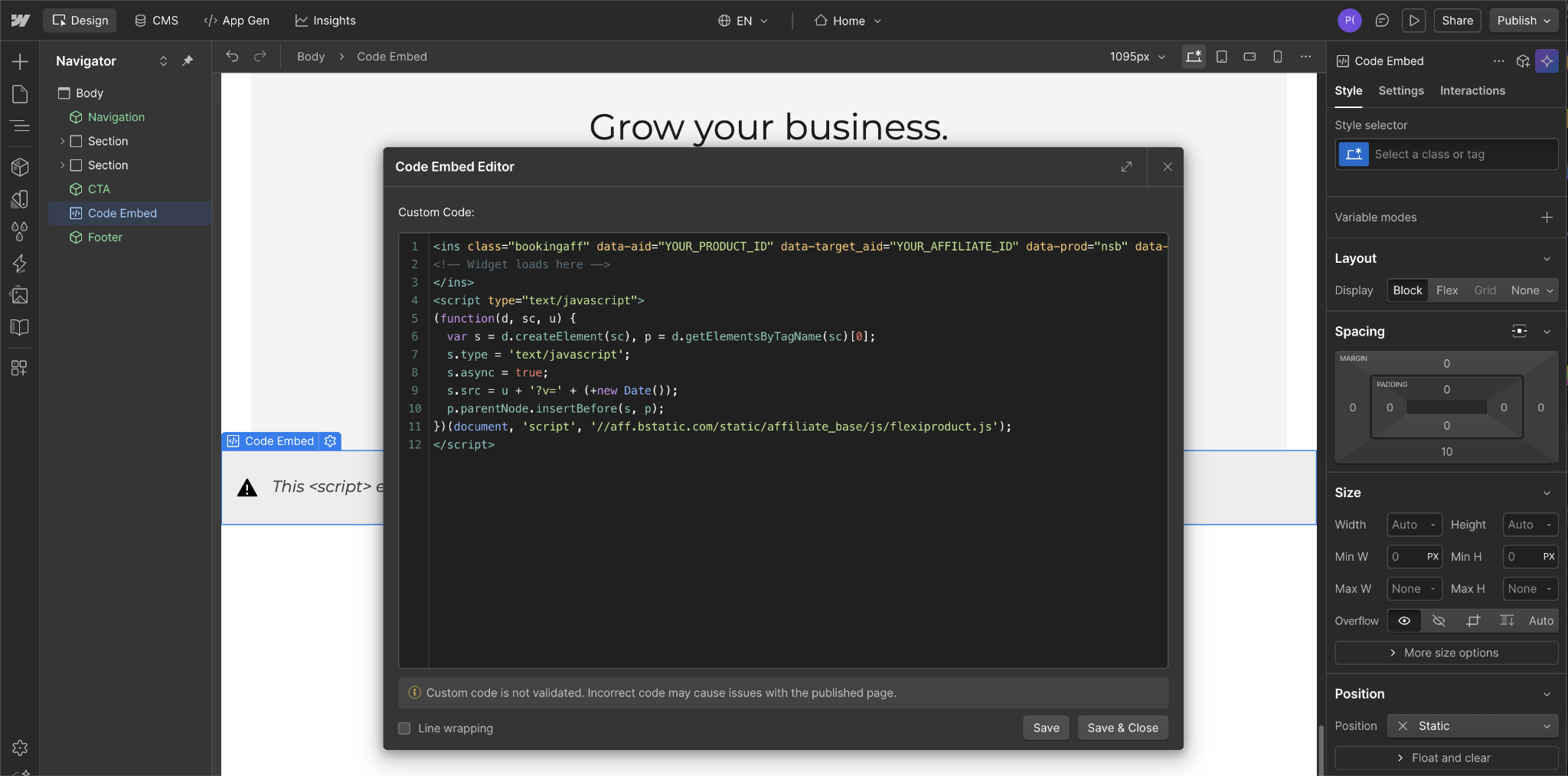
Lastly, click Save & Close.
At this point, the embed works, but its fixed pixel width can overflow on mobile. Set the responsive dimensions in Step 4 before you publish.
4. Make the widget responsive (critical for mobile)
The generated code sets fixed pixel dimensions, such as data-width="400" in the example above. On mobile screens, fixed widths can create horizontal overflow and scrollbars that force visitors to scroll sideways.
Booking.com's script sets the iframe height in pixels, so an aspect-ratio wrapper around it doesn't scale the content. Set the sizing in the embed code instead.
Setting a full-width widget
Set data-width to 100% and give data-height a number in pixels. The script requires data-height to be an integer or auto, so a value like 100% makes it throw an error and render nothing.
The updated embed code uses placeholders where your generated values go:
<ins class="bookingaff" data-aid="YOUR_AFFILIATE_ID" data-target_aid="YOUR_TARGET_AID" data-prod="nsb" data-width="100%" data-height="300" data-dest_id="" data-dest_type="city">
<!-- Widget loads here -->
</ins>
<script type="text/javascript">
(function(d, sc, u) {
 var s = d.createElement(sc), p = d.getElementsByTagName(sc)[0];
 s.type = 'text/javascript';
 s.async = true;
 s.src = u + '?v=' + (+new Date());
 p.parentNode.insertBefore(s, p);
})(document, 'script', '//aff.bstatic.com/static/affiliate_base/js/flexiproduct.js');
</script>
Next, wrap the Code Embed element in a Div Block as a safety net:
- Add the Div: Add a Div Block to your page and give it a class name like
booking-widget-wrapper. - Move the embed: Move your Code Embed element inside this Div.
Then style the wrapper Div with these settings:
- Width and max width: Set both to 100% so the wrapper never grows past its container.
- Overflow: Set it to Auto so a too-wide widget scrolls inside the wrapper instead of widening the page.
Publish your site and test on a real mobile device. The widget should fill the container width with no horizontal scrollbar. If you still see overflow, check that data-width is 100% and that data-height is a number or auto.
Using auto height
If you want the widget to size its own height, set data-height to auto and keep data-width at 100%.
Only the <ins> tag changes, as shown here:
<ins class="bookingaff" data-aid="YOUR_AFFILIATE_ID" data-target_aid="YOUR_TARGET_AID" data-prod="nsb" data-width="100%" data-height="auto" data-dest_id="" data-dest_type="city">
<!-- Widget loads here -->
</ins>
The <script> tag stays exactly as it was, and the wrapper Div from the previous method still applies.
5. Configure breakpoint-specific dimensions (optional)
Webflow custom code ignores breakpoints. Any width and height you set in the embed code apply at every breakpoint.
For breakpoint-specific sizing, follow these steps:
- Create the embeds: Add one Code Embed element for each breakpoint you want to size separately.
- Hide per breakpoint: Set Display to None on the breakpoints where an embed shouldn't show.
- Adjust the values: Set
data-widthanddata-heightdifferently in each embed.
Sizing the embeds per breakpoint
For example, you could size the three embeds like this:
- Desktop: Set a width of 600 pixels.
- Tablet: Set a width of 450 pixels.
- Mobile: Set a width of 100%.
Hidden embeds still load, because the script builds every widget it finds on the page. Each embed makes its own request to Booking.com, so the three embeds above send three requests instead of one.
For most sites, the full-width method in Step 4 handles responsiveness without duplicating embed codes. Use separate embeds only when you need clearly different sizes.
6. Publish and test across devices
When the embed is in place, click Publish in the top-right corner of Webflow.
Publish to your staging domain or live site. Preview also runs the script, so you can check the widget there first.
Check each of these on a real device:
- Desktop: The widget displays at the intended size with no horizontal overflow.
- Tablet: The widget fits its container with no scrollbars.
- Mobile (critical): The widget fills the container width with no content cutoff.
- Click-through: Click the search box widget and verify it redirects to Booking.com with your affiliate ID in the URL under the
aidparameter.
If you see scrollbars on mobile, return to Step 4 and confirm data-width is 100% and data-height is a number or auto. Fixed-pixel widths are a likely cause of mobile overflow.
What causes Booking.com widget embeds to fail in Webflow?
Most Booking.com widget failures in Webflow show up as one of four symptoms, from a blank space to a link without your affiliate ID.
Find the symptom that matches your page, then apply its fix.
The widget doesn't appear at all
Cause: The widget can fail to render for several reasons:
- Canvas view: The canvas shows only a placeholder for script embeds, so use Preview or a published site to see the widget.
- Missing script: The embed needs both the
<ins>tag and the<script>that loads Booking.com's JavaScript. - Invalid height: A
data-heightvalue of100%makes the script throw an error, so the widget renders nothing. - Blocked script: An ad blocker or a consent tool can block requests to
aff.bstatic.com.
Fix: Preview or publish your site, and confirm you copied the complete embed code, including the script tag. Then turn off ad blockers while you test and check that data-height is a number or auto.
Widget appears but is cut off or shows scrollbars
Cause: Fixed pixel dimensions such as data-width="400" don't scale to mobile screen widths.
Fix: Set data-width="100%" with a numeric data-height, as described in Step 4. Then add the wrapper Div as a safety net, with max-width and width set to 100% and Overflow set to Auto.
Widget height is too short or too tall
Cause: The numeric data-height value is larger or smaller than the content the widget shows.
Fix: Change data-height to a number in pixels that fits the content, or set it to auto so the script sizes it. Use your browser's DevTools to inspect the rendered widget height.
The widget shows, but the affiliate link doesn't include your ID
Cause: You copied generic embed code instead of code generated from your own affiliate account.
Fix: Regenerate the code in your affiliate account and check that data-aid holds your affiliate ID. If this value is blank or missing, Booking.com can't credit your clicks to you.
Build more integrated booking experiences in Webflow
Affiliate widgets redirect visitors to Booking.com to complete their transaction. Sending visitors away suits travel content that earns commissions. A service business such as tours or consultations needs the booking flow to stay on your site.
Explore the Calendly Webflow integration for scheduling in appointment-based businesses. For on-site booking, see our Google Calendar booking guide.
Frequently asked questions
Plans and commissions raise the most questions about this setup.
Can I embed Booking.com widgets on Webflow's free plan?
No. A Starter site on its own can't publish custom code, so the Code Embed element won't work there. You need a paid Site plan (Basic or higher) or a Core, Growth, Agency or Freelancer Workspace.
If you generate destination pages from a CMS collection, you also need a plan with CMS, which means Premium.
How much commission do you earn from Booking.com affiliate widgets?
Booking.com's affiliate page doesn't publish commission rates. The program terms you accept at sign-up set the rates. Read those terms before you plan around any figure.
Do Booking.com widgets work with Webflow CMS for dynamic destination pages?
Yes. On a Collection page, you can bind CMS fields inside the Code Embed code with the purple dynamic-field option. For example, bind a destination ID field to data-dest_id so each city guide loads its own widget.
This needs Premium, the paid Site plan that includes the CMS, because Starter limits the CMS to 50 items.
Why doesn't my Booking.com widget appear in Webflow Preview mode?
It should appear in Preview because the script runs when you preview the site. The canvas shows only a placeholder. If the widget still doesn't appear, check that the embed includes the script tag. Then turn off ad blockers and see whether a consent tool is blocking the script.