



Designer Extension updates lets developers build more powerful and flexible apps.
Webflow Designer Extensions let developers create tools that extend and expand the powers of the Webflow Designers. Whether for use by anyone or built into tools built for specific sites, it lets you add your own custom tooling to the platform. We've recently made some updates to the Designer APIs specifically to help improve the app experience when working with different user roles.
The Webflow Designer supports different types of roles to allow teams to control what different editors can do on your site. (Want to learn more? Check out the Webflow University tutorial on site roles.) But how does this impact Designer Extensions?
The way it was...
Before the change we just released, an extension could check if a particular action is available in a particular role. So for example:
const capabilities = await webflow.canForAppMode([ webflow.appModes.canDesign, webflow.appModes.canEdit]);This returns an object with boolean values for canDesign and canEdit. While this role’s based check is helpful, developers need a bit more to better handle the different types of permissions available on a site.
What's new
We’ve shipped multiple updates to help make it easier for your Designer Extensions to handle and react to the different ways it could be running. First, we added getCurrentMode, which returns the current mode. In terms of our code and APIs, the mode refers to the role of the user currently running the extension. Here’s an example:
const mode = await webflow.getCurrentMode();

if (mode === "design") {
  showDesignUI();
} else if (mode === "build") {
  showBuildUI();
} else {
  showNeutralUI();
}
Secondly, you can also specifically check for a particular mode:
if (await webflow.isMode("design")) {
  await insertElement();
}
And finally, Designer Extensions had the ability to notice changes to the current mode, but we didn't actually pass the new mode in the event. This is as simple as adding a mode value in the event object passed:
const unsubscribe = webflow.subscribe("currentappmode", (event) => {
  console.log("New mode:", event.mode);

  if (event.appModes.canDesign) {
    showDesignTools();
  } else {
    hideDesignTools();
  }
});
To use these new features, Designer Extensions have to opt in by editing their weblow.json and adding:
"featureFlags": {
    "expandedAppModes": true
}
You can also set the value to false if you want to explicitly ensure these new features don't impact your extension.
Okay, now what?
At this point, how you modify your existing extension or build your next one entirely depends on what you're building. Consider a few possibilities:
- Your extension needs full access and is basically meaningless outside of the core design experience. While this is the default behavior, it’s a good idea to make it clear in your code. Opt out of support in your
webflow.jsonfile, and the app won't be available in non-Design modes. This is a simple change.
- Your extension can read from the page and give feedback or create a summary. In this case, opt-in to support to ensure the app is available in non-Design modes.
- Your extension updates pages, but it can also return information about the page. You will want to do a few different things. One, listen to mode changes and properly change your UI accordingly and, two, check capabilities of the current mode before letting the user perform an action they can't.
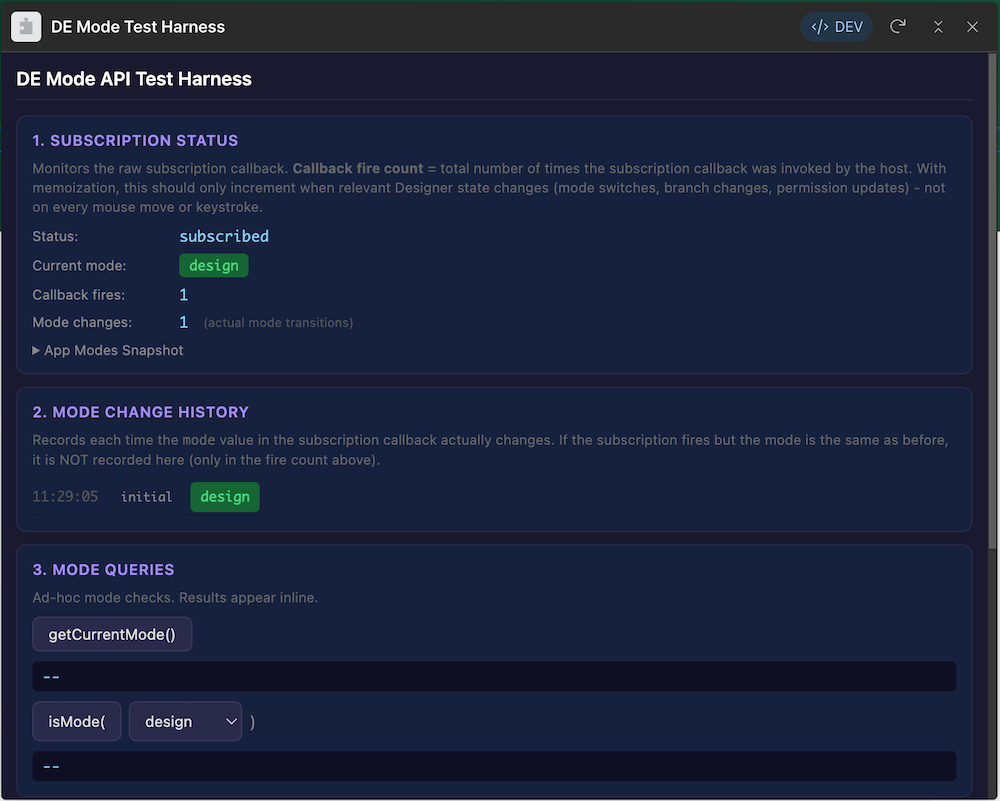
Want to give it a try? We have a simple extension named the "DE Mode Tester" that helps demonstrate these new APIs in action. You can clone the repo here: https://github.com/Webflow-Examples/de_mode_tester
Follow the instructions to get it up and running so you can test it, and you'll see the app in all its glory:
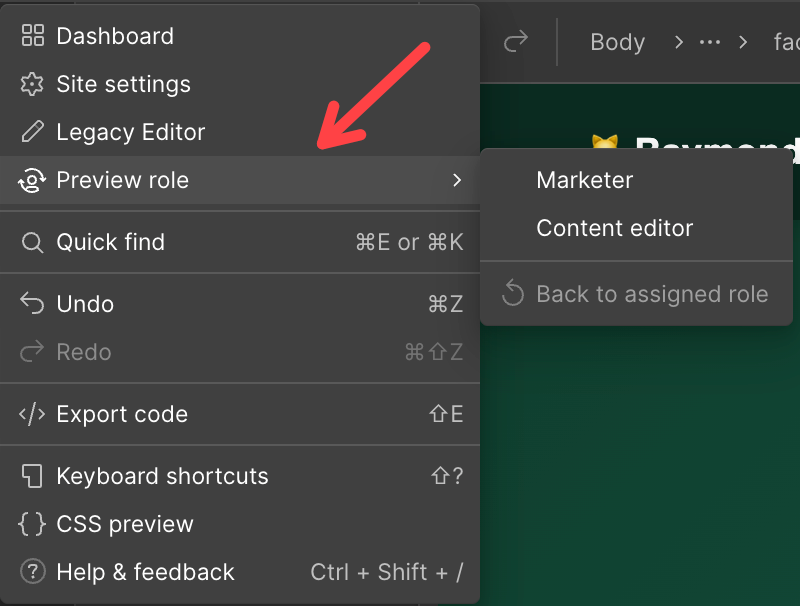
While running, click the Webflow logo in the upper left hand corner and select a role under "Preview role":
Once you select a role, the tool will automatically update to reflect the change:
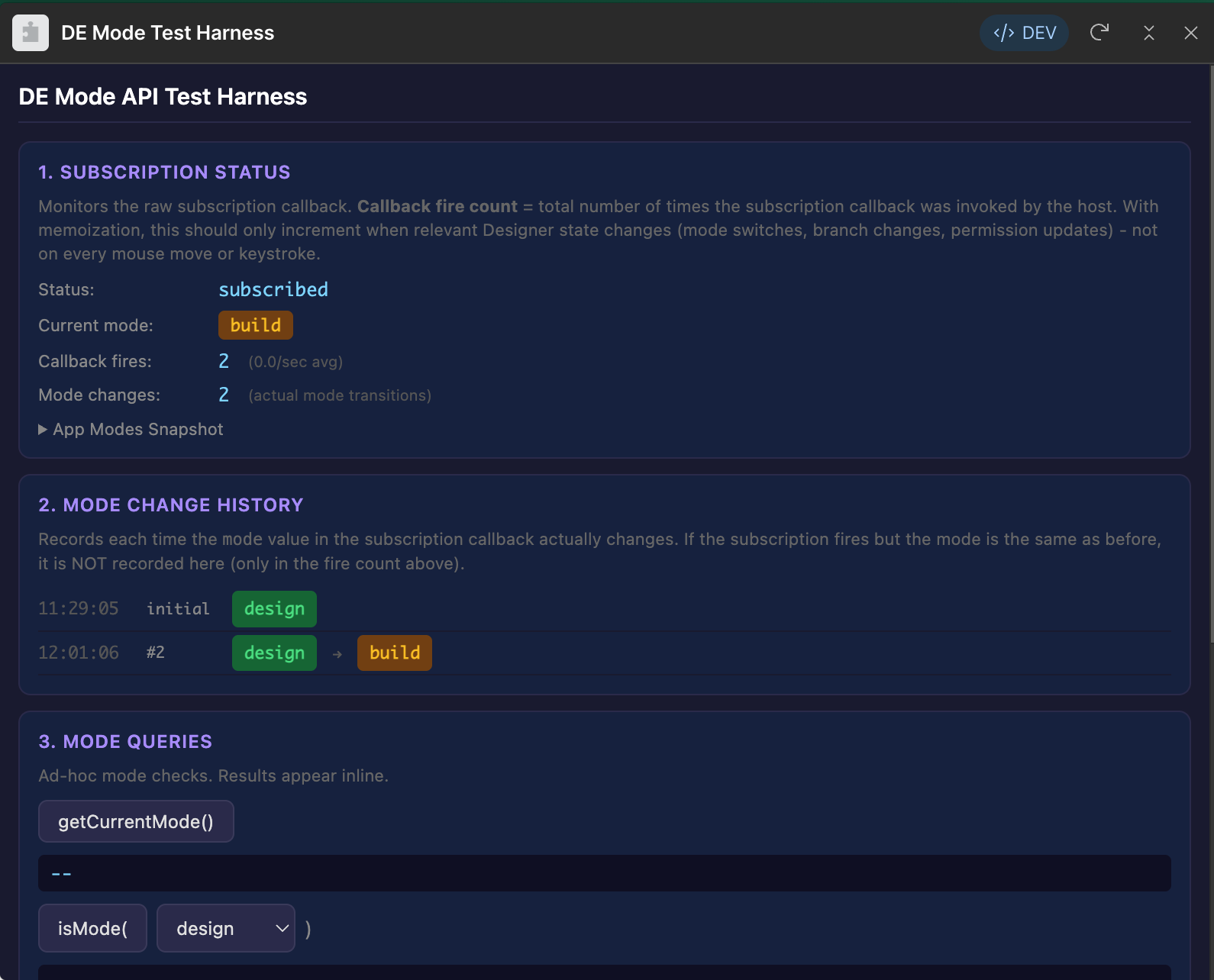
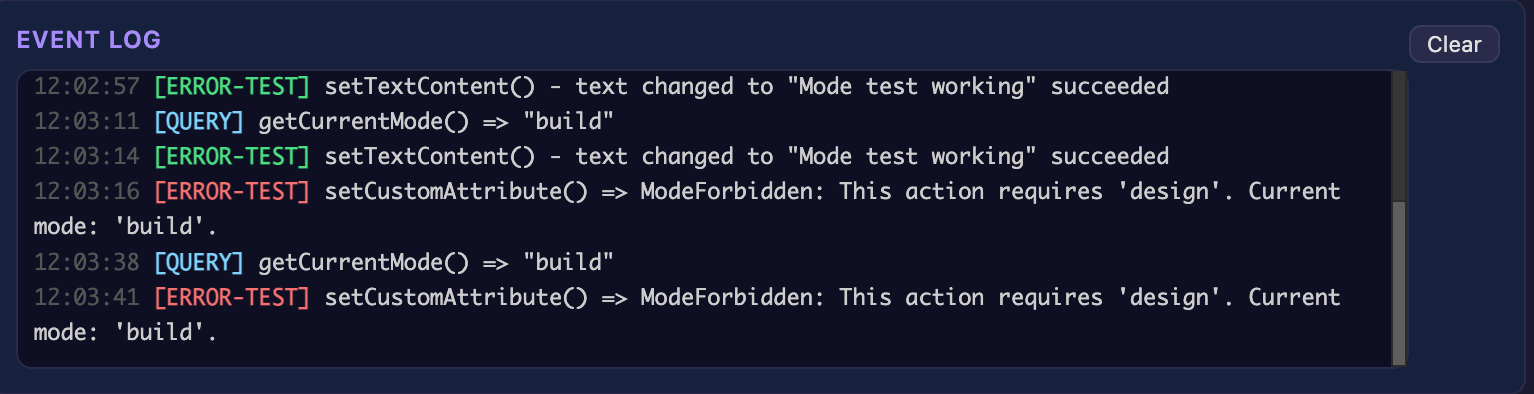
The tool also lets you test a few functions and demonstrate error handling:
You can peruse the complete code via its GitHub repo and also reach out to us with any questions. We've got more updates in the Extension space coming soon!