






Connect WhatsApp, Meta's business messaging platform, with Webflow to add chat buttons, trigger automated messages from form submissions and orders, and build real-time customer communication into any page.

Your site handles design, CMS content, and hosting in one place. But visitors who want to reach your business through WhatsApp have no native path from a page to a conversation thread.
Connecting WhatsApp to your site adds direct messaging to any page. Visitors tap a chat button or floating widget and land in a WhatsApp conversation with pre-filled context about the page they were viewing. With the WhatsApp Cloud API and automation middleware, you can also trigger outbound messages from form submissions, order events, and CMS updates.
E-commerce stores can send order confirmations through WhatsApp. Real estate agents can field property inquiries there. SaaS teams can qualify inbound leads, and service businesses can confirm appointments. Any site that relies on fast, personal communication with visitors can use WhatsApp as a contact channel.
How to integrate WhatsApp with Webflow
What is WhatsApp? WhatsApp is Meta's messaging platform with a dedicated Business Platform for programmatic, at-scale customer communication. The WhatsApp Business Platform includes a Cloud API for sending text, rich media, and interactive messages, plus webhook support for receiving inbound messages and delivery status updates. It also has message templates, catalog messaging, and WhatsApp Flows for in-app forms and bookings.
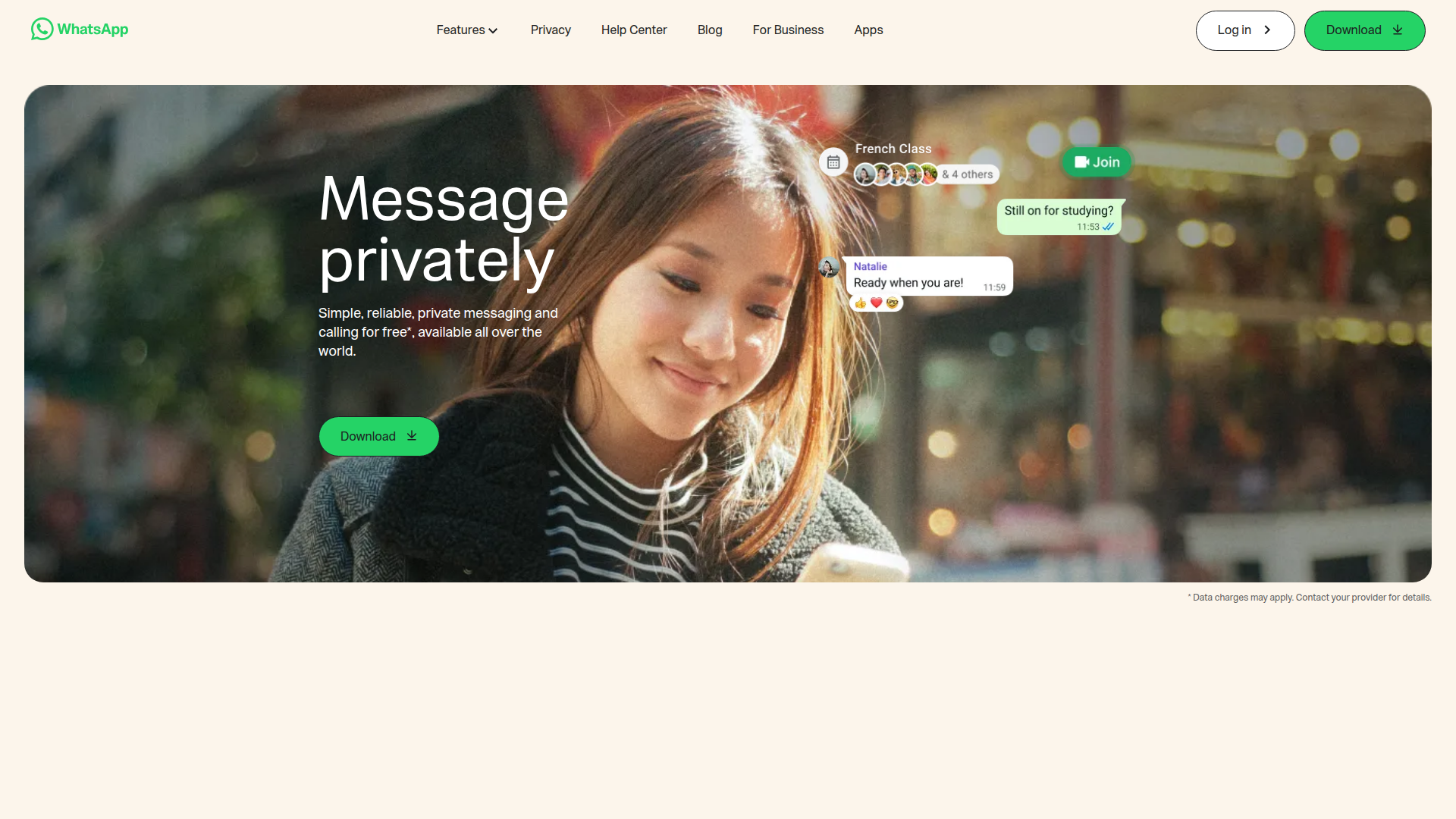
Connect WhatsApp to your site when you need a direct messaging channel that goes beyond contact forms. A real estate firm might add contextual "Chat about this property" buttons to CMS listing pages. A D2C brand might send automated order confirmations through WhatsApp template messages triggered by Ecommerce events.
You can connect WhatsApp to your site in 4 ways:
- Marketplace chat apps add floating WhatsApp buttons to your site without writing code.
- Click-to-chat links and embed widgets let you place WhatsApp contact points on specific pages using native elements or third-party widget code.
- viaSocket connects form submissions and CMS events to WhatsApp messages through automation workflows.
- The Webflow and WhatsApp Cloud APIs give you full control over message sending, CMS syncing, and webhook-driven workflows, but require server-side development.
Most implementations combine two or more of these methods depending on the complexity of your setup.
Install a WhatsApp chat app from the marketplace
Several third-party apps in the Apps Marketplace add WhatsApp chat buttons to your site. No official Meta or WhatsApp app exists in the marketplace, but apps like Chat Everywhere, Social Chat Buttons, and Chat Buttons by Chaty each support WhatsApp as a channel. You can install Chat Everywhere through the Apps panel as a marketplace app. All marketplace app methods require a paid site plan.
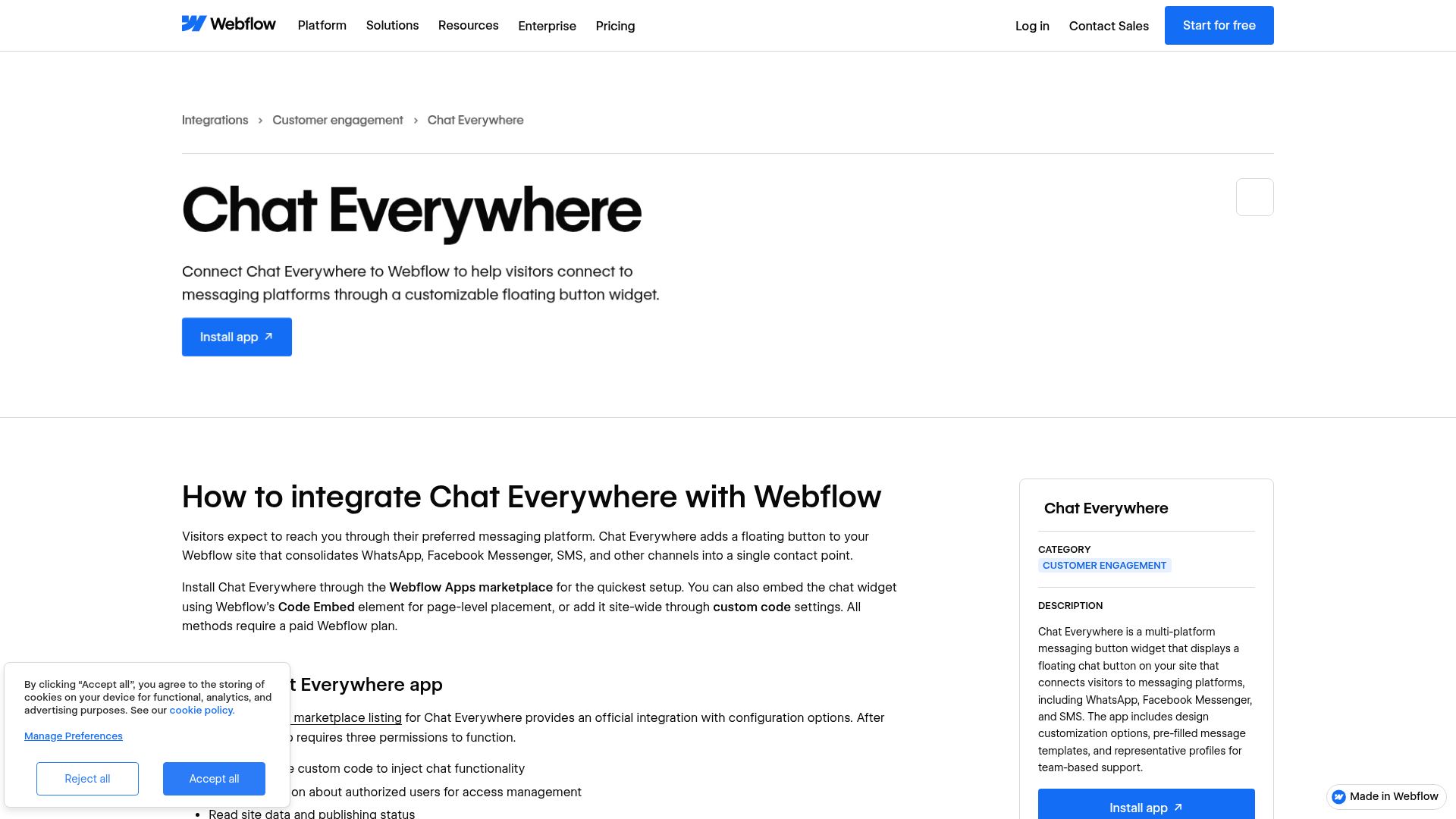
To install Chat Everywhere:
- Open your project and go to the Apps panel.
- Search for Chat Everywhere in the Apps marketplace.
- Review the listed permissions and click Install.
- Set up the app settings.
- Publish your site.
This adds a basic marketplace-installed WhatsApp entry point that you can refine later if you need more customization.
- Social Chat Buttons has WhatsApp, Messenger, Instagram, Telegram, and more with customizable icons and positioning (1,000+ installs).
- Chat Buttons by Chaty has a WhatsApp pop-up alongside 20+ messaging channels (100+ installs).
- Chat Everywhere combines WhatsApp, Facebook Messenger, and SMS in a single floating contact button.
If you need more control over widget appearance, business hours scheduling, or pre-filled messages, use embed widgets from third-party providers, covered in the next section.
Add WhatsApp to your site with links and embed widgets
You can add WhatsApp with native link elements that require zero code or with third-party widget embeds that add chat bubble interfaces with richer features. The link method works on every plan, including the free Starter plan. Widget embeds require a paid site plan and a Core workspace plan or above for custom code access.
Create a click-to-chat link with a native button
Use WhatsApp's official wa.me URL format to open a conversation thread on mobile (WhatsApp app) or desktop (WhatsApp Web) when a visitor clicks the link. You don't need external tools, accounts, or code.
To add a WhatsApp button:
- Open your project and click the Add panel.
- Drag a Button or Link Block onto the canvas.
- Select the element, open the Settings panel, and set the link type to URL.
- Paste your WhatsApp URL:
https://wa.me/15551234567(use the full international number with no spaces, brackets, or dashes). - Enable Open in new tab.
- Style the button and optionally add a WhatsApp icon image inside the link block.
To pre-fill a message, append a text parameter: https://wa.me/15551234567?text=I'm%20interested%20in%20your%20services. This gives your team immediate context about what the visitor wants to discuss. See the URL format in the WhatsApp Help Center.
This method does not include a chat bubble UI, pre-chat forms, business hours scheduling, or multi-agent support. For those features, use an embed widget.
Embed the Elfsight WhatsApp widget
Elfsight adds a floating chat bubble with customizable colors, welcome messages, agent profiles, business hours scheduling, and display triggers (time on page, scroll depth).
To add Elfsight to a single page:
- Create an account at elfsight.com, open the App Catalog, and search for WhatsApp Chat.
- Select a template, enter your WhatsApp phone number, and set up the chat bubble, header, welcome message, position, and display settings.
- Click Add to website for free and copy the embed code.
- Click the Add panel, search for "Embed," and drag a Code Embed element onto the page.
- Paste the Elfsight code into the embed editor and click Save & Close.
- Publish your site.
The widget will not render on the canvas. It only appears on the published live site. See a working demo at webflow-whatsapp-chat-widget-elfsight.webflow.io.
To place the widget on every page instead, paste the embed code into Custom code in head and body tags settings under Site settings > Custom Code > Footer Code and publish. Footer placement loads the script after the main page content renders, which avoids blocking the initial page load.
Use other embed widget providers
Common Ninja and Clickiny both follow the same embed pattern: set up the widget on the provider's site, copy the generated code, and paste it into a Code Embed element or the site-wide Footer Code field. TimelinesAI offers a free widget generator that lists Webflow as an available platform.
Some browser extensions block chat widgets by default. Users with privacy extensions may not see the widget at all. Consider offering a visible link-based fallback alongside any chat widget.
Connect Webflow and WhatsApp with viaSocket
viaSocket gives you a direct connection between your site and WhatsApp for form submissions, CMS changes, and orders.
viaSocket has a Webflow-WhatsApp integration page with specific trigger-action mappings:
- Form submission triggers a WhatsApp message
- New CMS collection item triggers a WhatsApp message
- CMS collection item deleted triggers a WhatsApp message
- Page metadata updated triggers a WhatsApp message
- New Ecommerce order triggers a WhatsApp message
- Updated order triggers a WhatsApp message
- Inventory change triggers a WhatsApp message
These mappings make viaSocket a direct option for site-triggered WhatsApp notifications without custom backend code.
You'll need a WhatsApp Business Account with a verified phone number and at least one approved message template for outbound notifications.
Build with the Webflow and WhatsApp Cloud APIs
The API path gives you full control over automated messaging, CMS syncing, and custom webhook workflows across both platforms. You'll need server-side development and an external server to receive webhook payloads, since you can't host webhook endpoints natively on your site.
A full API implementation includes four layers:
- The WhatsApp Cloud API (base URL
https://graph.facebook.com/v22.0/) handles sending messages, managing templates, and receiving webhooks - The Data API v2 handles CMS collections and form submissions
- Webhooks trigger real-time events for form submissions, new orders, and CMS item changes
- WhatsApp webhooks deliver inbound messages and outbound delivery statuses to your server
Both APIs use Bearer token authentication in the Authorization header. WhatsApp requires whatsapp_business_messaging and whatsapp_business_management permissions on your Meta developer app.
Send a WhatsApp message when a form is submitted
Fire a webhook on form submission, process the payload on your server, and use the WhatsApp Cloud API to send a template message to the lead or your team.
Implementation steps:
- Register a webhook for the
form_submissionevent usingPOST /v2/sites/:site_id/webhooksor through the Designer. Point it at your server's HTTPS endpoint. - When your server receives the webhook payload, validate the
x-webflow-signatureheader and extract the form data frompayload.data(fields like name, email, phone). - Call
POST /{phone-number-id}/messageson the WhatsApp Cloud API with a pre-approved utility template:
{
  "messaging_product": "whatsapp",
  "to": "15551234567",
  "type": "template",
  "template": {
    "name": "form_acknowledgment",
    "language": { "code": "en_US" },
    "components": [{
      "type": "body",
      "parameters": [
        { "type": "text", "text": "Jane Doe" }
      ]
    }]
  }
}
Messages sent outside the 24-hour customer service window must use pre-approved templates. Within the window, after a customer messages your business first, you can send free-form text messages and service conversations are free.
Write WhatsApp leads to the CMS
Inbound WhatsApp messages can create CMS items automatically. Your server receives the WhatsApp messages webhook, parses the sender's name and phone number, and writes a new item to a CMS collection.
Implementation steps:
- Subscribe your app to the WhatsApp Business Account's webhooks using
POST /{waba-id}/subscribed_appswith themessagesfield selected. - When an inbound message arrives, parse
entry[0].changes[0].valueto extractcontacts[0].profile.name,messages[0].from, andmessages[0].text.body. - Create a CMS item with
POST /v2/collections/{collection_id}/items:
curl -X POST "https://api.webflow.com/v2/collections/{collection_id}/items" \
  -H "Authorization: Bearer <token>" \
  -H "Content-Type: application/json" \
  -d '{
    "fieldData": {
      "name": "Jessica Smith",
      "slug": "jessica-smith",
      "phone": "13557825698",
      "message": "I am interested in your service",
      "source": "whatsapp"
    }
  }'
- Optionally publish the item immediately with
POST /v2/collections/{collection_id}/items/publishand send a WhatsApp reply to acknowledge receipt.
Use the sender's wa_id as a unique identifier to implement upsert logic and prevent duplicate CMS records. Note that the Basic plan includes no CMS at all. You'll need at least a Premium/CMS plan for any CMS-driven WhatsApp integration, so plan your collection structure around both expected lead volume and your plan tier.
What you can build with the WhatsApp Webflow integration
Integrate WhatsApp with your site to add real-time messaging, automated notifications, and lead capture without building a custom communication backend.
- Product inquiry buttons on CMS pages: Add "Chat about this product" buttons to Ecommerce or CMS-driven listing pages. Each button uses a
wa.melink with a pre-filled message containing the product name or property ID, so your sales team immediately knows which page the visitor was viewing. Real estate firms use this pattern on individual property listing pages with dynamic WhatsApp URLs populated from CMS fields. - Automated order confirmations: Trigger WhatsApp template messages from Ecommerce order events. When a customer completes a purchase, the
ecomm_new_orderwebhook fires, and your server sends a utility template with the customer's name, order total, and estimated delivery date. Follow up with shipping updates using theecomm_order_changedwebhook. - Form-to-WhatsApp lead alerts: Route form submissions to WhatsApp conversations in real time. A viaSocket workflow captures the form data, sends a WhatsApp notification to your sales team with the lead's details, and optionally sends an acknowledgment message to the lead. Skip manual email checking for time-sensitive inquiries.
- Appointment reminders from CMS data: Store booking data (patient name, phone, appointment time) in a CMS collection, then run a scheduled job that queries upcoming appointments via the Data API and sends WhatsApp reminder templates at defined intervals before the appointment time. Update a
reminder_sentfield on the CMS item to prevent duplicates.
If you need more control over multi-agent routing, chatbot flows, or bidirectional CMS sync from WhatsApp replies, the API integration path covers those cases with full control.
Frequently asked questions
A basic link button does not require a paid Webflow plan. A
wa.meclick-to-chat link works inside a native Webflow Button or Link Block element on any plan, including the free Starter plan. Any method that involves custom code (widget embeds, Code Embed elements, or site-wide Footer Code scripts) requires a paid site plan and a Core workspace plan or above. The Webflow plans documentation covers the specific workspace plan requirements for accessing custom code features.A floating chat button requires no API access. A
wa.melink or a third-party widget from Elfsight, Common Ninja, or the Webflow Apps Marketplace handles this without any Meta developer account. The WhatsApp Business API is only necessary for automated outbound messaging, chatbot flows, or CRM integration.JavaScript-based widgets (Elfsight, Common Ninja, Chaty) render only on the published live site. The Webflow canvas shows a placeholder for Code Embed elements that contain
<script>tags. Publish your site and check the live URL to confirm the widget is working. The Elfsight Help Center and the Webflow Help Center article on embedding WhatsApp both confirm this rendering behavior.Yes, through automation middleware or a custom API integration. viaSocket provides a similar form-to-WhatsApp trigger. It requires a WhatsApp Business Account with a verified phone number and at least one approved message template. For custom implementations, register a Webflow webhook for
form_submissionevents and call the WhatsApp Cloud API's Messages endpoint from your server.When a customer messages your business through WhatsApp, including through a chat widget on your Webflow site, a 24-hour window opens. During this window, your business can send free-form messages without using pre-approved templates, and these service conversations are free. Outside the window, business-initiated messages must use templates that Meta has approved, and each delivered template message incurs a per-message fee. The WhatsApp messaging limits documentation covers the full details of window behavior and tier scaling.
Description
Add WhatsApp chat buttons and automated messaging to Webflow sites using marketplace apps, embed widgets, or the WhatsApp Cloud API with automation tools like viaSocket.
This integration page is provided for informational and convenience purposes only.

Smartarget Countdown Popup
Connect Smartarget Countdown Popup with Webflow to display time-limited offers and event deadlines through JavaScript embed codes.

Flowstar Urgency Countdown Timer
Connect Flowstar Urgency Countdown Timer with Webflow to run deadline-driven campaigns without writing custom JavaScript. The countdown now installs inside Flowstar Sales Booster Widgets.

Announcement Bar
Connect Announcement Bar, Smartarget's no-code message bar widget, with Webflow to change promotional banner copy without republishing the site.

Massively AI
Connect Massively AI, an AI customer service platform, with Webflow to add a chatbot that captures leads and answers visitor questions around the clock.

Flowstar Spin Wheel & Gamification
Add Flowstar Spin Wheel & Gamification to Webflow with embed code and run spin-to-win campaigns that turn visitors into subscribers.

Tidio
Connect Tidio, a customer service platform with live chat and AI, with Webflow to add a chat widget, automate visitor responses with the Lyro AI agent, and capture leads through proactive triggers.

Twilio
Connect Twilio with Webflow to add SMS, voice, WhatsApp, and email communication to your site.

Chatbot
Connect Chatbot, an AI chatbot platform by Text, Inc., with Webflow to add a 24/7 chat widget for lead qualification, visitor support, and conversation-driven data collection.

Ortto
Connect Ortto with Webflow to capture leads from your site, track visitor behavior, and trigger automated customer journeys.
Related integrations
Get started for free
Try Webflow for as long as you like with our free Starter plan. Purchase a paid Site plan to publish, host, and unlock additional features.
