






Videezy
Connect Videezy, a stock video platform, with Webflow to add HD and 4K video backgrounds, embed externally hosted footage, and build CMS-driven video libraries.

Layout, responsive design, and hosting are built in, but there's no stock video library. Adding video means sourcing files externally, compressing them, and handling hosting on your own.
Videezy fills that gap with free and premium HD-to-4K clips you can drop into your pages using the Background Video element, custom HTML embeds, or a Webflow CMS-driven gallery — useful for designers, marketers, and teams shipping video-heavy landing pages without custom production.
How to integrate Videezy with Webflow
What is Videezy? Videezy is a stock video platform operated by Eezy LLC. It offers free and premium video footage in MP4 and MOV formats across categories including technology, nature, business, abstract motion graphics, and lifestyle content. Free clips are available with attribution, while premium Pro clips require purchased credits and include a commercial license with no attribution requirement.
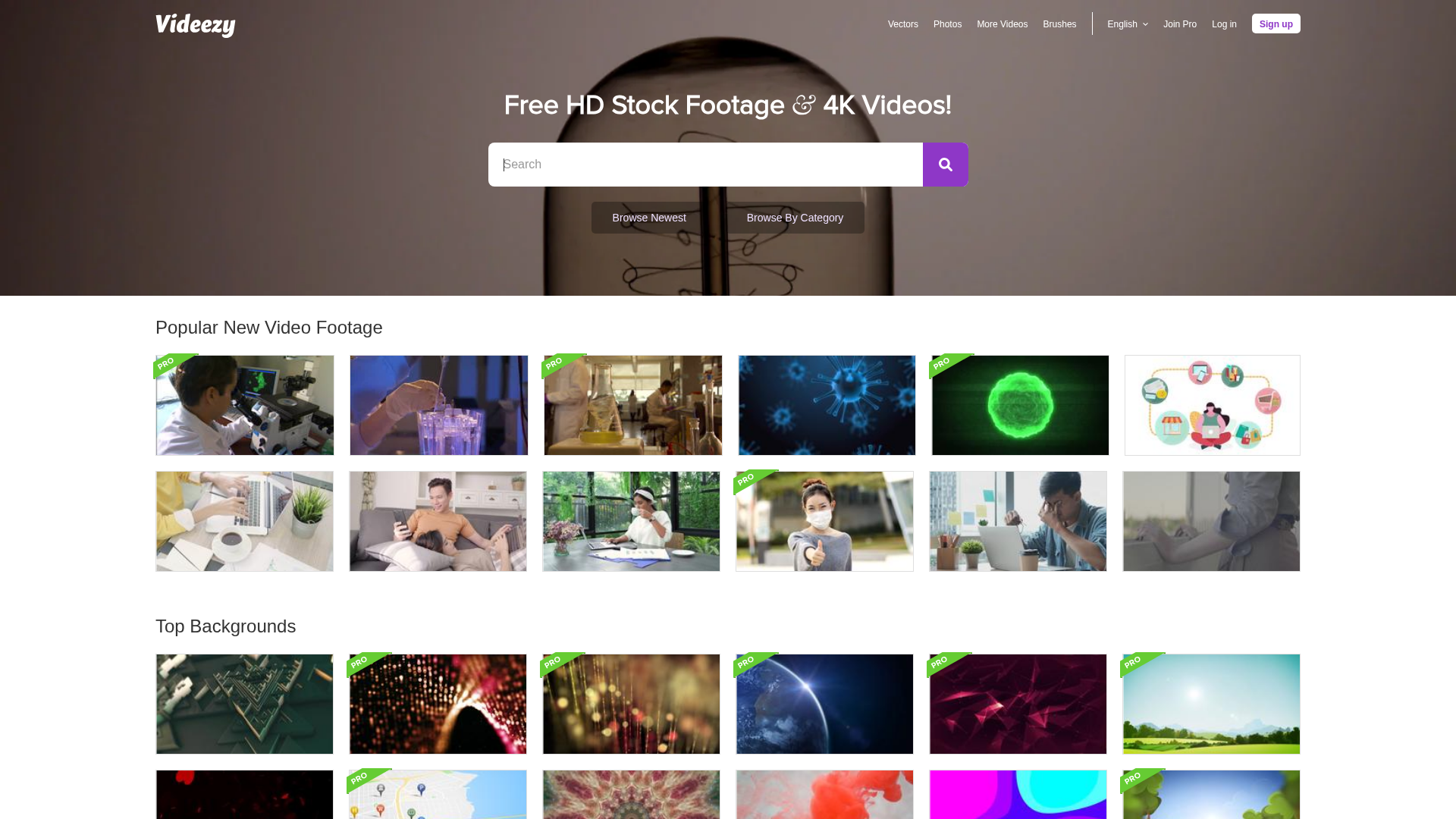
Pair Videezy with Webflow when a project needs professional video content without the cost or timeline of custom production. A common workflow: download an MP4 from Videezy, reduce its file size if needed, and place it into your site with the method that fits the level of control you need.
- The Background Video element works for silent, looping video backgrounds without code.
- Code Embed elements and custom code injection let you place externally hosted Videezy clips with full control over HTML attributes and styling.
- The Webflow Data API lets you manage CMS-based video libraries with code, but requires server-side development.
Most implementations use one or two of these methods depending on whether the video is a one-off hero background or part of a CMS-based collection.
Add video backgrounds with the Background Video element
Drop the Background Video element onto a page to place a Videezy clip. It creates a muted, looping autoplay video behind section content, which suits hero sections, full-width banners, and landing page openers. The element accepts video files up to 30 MB uploaded directly through its settings panel, and MP4 is the most common format for Videezy downloads. You don't need external hosting or code. A built-in play/pause button appears on all background videos as an accessibility measure, and videos automatically pause for visitors who have "Prefers reduced motion" enabled in their OS settings.
To add a Videezy video as a background:
- Download your chosen clip as an MP4 from videezy.com.
- Reduce the file to under 30 MB if needed. Strip the audio track entirely from the file container (not just muted at the player level) for iOS autoplay. HandBrake is a common tool for both tasks.
- Open the Add panel (the + icon in the left sidebar).
- Search for Background Video or scroll to find it, then drag the element onto your canvas.
- With the element selected, open the Settings panel (right sidebar) and upload your compressed video through the element's upload field.
- Add a fallback image in the element's settings for mobile devices and scenarios where the video can't play.
Plan around a few constraints:
- The 30 MB upload cap means you'll need to compress most 4K Videezy clips before upload.
- Upload video files through the Background Video element's settings, not through the general Assets panel (which does not support MP4 uploads).
- Uploaded videos are automatically transcoded to both MP4 and WebM formats, which can slow performance if the source file is large.
- Filenames must not include spaces or special characters other than dashes.
If you use a free Videezy Standard clip, add visible attribution on the page. Paste this HTML into a Code Embed element near the video: Free Stock Footage by <a href="https://www.videezy.com">Videezy</a>. Pro clips purchased with credits don't require attribution, per Videezy's license documentation.
Embed Videezy videos with Code Embed elements
For videos larger than 30 MB, or when you need more control over playback attributes and styling, host the Videezy file on an external CDN and embed it with HTML. This approach bypasses the upload size limit and keeps video bandwidth off your hosting plan. You'll need a paid site plan or a Workspace with Core, Growth, Agency, or Freelancer. Before re-hosting downloaded files on a third-party CDN, verify your current Videezy license terms for that usage.
Place a video with a Code Embed element
A Code Embed element placed directly on the canvas is a common low-code method. You write a standard HTML5 <video> tag pointing to your externally hosted MP4 URL. You'll see this pattern in integration documentation for stock video workflows.
To embed a Videezy video with a Code Embed element:
- Download the Videezy clip as MP4. Strip the audio track and compress if needed.
- Upload the file to an external CDN such as AWS S3, Cloudflare R2, or Bunny.net. Verify your current Videezy license terms before re-hosting files this way. Avoid Google Drive, which has documented playback issues in this context.
- Open the Add panel and drag a Code Embed element onto your canvas.
- Paste the following HTML into the embed editor, replacing the
srcURL with your CDN link:
<video autoplay muted loop playsinline>
  <source src="YOUR_VIDEEZY_MP4_URL_HERE" type="video/mp4">
</video>
- Click Save & Close.
You now have a reusable pattern for displaying externally hosted Videezy clips inside your site.
You need all four attributes — autoplay, muted, loop, and playsinline — for background-style playback across browsers. The playsinline attribute is specifically needed for iOS Safari autoplay. For a full-section background effect, wrap the Code Embed inside a Section element and apply position: relative and overflow: hidden through the style panel.
Inject video code through site or page settings
To apply video code globally or to specific pages without placing an element on the canvas, use custom code in head and body tags.
To add custom video code site-wide:
- Go to Site Settings.
- Click the Custom Code tab.
- Paste CSS in the Head Code section. Paste scripts in the Footer Code section.
- Click Save changes and publish your site.
This method works best when you want the same video-related code applied across multiple pages.
For page-specific code, open the target page's Page Settings, scroll to the Custom Code section, and paste your script in the Before </body> tag field. Put CSS in <head>, and put JavaScript before </body> so it doesn't run before page elements load, per the custom code documentation. This approach keeps video-related code centralized when you need broader reuse across a site or tighter control on individual pages.
Build a CMS video library with the Webflow API
The Data API lets you create and manage CMS items with code for an updatable library of Videezy clips. This approach requires server-side development and an external CDN for hosting. Videezy has no public API, so you'll still need to search and download clips manually. Automation kicks in once files are hosted and CMS items need to be created or updated.
Different APIs cover different parts of the workflow:
- The CMS Collections API creates, updates, and publishes CMS items containing video metadata.
- The Assets API uploads thumbnail images to the CDN via a two-step S3 process.
- The native CMS Video field only accepts YouTube and Vimeo URLs, not direct MP4 links. Use a plain Text or URL field for externally hosted MP4 URLs instead.
All endpoints use Bearer token authentication with a site API token from your site settings.
Populate a video collection via the CMS API
This workflow creates a Webflow CMS collection where each item represents a Videezy clip, with fields for the video URL, thumbnail, title, and attribution text. A Collection List on the front end then renders each item using a Code Embed element containing a dynamic <video> tag. If you plan to host downloaded Videezy files on a third-party CDN, verify your current license terms for that usage first.
To set up this workflow:
- Create a CMS Collection with fields for
title(text),video-url(text/URL),thumbnail-url(text/URL),description(rich text), andattribution(text). - Download Videezy clips manually and upload them to your CDN (AWS S3, Cloudflare R2, or Bunny.net) after confirming your license terms allow that hosting setup.
- Create CMS items via the API. Each request maps your CDN URL and metadata to the collection fields:
POST /v2/collections/{collection_id}/items/bulk
Authorization: Bearer {site_token}
Content-Type: application/json

{
  "fieldData": {
    "name": "Lab Worker Checking Microscope",
    "slug": "lab-worker-checking-microscope",
    "video-url": "https://your-cdn.com/videos/lab-worker.mp4",
    "thumbnail-url": "https://your-cdn.com/thumbs/lab-worker.jpg",
    "attribution": "Video by Videezy.com"
  },
  "isArchived": false,
  "isDraft": false
}
- Publish the items with a separate API call, since new items are created as drafts:
POST /v2/collections/{collection_id}/items/publish
Authorization: Bearer {site_token}
Content-Type: application/json

{
  "itemIds": ["item_id_1", "item_id_2"]
}
- Bind a Collection List to the video collection. Inside each list item, add a Code Embed element with a dynamic
<video>tag that references thevideo-urlfield.
That covers the core CMS setup for rendering a reusable video library on your site.
This setup gives you a repeatable way to manage larger video libraries.
The bulk create endpoint supports up to 100 items per request. For large libraries, implement deduplication by storing a unique identifier (such as the Videezy video ID from the download URL) in a CMS field and checking before re-creating items. CMS item limits depend on your plan — check your plan's current specifications directly in the documentation.
What can you build with the Videezy Webflow integration?
Pairing Videezy with Webflow lets you add video content to a page without hiring a videographer or running a video production pipeline.
- Agency portfolio hero sections: Use Videezy's abstract and technology motion graphics as looping hero backgrounds on creative agency landing pages. A muted gradient animation or 3D geometric loop behind a headline adds visual depth without custom After Effects work.
- E-commerce lifestyle category pages: Add Videezy fashion, food, or consumer lifestyle footage to product category pages. A clothing brand can place a looping video of a model walking through a city at the top of a seasonal collection page, giving visitors visual context before they browse individual products.
- CMS-driven video resource libraries: Build a filterable video gallery for an educational platform or course site by populating a CMS collection with Videezy instructional clips via the Data API. Each CMS item stores a video URL, thumbnail, topic tag, and description, and a Collection List renders the library dynamically.
- Hospitality landing pages with venue footage: Place Videezy travel or dining footage as a full-width looping background on a hotel or restaurant homepage. Visitors see the venue atmosphere before copy loads — a documented pattern on luxury hospitality sites like Way (referenced in the design examples).
If you need more control over how video items are created, updated, and published at scale, the API integration path covers those cases.
Frequently asked questions
Yes, with attribution. Free Standard content on Videezy is available for commercial use as long as you include visible credit on the page where the video appears. The required HTML is
Free Stock Footage by <a href="https://www.videezy.com">Videezy</a>, which you can paste into a Code Embed element near the video. Some clips carry "Editorial Use Only" or NonCommercial Creative Commons designations that prohibit commercial use regardless of attribution. Check the license badge on each video's download page before using it. Full details are in Videezy's Standard License documentation.The Background Video element accepts files up to 30 MB in
.mp4,.webm,.mov, or.oggformat, per the Webflow Background styles documentation. If your Videezy download exceeds 30 MB, you have two options: reduce the file with a tool like HandBrake (stripping audio and reducing resolution to 1280x720 can cut file size significantly), or host the file on an external CDN and embed it via a Code Embed element with an HTML5<video>tag, which has no Webflow-imposed size limit. If you choose external hosting, verify your current Videezy license terms before re-hosting the file.Mobile autoplay requires three conditions to be met simultaneously. The video must include the
mutedandplaysinlineHTML attributes, and the audio track must be completely stripped from the file container (not just set to zero volume). Videezy clips often include ambient audio tracks that prevent iOS autoplay even when the player is muted. Webflow's Background Video element now includesplaysinlineby default after a confirmed update, but autoplay will still fail when iOS Low Power Mode or Data Saver is enabled. Always set a fallback image in the element's settings.No. Webflow's Assets panel does not accept MP4 or video files. Video uploads must go through the Background Video element's own settings panel (limited to 30 MB) or be hosted externally and referenced via a Code Embed element. This is a documented platform limitation. For videos that need player controls (play, pause, scrub), upload the clip to YouTube or Vimeo first, then paste the URL into Webflow's Video element.
Yes. Background videos load immediately on page render and typically become the Largest Contentful Paint (LCP) element, which directly affects Core Web Vitals scores. Webflow's SEO documentation notes that dual MP4/WebM rendering "can slow performance if your video file is large." To minimize the impact, strip all audio data from the file, keep the compressed file as small as possible, and consider hosting video via custom code on an external CDN rather than using the native Background Video element for better performance control.
Description
Videezy adds free and premium stock video footage to Webflow through the Background Video element, Code Embed elements for externally hosted clips, or the Data API for CMS-managed video libraries.
This integration page is provided for informational and convenience purposes only.

Clip Path Bae
Connect Clip Path Bae with Webflow to clip images, divs and other elements into polygon, circle, ellipse or custom SVG shapes without writing code.

Chainlift Color
Connect Chainlift Color with Webflow to generate accessible Material 3 dynamic color themes with pre-configured utility classes and color variables.

Adobe Express
Generate images with Adobe Firefly, edit them, and save them to your site without leaving the page build.

bynder
Connect Bynder with Webflow to search and place brand-approved assets from your DAM directly onto your site.
Asset Bae
Connect Asset Bae with Webflow to bulk-edit image filenames and alt text, with AI-generated alt text for accessibility compliance.

Frontify
Connect Frontify with Webflow to browse and embed brand-approved assets, then sync them directly into your site.
Virtual Tours
Connect Virtual Tours to your Webflow site and display interactive 360° tours on any page.

SVGFlow
Connect SVGFlow with Webflow to edit SVG icon colors, sizes, and stroke widths directly on the design canvas without external tools.
Creattie
Connect Creattie's Lottie animation library with Webflow to add lightweight animations that load faster than videos while maintaining visual quality.
Related integrations
Get started for free
Try Webflow for as long as you like with our free Starter plan. Purchase a paid Site plan to publish, host, and unlock additional features.
